SPICE
Description
SPICE is a communication protocol for virtual environments that allows access to video, mouse, and keyboard signals to the desktop as if you were connected to the screen, mouse, and keyboard of a real machine.
-
Advantages:
- It is the virtual machine engine itself used by Isard (Qemu-KVM) that enables access, regardless of the operating system running.
- This protocol can be used to view the entire boot sequence of the desktop from the beginning.
- No additional components need to be installed on the virtual desktop operating system to enable interaction.
- It is a bandwidth-optimized video protocol that compresses the signal and only sends the areas that change from one frame to another.
-
Disadvantages:
- The client is not installed by default on any operating system. The installation is straightforward and can be done by any user, but in corporate or educational environments, permission restrictions may hinder installation.
- Installation on Windows requires an additional program to redirect USB ports.
- The connection is made through an HTTP proxy using a "CONNECT" method. This method may be filtered by a firewall or intermediate proxy in some cases.
Notable features of this viewer:
- Low latency
- Integrated audio
- Option to connect devices
How to use SPICE viewer
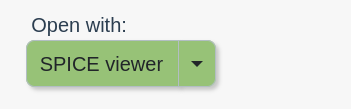
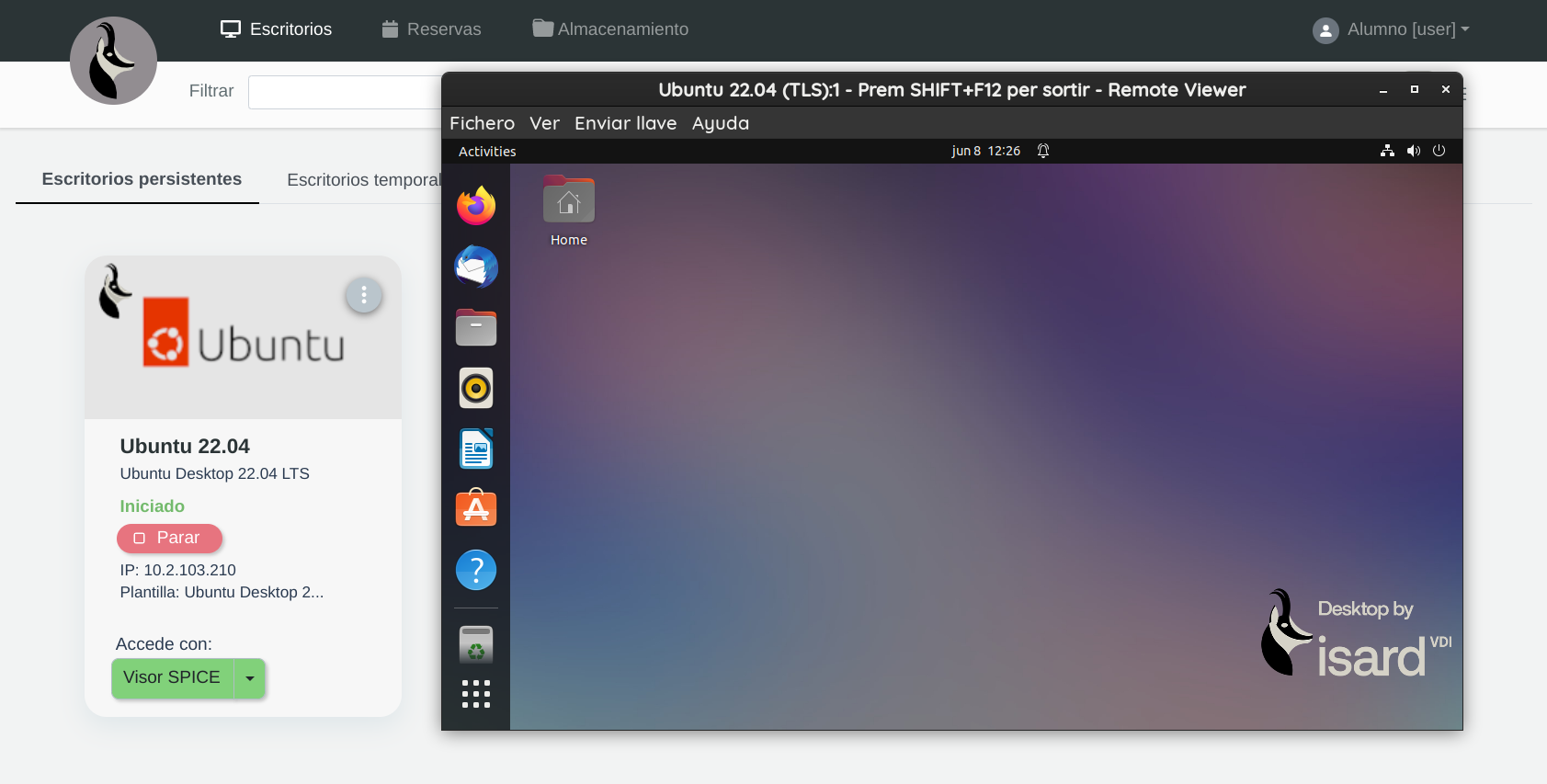
After downloading the necessary software, when starting a desktop, select SPICE Viewer option and open the downloaded file. Once opened, you will be able to access the desktop.
Full screen and resizing
These are two different things and should not be confused:
- Full screen: the viewer window takes up the whole monitor.
- Resizing: the virtual desktop's resolution adapts to the size of the viewer window.
If resizing does not work, switching the viewer to full screen does not make the desktop fill the screen: the same resolution as before is shown, either surrounded by black borders or scaled.
Full screen
- Shift + F11 toggles full screen.
- Shift + F12 releases the mouse and keyboard from the viewer to return to the local computer.
- To make the viewer always open in full screen, enable the corresponding option in the Viewers section when editing the desktop.
Automatic resizing
With the Automatically resize option enabled in the viewer menu, every time the window size changes the viewer asks the virtual desktop to change its resolution to fit. The desktop's operating system applies the change, and it can only do so if it has:
- The SPICE agent installed and running:
- Linux: the
spice-vdagentpackage. - Windows: the
virtio-win-guest-toolspackage, included in the virtio-win ISO, which installs the SPICE agent and the QXL video driver.
- Linux: the
- A compatible video card: Default (QXL) or virtio, in the desktop's Hardware section.
This is why a user may find that with one desktop full screen fills the whole monitor and with another it does not, from the same computer and with the same viewer: it depends on each desktop (or on the template it comes from), not on the client or the connection latency.
If the desktop does not adapt to the window
- Check that the Automatically resize option is ticked in the viewer menu.
-
Check that the SPICE agent is running inside the desktop:
- Linux:
systemctl status spice-vdagentdmust showactive (running). - Windows: in the services manager, the Spice Agent service must be running.
If it is not, install it and restart the desktop. If the desktop comes from a template, install it in the template so that every desktop created from it has it.
- Linux:
-
Log in to the desktop: at the login screen, resizing may not apply until the user logs in.
- Check the video card in Hardware. On desktops with a GPU and video set to Only GPU, the image does not go through the QXL card and SPICE does not resize: use the RDP viewers instead.
-
On some Linux desktops, especially with environments such as MATE or XFCE, the agent receives the new size but the environment does not apply it. It can be forced with a
udevrule that runsxrandrwhen the display changes:echo 'ACTION=="change",KERNEL=="card0", SUBSYSTEM=="drm", RUN+="/usr/local/bin/x-resize"' | sudo tee /etc/udev/rules.d/50-x-resize.rules sudo tee /usr/local/bin/x-resize <<'FI' #!/bin/sh PATH=/usr/bin export DISPLAY=:0.0 xrandr --output "$(xrandr | awk '/ connected/{print $1; exit; }')" --auto FI sudo chmod 744 /usr/local/bin/x-resize
If the desktop cannot be modified
If the agent cannot be installed, change the resolution manually from the display settings of the desktop's operating system, choosing the one closest to the monitor's, and then switch the viewer to full screen.
Scanning USB devices
Info
FOR WINDOWS HOSTS
If virt-viewer 11 is installed, one of these steps should be done for scanning USB devices to be activated:
-
Option 1
- Uninstall virt-viewer 11 and install the virt-viewer 7 version instead
- Install package UsbDk
-
Option 2
virt-viewer 7
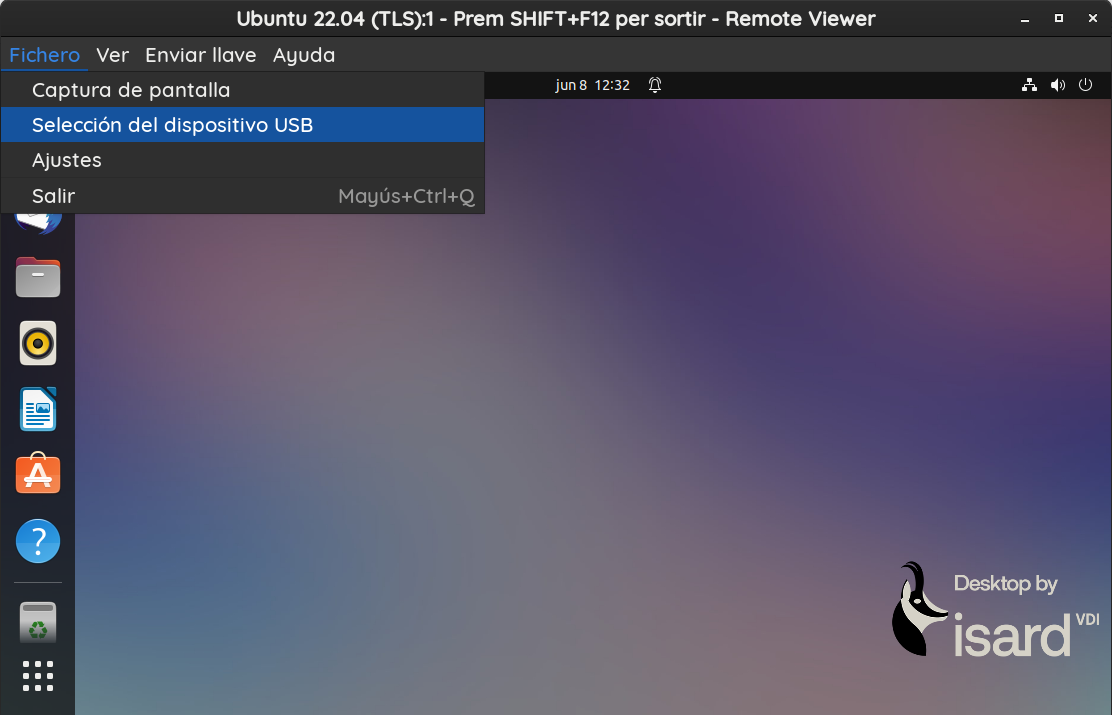
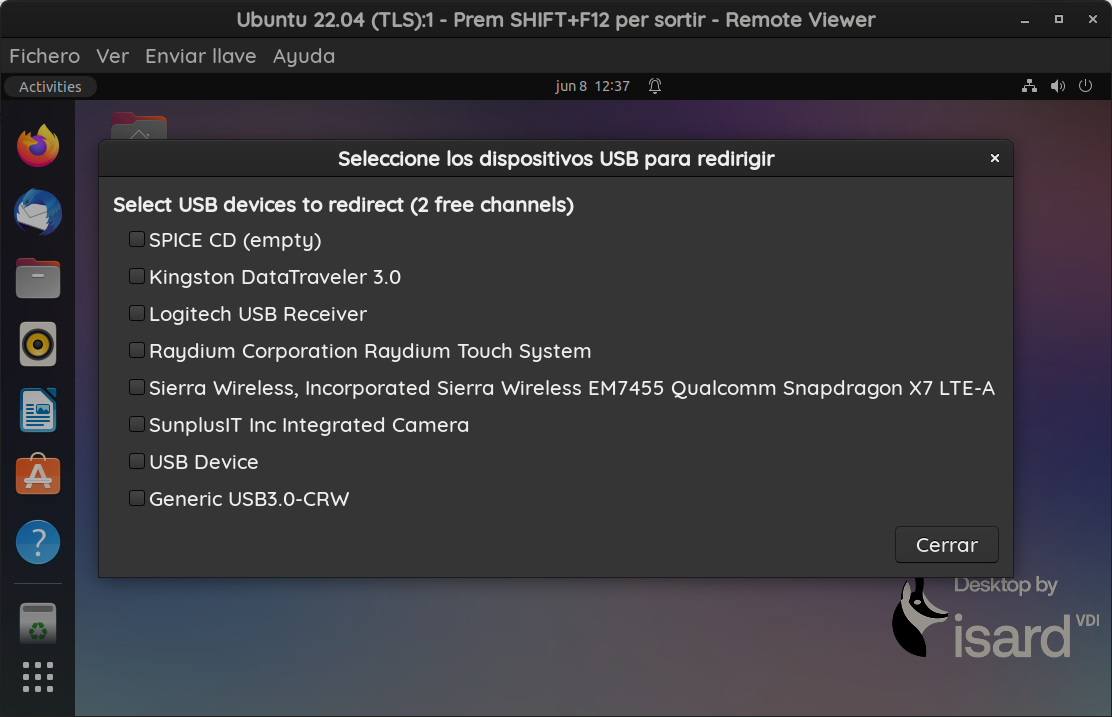
Open the SPICE Viewer for the desktop and select the File >> USB Device Selection options and choose the device to scan.
virt-viewer 11 (Windows)
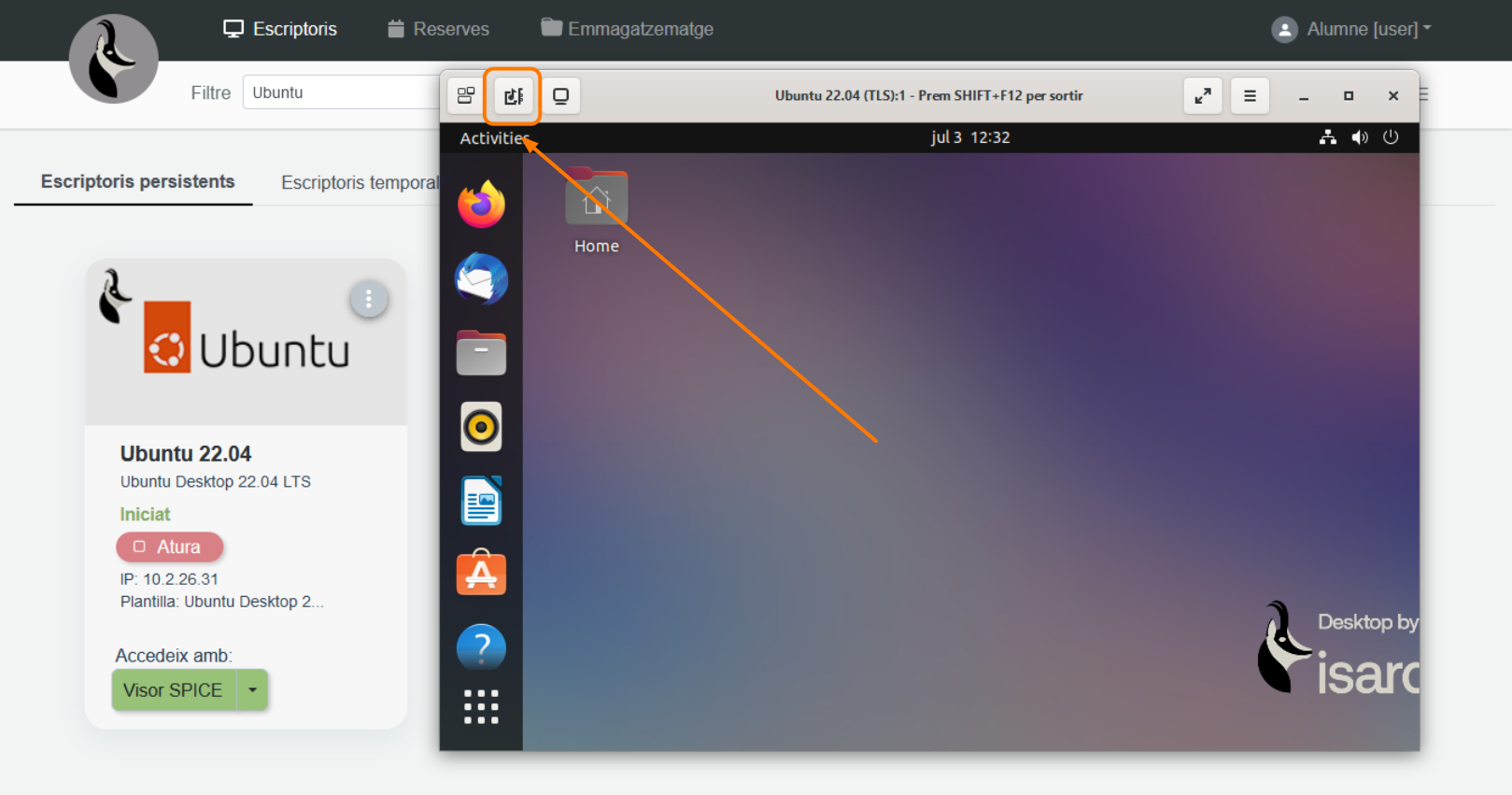
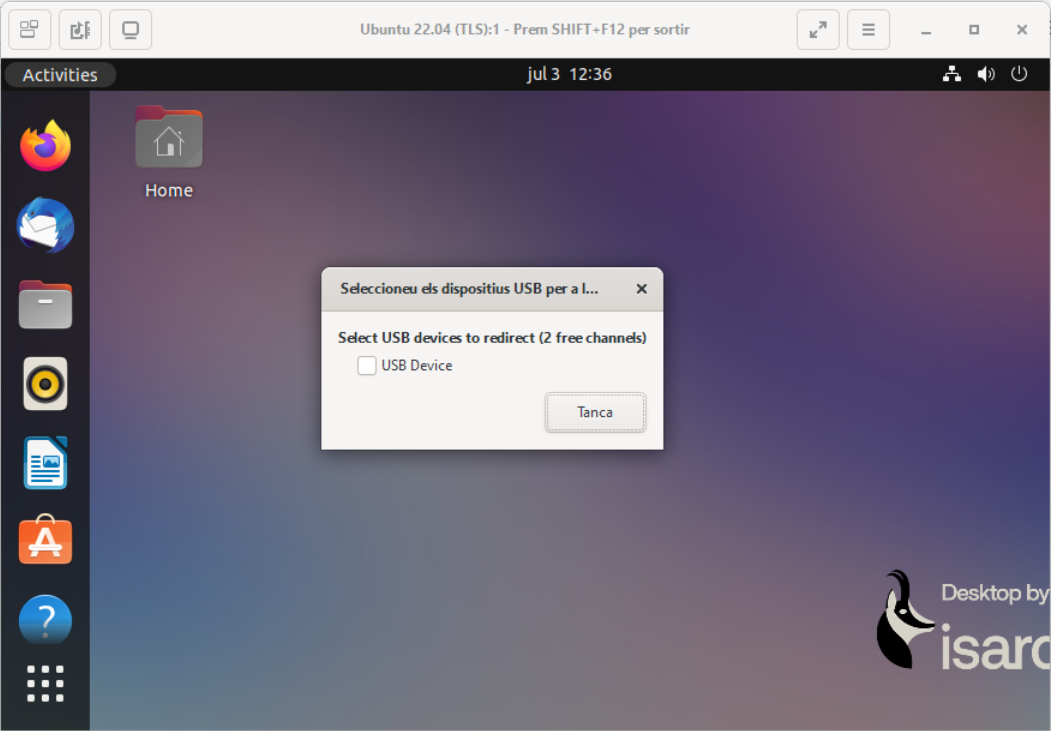
Open the SPICE Viewer for the desktop, click the viewers' window second button and choose the device to scan.