User API key
Roles with access
- Access to the section: advanced, manager and administrator roles. With the user role the API key button does not appear in the profile.
- Each user's role is defined by the administration (see Users).
Video: walkthrough of the page
The User API Key is a long-lived authentication mechanism that allows calls to the IsardVDI API without having to log in for each request. Internally, it is a JWT signed with HS256 with a session_id: "api-key" field that distinguishes it from normal session tokens.
Instead of having to log in every time you request something from the server, you generate an API key once and use it for months (up to 1 year), without having to manage expiring sessions.
Access by role
Only users with the advanced, manager, or admin role can generate an API Key. The standard user role does not have this capability.
| Role | Can generate API Key |
|---|---|
admin |
Yes |
manager |
Yes |
advanced |
Yes |
user |
No |
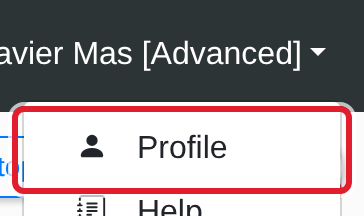
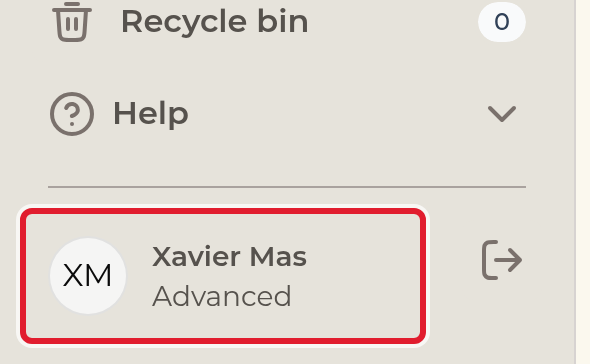
In the side menu, click the user's name («Go to profile»); this feature is inside that screen, on the API Key button of the Security block.
API Key
Before you start: basic concepts
What is an API?
An API (Application Programming Interface) is a form of communication between two programs. It can be compared to a waiter in a restaurant: the client program tells the waiter (the API) what it wants, the waiter takes the order to the kitchen (the server) and returns with the response.
In the case of IsardVDI, the API allows you to create virtual desktops, check their status, or manage them without needing to use the web interface. This is useful for automating tasks or integrating IsardVDI with other systems.
What is an API Key?
An API Key is like a personal key that identifies the user in each request to the API. Without it, the server does not know who is requesting the information and rejects the request.
It is similar to logging into a website with a username and password, but instead of entering them each time, this key is sent with each request.
What is a JWT?
A JWT (JSON Web Token) is the technical format in which the API Key is encoded. It is a long string of text (something like eyJhbGciOiJIUzI1Ni...) that contains information about the user (username, role, expiration date, etc.) digitally signed so that no one can modify it.
To use the API Key, you do not need to know the details of the JWT: it is enough to know that it is the "container format" of the key.
What is an HTTP request?
When a browser opens a web page, it makes an HTTP request to the server. The API works in the same way: an HTTP request is sent and a response with data is received (usually in JSON format).
The most common types of requests are:
| Method | Purpose | Analogy |
|---|---|---|
GET |
Get/consult information | "Give me the list of desktops" |
POST |
Create something new | "Create a new desktop" |
PUT |
Update or replace something | "Generate a new API Key" |
DELETE |
Delete something | "Revoke the API Key" |
What is an HTTP header?
Headers are additional information sent along with each request. They are like the sender and the instructions written on the envelope of a letter. The Authorization header is where the API Key goes so that the server knows who is making the request.
What is curl?
curl is a command-line (terminal) tool that allows you to make HTTP requests. It is like a web browser, but without a graphical interface: it receives the URL and the data to send, and displays the response as text. The examples in this document use curl, but you can use any tool that makes HTTP requests (Postman, Python requests, etc.).
How does it work?
The complete process can be summarized in these steps:
- Log in to IsardVDI (via the web or the API) and obtain a temporary session token.
- Request the API Key using this temporary token.
- The server generates the API Key (a special JWT) and saves it associated with the user.
- The server returns the API Key, which must be stored in a secure location.
- From here on, each API request sends the API Key in the header
Authorization. - The server verifies that the API Key matches the one it has stored and, if it is valid, processes the request.
graph TD
    A[User] --> B[Step 1: Log in]
    B --> C[Temporary token]
    C --> D["Step 2: PUT /authentication/api-key (with the temporary token)"]
    D --> E["Step 3: The server generates the API Key and saves it"]
    E --> F["Step 4: The API Key is received - store it securely"]
    F --> G["Step 5: The API Key is included in all requests"]
    G --> H["GET /api/v4/... with Authorization: Bearer api_key header"]
    H --> I["Step 6: The server verifies the API Key and responds"]
Generate the API Key
Option 1: From the web interface
- Log in to IsardVDI using the browser.
- Open the user profile.
- Click the API Key button.
- Choose the expiration date and click Generate.
- Copy and save the displayed API Key.
The API Key is only shown once
Once generated, the API Key cannot be viewed again. You must copy it and store it in a secure location before closing the window.
Option 2: From the terminal (via API)
From the command line, two steps are required:
Step 1: Obtain a temporary session token (log in)
# "yourusername" and "yourpassword" are replaced with the actual credentials
# and the URL, with the IsardVDI server's URL
# category_id=default is the user's category; replace it with your own if it is not the default one
JWT=$(curl -s -X POST "https://isardvdi.example.com/authentication/login?provider=form&category_id=default" \
  --form "username=yourusername" \
  --form "password=yourpassword")
What does this command do?
curlmakes an HTTP request to the server.-smeans "silent" (does not show a progress bar).-X POSTindicates that it is a POST type request (sending data).--formsends the user and password.category_id=defaultis the user's category; replace it with your own category if it is not the default one.- The result (a temporary token) is saved to the variable
JWT.
Step 2: Generate the API Key using the temporary token
# expiration_minutes indicates how long the API Key will be valid
# 525600 minuts = 1 any (el maxim permes)
API_KEY=$(curl -s -X PUT "https://isardvdi.example.com/authentication/api-key" \
  -H "Authorization: Bearer ${JWT}" \
  -H "Content-Type: application/json" \
  -d '{"expiration_minutes": 525600}' \
  | python3 -c "import sys,json; print(json.load(sys.stdin)['api_key'])")

echo "API Key: ${API_KEY}"
What does this command do?
-X PUTindicates that it is a PUT type request.-H "Authorization: Bearer ${JWT}"sends the temporary token to prove that a session has been started.-H "Content-Type: application/json"tells the server that the data is in JSON format.-d '{"expiration_minutes": 525600}'is the body of the request: it requests an API Key that lasts 1 year.- The part of
python3extracts only the API Key from the JSON response.
The server response will be something like:
One active API Key
Generating a new API Key automatically invalidates the previous one. There can only be one active API Key at a time.
How to use the API Key
Once you have the API Key, using it is simple: you only need to include it in the Authorization header of each request:
# The API Key, in a variable (or read from a file)
API_KEY="eyJhbGciOiJIUzI1NiIs..."

# Example: list the user's desktops
curl -s "https://isardvdi.example.com/api/v4/item/user/desktops" \
  -H "Authorization: Bearer ${API_KEY}"
Header Breakdown
Authorizationis the header name.Beareris the authentication scheme (it means "bearer", i.e., "the bearer of this token is authorized").- After
Bearerthere is a space, followed by the API Key.
Not required:
- Logging in before each request.
- Renewing the API Key between requests.
- Managing sessions or cookies.
What is inside the API Key?
This is not necessary to use the API Key, but since it is a JWT, it contains encoded (not encrypted) information about the user:
{
  "exp": 1773736900,
  "iat": 1742200900,
  "nbf": 1742200900,
  "iss": "isard-authentication",
  "kid": "isardvdi",
  "type": "external",
  "session_id": "api-key",
  "data": {
    "provider": "local",
    "user_id": "_admin_local_default-admin",
    "role_id": "admin",
    "category_id": "default",
    "group_id": "default-admin",
    "name": "Administrator"
  }
}
| Field | Meaning |
|---|---|
exp |
When the API Key expires (in Unix timestamp format) |
iat |
When it was created |
session_id |
Always equals "api-key" to distinguish it from normal sessions |
type |
Always equals "external" for API Keys |
data |
Identity: user, role, category, and group |
Content Security
Although the information is encoded (in Base64), it is not encrypted. Anyone with the API Key can read this data. However, they cannot modify it because the token is digitally signed by the server.
How the API Key is verified on the server
When a request with the API Key arrives, the server does the following:
- Verifies the signature of the JWT: checks that no one has modified it.
- Checks expiration: if it has expired, it rejects the request.
- Detects that it is an API Key (because
session_idequals"api-key"). - Compares the API Key with the one stored in the database for the user.
- If everything is correct, it processes the request. If the key is no longer the current one (it has been revoked or replaced), the server responds with a 401 error and the message «API key revoked» (
api_key_revoked).
Why is it compared with the database?
Because when a new API Key is generated, the previous one is invalidated. The server always checks that the most recent API Key is being used.
Manage the API Key
Available endpoints
| Action | HTTP Method | Endpoint |
|---|---|---|
| Check if one exists and when it expires | GET |
/api/v4/item/user/get-api-key |
| Revoke (delete) the API Key | DELETE |
/api/v4/item/user/expire-api-key |
| Generate a new one (or renew) | PUT |
/authentication/api-key |
Check status
curl -s "https://isardvdi.example.com/api/v4/item/user/get-api-key" \
  -H "Authorization: Bearer ${API_KEY}"
Revoke (delete)
curl -s -X DELETE "https://isardvdi.example.com/api/v4/item/user/expire-api-key" \
  -H "Authorization: Bearer ${API_KEY}"
If it succeeds, the server responds 204 No Content, with no body.
When should the API Key be revoked?
- If there are suspicions that someone else has access.
- If it is no longer needed.
- In case of a change in role or responsibilities.
Renew
A new API Key is generated following the steps in the «Generate the API Key» section. The previous one stops working automatically.
Restrictions and limits
| Restriction | Value |
|---|---|
| Minimum duration | 1 minute |
| Maximum duration | 1 year (525,600 minutes) |
| Active API Keys per user | 1 (generating a new one invalidates the previous) |
| Roles with access | advanced, manager, admin |
Practical example: query your desktops
This script queries your desktops once and shows their status and IP. It reads the API Key from the environment, identifies itself with its own User-Agent and, if the server asks it to wait (429 or 503), honours the Retry-After header before retrying a single time.
#!/usr/bin/env bash
# Lists your desktops once, with their status and IP
# Usage: export ISARDVDI_API_KEY="eyJhbGci..."
#        ./my_desktops.sh
set -u
BASE_URL="https://isardvdi.example.com"
: "${ISARDVDI_API_KEY:?Export ISARDVDI_API_KEY with your API Key}"

consulta() {
  curl -s -w '\n%{http_code} %header{retry-after}' \
    -H "Authorization: Bearer ${ISARDVDI_API_KEY}" \
    -H "User-Agent: my-desktops/1.0" \
    "${BASE_URL}/api/v4/item/user/desktops"
}

for intent in 1 2; do
  RESULT=$(consulta)
  read -r HTTP_CODE RETRY_AFTER <<< "$(echo "${RESULT}" | tail -1)"
  BODY=$(echo "${RESULT}" | head -n -1)
  case "${HTTP_CODE}" in
    200)
      echo "${BODY}" | python3 -c "
import sys, json
for d in json.load(sys.stdin):
    print(f\"{d['name']:<30} {d['status']:<9} {d.get('ip') or '-'}\")
"
      exit 0 ;;
    401) echo "ERROR: invalid, expired or revoked API Key. Generate a new one."; exit 1 ;;
    403) echo "ERROR: your role is not allowed to use this endpoint."; exit 1 ;;
    429|503)
      echo "The server asks to wait ${RETRY_AFTER:-30} s"
      sleep "${RETRY_AFTER:-30}" ;;
    *) echo "HTTP ERROR ${HTTP_CODE}: ${BODY}"; exit 1 ;;
  esac
done
exit 1
Do not run it in a loop
Do not put this script in a loop that queries the API every few seconds or minutes: each query loads the server even when nothing has changed, and with many users doing it at once it shows. Query it when you need the data.
To start or stop all the desktops of a deployment, use a single bulk call (PUT /api/v4/item/deployment/{deployment_id}/start or /stop) instead of one call per desktop.
Security best practices
Protecting the API Key
- The API Key is not shared with anyone: whoever has it can act on behalf of the user.
- It is not included directly in the source code. You must use environment variables or protected files.
- The file is protected if saved to disk:
chmod 600 ~/.isardvdi_api_key. - It is revoked immediately if there are suspicions that it has been compromised.
- The minimum necessary duration is used for each use case: there is no need to generate a 1-year key if it is only needed for one week.
Frequently Asked Questions
Why does an API Key stop working?
It may be because: (1) it has expired, or (2) a new one has been generated or it has been revoked, which invalidates the previous one (the server responds «API key revoked»). The status can be checked with GET /api/v4/item/user/get-api-key.
Can there be multiple active API Keys at the same time?
No. There can only be one. When a new one is generated, the previous one stops working.
Does the API Key work the same as the session token?
Yes, as far as how it is used in requests (header Authorization: Bearer). The difference is that the session token lasts a short time and requires logging in, while the API Key can last up to 1 year.
Do you need to install anything special to use the API?
You only need a tool that can make HTTP requests. curl is preinstalled on most Linux and macOS systems. On Windows, you can use PowerShell, or install curl or graphical tools like Postman.
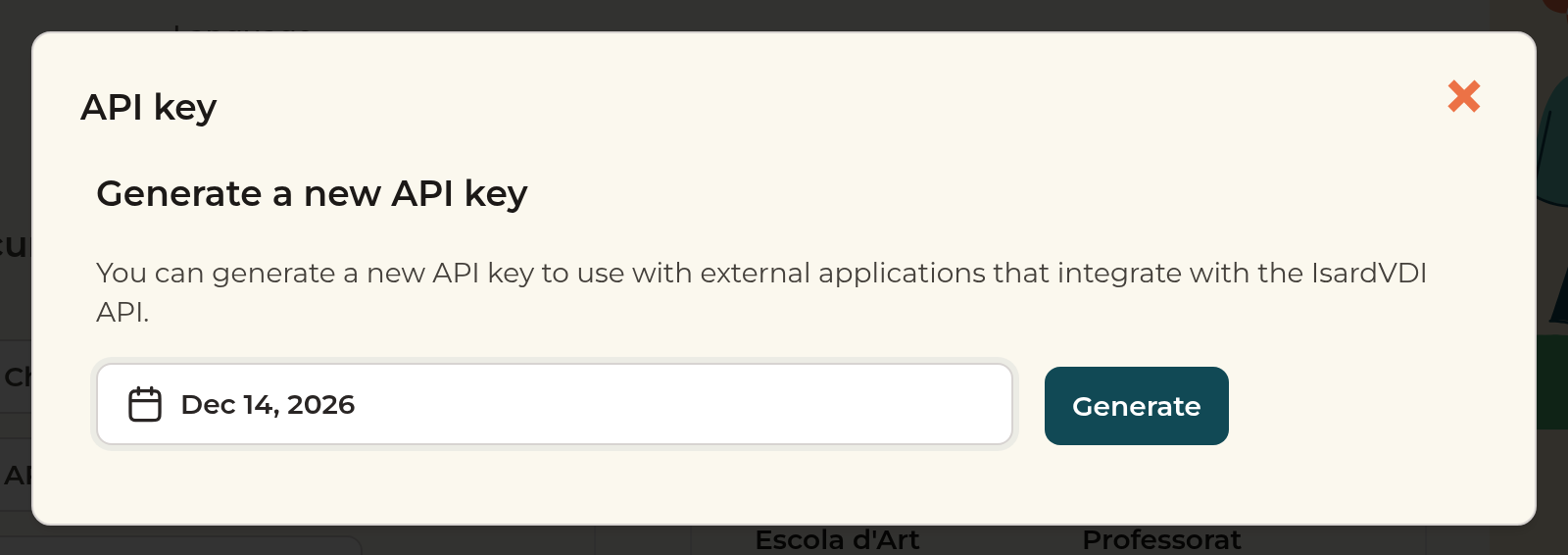
Here an API key is generated for external applications that integrate the IsardVDI API. The requirements are the same as in the old interface: minimum role Advanced and a single key per user. The default proposed expiration is one month. See also the Profile.
- Click the API Key button to open the window.
- In the Generate a new API key block, choose the Expiration date (by default, one month from now).
- Click Generate.
- Copy the key with the copy icon (the eye shows or hides it) and store it in a safe place.
The window has three states, depending on whether a key already exists:
| State | What is shown | Actions |
|---|---|---|
| No key | «Generate a new API key», the «Expiration date» field, and the Generate button | Generate |
| Active key | Notice «API key active» with the expiration date; the key field is inactive and shows dots | Expire |
| Expired key | Notice «API key expired» and «Your API key is expired. Clear it to generate a new one.» | Delete |
The key is only visible once
The key is only shown right after it is generated, while the window is open. When it is closed, the field is cleared and the key cannot be shown again: if it has been lost, expire it (Expire) and generate a new one.
Revocation is permanent
Expire (or Delete, if it has already expired) deletes the user's key. The applications that used it lose access (the server responds «API key revoked») until the new key is configured in them.
Conditions and messages
- The expiration date must be at least tomorrow and at most one year from today («The maximum expiration is one year from today»).
- The key expires at 00:00 (browser local time) on the selected date: the interface sends the server the minutes remaining until that moment, with a minimum of 1.
- The server only generates the key if the role is
Advanced,Manager, orAdmin, and rejects durations of 0 minutes or less, and more than 525,600 minutes (one year). - While a key is being generated or expired, the buttons are disabled and a loading indicator appears.
- If loading, generating or expiring fails, the notice «Request failed» appears with the reason. For generation the reason is always the generic «Could not generate the API key. Please try again.»; for loading and expiration it can also be «Your session has expired. Please log in again.», «Your API key could not be found.» or «An internal server error occurred. Please try again later.» (see «States and messages»).
Development details
For those who develop or integrate IsardVDI: where each element of this section is located in the code, from which version it is available, which API operation it calls, and what messages it can return.
- New interface · file
views/ProfileView.vue:335· interface text (translation key)views.profile.security.actions.api-key- from v17.0.0 (2026-04-24,
f31b874d89) - on click:
showApiKeyModal = true
- from v17.0.0 (2026-04-24,
Commit code d90222c5.
States and messages
| What is shown | What it means | What to do |
|---|---|---|
| «Generate a new API key» | Generate a new API key. | — |
| «Your old API key expired. You will need to generate a new one to continue using the IsardVDI API with external applications. You can generate a new one below.» | The previous key has expired; you must generate a new one to continue using the API with external applications. | Generate a new key. |
| «API key expired» | Expired API key. | — |
| «Request failed» | The request failed. | — |
| «Could not load your API key status. Please try again.» | Could not query the key status. | Try again. |
| «Could not generate the API key. Please try again.» | Could not generate the key. | Try again. |
| «Could not expire the API key. Please try again.» | Could not expire the key. | Try again. |
| «API key active» | Active API key. | — |
| «You can generate a new API key to use with external applications that integrate with the IsardVDI API.» | Window text when there is no key yet. | — |
| «You will only be able to see the API key once, so make sure to store it in a safe place.» | The key is only shown once. | Save it in a secure location before closing the window. |
| «The maximum expiration is one year from today» | The maximum expiration is one year from today. | — |
| «Expiration date» | Expiration date. | — |
| «Show key» | Shows the key. | — |
| «You can expire it now to generate a new one.» | There is an active key that can be expired to generate a new one. | — |
| «Your API key is expired. Clear it to generate a new one.» | The key has expired. | Delete it to generate a new one. |
| «Expire» | Expires. | — |
| «Delete» | Button that replaces Expire when the key has expired. | Click it to delete the key and be able to generate a new one. |
| «Your API key is valid until 31/12/2026. After that date, it will expire and you will not be able to use it anymore.» | Text of notice «API key active», with the key's expiration date. | — |
| «Key copied to clipboard» | The key has been copied using the copy icon. | — |
| «Your session has expired. Please log in again.» | The session expired while the key was being queried or expired. | Log in again. |
| «Your API key could not be found.» | The server cannot find the key (or the user). | Close and reopen the window to refresh the status. |
| «An internal server error occurred. Please try again later.» | Internal error while querying or expiring the key. | Try again later. |
Expiration date management
When generating a new API key, the user must select the expiration date. The system limits this choice with a specific time range:
- The minimum expiration date is tomorrow.
- The maximum expiration date is one year from today.
When the user interacts with the date field, the informational message «The maximum expiration is one year from today» is displayed to indicate the allowed upper limit.
The interface field is named «Expiration date». Once a date within the established limits is selected, the user can confirm the generation by clicking the «Generate» button.
Exact expiration time
The interface converts the selected date into minutes from now until 00:00 (local browser time) on that day and sends it to the authentication service. The server does not accept more than 525,600 minutes (365 days); the maximum date in the interface is "one year from today".
For the role requirements and the rest of the common behavior, see the Profile.
Error messages and recovery
The messages of the API Key window and what to do in each case are in the «States and messages» table. When an external application uses a key that is no longer valid:
| Server response | Cause | What to do |
|---|---|---|
| 401 with «API key revoked» | The key has been revoked (Expire) or a new one has been generated. | Configure the current key in the application or generate a new one. |
| 401 for an expired token | The expiration date has passed. | Generate a new key. |
| 403 | The key is valid, but the user's role is not allowed to use that endpoint (for example, an administration endpoint with an advanced user). | Use a key of a user with the appropriate role. |