Desktop visibility
Roles with access
- Advanced, manager and administrator, on the deployments they own or co-own. The administrator has access to all of them; the manager, to those of their category. Users with the User role have no access.
This feature is only available in the new interface (new interface).
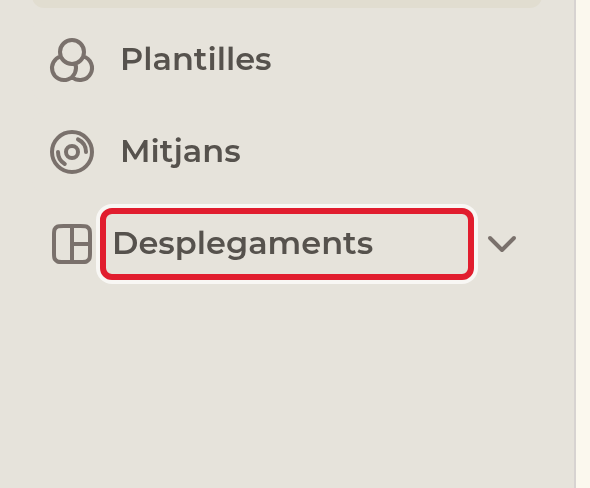
In the side menu, the Deployments section. In the deployment list or in the detail of a deployment, the actions menu includes Desktop visibility, which opens this screen.
The visibility screen shows a matrix: one row for each user of the deployment and one column for each desktop of the deployment, plus an All column that groups all of a user's desktops. Changes are applied directly, without a save button; depending on the case, a confirmation is requested first.
A hidden desktop does not appear in its user's desktop list (Desktops) or in their view of the deployment. A deployment with no visible desktop does not appear in Shared with you either.
Back to the deployment
This feature is only available in the new interface (new interface).
The Back to the deployment button (top left) returns to the deployment screen. There is nothing to save: the visibility changes were already applied when they were confirmed.
To change the visibility more finely than with Show all / Hide all, use the switches of the matrix:
| Switch | Scope | Effect |
|---|---|---|
| Column of a desktop | This desktop for all the users of the deployment (also those on other pages of the table) | If not everything is visible, the click shows it; if everything is visible, it hides it |
| All column of a row | All the desktops of a user | The same: a mixed state becomes visible |
| User and desktop cell | A single desktop of a user | Toggles between visible and hidden |
Next to each switch, a badge shows the state of the desktop (for example, Started or Stopped). The header of each column shows the count of visible desktops, for example «⅔». The search box («Search user») and the filter (All users, Fully visible, Fully hidden, Partially visible) help find users.
Conditions and messages
- If you ask to hide running desktops, the same confirmation as in Hide all appears (Only hide / Hide and stop). Showing, or hiding stopped desktops, is applied directly without confirmation.
- For a change applied without stopping desktops, the notice lasts 8 seconds and includes Undo.
- A disabled cell means that the desktop has not been created for this user: «“desktop” was not created for user. Recreate the deployment to create it.». A row without desktops says «No desktop was created for user. Recreate the deployment to create them.».
- The switches are disabled while a change is being applied.
- If the deployment cannot be loaded, you go back to the deployment list.
- If no user matches the search or the filter, the empty «no results» state is shown.
Development details
For those who develop or integrate IsardVDI: where in the code each element of this section is located, from which version it has been available, when it is displayed, which API operation it calls, and what messages it may return.
- New interface · file
views/deployments/DeploymentVisibilityView.vue:435· interface text (translation key)views.deployment-visibility.back- since v17.60.0 (2026-08-25,
7557c23bd0) - on click:
goBack
- since v17.60.0 (2026-08-25,
Commit code fe99ad98.
States and messages
| What you see | What it means | What to do |
|---|---|---|
| «Visible» | All the desktops in the scope are visible. | No further action needed. |
| «Hidden» | All the desktops in the scope are hidden. | No further action needed. |
| «Partially visible» | Some of the desktops are visible and others are hidden. | Use Show all or Hide all to make them uniform. |
| «One of them is started. Hiding it does not stop it.» / «N of them are started. Hiding them does not stop them.» | You want to hide and there are running desktops in the scope. | Choose Only hide or Hide and stop. |
| «The deployment is now visible to its users» / «The deployment is now hidden from its users» | Show all / Hide all has been applied. | If needed, click Undo within 8 seconds (not available after Hide and stop). |
| «Could not change the visibility» | The change could not be applied. | Try again; if it persists, check the connection or the permissions. |
| «… was not created for …. Recreate the deployment to create it.» | The user does not have this desktop in the deployment. | Recreate the deployment. |
Show all
This feature is only available in the new interface (new interface).
This action makes all the desktops of the deployment visible to all its users in one go.
- Click Show all in the screen header.
- A confirmation titled «Show every desktop of “deployment name”» is shown. Confirmation is always requested, even if no desktop is running.
- Click Show to confirm or Cancel to close without changes.
Once confirmed, the notice «The deployment is now visible to its users» shows that it has been applied. The users will see the desktops in their list and will be able to start them.
When it is disabled
The Show all button is disabled if all the desktops are already visible, or while another change is being applied.
Conditions and messages
- Showing never stops or interrupts any desktop.
- The header shows the summary «X of Y desktops visible» and a deployment status label: Visible, Hidden or Partially visible.
- If the change fails: «Could not change the visibility».
Development details
For those who develop or integrate IsardVDI: where in the code each element of this section is located, from which version it has been available, when it is displayed, which API operation it calls, and what messages it may return.
- New interface · file
components/deployments/actions/visibility-modal/DeploymentVisibilityModal.vue:59· interface text (translation key)views.deployment.visibility.confirm.cancel- since v17.60.0 (2026-10-08,
6f9b45a842) - on click:
handleClose
- since v17.60.0 (2026-10-08,
- New interface · file
components/deployments/actions/visibility-modal/DeploymentVisibilityModal.vue:59· interface text (translation key)views.deployment.visibility.confirm.cancel- since v17.60.0 (2026-10-08,
6f9b45a842) - on click:
handleClose
- since v17.60.0 (2026-10-08,
- New interface · file
views/deployments/DeploymentVisibilityView.vue:491· interface text (translation key)views.deployment-visibility.show-all- since v17.60.0 (2026-08-25,
7557c23bd0) - on click:
toggleAll(true)
- since v17.60.0 (2026-08-25,
- New interface · file
components/deployments/actions/visibility-modal/DeploymentVisibilityModal.vue:79· interface text (translation key)views.deployment.visibility.confirm.show- since v17.60.0 (2026-08-25,
1f673f9f8f) - displayed when not offersStop (
NO (offersStop)) - on click:
emit('confirm', false)
- since v17.60.0 (2026-08-25,
- New interface · file
components/deployments/actions/visibility-modal/DeploymentVisibilityModal.vue:64· interface text (translation key)views.deployment.visibility.confirm.only-hide- since v17.60.0 (2026-08-25,
1f673f9f8f) - displayed when offersStop (
v-if: offersStop) - on click:
emit('confirm', false)
- since v17.60.0 (2026-08-25,
- New interface · file
components/deployments/actions/visibility-modal/DeploymentVisibilityModal.vue:67· interface text (translation key)views.deployment.visibility.confirm.hide-and-stop- since v17.60.0 (2026-08-25,
1f673f9f8f) - displayed when offersStop (
v-if: offersStop) - on click:
emit('confirm', true)
- since v17.60.0 (2026-08-25,
- New interface · file
components/deployments/actions/visibility-modal/DeploymentVisibilityModal.vue:78· interface text (translation key)views.deployment.visibility.confirm.hide- since v17.60.0 (2026-08-25,
1f673f9f8f) - displayed when not offersStop (
NO (offersStop)) - on click:
emit('confirm', false)
- since v17.60.0 (2026-08-25,
- New interface · file
components/deployments/actions/visibility-modal/DeploymentVisibilityModal.vue:79· interface text (translation key)views.deployment.visibility.confirm.show- since v17.60.0 (2026-08-25,
1f673f9f8f) - displayed when not offersStop (
NO (offersStop)) - on click:
emit('confirm', false)
- since v17.60.0 (2026-08-25,
Commit code fe99ad98.
Hide all
This feature is only available in the new interface (new interface).
This action hides all the desktops of the deployment from all its users in one go. Nothing is deleted: they can be shown again at any time.
- Click Hide all in the screen header.
- A confirmation titled «Hide every desktop of “deployment name”» is shown. Confirmation is always requested.
- Choose the action (see the following note).
Hiding does not stop running desktops
If there are running desktops, the confirmation says so («One of them is started. Hiding it does not stop it.» or «N of them are started. Hiding them does not stop them.») and offers three buttons:
- Cancel: closes without any change.
- Only hide: hides the desktops, but leaves running the ones that were already started.
- Hide and stop: hides the desktops and forces the shutdown of the running ones (starting, starting paused, started or shutting down). This shutdown is immediate and cannot be undone.
If no desktop is running, there are only Cancel and Hide.
After a change is applied, a notice appears for 8 seconds: «The deployment is now hidden from its users». If Only hide was chosen, the notice includes the Undo button, which restores exactly the visibility each desktop had before (also if it was in a mixed state). If Hide and stop was chosen, the notice does not offer undo, because a stopped desktop cannot be recovered.
Conditions and messages
- Visibility determines which desktops appear in each user's list: the users stop seeing the hidden desktops.
- The Hide all button is disabled if all the desktops are already hidden, or while another change is being applied.
- A new change replaces the previous notice and restarts the 8-second countdown.
- If the change fails: «Could not change the visibility».
Development details
For those who develop or integrate IsardVDI: where in the code each element of this section is located, from which version it has been available, when it is displayed, which API operation it calls, and what messages it may return.
- New interface · file
components/deployments/actions/visibility-modal/DeploymentVisibilityModal.vue:59· interface text (translation key)views.deployment.visibility.confirm.cancel- since v17.60.0 (2026-10-08,
6f9b45a842) - on click:
handleClose
- since v17.60.0 (2026-10-08,
- New interface · file
components/deployments/actions/visibility-modal/DeploymentVisibilityModal.vue:59· interface text (translation key)views.deployment.visibility.confirm.cancel- since v17.60.0 (2026-10-08,
6f9b45a842) - on click:
handleClose
- since v17.60.0 (2026-10-08,
- New interface · file
views/deployments/DeploymentVisibilityView.vue:500· interface text (translation key)views.deployment-visibility.hide-all- since v17.60.0 (2026-08-25,
7557c23bd0) - on click:
toggleAll(false)
- since v17.60.0 (2026-08-25,
- New interface · file
components/deployments/actions/visibility-modal/DeploymentVisibilityModal.vue:64· interface text (translation key)views.deployment.visibility.confirm.only-hide- since v17.60.0 (2026-08-25,
1f673f9f8f) - displayed when offersStop (
v-if: offersStop) - on click:
emit('confirm', false)
- since v17.60.0 (2026-08-25,
- New interface · file
components/deployments/actions/visibility-modal/DeploymentVisibilityModal.vue:67· interface text (translation key)views.deployment.visibility.confirm.hide-and-stop- since v17.60.0 (2026-08-25,
1f673f9f8f) - displayed when offersStop (
v-if: offersStop) - on click:
emit('confirm', true)
- since v17.60.0 (2026-08-25,
- New interface · file
components/deployments/actions/visibility-modal/DeploymentVisibilityModal.vue:78· interface text (translation key)views.deployment.visibility.confirm.hide- since v17.60.0 (2026-08-25,
1f673f9f8f) - displayed when not offersStop (
NO (offersStop)) - on click:
emit('confirm', false)
- since v17.60.0 (2026-08-25,
- New interface · file
components/deployments/actions/visibility-modal/DeploymentVisibilityModal.vue:79· interface text (translation key)views.deployment.visibility.confirm.show- since v17.60.0 (2026-08-25,
1f673f9f8f) - displayed when not offersStop (
NO (offersStop)) - on click:
emit('confirm', false)
- since v17.60.0 (2026-08-25,
Commit code fe99ad98.
Visibility management
This feature is only available in the new interface (new interface).
This is the confirmation window that appears before a visibility change is applied. Its title describes the scope of the change (the whole deployment, one desktop for all the users, all the desktops of a user, or a single desktop of a user), and its text says:
- When showing: «The users will see these desktops in their list and will be able to start them.»
- When hiding: «The users will stop seeing these desktops in their list. Nothing is deleted: you can show them again at any time.»
It only asks whether to stop when hiding and there is at least one running desktop in the scope (see Hide all). Hiding stopped desktops does not interrupt anyone.
Development details
For those who develop or integrate IsardVDI: where in the code each element of this section is located, from which version it has been available, when it is displayed, which API operation it calls, and what messages it may return.
- New interface · file
components/deployments/actions/visibility-modal/DeploymentVisibilityModal.vue:59· interface text (translation key)views.deployment.visibility.confirm.cancel- since v17.60.0 (2026-08-25,
1f673f9f8f) - on click:
handleClose
- since v17.60.0 (2026-08-25,
- New interface · file
components/deployments/actions/visibility-modal/DeploymentVisibilityModal.vue:64· interface text (translation key)views.deployment.visibility.confirm.only-hide- since v17.60.0 (2026-08-25,
1f673f9f8f) - displayed when offersStop (
v-if: offersStop) - on click:
emit('confirm', false)
- since v17.60.0 (2026-08-25,
- New interface · file
components/deployments/actions/visibility-modal/DeploymentVisibilityModal.vue:67· interface text (translation key)views.deployment.visibility.confirm.hide-and-stop- since v17.60.0 (2026-08-25,
1f673f9f8f) - displayed when offersStop (
v-if: offersStop) - on click:
emit('confirm', true)
- since v17.60.0 (2026-08-25,
- New interface · file
components/deployments/actions/visibility-modal/DeploymentVisibilityModal.vue:78· interface text (translation key)views.deployment.visibility.confirm.hide- since v17.60.0 (2026-08-25,
1f673f9f8f) - displayed when not offersStop (
NO (offersStop)) - on click:
emit('confirm', false)
- since v17.60.0 (2026-08-25,
- New interface · file
components/deployments/actions/visibility-modal/DeploymentVisibilityModal.vue:79· interface text (translation key)views.deployment.visibility.confirm.show- since v17.60.0 (2026-08-25,
1f673f9f8f) - displayed when not offersStop (
NO (offersStop)) - on click:
emit('confirm', false)
- since v17.60.0 (2026-08-25,
Commit code 7744c96b2.