Multitenancy (categories)
Roles with access
Administrators can configure the multitenancy of any category. Managers can only configure their own category, and only the sections the administrator has explicitly delegated to them.
IsardVDI is multitenant: a single installation hosts many independent tenants that do not see each other's users, desktops, templates or media. A tenant is a category, the top level of a three-level hierarchy:
- Category — the top-level tenant and the isolation boundary.
- Groups — subdivisions within a category; a user belongs to one primary group.
- Users — the individual accounts, each with a role.
On top of this isolation, each category can present its own visible identity — domain, logo, login system and notices on the login page — so that each tenant looks like a separate platform while the operator keeps a single infrastructure. This page covers that configuration.
What the administrator can configure
Each category has four tenant configuration areas. To access them, expand the category row in Users › Management, Categories section. The row also has the Bastion domain and Delete buttons, which are not part of the tenant configuration.

| Section | What it controls |
|---|---|
| Edit | Name, custom login URL and Manager Permissions (delegation). Administrators only. |
| Authentication | The category's access providers, global or custom configuration, email domain restriction and maximum role per provider. |
| Branding | Custom domain with certificate, logo and collapsed logo. |
| Login Notification | Notices shown on the category's login screen. |
Setting up a tenant step by step
The following example creates a tenant named Escola-X.
1. Create the category
Create the category in the usual way (see Categories). The form has two fields relevant to multitenancy:
- Custom login URL name: gives the category its own login address of the form
https://<server>/login/form/<name>, with no need for any domain or DNS. - Manager Permissions: the permissions delegated to the manager (see below).
2. Delegate management to the manager
In the category's Edit modal, the Manager Permissions panel decides what a manager of that category can change:
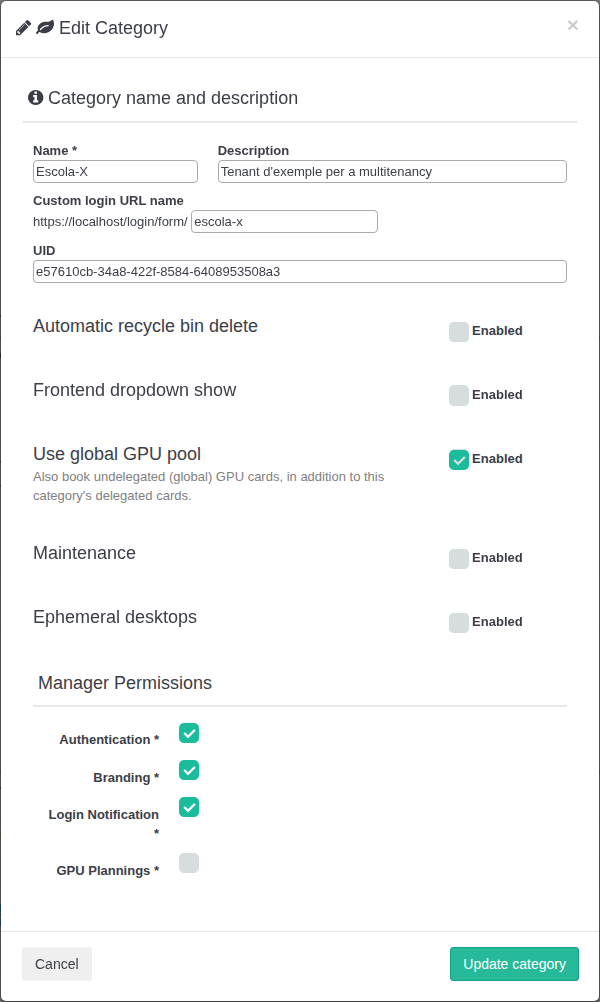
| Permission | What it enables |
|---|---|
| Authentication | Configuring the access providers and the email domain restriction. |
| Branding | Configuring the domain, the certificate and the logos. |
| Login Notification | Editing the login screen notices. |
| GPU Plannings | Managing the category's GPU plans. The manager sees the planning submenu in Bookings (see Bookings). |
Nothing is delegated by default
A new category, and any existing category when upgrading, has no permission granted. The previous behavior does not change until an administrator explicitly enables a permission.
3. Configure access
In the Authentication modal, each provider (Local, Google, SAML, LDAP) is configured independently for this category:
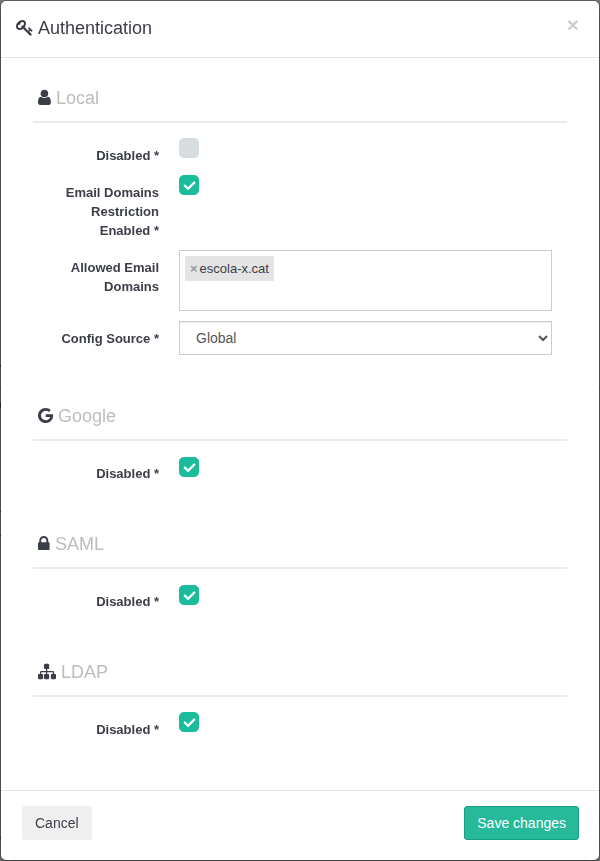
- Disabled: hides the provider on this category's login screen.
- Config Source:
Globaluses the configuration of the whole installation;Customlets the category have its own (for example, its own SAML). - Email Domains Restriction Enabled: if enabled, only users whose email is in the Allowed Email Domains list are accepted, even if the provider authenticates them correctly. A user without an email cannot log in either.
- Max role: the highest role a user of this provider can have in this category (No limit, User, Advanced, Manager or Administrator). The default is No limit.
Maximum role per provider (Max role)
Max role limits the role a user can have according to the provider they log in with. For example, with Max role set to Advanced on the Google provider, no user of the category logging in with Google can be a manager or administrator.
- Only an administrator can set or change it. A manager with the Authentication permission sees it but cannot modify it.
- When creating a user, changing their role or moving them to another category, the system rejects the operation if the resulting role exceeds the maximum of their provider.
- At login, a user who already had a role above the maximum (for example, created before it was set) is also rejected. The user sees «Incorrect user or password», as if the credentials were wrong.
- The default
adminuser is exempt, so that a wrong configuration does not block access.
Providers not available globally
If a provider is not configured in the installation, the modal warns that it must be set to Custom or left disabled. In the screenshot, only Local is available globally.
The applied restriction is shown in the Allowed domains column of the categories table (Local: escola-x.cat in the example).
4. Configure the domain and branding
In the Branding modal:
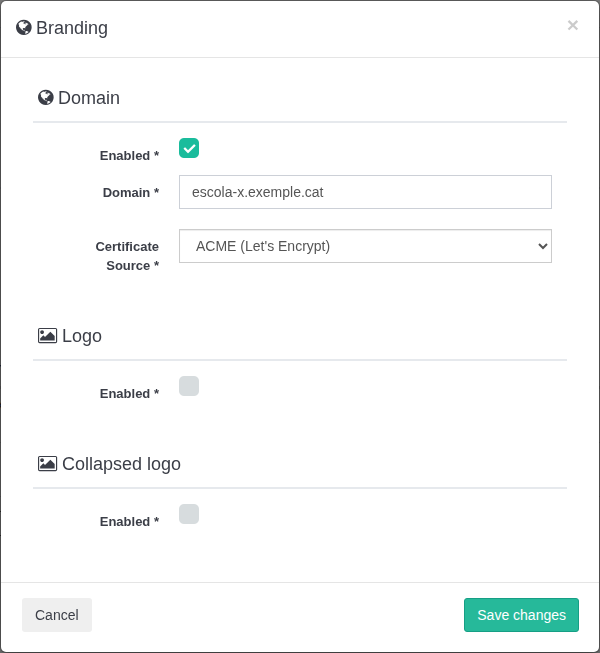
- Web portal domain (shown after checking Enabled): the tenant's own domain name.
- Certificate Source:
- ACME (Let's Encrypt) — the certificate is issued automatically.
- Custom — upload your own certificate file in Certificate File.
- Logo and Collapsed logo: the tenant's own images (SVG, PNG or WebP).
DNS prerequisite
The domain must point to the IsardVDI installation before enabling it. With ACME, validation fails if the domain does not resolve here yet.
5. Configure the login notices
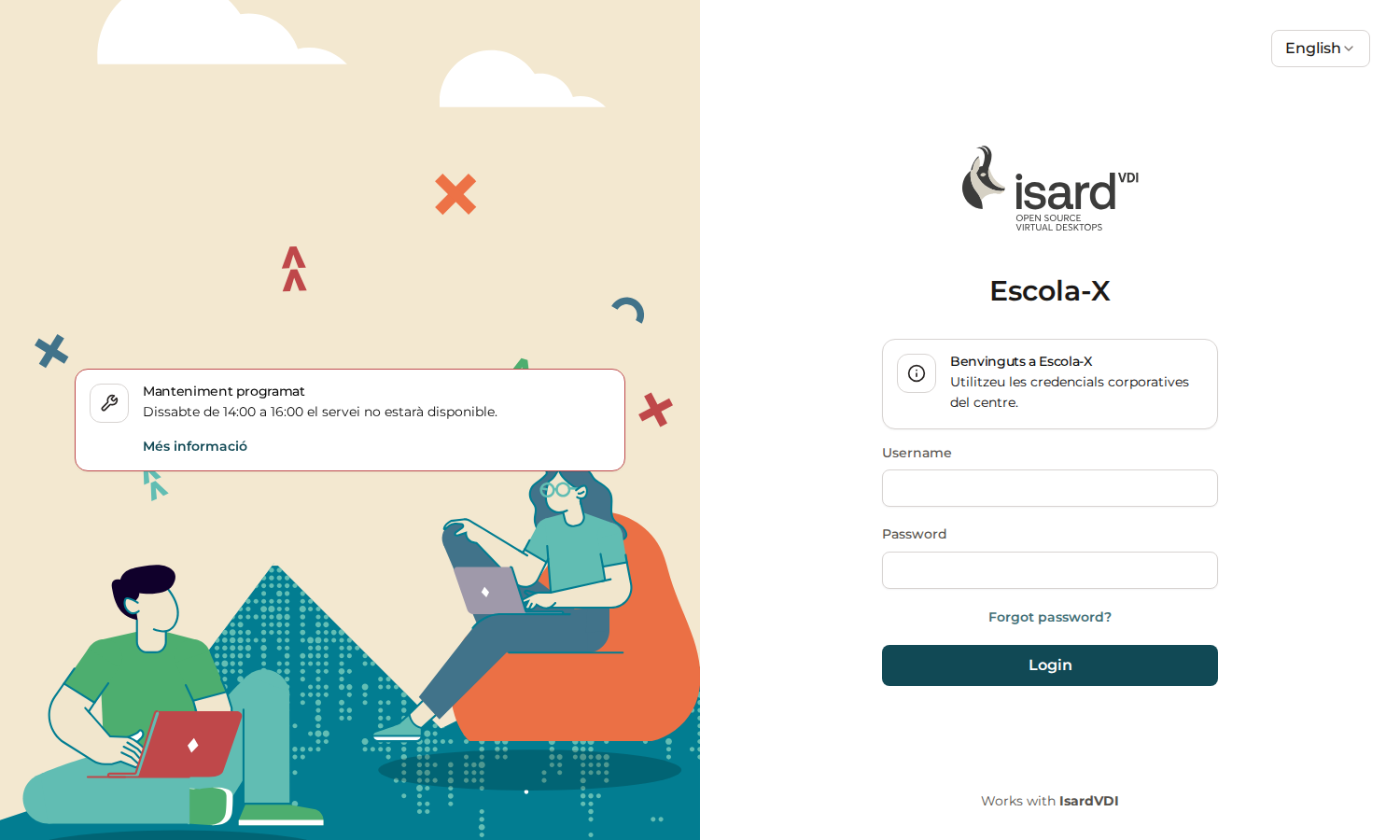
The Login Notification modal allows two independent notices, with a preview:
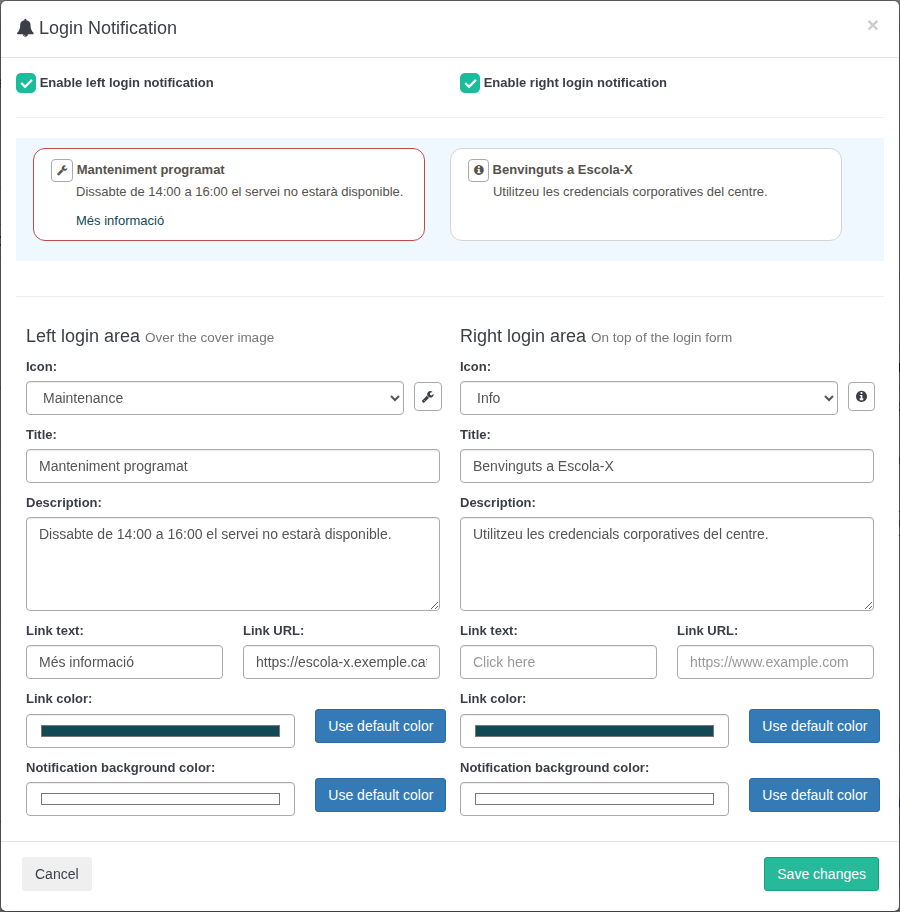
- Left login area: over the cover image.
- Right login area: above the login form.
For each notice you can define the icon (Info, Warning, Maintenance or none), title, description, an optional link and the colors.
What the tenant user sees
When accessing the category's address, the user sees the tenant's name and logo, only the enabled providers and the configured notices. The user's login journey is described in Login.
What the delegated manager sees
The manager only sees their own category and only the buttons for the permissions delegated to them, plus the Bastion domain button, which is always available. They have no access to Edit —where permissions are granted— or to any other category:

If the administrator withdraws a permission, the corresponding section disappears from the manager's panel.
Limitations and considerations
- The
Customconfiguration is not propagated between categories. If two categories must use the same SAML, it must be configured in both. - Secrets are not shown. LDAP passwords or Google secrets are kept on the server and are not returned when reading the configuration; they are only changed if they are written again.
- The global domain keeps working and shows all the categories as before. Tenant domains only show their own.
- A user in several categories accesses them independently: through each category's domain or URL they see only that one; through the global domain, they see them all.
- The email domain restriction is a safety net, not the first line of defense: it does not replace a good IdP configuration.
- All domains share the same ingress infrastructure, so an overload can affect more than one tenant.
What the user sees when they cannot log in
The category configuration causes these messages on the login and registration screens:
| What is shown | Cause |
|---|---|
| «The user can't use IsardVDI» | The provider is disabled for the category, or the user's email is not from an authorized domain (or they have none). |
| «Incorrect user or password» | Wrong credentials, or the user's role exceeds the provider's Max role. |
| «The user is disabled» | The administration has disabled the account. |
| «Login with username and password is disabled» | The local provider is not available. |
| «A category needs to be selected» | No category has been chosen and the address does not carry one. |
| «Too many login attempts…» | The attempt limit has been exceeded. If the system gives a time, it is shown. |
| «The email domain you are trying to use is not authorized for your category.» | During registration, the email is not from an authorized domain. Use an authorized email or ask the administration to register it. |
| «Code not found» | During registration, the self-registration code does not exist. |
| «User already exists» | During registration, the account has already been created. Log in. |
| «The code you entered doesn't grant the required access. Ask your administrator for a valid code.» | During registration, the code is not valid for the requested access. |