Local authentication
Roles with access
Only administrators have access to this feature.
Local authentication validates the username and password against the database of the IsardVDI installation itself. It is the only provider that does not depend on any external service and the one enabled out of the box: the admin user created during installation is a local user.
Requirements
No server or registration with any external provider is needed.
Configuration
In the Local panel, the Update config link opens the configuration window:
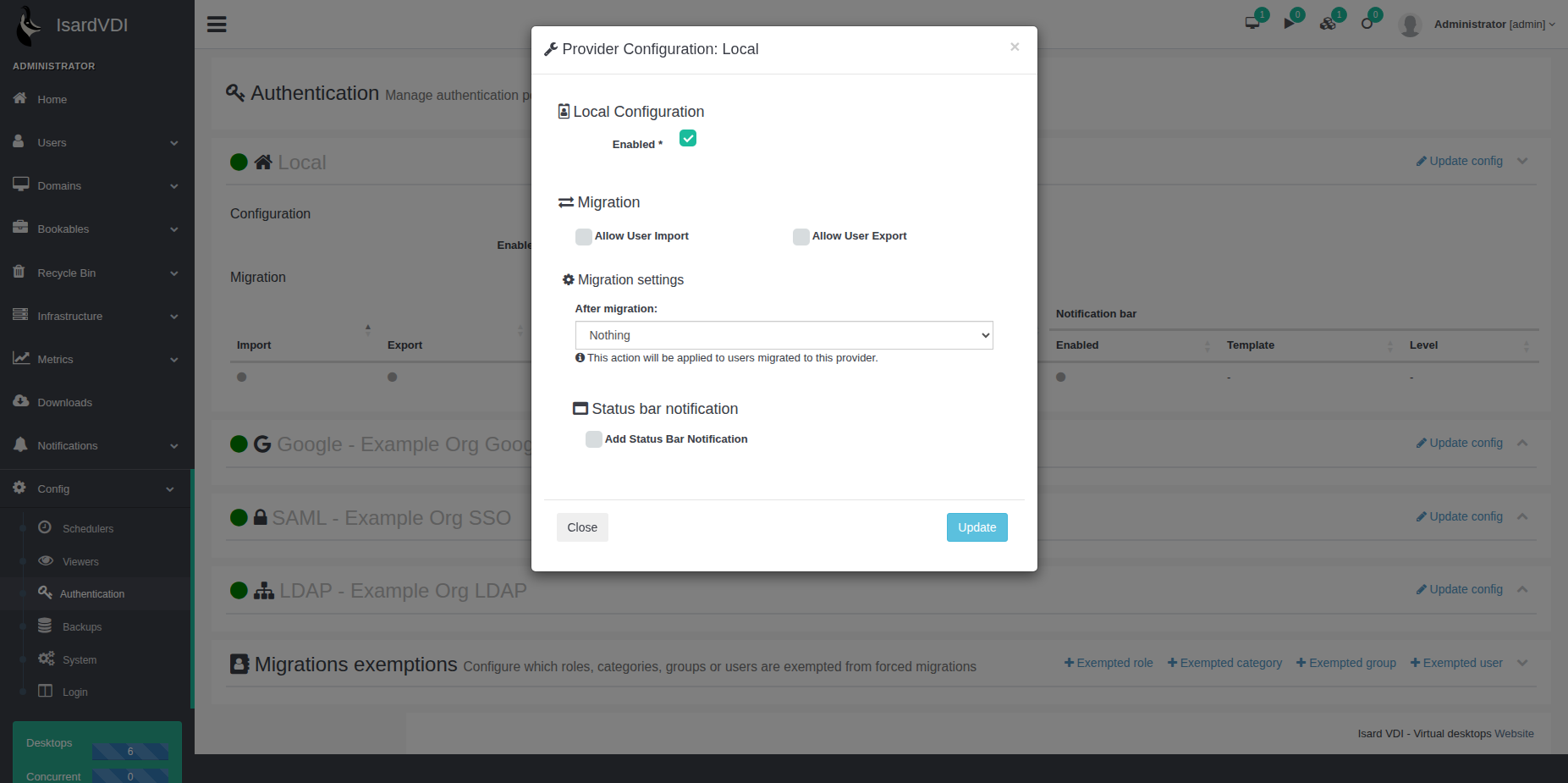
The local provider has only one configuration option of its own:
| Option | Description |
|---|---|
| Enabled | Enables or disables the username and password form for local users. |
The rest of the window is the migration block, common to all providers and described in Introduction to authentication.
Disabling the local provider
If the local provider is disabled, local users cannot log in. The only exception is the default admin user of the default category, which is always validated against a recovery local provider so that the authentication configuration can be fixed.
Before disabling it, make sure there is another working provider for the rest of the users and administrators.
Once the parameters are edited, the Update button saves the changes. The authentication service applies them within one minute at most.
How the panel looks
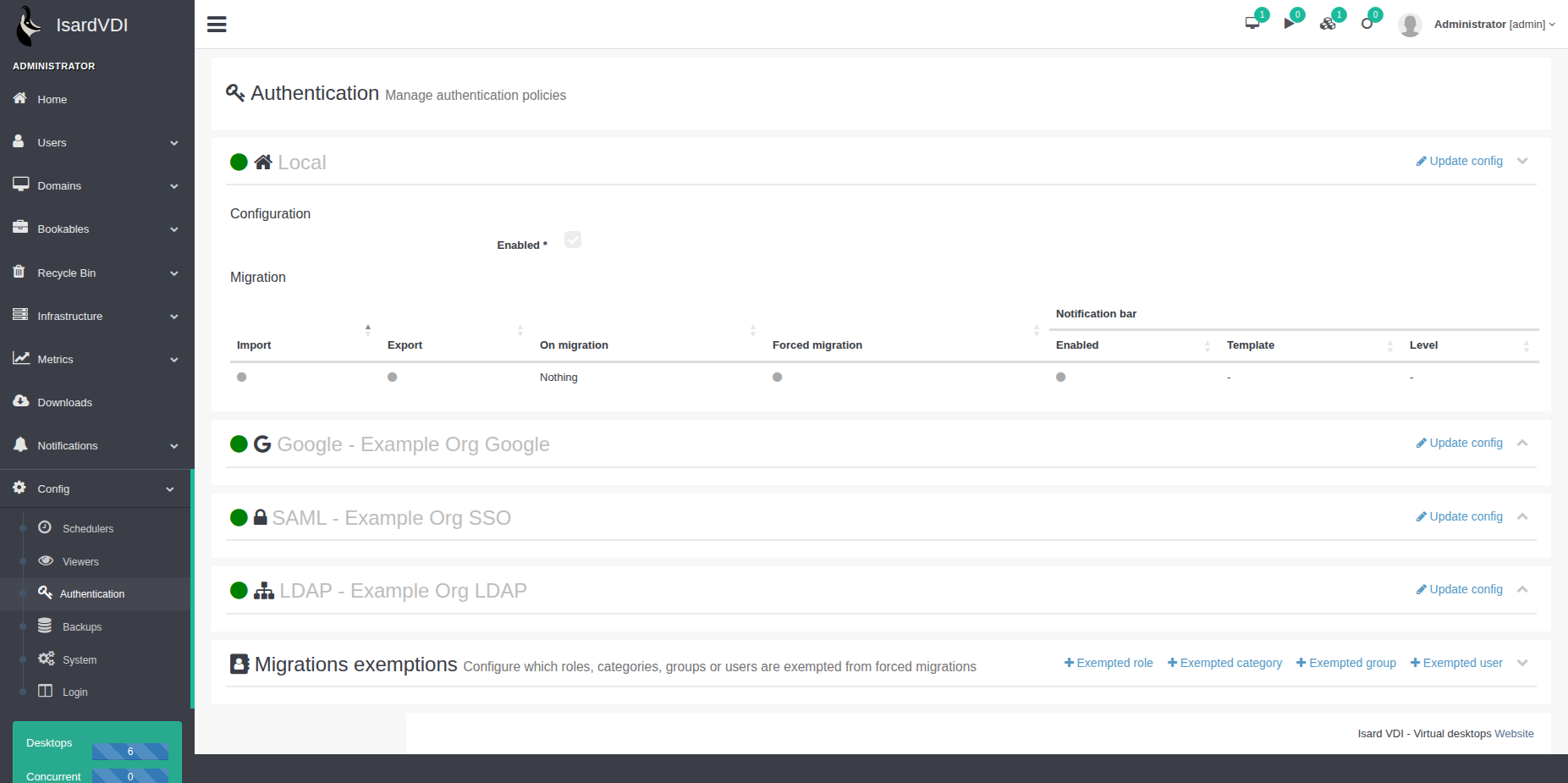
With the provider enabled, the panel shows the indicator in green and the configuration in read-only mode. Below it, the Migration table is shown.
Behavior for users
Local users log in through the main form of the login screen. To do so, they follow these steps:
- They type the username and the password.
- They click Login.
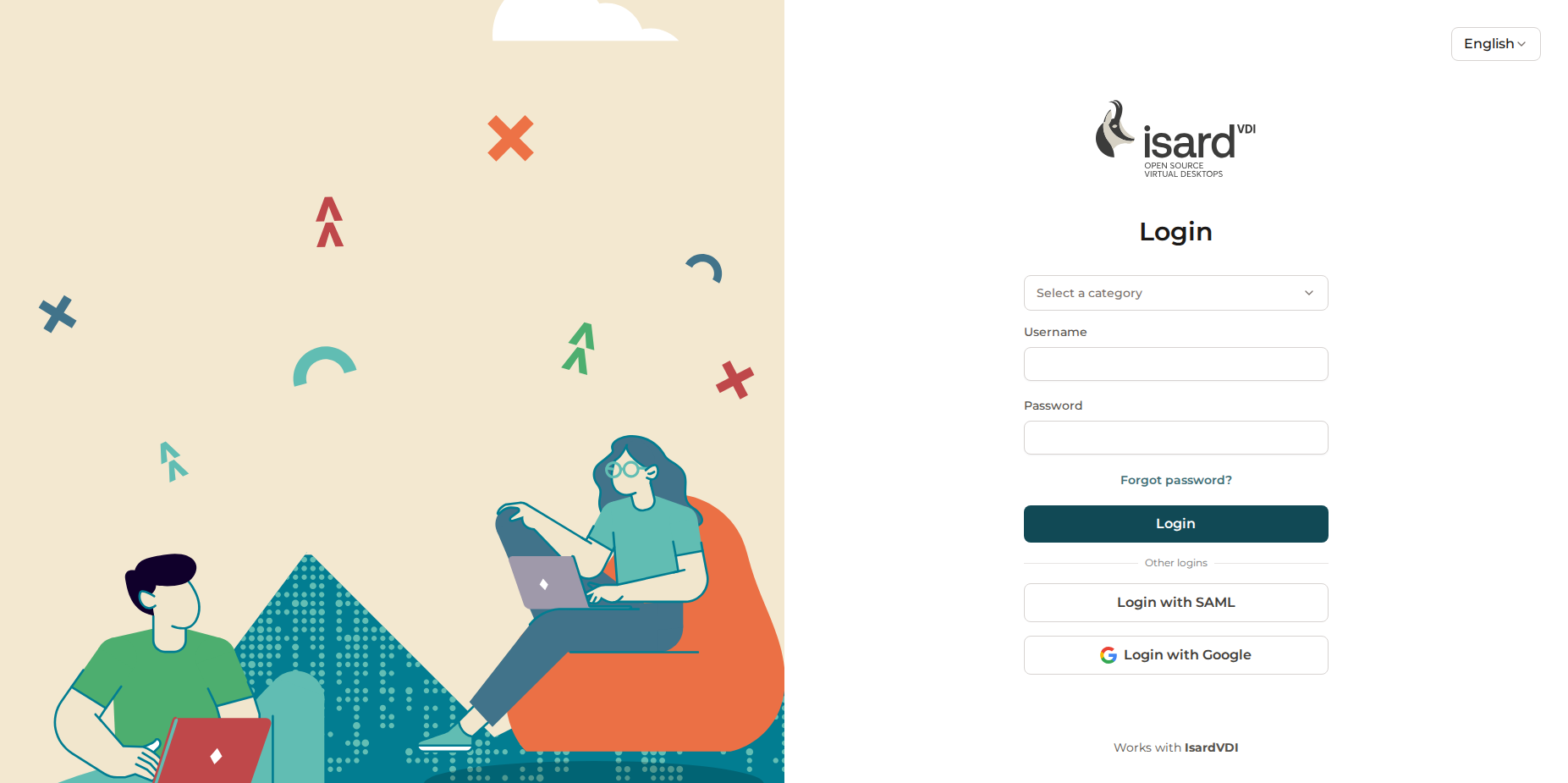
The Forgot password? link only makes sense for local accounts: it is the only authentication method where IsardVDI holds the password and can therefore reset it (see Recover the password).
Creating local users
Unlike LDAP and SAML, the local provider does not create users automatically. Local accounts must be created explicitly through one of these routes:
| Route | Where |
|---|---|
| Individual creation | Users → Management → Add new |
| Bulk creation from a CSV | Users → Management → Bulk create |
Both are described in Users and the CSV format in Introduction to authentication.
The registration key does not create local accounts
The registration key only applies to users who log in through an external provider (Google, or SAML and LDAP when they do not have self-registration enabled); it is documented in Category authentication. If a user who does not exist tries to log in with the local provider, the login is rejected as invalid credentials and the registration screen is never reached.
Password policy
Since IsardVDI holds local passwords, it also applies their policy: minimum length, required characters, expiration, email verification and acceptance of the disclaimer.
These rules are not configured on this page but in Users → Policies, and they can be defined per combination of category, role and provider. See Policies.
Migration
The Migration block of the local provider determines whether local users can export their account to another provider and whether they can receive one.
The most common use case is the opposite of what it seems: an organization moving from local accounts to a corporate provider (LDAP or SAML) enables Allow User Export in the local provider and Allow User Import in the new provider, so that each user can move their desktops to the corporate account.
A local → local migration does not appear in the migrations table
The Migrations table only lists the migrations made by users with the token; the ones the administrator makes with the Migrate button do not appear there.
See Migrations exemptions to define who is excluded from a forced migration, and User migration (export / import) for the full flow.
States and messages
| What is shown | What it means | What to do |
|---|---|---|
| «An error has ocurred» | An unspecified or unrecognized error occurs during the login or registration attempt. | Try again and, if the problem persists, contact the administration. |
| «A category needs to be selected» | A login is attempted without having selected a category. | Select a category from the list before continuing. |
| «Incorrect user or password» | The username or the password is not correct. | Check the credentials and try again. |
| «The user is disabled» | The user trying to log in has been disabled by the administrator. | Ask the administration to reactivate the account. |
| «The user can't use IsardVDI» | The user does not have permission to use the IsardVDI service. | Ask the administration for access. |
| «Login with username and password is disabled» | The administrator has disabled login with username and password. | Use another access method, if there is one, or contact the administration. |
| «Too many login attempts, please try again later» | The login attempt limit has been exceeded. If the system gives the unlock time, it is shown instead of this message. | Wait before trying again. |
| «User import is not enabled for your authentication provider» | The user tries to import resources into their account, but their provider does not have import enabled (Allow User Import). | The user cannot continue; they must contact the administrator to enable the feature. |
| «There are no items available to migrate» | The user has no resource (desktop, template, media or deployment) associated with their account. | The user cannot generate the export code. |
| «An internal server error occurred. Please try again later» | An internal server error occurs while generating the code. | The user must try again later. |
| «Migration token not found» | The user tries to import resources with a code that does not exist. | The user must check that they copied the export code correctly. |
| «The token you provided has expired» | The user tries to import resources with a code that has expired. | The user must generate a new export code from the source account. |
| «The token you provided is invalid» | The user tries to import resources with a code that is not valid or is not a migration code. | The user must check the code entered. |
| «There is no active migration for your account.» | The user tries to import resources, but there is no active migration process for their account. | The user must first generate an export code from the source account. |
| «There are multiple migrations for the new user» | The user tries to import resources, but there are several migration processes associated with their target account. | The user must contact the administrator to resolve the conflict. |
| «You can't migrate to the same account. When obtaining the token, you must log out and log in with the new account» | The user tries to import resources into the same account they exported them from. | The user must log out of the current session and log in with the correct target account. |
| «You can't migrate to an account from a different category» | The user tries to import resources into an account that belongs to a different category from the source. | The user must choose a target account in the same category. |
| «You can't migrate from an admin account» | The source account is an administrator account and the target one is not. | An administrator account can only be migrated to another administrator account. |
| «You can't migrate to a user account from an account with a higher role» | The source account (advanced, manager or administrator) has templates, media or deployments and the target account has the user role, which can only have desktops. | Use a target with the advanced role or higher, or change the owner of those items or delete them first. |
| «The user has more desktops than the new user quota» | The user tries to import resources, but the source account has more desktops than the maximum quota of the target account. | The user must reduce the number of desktops or increase the quota of the target account. |
| «The user has more templates than the new user quota» | The user tries to import resources, but the source account has more templates than the maximum quota of the target account. | The user must reduce the number of templates or increase the quota of the target account. |
| «The user has more media than the new user quota» | The user tries to import resources, but the source account has more media than the maximum quota of the target account. | The user must reduce the number of media or increase the quota of the target account. |
| «The user has more deployments than the new user quota» | The user tries to import resources, but the source account has more deployments than the maximum quota of the target account. | The user must reduce the number of deployments or increase the quota of the target account. |
| «Enter a valid email address» | The user enters an email address that is not valid and tries to submit the form. | The user must correct the email address so that it is valid and submit the form again. |
| «An error occurred. Please try again.» | The user submits the form and the server returns a generic error. | The user must try to submit the form again. |
What the user sees
The login screen, the error messages and the temporary lockout after too many attempts are described in Log in and Access methods. Password recovery, in Recover the password. Account migration, in Migration and Export the user.