Templates
Roles with access
Only administrators have access to all categories within the platform. The manager is limited to their category.
In this section, you can view all templates created by users within one or more categories.
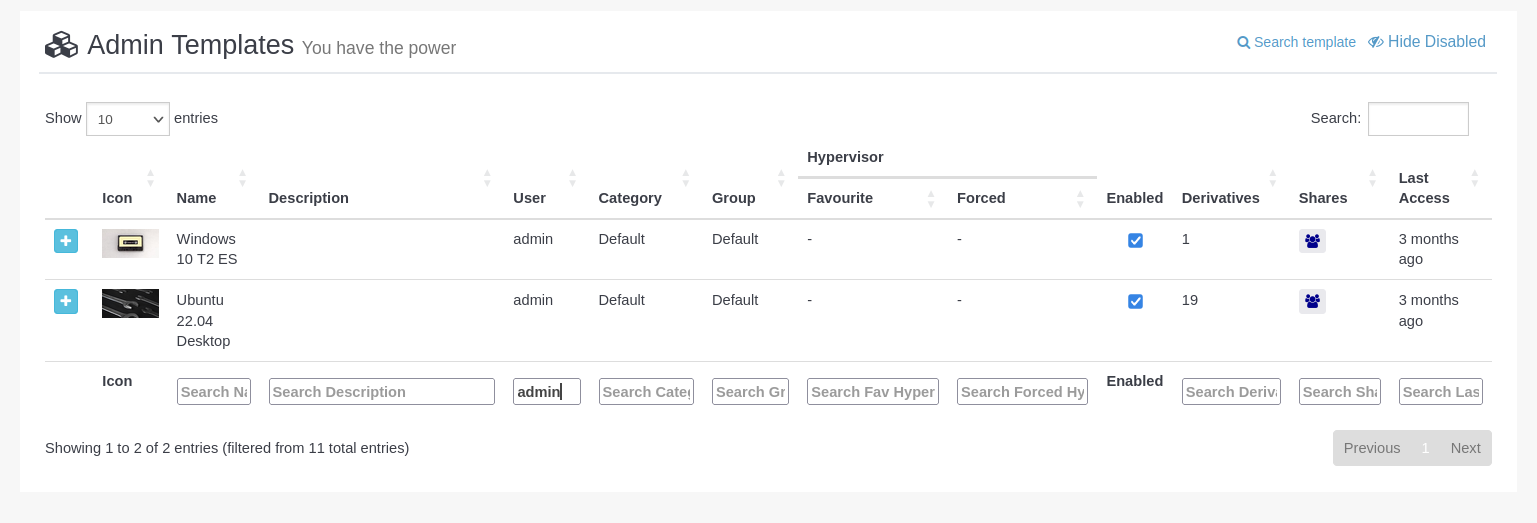
If you click the  icon, you can view more information about the template.
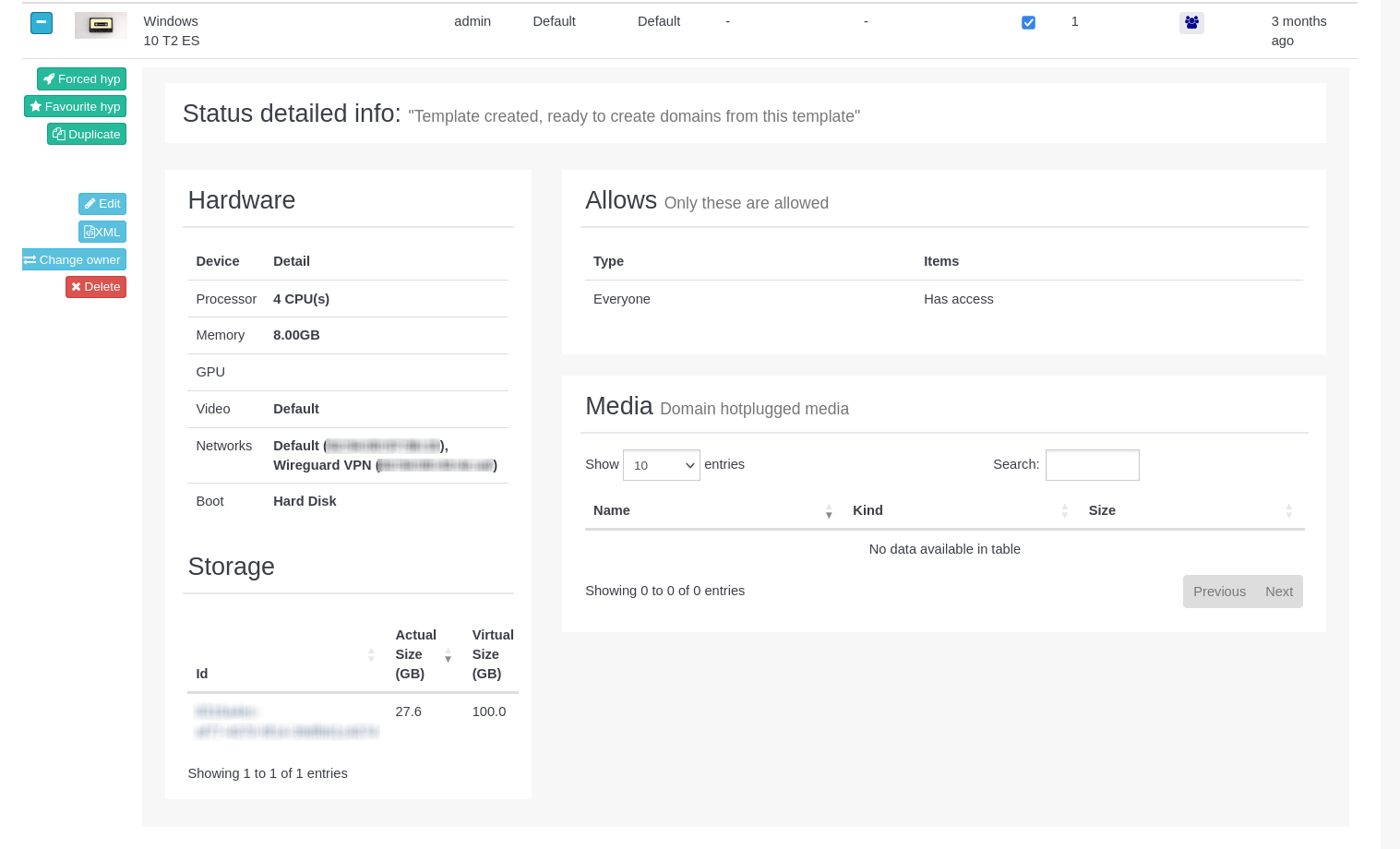
| Status detailed info | Detailed information about the current state of the template. In case of an error, this section displays a specific error message that can provide details to identify and resolve the problem that has occurred. |
| Hardware | Physical (virtual) components and technological resources specifically assigned to the particular desktop. |
| Storage | Indicates the unique identifier (UUID) of the disk linked to the desktop, as well as information about capacity and current usage. |
| Allows | Indicates the specific users or groups with whom the template has been shared, determining who has access to it and can use it. |
| Media | Indicates the presence of media files specifically associated with the desktop in question, if any. |
Enable
When you enable a template, all users it is shared with can view it and use it to create desktops. A disabled template no longer appears in New desktop for any of those users.
To enable or disable a template:
- Click the checkbox in the Enabled column of the table.
- Confirm the selection in the pop-up notification.

Click the  button at the top right to hide from the table the templates that are not enabled (visible to the users they are shared with). Click the
 button to display them again.
Forced hypervisor
(Administrators only.) It works the same as in desktop management: more information in the "Forced hypervisor" section of Desktops. In the template details, the button is Forced hyp.
Preferred hypervisor
(Administrators only.) It works the same as in desktop management: more information in the "Preferred hypervisor" section of Desktops. In the template details, the button is Favourite hyp.
Duplicate
This option duplicates the template in the database while keeping the original disk.
Templates can be duplicated several times, which is useful in some cases, such as:
- You want to share the template in other categories. You can duplicate the template and assign it to another user in a different category, with separate sharing permissions for the new copy, while keeping the original version.
Information
Deleting a duplicated template does not delete the original template.
When duplicating a template, you can customize the new copy:
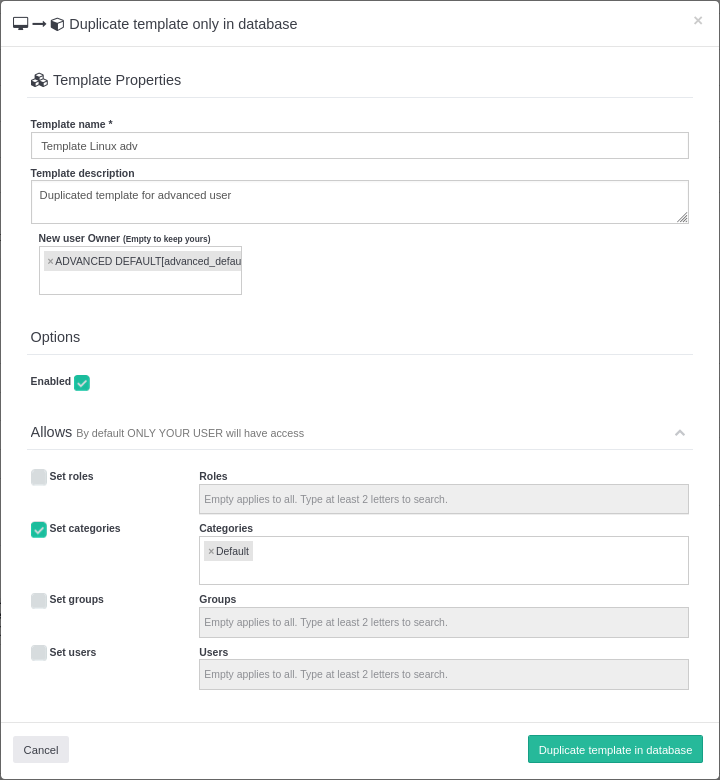
| Template properties | Lets you add the name (Template name) and the description (Template description) of the template. |
| New user Owner | User designated as the new owner of the template. This user assumes the responsibility and administrative privileges associated with the template. |
| Options - Enable | Enables or disables the visibility and availability of the template for users. Checking this box enables the template to be active and visible; otherwise, it remains hidden and unavailable to users. |
| Allows | Lets you select the specific users or groups with whom you want to share the template, determining who will have access to it and be able to use it. |
Edit
It works the same as in desktop management: more information in the "Edit" section of Desktops. In the template details, the button is Edit.
XML
(Administrators only.) It works the same as in desktop management: more information in the "XML" section of Desktops. In the template details, the button is XML.
Change the owner
If the new owner belongs to the same category, the template keeps who it was shared with. If the new owner belongs to a different category, all sharing (categories, groups and users) is removed and must be defined again.
Delete
Recoverable deletion
The deletion of a template and of its derived desktops and templates can be recovered from the recycle bin as long as the retention time (Automatic delete after) has not elapsed; if it is Immediately, the deletion is permanent.
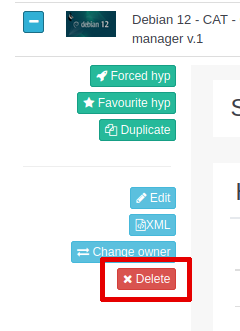
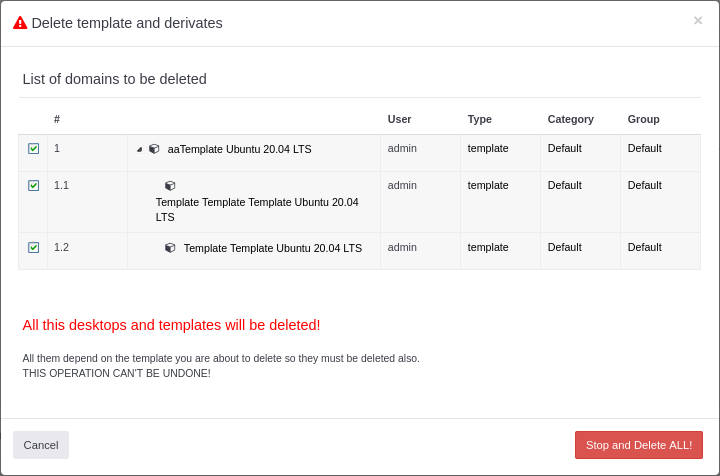
When deleting a template, a modal appears showing all desktops created from it and any duplicated template. Deleting the template deletes all associated domains and their disks.
Dependencies
Deleting the template deletes all associated domains and their disks.
However, if the template to be deleted is a duplicate of another template, you do not need to delete them all. They should only be deleted if the original template is also deleted.
Template search
The top bar of the table has the Domain UUID... field. Type the template's identifier (UUID) and click the magnifying glass button or press Enter. The template information window opens.
What the user sees
- A template only appears in the new desktop wizard of the users it is shared with if it is enabled.
- Users with the advanced role or higher manage their templates, sharing and visibility from their interface (more information in Templates).