Authentication and registration
Access per category
Roles with access
Administrators, and managers of their own category if the administrator has delegated the Authentication permission to them.
The access methods (local, Google, SAML and LDAP) can be adjusted for each category:
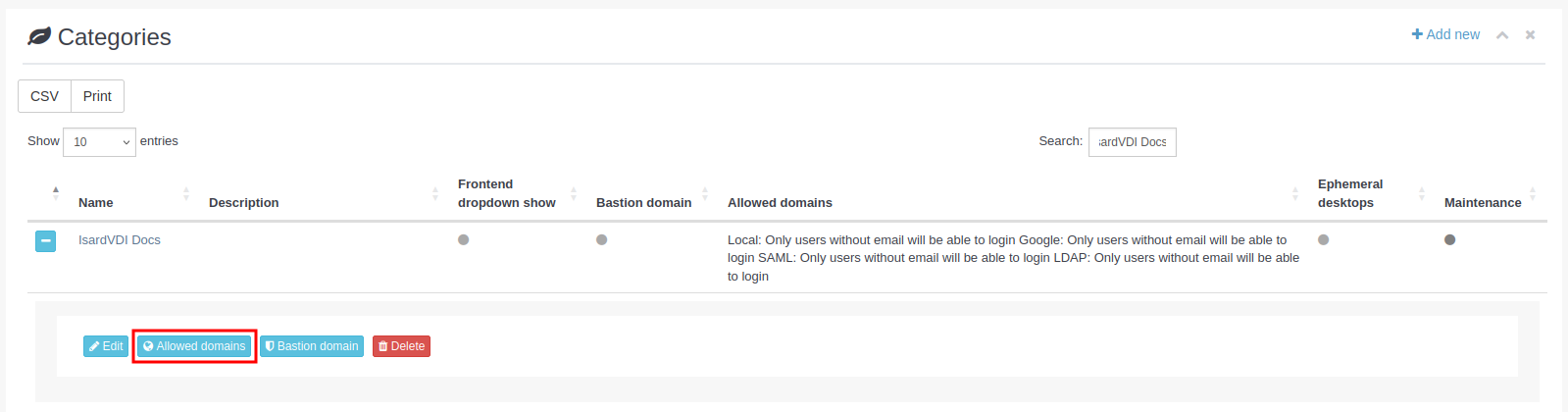
- Find the category in Users → Management → Categories.
- Click the
 button next to the category.
- In the panel that expands, click the Authentication button.
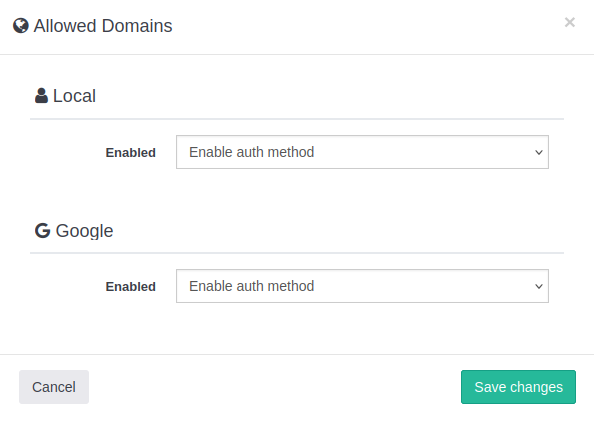
A window opens with a panel for each provider (Local, Google, SAML and LDAP). In each panel you can:
- disable the provider for the category (Disabled);
- restrict access to emails from specific domains (Email Domains Restriction Enabled and Allowed Email Domains);
- choose the configuration source (Config Source: Global or Custom);
- limit the maximum role of the users of that provider (Max role, administrator only).
The details of each field are in Category management, and the global configuration of each provider in Authentication. When the login screen already knows the category (through its own domain, the address or the dropdown), it only shows the methods enabled for that category.
Self-registration key
The self-registration key lets users who access for the first time through Google, LDAP or SAML, and whose account the installation does not create automatically, complete their sign-up (see Access methods). Keys are generated per group: the key determines the group and role of the new account, within the group's category.
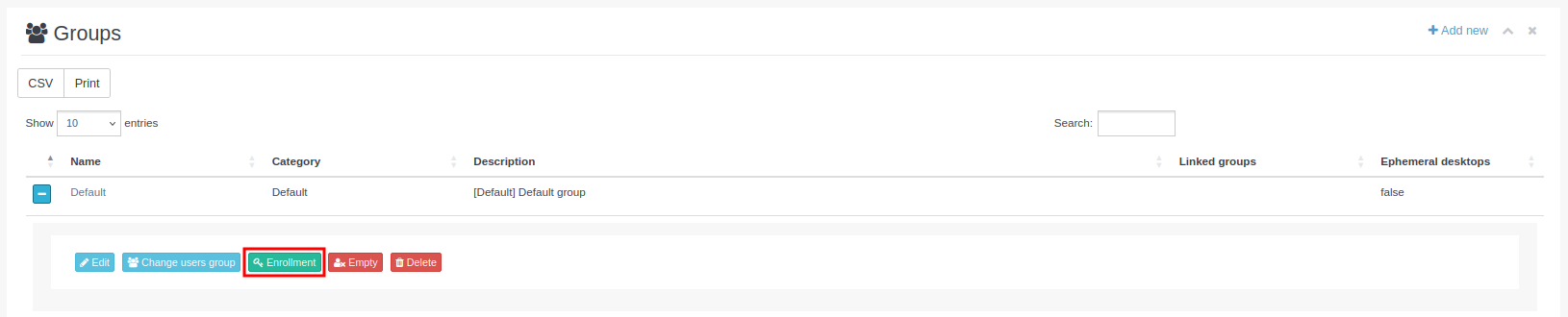
In the Groups table, find the group whose code you want and click the button to see its details:

The group expands with several options. Click the  button.
A window opens where you can generate enrollment keys for the Manager, Advanced and User roles by selecting the corresponding checkboxes. The key used determines the role the user will have.
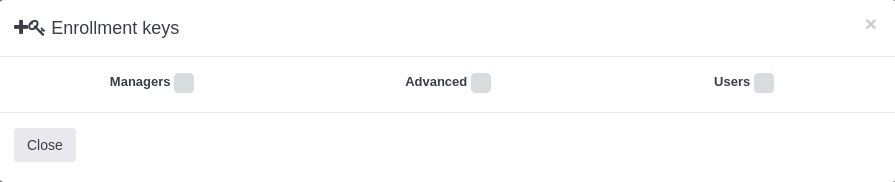
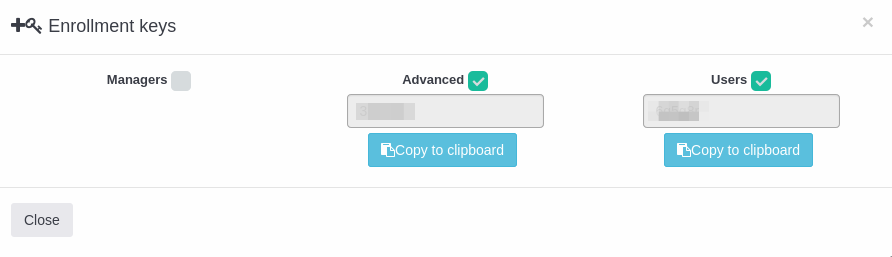
Once generated, the key can be copied and shared with the users, who enter it on the registration screen.
Attention
- When they register, users are assigned the role of the shared enrollment key. For example, teachers can be given the «Advanced» key and students the «User» key.
- An unlimited number of users can register with the same key. For this reason, it is recommended to disable it once used.
Forced migration exemptions
Migration exemptions are not configured here, but in the Migrations exemptions panel of Config → Authentication («Configure which roles, categories, groups or users are exempted from forced migrations»):
- Click Exempted role, Exempted category, Exempted group or Exempted user.
- Search for and select the items.
- Click Add exemption to list.
To remove an exemption, delete it from the list; the item is no longer exempt from the forced migration. The full procedure is in Migration exemption.