Automatic task deletion configuration
Roles with access
Administrators have access (administrators only).
This screen lets administrators manage the automatic cleanup policy for the system's old tasks. You can define when finished tasks must be deleted and which queue records must be taken into account for this deletion.
Screen elements
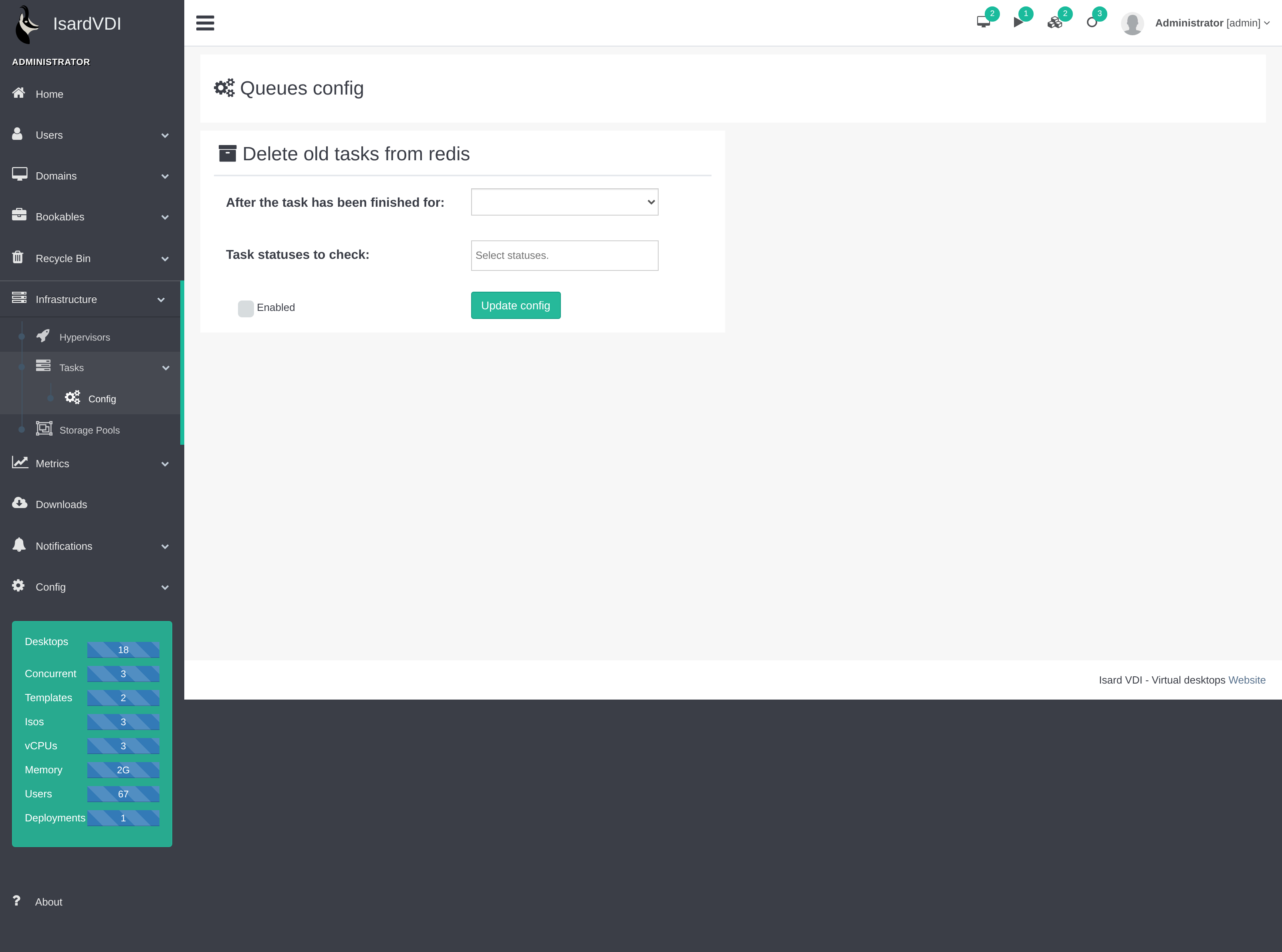
The screen has one panel, «Delete old tasks from redis», with these elements:
- Retention time: a selector labeled «After the task has been finished for:» with the options «1 day», «2 days», «5 days», «10 days», «2 weeks», «4 weeks», «6 weeks», «8 weeks», «1 year», «1.5 years» and «2 years».
- Task statuses: a multiple selector labeled «Task statuses to check:» to choose the statuses of the tasks that are cleaned up: queued, started, finished, failed, deferred, scheduled and canceled.
- Enabled: checkbox that turns automatic deletion on or off.
- Main action: the «Update config» button, which saves the changes.
Retrieving the current configuration
What it is for: This action runs automatically when the screen opens, to show the values currently configured for task deletion.
Where it is: It is not a visible button; it happens when the view loads.
Steps: 1. The system requests the current configuration for the automatic deletion of old tasks. 2. The information is retrieved from the server.
What it checks first: No specific permissions or additional states are checked in this process, since access is already guaranteed by the administrator role.
What happens next: The administrator receives the configuration information in JSON format with a success status code. No data is modified and no tasks are created during this operation.
Updating the maximum retention time
What it is for: Defines the maximum time a task can stay in the system before it is deleted automatically.
Where it is: It is done with the «Update config» button after selecting an option in the «After the task has been finished for:» drop-down.
Steps: 1. The administrator selects the desired time period (for example, «1 day» or «2 years»). 2. The administrator clicks the «Update config» button.
What it checks first: The system checks that the selected time value is a valid integer.
What happens next: If the operation succeeds, the system configuration is updated with the new time limit and the updated configuration is returned. In case of an internal error, a server error message is shown.
Updating the queue records
What it is for: Configures which task statuses must be included in the automatic deletion.
Where it is: It is done with the «Update config» button after changing the «Task statuses to check:» options.
Steps: 1. The administrator selects the statuses of the tasks to clean up (for example, «finished» and «failed»). 2. The administrator clicks the «Update config» button.
What happens next: The new list of configured queue records is saved. The administrator receives a success confirmation with the updated information. If there is an internal error, a generic message is returned saying that the configuration could not be set.
Enabling or disabling automatic deletion
What it is for: Turns the automatic deletion of old tasks completely on or off.
Where it is: It is done with the «Update config» button after checking or unchecking the «Enabled» box of the «Delete old tasks from redis» panel.
Steps: 1. The administrator checks or unchecks the «Enabled» box. 2. The administrator clicks the «Update config» button.
What happens next: The state of the automatic deletion configuration changes in the system. If the operation completes successfully, a success confirmation with the updated state is returned.