vGPUs
Roles with access
Only administrators register the cards, enable their profiles and delegate them to a category. Managers with the GPU Plannings permission in their category can do the planning of the cards delegated to their category. Users assign a vGPU profile to their desktops and choose its end time when starting them (more information in GPU).
IsardVDI supports the use of virtual GPUs (vGPUs) for desktops and deployments. To learn in depth about card types, the different profiles and operating modes, see the GPU guide.
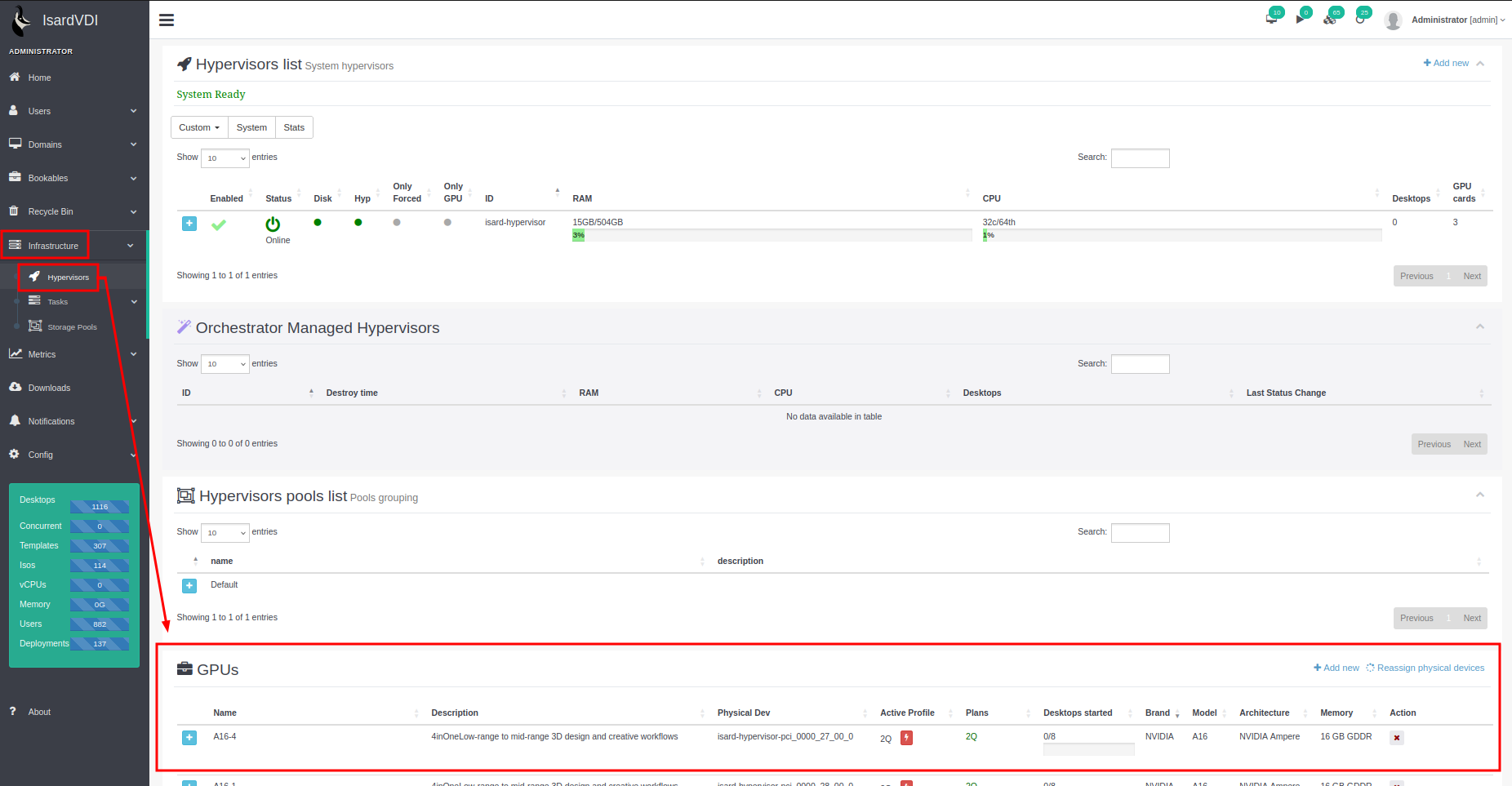
The section to configure GPU cards and profiles is located at Infrastructure → Hypervisors. This section has the following box:
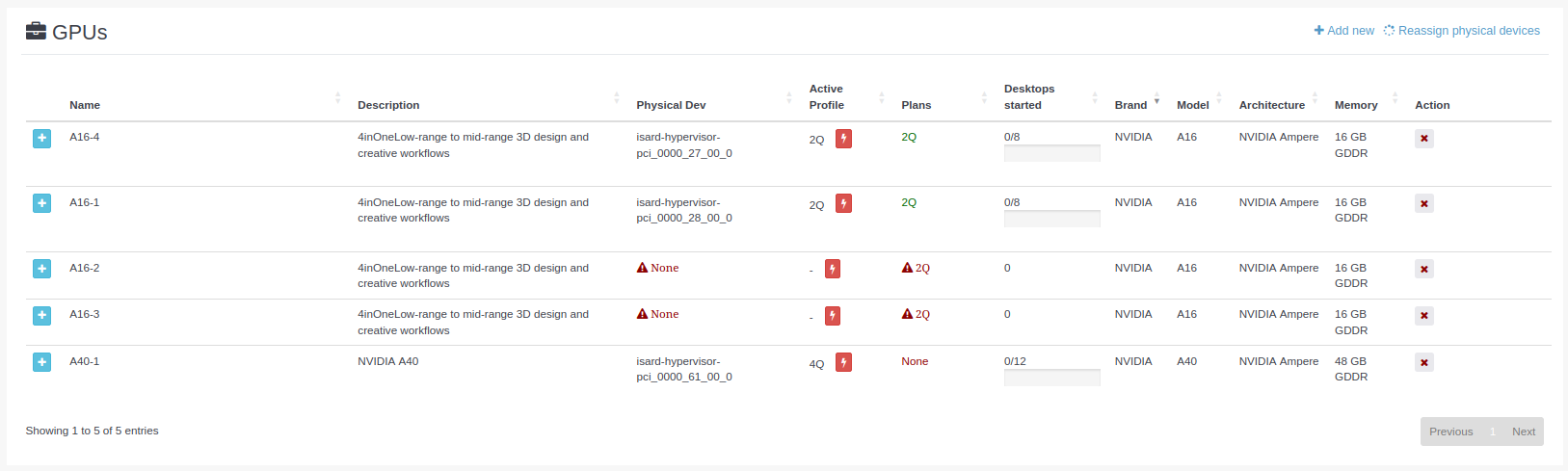
-
To add a new graphics card, click the
 button. The following form opens:
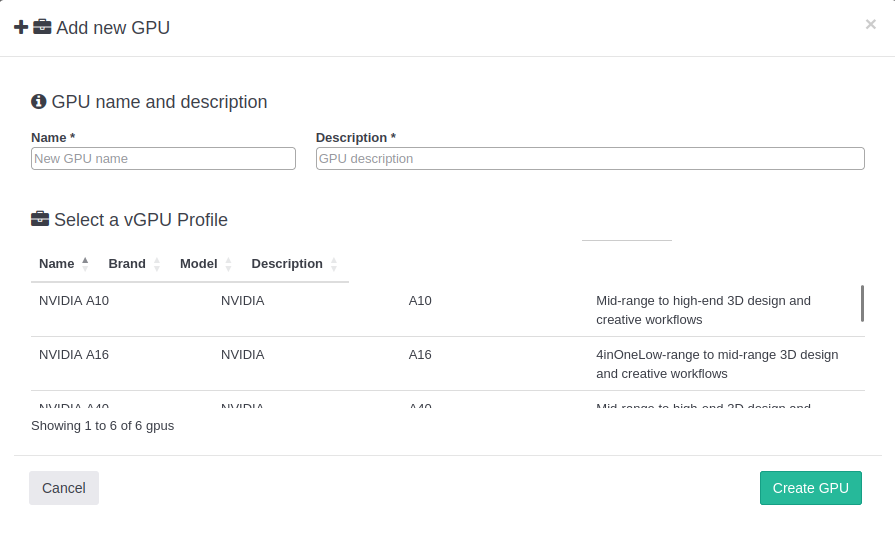
The fields to fill in are:
- Name: Identifying name of the GPU.
- Description: Brief description of the GPU.
- Select a vGPU Profile: List of available profiles based on the GPU model. Select the corresponding profile.
-
For each graphics card, the following information columns are displayed:
- Name: Displays the name of the graphics card type.
- Description: Description of the GPU.
-
Physical Dev: Displays the mapping path to the physical device.
If it appears as
 , it means the device is not being detected and, therefore, this GPU will not be functional.
-
Active Profile: Displays the profile currently active on this GPU. If none appears, it is because it has not been activated or because the graphics card is not operational.
Next to the profile there is the following icon:

- Force active profile: This option forces the GPU to the desired profile. It is useful when the profile is changed several times in a short interval and the GPU could get locked.
-
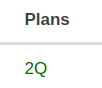
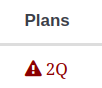
Plans: Displays whether the selected and activated plan works correctly. If the profile appears in green, it is operational; if a warning sign appears and the profile is in red, the profile did not start properly. If the box shows "None", there is no plan reserved for this card.
-
Desktops started: Displays the maximum number of desktops that can start with a GPU and the number of users occupying the available slots.
- Brand, Model, Architecture, Memory: GPU information: the vendor, the model, the architecture and the memory it contains.
- Action: Used to edit the GPU or delete it from those registered on the platform.
Delete GPU
A GPU is a bookable resource that can be assigned to desktops. Deleting a GPU means unassigning it from all user desktops and deleting all related bookings.
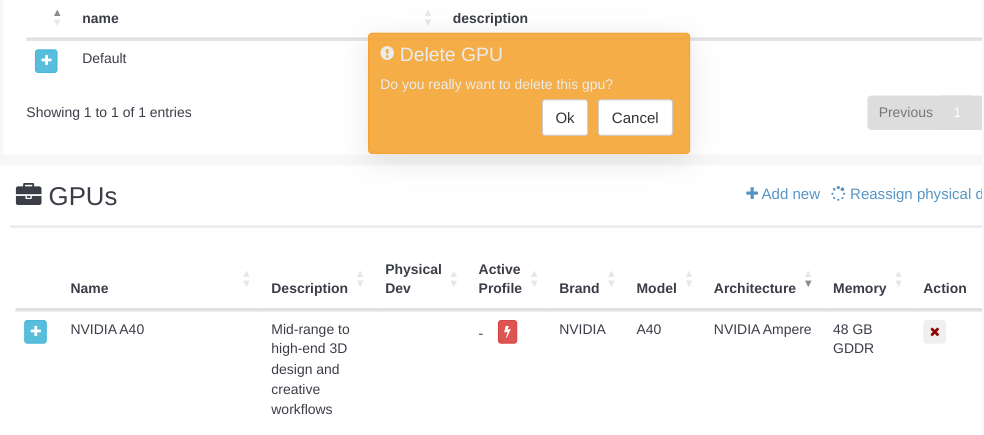
The system displays a warning detailing the items that will be deleted or unassigned, as well as the affected users:
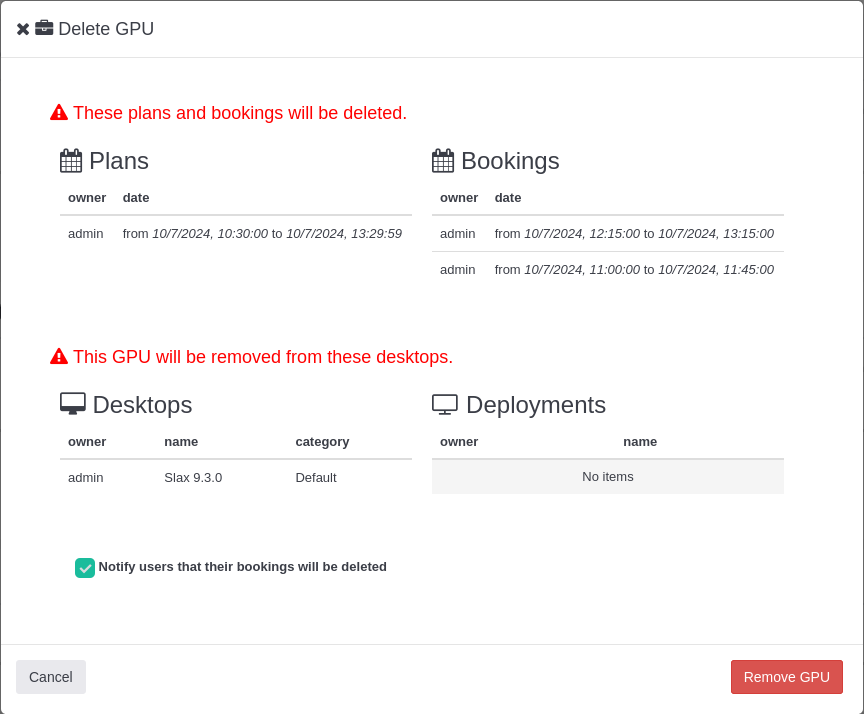
Disabling an individual GPU profile by unchecking its box generates a similar warning.
Warning
If the profile of the GPU to be deleted is also present on another active GPU, its bookings and desktop assignments remain intact. To check the profiles of each GPU, click the  button on the corresponding row.
Warning
If a desktop has an active booking at the time of deletion, the GPU cannot be deleted. Stop the desktop and delete the booking, or wait for the booking time to end.
Notify users
If the Notify users that their bookings will be deleted checkbox is checked, users are informed by email about the deletion of their desktop assignments and GPU bookings.
The default email notification is as follows:
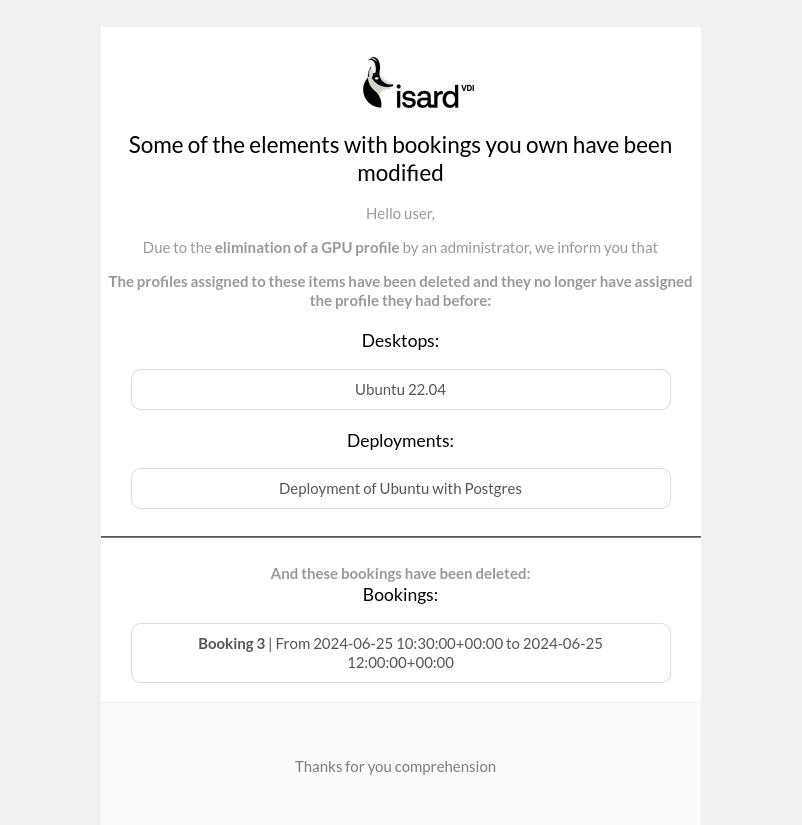
The email content can be modified in Notifications → Templates, under the name «Deleted GPU profile».
Warning
Users without a valid email address linked to their profile are not notified.
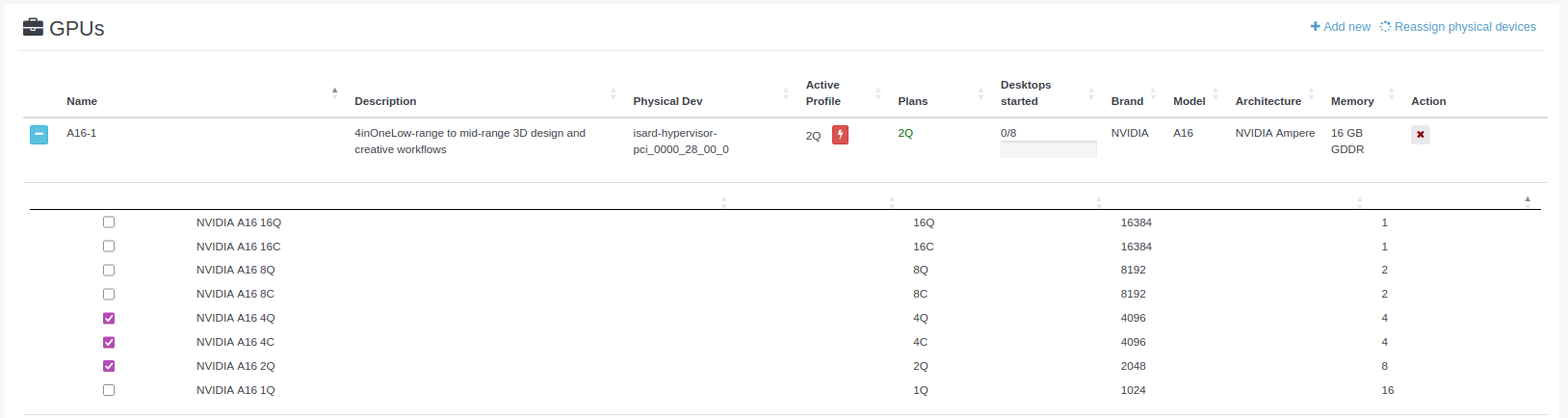
For each graphics card, you can choose which profiles are enabled so that they are available when splitting its resources.
Depending on the chosen profile, the number of users who can use the GPU varies: the higher the profile, the fewer users can share it, but they have more performance capacity.
The profiles configured here are the ones that can be selected in the Planning section of Bookings to create a specific plan for the graphics card.
Delegate a card to a category
The Edit GPU form has the Delegated category field. With the default value, «None (admin only / global)», the card is part of the global GPU pool and is planned by the administration. If a category is chosen, the card is delegated to that category and a tag with the category name appears in the Name column of the table:
- The category's users see it and can book it.
- The category's managers with the GPU Plannings permission (more information in Categories) can plan it. A manager only sees and modifies plans of the cards delegated to their category.
- Users of other categories do not see it.
A card can only be delegated to one category. To move it to another, first set it back to «None».
In the category settings, the Use global GPU pool option decides whether its users, in addition to the delegated cards, can use the global cards. It is enabled by default.
Profile variants
A variant is an optional tag that separates identical cards (same model and same profile) into different bookable resources. For example, it lets the cards of one lab and those of another be booked separately.
In the profiles table of the GPU details, the Variant column has the Manage variant button (pencil), which opens the Manage profile variant window:
- Variant: choose an existing variant or create a new one.
- New variant: name of the new variant, from 1 to 20 lowercase characters and digits.
If the same variant name is used on several cards, the profile is joined across them into a single bookable. The same name cannot be used for a different profile or memory size. In Bookables, the variant is shown as a tag next to the profile name.
What the user sees
| What you see | What it means | What to do |
|---|---|---|
| «No vGPU available for your user» | There is no vGPU profile the user can use. | Share the profile with the user in Bookables and, if the card is delegated, check that it belongs to the user's category. |
| «Different NUMA sockets: the desktop still starts, but cross-socket memory access is slower.» | The user has selected vGPU profiles that are on different NUMA sockets. | The user can continue, bearing in mind the possible performance loss. |
| «This end time is no longer available. Pick an earlier one.» | The chosen end time is no longer valid. | The user must choose an earlier end time. |
| «Not available right now» | The selected vGPU profile has no free slots at this time. | The user must remove the profile or choose another available one. |
| «There are no other GPU profiles currently available.» | There is no other free profile to switch to. | — |
When the graphics card is not available when starting the desktop
If the user tries to start a desktop and its graphics card is not free, the system shows the message «You can either book the desktop for later with its current GPU, or change the GPU now and start the desktop immediately.». This screen offers two options:
- Book the desktop for later, keeping the current graphics card.
- Switch to a graphics card available now to start the desktop immediately.
If the user chooses the second option, they see the notice «It can be changed to an available graphic card model now and start it (It could affect the desktop performance)». To confirm the change and the start, they must click the Change and start button.
When the graphics card cannot be changed
If the user tries to change the graphics card and the operation fails, the system shows the title «Could not change the GPU» followed by a specific message depending on the reason for the error.
| What you see | What it means | What to do |
|---|---|---|
| «The selected GPU profiles are not all available on a single host. Pick a different combination.» | The chosen graphics card profiles are not available at the same time on the same server. | The user must choose a compatible combination of profiles that is available on a single host. |
| «The selected GPU profiles are not available for that long. Pick an earlier end time.» | The chosen end time exceeds the period during which the selected profiles are available. | The user must choose an earlier end time that fits the profiles' availability. |