Registration
Roles with access
- Access to the section: any user.
This feature is only available in the new interface (new interface).
This feature is within another screen; it does not have its own entry in the side menu.
Sign up
This feature is only available in the new interface (new interface).
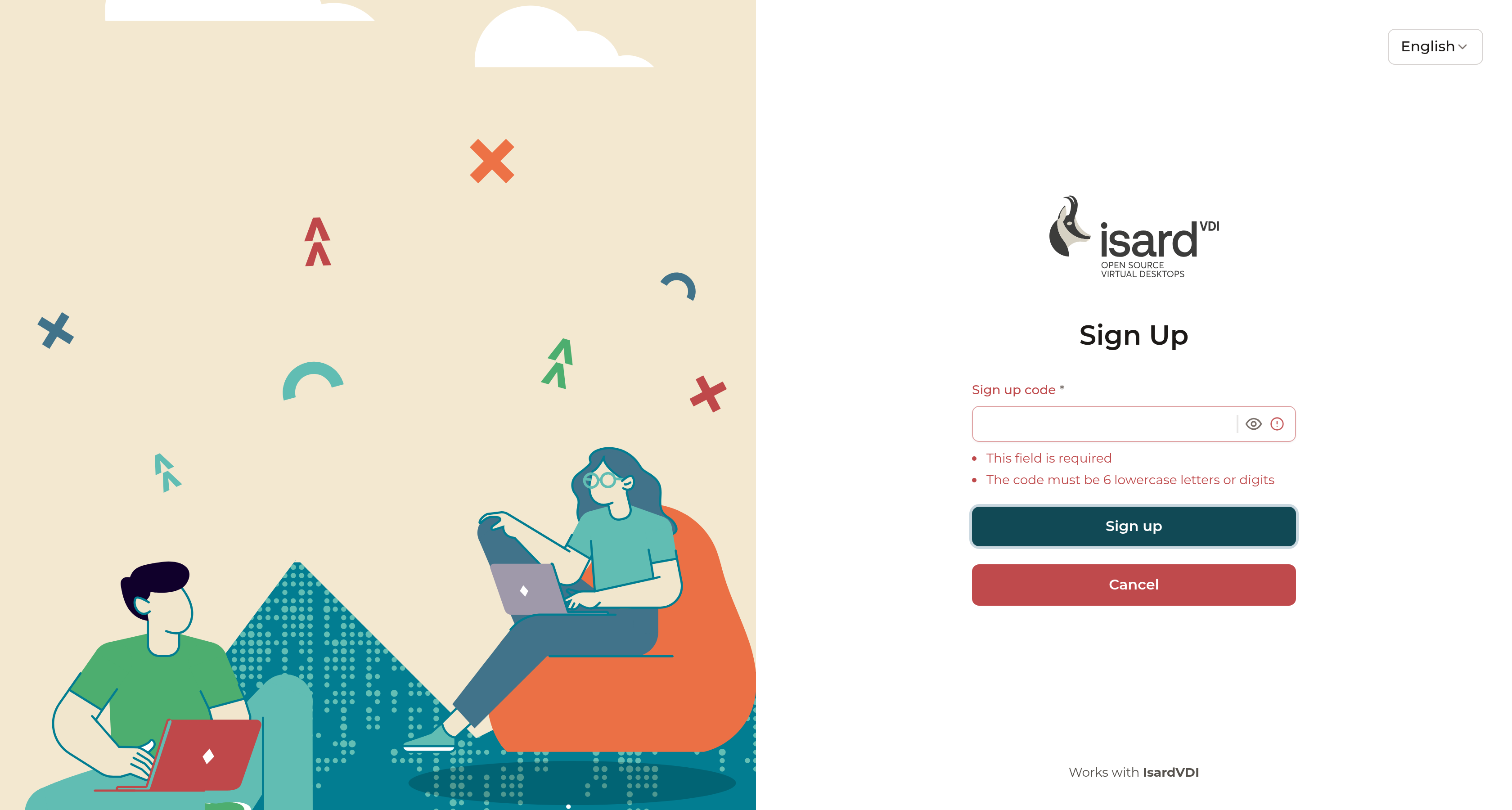
From here, the IsardVDI account is created from an external account. This screen is reached from the login when the user does not exist in IsardVDI yet and the access method (for example, Google or SAML) allows registration with a code. If the user already existed but the permissions have changed, the screen is titled Update your registration and asks for the code again.
Depends on the administration settings
- The access methods that allow registration are configured in Authentication.
- The registration code is generated by the administration or the category management, and it determines the group and role of the account within the category chosen when signing in (see Authentication and registration).
- A category can limit the accepted email domains (see Multitenancy).
- Enter the Sign up code provided by the administration. The field hides the text; the eye icon shows or hides it (Show code / Hide code).
- Click Sign up. To give up, click Cancel: the registration session is discarded and you return to the login.
- If the registration is correct, the system logs in automatically with the same access method, without asking for credentials again.
Code format
The code must be exactly 6 characters long, consisting of lowercase letters or digits ([0-9a-z]). If it does not meet this requirement, the form displays «The code must be 6 lowercase letters or digits» and nothing is sent to the server.
The code determines the role and group
The registration code identifies the group where the user will be placed and the role they will have. The username, name, photo and email are taken from the authentication provider used to log in, not from the form.
Conditions and messages
- The screen is only accessible with a valid registration session (started from the login). If there is none, the system redirects to the main page.
- «Code not found»: the code does not correspond to any group in the category.
- «User already exists»: there is already a user with the same identifier in the category.
- «Session expired»: the registration session has expired (it is valid for 60 minutes); start again from the login.
- «Server error»: internal error while creating the user; try again or notify the administration.
- In the registration update, if the code does not grant the necessary access: «The code you entered doesn't grant the required access. Ask your administrator for a valid code.»
Development details
For those who develop or integrate IsardVDI: where each element of this section is in the code, from which version it exists, which API operation it calls, and which messages it can return.
- New interface · file
components/register/RegisterForm.vue:120· interface text (translation key)components.register.register-form.register- since v17.0.0 (2026-04-24,
f31b874d89) - on click:
submits the form (onSubmit)
- since v17.0.0 (2026-04-24,
- New interface · file
components/register/RegisterForm.vue:123· interface text (translation key)components.register.register-form.cancel- since v17.0.0 (2026-04-24,
f31b874d89) - on click:
onCancel
- since v17.0.0 (2026-04-24,
Commit code fe99ad98.
Verify email address
This feature is only available in the new interface (new interface).
If the email must be verified and this has not been done yet, this screen (The email address must be verified by IsardVDI) is displayed at login instead of entering the service.
When verification is requested
The screen only appears if all these conditions are met:
The process has two steps:
- Request. Enter the email in Email and click Send verification email. A message with a link arrives.
- Verification. When the link is opened, the screen shows «Verifying your email…» and, if everything is correct, «Email verified» with the text «Your email address has been verified.». After 5 seconds it returns to the login screen; Go to login can also be clicked.
The Log out button leaves this screen and goes to the login screen.
Validity period
The session that allows requesting verification lasts 10 minutes, and the link sent by email is valid for 60 minutes. After this time, log in again and request a new link.
A new email becomes unverified again
When requesting verification, the email is marked as unverified and a token is saved; it is only marked as verified when the correct link is opened. An old link becomes invalid if a newer one has been requested.
Conditions and messages
- The Send verification email button is only enabled when the field contains a valid address; otherwise: «Enter a valid email address».
- Success: «A verification email has been sent. Please check your inbox.», followed by «Redirecting to login in N s…».
- «This email address is already in use»: another user already has this email verified. Your own email can be verified again even if it is already verified.
- «The email format is invalid», «Your session has expired. Please log in again.» or «An internal server error occurred. Please try again later.»: server errors when requesting the send. If the error code is not recognized: «An error occurred. Please try again.»
- «Verification link not valid»: «The link is expired or has already been used. Log in and request a new verification email.» (includes the case where the link token does not match the last one requested).
- If
/verify-emailis opened without a valid verification token in the URL, the request form is displayed.
Development details
For those who develop or integrate IsardVDI: where in the code each element of this section is located, from which version it is available, which API operation it calls, and what messages it can return.
- New interface · file
views/EmailVerificationView.vue:240· interface text (translation key)views.verify-email.buttons.verify- since v17.0.0 (2026-05-11,
349672dfdf) - on click:
submits the form (onSubmit)
- since v17.0.0 (2026-05-11,
- New interface · file
views/EmailVerificationView.vue:179· interface text (translation key)views.verify-email.buttons.login- since v17.0.0 (2026-05-11,
349672dfdf) - on click:
goToLogin
- since v17.0.0 (2026-05-11,
- New interface · file
views/EmailVerificationView.vue:243· interface text (translation key)views.verify-email.buttons.logout- since v17.0.0 (2026-05-11,
349672dfdf) - on click:
goToLogin
- since v17.0.0 (2026-05-11,
Commit code fe99ad98.
What happens after registration
- The server creates the user in the group and with the role from the code, and the screen automatically logs in with the access method that was used (the
localandldapproviders are treated as a form). - If the user must verify the email, they cannot enter the service: the verification screen described above is shown.
- If a category must be chosen, the terms must be accepted or other mandatory steps are needed, they are shown before entering.
- If there are no pending steps, the main page (
/) opens. Users with the administrator or manager role are also identified in the administration interface.
Registration update
If the user already existed and the screen asks for Update your registration, the role or group is updated after entering the code; if the code does not grant the necessary access, the user does not enter and the corresponding message is shown.
Email verification states
| State | What you see | What to do |
|---|---|---|
| Form | «The email address must be verified by IsardVDI» and the email field | Enter the email and press Send verification email |
| Sent | «A verification email has been sent…» and a 5-second countdown | Open the email link (valid for 60 minutes) |
| Verifying | «Verifying your email…» with a loading indicator | Wait |
| Verified | «Email verified» and redirection to the login page in 5 seconds | Log in |
| Invalid link | «Verification link not valid» | Log in and request a new email |
States and messages
The login error messages («Incorrect user or password», «The user is disabled», etc.) are in Login.
General error
If an unspecified problem occurs during registration or verification, the system shows the message «An error has ocurred». Try again and, if the problem persists, notify the administration.