Bookings
Bookings secure a limited resource, usually a GPU profile (vGPU), for a desktop or a deployment during a time slot.
Roles with access
- Bookings menu entry: the user, manager and administrator roles. The advanced role does not have the Bookings entry in the side menu of the new interface; in the old interface it does.
- The entry only appears if bookings are enabled in the installation (
FRONTEND_SHOW_BOOKINGS=True, see Interface mode). The administrator always sees it. - Booking a desktop or a deployment: any user on their own desktops, and the owner of the deployment on the deployment, with the item's Book action. It does not depend on the menu entry.
- Planning: administrators and category managers with the GPU Plannings permission (see Categories).
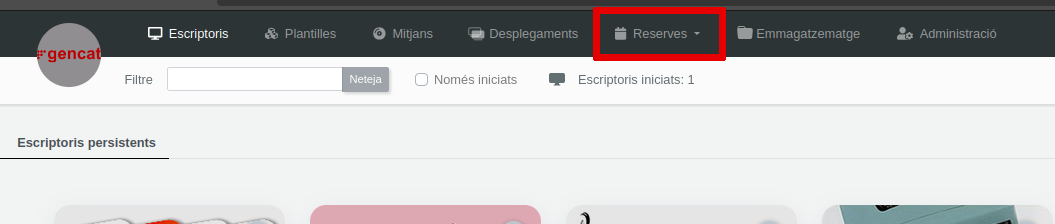
In the top menu, the Bookings section.
To find out what a vGPU is, how a desktop is prepared or how the NVIDIA drivers are installed, see the vGPU section.

In the side menu, the Bookings section. The summary, the bookings page of a desktop or deployment and the planning all open in the old interface, so the screens are the ones described on this page.
Why a booking system
IsardVDI lets users create and deploy desktops on their own. How many desktops can run at the same time depends on the available resources. Without vGPU, the limit is usually the RAM of the hypervisors, and the administration can share it out with the quotas and limits per user, group or category.
vGPUs are expensive resources (card and licences), so they are accessed through a booking system with these features:
- The administration plans schedules with different profiles for each card. In one slot it can offer a profile with a lot of dedicated memory and few users (for example, a rendering job) and in another a profile with little memory and many users (for example, a training session). See vGPU.
- A permission system defines which users can use each profile of a card.
- Each booking has a minimum advance time, a maximum duration and a maximum number of bookings per user. These limits come from the priority rule that the administration assigns in Bookables.
- The owner of a deployment can make a booking for the whole deployment, which books as many units of the GPU profile as the deployment has desktops.
- Booking priorities let some users override and revoke other users' bookings. This way the card can be used heavily while certain groups never run out of capacity.
Book a desktop or a deployment
The administration must have planned GPU profiles on the cards. The user can book if they have permission on the desktop's vGPU profile and there is a planning available for that profile.
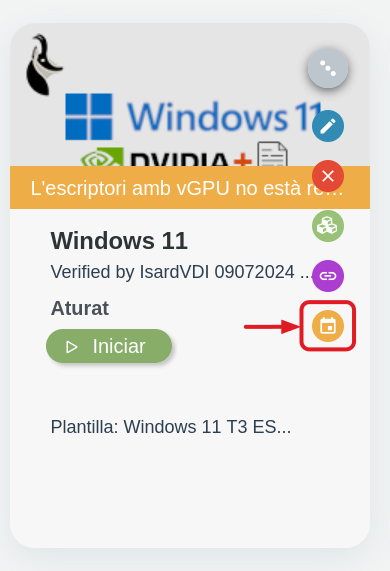
- Desktop: the Book action of the desktop card (in the old interface, Schedule).
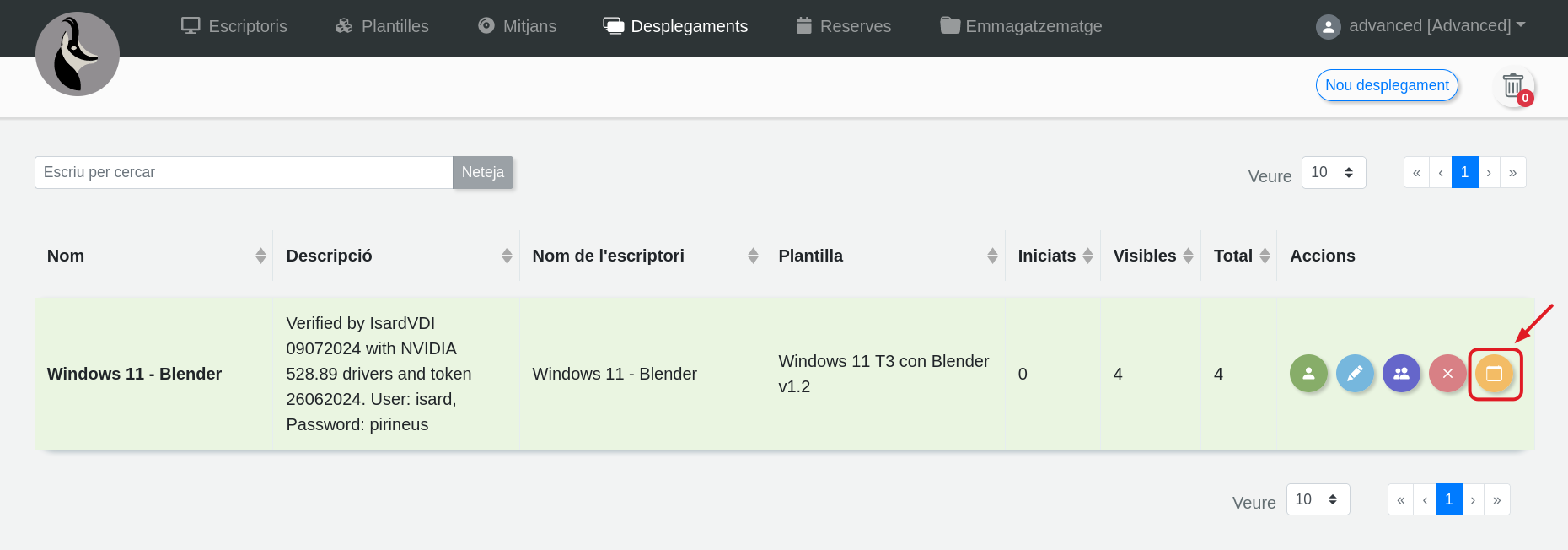
- Deployment: the deployment's Book action, in the deployment list or in the deployment view.
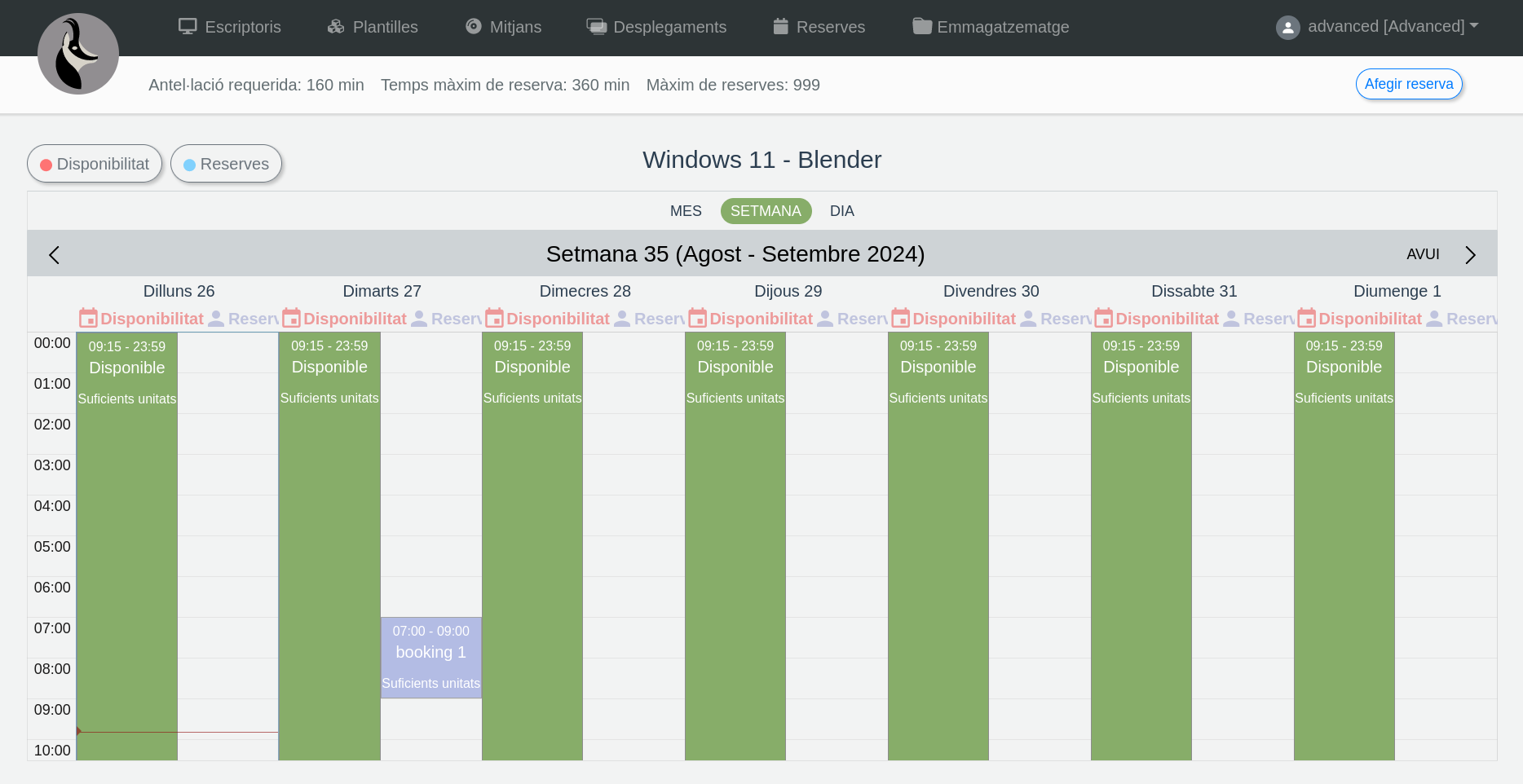
The item's bookings page opens, with its name in the title:
- The top bar shows the limits of the user's priority rule: Advance time needed (minutes), Maximum booking time (minutes) and Maximum bookings.
- The calendar opens in week view; it can be switched to month or day view.
- Each day has two columns: on the left, Availability, with the planned slots of the card profile; on the right, Bookings, with the bookings made for this desktop or deployment. The Availability and Bookings buttons at the top left hide or show each column.
In the figure there is availability during the week and there are no bookings yet:
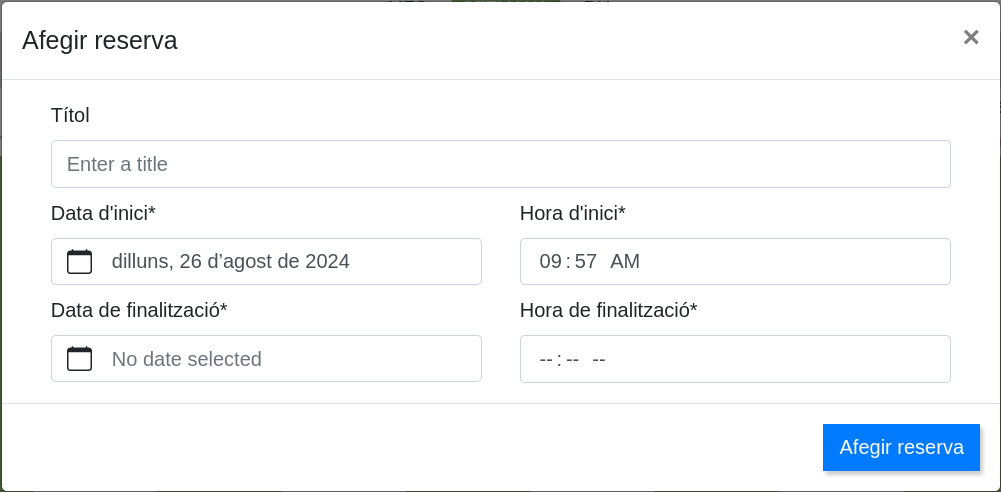
To create a booking:
- Click Add booking, at the top right
 , or click the Bookings column and drag to select the slot.
- In the Add booking window, adjust the Title, Start date, Start time, End date and End time.
- Click Add booking.
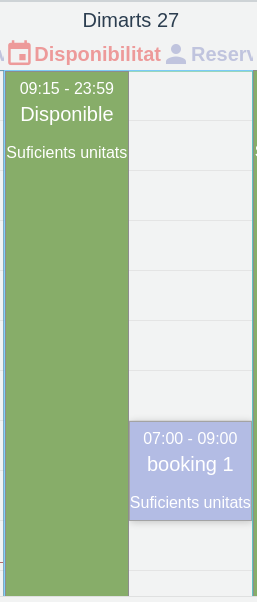
The booking appears in the right-hand column of the corresponding day:
Conditions and messages
- «You need more advance time in order to create the booking»: the booking starts earlier than the required advance time.
- «You can't create a reservation for that long»: it exceeds the maximum booking time.
- «The booking must last at least 5 minutes».
- «Can't create a booking in the past».
- «You've exceeded the user maximum bookings»: the maximum number of bookings has been reached.
- «The booking does not fit in requested date»: there are no units of the profile left in this slot.
Delete a booking
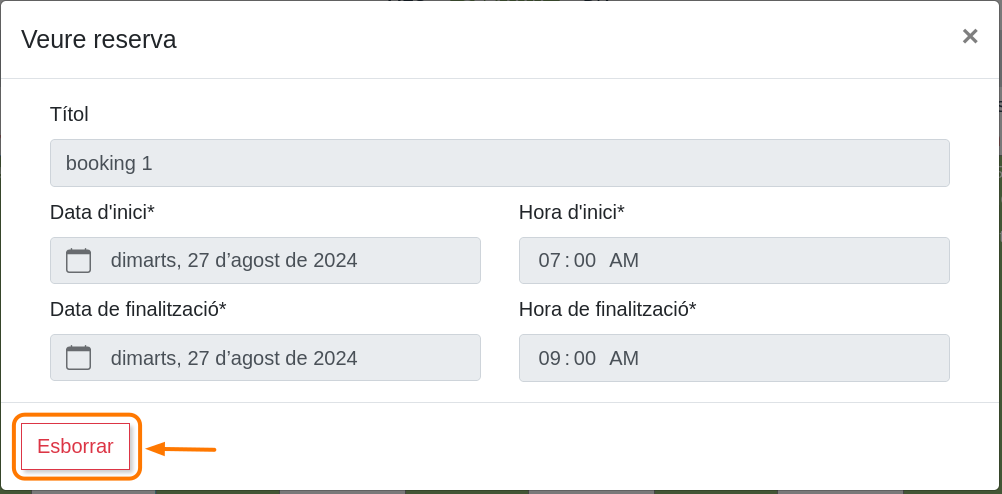
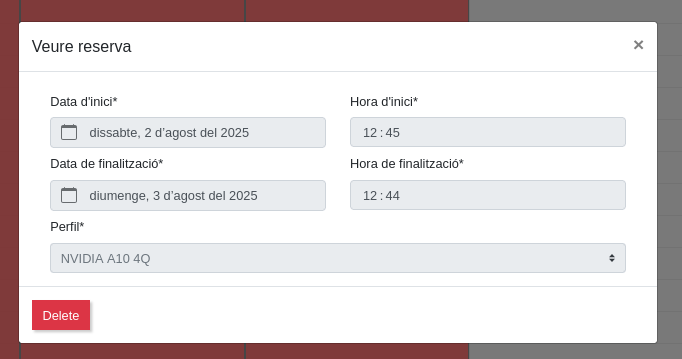
- On the bookings page of the desktop or deployment, click the booking in the Bookings column. The View booking window opens, with the data read-only.
- If the booking has not ended yet, click Delete and confirm («'…' booking will be deleted, continue?»).
If the booking has already ended, the window does not show Delete: it can only be viewed. Bookings cannot be modified; to change the times, delete it and create a new one.
Booking in progress
A booking that has already started can only be deleted if the desktop is stopped («To delete this booking the desktop must be stopped»). In a deployment, all the desktops must be stopped.
When a booking in progress is deleted, the desktop (or all the desktops of the deployment) is no longer linked to the booking and its scheduled tasks are removed.
Booking summary
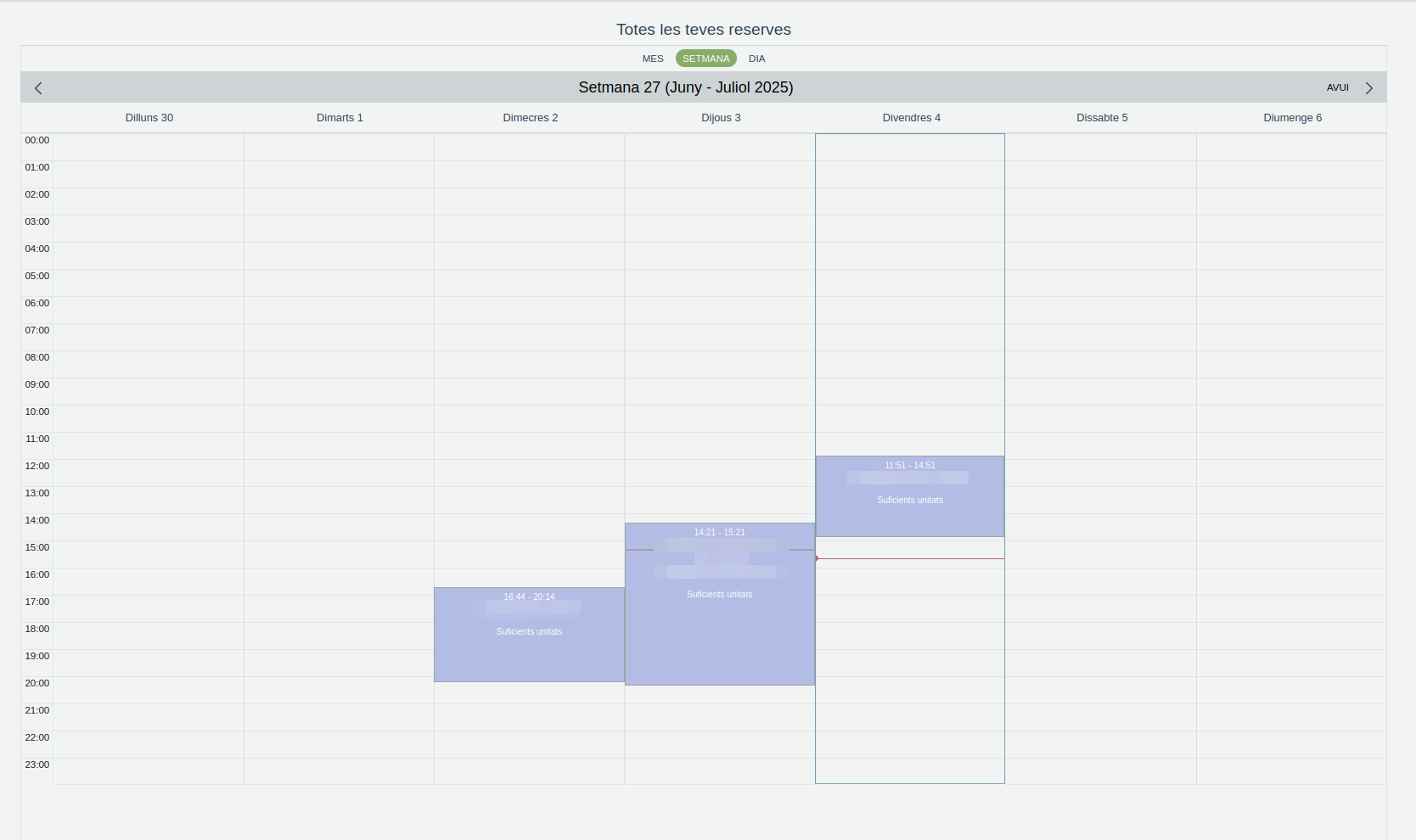
The Bookings entry (or Bookings → Summary) shows a calendar with all the user's bookings. See Booking summary.
Planning
Roles with access
Administrators and category managers with the GPU Plannings permission, which is granted in the category form.
It is reached from the Bookings menu:
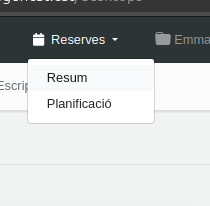
There are two sections:
-
Summary: all the bookings, in day, week or month view.
-
Planning: creating and editing the availability slots of each card.
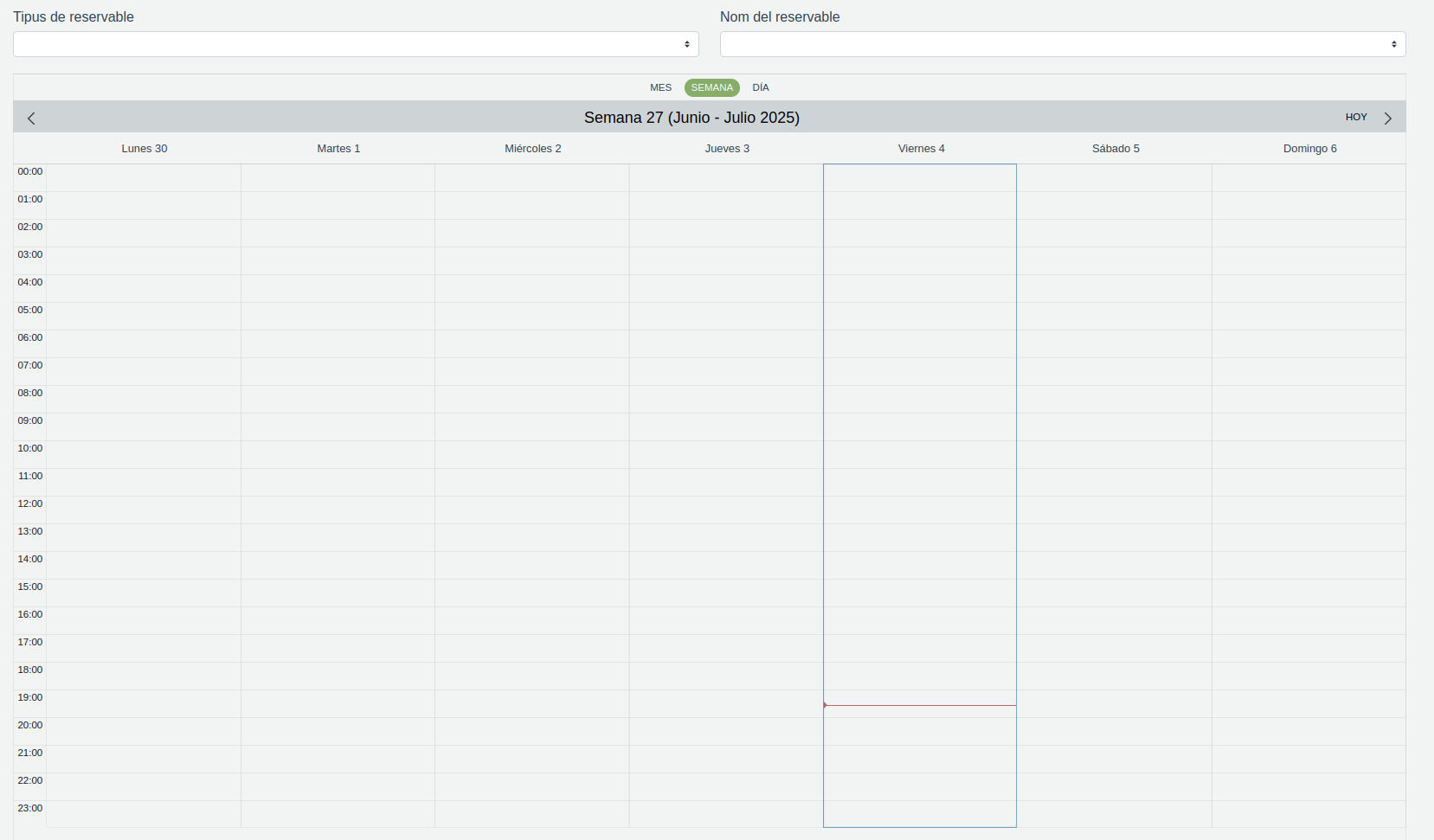
To create a planning:
-
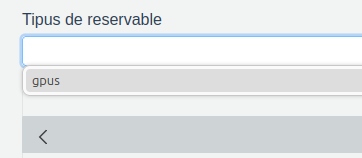
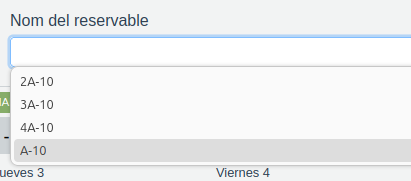
Choose the bookable type (vGPU) and the bookable name, that is, the card to plan on.
The current planning of the card appears:
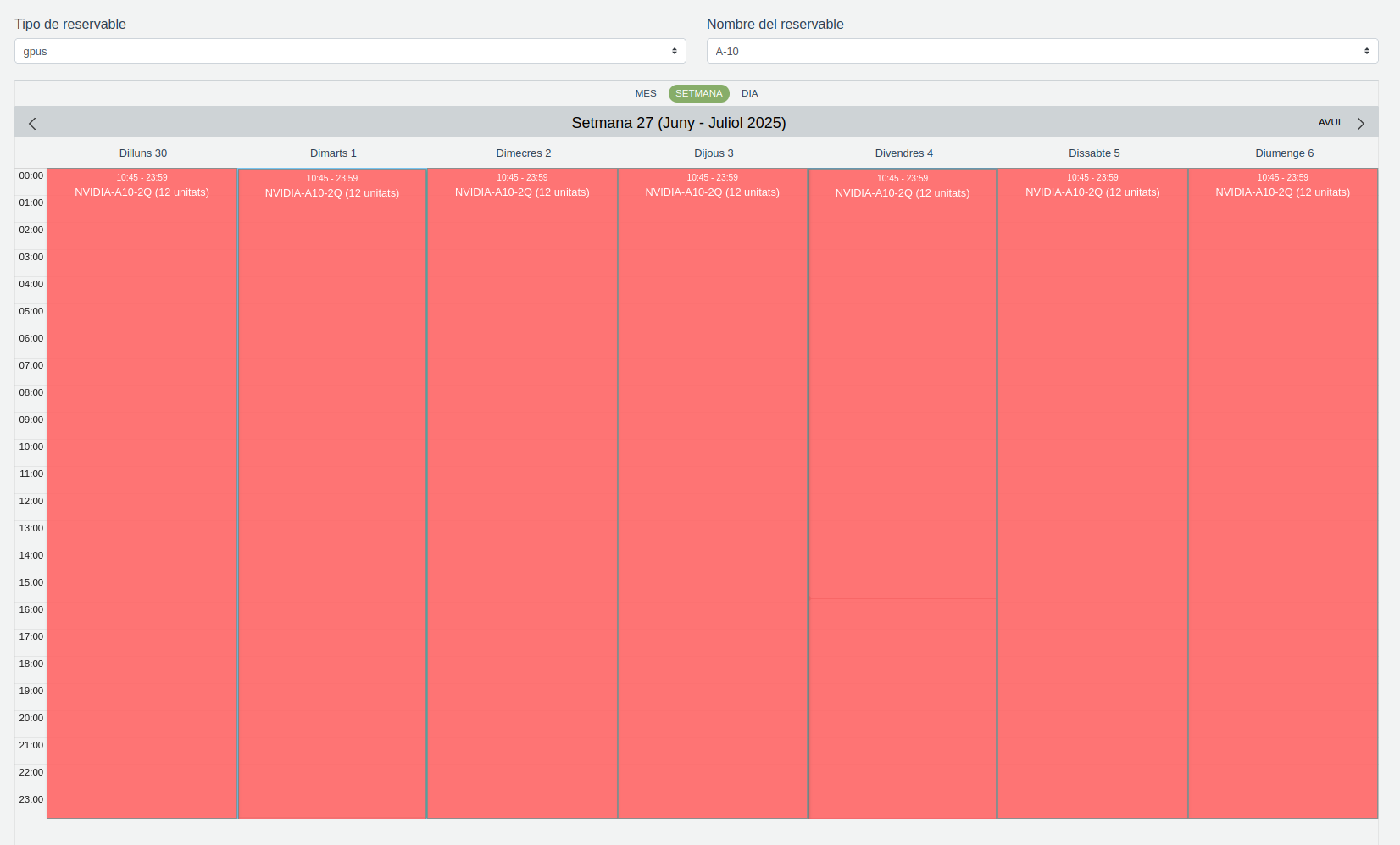
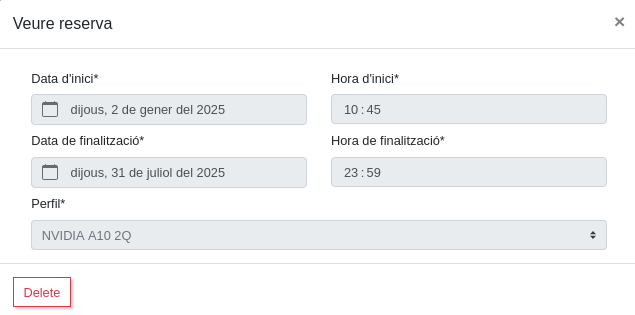
Clicking a slot shows its data: start, end, card profile, etc.
-
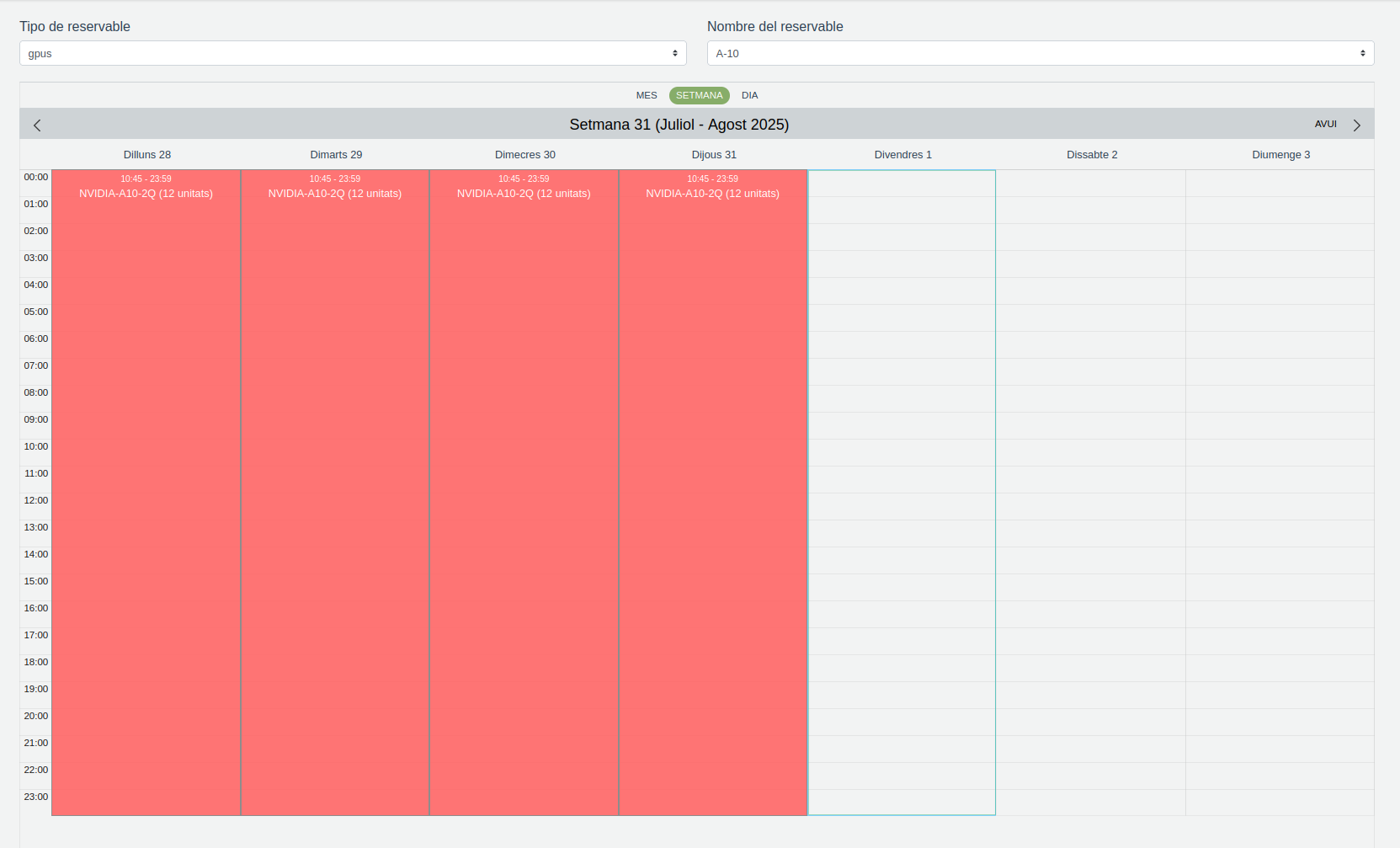
Click a free area of the calendar.
-
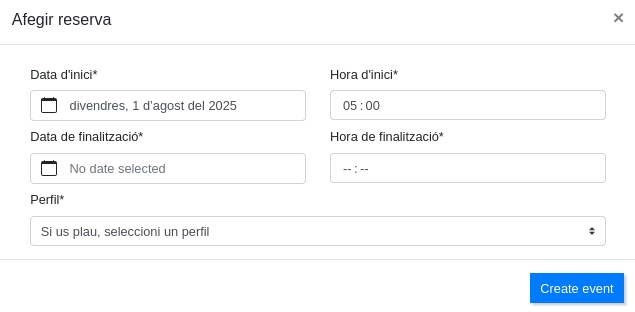
In the form, set the start, the end and the GPU Profile, and click Create event (the button is in English in all languages).
The slot appears in the calendar:
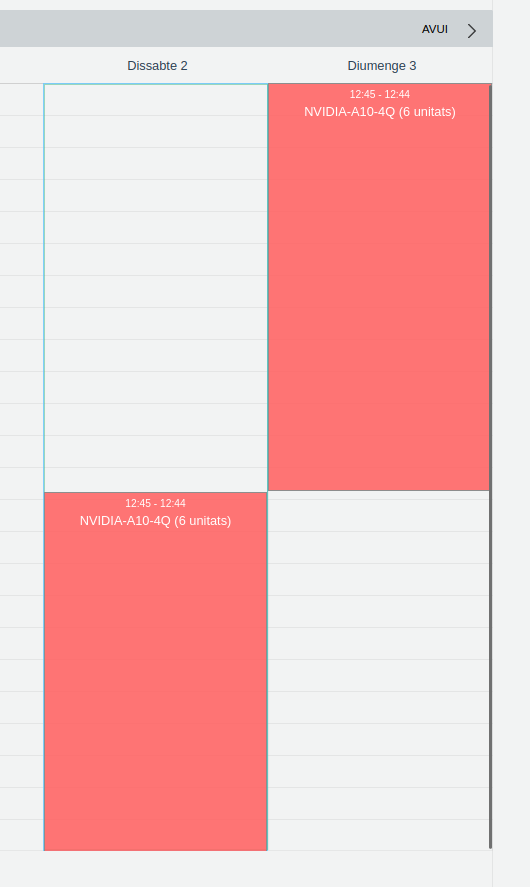
To delete a slot, click it and click Delete.
The configuration of profiles and cards is in vGPU and vGPU setup.
Video tutorials
Two video tutorials explain the prior configuration of a desktop or deployment and how to book it, with the two IsardVDI booking methods (first part and second part). They have Catalan subtitles.