Bastion
This manual applies to IsardVDI installations from version v14.64.3 onwards.
Bastion is a feature that allows public access to the HTTP and HTTPS services of virtual desktops, as well as connecting to them via SSH from any device. It works as a smart proxy that, based on the subdomain used, automatically redirects to the corresponding HTTP, HTTPS, or SSH service of the virtual desktop.
Thanks to Bastion, it is possible to connect to virtual desktops through the same server that hosts the IsardVDI web interface, avoiding the need to use a VPN connection to access these services.
Roles with access
Only administrators have access to the global bastion configuration (Domains → Resources). Each desktop is configured by its owner, if they have bastion permission.
This section explains how to configure Bastion as an administrator. Its use as a user is explained in Bastion.
Activation
-
IsardVDI version: The bastion functionality is available from version v14.64.3 onwards. If you are using an earlier version, update IsardVDI to the latest version to use this functionality.
-
Configuration: You must add the new bastion variables to the
isardvdi.cfgfile (or you can rebuild this file from theisardvdi.cfg.exampleincluded in the new version):# ------ Bastion ------------------------------------------------------------- BASTION_ENABLED=true #BASTION_SSH_PORT=2222BASTION_SSH_PORTThis is optional. If not set, SSH is served on the same port as the web interface (HTTPS_PORT, usually 443): users connect usingssh <Bastion ID>@<domain> -p 443and no additional port needs to be opened. Set it only if you want SSH on a dedicated port. -
Compilation: Compile IsardVDI to apply the changes and start the updated system:
-
Administration interface: Once the changes are applied, in the administration section, under domains → resources, a new configuration block related to the bastion will appear.
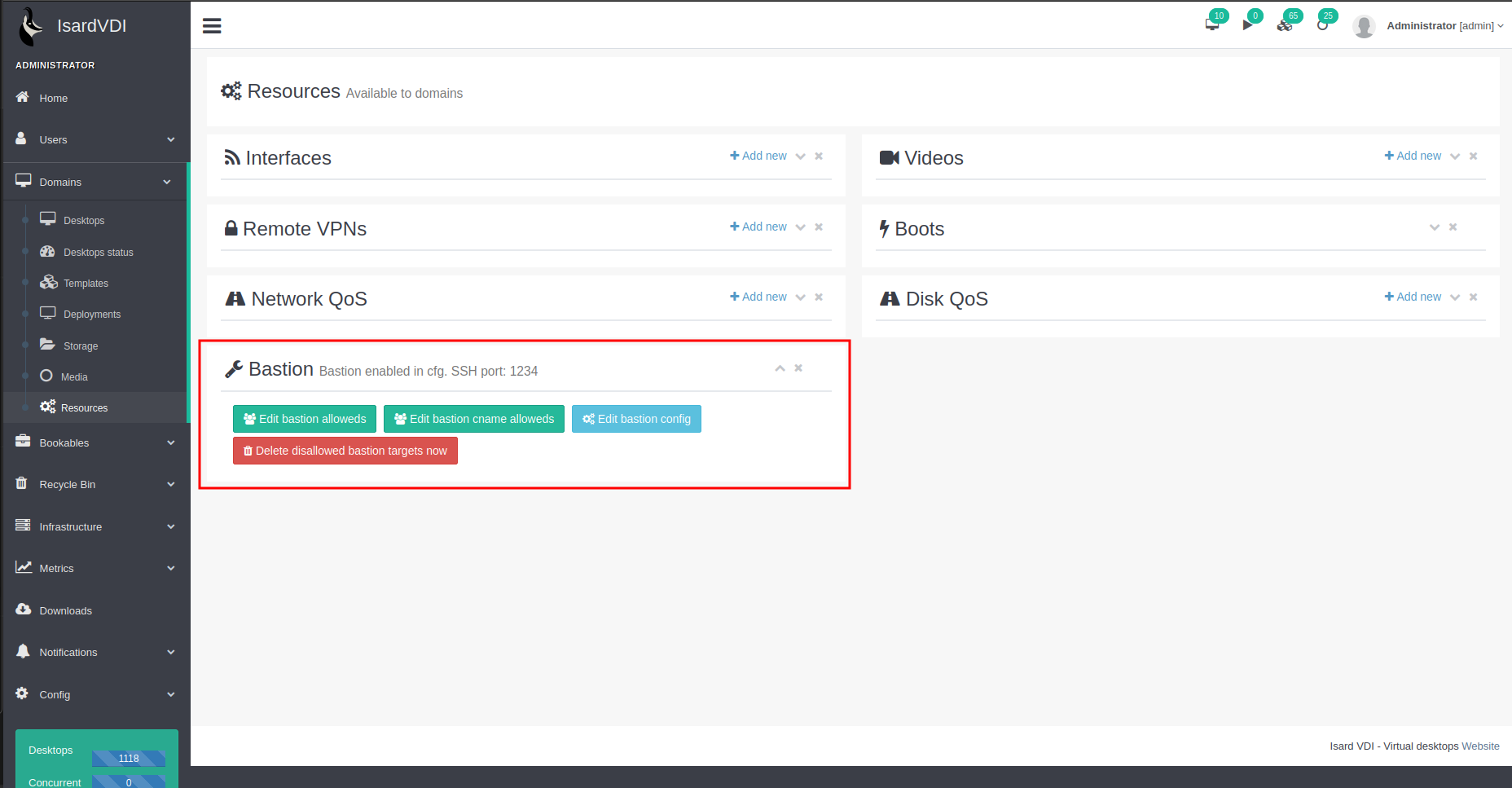
Configuration
To use Bastion, you must have a base domain that points to the IP address of the IsardVDI server. From this base domain, subdomains containing the UUIDs of the virtual desktops are generated, which allows identification and routing to each desktop.
It is not recommended to use the same domain used for the IsardVDI web interface as the Bastion base domain. The most appropriate configuration is to use a dedicated domain or a subdomain, and configure it using a CNAME record that points to the main domain of the IsardVDI server.
For example:
-
Main domain pointing to the server:
isard.example.com -
Create CNAME records on the DNS server to redirect a subdomain to the main domain:
Do not forget the trailing dot on the domain or subdomain you configure.
The second record, the wildcard, is the one that matters: each desktop is accessed by a name below the base domain (<identifier>.bastion.example.com), and a record for the base domain only does not cover them.
The chosen domain will be the default domain that all users with permissions configured to use Bastion can use.
Bastion by category
The default domain can be changed to a custom one for each category. In the categories section, you can see a column with a circle that turns green if Bastion is enabled for that category:
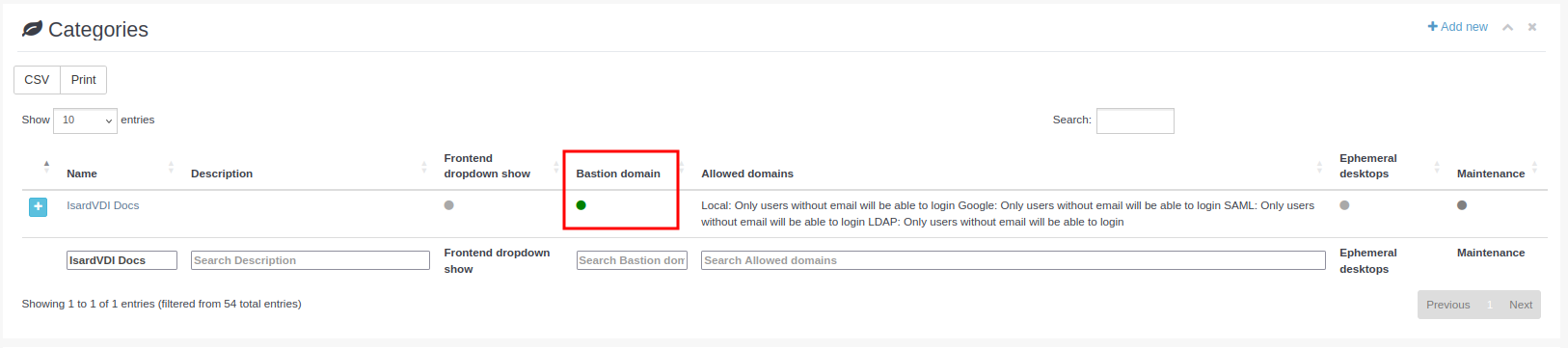
If you edit the category by clicking  , next to the category name, the following option for Bastion appears:
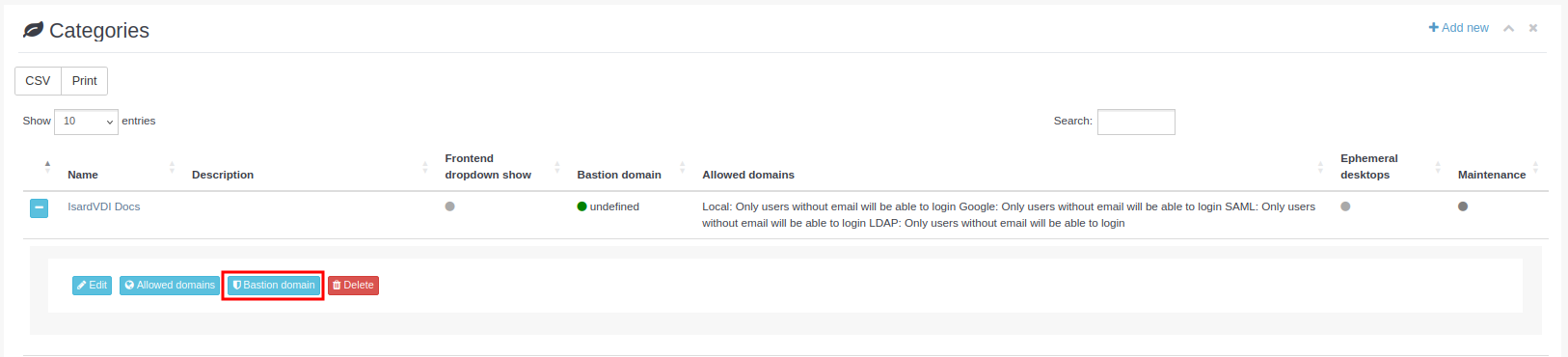
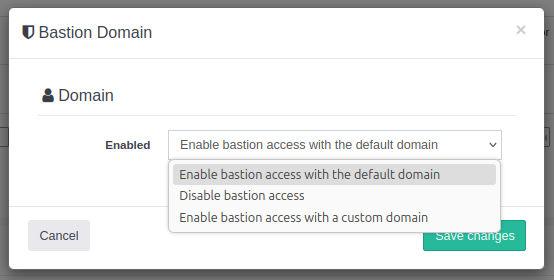
Within this section, there are 3 options:
-
Enable bastion access with the default domain: Enables the default domain used by Bastion.
-
Disable bastion access: Disables access to the Bastion functionality.
-
Enable bastion access with a custom domain: This option allows you to configure a custom domain to access the Bastion of the virtual desktops in the category. To do this, add records to your DNS server.
How do I configure a custom domain for a category?
-
Add an A record pointing to the server IP with the custom domain. Also add another record so that all subdomains of this domain point to the server too.
categoria1.example.com. IN A {IP_Servidor}*.categoria1.example.com. IN A {IP_Servidor} -
When modifying the TTL (Time to Live) of the domain, which determines how long devices and servers will cache the DNS resolution result before querying it again, it is recommended to set it to the lowest possible value to prevent the platform from running with outdated or expired data.
-
To verify domain ownership, add a TXT record with the information provided by the platform, the Record content. For example:
_isardvdi-bastion-category.categoria1.example.com. TXT "1234-1234-1234-1234" -
All that remains is to fill in the Domain field indicating the name of the new domain for that category.
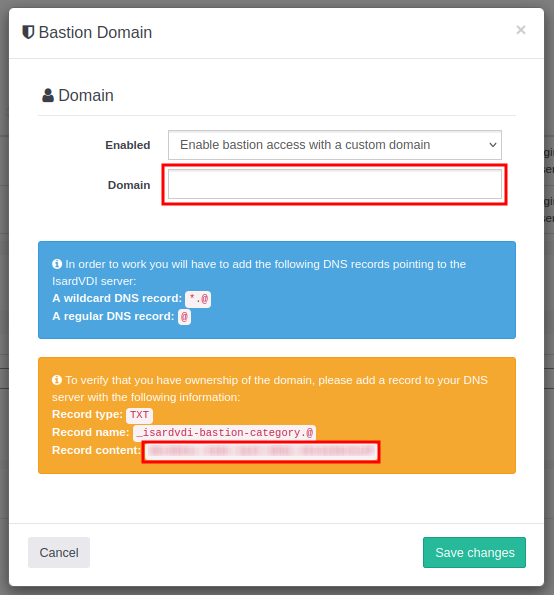
How to verify that the domain has been generated correctly?
-
From a terminal, you can query the domain by running:
dig @8.8.8.8 -t txt _isardvdi-bastion-category.category1.example.com -
A ping to the new domain should resolve to the IP address of the IsardVDI server.
ping categoria1.example.com -
You can also use any TXT record lookup website, such as mxtoolbox, and check that it matches what has been configured in the DNS.
After the DNS configuration, configure Bastion on the platform:

Features of each button:
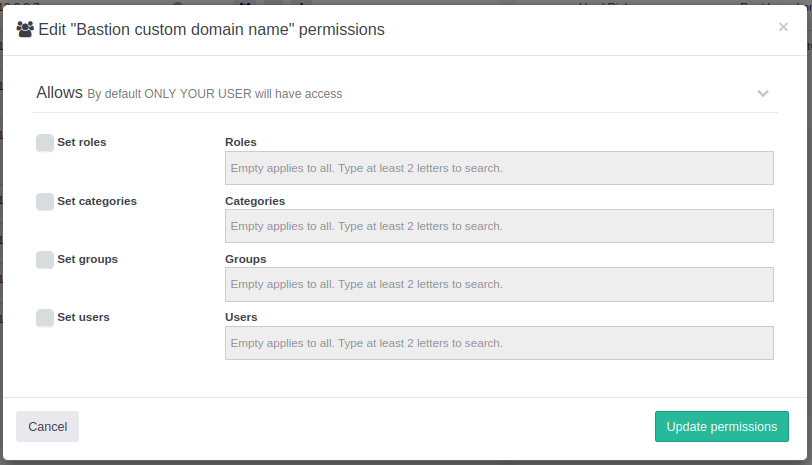
 : Configures the Bastion usage permissions (roles, categories, groups or users). Only users with permission see the bastion options on their desktops.
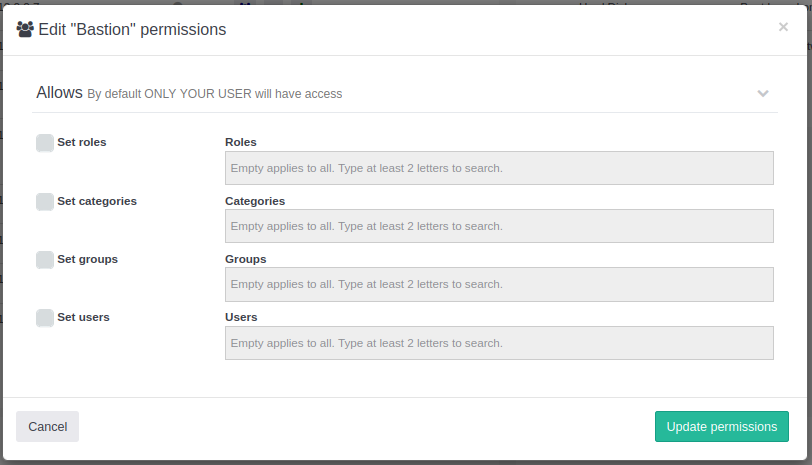
 : Grants permission to add or modify custom Bastion domains on each desktop.
 : Defines the default domain of Bastion.
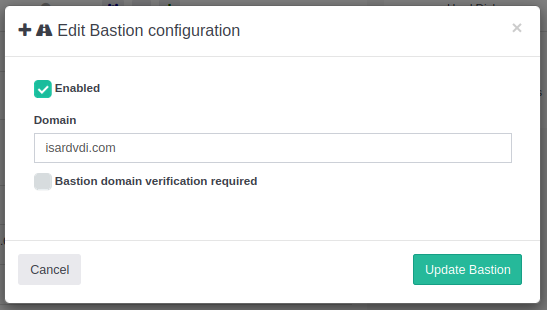
Its options are:
- Enabled: Enables the Bastion functionality for users who have permission.
- Domain: The base domain. Each desktop gets its own subdomain, built from its Bastion identifier.
-
Bastion domain verification required: If checked, a custom domain defined by a user cannot be saved until its TXT record (Record content) verifies domain ownership. It is advisable to keep this checked if you do not fully trust everyone with cname permissions, as this prevents a user from claiming a domain that is not theirs.
-
 : Re-checks all Bastion destinations and removes those of users who no longer have permission. This happens automatically when editing Bastion permissions, so this button is only needed if you suspect that cleanup was not performed correctly.
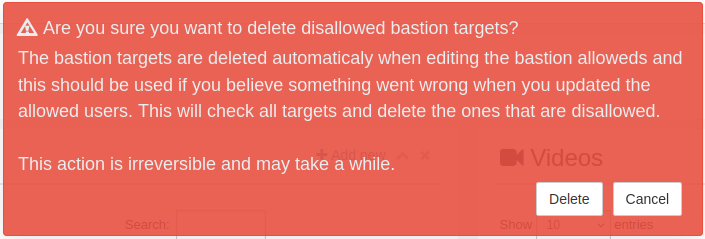
Warning
The action is irreversible and may take a while. Removing a destination also removes its custom domains and authorized keys: the desktops are not affected, but their public URLs and SSH access stop working.
Things to know
Content filters flag bastion addresses
Desktop addresses have the form <identifier>.<identifier>.<bastion domain>. This is a wildcard domain with long, random-looking labels. Several commercial web filters (FortiGuard, Palo Alto, Cisco Umbrella) classify this pattern as phishing or malware. Therefore, networks using them, such as many educational centers, block the web addresses, while SSH continues to work.
This asymmetry is how to recognize it: if SSH via the bastion works from a network but HTTP/HTTPS does not, the block is in that network's filter, not in IsardVDI. It is resolved by adding an exception to the filter for the bastion domain, which is managed by whoever administers that network. Using a dedicated bastion domain per category limits the scope of a block.
Country or reputation filtering, and certificates for desktops
If the installation filters inbound traffic by country or IP reputation, certificate authorities cannot validate names via HTTP. Let's Encrypt validates from various points in the cloud, many of which are registered in the United States. The HTTP-01 method (certbot --nginx, acme.sh --standalone, Caddy's automatic HTTPS) then fails intermittently for services published by the bastion.
Direct users to HTTPS Certificates for Bastion Desktops, which uses the DNS-01 method and requires no inbound connection. Opening countries in the filter to allow HTTP-01 is not a durable solution.
Desktop addresses respond with the portal certificate
If suddenly the HTTPS addresses of all desktops present the certificate of the IsardVDI web interface, the portal has lost the list of bastion names. This list only lives in memory and is populated by the API. Reloading the portal empties it, and restarting the portal does not repopulate it. It is restored by restarting the API:
Who configures each desktop's bastion
The global configuration (enabling the bastion, the default domain, domain verification and permissions) is exclusive to administrators, from this Resources section.
Each desktop's configuration is not done by the administration: the desktop owner does it from their interface, provided they have permission to use the bastion (usage permissions button described above). There they can:
- Enable SSH access and set its port (from 1 to 65535; by default, disabled on port 22), and add the authorized public keys.
- Enable HTTP/HTTPS access and set its ports (by default, 80 and 443).
- Add custom domains, only if they have the custom domains permission (second button described above). If domain verification is enabled, the domain is not saved until the TXT record verifies its ownership.
If the user does not have bastion permission, they do not see these options on the desktop. If they do, but the bastion is not enabled for that desktop, they see the notice «Bastion is not enabled for this desktop» and must edit the desktop to enable HTTP/HTTPS or SSH access on it.
The bastion SSH key that the user saves in their profile is automatically added to all their desktops. If they have none, they see the notice «User SSH key missing» with the Add it to your profile button.
How it works for the user is described in Bastion and Bastion SSH key.
Bastion in deployments
The bastion can be enabled for all the desktops of a deployment at once. The deployment owner (advanced, manager or administrator role) does it, provided they have permission to use the bastion. The users who receive the deployment's desktops do not see this configuration: they only see their desktop's connection data, and their SSH key is taken from their profile instead of having to paste it desktop by desktop.
When it is enabled or disabled, running desktops are updated immediately, and new or recreated desktops inherit the configuration when they start for the first time. The owner can also view the access data (HTTP/HTTPS URL and SSH command) of each deployment user's desktop.
Nothing else needs to be configured in this section: everything depends on the permissions above. How it works for the user is described in Bastion in deployments.