Deployments
This section allows you to create and manage deployments. The advanced, manager and administrator roles have access to it, but the user role does not. The users who receive a deployment see its desktops in their desktop list and, if they have access to the section, in Shared with you. How many deployments, desktops and users each person can have is set by the quotas configured by the administration (see Quotas and limits).
Roles with access
- «New Deployment»: the advanced, manager, and admin roles (not the user role).
Video: page walkthrough
Info
Deployments are only available to the Advanced, Manager, and Admin roles.
A deployment creates an identical desktop for each user in a group, based on a single template. Each user sees their desktop in their desktop list, while the creator manages all of them from a single location: start them, stop them, view their screens, or publish them externally.
This is the standard way to set up a classroom: a template with the subject's software and a desktop per user.

In the side menu, the Deployments section.
Deployment list
The Deployments section contains the list of your deployments and the New Deployment button.

The list shows the deployments for which the user is the owner or co-owner. The advanced, manager and administrator roles have access. Deployments that other people have shared with the account as an end user are shown separately, in Shared with you.
Each row represents a deployment (not a desktop or a user) and displays:
| Column | What it shows |
|---|---|
| Visibility | Badge Visible, Hidden, or Partially visible. Calculated based on the number of visible desktops relative to the total: none visible is «Hidden», all visible is «Visible», and the rest is «Partially visible». |
| Deployment | Deployment name. |
| Description | Description (displays a maximum of two lines). |
| Started | Number of started desktops in the deployment (includes those that are stopping). |
| Visible | Number of desktops visible to users. |
| Users | Number of users in the deployment. |
All columns, except the actions menu, can be sorted by clicking the header. At the top, there is a search bar Search deployments (matches name or description) and a filter Status with options Visible and Hidden, each with its count.
Clicking a row opens the deployment details, described in Deployment details.
Create a deployment
The New Deployment button is in the top bar (or, if there are none yet, on the empty screen «You don't have any deployments yet»). Before opening the form, the deployment creation quota is checked. If it is exceeded, a warning «Deployment creation quota exceeded. A deployment must be deleted in order to create a new one.» opens with the Go back to deployments button, and you cannot continue.
Row actions
The three vertical dots button (More) on each row opens a menu with the following actions:
| Action | What it does |
|---|---|
| Edit deployment | Opens the deployment edit view. |
| Users and groups | Opens the window to change who has access to the deployment. Leaving at least one selection is mandatory. Warning: «Removing a user from the deployment also deletes their desktops.» |
| Manage Co-Owners | Selects which users (only with advanced, manager, or administrator role) are co-owners. |
| Download direct links | Downloads a CSV with the direct viewers. You can choose Keep URLs or Regenerate URLs (previously generated links stop being valid). |
| Recreate deployment | Resets desktops to their initial state at creation; only creates deleted desktops (for allowed and active users who no longer have them). The window indicates how many will be created, or «There are no desktops to create: every allowed and active user already has theirs.» |
| Desktop visibility | Opens visibility management; see Deployment visibility. |
| Reserve | Appears in the menu, but is not implemented in this version: shows the warning «not implemented yet». |
| Delete deployment | Deletes the deployment. Not shown to co-owners. |
Conditions and messages
- Roles: This section is only accessible to advanced, manager, and administrator roles.
- Quota: If the creation quota is exceeded, the form does not open, and the quota exceeded warning is displayed.
- Status filter: The count for the Status filter is calculated using the deployment's global visibility flag (active if any desktop is visible), so a Partially visible deployment appears under Visible.
- Users and groups with scheduled booking: If the deployment has a scheduled booking, the change is rejected with «You can't change who can access this deployment while it has a scheduled booking». Other errors show «Could not update the allowed users and groups»; on success, «Allowed users and groups updated».
- Co-owners: have the same permissions as the owner, except for deleting the deployment and managing co-owners. If a co-owner opens the window, they see it in read-only mode with the warning «As a co-owner you cannot change the co-owners. Contact the deployment owner.». Result: «Co-owners updated» or «Could not update the co-owners».
- Delete: a deployment can only be deleted if all its desktops are stopped; otherwise, the API responds that they must be stopped. The checkbox in the window allows sending it to the recycle bin or deleting it permanently; permanent deletion cannot be undone. Whether the checkbox is ticked by default, and for how many hours the items are kept, is decided by the administration (see Recycle bin configuration). With a retention time of 0 the checkbox does not appear and deletion is always permanent.
- No results: If the search or filter does not match any deployment, «No results found» is displayed with options to clear the search and filters.
- Deployment parameters are not modified from the list: use Edit deployment for this.
- If there are no deployments, the screen shows «You don't have any deployments yet» with the New Deployment button.
Development details
For those developing or integrating IsardVDI: where each element of this view (the deployment list) is located in the code and which API operation is behind it. References point to commit 7744c96b.
List view · component/frontend/src/views/DeploymentsView.vue
- List loading (
getAllDeploymentsOptions, L52-57) →GET /api/v4/deployments, served byDeploymentService.get_owned_deployments, which combines own and co-owned deployments (CommonDeployments.get_owned_deployments/get_co_owned_deployments). Each row is aOwnedDeploymentwith fieldstag_visible,name,description,started_desktops,visible_desktops,total_users,total_desktops, andco_owner. - Columns ·
header(L138-181): keystag_visible,name,description,started_desktops,visible_desktops,total_users, anddropdown_menu. All are sortable (sortable: true) exceptdropdown_menu. Texts come fromviews.deployments.data-table.headers.*. The description is truncated to two lines (line-clamp-2, L549). - Counter «Started» ·
started_desktopscounts desktops in stateStartedandShutting-down(indextag_statusin the common service). - Visibility badge ·
badgeState(L190-214) →visibilityStateFromCounts(visible_desktops, total_desktops, tag_visible)(component/frontend/src/lib/deployment-visibility.ts:95):0visible =Ocult(views.deployments.visibility.hidden, gray, iconeye-off); all visible =Visible(...visible, blue,eye); the rest =Parcialment visible(...mixed, yellow,minus). With no desktops (total_desktops === 0), it falls undertag_visible. - Search and filter ·
areDeploymentsVisible(L120-133) filters by name or description;deploymentFilterCategories(L89-112) builds theEstatfilter withvisible/hidden. The filter count is calculated withtag_visible(OR over desktops), so aParcialment visiblecounts withinVisibles. - New Deployment ·
goToNewDeployment(L63-76): performscheckQuotaNewDeploymentOptions→GET /api/v4/quota/deployment/new; if it fails, opensQuotaExceededModal(components.deployments.quota-exceeded-modal.*). Button with textrouter.deployments.new.title. - Row actions ·
dropdownActions(L227-300):edit(RouterLink toedit-deployment),alloweds,co-owners,download,recreate,manage-visibility(routedeployment-visibility),reserve, anddelete.visibleDropdownActions(L328-329) hides actions withhiddenFor: onlydeletehas it (hiddenFor: co_owner, L296).reservecallshandleNotImplemented(L302) →alert('not implemented yet'). - Users and groups ·
editDeploymentUsers(L394-411): errorcant_edit_booked_deploymentgivesviews.deployments.alloweds.blocked; other errors,...error; success,...success. The modal requires selection (require-selection, L449) and showsviews.deployments.alloweds.warning. - Co-owners ·
updateCoOwners(L360-374): successcomponents.deployments.co-owners-modal.success, error...error. The modal is read-only for a co-owner (:readonly, L470) with...co-owner-warning; only accepts rolesadvanced,manager,admin(L460). - Recreate ·
RecreateModal:countRecreateDeploymentDesktopsOptionsindicates how many desktops are missing;0→views.deployment.recreate-modal.empty,>0→...description+...count. - Delete ·
DeleteModal→DELETE /api/v4/deployments/{id}, protected byDepends(deployment_has_no_started_desktops)(Deployment.check_desktops_started), which throwsprecondition_required/deployment_stopif there are unstopped desktops. The recycle bin depends onrecycle_bin_cutoff_time: with retention0, deletion is always permanent. - Empty state ·
EmptyState(L608-628): variantfirst-runwhen there are no deployments,no-resultswhen the search or filter returns nothing.
Create a deployment
The Deployments section contains the list of your deployments and the New Deployment button.
The creation form asks for:
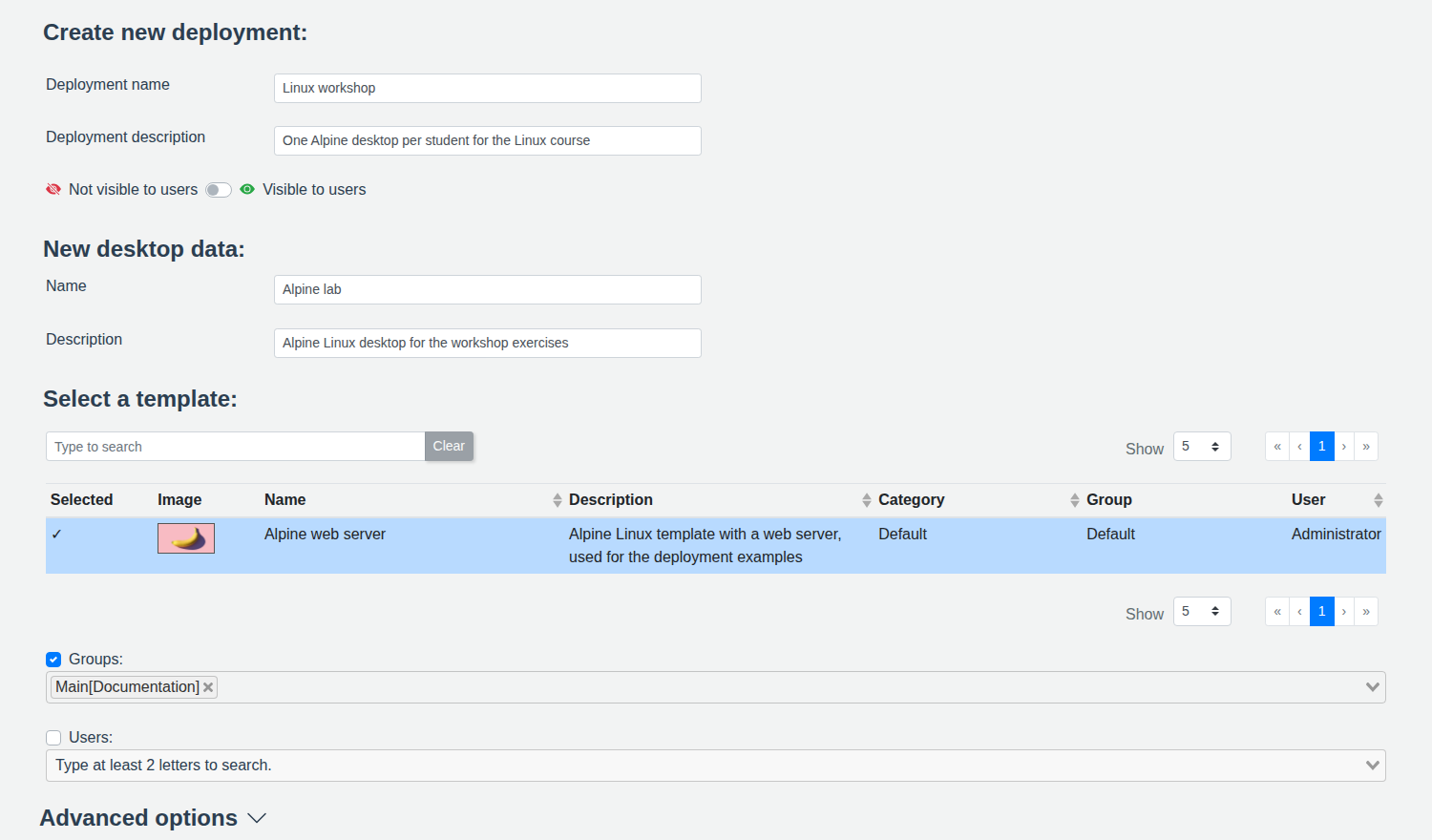
| Field | Description |
|---|---|
| Deployment name | Name of the deployment. Only visible to the person managing it. |
| Deployment description | Optional description. |
| Not visible / Visible to users | Whether the desktops appear in the users' list or not. This can be changed at any time. |
| Name and Description of the desktop | The name and description that users will see on their desktop. |
| Select a template | The template from which each desktop is created. |
| Groups / Users | Who receives a desktop. You can combine entire groups and individual users. |
Advanced options
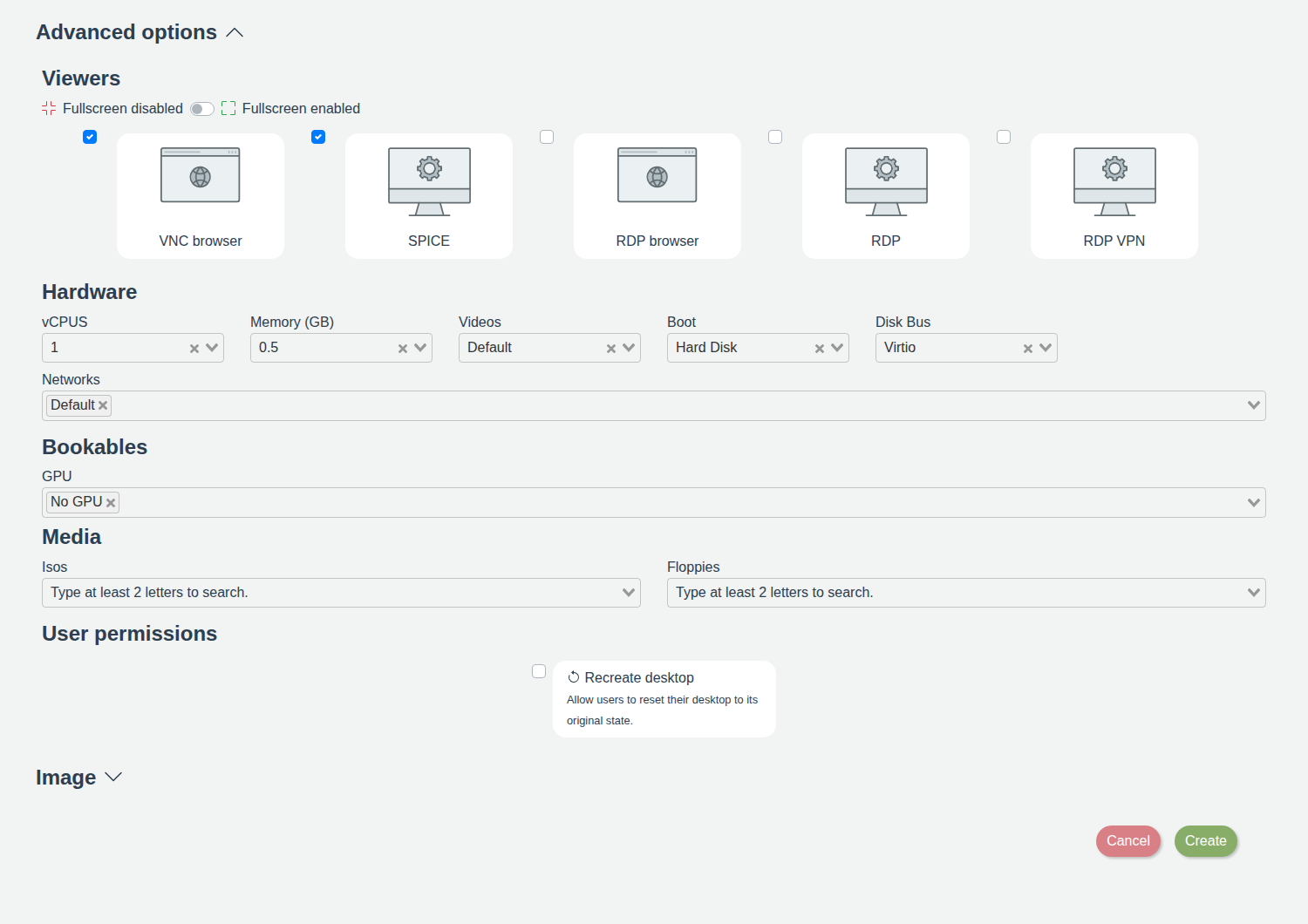
| Section | What it controls |
|---|---|
| Viewers | Which viewers users can use and whether they open in full screen. |
| Hardware | vCPU, memory, video, boot order, disk bus, and networks for each desktop. |
| Bookables | GPU profile, if the deployment needs to use one. See Book a deployment. |
| Media | ISOs and floppy disks connected to the desktops. |
| User permissions | Actions the user can perform on their own desktop. Currently Recreate desktop, which allows them to reset it to its initial state. |
| Image | Thumbnail that identifies the desktop. |
Important
- The owner is the only one who can edit a specific desktop without affecting the rest.
- A desktop is also created for the user making the deployment.
A deployment creates, for each user it is shared with, one or more desktops from templates. Each user sees them in their desktop list, and the owner manages them all from the deployment.
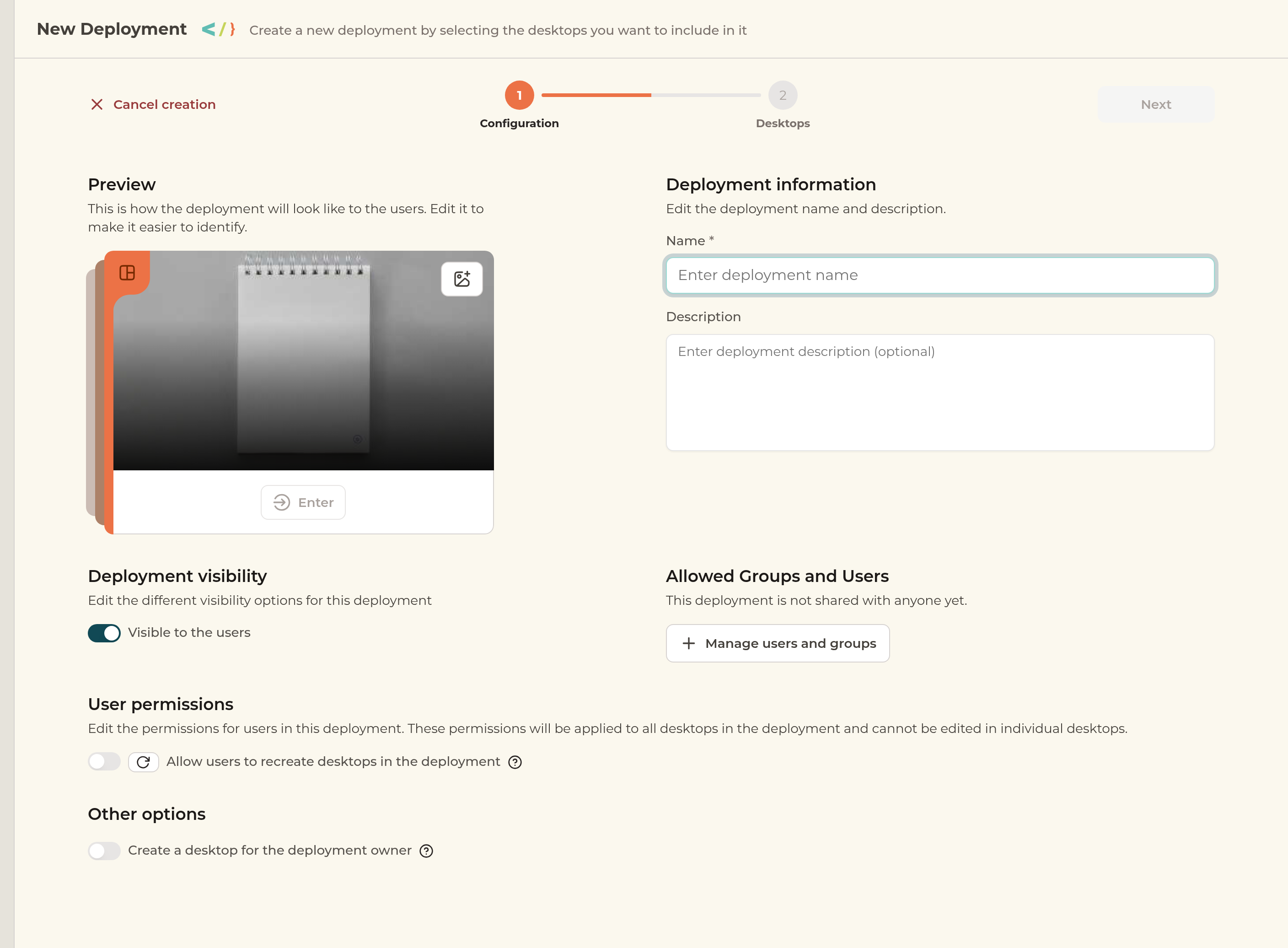
The New Deployment form has two steps, Configuration and Desktops:
- Click New Deployment.
- In the Configuration step:
- In Deployment information, fill in Name (4 to 50 characters, required) and, optionally, Description (up to 255 characters).
- In Deployment visibility, leave Visible to the users on or turn it off. If it is off, the desktops are created, but users do not see them until they are made visible (see Desktop visibility).
- In Allowed Groups and Users, click Manage users and groups and choose who it is shared with.
- In User permissions, turn on Allow users to recreate desktops in the deployment if needed (see Recreate desktop).
- The Preview section shows how users will see the deployment and allows changing its image.
- Click Next.
- In the Desktops step, click Add desktop and choose the template in the Add a desktop to the deployment window. On the desktop card, Name, Description and the image can be changed, and the Edit hardware and access configuration button opens the hardware, viewers and networks. The card's Change template and Delete desktop buttons change its template or remove it from the deployment.
- Repeat the previous step to add more desktops. Each added desktop is created for all the users of the deployment: with two desktops, each user gets two.
- Click Create Deployment.
When it finishes, a desktop is also created for the owner of the deployment.
Conditions and messages
- Sharing is required: if no group or user is chosen, the form does not let you continue and shows «A deployment must be shared with at least one group or user.».
- At least one desktop: with no desktop, the Desktops step shows «At least one desktop must be added to the deployment.».
- Desktop quota per deployment: the number of desktops that can be added is limited by the Deploy desktops quota that the administration assigns to the user, group or category (see Quotas and limits). If there is a quota, the button shows the count («Add desktop 2 / 3»). When the maximum is reached, the button is disabled and shows «Desktop quota reached: Your quota does not allow any more desktops in this deployment.».
- User quota per deployment: the Deploy users quota limits the number of users a deployment can be shared with.
- Deployment quota: the Deployments quota limits how many deployments can be created. If it is exceeded, the form does not open.
- Repeated names: two desktops in the same deployment cannot have the same name. If a user already has a desktop with that name, «One or more users have a desktop with this name» is shown with the list of users; if there is already a deployment with that name, «Deployment name already exists».
- Reservables: all desktops with reservables (GPU) in the same deployment must have the same reservables; otherwise, «Desktop reservables are not equal» is shown.
- User permissions: they apply to all desktops in the deployment and cannot be changed desktop by desktop.
- Change template: discards the changes made on the desktop card and applies the state of the new template.
Development details
For those who develop or integrate IsardVDI: where each element of this section is in the code, since which version it has been available, which API operation it calls, and what messages it can return.
- New interface · file
components/deployments/new-deployment-desktop-from-card/NewDeploymentDesktopFormCard.vue:159· interface text (translation key)common.actions.change-image- since v17.46.1 (2026-09-29,
80bfbcca4f) - on click:
showChangeImageModal = true
- since v17.46.1 (2026-09-29,
- New interface · file
views/NewDeploymentView.vue:929· interface text (translation key)views.new-deployment.steps.select-desktops.quota-reached.title- since v17.46.0 (2026-09-23,
0483e56f3b) - on click:
selectTemplateModalData = { type: 'add', action: addDesktop }
- since v17.46.0 (2026-09-23,
- New interface · file
views/NewDeploymentView.vue:931· interface text (translation key)views.new-deployment.steps.select-desktops.quota-reached.description- since v17.46.0 (2026-09-23,
0483e56f3b) - on click:
selectTemplateModalData = { type: 'add', action: addDesktop }
- since v17.46.0 (2026-09-23,
- New interface · file
views/DeploymentsView.vue:450· interface text (translation key)views.deployments.alloweds.warning- since v17.27.0 (2026-08-25,
1dae7c4b53)
- since v17.27.0 (2026-08-25,
- New interface · file
components/deployments/new-deployment-desktop-from-card/NewDeploymentDesktopFormCard.vue:277· interface text (translation key)components.domain.configuration.hardware-limited.summary- since v17.21.0 (2026-08-21,
06d7bc4ad5)
- since v17.21.0 (2026-08-21,
- New interface · file
components/deployments/new-deployment-desktop-from-card/NewDeploymentDesktopFormCard.vue:290· interface text (translation key)components.domain.access.viewers-removed.summary- since v17.21.0 (2026-08-21,
06d7bc4ad5)
- since v17.21.0 (2026-08-21,
- New interface · file
views/DeploymentsView.vue:534· interface text (translation key)router.deployments.new.title- since v17.0.0 (2026-04-24,
f31b874d89) - on click:
goToNewDeployment - call:
GET /api/v4/quota/deployment/new — Check deployments quota - call:
navigation to the «new-deployment» route
- since v17.0.0 (2026-04-24,
- New interface · file
views/DeploymentsView.vue:438· interface text (translation key)components.deployments.quota-exceeded-modal.title- since v17.0.0 (2026-04-24,
f31b874d89)
- since v17.0.0 (2026-04-24,
- New interface · file
views/DeploymentsView.vue:439· interface text (translation key)components.deployments.quota-exceeded-modal.description- since v17.0.0 (2026-04-24,
f31b874d89)
- since v17.0.0 (2026-04-24,
- New interface · file
views/DeploymentsView.vue:440· interface text (translation key)components.deployments.quota-exceeded-modal.cancel- since v17.0.0 (2026-04-24,
f31b874d89)
- since v17.0.0 (2026-04-24,
- New interface · file
views/NewDeploymentView.vue:696· interface text (translation key)components.deployments.form-select-template-modal.replace.alert.title- since v17.0.0 (2026-04-24,
f31b874d89)
- since v17.0.0 (2026-04-24,
- New interface · file
views/NewDeploymentView.vue:699· interface text (translation key)components.deployments.form-select-template-modal.replace.alert.description- since v17.0.0 (2026-04-24,
f31b874d89)
- since v17.0.0 (2026-04-24,
- New interface · file
views/NewDeploymentView.vue:741· interface text (translation key)components.deployments.form-select-template-modal.cancel- since v17.0.0 (2026-04-24,
f31b874d89) - on click:
selectTemplateModalData = null
- since v17.0.0 (2026-04-24,
- New interface · file
views/NewDeploymentView.vue:752· interface text (translation key)components.deployments.form-delete-desktop-modal.title- since v17.0.0 (2026-04-24,
f31b874d89)
- since v17.0.0 (2026-04-24,
- New interface · file
views/NewDeploymentView.vue:756· interface text (translation key)components.deployments.form-delete-desktop-modal.description- since v17.0.0 (2026-04-24,
f31b874d89)
- since v17.0.0 (2026-04-24,
- New interface · file
views/NewDeploymentView.vue:761· interface text (translation key)components.deployments.form-delete-desktop-modal.cancel- since v17.0.0 (2026-04-24,
f31b874d89) - on click:
deleteDesktopConfirmationModalData = null
- since v17.0.0 (2026-04-24,
- New interface · file
views/NewDeploymentView.vue:767· interface text (translation key)components.deployments.form-delete-desktop-modal.confirm- since v17.0.0 (2026-04-24,
f31b874d89) - on click:
deleteDesktop(deleteDesktopConfirmationModalData!.index)
- since v17.0.0 (2026-04-24,
- New interface · file
components/deployments/new-deployment-form/NewDeploymentForm.vue:88· interface text (translation key)components.deployments.form-sections.preview.title- since v17.0.0 (2026-04-24,
f31b874d89)
- since v17.0.0 (2026-04-24,
- New interface · file
components/deployments/new-deployment-form/NewDeploymentForm.vue:91· interface text (translation key)components.deployments.form-sections.preview.subtitle- since v17.0.0 (2026-04-24,
f31b874d89)
- since v17.0.0 (2026-04-24,
- New interface · file
components/deployments/new-deployment-form/NewDeploymentForm.vue:122· interface text (translation key)views.deployment.buttons.enter- since v17.0.0 (2026-04-24,
f31b874d89)
- since v17.0.0 (2026-04-24,
- New interface · file
components/deployments/new-deployment-form/NewDeploymentForm.vue:133· interface text (translation key)components.deployments.form-sections.info.title- since v17.0.0 (2026-04-24,
f31b874d89)
- since v17.0.0 (2026-04-24,
- New interface · file
components/deployments/new-deployment-form/NewDeploymentForm.vue:136· interface text (translation key)components.deployments.form-sections.info.subtitle- since v17.0.0 (2026-04-24,
f31b874d89)
- since v17.0.0 (2026-04-24,
- New interface · file
components/deployments/new-deployment-form/NewDeploymentForm.vue:144· interface text (translation key)components.deployments.form-sections.info.fields.name.label- since v17.0.0 (2026-04-24,
f31b874d89)
- since v17.0.0 (2026-04-24,
- New interface · file
components/deployments/new-deployment-form/NewDeploymentForm.vue:151· interface text (translation key)components.deployments.form-sections.info.fields.name.placeholder- since v17.0.0 (2026-04-24,
f31b874d89)
- since v17.0.0 (2026-04-24,
- New interface · file
components/deployments/new-deployment-form/NewDeploymentForm.vue:167· interface text (translation key)components.deployments.form-sections.info.fields.description.label- since v17.0.0 (2026-04-24,
f31b874d89)
- since v17.0.0 (2026-04-24,
- New interface · file
components/deployments/new-deployment-form/NewDeploymentForm.vue:176· interface text (translation key)components.deployments.form-sections.info.fields.description.placeholder- since v17.0.0 (2026-04-24,
f31b874d89)
- since v17.0.0 (2026-04-24,
- New interface · file
components/deployments/new-deployment-form/NewDeploymentForm.vue:194· interface text (translation key)components.deployments.form-sections.visibility.title- since v17.0.0 (2026-04-24,
f31b874d89)
- since v17.0.0 (2026-04-24,
- New interface · file
components/deployments/new-deployment-form/NewDeploymentForm.vue:197· interface text (translation key)components.deployments.form-sections.visibility.subtitle- since v17.0.0 (2026-04-24,
f31b874d89)
- since v17.0.0 (2026-04-24,
- New interface · file
components/deployments/new-deployment-form/NewDeploymentForm.vue:213· interface text (translation key)components.deployments.form-sections.visibility.fields.visible.label- since v17.0.0 (2026-04-24,
f31b874d89)
- since v17.0.0 (2026-04-24,
- New interface · file
components/deployments/new-deployment-form/NewDeploymentForm.vue:225· interface text (translation key)components.deployments.form-sections.alloweds.title- since v17.0.0 (2026-04-24,
f31b874d89)
- since v17.0.0 (2026-04-24,
- New interface · file
components/deployments/new-deployment-form/NewDeploymentForm.vue:246· interface text (translation key)users.count.groups- since v17.0.0 (2026-04-24,
f31b874d89)
- since v17.0.0 (2026-04-24,
- New interface · file
components/deployments/new-deployment-form/NewDeploymentForm.vue:249· interface text (translation key)users.count.users- since v17.0.0 (2026-04-24,
f31b874d89)
- since v17.0.0 (2026-04-24,
- New interface · file
components/deployments/new-deployment-form/NewDeploymentForm.vue:258· interface text (translation key)components.deployments.form-sections.alloweds.fields.alloweds.button- since v17.0.0 (2026-04-24,
f31b874d89) - on click:
showAllowedModal = true
- since v17.0.0 (2026-04-24,
- New interface · file
components/deployments/new-deployment-form/NewDeploymentForm.vue:286· interface text (translation key)components.deployments.form-sections.user-permissions.title- since v17.0.0 (2026-04-24,
f31b874d89)
- since v17.0.0 (2026-04-24,
- New interface · file
components/deployments/new-deployment-form/NewDeploymentForm.vue:289· interface text (translation key)components.deployments.form-sections.user-permissions.subtitle- since v17.0.0 (2026-04-24,
f31b874d89)
- since v17.0.0 (2026-04-24,
- New interface · file
components/deployments/new-deployment-form/NewDeploymentForm.vue:306· interface text (translation key)components.deployments.form-sections.user-permissions.fields.recreate.label- since v17.0.0 (2026-04-24,
f31b874d89)
- since v17.0.0 (2026-04-24,
- New interface · file
components/deployments/new-deployment-form/NewDeploymentForm.vue:324· interface text (translation key)components.deployments.form-sections.user-permissions.fields.recreate.description- since v17.0.0 (2026-04-24,
f31b874d89)
- since v17.0.0 (2026-04-24,
- New interface · file
components/deployments/new-deployment-form/NewDeploymentForm.vue:335· interface text (translation key)components.deployments.form-sections.other-options.title- since v17.0.0 (2026-04-24,
f31b874d89)
- since v17.0.0 (2026-04-24,
- New interface · file
components/deployments/new-deployment-form/NewDeploymentForm.vue:349· interface text (translation key)components.deployments.form-sections.other-options.fields.create-owner-desktop.label- since v17.0.0 (2026-04-24,
f31b874d89)
- since v17.0.0 (2026-04-24,
- New interface · file
components/deployments/new-deployment-form/NewDeploymentForm.vue:361· interface text (translation key)components.deployments.form-sections.other-options.fields.create-owner-desktop.description- since v17.0.0 (2026-04-24,
f31b874d89)
- since v17.0.0 (2026-04-24,
- New interface · file
components/deployments/new-deployment-desktop-from-card/NewDeploymentDesktopFormCard.vue:132· interface text (translation key)components.deployments.form-desktop-card.header.buttons.change-template- since v17.0.0 (2026-04-24,
f31b874d89) - on click:
emit('changeTemplate')
- since v17.0.0 (2026-04-24,
- New interface · file
components/deployments/new-deployment-desktop-from-card/NewDeploymentDesktopFormCard.vue:135· interface text (translation key)components.deployments.form-desktop-card.header.buttons.delete-desktop- since v17.0.0 (2026-04-24,
f31b874d89) - on click:
emit('deleteDesktop')
- since v17.0.0 (2026-04-24,
- New interface · file
components/deployments/new-deployment-desktop-from-card/NewDeploymentDesktopFormCard.vue:143· interface text (translation key)components.deployments.form-desktop-card.sections.preview.title- since v17.0.0 (2026-04-24,
f31b874d89)
- since v17.0.0 (2026-04-24,
- New interface · file
components/deployments/new-deployment-desktop-from-card/NewDeploymentDesktopFormCard.vue:146· interface text (translation key)components.deployments.form-desktop-card.sections.preview.subtitle- since v17.0.0 (2026-04-24,
f31b874d89)
- since v17.0.0 (2026-04-24,
- New interface · file
components/deployments/new-deployment-desktop-from-card/NewDeploymentDesktopFormCard.vue:184· interface text (translation key)components.desktops.desktop-card.status.stopped.action- since v17.0.0 (2026-04-24,
f31b874d89)
- since v17.0.0 (2026-04-24,
- New interface · file
components/deployments/new-deployment-desktop-from-card/NewDeploymentDesktopFormCard.vue:198· interface text (translation key)components.deployments.form-desktop-card.sections.preview.fields.name.label- since v17.0.0 (2026-04-24,
f31b874d89)
- since v17.0.0 (2026-04-24,
- New interface · file
components/deployments/new-deployment-desktop-from-card/NewDeploymentDesktopFormCard.vue:265· interface text (translation key)components.deployments.form-desktop-card.sections.hardware.title- since v17.0.0 (2026-04-24,
f31b874d89)
- since v17.0.0 (2026-04-24,
- New interface · file
components/deployments/new-deployment-desktop-from-card/NewDeploymentDesktopFormCard.vue:268· interface text (translation key)components.deployments.form-desktop-card.sections.hardware.subtitle- since v17.0.0 (2026-04-24,
f31b874d89)
- since v17.0.0 (2026-04-24,
- New interface · file
components/deployments/new-deployment-desktop-from-card/NewDeploymentDesktopFormCard.vue:274· interface text (translation key)components.deployments.form-desktop-card.sections.hardware.button- since v17.0.0 (2026-04-24,
f31b874d89) - on click:
emit('updateHardware')
- since v17.0.0 (2026-04-24,
- New interface · file
components/deployments/new-deployment-desktop-from-card/NewDeploymentDesktopFormCard.vue:200· interface text (translation key)components.deployments.form-desktop-card.sections.preview.fields.name.placeholder- since v17.0.0 (2026-04-24,
f31b874d89)
- since v17.0.0 (2026-04-24,
- New interface · file
components/deployments/new-deployment-desktop-from-card/NewDeploymentDesktopFormCard.vue:231· interface text (translation key)components.deployments.form-desktop-card.sections.preview.fields.description.label- since v17.0.0 (2026-04-24,
f31b874d89)
- since v17.0.0 (2026-04-24,
- New interface · file
components/deployments/new-deployment-desktop-from-card/NewDeploymentDesktopFormCard.vue:236· interface text (translation key)components.deployments.form-desktop-card.sections.preview.fields.description.placeholder- since v17.0.0 (2026-04-24,
f31b874d89)
- since v17.0.0 (2026-04-24,
- New interface · file
components/modal/QuotaExceededModal.vue:44· interface text (translation key)components.quota-exceeded-modal.go-to-profile- since v17.0.0 (2026-04-24,
f31b874d89) - on click:
router.push({ name: 'profile', query: { open: 'quota' } }) - call:
navigation to the «profile» route
- since v17.0.0 (2026-04-24,
Commit code fe99ad98.
Manage a deployment
Clicking the deployment name opens the management view, with one desktop per row.
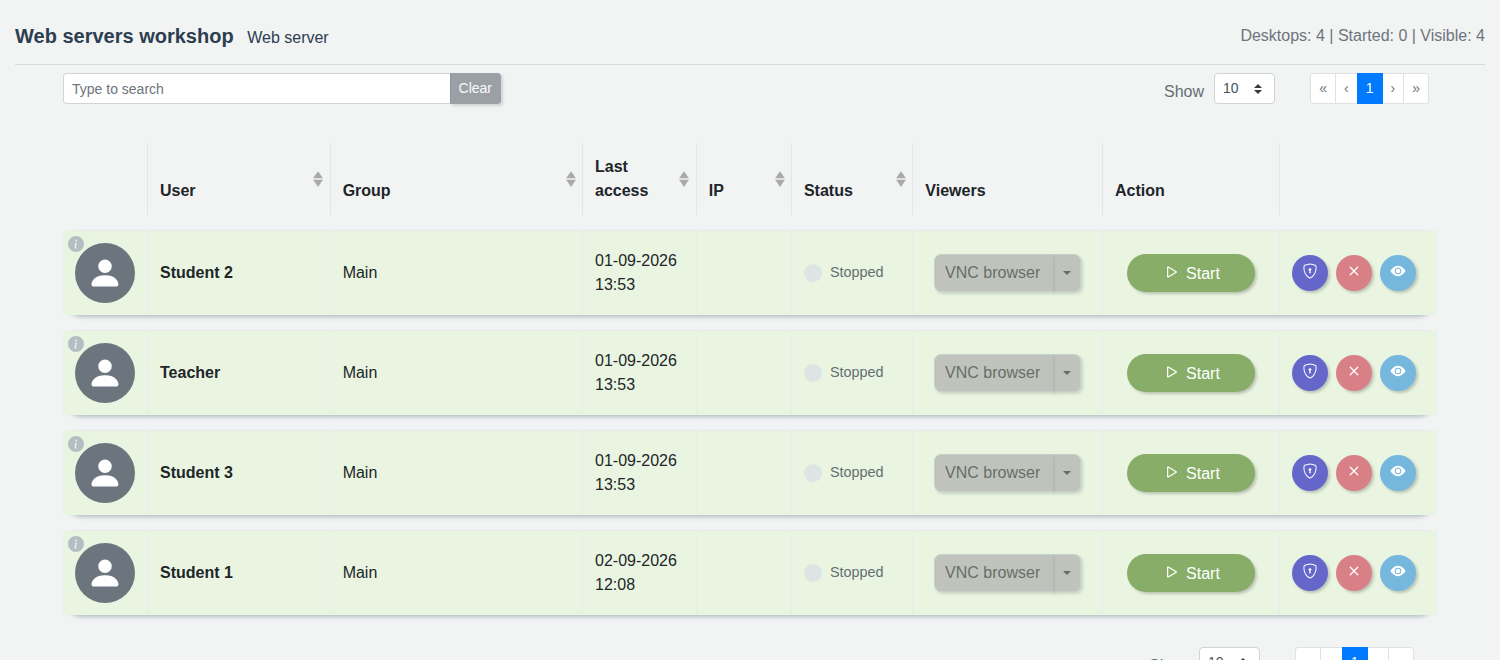
Each row displays the user, their group, the last access, the IP (when the desktop is running), the status, and the viewer it will open with. At the top right, there is the total count of desktops, how many are started, and how many are visible.
Action bar

| Action | Description | |
|---|---|---|
| 1 | Stop all the deployment desktops | Stops all desktops in the deployment. |
| 2 | Make visible / not visible | Changes the visibility of all desktops at once. |
| 3 | Go to videowall | Opens the videowall. |
| 4 | Download direct viewer file | Downloads the direct viewers CSV. |
| 5 | Bastion configuration | Configures the bastion for all desktops. |
| 6 | Download bastion access file | Downloads the bastion access file. |
| 7 | Recreate deployment | Creates the missing desktops. |
| 8 | Edit co-owners | Assigns co-owners. |
| 9 | Edit deployment | Edits the deployment. |
| 10 | Edit users | Changes the participating groups and users. |
| 11 | Delete deployment | Deletes the deployment. |
Actions for each desktop
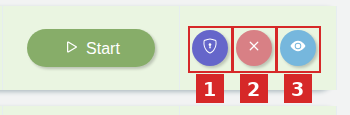
| Action | Description | |
|---|---|---|
| 1 | Bastion info | Displays the URL and SSH command for that desktop. Only appears if the bastion is enabled. |
| 2 | Delete | Deletes that user's desktop. |
| 3 | Make visible / invisible | Changes the visibility of only that desktop. |
Start and stop
The Start button in each row starts that user's desktop; once started, the button changes to Stop. The dropdown in the Viewers column selects which viewer it will open with.
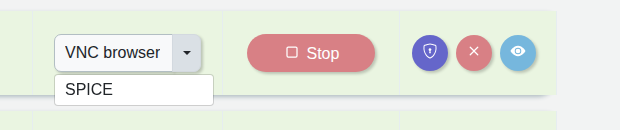
Warning
The force stop option shuts down the machine immediately without closing the operating system. This may cause data loss and should only be used if the normal stop does not respond.
Visibility
An invisible desktop does not appear in its user's list. Deployments with any visible desktops appear in green in the list.
When making the entire deployment invisible, you must choose what happens to desktops that are already running:
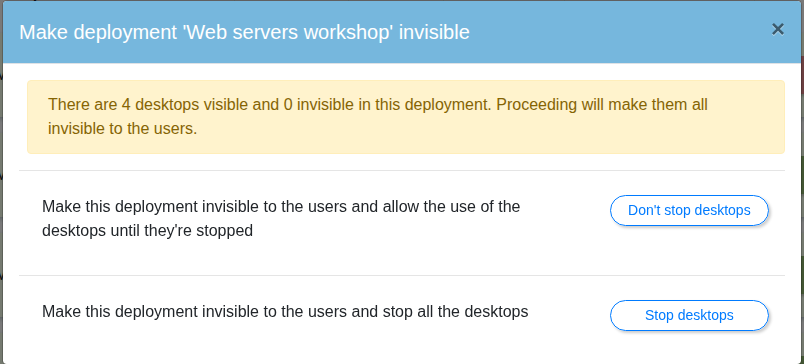
- Don't stop desktops: Users currently using their desktop can continue until they stop it. Once stopped, they will no longer have access.
- Stop desktops: Immediately stops all desktops.
Videowall
The videowall displays in real time the screens of all started desktops in the deployment.
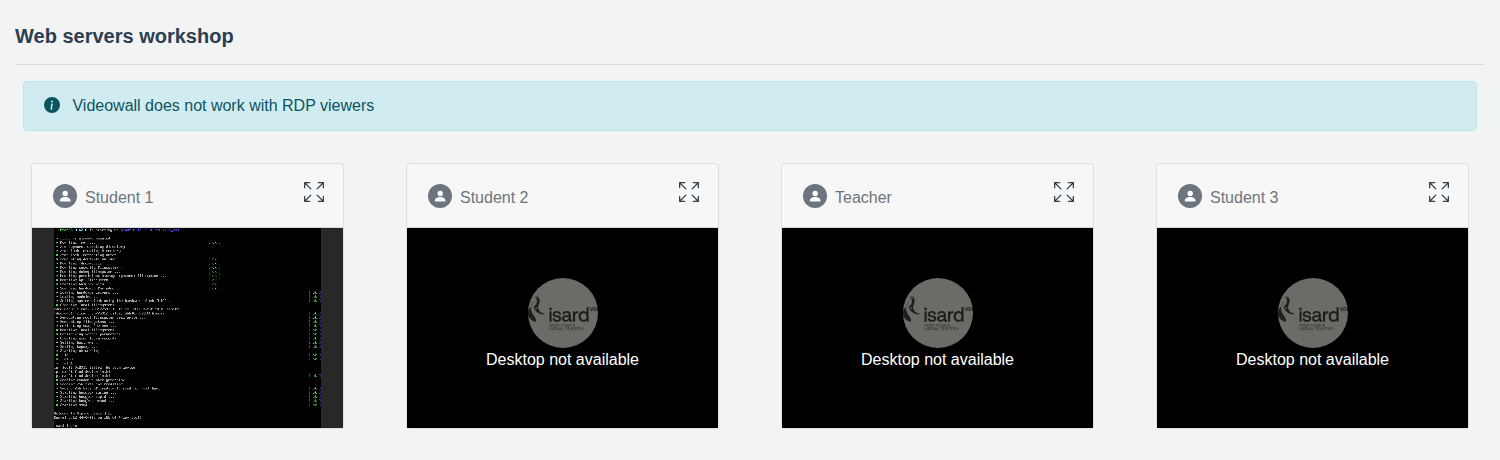
The icon on each thumbnail opens the desktop in full screen and allows interaction.
Legal notice
Entering another user's desktop takes control of it and affects their privacy. You must have their permission before doing so.
Warning
The videowall shows the screens over VNC; it does not show desktops that only have RDP viewers (for example, with the video set to «Only GPU»).
Direct viewers CSV
Generates a file with the name, email, and direct viewer link for each user in the deployment. This is the way to distribute access without users having to log in to IsardVDI.
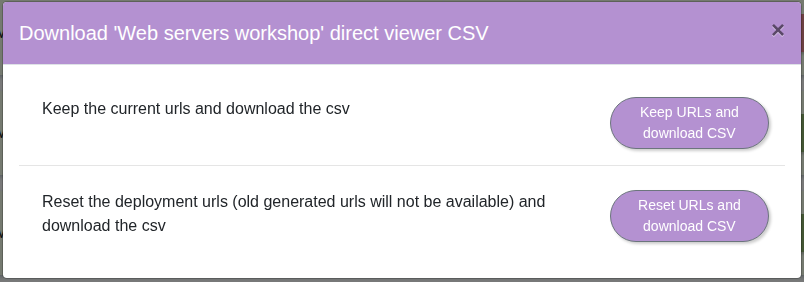
- Keep URLs and download CSV: Keeps the current links.
- Reset URLs and download CSV: Generates new ones and invalidates those previously distributed.
Bastion
You can publish the entire deployment through the bastion (SSH and HTTP/HTTPS access from outside, without VPN) with a single configuration, and download a file with the access data for each desktop.
Co-owners
Co-owners manage the deployment just like the owner.
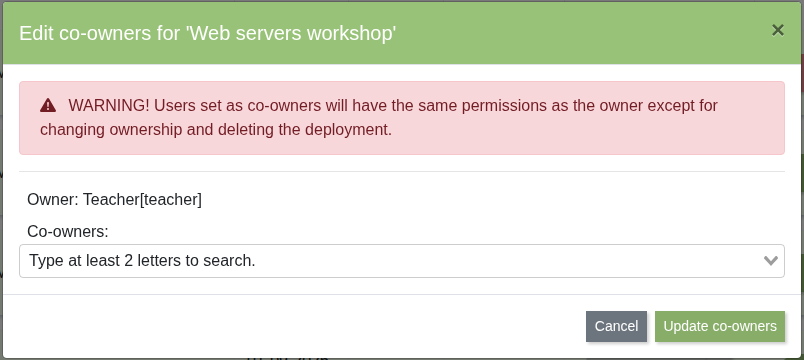
Warning
A co-owner can start and stop desktops, view their screens, and change the deployment configuration. No can delete it or change its ownership.
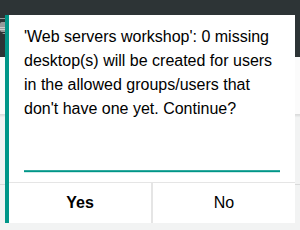
Recreate desktops
After modifying the deployment's groups or users, this action creates the missing desktops for new users. It is also useful for recovering a desktop deleted by mistake.
Edit a deployment
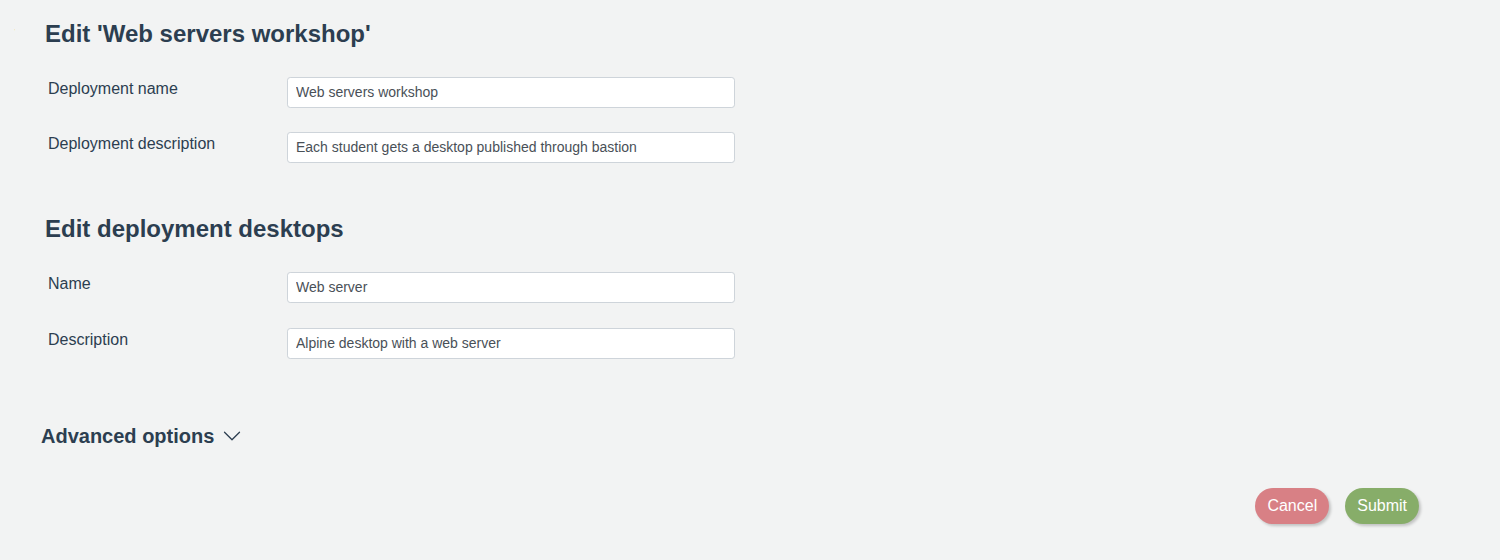
Allows changing the deployment and desktop names and descriptions, as well as advanced options. It is accessible from the deployment list or the management view.
Note
The deployment cannot be edited while there are desktops that are not stopped: the Edit deployment button is disabled with the warning «This deployment cannot be edited at the moment». In the new interface, instead, the warning «A deployment cannot be edited until all of its desktops are stopped.» opens with the Go to deployment management button.
Delete
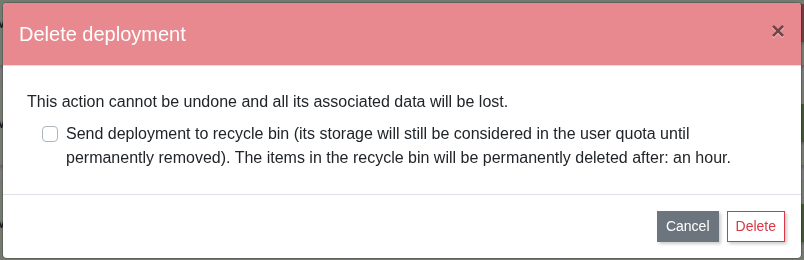
Deleting the deployment removes all its desktops. If the recycle bin option is ticked, the space they occupy keeps counting towards the quota until they are permanently deleted.
To delete a single user's desktop, use the icon in their row. To recreate it, recreate the desktops.
Reserve a deployment
Booking a deployment works the same as booking a desktop, but it applies to the whole deployment at once: it reserves as many units of the GPU profile as the deployment has desktops. The full procedure (creating and deleting bookings, and the video tutorials) is in Bookings.
States and messages
| What is seen | What it means | What to do |
|---|---|---|
| «Removing a user from the deployment also deletes their desktops.» | A user is removed from the deployment. | The user must confirm the action, bearing in mind that the desktops will be lost. |
| «Allowed users and groups updated» | The allowed users and groups are updated successfully. | The user sees the success confirmation. |
| «Could not update the allowed users and groups» | The allowed users and groups cannot be updated. | The user must review the error or contact the administrator. |
| «You can't change who can access this deployment while it has a scheduled booking» | There is an active scheduled booking in the deployment. | The user must wait for the booking to finish to modify the permissions. |
| «Hidden» | No desktop in the deployment is visible. | The user sees the hidden visibility state. |
| «Partially visible» | Only some desktops in the deployment are visible. | The user sees the partial visibility state. |
Errors when saving changes
When saving changes in the co-owners list or in the allowed users and groups, the system may show an error message if the operation does not complete successfully.
| What you see | What it means | What to do |
|---|---|---|
| «Could not update the co-owners» | The changes in the co-owners list could not be saved. | Try again or close the window. |
Restrictions for active bookings
If there is an active scheduled booking in the deployment, access permissions cannot be modified.
Desktop visibility states
The owners and co-owners of the deployment see the visibility state of their desktops.
| What is shown | What it means | What to do |
|---|---|---|
| «Visible» | All desktops in the deployment are visible. | The user sees the complete visibility state. |