Introduction to authentication
Roles with access
Only administrators have access to this feature.
The Config → Authentication section is where you decide how users can log in to the installation. From here you enable and configure the four authentication providers that IsardVDI implements, and define the account migration policy between providers.
To access it:
- Expand
Configin the administration panel sidebar. - Click Authentication.
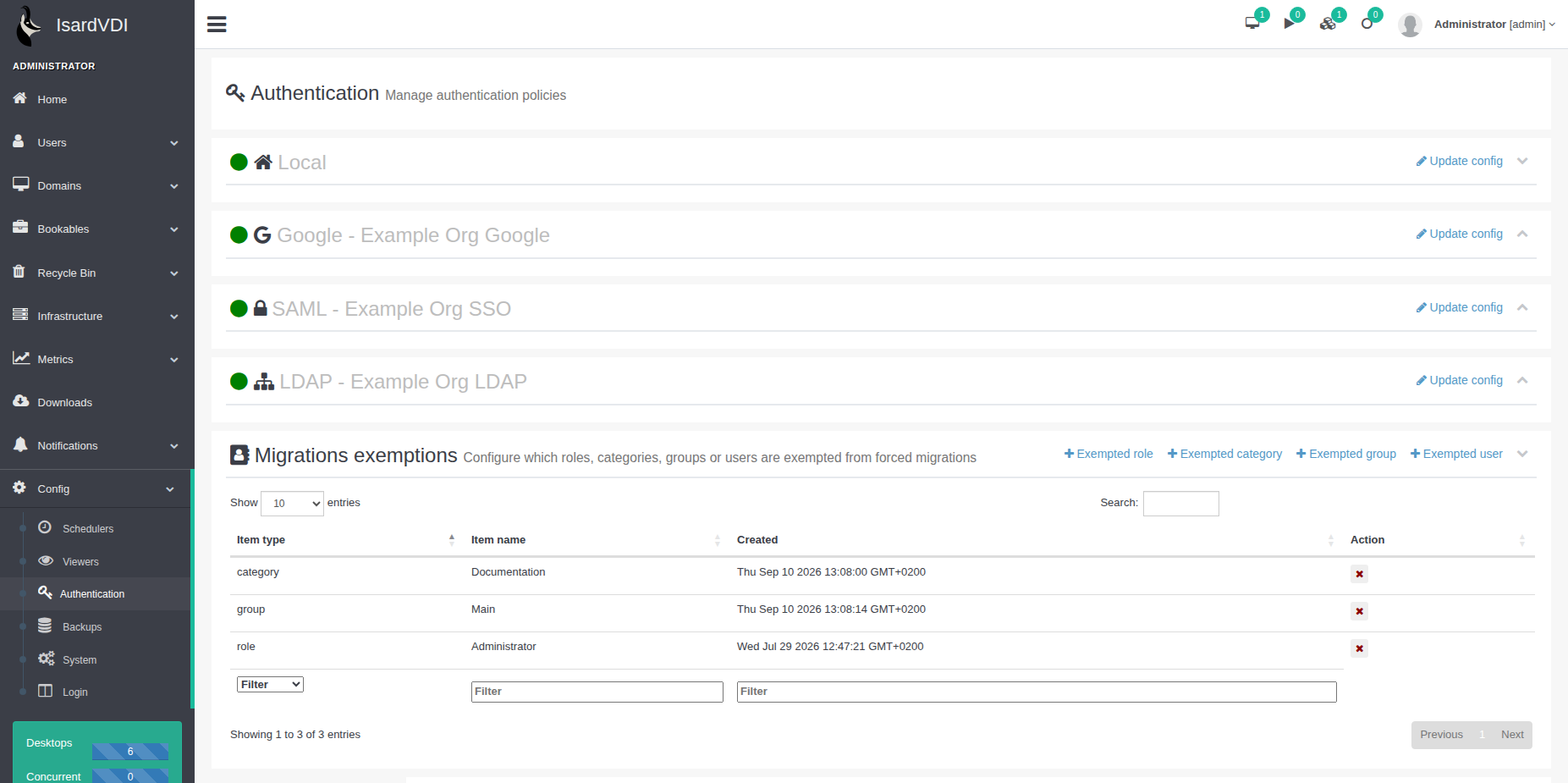
The authentication page
The page has five panels, in this order: Local, Google, SAML, LDAP and Migrations exemptions. Each provider panel shows:
- A status indicator ● / ● that shows whether the provider is enabled.
- The provider name: the internal name (
Local,Google,SAML,LDAP) followed, if one has been defined, by the Provider Name configured by the administrator. - The Update config link, which opens the configuration window.
- When expanded, the current configuration (read-only) and the Migration table with the migration policy in force.
The four providers
| Provider | How the user logs in | Requires an external service |
|---|---|---|
| Local | Username and password stored in IsardVDI. | No |
| LDAP | Username and password validated against an LDAP directory. Uses the same form as local authentication. | Yes, an LDAP or LDAPS server |
| Login with Google button → OAuth 2.0 with the Google account. | Yes, a project in Google Cloud | |
| SAML | Login with SAML button → redirection to the organization's identity provider (IdP). | Yes, a SAML 2.0 IdP |
You can have several providers enabled at the same time. Local and LDAP share the username and password form; Google and SAML add a button to the Other logins section of the login screen:
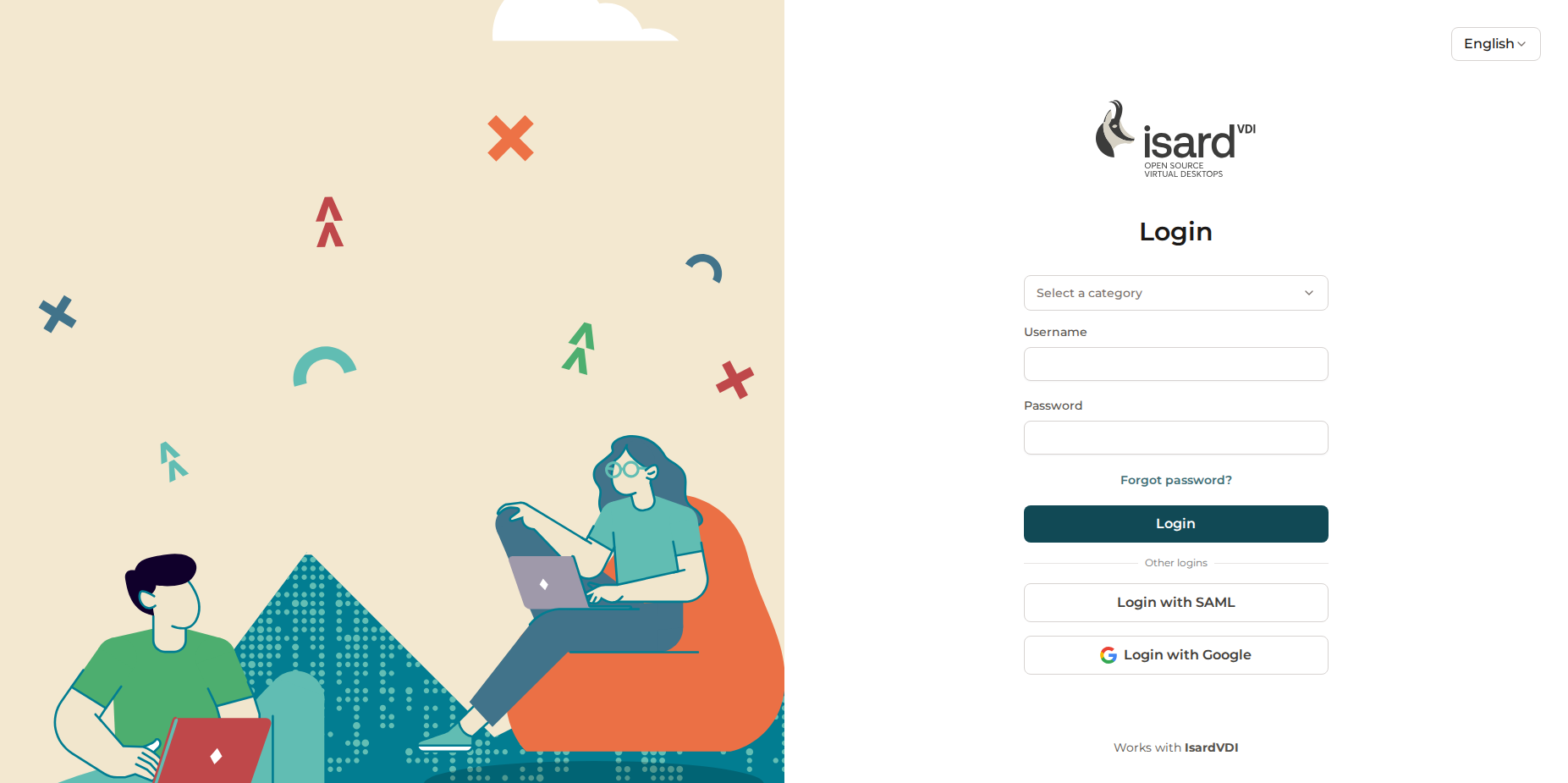
The button text is not the Provider Name
The text and icon of the Other logins buttons are part of the login page configuration and are not defined on this page. The Config → Login section only manages the login page notices. The Provider Name on this page is used in the administration panel title and to name the automatically created groups (see LDAP authentication).
How changes are applied
The configuration is saved in the database. The isard-authentication service rereads it periodically, every minute.
After clicking Update, wait up to one minute for the change to take effect on the login screen. No container needs to be restarted.
A misconfigured provider is not enabled
If the provider cannot be initialized (for example, a SAML IdP that does not resolve or an unreachable LDAP server), the service logs the error and keeps working with the other providers.
Check the service logs to detect it:
Global configuration and per-category configuration
The configuration on this page is global: it applies to all categories of the installation. In addition, each category can:
- Disable a specific provider for its users.
- Restrict the email domains accepted for that provider.
- Use its own configuration (Config Source: Custom) instead of the global one, with its own LDAP server, SAML IdP or Google Client ID.
- Set a Max role per provider: the highest role a user logging in through that provider can have. If the user's role exceeds it, the login is refused. Only the administrator can change it; the manager sees it but cannot modify it.
These options are managed from the category record, in Users → Management, with the Authentication button. See Categories and Multitenancy.
Relationship with isardvdi.cfg
Before the authentication migration, providers were configured through the AUTHENTICATION_AUTHENTICATION_* keys of the isardvdi.cfg file. The Local, LDAP, SAML and Google keys are obsolete: their values were imported into the database only once, when the installation was upgraded, and editing them afterwards has no effect. The web panel is the only way to configure the providers. The mapping between each form option and the old key, for reference only, is in Authentication (installation).
The isardvdi.cfg keys that do not configure a provider, such as the login attempt limits (AUTHENTICATION_AUTHENTICATION_LIMITS_*), are still in effect.
User migration between providers
Each provider includes a Migration block that determines whether its users can export their account to another one, import another one into theirs, and what happens to the source account when the migration ends.
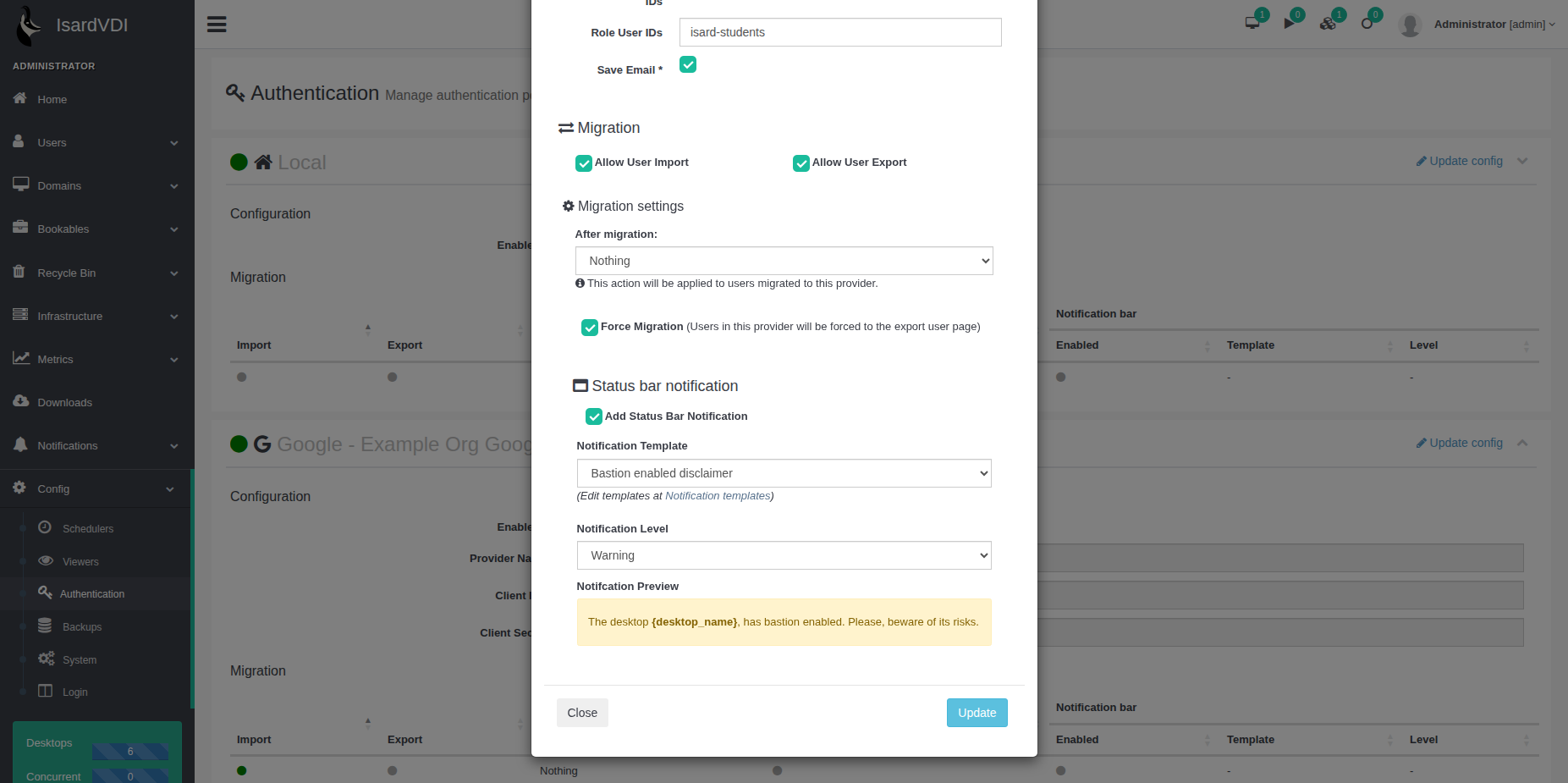
| Option | Description |
|---|---|
| Allow User Import | Users of this provider can import another account into theirs. Required for the target account. |
| Allow User Export | Users of this provider can generate a migration token. Required for the source account. |
| After migration | What to do with the source account when the migration ends: Nothing (default), Delete original user or Disable original user. It applies to users migrated to this provider. |
| Force Migration | Users of this provider are redirected to the export page when they log in and cannot use IsardVDI until they export their account. It only appears when Allow User Export is enabled. |
| Add Status Bar Notification | Shows a permanent notice at the top of the interface for users of this provider. |
Who is excluded from a forced migration is defined in the Migrations exemptions panel.
What the user sees: with Allow User Export disabled, the user does not see the export button in their profile, and if they go directly to the export page they get an error saying that export is not enabled. With Force Migration, they go straight to the export page when they log in. The user's journey is described in Migration and Export the user; the administration one, in User migration (export / import).
User import and export
Behind the terms import and export users there are two different mechanisms that must not be confused. Both are related to the authentication providers, but in very different ways:
| Mechanism | What it moves | Where it is configured |
|---|---|---|
| Account migration (token) | A user's items (desktops, templates, media, deployments) to another account that already exists. | Migration block of each provider, on this page. |
| CSV import/export | The user records (bulk creation or bulk update). | Users → Management. |
1. Account migration with a token
This is the mechanism this page controls. The source user generates a token, the target user pastes it into their profile, and the items change owner.
| Step | Who | Action |
|---|---|---|
| 1 | Source user, in a provider with Allow User Export | Generates a migration token from their profile. It is valid for one hour and can only be used once. |
| 2 | Target user, in a provider with Allow User Import | Logs in and pastes the token into their profile. |
| 3 | Target user | Confirms the migration. The desktops, templates, media and deployments change owner. |
Relevant considerations regarding providers:
- Export must be enabled in the source user's provider and import in the target user's provider. If either is missing, the migration is rejected.
- Both accounts must belong to the same category. You cannot migrate between categories, even if the provider is the same.
- An administrator account can only be migrated to another administrator account.
- If the source user has templates, media or deployments, the target user cannot have the basic
userrole. - The source user must have at least one desktop, template, media or deployment. If they have none, the migration is rejected with «There are no items available to migrate».
- The Migrations table only lists the migrations made by users with the token, whatever the provider. The migrations the administrator makes with the Migrate button do not appear there.
The full details of the flow, with screenshots, are in User migration (export / import).
2. User import and export in CSV
In Users → Management, the users table offers four file operations. All of them are directly related to the authentication providers:
| Button | Direction | Use |
|---|---|---|
| Bulk create | Import | Creates new users from a CSV. |
| Update from CSV | Import | Updates existing users from a CSV. |
| CSV for create | Export | Downloads the users shown in the table (with the applied filter) in the creation format. |
| CSV for update | Export | Downloads the users shown in the table (with the applied filter) in the update format. |
Expected format: CSV file separated by commas or semicolons, with a maximum of 200 users per file.
Columns for bulk creation (Bulk create)
| Column | Content |
|---|---|
username |
Login name. |
name |
Full name shown. |
email |
Email address. |
group |
Name of the group, not its identifier. |
category |
Name of the category, not its identifier. |
role |
manager, advanced or user. |
username,name,email,group,category,role
mgarcia,Marta Garcia Puig,mgarcia@example.com,Main,Documentation,advanced
jlopez,Joan Lopez Serra,jlopez@example.com,Main,Documentation,user
- Passwords are generated automatically; download them with Download CSV with generated passwords right after creation, because they are not shown again.
- Users that already exist are ignored; only the new ones are created.
- Users created this way always belong to the
localprovider: this route cannot be used to create LDAP, SAML or Google users, which are created on their own through self-registration (see LDAP) or at their first login.
Columns for bulk update (Update from CSV)
| Column | Content |
|---|---|
active |
true or false. |
name |
Full name. |
provider |
User's provider. This field is required |
category |
Name of the category. This field is required |
uid |
User identifier at the provider. This field is required |
username |
Login name. The file downloaded with CSV for update includes it (between uid and group) for reference; the update does not modify it. |
group |
Name of the main group. |
secondary_groups |
Secondary groups separated by /. |
password |
New password (only meaningful for local users). |
active,name,provider,category,uid,username,group,secondary_groups,password
true,Marta Garcia Puig,ldap,Documentation,mgarcia,mgarcia,[Example Org LDAP] 2n-dam,,
true,Joan Lopez Serra,ldap,Informatica,jlopez,jlopez,[Example Org LDAP] 2n-dam,,
The triplet that identifies a user
An IsardVDI user is identified by the combination uid + category + provider. That is why these three columns are required in the update: they are what allows locating the record to modify. Two users with the same uid in different categories or providers are different users.
- Fields left blank are not modified.
- Changing a user's main group stops all their desktops and empties their recycle bin, and their resources may be affected by the new group's permissions. The quotas and limits of the target group are not checked.
- The reliable way to get a file in the correct format is to download it with CSV for update and edit only the columns you need.
The detailed step-by-step procedure is in Users.
What the user sees
- On the login screen, Local and LDAP use the username and password form; Google and SAML add a button to the Other logins section. A provider that is disabled, globally or for the category, does not appear. If the form is disabled, the user sees «Login with username and password is disabled».
- If the account has been disabled, the user sees «The user is disabled»; if their role exceeds the provider's Max role in the category, the login is refused.
- After too many failed attempts, the user sees «Too many login attempts, please try again later» or the time when they can try again.
- When the session is about to expire, the «Session expired» notice appears with the Renew current session and Logout buttons; when it can no longer be renewed, there is only Go to login.
The user's journey with each provider is in Access methods, and the list of messages, in Log in.