Media
A medium is a disk image (CD/DVD ISO or floppy disk) that IsardVDI downloads from a URL and that is used to install an operating system on a new desktop. The «My media» tab shows the media uploaded by the user and the «Shared media» tab, those that other users have shared with them.
Roles with access
- Access to the Media section (list, upload, share and delete own media): advanced, manager and administrator roles.
- The user role has no access to the section: it does not see the menu entry and cannot list media.
- Media shared by other users can only be used to create desktops: they cannot be shared or deleted.
Depends on the administration
- The maximum number of media that can be uploaded is set by the user, group or category quota, in Quotas and limits.
- The administration can also manage all media and share them from Media (administration).
Video: page walkthrough
In the  section, the media created by the user and those shared with them are shown.

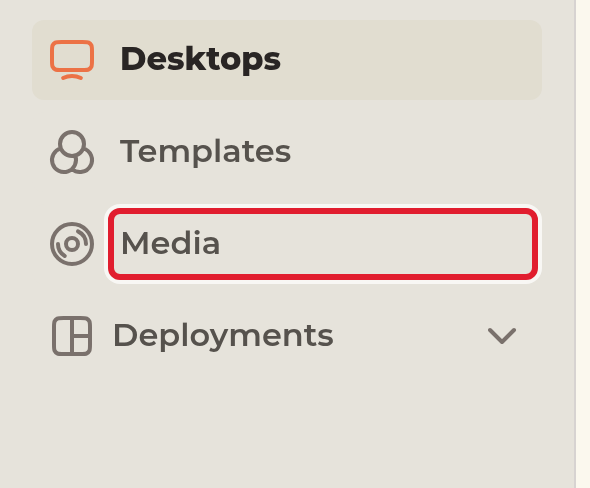
In the side menu, the Media section.
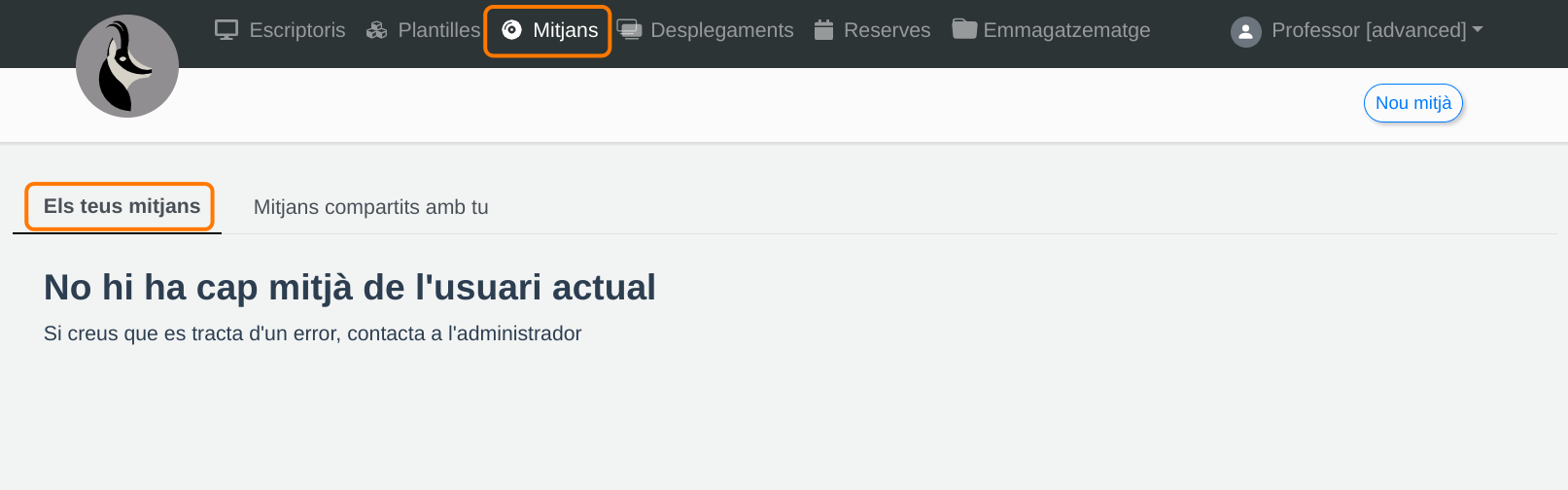
Your media
This section displays the media uploaded by the user.
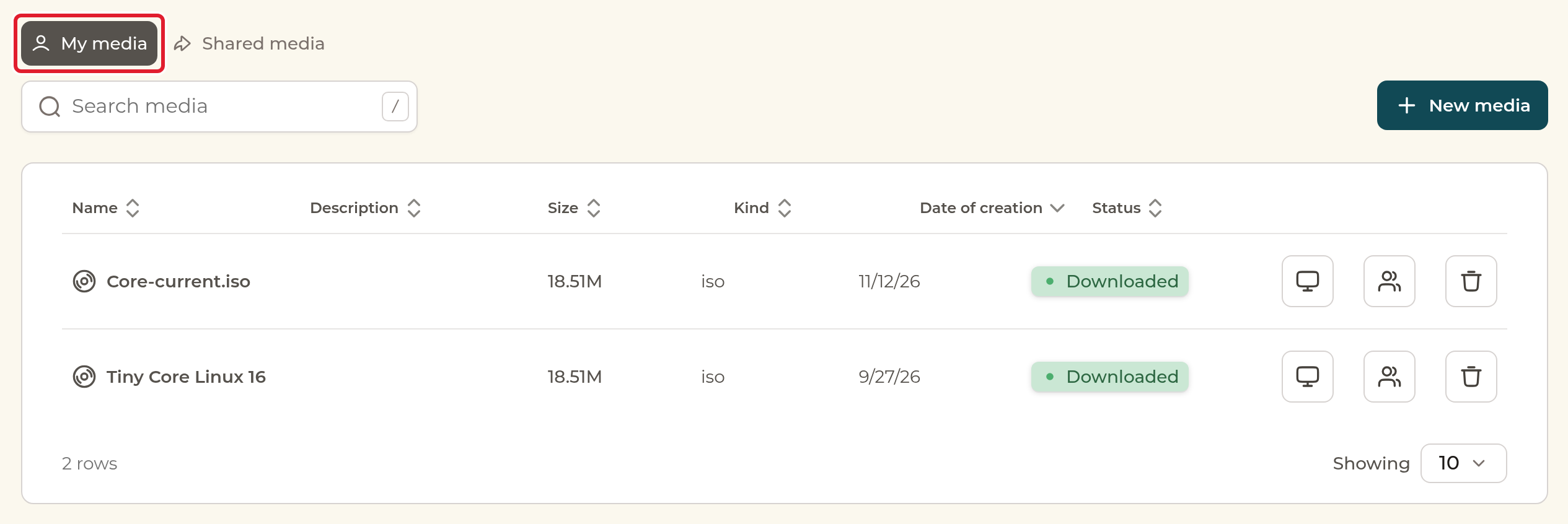
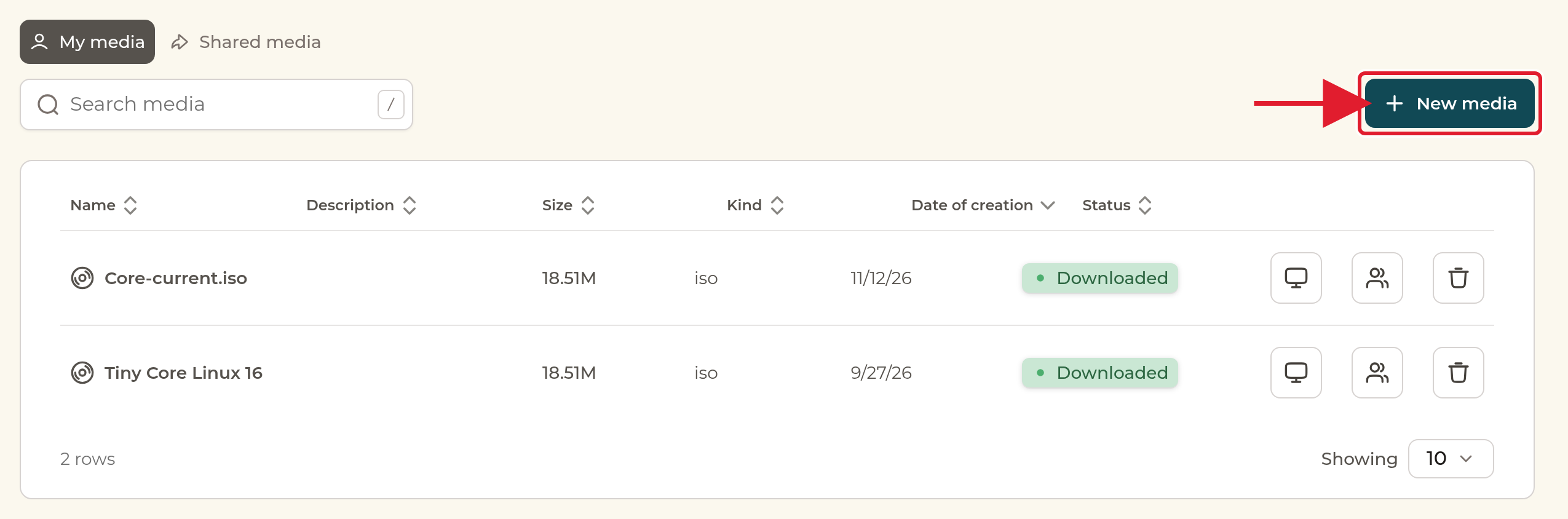
The section has two tabs. The My media tab shows the user's own media.
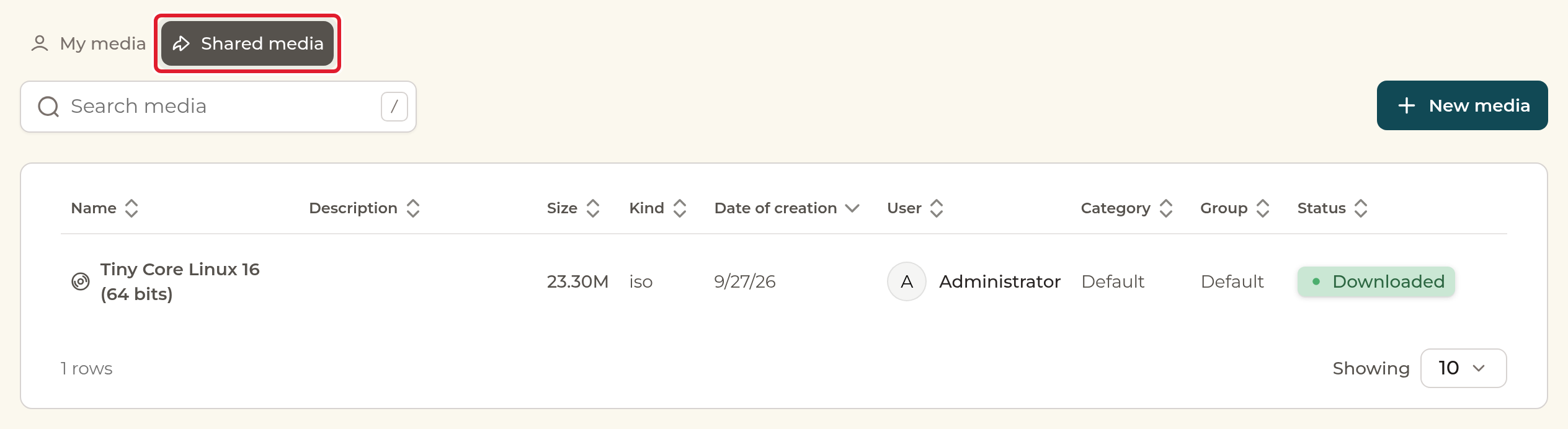
The Shared media tab shows the media that other users have shared with the user.
The New media button opens the form to add one (see «Upload media»).
Conditions and messages
- The list shows the current status of each media.
- The «Downloaded» status indicates that the media can now be used.
Development details
For those who develop or integrate IsardVDI: where each element of this section is in the code, since which version it has been available, which API operation it calls, and what messages it can return.
- New interface · file
views/MediaView.vue:456· interface text (translation key)components.media.media-type.owned- since v17.0.0 (2026-04-24,
f31b874d89)
- since v17.0.0 (2026-04-24,
- Old interface · file
pages/Media.vue:17· interface text (translation key)views.media.tabs.media- since v9.28.0 (2022-07-18,
ffea125844) - on click:
updateCurrentTab('media')
- since v9.28.0 (2022-07-18,
Commit code fe99ad98.
Media shared with you
This section displays the media shared with the user.
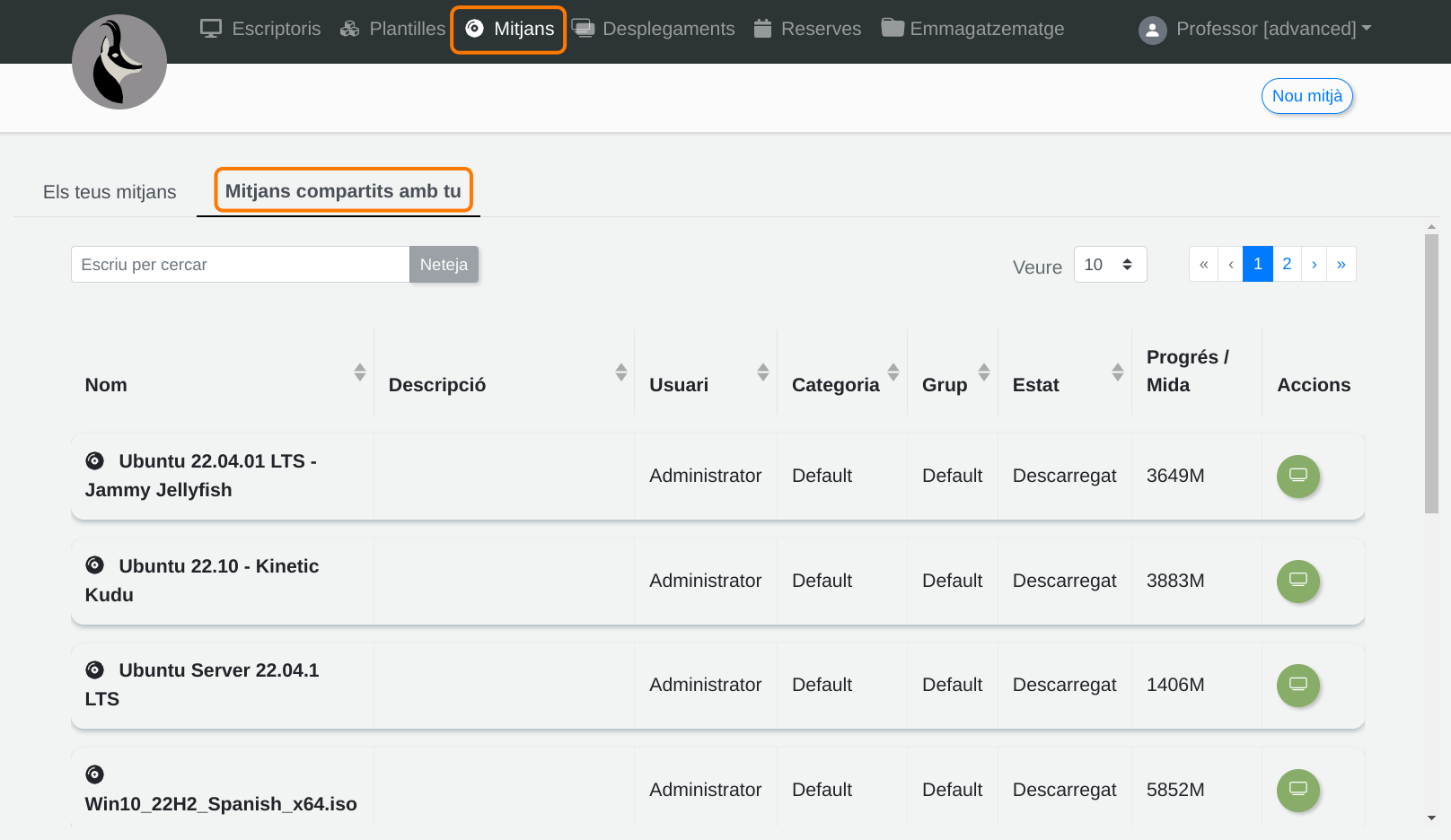
The Shared media tab shows the media that other users have shared with the user, their group or their category. They can only be used to create desktops.
Conditions and messages
- Shared media cannot be deleted or shared again.
Development details
For those developing or integrating IsardVDI: where each element of this section is located in the code, from which version it is available, which API operation it calls, and what messages it can return.
- New interface · file
views/MediaView.vue:463· interface text (translation key)components.media.media-type.shared- since v17.0.0 (2026-04-24,
f31b874d89)
- since v17.0.0 (2026-04-24,
- Old interface · file
pages/Media.vue:168· interface text (translation key)views.media.tabs.shared-media- since v9.28.0 (2022-07-18,
ffea125844) - on click:
updateCurrentTab('sharedMedia')
- since v9.28.0 (2022-07-18,
Commit code fe99ad98.
Upload media
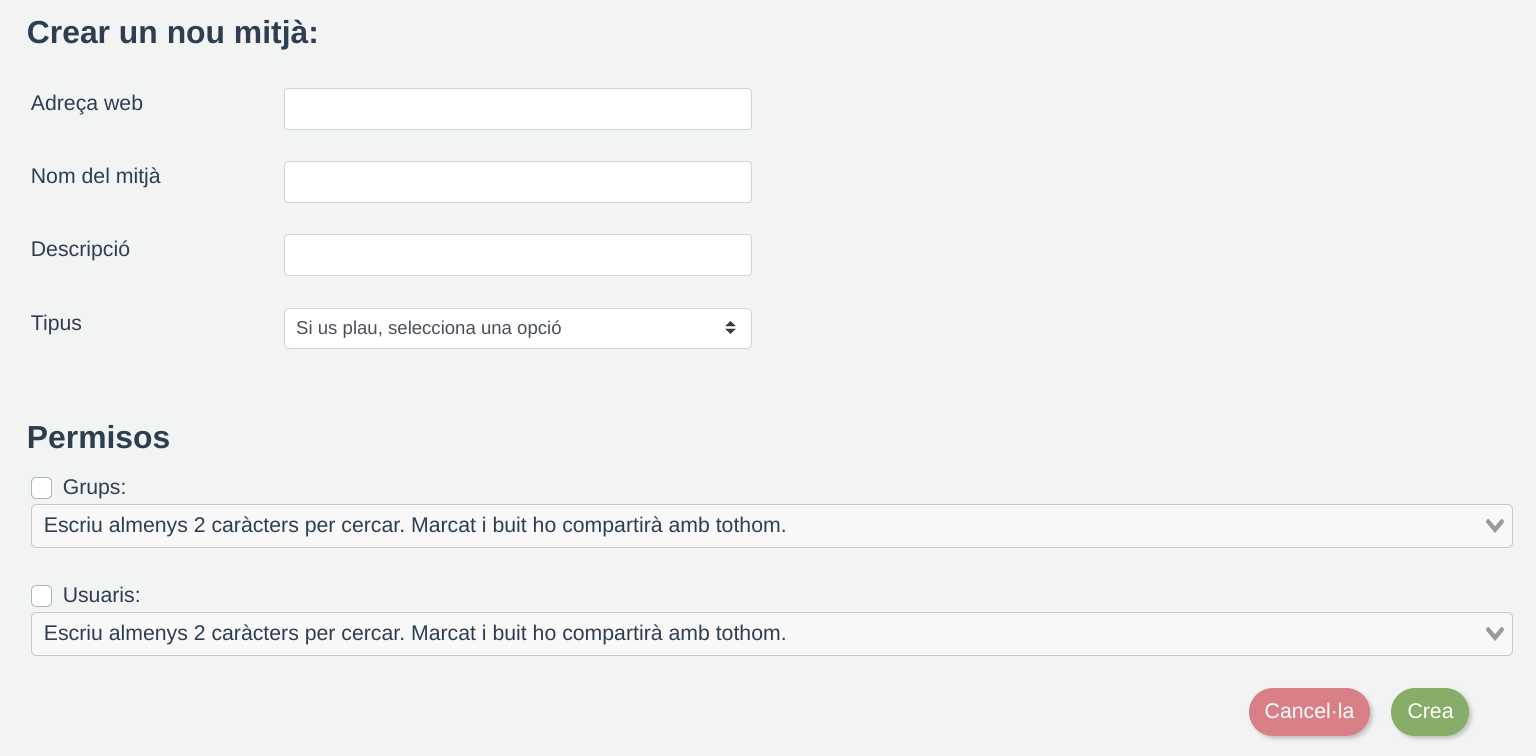
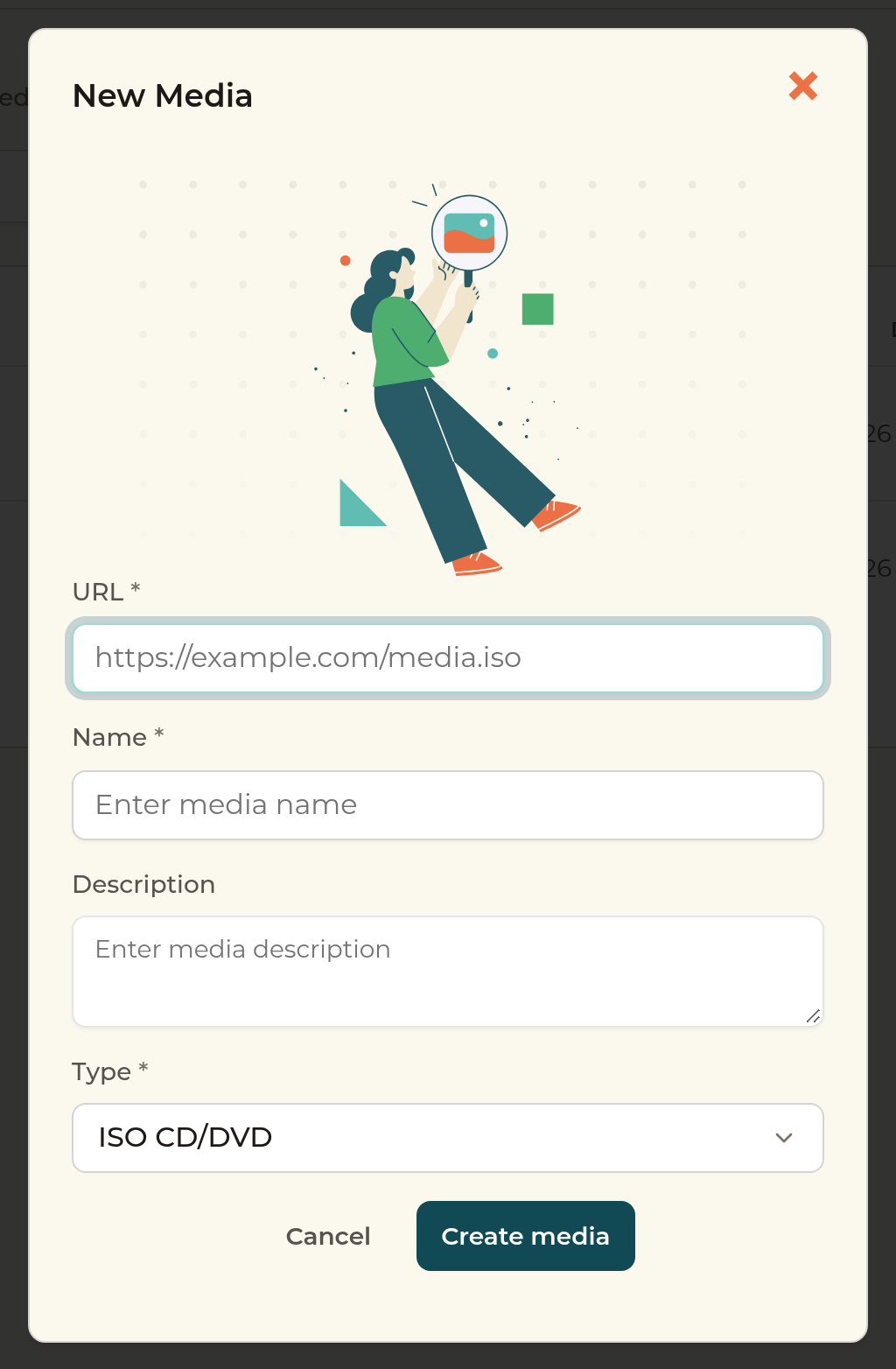
To upload a media, click the  button. The form asks for a direct download link of the image (otherwise the download fails), a name and the type: ISO image or floppy disk.
Media (ISO CD/DVD or Floppy disk) are added with a web link: no file is uploaded from the computer; instead, IsardVDI downloads it from the URL once validated.
- Click New media. Before opening the form, the system checks the media quota.
- Paste the direct download link into the URL field (it is the first field of the form and already has focus); it must start with
https://. - Fill in the Name field. If it is left blank, when leaving the URL field it is filled in automatically with the last segment of the address (usually the file name).
- Fill in the Description field.
- Choose the Type: ISO CD/DVD (default value) or Floppy.
- Click Create media.
Conditions and messages
- The «Name» field requires between 4 and 50 characters; if not observed, the messages «It must have at least 4 characters» or «It must have a maximum of 50 characters» are displayed.
- The «Description» field accepts a maximum of 255 characters; if a longer text is entered, the message «It must have a maximum of 255 characters» is displayed.
- The «Type» field is mandatory, and if left blank, the message «This field is required» is displayed.
- The «URL» field is mandatory («This field is required»), must be a valid URL («Please enter a valid URL»), and must start with
https://(«Media URL must start with https://»). - If a media with the same name already exists, the «Name» field displays «A media with this name already exists. Please choose a different name.»; when changing the name, the message disappears.
- If the media quota is exceeded when clicking New media, the form does not open, and the dialog «Media creation quota exceeded» appears with the message «Media creation quota exceeded. A media must be deleted in order to upload a new one.» and the button «Go back to media».
- When submitting the form, the server checks that the URL is
https, does not point to an internal address, and responds (without downloading the file); if it is not valid or accessible, the creation is rejected. For an incorrect URL format, the interface displays «Invalid media URL format», and for an inaccessible URL, «Invalid media URL». - If the URL is valid, the status changes to «Download starting» and then to «Downloaded»; in case of error, the message «Error creating media: There was an error creating the media. Please try again.» is displayed.
- If the file is not a valid disk image, the status changes to «Invalid format» or the message «Error creating media: There was an error creating the media. Please try again.» is displayed.
Warning
The URL must be the direct download URL of the file (for example, ending in .iso) and start with https://, not a web page or a sharing link. If the link does not directly download a valid image, the media may end up in the «Invalid format» status; and if a file that is not a bootable image is downloaded, the desktop created from it will not boot.
Development details
For those who develop or integrate IsardVDI: where each element of this section is in the code, from which version it is available, which API operation it calls, and what messages it can return.
- New interface · file
views/MediaView.vue:477· interface text (translation key)components.media.new.button- since v17.0.0 (2026-04-24,
f31b874d89) - on click:
openNewMediaModal - call:
GET /api/v4/quota/media/new — Check media quota
- since v17.0.0 (2026-04-24,
- New interface · file
components/media/NewMediaModal.vue:215· interface text (translation key)components.media.new.fields.url.label- since v17.0.0 (2026-04-24,
f31b874d89)
- since v17.0.0 (2026-04-24,
- New interface · file
components/media/NewMediaModal.vue:240· interface text (translation key)components.media.new.fields.name.label- since v17.0.0 (2026-04-24,
f31b874d89)
- since v17.0.0 (2026-04-24,
- New interface · file
components/media/NewMediaModal.vue:267· interface text (translation key)components.media.new.fields.description.label- since v17.0.0 (2026-04-24,
f31b874d89)
- since v17.0.0 (2026-04-24,
- New interface · file
components/media/NewMediaModal.vue:290· interface text (translation key)components.media.new.fields.kind.label- since v17.0.0 (2026-04-24,
f31b874d89)
- since v17.0.0 (2026-04-24,
- New interface · file
components/media/NewMediaModal.vue:324· interface text (translation key)components.media.new.submit- since v17.0.0 (2026-04-24,
f31b874d89) - on click:
submits the form (onSubmit) - call:
POST /api/v4/item/media — Create a new media item
- since v17.0.0 (2026-04-24,
Commit code fe99ad98.
Stop the download
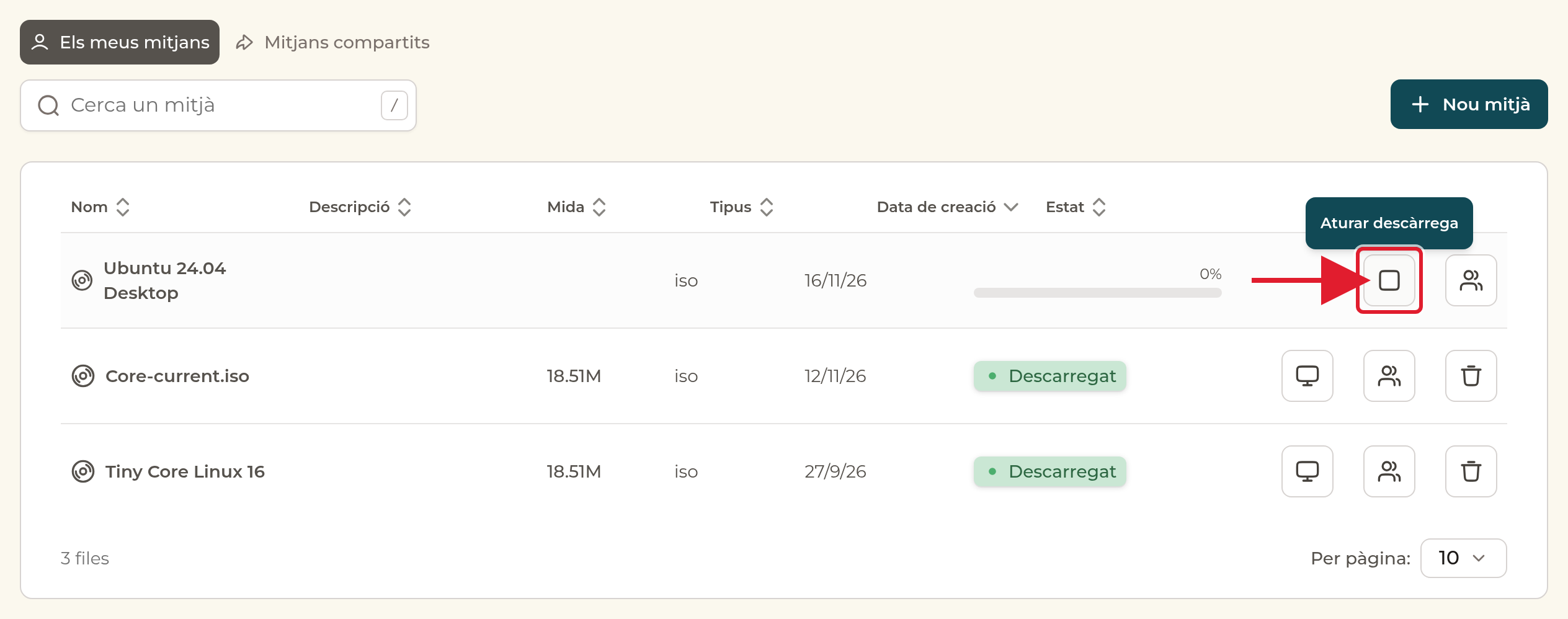
The Stop download button is displayed when the media status is «Downloading». Clicking it displays the message «Stopping download» and the status changes to «Download failed».
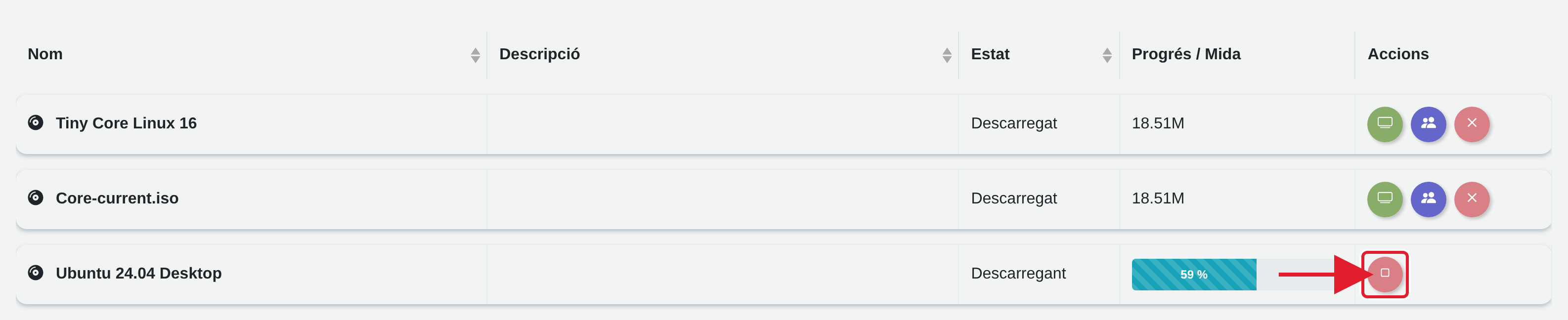
- Open the «My media» tab.
- Locate the media with the «Downloading» status.
- Click the Stop download button.
Conditions and messages
- Only the media owner can perform this action; otherwise, the operation is rejected.
- When stopping the download, the media status changes to «Download failed».
- If the stop fails, the dialog «Action failed» appears with the message «Could not abort the download.».
- In the «Download failed» status, the Stop download button disappears and Download media appears in its place, which starts the download again. If it cannot be started, «Action failed» is shown with «Could not start the media download.».
Development details
For those developing or integrating IsardVDI: where each element of this section is located in the code, since which version it has been available, which API operation it calls, and what messages it can return.
- New interface · file
views/MediaView.vue:608· interface text (translation key)views.media.tooltip.buttons.stop-download.title- since v17.0.0 (2026-04-24,
f31b874d89) - on click:
handleAbortClick(row.id) - call:
PUT /api/v4/item/media/{media_id}/abort — Abort a media download
- since v17.0.0 (2026-04-24,
- Old interface · file
pages/Media.vue:147· interface text (translation key)views.media.buttons.stop-download.title- since v9.59.0 (2022-08-29,
7d3d8bfbde) - on click:
onClickStopDownload(data.item.id) - call:
PUT /api/v4/item/media/{media_id}/abort — Abort a media download - message:
messages.info.stopping-download: Stopping download
- since v9.59.0 (2022-08-29,
Commit code fe99ad98.
Share media
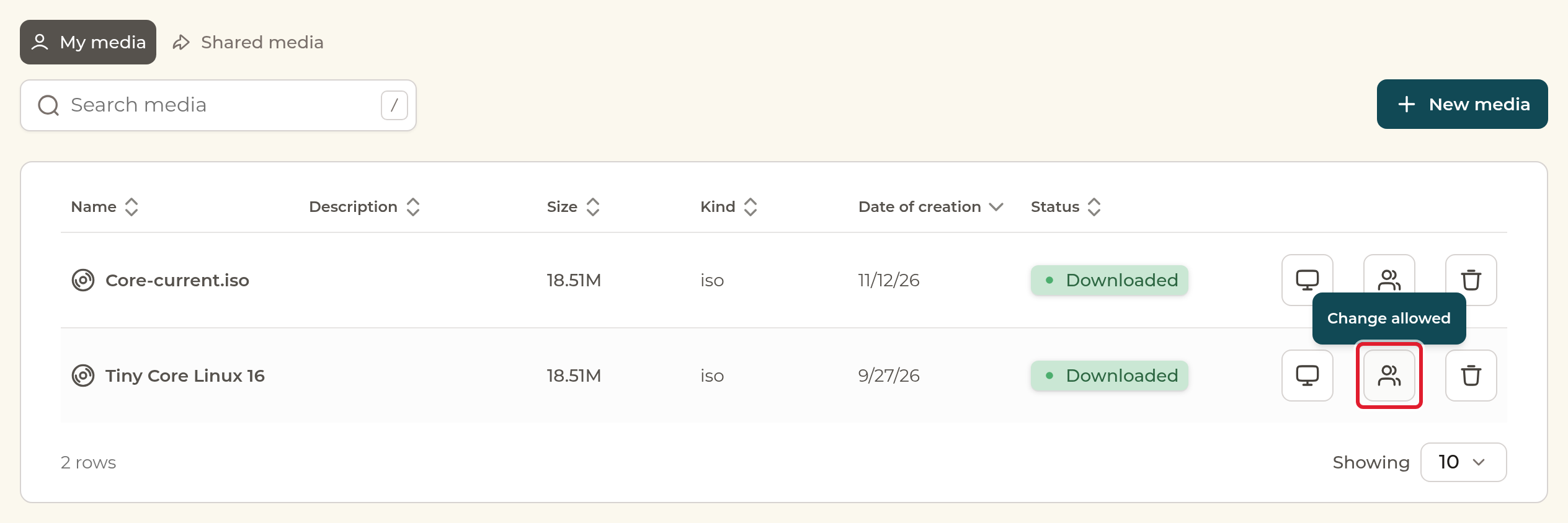
To share a media, in the Your media view, select the media to share and click its icon  ; a window opens to assign the groups or users it is shared with.
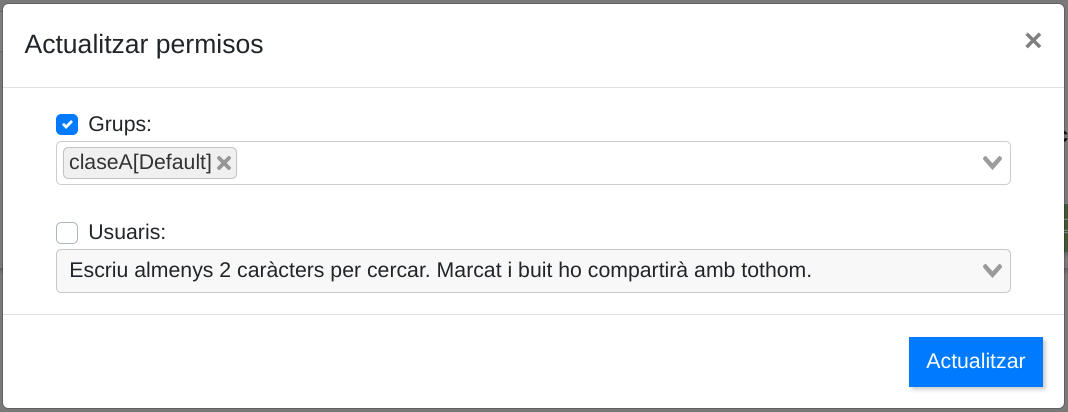
- In the «My media» tab, locate the media to share.
- Click the Change allowed action.
- In the «Manage users» dialog, choose the users, groups or categories it is shared with.
Conditions and messages
- The Change allowed action only appears on the user's own media («My media» tab) that can be edited and are not in the «Download failed» or «Invalid format» status.
- When opening the dialog, the list of users and groups with access is loaded. When saving, the message «Allowed users and groups updated» is displayed; if the update fails, «Could not update the allowed users and groups».
Development details
For those who develop or integrate IsardVDI: where in the code each element of this section is located, from which version it has been available, which API operation it calls, and which messages it can return.
- New interface · file
views/MediaView.vue:643· interface text (translation key)views.media.tooltip.buttons.allowed.title- since v17.0.0 (2026-04-24,
f31b874d89) - on click:
openAllowedModal(row.id, row.name)
- since v17.0.0 (2026-04-24,
- Old interface · file
pages/Media.vue:124· interface text (translation key)views.media.buttons.allowed.title- since v9.27.0 (2022-07-06,
007de9a88e) - on click:
showAllowedModal(data.item) - call:
POST /api/v4/item/allowed/table/{table} — Get allowed access list for a table item
- since v9.27.0 (2022-07-06,
Commit code fe99ad98.
Create a new desktop from media
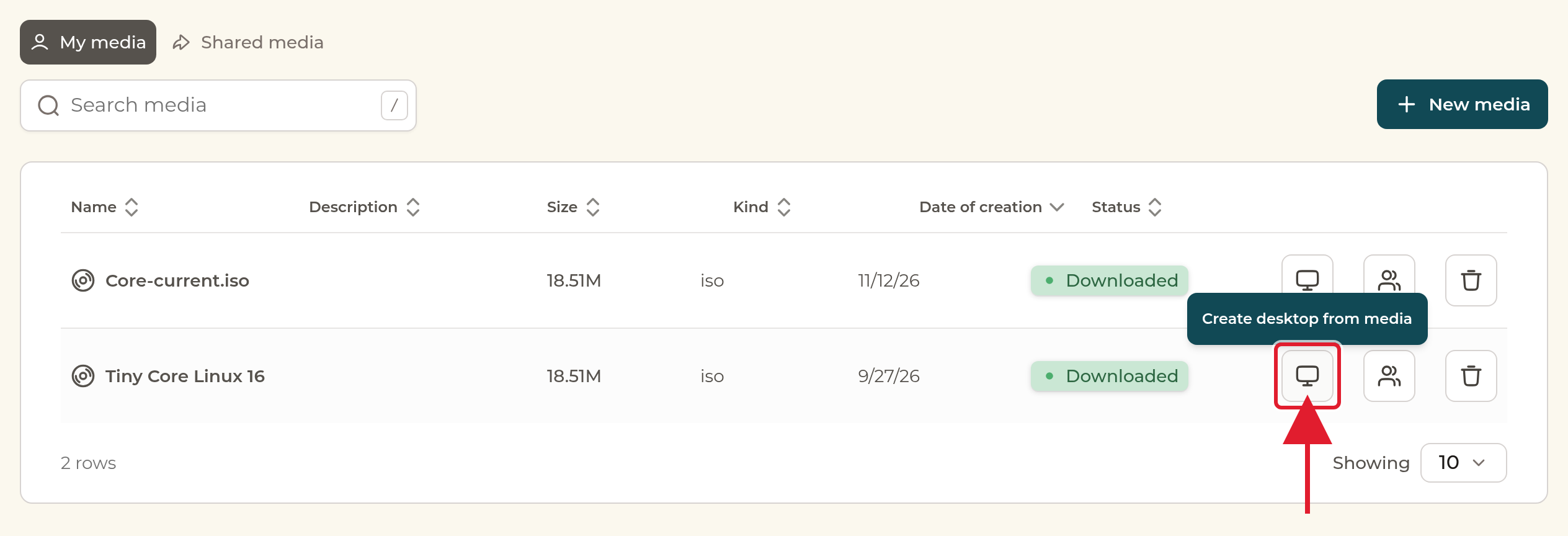
To create a desktop from a media, in the Your media view, click the  icon of the media. A form like the one to create a desktop opens, with the additional Select a template section:
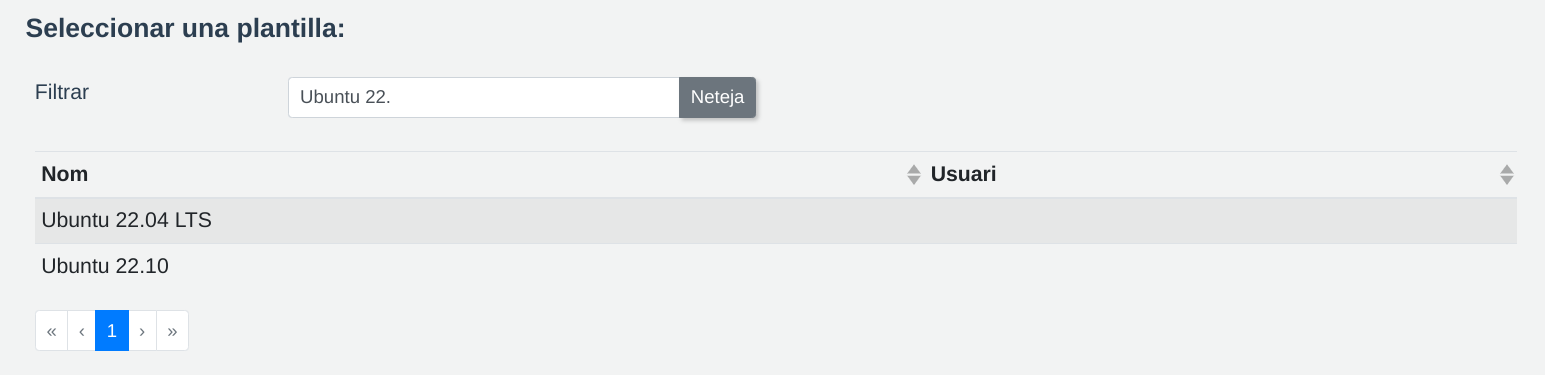
In this section, an IsardVDI template is not chosen, but rather the base operating system that defines the virtual hardware and drivers of the desktop. Choose the one that matches the operating system to be installed from the media.
To create a desktop from a media that is already downloaded:
- Click the Create desktop from media button of the media.
- On the «New desktop from media» page, fill in the name and the configuration of the desktop. The hardware values are the installation defaults and can be changed now or later.
- In Operating system template («Select the operating system template to use for the installation»), choose the template of the operating system to be installed. It is mandatory: it defines the virtual hardware and the drivers, it is not a desktop template.
- Click Create desktop. If a mandatory field is missing, the button is disabled and shows «You must fill all the required fields to create the desktop».
Conditions and messages
- The button Create desktop from media is only displayed when the media status is «Downloaded».
- Before opening the page, the system checks the desktop creation quota.
- If the quota has been exceeded, the «Desktop creation quota exceeded» dialog appears with the message «Desktop creation quota exceeded. A desktop must be deleted in order to create a new one.»
- If the creation storage is not available, «Storage unavailable» is shown with the Go back to media button.
Note
The operating system templates in the list are added by the administration. If the needed operating system is not there, ask the administration to add it from Downloads («OS Hardware Templates»).
Details for development
For those who develop or integrate IsardVDI: where each element of this section is located in the code, since which version it has been available, which API operation it calls, and what messages it may return.
- New interface · file
views/MediaView.vue:594· interface text (translation key)views.media.tooltip.buttons.create-desktop.title- since v17.0.0 (2026-04-22,
14fafcf605) - on click:
handleCreateDesktopFromMedia(row.id) - call:
GET /api/v4/quota/desktop/new — Check desktops quota - call:
navigation to the «new-desktop-from-media» route
- since v17.0.0 (2026-04-22,
- Old interface · file
pages/Media.vue:102· interface text (translation key)views.media.buttons.new-desktop.title- since v9.59.0 (2022-08-22,
066098ff9a) - on click:
onClickGoToNewFromMedia(data.item) - call:
navigation to the «newfrommedia» route
- since v9.59.0 (2022-08-22,
Commit code fe99ad98.
Delete media
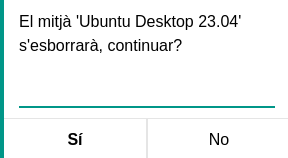
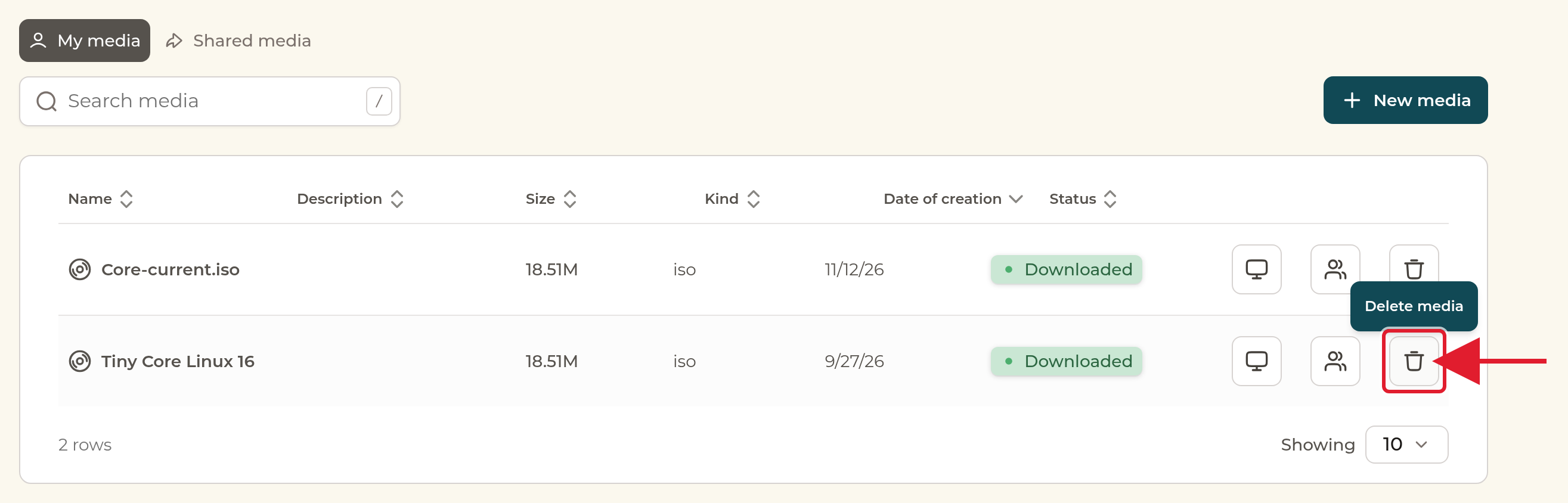
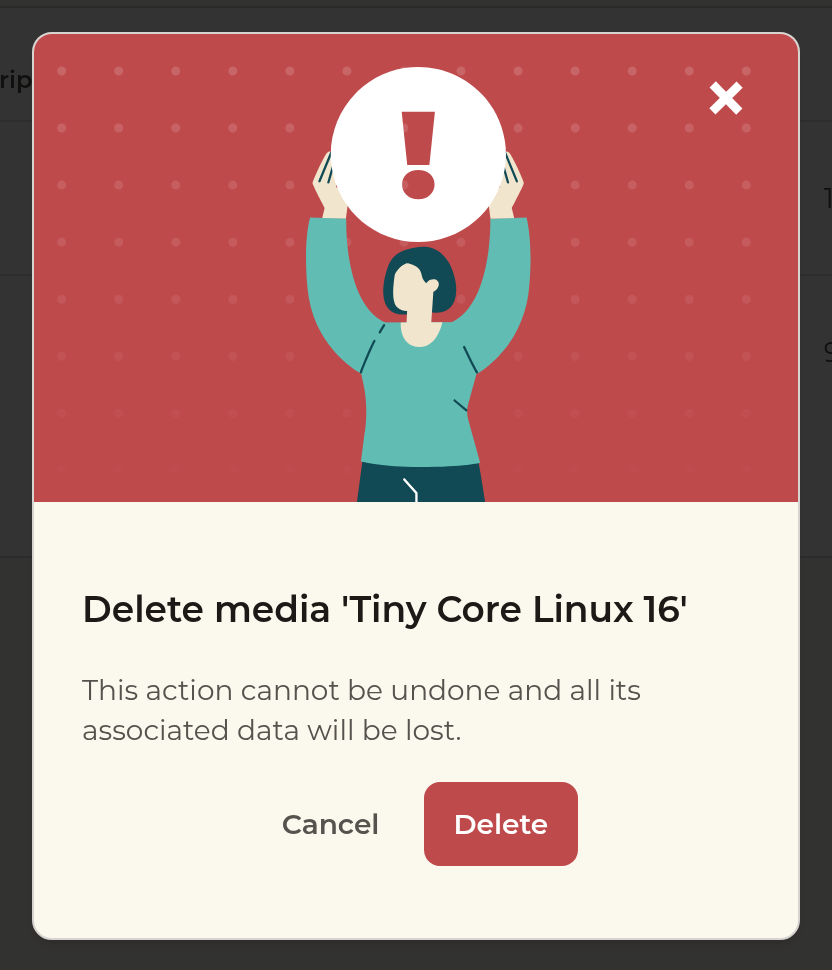
To delete a media, in the Your media view, click the  icon of the media and confirm or cancel the deletion.
- Open the «My media» tab.
- Locate the media to delete.
- Click the Delete media button.
- Confirm with Delete.
Conditions and messages
- The Delete media button is shown when the media status is «Downloaded», «Download failed», or «Invalid format».
- The confirmation shows «This action cannot be undone and all its associated data will be lost.».
- If the deletion fails, the «Action failed» dialog appears with the message «Could not delete the media.».
Development details
For those who develop or integrate IsardVDI: where each element of this section is in the code, from which version it is available, which API operation it calls, and what messages it can return.
- New interface · file
views/MediaView.vue:664· interface text (translation key)views.media.tooltip.buttons.delete.title- since v17.0.0 (2026-04-24,
f31b874d89) - on click:
handleDeleteClick(row.id, row.name)
- since v17.0.0 (2026-04-24,
- New interface · file
views/MediaView.vue:712· interface text (translation key)views.media.delete-confirmation-modal.confirm- since v17.0.0 (2026-04-24,
f31b874d89) - on click:
deleteMedia({ path: { media_id: deleteModalMediaData!.id } }) - call:
DELETE /api/v4/item/media/{media_id} — Delete a media item
- since v17.0.0 (2026-04-24,
- Old interface · file
pages/Media.vue:135· interface text (translation key)views.media.buttons.delete.title- since v9.32.0 (2022-07-25,
8d7b63cdd6) - on click:
showDeleteModal(data.item) - call:
GET /api/v4/item/media/{media_id}/get-desktops — Get desktops using a media item
- since v9.32.0 (2022-07-25,
Commit code fe99ad98.