FAQ - Frequently Asked Questions
Windows blocks the .rdp file
On some Windows machines, the system prevents opening the .rdp file downloaded from IsardVDI and displays the following message:
Smart App Control has blocked a file that may not be safe
The cause is Windows Smart App Control, which blocks certain files downloaded from the Internet, including .rdp files. This is not an error with IsardVDI or the file itself.
There are two solutions:
1. Use the RDP viewer in the browser (recommended)
No file needs to be downloaded, so the blocking does not happen. See the section «How to use the RDP viewer in the browser» on the RDP page.
2. Disable Smart App Control
Only if the native RDP client is required and the file comes from a trusted IsardVDI instance:
- Open Windows Security.
- Go to App & browser control.
- Select Smart App Control settings.
- Set it to Off.
- Download the .rdp file from IsardVDI again and open it.
This action may be irreversible
Disabling Smart App Control removes one of Windows' layers of protection against untrusted applications and files.
Furthermore, on certain versions of Windows, it cannot be re-enabled without resetting or reinstalling the system.
Therefore, it should only be applied on managed machines or when it has been verified that the file comes from a trusted IsardVDI instance.
A USB device cannot be redirected with the RDP viewer
If a Windows computer is used and redirecting a USB device to the virtual desktop does not work, RemoteFX must be configured.
RemoteFX is a Microsoft technology that extends the RDP protocol with graphics and USB virtualization. Regarding USB, it makes the USB devices connected to the local machine (printers, scanners, webcams, storage…) available inside the remote desktop as if they were directly connected to it.
How to implement RemoteFX
The following group policies must be applied to the host machine and, if the virtual desktop's operating system is Windows, also to the desktop.
Tip
The predefined templates offered by IsardVDI already come prepared with this configuration. If the desktop was created from one of them, you only need to apply it to the host machine.
-
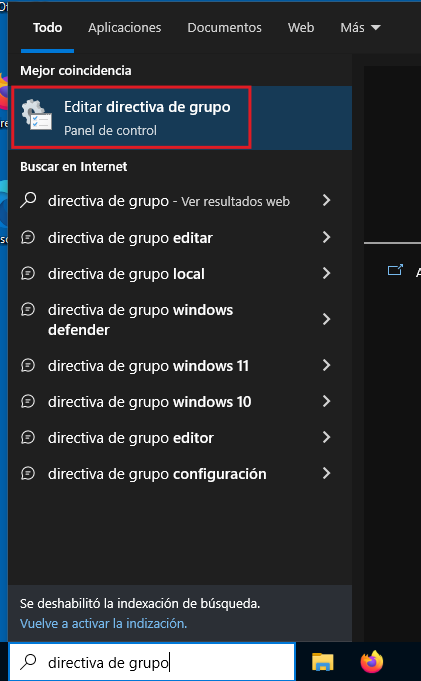
Open the "Edit Group Policy" tool
-
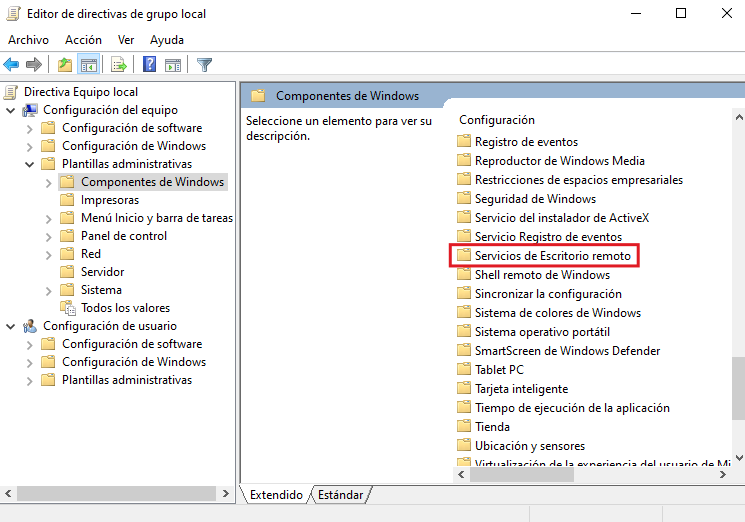
Computer Configuration >> Administrative Templates >> Windows Components >> Remote Desktop Services
-
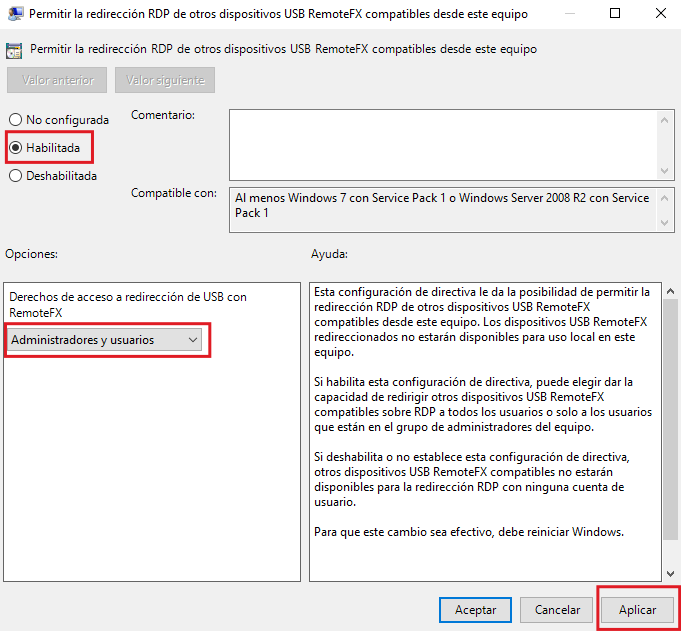
Remote Desktop Connection Client >> RemoteFX USB Device Redirection
In Allow RemoteFX USB redirection of other compatible RemoteFX USB devices from this device, enable the policy and apply it for all users:

-
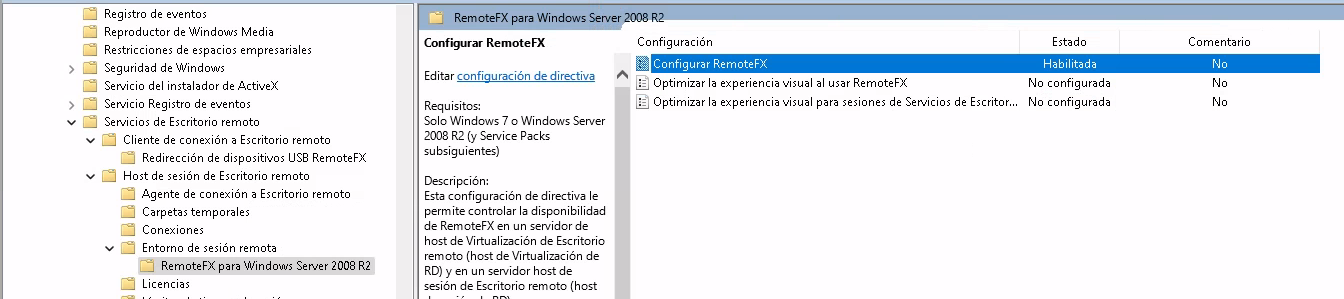
Remote Desktop Session Host
In Remote Session Environment >> RemoteFX for Windows Server 2008 R2 >> Configure RemoteFX, enable the policy:
In Device or resource redirection, enable and disable these policies:
Enable
- Allow audio and video playback redirection
- Allow audio recording redirection
- Allow time zone redirection
- Allow user interface automation redirection.
Disable
- Do not allow video capture redirection
- Do not allow clipboard redirection
- Do not allow COM port redirection
- Do not allow drive redirection
- Do not allow LPT port redirection
- Do not allow Plug and Play compatible device redirection
- Do not allow location redirection
- Do not allow smart card device redirection
- Do not allow WebAuth redirection
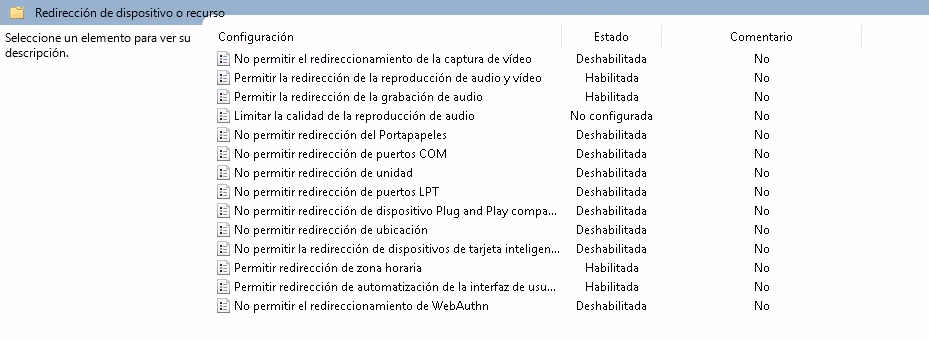
Once this is done, you must restart the machine and the desktop for the changes to take effect.
Tip
The next step is only necessary if the virtual desktop's operating system is Windows and the desktop does not derive from one of IsardVDI's predefined templates, which already include this configuration.
-
On the virtual desktop, open a CMD command line, run
gpupdate /forceand restart the desktop.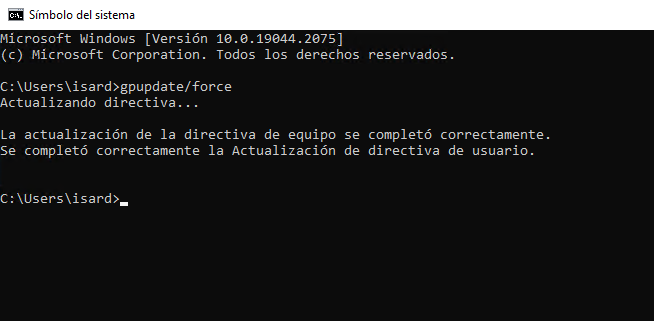
-
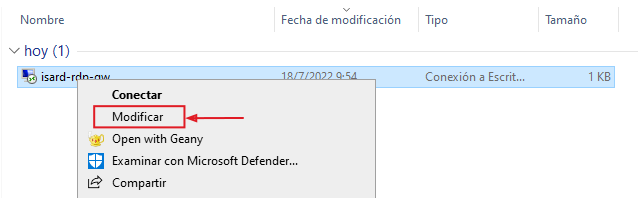
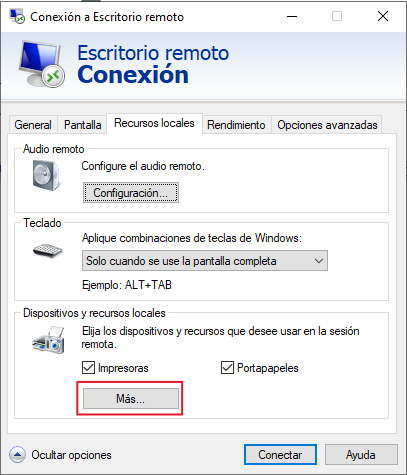
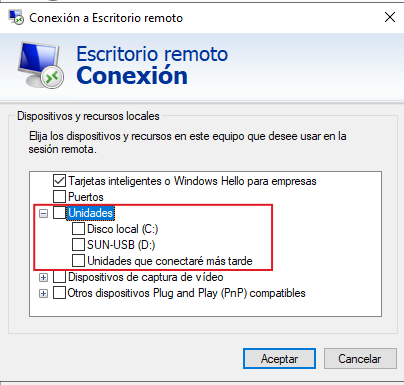
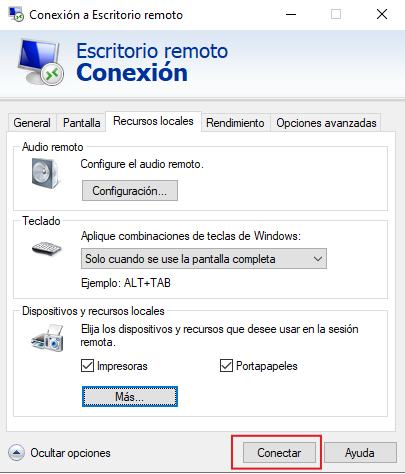
On the local computer, edit the .rdp file downloaded from the desktop's viewer drop-down.
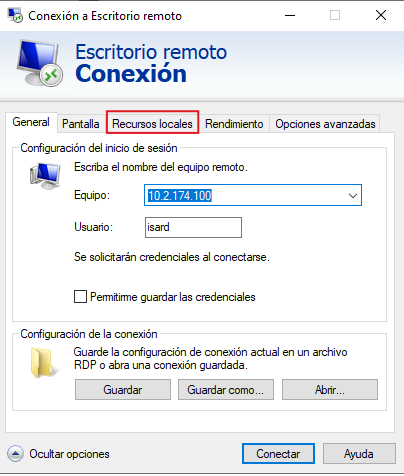
In Local Resources >> More you can check the device detected by the computer, ready to be redirected to the desktop.
How the viewer is chosen
The viewer is chosen in the viewer drop-down of the running desktop's card: the button shows the selected viewer and the arrow next to it opens the list of the others. Hovering over each option shows a short description (it can be hidden with Don't show again).
The list only includes the viewers enabled on the desktop, in the Viewers section of the desktop edit, which separates them into two groups:
- Browser Viewers («These viewers allow you to connect directly from your web browser. No additional software is needed.»): VNC Browser and RDP Browser. They open in a new tab.
- File Viewers («These viewers require you to download a file to connect to the desktop. Specific software is needed to use them.»): SPICE, RDP and RDP VPN. They download a connection file that is opened with the corresponding client (see how to download it in Introduction to viewers).
At least one viewer must be selected («At least one viewer must be selected.»).
The RDP viewer button is disabled or spinning
The RDP viewers cannot be opened until the desktop has an IP address and its RDP service responds. Meanwhile, the button is disabled with a spinning icon. If a triangle or an error message appears instead, see the RDP service states on the RDP page.
What the administration can change
The administration configures in Viewers the RDP security policy (allowed levels and certificate verification) and the predefined options included in the viewers' connection files. The networks each user can use (among them, the wireguard network that RDP viewers need) are configured in Resources.