RDP
Description
There are three RDP viewers:
- RDP: downloads an
.rdpfile that opens the computer's remote desktop client. The connection goes through the platform's RDP gateway (RD Gateway), over the HTTP port (by default 80, encrypted with TLS). - RDP VPN: downloads an
.rdpfile that connects directly to the desktop's address through the user's VPN. The WireGuard client must be connected. - RDP Browser: opens the desktop in a browser tab with the Guacamole HTML5 client, over the HTTPS port (by default 443). Nothing needs to be installed.
Native RDP
RDP is the default protocol for connecting remotely to a Windows computer. These viewers are not available as soon as the desktop starts: you must wait for the desktop to get an IP address and for its RDP service to respond.
-
Advantages:
- Better user experience if the virtual desktop runs Windows, and also if the computer you connect from does.
- No software needs to be installed on Windows computers: the Remote Desktop client is already built in.
- For a good experience with NVIDIA vGPU on Windows desktops, RDP must be used.
-
Disadvantages:
- If there is a problem while the operating system boots, the screen cannot be seen. To see it, connect with SPICE or with VNC in the browser.
Features:
- Low latency (better experience on Windows desktops).
- Built-in audio.
- Connection of external devices (USB).
- Better experience with design applications that require vGPU.
- Desktops with vGPU and the video set to Only GPU only work with RDP viewers.
RDP in the browser
IsardVDI uses the Guacamole server, which lets you connect to desktops over RDP from any current browser (HTML5 client), over the HTTPS port. It has audio and clipboard.
- Works in any modern browser.
- Low latency.
- Audio and clipboard.
- External devices (USB) cannot be connected.
Requirements
- WireGuard network on the desktop. All RDP viewers need it. When an RDP viewer is chosen in the desktop edit form, the interface adds the wireguard network automatically and shows «Wireguard interface added». If the user is not allowed to use this network, «Wireguard interface required» is shown and the RDP viewer is removed. The networks each user can use are decided by the administration in Resources. If a desktop with RDP viewers and without wireguard is saved (for example, through the API), it is rejected with «RDP viewers need the wireguard network. Please add the wireguard network to this desktop or remove RDP viewers.»
- RDP service running inside the desktop (see the «Enable RDP» section).
- Allowed security level. The administration decides which RDP security levels are allowed (standard RDP, TLS and NLA; by default, all three) and what the RDP client does when it cannot verify the desktop's certificate. This is configured in Viewers.
How to use the RDP and RDP VPN viewers
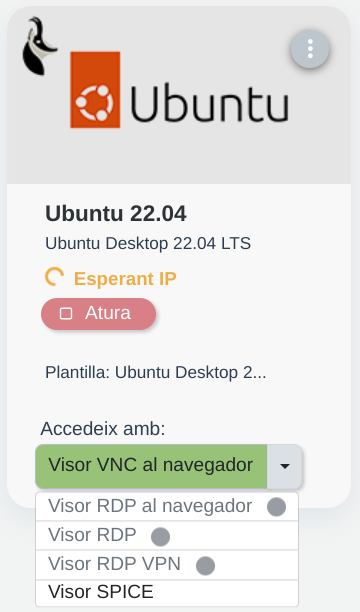
When a desktop starts, the card shows messages such as «Waiting for the desktop to get an IP» or «Waiting for the RDP service» while the state of the RDP service is checked. You must wait for the desktop to have an IP address and for the RDP service to respond. Meanwhile, the viewer button is disabled with a spinning icon.
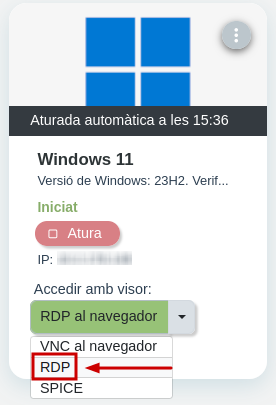
Once the desktop has an IP address and the RDP service responds, the RDP, RDP Browser and RDP VPN viewers are enabled in the card's viewer drop-down:
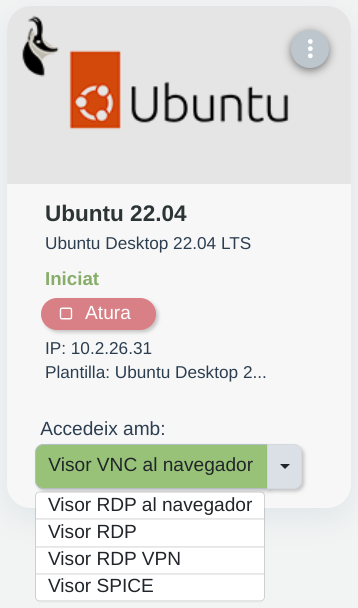
Info
The RDP VPN viewer is used in the same way as the RDP viewer, but the user's computer must have the VPN connection with IsardVDI established. See how to use the VPN. The RDP VPN viewer is not offered in the direct viewer.
With a Windows host
Current versions of Windows already include the Remote Desktop client.
When you choose RDP or RDP VPN, a file with the .rdp extension is downloaded, which contains the information to connect to the desktop:
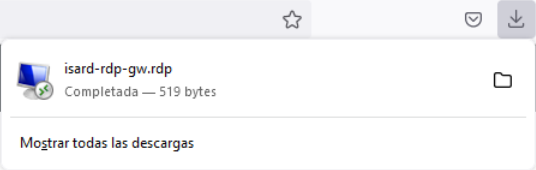
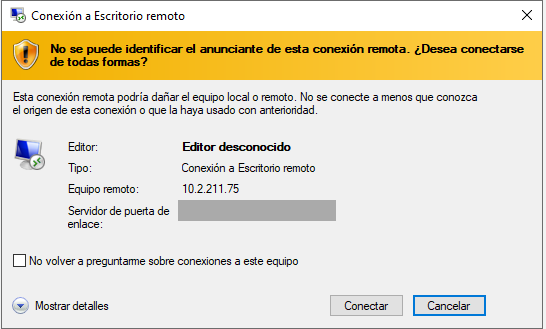
The first time the connection is made, the client shows a security alert. To avoid it in the future, you can tick the box «Don't ask me again for connections to this computer».
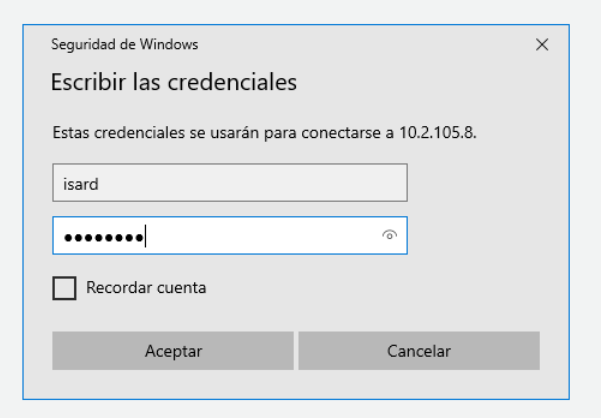
The credentials of the desktops created from the templates offered by IsardVDI are:
- user: isard
- password: the one set in the template
Warning
This user and password are the credentials of the user created in the operating system of the virtual desktop you want to access, so that this user can log in to the computer.
If you have a desktop with a custom user, you must change these credentials in the desktop edit form.
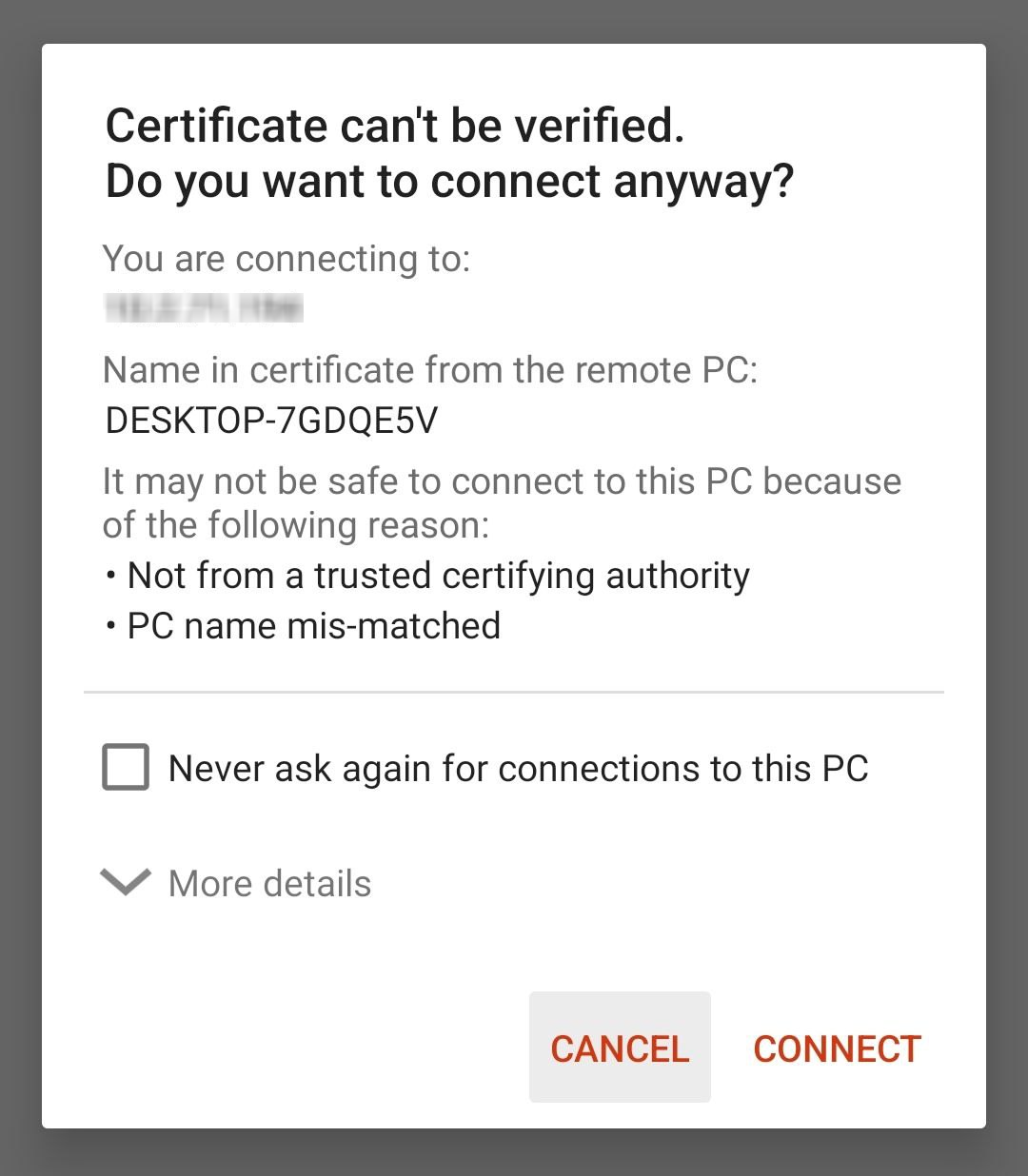
When accessing the desktop, the client may ask for confirmation to accept the certificate. Whether it asks, connects without warning or does not connect depends on the certificate verification option chosen by the administration in Viewers:
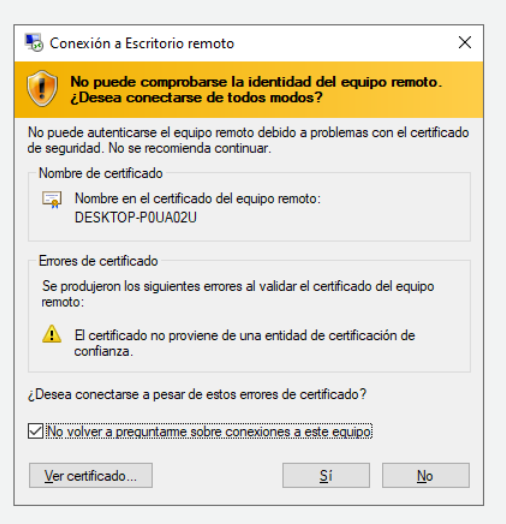
Finally, the client opens and you can interact with the desktop.
Windows does not let me open the .rdp file
If, when opening it, Windows warns that it has blocked a file that might not be safe, see the «Windows blocks the .rdp file» section of the frequently asked questions.
With a Linux host
Install the Remmina program (see how to download it in Introduction to viewers). With the desktop running, choose RDP or RDP VPN and open the downloaded file with Remmina.
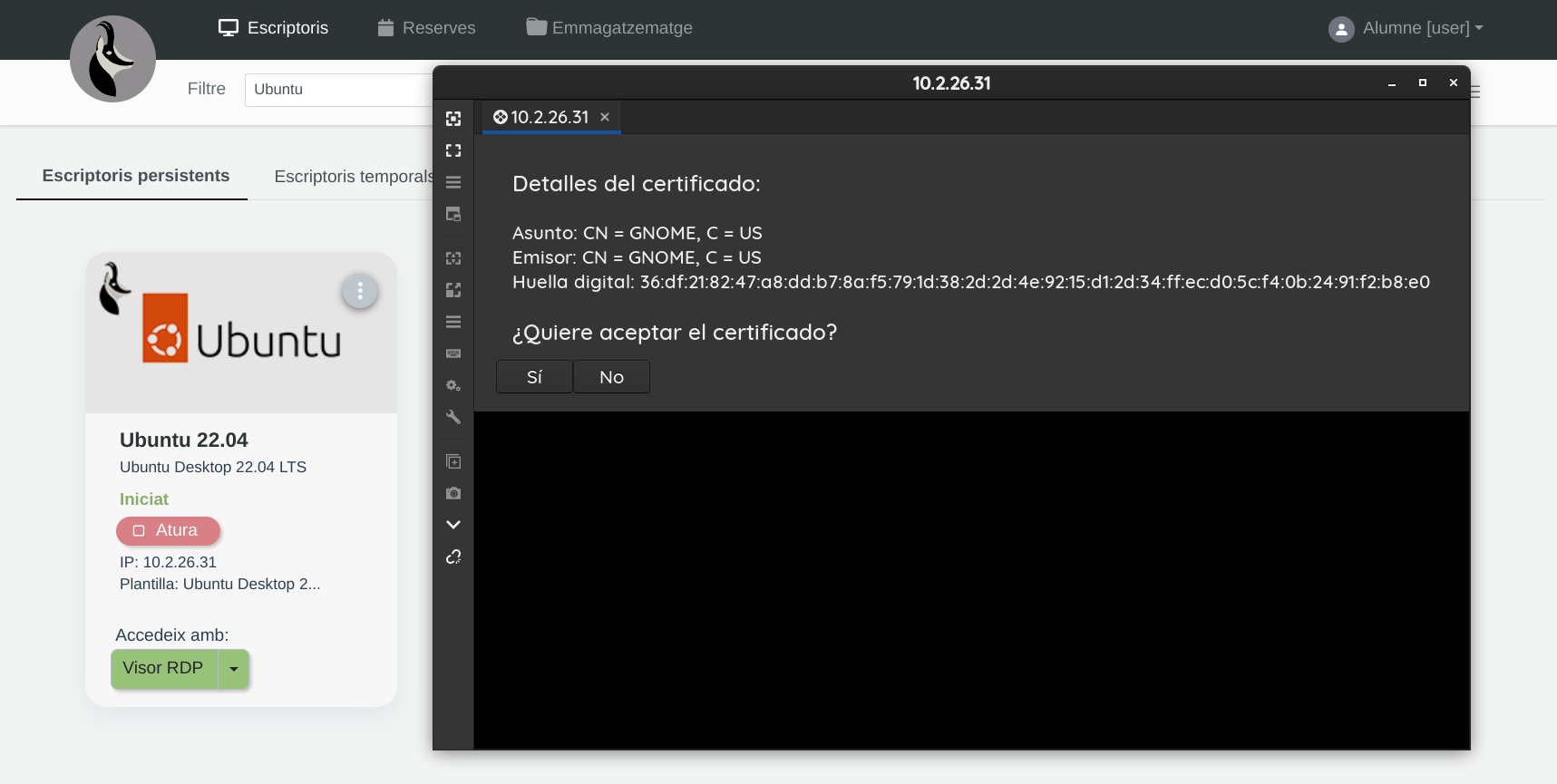
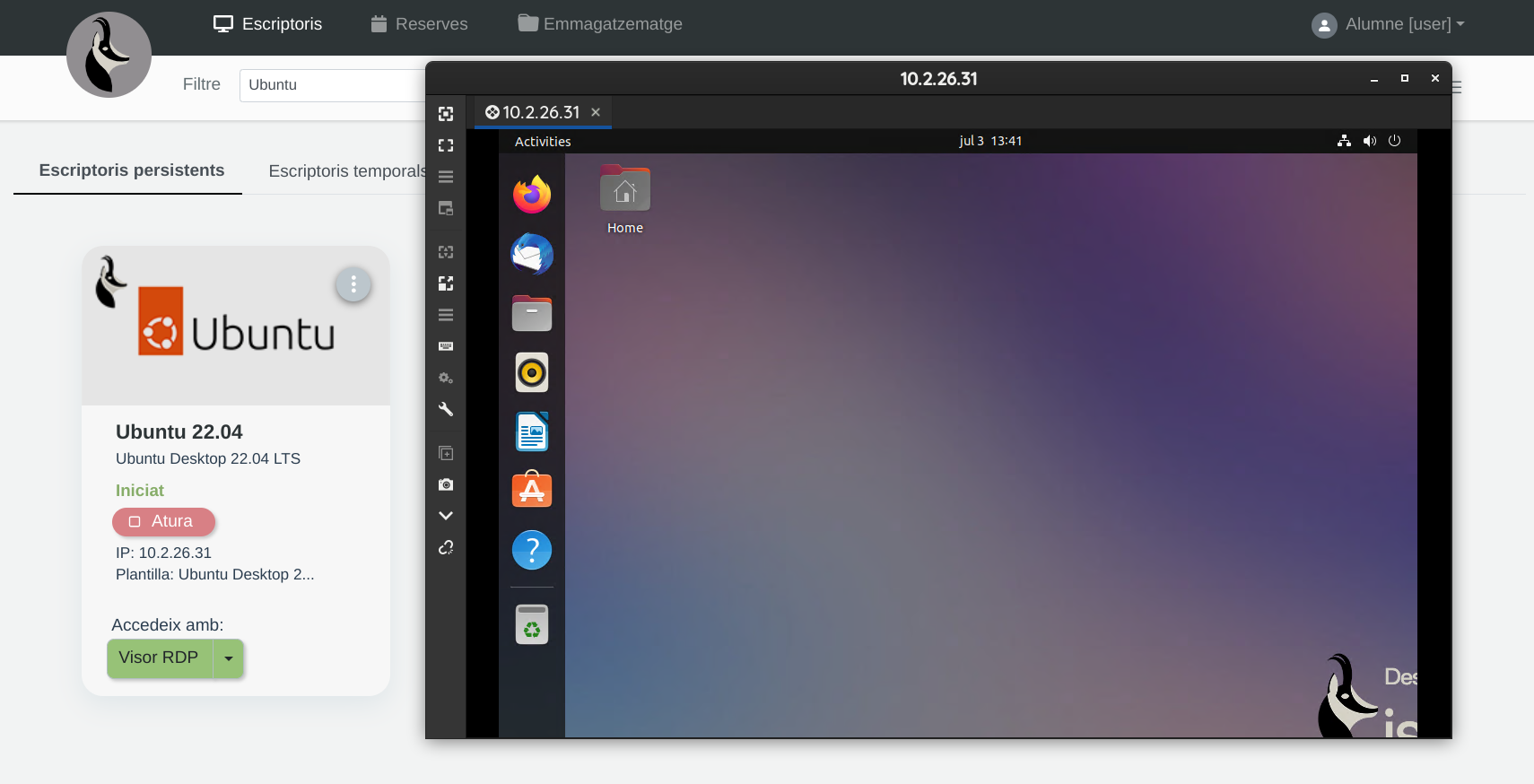
Redirect USB devices
With a Windows host
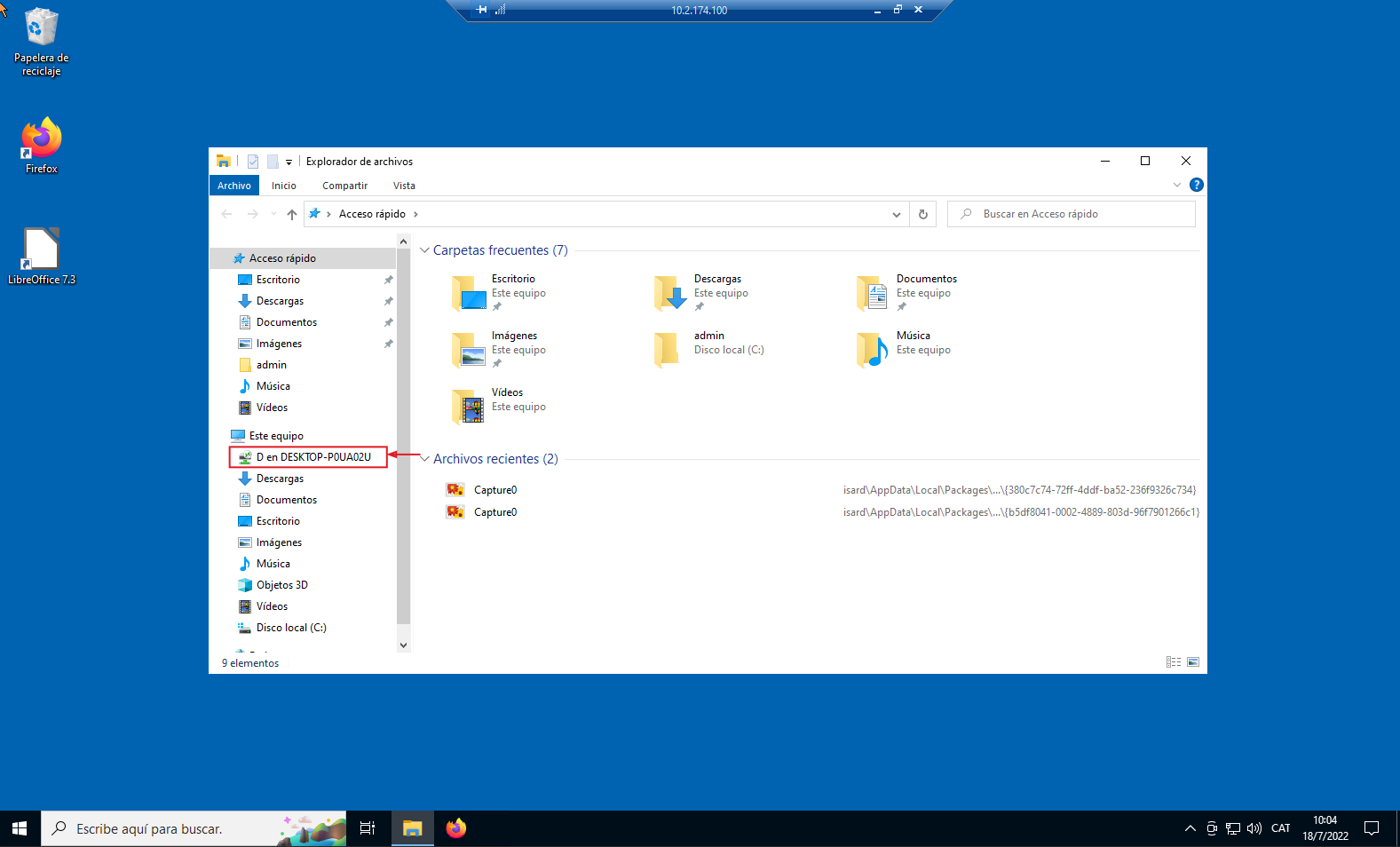
To redirect USB devices, edit the .rdp file that is downloaded when you choose RDP or RDP VPN on a running desktop.
- Go to the folder where the file is.
- Right-click the file and choose the Edit option.
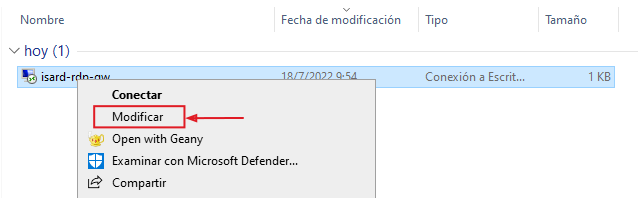
- Follow this path in the client window: Local Resources >> More >> Select the USB drive >> Connect
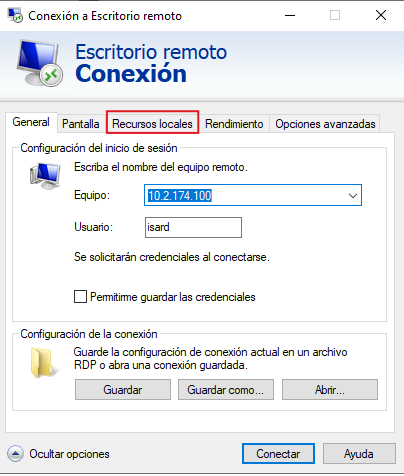
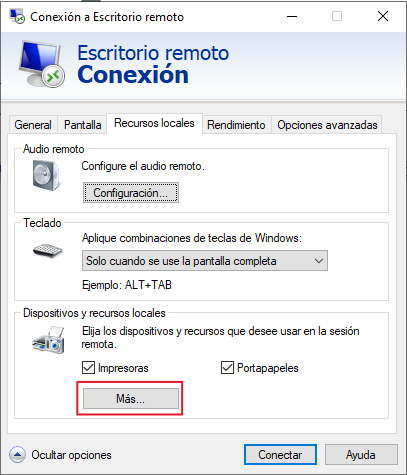
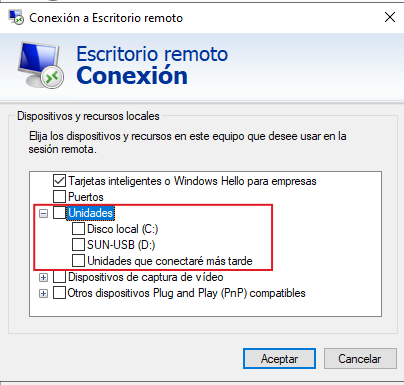
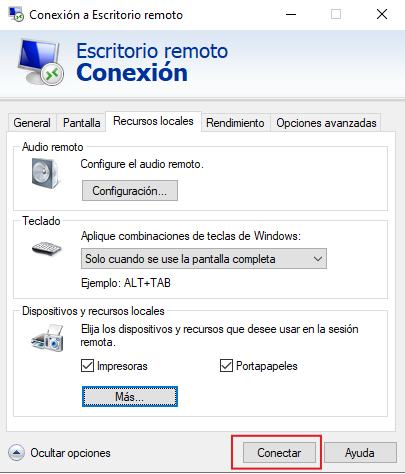
- Once connected, the device appears in the desktop's list of drives.
With a Linux host
For now, USB devices cannot be redirected with the Remmina client on Linux.
How to use the RDP viewer in the browser
With the desktop running, choose RDP Browser in the card's viewer drop-down. The viewer opens in a new tab, titled «RDP viewer». While it connects, it shows «Accessing the desktop».
| What you see | What it means | What to do |
|---|---|---|
| «Connecting» / «Connecting to server…» | The browser is opening the connection. | Wait. |
| «Waiting for desktop RDP to be available» / «Retry N of 3» | The desktop's RDP service does not respond yet; the viewer tries again up to three times. | Wait. If the attempts run out, click Retry. |
| «The desktop is not accepting RDP» | The desktop's RDP service does not respond or refuses the connection. | Try again in a moment or use another viewer. |
| «RDP credentials rejected» | The desktop does not accept the saved RDP user and password. | Correct the RDP credentials in the desktop edit form. |
| «Desktop stopped» | The desktop has stopped. | Start it again and reopen the viewer. |
| «Disconnected» / «You have been disconnected» | The connection has been cut. | Click Retry. |
| «The required cookie to establish a connection is not set» or «The required cookie to establish a connection has expired» | The tab does not have (or no longer has valid) the access data that the desktops page sets when it opens the viewer. | Click Refresh or reopen the viewer from the desktop card. |
| «It is necessary to reopen the viewer to connect properly» | The viewer's access is not valid. | Reopen the viewer from the desktop card. |
If the desktop has an automatic shutdown rule, the RDP viewer in the browser also shows the shutdown notice. The time cannot be extended from the direct viewer.
How to use the RDP viewer on an Android device
Install the Remote Desktop app for Android and download the desktop's RDP file to the device.
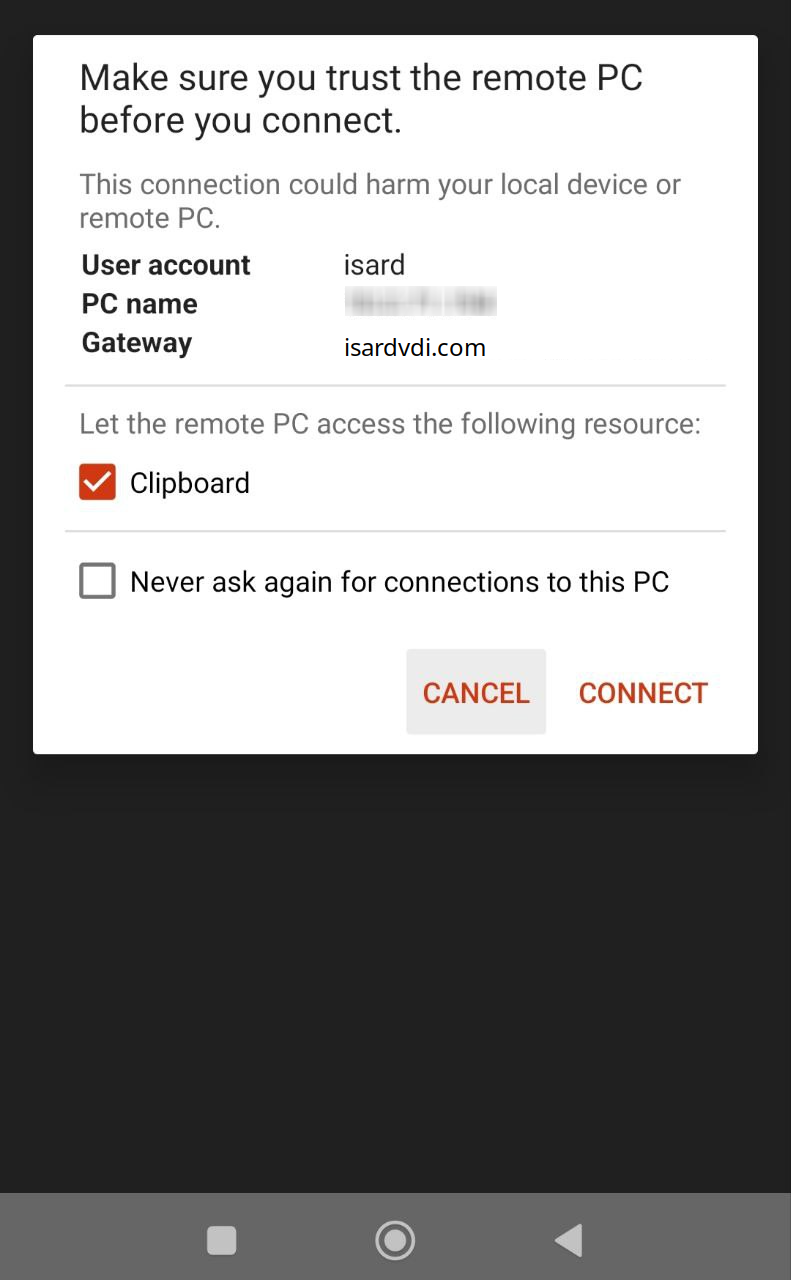
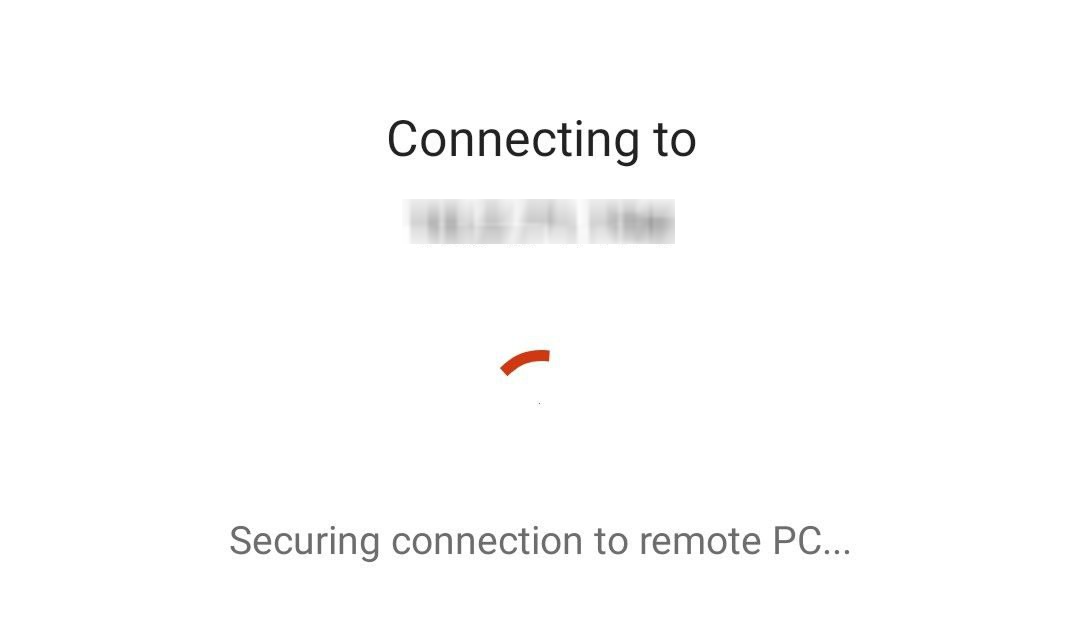
When you open the downloaded file, this window appears to confirm the connection:
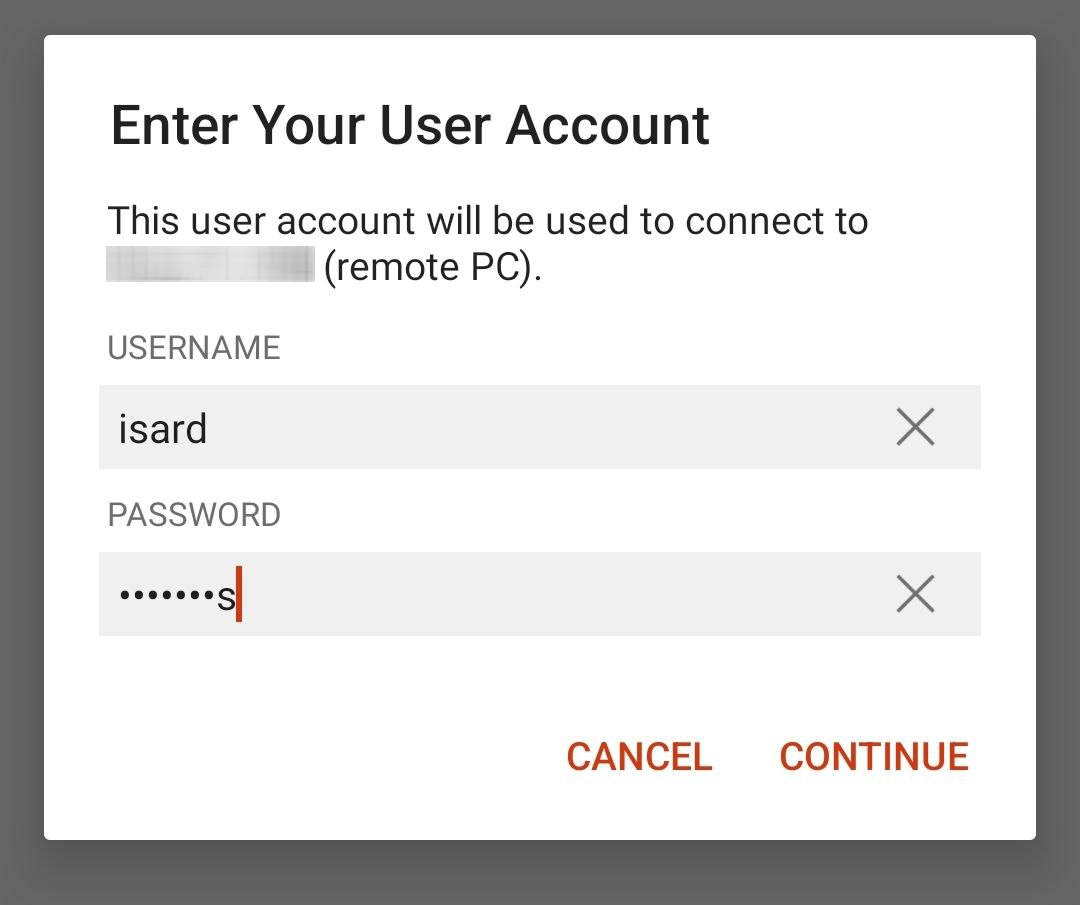
Enter the user name and password, wait for it to load and accept the certificate:
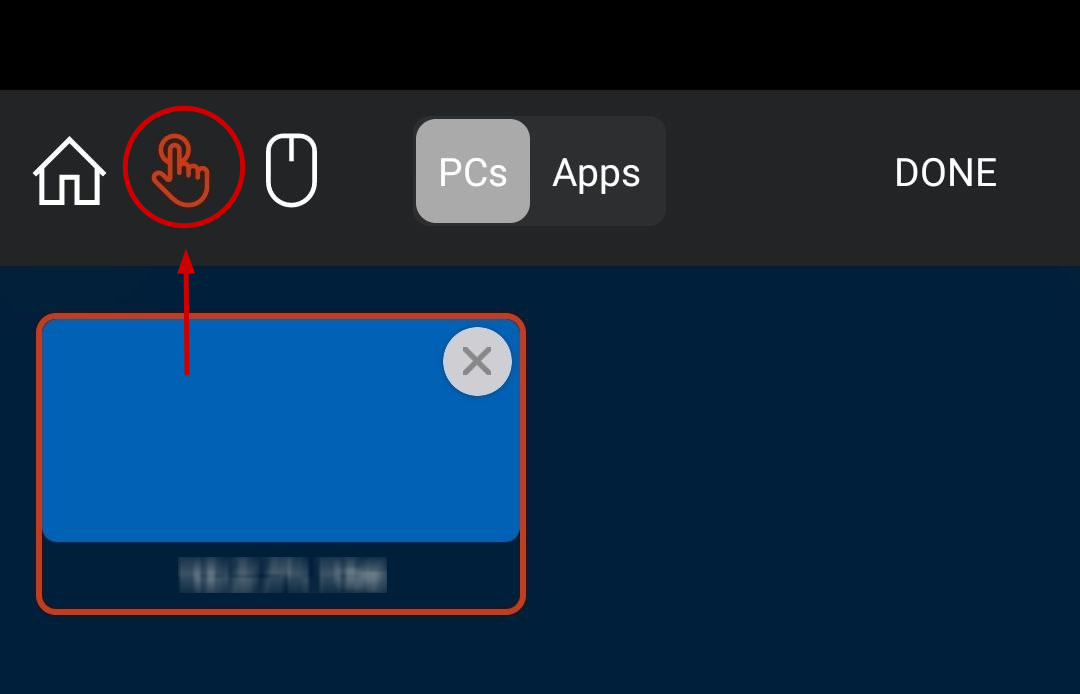
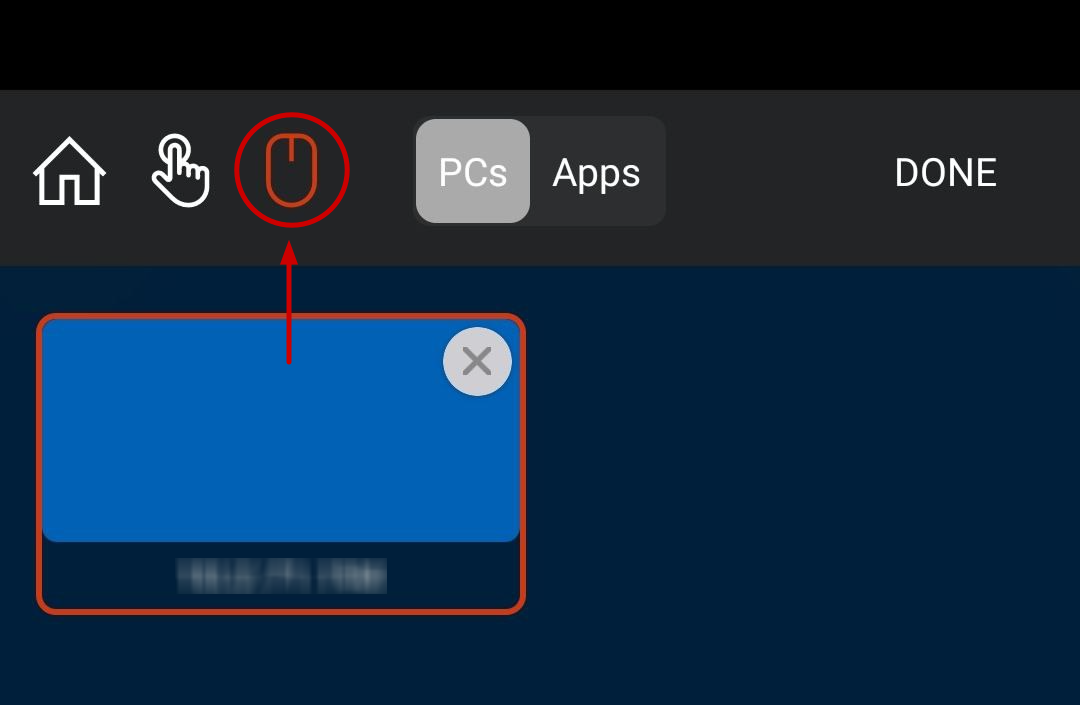
To choose whether the viewer is used with the mouse (Mouse) or by touch, press this icon:

Usage mode
Depending on how you want to use the viewer, choose:
Enable RDP
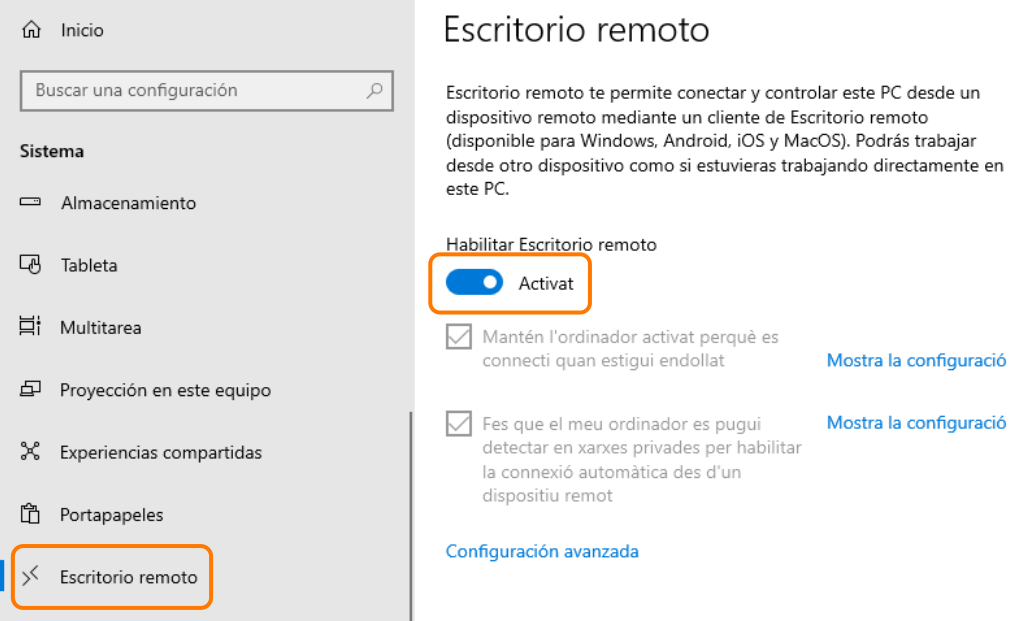
The RDP protocol must be enabled inside the virtual desktop's operating system.
Tip
The predesigned templates offered by IsardVDI already have the operating system ready for RDP connections over the WireGuard network, so this section of the manual is not needed if the user creates desktops based on these templates.
Otherwise, if the desktop was created from scratch (for example, from an ISO), this section explains how to prepare it for the RDP viewers.
For Windows desktops
1- Enable RDP
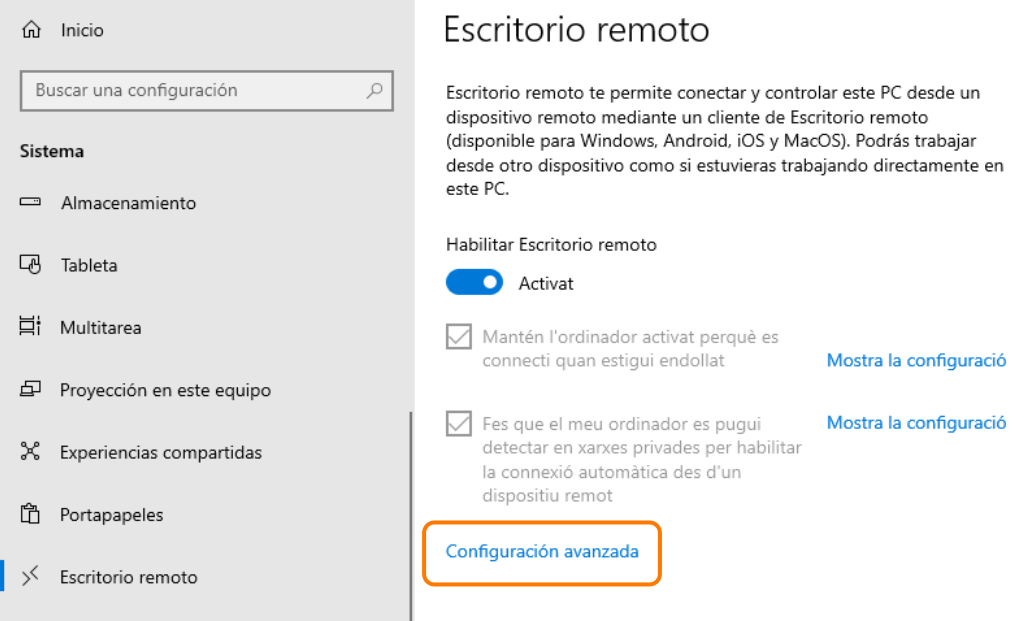
2- Configure network authentication
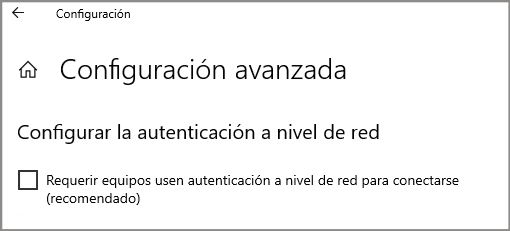
The desktop is ready.
For Linux desktops
You can follow this section of the manual for Ubuntu operating systems.
RDP service states on the card
Before an RDP viewer is opened, the platform checks the desktop's RDP service: that it has an IP address, that the RDP port responds and that the security level is allowed. The result is shown on the card's viewer button (when you hover over it or, if it is an error, below the button).
| What you see | What it means | What to do |
|---|---|---|
| «Waiting for the desktop to get an IP» | The desktop does not have an IP address yet. | Wait. |
| «Waiting for the RDP service» | The desktop's RDP service does not respond yet. | Wait. |
| «Verifying the RDP credentials» | The saved RDP credentials are being checked. | Wait. |
| «RDP available, credentials not verified — you may connect» | The RDP service responds, but the credentials could not be verified (no NLA or no saved credentials). | You can connect. |
| «RDP available with standard RDP security, without TLS or NLA: you may connect» | The RDP service responds with standard security, which the administration allows. | You can connect. |
| «The stored RDP credentials are not valid in the desktop» | The saved RDP user and password do not match the ones inside the desktop. | Correct them in the desktop edit form. |
| «The last RDP connection failed» | The last RDP connection attempt failed. | Try again or review the desktop's RDP configuration. |
| «The desktop refuses RDP: …» | The desktop's RDP service has refused the connection. The reason is shown at the end of the message (see the next table). | Review the RDP configuration of the desktop's operating system. |
| «The desktop RDP security is not allowed by the administrator: the desktop only offers standard RDP security (no TLS or NLA) and the administrator does not allow it; enable TLS or NLA in the guest» | The desktop only offers a security level that the administration does not allow in Viewers. | Enable TLS or NLA inside the desktop, or ask the administration to allow standard security. |
Reasons that can follow «The desktop refuses RDP:»:
| Reason | What to do |
|---|---|
| «the desktop RDP service is not listening yet» | Wait for the service to start or enable it (see the «Enable RDP» section). |
| «the desktop does not answer on the network» | Check that the desktop has the wireguard network and that the system firewall allows RDP. |
| «the desktop RDP port does not answer with the RDP protocol» | Check which service is listening on the desktop's RDP port. |
| «the desktop only accepts TLS-encrypted connections; check the guest RDP settings» | Review the RDP configuration of the desktop's system. |
| «the desktop does not accept TLS-encrypted connections; check the guest RDP settings» | Review the RDP configuration of the desktop's system. |
| «the desktop requires Network Level Authentication (NLA); check the guest RDP settings» | Save RDP credentials on the desktop or disable NLA inside the desktop. |
| «the desktop has no valid RDP certificate; check the guest RDP settings» | Review the RDP certificate of the desktop's system. |
| «the desktop refused the connection security; check the guest RDP settings» | Review the RDP configuration of the desktop's system. |
| «the desktop account is locked or expired» | Unlock or renew the account inside the desktop. |
| «the desktop has no stored RDP credentials» | Save the RDP credentials in the desktop edit form. |
| «the RDP negotiation with the desktop failed; check the guest RDP settings» | Review the RDP configuration of the desktop's system. |
While the check has not finished or if it has failed, the user cannot open the RDP viewers. People with the administrator role, and those with the manager role in the same category as the desktop, can connect even if the check has not finished or has failed.
RDP security policy
The administration configures in Viewers:
- The allowed RDP security levels: «Standard RDP security», «TLS without Network Level Authentication» and «Network Level Authentication (NLA, CredSSP)». By default, all three are allowed. If a desktop only offers a level that is not allowed, no RDP viewer can connect to it.
- What the RDP client does when it cannot verify the desktop's certificate (value written to the
.rdpfiles of the RDP and RDP VPN viewers):- Warn and let the user connect: warns and lets the user connect (default option of the selector).
- Connect without warning: connects without warning.
- Do not connect: does not connect.