Desktop logs
Roles with access
Only administrators have access to this feature.
To access this section, follow these steps:
- Click the
 {width="12%"} button
- Click the following button:
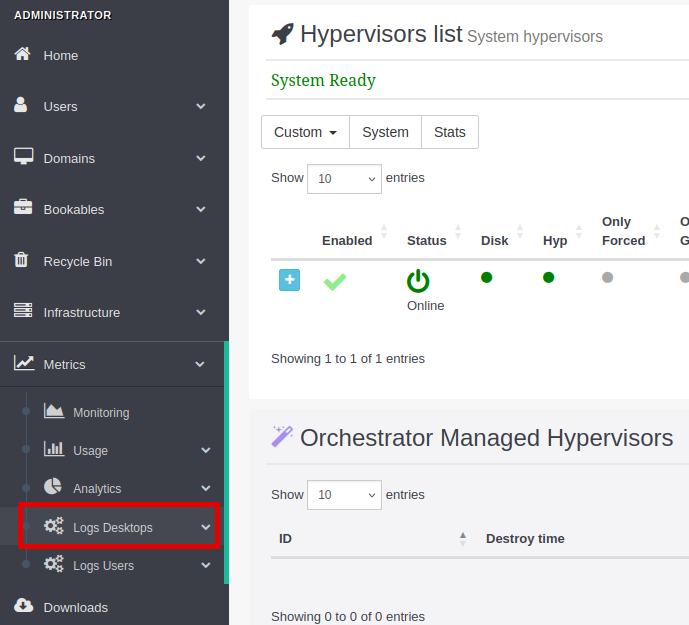
- You will access the following screen:
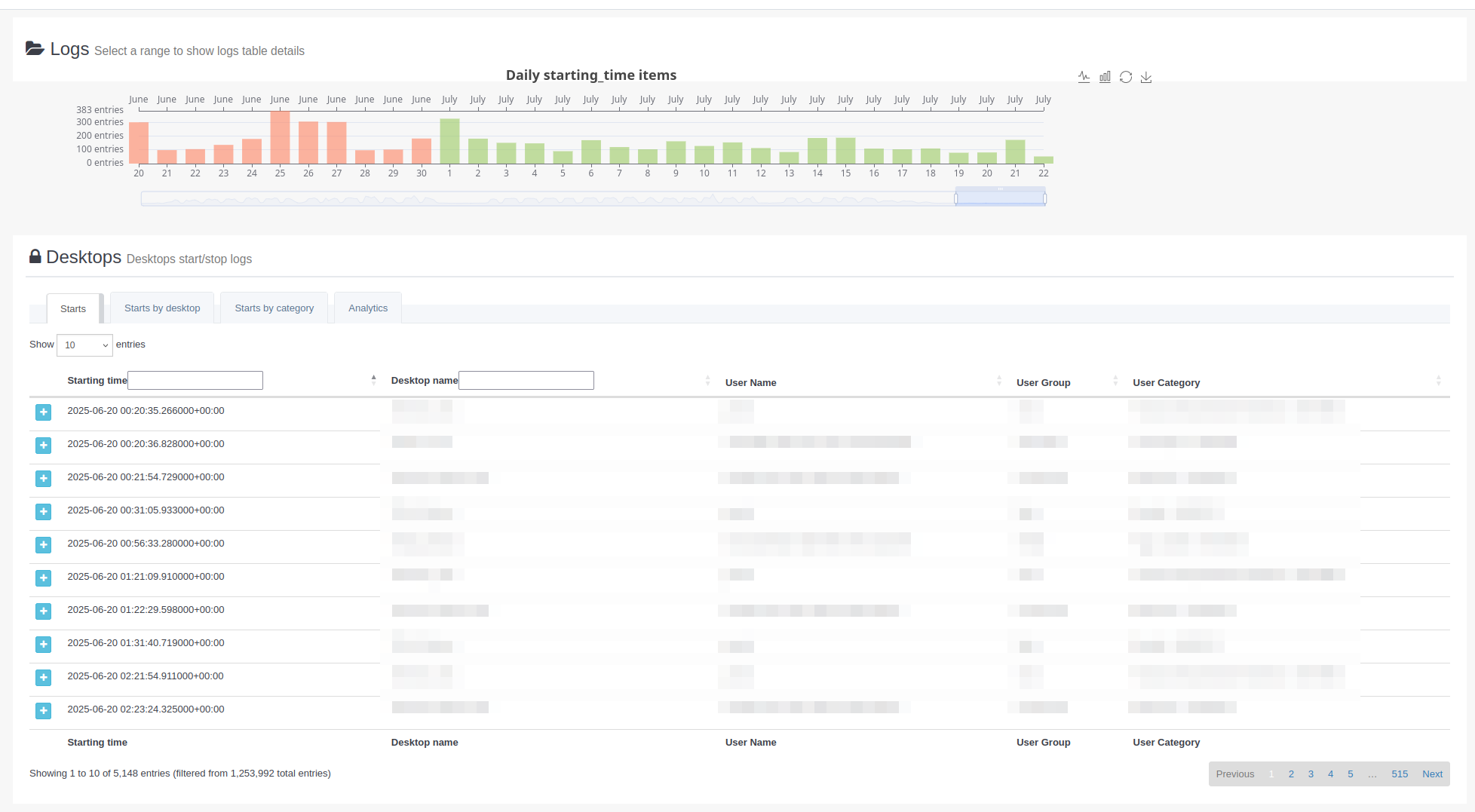
The screen contains two sections: - The top section displays a graph of the desktop logs. - The bottom section displays the logs with more detail.
What are Logs?
Logs are files or entries generated by desktops when they start, shut down, or perform any other action. Isard only gives easy access to the logs generated at startup.
Logs
In this section, you can view the graphical representation of the logs.
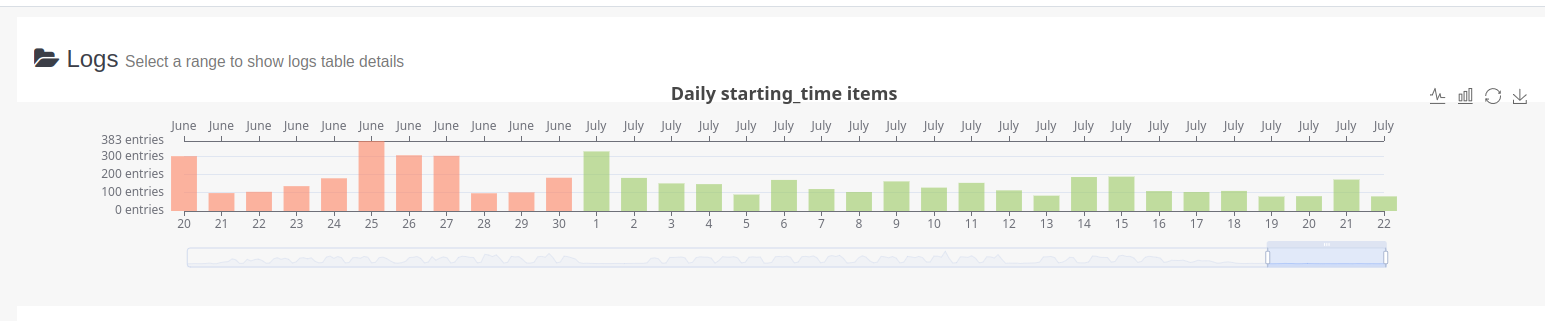
This representation shows the number of recorded daily desktop start instances. Each entry corresponds to the startup of a virtual desktop within the platform.
You can perform several actions with this chart:
By default, the representation is a bar chart. Click the first button located next to the chart to switch the view to a line chart:
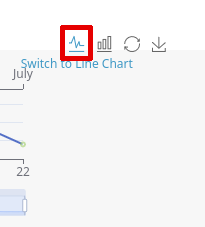

The second button allows you to return to displaying the data as a bar chart.
The third button restores the chart's initial view, which shows the most recent stretch of the history (the last 10 % of the period with data).
The last button allows you to download a .png image of the chart currently being displayed. The image will be downloaded with the name Daily starting_time items.png.

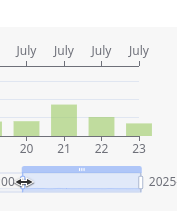
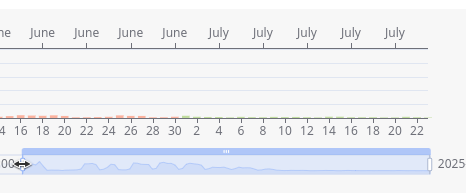
In this section, you can also edit the time period you want to display on the chart using the horizontal navigation bar located below the chart. You can move this bar horizontally to display other time periods.
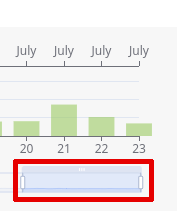
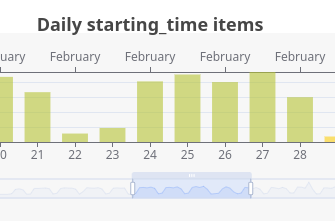
You can also expand the period you want to display. To do this, place the cursor on one side of the bar and drag it to the desired width.
Desktops
In this second section, you will find a table where the displayed data corresponds to the data in the chart above.
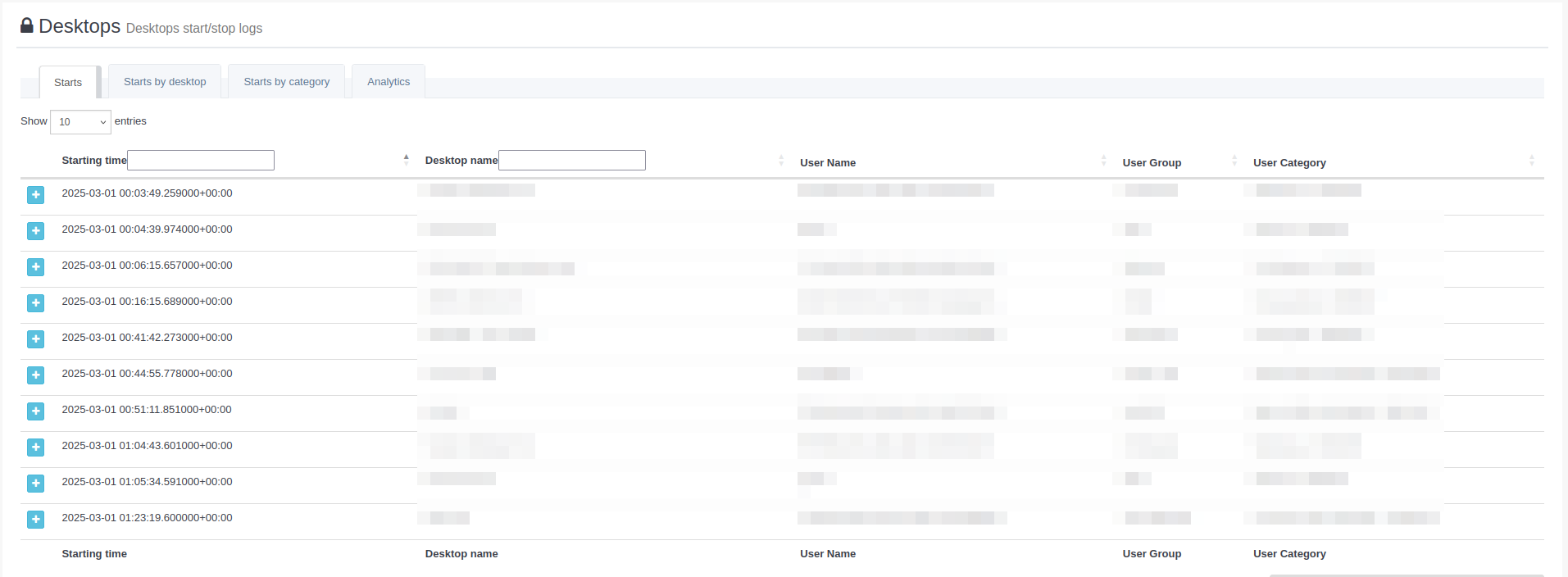
The table contains the following sections:
All started desktops are displayed here, regardless of user or category, sorted by start time.
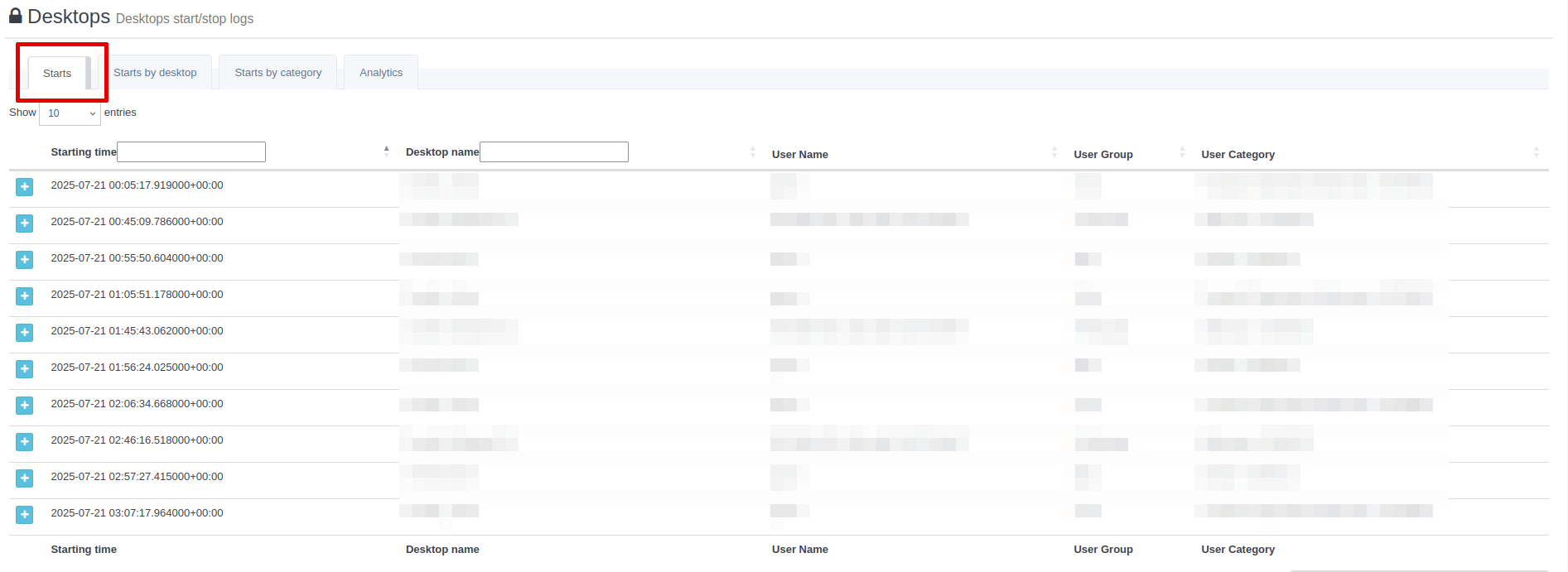
The table contains the following columns:
- Starting time: Indicates when the desktop was started, with the exact date and time.
- Desktop name: Indicates the name of the desktop.
- User name: Shows the name of the user who owns the desktop.
- User group: Shows the group to which the user who owns the desktop belongs.
- User category: Indicates the category to which the user who owns the desktop belongs.
Starts per desktop are displayed here. If the platform contains many desktops, this will affect the page loading time, as well as the query time based on the selected period.
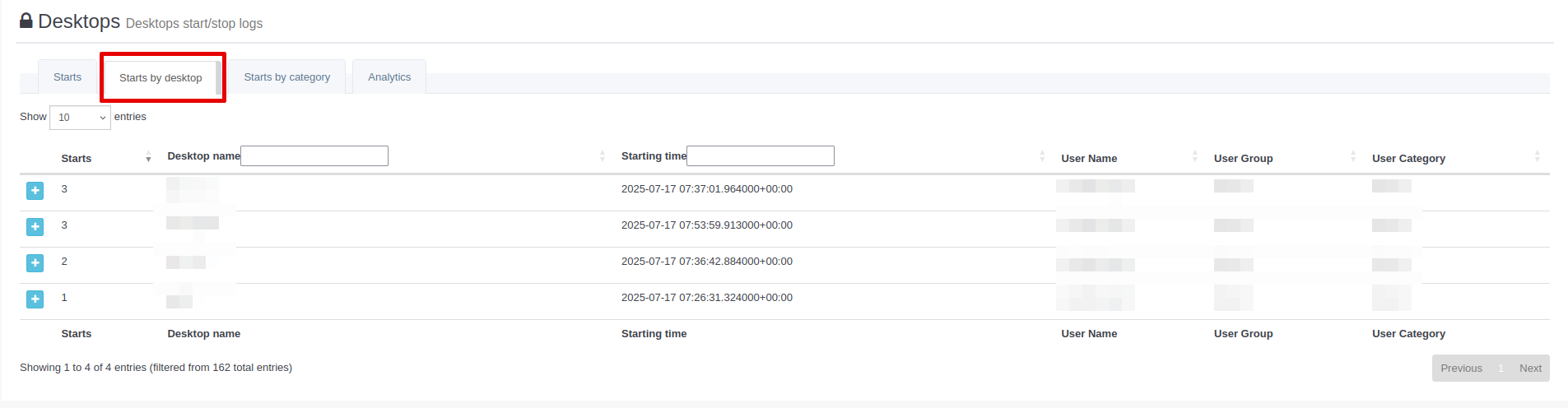
The table contains the following columns:
- Starts: Indicates the total number of starts for the desktop.
- Desktop name: Shows the name of the desktop.
- User name: Shows the name of the user who owns the desktop.
- User group: Shows the group to which the user who owns the desktop belongs.
- User category: Indicates the category to which the user who owns the desktop belongs.
Started desktops by category are displayed here.
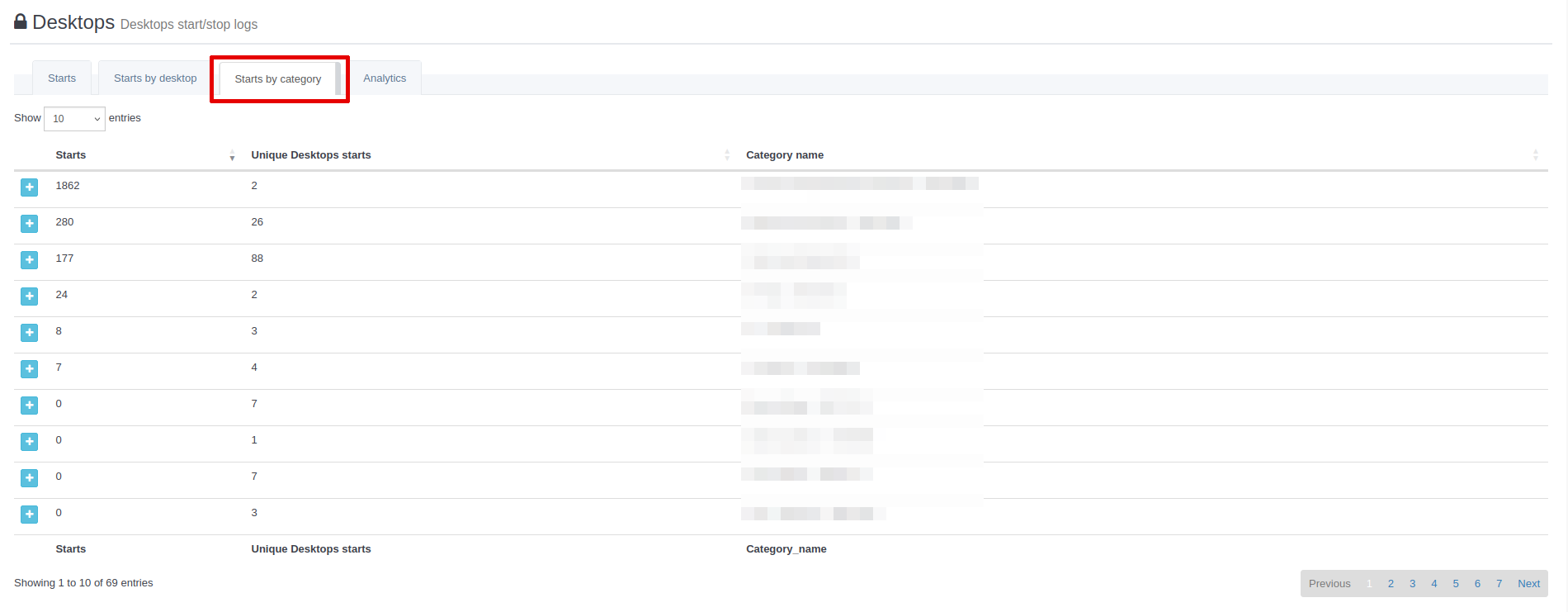
The table contains the following columns:
- Starts: Indicates the total number of starts for the desktop.
- Unique desktops starts: Indicates the number of starts of unique desktops within the category.
- Category name: Shows the name of the category.
This section displays relevant data on viewer usage and usage trends.
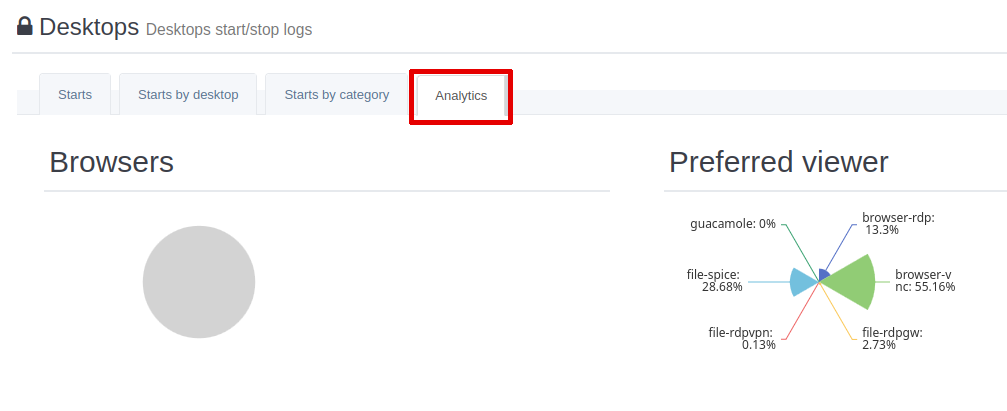
The chart varies depending on the time period shown in the previous section.