Edit desktop
On this page, you can edit the desktop.
Roles with access
Any user can edit the desktops they own. Desktops of a deployment do not have the Edit action: they are edited by the owner of the deployment.
The following sections can be edited, in addition to the desktop name, its description, and a descriptive image.
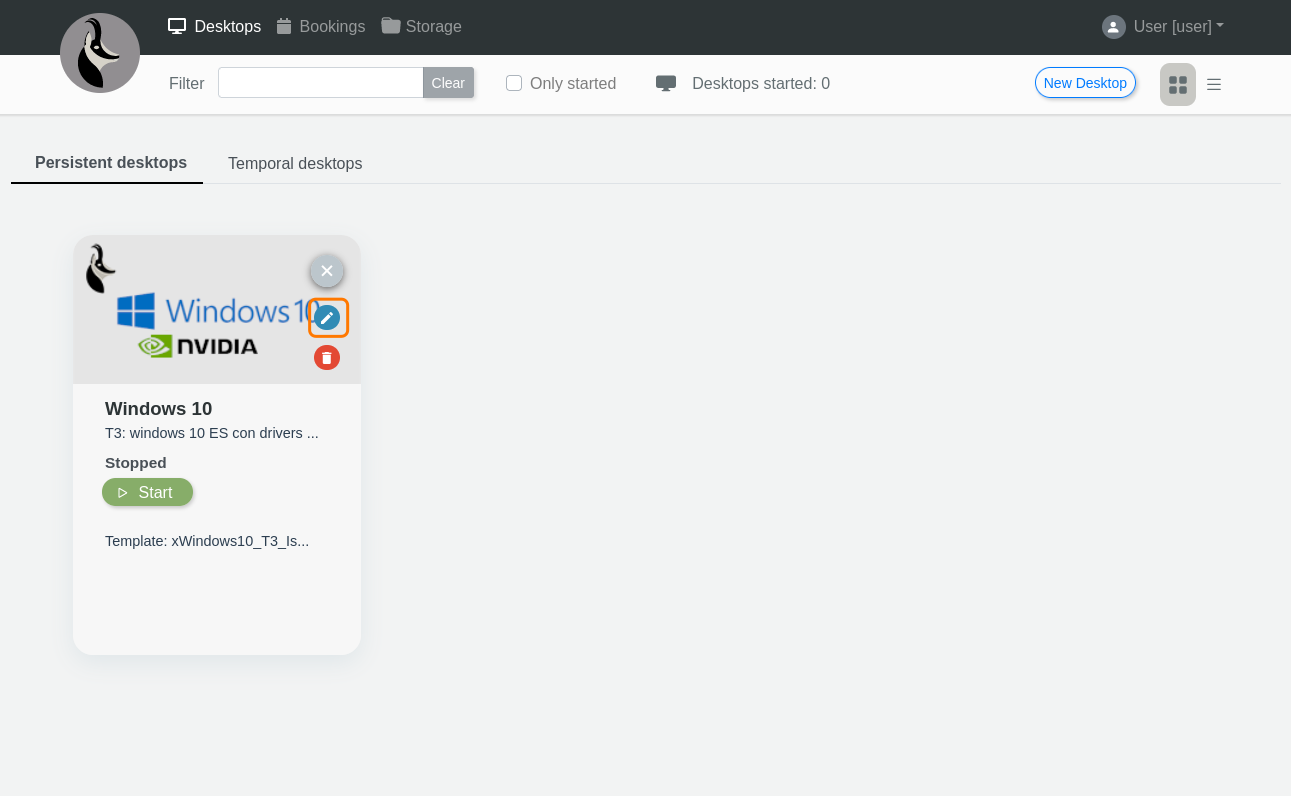
To edit a desktop, click the icon 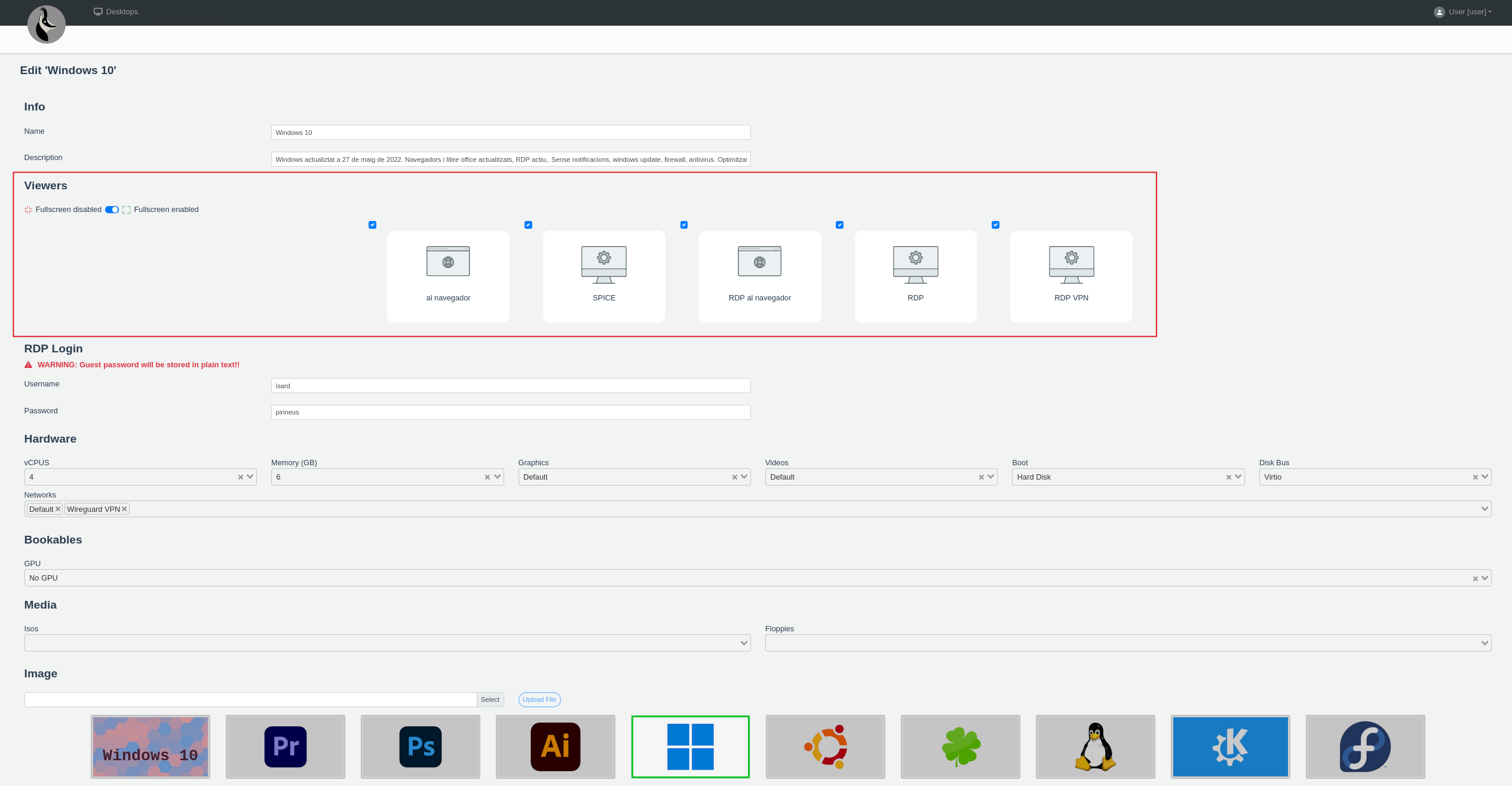
In the side menu, the section Desktops; this feature is within that screen.
The Edit desktop screen (title «Editing 'name'») displays, from top to bottom, the desktop information (name, description, and image) and the block Desktop configuration, which is already expanded and groups access (credentials and viewers) and hardware. Changes are applied with Save changes; with Cancel editing, you exit without saving. The button Restore initial values, in the header of the block Desktop configuration, reverts access and hardware changes (not the name, description, or image) and is disabled until there are changes.
The desktop must be stopped
Only a stopped desktop (or in Failed state) can be edited. If it is not, saving displays the error «The desktop must be stopped before editing it.».
When changes are applied
Access and hardware changes are applied the next time the desktop starts. After saving successfully, the desktop list is shown again.
Conditions and messages
- Save changes is disabled while any form is not valid.
- When leaving with Cancel editing (or navigating away) with unsaved changes, confirmation is requested with «Discard and exit?» («The information you have entered will be lost.»); choose Keep editing or Discard and exit.
- Other errors when saving: «A desktop with the same name already exists. Please choose a different name.», «The desktop was not found.», «Internal server error when saving the desktop.» and, if it cannot be loaded, «Error loading the desktop».
Viewers
In this section, you can select which viewers to use to access the desktop. You can also select whether to start the desktop in full screen mode or not.
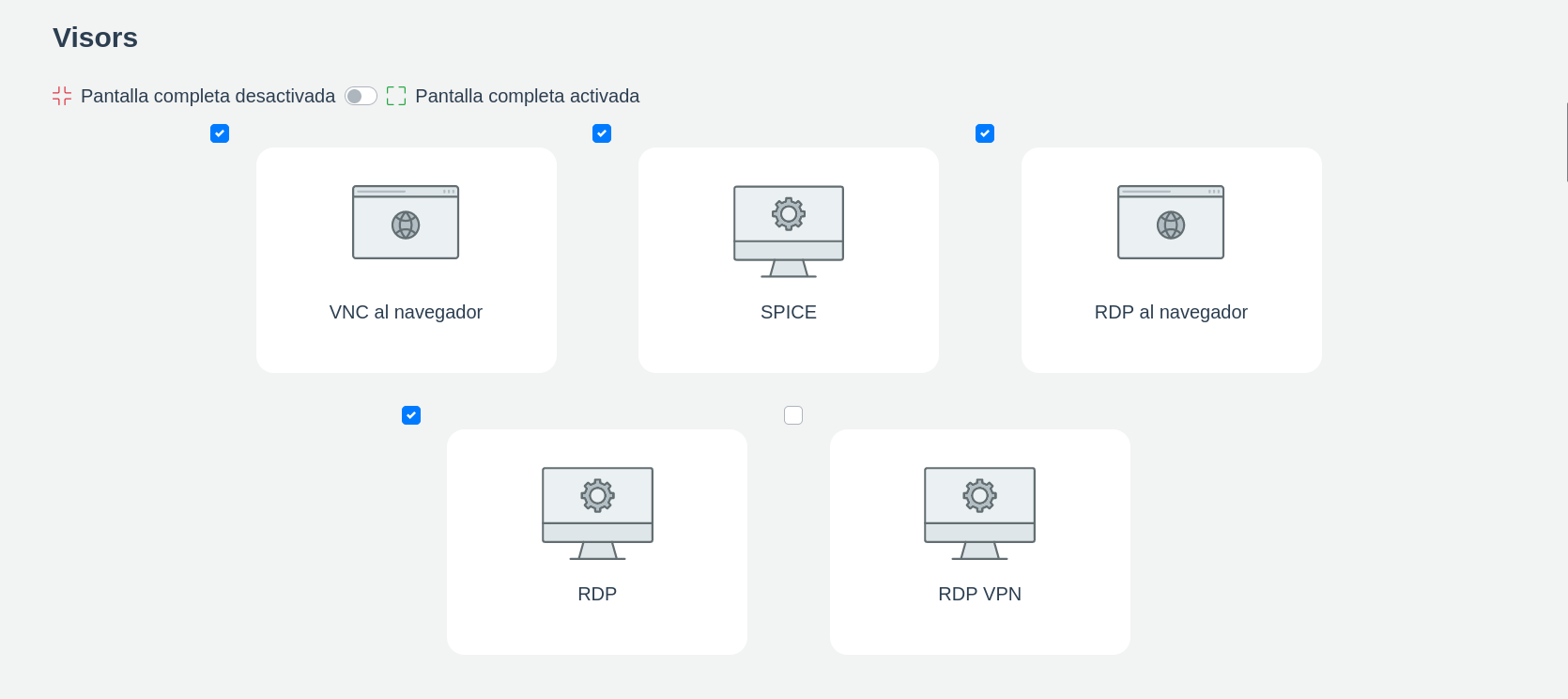
Within Desktop configuration, the Viewers section allows you to choose which viewers to access the desktop. The available viewers are: SPICE, VNC in browser, RDP, RDP VPN, and RDP in browser. Additionally, the Enable fullscreen by default option makes the viewer open in full screen mode.
Conditions and messages
- You must select at least one viewer: «Pick at least one viewer to reach the desktop with» (the server responds with «At least one viewer must be selected.»).
- RDP viewers (RDP, RDP VPN and RDP in browser) require the wireguard network interface. When one is selected, the wireguard network is automatically added to the desktop («Wireguard interface added»); if the user does not have permission to use it, the viewer is unchecked and «Wireguard interface required» appears.
- If the wireguard network is removed from the desktop, the RDP viewers are automatically removed («RDP viewers removed»). If the server receives this combination, it responds with «RDP viewers need the wireguard network. Please add the wireguard network to this desktop or remove RDP viewers.».
RDP Login
In this section, you assign the username and password for logging in to RDP viewers (the user created on the desktop OS). This configuration is only necessary if you do not want to log in to the desktop via RDP every time and if an RDP viewer is selected.
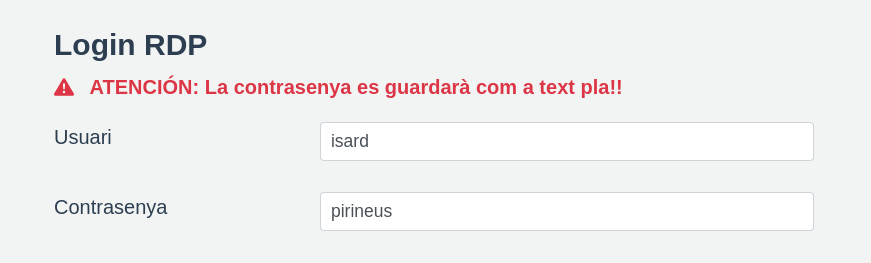
The Credentials section (username and password of the user created on the desktop operating system) only appears when an RDP viewer is selected or, if the user can use the bastion, when bastion access is enabled. It avoids having to log in to the desktop every time it is accessed via RDP.
Unencrypted password
The warning on the same screen says so: «WARNING: The password will be stored unencrypted in the database.»
Conditions and messages
- While the credentials are displayed, they are mandatory: «Enter a username to reach the desktop with» and «Enter a password to reach the desktop with».
- If RDP viewers are no longer used (and there is no bastion access), the credentials are not saved.
Hardware
In this section, you can edit the hardware you want to have on the desktop:
- Videos: by default, the Default option is always selected
- Boot:
- Hard disk if an operating system is installed on the desktop
- CD/DVD if a media is assigned and you want to boot from it
- Disk bus: by default, the Default option is always selected
- Networks: list of network interfaces you want on the desktop

The hardware section of Desktop configuration is divided into groups: System, Networks, Media, and Reservables.
- System: vCPUs, Memory (GB), Disk bus, Videos, and Boot (boot device: disk, ISO, floppy, or PXE).
- Networks: you can add interfaces using the selector; the order defines the order of the interfaces within the desktop (by dragging them or using the ← / → keys). Those marked as «Required» cannot be removed.
- Media: ISOs (see Media).
Conditions and messages
- Values are limited by the user's permissions and quota. Permissions on networks, videos, boot methods, ISOs and GPU profiles are assigned by the administration in Resources; the maximum vCPU and memory values come from the quotas. If a value had to be adjusted, the field shows the Restrictions applied mark with the details (e.g., «... exceeds what your permissions allow, so ... was saved» or «... is not within your permissions, so it was removed.»).
- A value that exceeds the quota is marked with «This value exceeds your quota».
- The «GPU only» video mode only supports RDP viewers: «The «GPU only» mode only works with RDP viewers. Please remove non-RDP viewers or choose another video option.».
Reservables
In this section, you can select a GPU card profile to associate with the desktop (it may not be available).

The Reservables group (vGPU field) associates one or more GPU profiles with the desktop. It is only shown if the user has profiles available or the desktop already has some. A maximum of 4 vGPU profiles can be selected per desktop.
Booking
When editing a desktop, no end time for the GPU booking is selected (unlike when creating a temporary desktop); the booking is managed separately. If the set of vGPU profiles for the desktop changes, the existing booking is deleted; if only the order changes (the same profiles), it is preserved.
Conditions and messages
- If no profiles are available, the field is disabled: «No vGPU available for your user».
- When reaching the maximum: «Maximum of 4 vGPU profiles per desktop.»
- All profiles must be able to run on the same host and be of the same model; otherwise, «The selected GPU profiles are not all available on a single host. Pick a different combination.» or «All the selected GPU profiles must be of the same GPU model so they can run on one host.».
- Only profiles that the user is permitted to use can be added; profiles already assigned to the desktop are not removed during an edit.
- A desktop marked as a server cannot have reservable items.
Media
In this section, you can add a media item that belongs to the user or is shared with them.

Media (ISO images) are linked to the desktop from the ISOs field in the Media hardware group. Own media or media shared with the user can be added, and booting from them can be chosen in the Boot field (e.g., ISO) to install from them.
Conditions and messages
- The ISOs field is only displayed if there is available media or the desktop already has some.
- No media: «No ISO available for your user».
- Media that no longer fall within the user's permissions are removed on saving, with the «Restrictions applied» mark as a warning.
Image
In this section, you can select the cover image that the desktop will display in the main view.
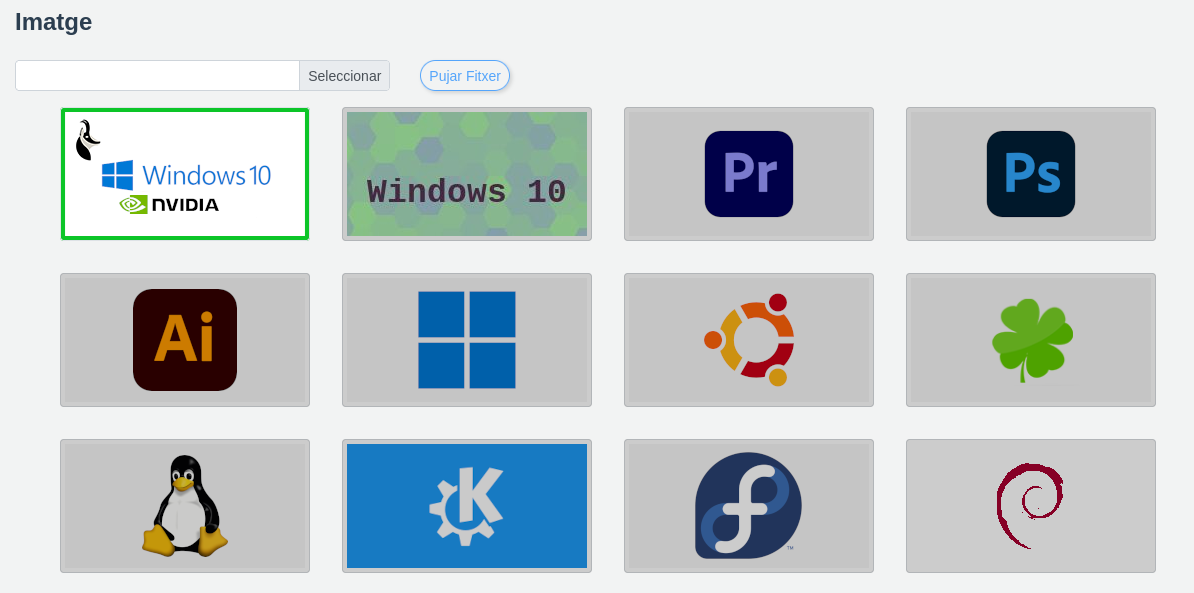
In the desktop information, the Change image button opens the «Change desktop image» window, where a cover image is chosen from the existing ones or a new one is uploaded (PNG, JPG or GIF, maximum 5 MB). Click Save in the window to select it.
Applied when saving the desktop
Choosing the image does not save it to the desktop: it is written when Save changes is clicked on the edit screen, like the rest of the fields.
Conditions and messages
- Upload errors: «Invalid file type. Choose a PNG, JPG or GIF.» and «File is too large. Max size is 5 MB.».
- If images fail to load: «Images could not be loaded».