Password recovery
This section describes the process for recovering access to the system when the password has been forgotten.
Roles with access
- User
Video: page walkthrough
This feature is only available in the new interface (new interface).
This feature does not have its own entry in the side menu: it is used before logging in. On the login screen, choose the category (if the selector is shown) and click the Forgot password? link. If no category has been chosen and there is more than one, the screen leads to the category selector; if the recovery screen is opened without a category, it goes back to the login screen.
The process has two steps: first, request the link by email (Reset your password), and then, from the received link, set the new password (Change password).
Depends on the administration settings
Local users only
The link can only be generated for local user accounts (those with a password in IsardVDI) with a verified email address (see Verify the email). Accounts that log in via an external provider (for example, SAML or Google) do not have their own password in IsardVDI.
Send reset link
This feature is only available in the new interface (new interface).
From here, request a link to reset the account password.
- Enter the account's email address in the Email field.
- Click Send reset link.
- A confirmation message appears and, after 10 seconds, the screen returns to the login page. Back to login can also be clicked before that.
Conditions and messages
- The field requires a valid email address; if it is not valid, the screen displays «Enter a valid email address».
- If the submission is successful, the title «Email sent» and the message «If your email address exists in our database, you will receive a password recovery link at your email address in a few minutes.» are displayed, followed by the countdown «Redirecting to login in N seconds.»
- If there is an error during submission, «An error occurred. Please try again.» is displayed. The warning disappears when you edit the email again.
- The button is disabled while the request is being sent.
For security, the response is always the same
The confirmation message is identical whether the email corresponds to an account or not. If the email does not belong to a local user with a verified email in the selected category, no message is sent. In addition, there is a limit on repeated requests for the same email and category: when it is exceeded, nothing is sent either, and the screen still shows the confirmation. If the email does not arrive, check the address and the spam folder, and wait a while before trying again.
Link expiration and single use
The email link contains a signed token (JWT, HS256) that expires after 60 minutes. There is only one valid reset token per user: if a new one is requested, the previous one becomes invalid, and when the password is changed the token is deleted, so the link can only be used once.
Development details
For those who develop or integrate IsardVDI: where each element of this section is located in the code, from which version it is available, which API operation it calls, and what messages it can return.
- New interface · file
views/ForgotPasswordView.vue:157· interface text (translation key)views.forgot-password.buttons.reset- since v17.0.0 (2026-05-07,
28113327da) - on click:
submits the form (onSubmit)
- since v17.0.0 (2026-05-07,
Commit code fe99ad98.
Update password
This feature is only available in the new interface (new interface).
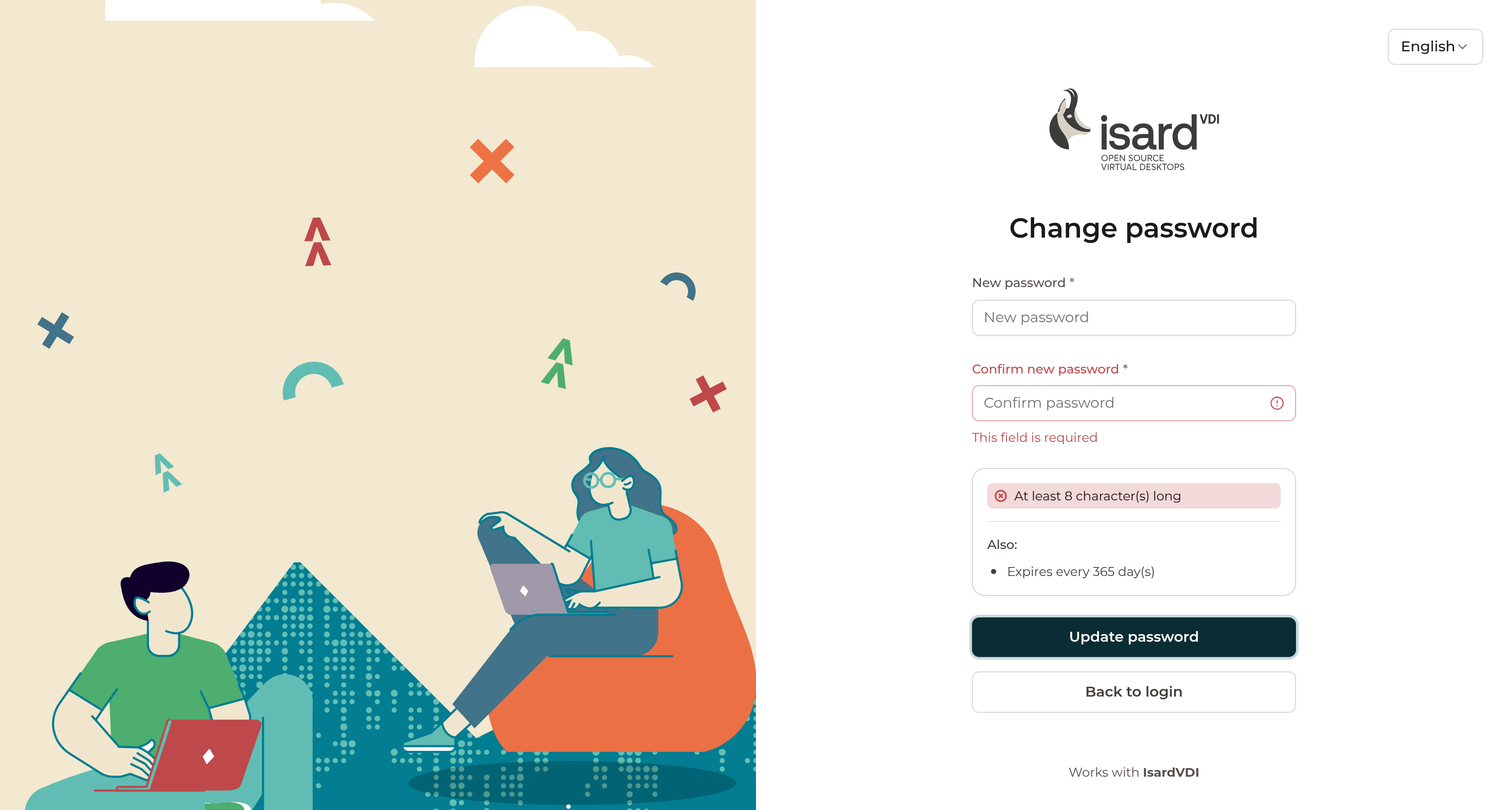
This screen opens from the reset email link. It is also shown at login when the password has expired according to the password policy (local accounts only); in this case there is no token in the link and the session token is used.
- Open the link received by email. The screen loads the password policy and the list of requirements.
- Enter the new password in the new password field and repeat it in the confirmation field.
- Click Update password.
- «Password changed successfully.» is displayed and, after 10 seconds, the screen returns to the login page, where you can now sign in with the new password.
Conditions and messages
- While the policy is loading, a loading indicator is displayed.
- The password must comply with the policy set by the administration in Policies: minimum length, uppercase letters, lowercase letters, numbers and special characters; depending on the configuration, it must also not contain the username and not match the last passwords used. When the button is clicked, the unmet requirements are marked in red.
- The two passwords must match; otherwise, the screen indicates this in the confirmation field.
- If the server rejects the password because of the policy, «Your new password doesn't meet the requirements:» appears with the unmet requirement.
- If there is another error, «Something went wrong. Please try again in a few seconds.» appears.
- Expired link (more than 60 minutes): «Link expired — This password reset link has expired. Reset links are only valid for a limited time.».
- Link already used or invalid: «Link no longer valid — This password reset link is no longer valid. It may have already been used to change your password.». An already used link is only detected when clicking the button.
- In both cases of an unusable link, the form is replaced by the notice, and you must go back to the login screen to request a new one.
- If a field is left empty, the message «This field is required» appears.
- Each requirement in the list shows the status «met» or «not met».
Development details
For those who develop or integrate IsardVDI: where in the code each element of this section is located, from which version it is available, which API operation it calls, and what messages it can return.
- New interface · file
views/ResetPasswordView.vue:344· interface text (translation key)views.reset-password.submit- since v17.0.0 (2026-06-23,
a229f943e3) - on click:
submits the form (onSubmit)
- since v17.0.0 (2026-06-23,
Commit code fe99ad98.
Return to the login screen
This feature is only available in the new interface (new interface).
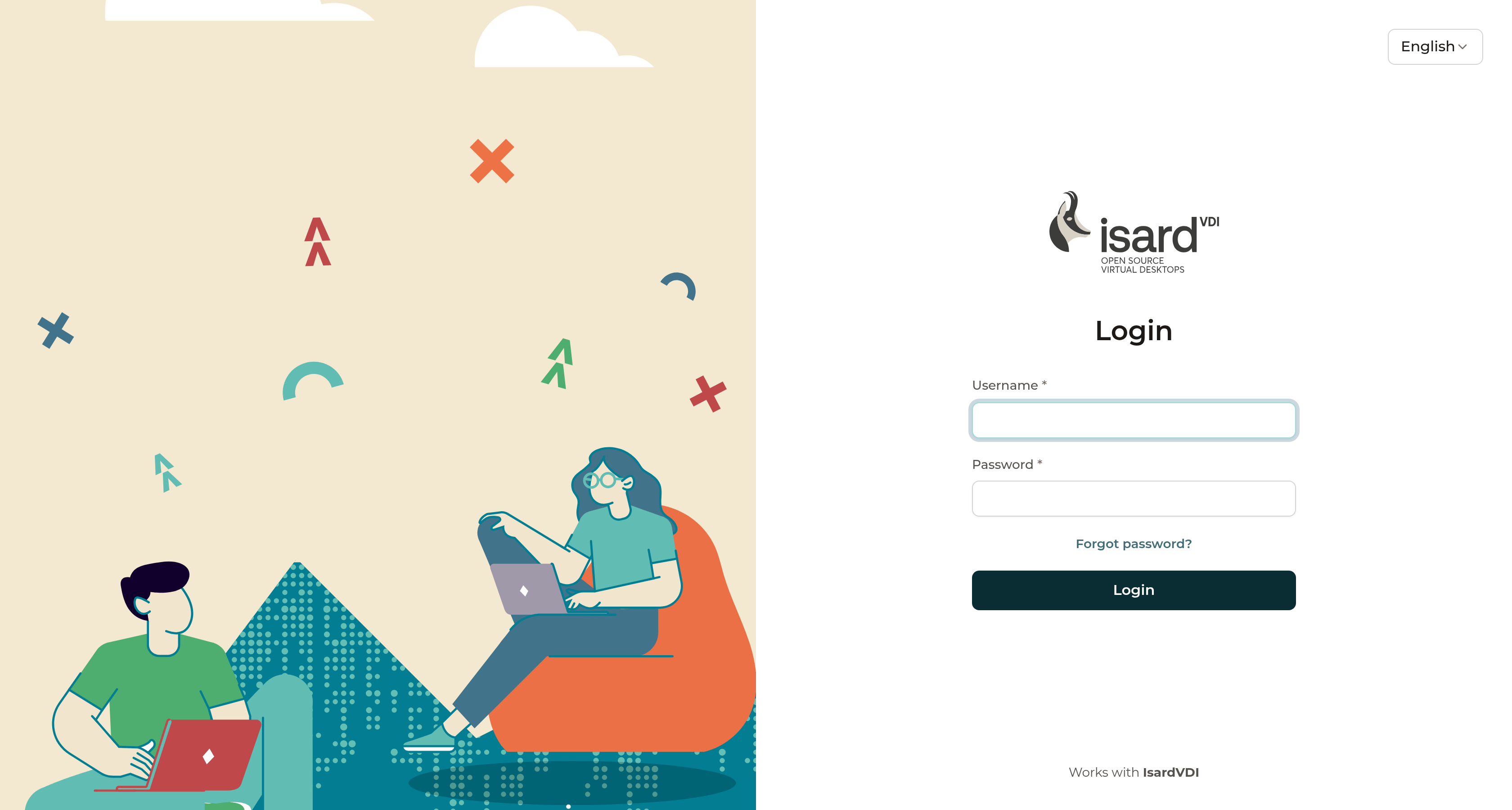
The Back to login button appears on the password recovery screens (link request, sending confirmation and password change) and leads to the login screen, from where a new link can be requested if needed.
Conditions and messages
- On the login screen, the Forgot password? link is only present if the administration has not hidden it (see Login).
- If no category is selected, you cannot continue: you are asked to choose one (or the category-not-selected warning is shown).
Development details
For those who develop or integrate IsardVDI: where in the code each element of this section is located, from which version it is available, which API operation it calls, and what messages it can return.
- New interface · file
components/login/LoginProviderForm.vue:126· interface text (translation key)components.login.login-provider-form.logging-in- from v17.60.0 (2026-10-06,
c31cfff6b6)
- from v17.60.0 (2026-10-06,
- New interface · file
views/ForgotPasswordView.vue:165· interface text (translation key)views.forgot-password.go-login- from v17.0.0 (2026-05-07,
28113327da) - on click:
router.push({ name: 'login' }) - calls:
navigation to the «login» route
- from v17.0.0 (2026-05-07,
- New interface · file
views/LoginView.vue:748· interface text (translation key)views.login.select-category- from v17.0.0 (2026-04-24,
f31b874d89)
- from v17.0.0 (2026-04-24,
- New interface · file
views/LoginView.vue:765· interface text (translation key)authentication.login.errors.unknown- from v17.0.0 (2026-04-24,
f31b874d89)
- from v17.0.0 (2026-04-24,
- New interface · file
views/LoginView.vue:803· interface text (translation key)views.login.separator- from v17.0.0 (2026-04-24,
f31b874d89)
- from v17.0.0 (2026-04-24,
- New interface · file
components/login/LoginProviderForm.vue:70· interface text (translation key)components.login.login-provider-form.username- from v17.0.0 (2026-04-24,
f31b874d89)
- from v17.0.0 (2026-04-24,
- New interface · file
components/login/LoginProviderForm.vue:90· interface text (translation key)components.login.login-provider-form.password- from v17.0.0 (2026-04-24,
f31b874d89)
- from v17.0.0 (2026-04-24,
- New interface · file
components/login/LoginProviderForm.vue:113· interface text (translation key)components.login.login-provider-form.forgot-password- from v17.0.0 (2026-04-24,
f31b874d89) - on click:
onForgotPassword
- from v17.0.0 (2026-04-24,
- New interface · file
components/login/LoginProviderForm.vue:127· interface text (translation key)components.login.login-provider-form.login- from v17.0.0 (2026-04-24,
f31b874d89) - on click:
submits the form (onSubmit)
- from v17.0.0 (2026-04-24,
Commit code fe99ad98.