Direct viewer
The direct viewer allows you to open a shared desktop via a link, without needing a user account on the platform.
Roles with access
- All roles (user, advanced, manager and administrator), for their own desktops
It is used to share a desktop with a direct link, without the recipient having to be registered on the platform.
Click the  button of the desktop to be shared by link.
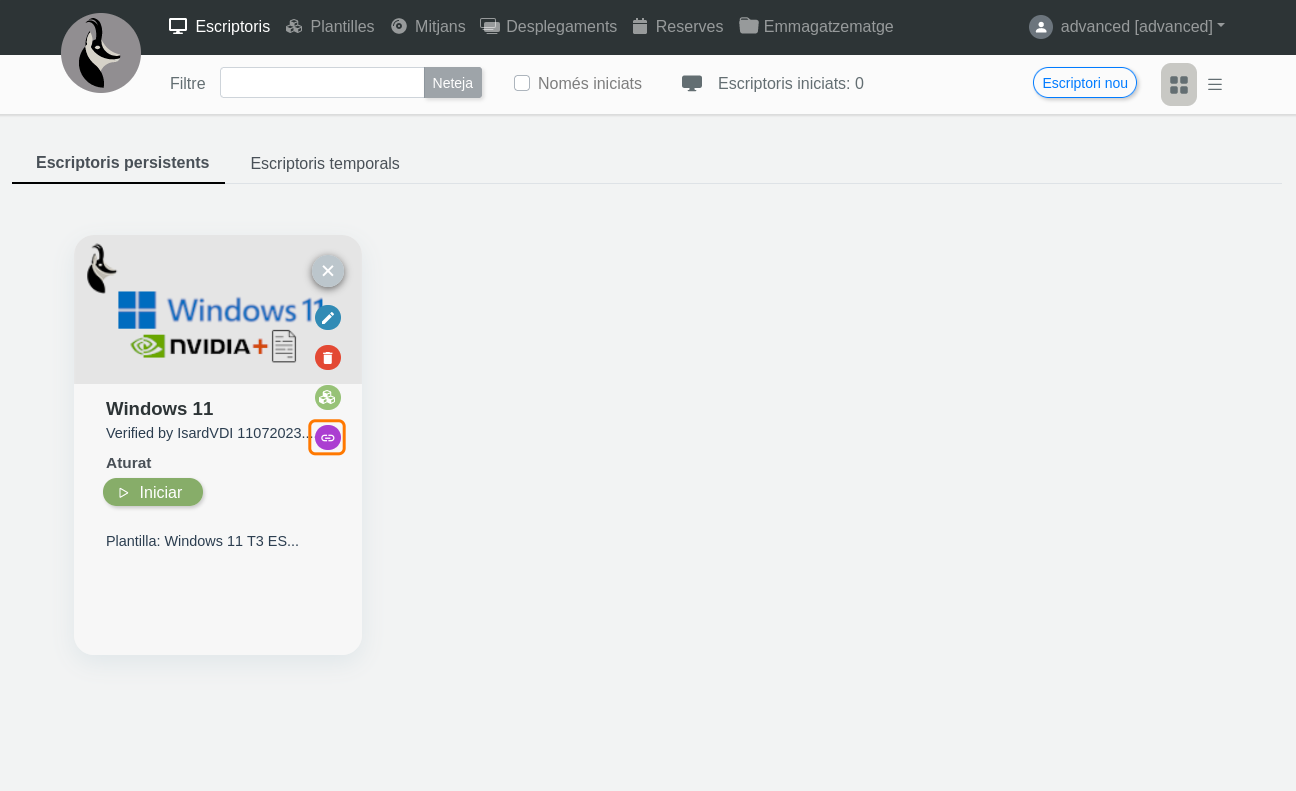
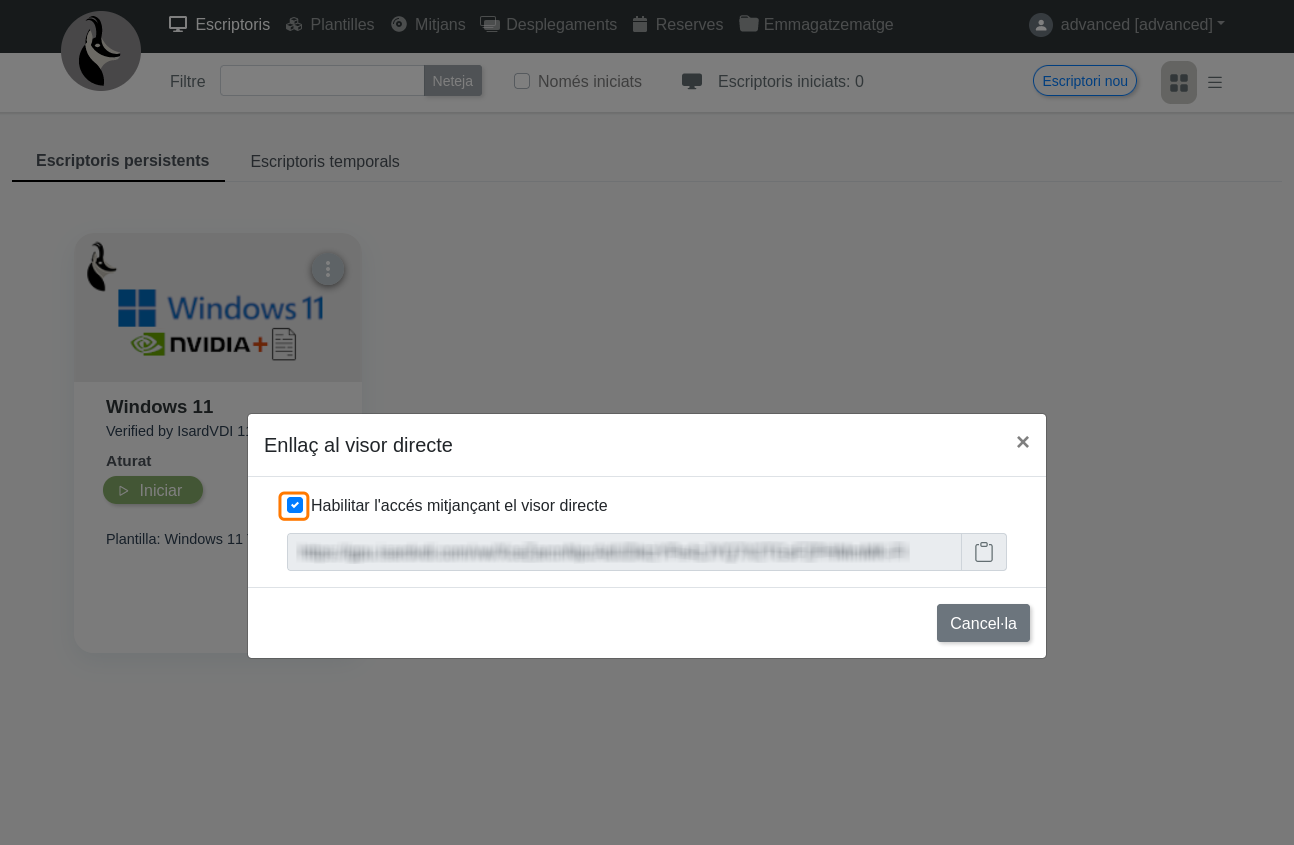
A window opens where the checkbox must be checked so that the link appears and can be copied.
What the person receiving the link sees is documented on the Direct viewer page.
The direct viewer link is generated from the desktop card (or from its row, in the table view):
- Open the desktop actions menu and choose Direct Link.
- In the Direct access link window, turn on the Enable direct access switch.
- Copy the link with the copy button next to it and send it to whoever needs to access the desktop.
To disable it, open the window again and turn off the switch. The confirmation «Disable direct access link?» appears with the text «The current link will stop working. If you enable direct access again in the future, a new link will be generated and the previous one will no longer be valid.»; confirm with Disable or go back with Cancel.
The Direct Link option only appears on the user's own desktops that are not part of a deployment. The links of the desktops of a deployment are obtained by the person who manages the deployment, from the deployment page. The administration can also enable or disable the link of any desktop from the desktop administration.
What the person receiving the link sees is documented in Direct viewer page. In short:
- The link carries a random 32-byte code (about 43 letters, digits,
-and_), unique to each desktop. No user account on the platform is needed. - Whoever has the link can start the desktop (if it is stopped or has failed), view its details and networks, open it with the enabled viewers (except RDP VPN) and force a restart. They cannot modify or delete it.
- When the link is opened with the desktop stopped, it starts automatically and the page shows «Loading desktop» (first «Powering the virtual machine» and then «Preparing the viewers»).
- If the desktop has a scheduled shutdown time, the card warns about it («Desktop will shut down on … at …»). The time cannot be extended from the direct viewer.
- Each access, start, restart and opening of a viewer is logged as a direct viewer event.
Treat the link as a password
Anyone who knows the link can access the desktop. If it was shared by mistake, disable direct access and enable it again: a new link is generated and the previous one stops working.
Invalid link
If the link does not exist or has been disabled, the page shows «Could not connect» and «The direct viewer link is not valid or has expired.». For security, the server responds with a generic 404 error and applies a request limit per address.
Desktop requiring booking
If the desktop needs a booking (for example, because it has a GPU) and has no active one, it cannot be started. The page shows «Desktop not booked»: the owner must book it.
The page uses a 30-minute access token (JWT) that renews itself while it is open, without restarting the desktop.
View details
This feature is only available in the new interface (new interface).
On the direct viewer page, the information of the shared desktop can be viewed without logging in:
- Desktop details: «Hardware summary» and «Access summary» (includes bastion access, in read-only mode, if the owner has enabled it).
- Networks: the Networks button on the card opens a panel, and its Details button opens the «Networks» window, with the ID, name, MAC address and IP address of each interface. The IP of the
wireguardnetwork shows «No IP assigned» until the desktop receives one. If there is no network, it says «No networks attached to this desktop»; if the query fails, «Could not load network information».
Read-only
These queries do not modify the desktop. They use the direct viewer session token and are subject to the same request limit as other direct viewer operations.
Development details
For those who develop or integrate IsardVDI: where each element of this section is located in the code, since which version it has been available, which API operation it calls, and what messages it can return.
- New interface · file
views/DirectViewerView.vue:490· interface text (translation key)components.desktops.desktop-card.overlay.expand- since v17.0.0 (2026-07-09,
48700c853f) - on click:
showNetworksModal = true
- since v17.0.0 (2026-07-09,
- New interface · file
views/DirectViewerView.vue:495· interface text (translation key)components.desktops.desktop-card.overlay.expand-tooltip- since v17.0.0 (2026-07-09,
48700c853f) - on click:
showNetworksModal = true
- since v17.0.0 (2026-07-09,
- New interface · file
components/desktops/DesktopNetworksModal.vue:293· interface text (translation key)components.desktop-networks-modal.fields.ip- since v17.0.0 (2026-06-23,
d21d161d55)
- since v17.0.0 (2026-06-23,
- New interface · file
components/desktops/DesktopNetworksModal.vue:328· interface text (translation key)components.desktop-networks-modal.no-ip- since v17.0.0 (2026-06-23,
d21d161d55)
- since v17.0.0 (2026-06-23,
- New interface · file
components/desktops/DesktopNetworksModal.vue:173· interface text (translation key)components.desktop-networks-modal.title- since v17.0.0 (2026-04-24,
f31b874d89)
- since v17.0.0 (2026-04-24,
- New interface · file
components/desktops/DesktopNetworksModal.vue:305· interface text (translation key)components.desktops.desktop-card.status.waitingip.text- since v17.0.0 (2026-04-24,
f31b874d89)
- since v17.0.0 (2026-04-24,
- New interface · file
components/desktops/DesktopNetworksModal.vue:234· interface text (translation key)components.desktop-networks-modal.empty- since v17.17.0 (2026-04-23,
f2160e6e11)
- since v17.17.0 (2026-04-23,
- New interface · file
components/desktops/DesktopNetworksModal.vue:203· interface text (translation key)components.desktop-networks-modal.error- since v17.7.0 (2026-04-17,
87a6881de3)
- since v17.7.0 (2026-04-17,
Commit code fe99ad98.
Force restart
This feature is only available in the new interface (new interface).
Anyone who has the link can force a restart of the desktop from the direct viewer page, with no other role check: the restart is authorized by the link code. When the desktop is running, the action button on the card is Reset, and it opens the confirmation dialog.
The «Force reset the desktop?» dialog warns: «Forcing a desktop reset is a dangerous action. It is the equivalent of cutting its power while it is running. If you can, stop it from within a viewer instead.» It has two buttons:
- Cancel: closes the dialog without doing anything.
- Force reset the desktop: sends the command. While it is being processed, both buttons are disabled and, upon successful completion, the dialog closes and the desktop transitions to the restarting state.
Unsaved work may be lost
A forced restart is equivalent to cutting the power: unsaved data on the desktop is lost. Whenever possible, it is better to shut down the desktop from within the operating system.
Conditions
- The restart is only accepted if the desktop is running, shutting down, suspended or stopping; in any other state, the interface does not apply it and the server rejects it.
- The link is sufficient: no login is required. The restart is recorded in the desktop's history as a direct viewer action.
- If the link is no longer valid, the generic error from the previous section is obtained.
Development details
For those who develop or integrate IsardVDI: where each element of this section is located in the code, from which version it is available, which API operation it calls, and what messages it can return.
- New interface · file
views/DirectViewerView.vue:633· interface text (translation key)views.direct-viewer.reset-modal.cancel- on click:
showResetModal = false
- on click:
- New interface · file
views/DirectViewerView.vue:641· interface text (translation key)views.direct-viewer.reset-modal.confirm- on click:
resetDesktop(directViewerVars)
- on click:
Commit code fe99ad98.