Deployments
Roles with access
Only administrators have access to all categories within the platform. Managers are limited to their own category.
Deployments are created and managed by users with the advanced role or higher. How they work for the user is described in Deployments.
All users' deployments
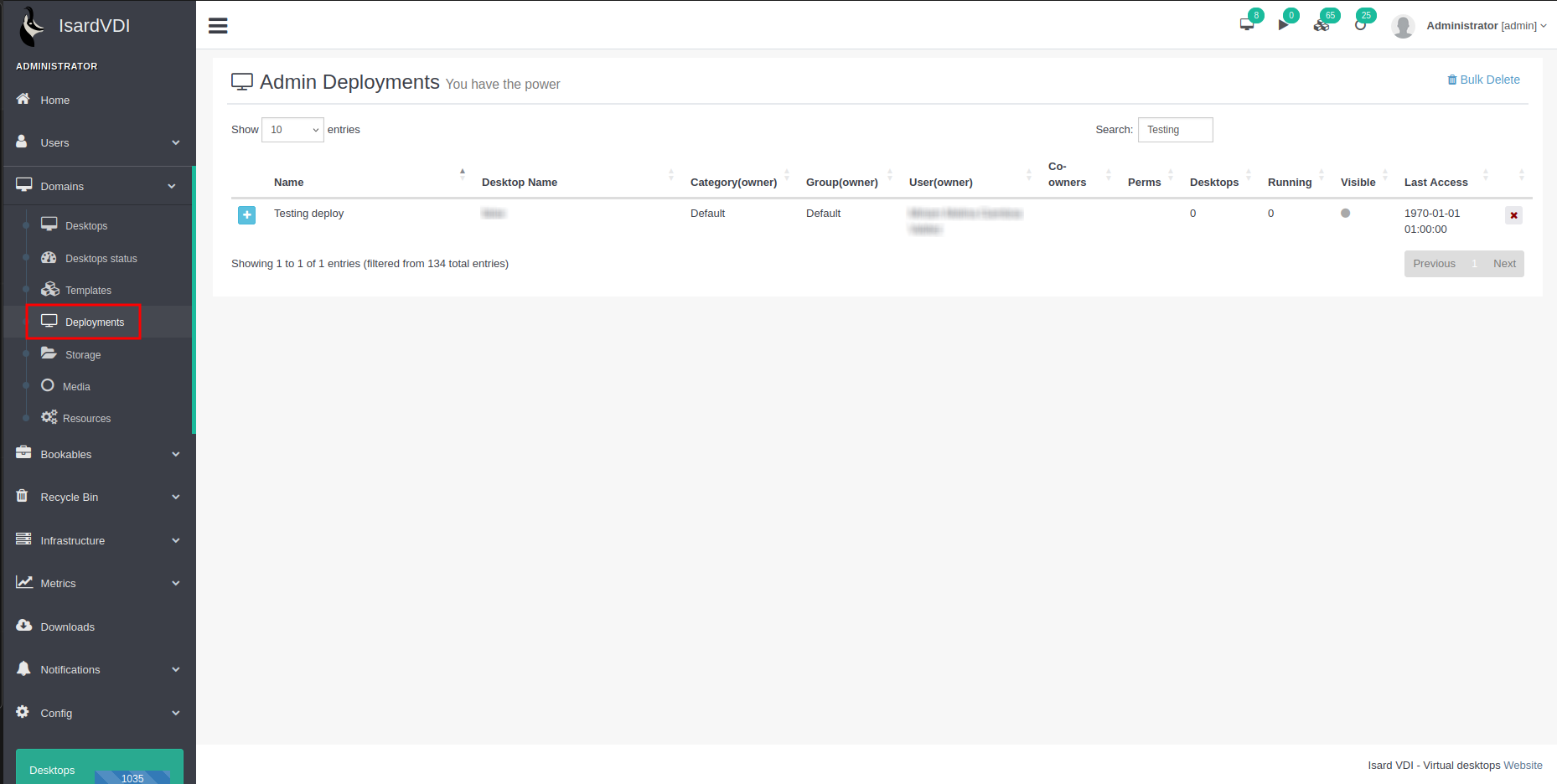
Deployments created by users can be managed from this section. You can view information, delete deployments and change ownership permissions.
The columns display the following data:
- Name: Name of the deployment.
- Desktop Name: Name of the deployment's desktops.
- Category(owner), Group(owner) and User(owner): category, group and name of the user who owns the deployment.
- Co-owners: Other users who are also owners of the deployment (more information in the "Permissions" section).
- Perms: Indicates whether the deployment's users have permission to recreate their desktop. The owner sets this permission when creating or editing the deployment, and the user sees it as the Recreate action on their desktop card (more information in Recreate desktop).
- Desktops: Total number of desktops associated with the deployment.
- Running: Number of the deployment's desktops that are running.
- Visible: Indicates whether the deployment's desktops are visible to users. While they are not, they do not appear in the users' desktop list (more information in Deployment visibility).
- Last Access: Date and time of the last access to the deployment.
-
Hardware: You can also view information about how the deployment's desktops are configured, such as CPU, memory and network details...
-
Target users: Groups and users with whom the deployment has been shared.
Permissions
To modify a deployment's permissions, two options are available:
-
Change owner
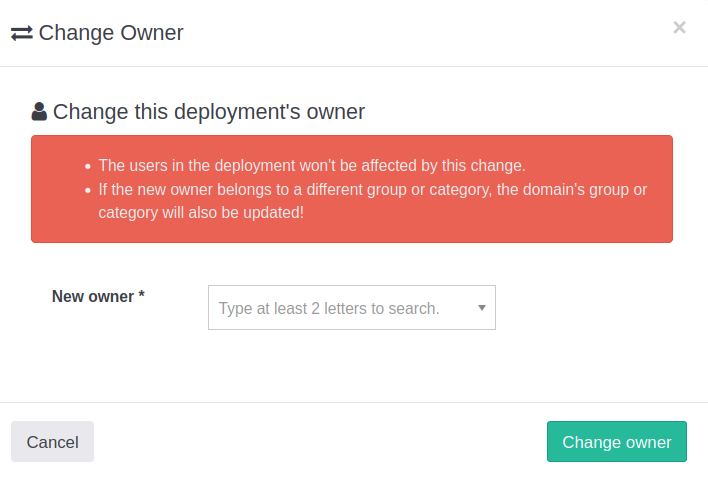
 : Changes the deployment's owner. When you click the button, a dialog box like the following appears, where you must specify the new owner:
New owner
If the new owner belongs to a different group or category than the previous owner, the domains are also updated.
-
Change co-owners
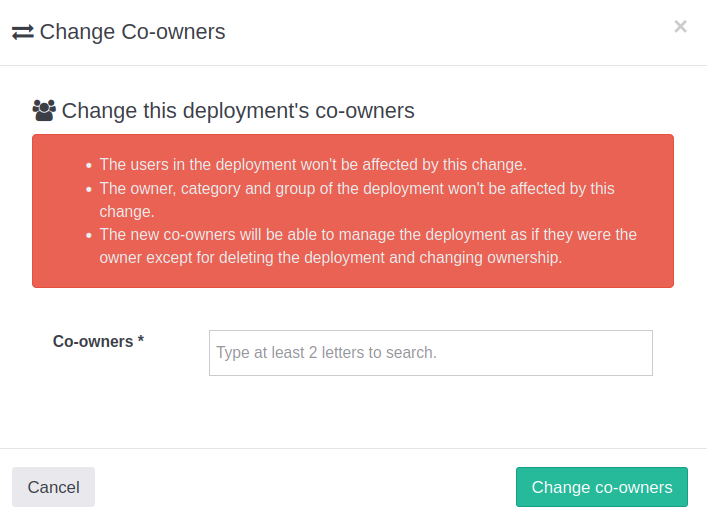
 : Adds more than one user as owner. This makes it possible to share the same deployment configuration interface and manage the deployment among several users.
Co-owners
Although the deployment is shared among several owners, only the primary owner can change the owner, add new ones or delete the deployment. The primary owner's information keeps appearing in the (owner) columns, and the co-owners are shown in the Co-owners column.
Delete
To delete deployments, there are two options:
-
Individual deletion
The delete icon
 , located to the right of each row, deletes the deployment and, therefore, the desktops that belong to it.

-
Bulk deletion
To delete several deployments at once, use the button
 . Before clicking it, select the deployments one by one, clicking on each of them. The confirmation lets you choose Delete permanently, which deletes them for good, or Delete and send to recycle bin.
Deleted deployments
Deployments sent to the recycle bin can be restored from Recycle bin. The administrator sets globally how long they stay there before being permanently deleted, and the manager can set it for their own category (more information in Recycle bin configuration).