Desktops
This section describes how to create, start, stop and delete desktops, check their status and manage their storage.
Roles with access
- «New desktop»: any user.
Deployment desktops
The desktops that someone has created for the user with a deployment only appear in the list when the owner of the deployment has made them visible (see Desktop visibility).
Create a desktop
In the classic interface, a desktop is created directly from this screen.
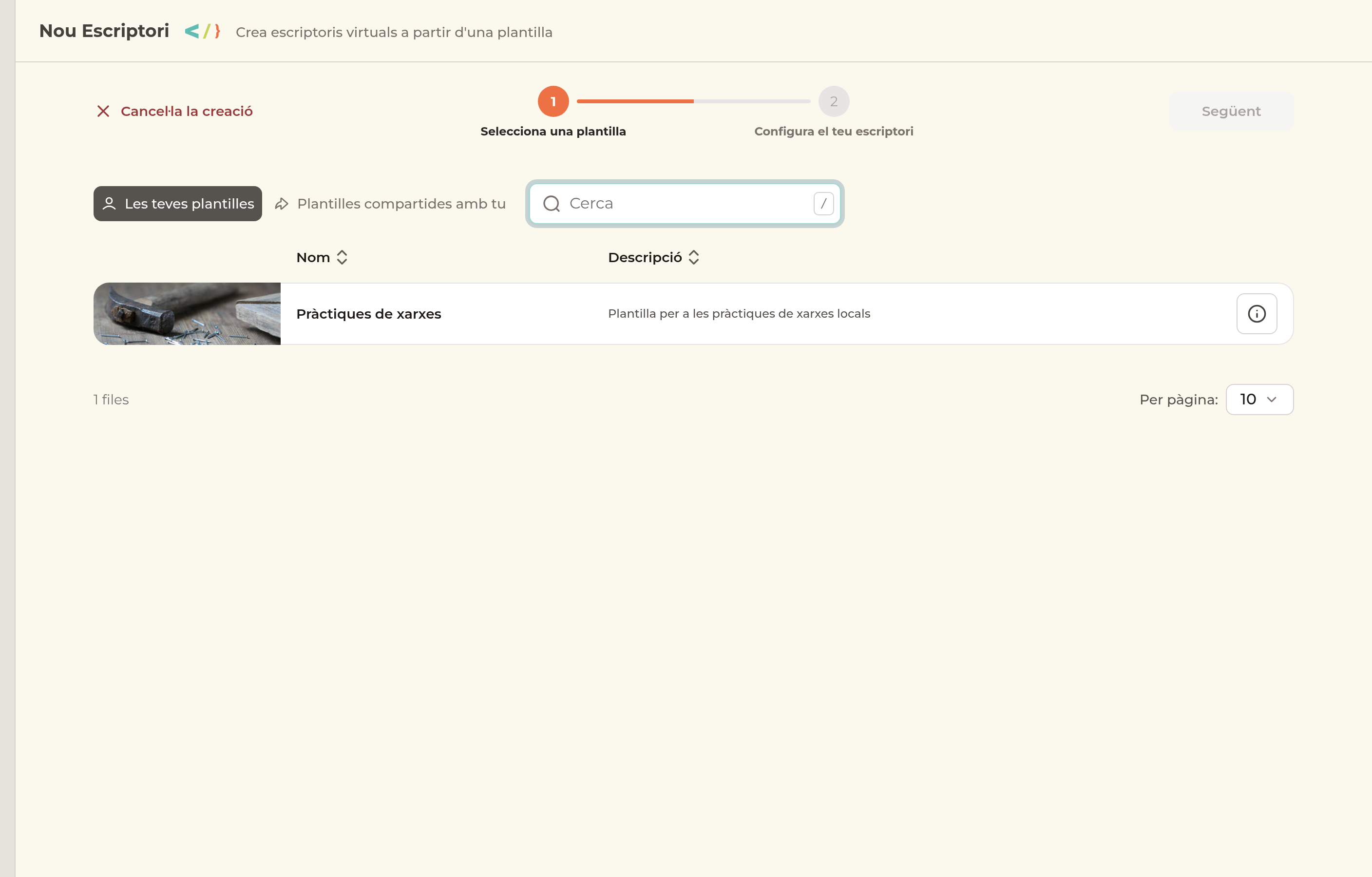
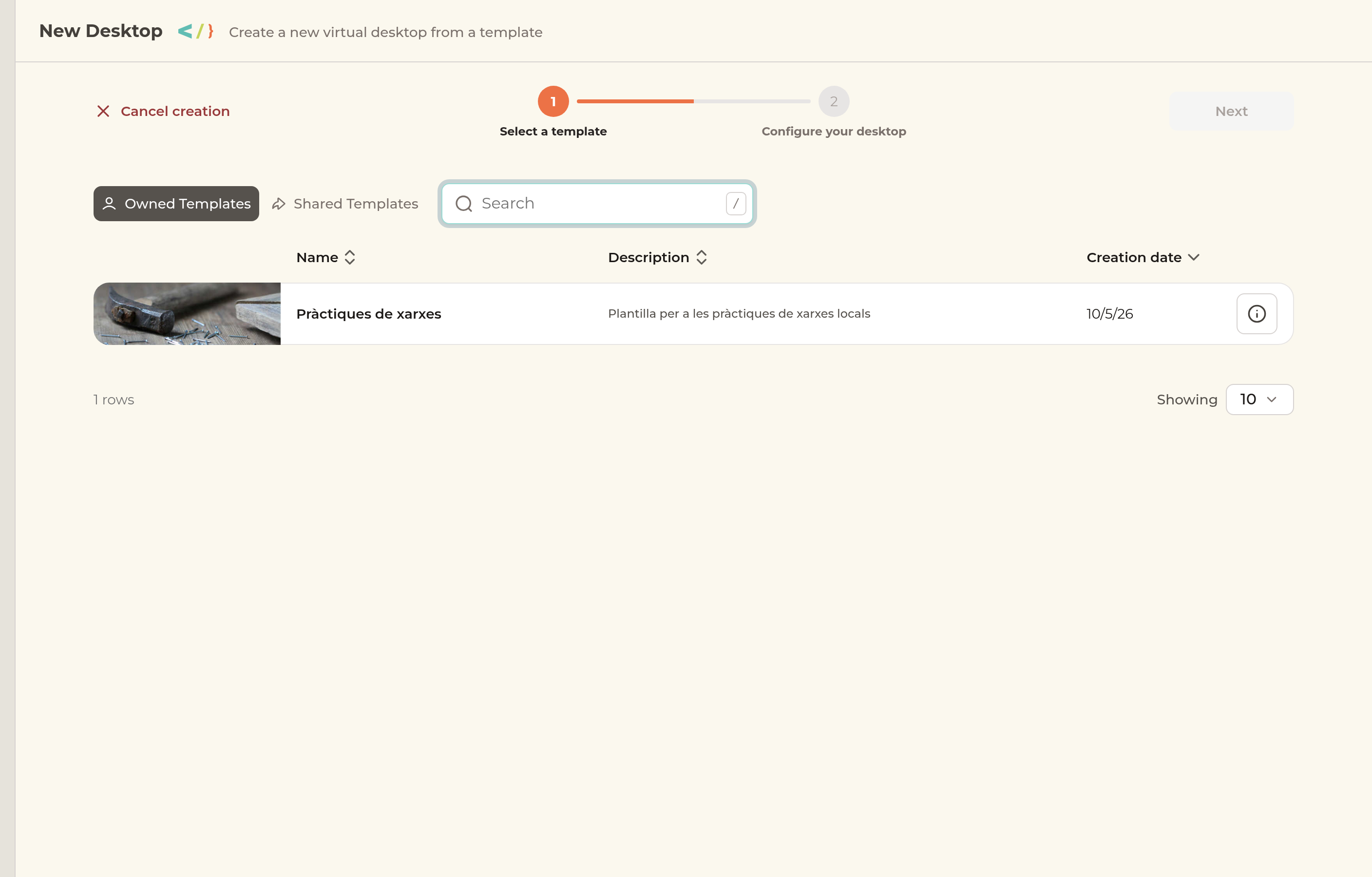
A new desktop is created from a template with a three-step wizard (details in Create a desktop).
- Click New desktop. Before opening the wizard, the interface checks the creation quota and the storage availability (see the conditions).
- Select a template: choose it in the Owned Templates or Shared Templates tab and click Next.
- Configure your desktop: choose the Desktop Kind (Persistent or Temporary), check the Name, the Description, the image and, with Change configuration, the access and the hardware. Click Create desktop. Previous step goes back to step 1.
- Creating desktop: the process can take a few minutes. When it finishes, the new desktop opens with the message «Desktop created successfully», from where it can be started, or you can go back to the list with Go to desktops.
Conditions and messages
- Next stays disabled until a template is selected; clicking the selected template again deselects it.
- Create desktop stays disabled until the required fields are valid; the hint says «You must fill all the required fields to create the desktop».
- If another of the user's desktops already has that name, clicking Create desktop is rejected by the server (
new_desktop_name_exists) and the wizard returns to the configuration step with the corresponding message (see the table). - Creation can be cancelled at any time with Cancel creation.
- If no desktop can be created (neither persistent nor, if the installation allows temporary ones, temporary), «Desktop creation quota exceeded» appears («A desktop must be deleted in order to create a new one») and the wizard does not open. Quotas are set by the administration in Quotas and limits.
- If there is no storage to create it on, «Storage unavailable» appears («The creation storage is currently unavailable and desktops cannot be created») and the wizard does not open. On the server, the check responds with the code
no_storage_pool_available.
| Creation error (step 2) | Message |
|---|---|
new_desktop_name_exists |
The desktop name already exists: choose a different name. |
desktop_new_user_quota_exceeded |
User quota exceeded: delete a desktop to create a new one. |
no_storage_pool_available |
No storage available: contact the administration or try again later. |
template_storage_not_ready |
The template disk is not ready: no desktop can be created from it; contact the administration. |
booking_does_not_fit_date, booking_exceeds_max_time |
GPU booking that no longer fits or is too long: choose an earlier end time. |
booking_max_items_exceeded |
The maximum number of bookings has been reached: delete one before creating a desktop with a GPU. |
temporal_reservable_needs_booking |
A temporary desktop with a GPU is booked when it is created: indicate until when it will be used. |
| any other | Error creating the desktop: try again. |
Temporary desktops and start quotas
A temporary desktop starts when it is created, so creation also applies the start quotas (running desktops, memory, vCPU and storage). In this case the message is the one of the corresponding quota, such as «Memory quota exceeded».
Development details
For those who develop or integrate IsardVDI: where in the code each element of this section is located, from which version it has been available, which API operation it calls, and what messages it may return.
- New interface · file
views/DesktopsView.vue:1589· interface text (translation key)views.desktops.new-desktop- since v17.0.0 (2026-04-24,
f31b874d89) - on click:
goToNewDesktop - calls:
GET /api/v4/storage-pools/check-create-availability — Check storage pool creation availability - calls:
navigation to the «new-desktop» route
- since v17.0.0 (2026-04-24,
- New interface · file
views/NewDesktopView.vue:220· interface text (translation key)components.desktops.quota-exceeded-modal.title- since v17.0.0 (2026-04-24,
f31b874d89)
- since v17.0.0 (2026-04-24,
- New interface · file
views/NewDesktopView.vue:221· interface text (translation key)components.desktops.quota-exceeded-modal.description- since v17.0.0 (2026-04-24,
f31b874d89)
- since v17.0.0 (2026-04-24,
- New interface · file
views/NewDesktopView.vue:222· interface text (translation key)components.desktops.quota-exceeded-modal.cancel- since v17.0.0 (2026-04-24,
f31b874d89)
- since v17.0.0 (2026-04-24,
- New interface · file
views/DesktopsView.vue:1130· interface text (translation key)components.desktops.storage-unavailable-modal.title- since v17.0.0 (2026-04-24,
f31b874d89)
- since v17.0.0 (2026-04-24,
- New interface · file
views/DesktopsView.vue:1131· interface text (translation key)components.desktops.storage-unavailable-modal.description- since v17.0.0 (2026-04-24,
f31b874d89)
- since v17.0.0 (2026-04-24,
- New interface · file
views/DesktopsView.vue:1136· interface text (translation key)components.desktops.storage-unavailable-modal.go-to-desktops- since v17.0.0 (2026-04-24,
f31b874d89) - on click:
showStorageUnavailableModal = false
- since v17.0.0 (2026-04-24,
Commit code fe99ad98.
Stop desktops
This section describes the function to stop all desktops.
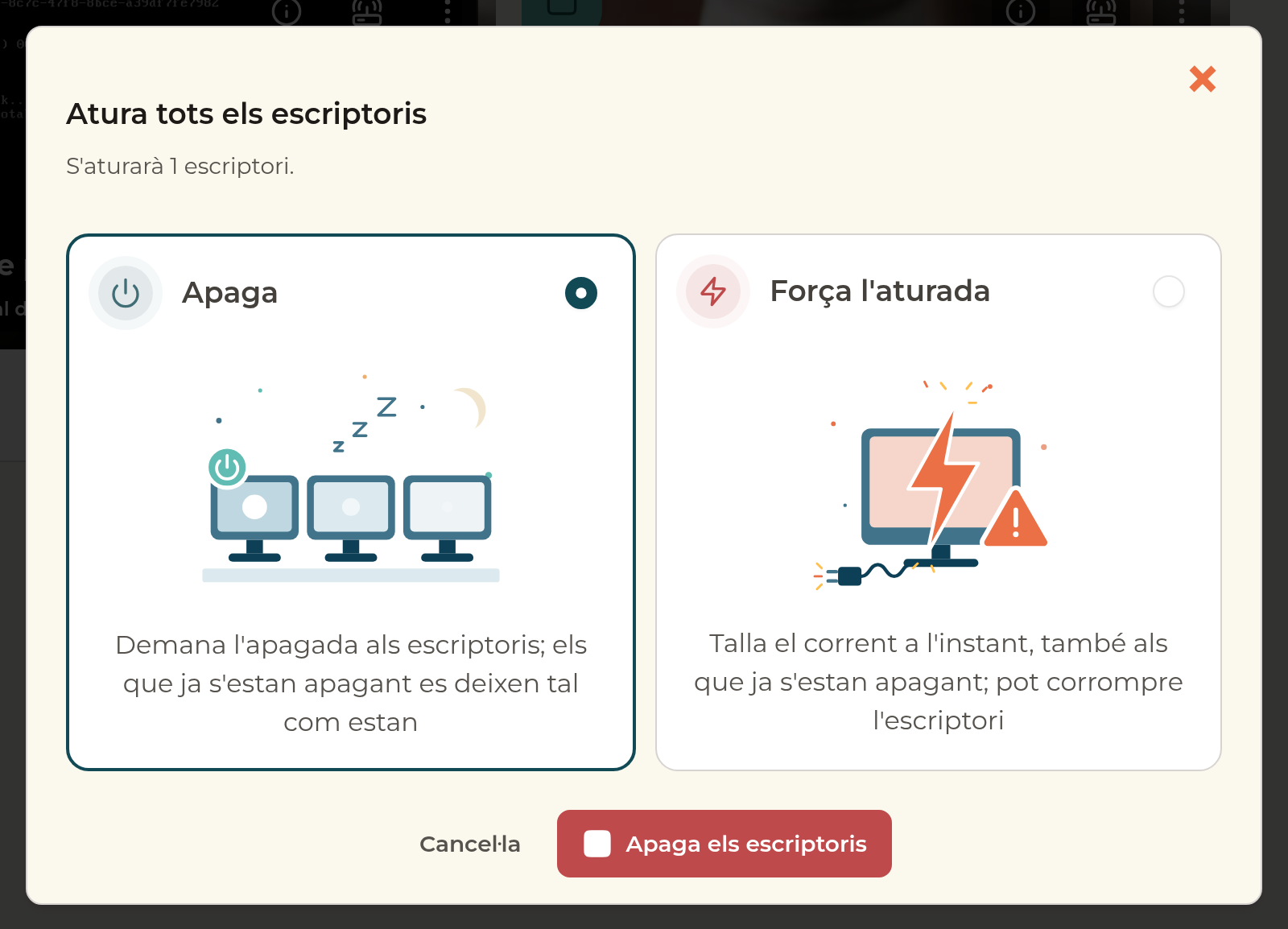
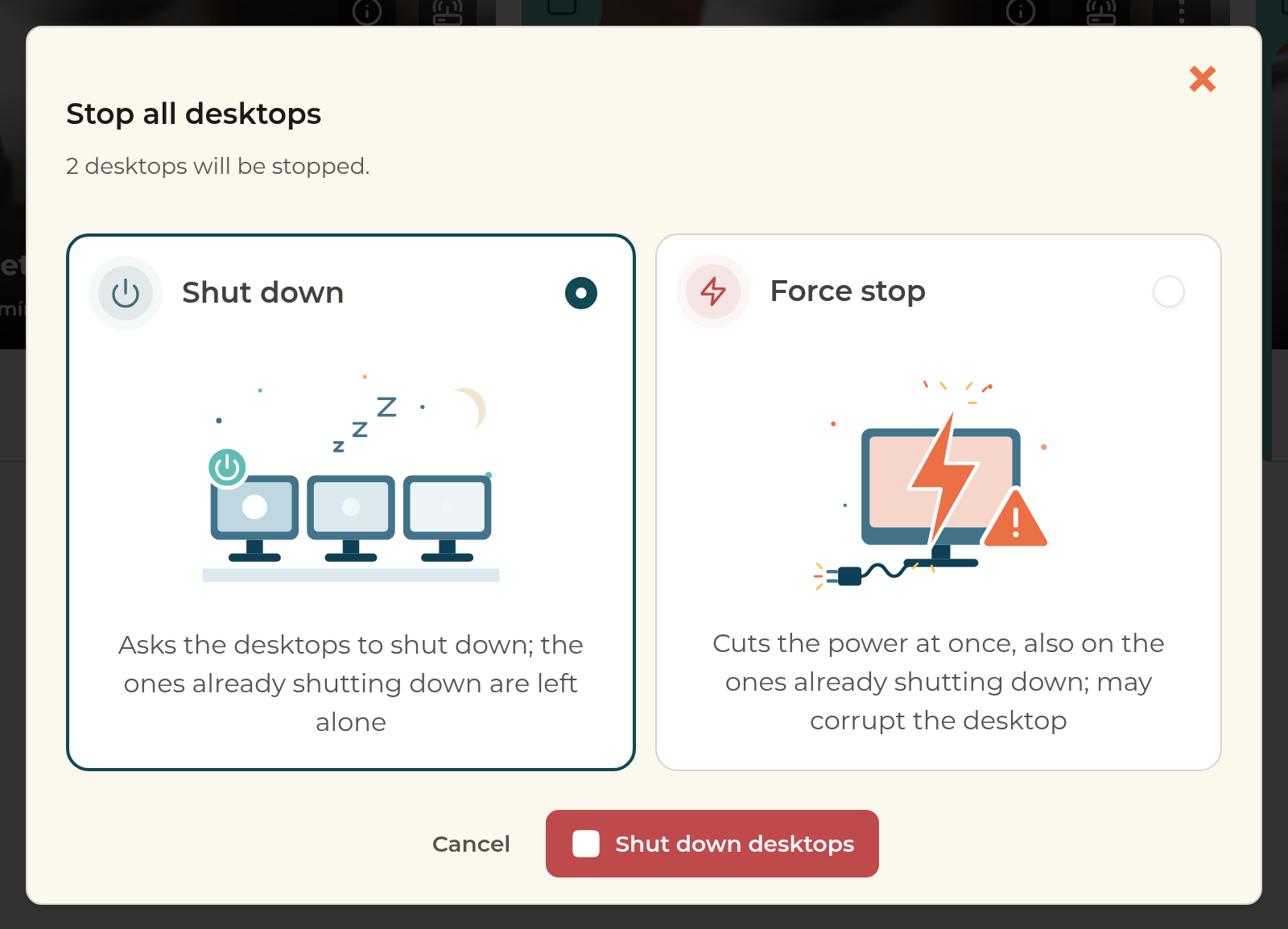
- Click Stop all desktops.
- Choose the Shut down or Force stop option.
- Confirm the action: the button is Shut down desktops for a controlled shutdown and Force stop if forcing it was chosen.
Conditions and messages
- This action stops all started desktops at once; the dialog is titled «Stop all desktops» and shows how many will be stopped.
- The Shut down option asks the desktops to shut down; those already shutting down are left as they are.
- The Force stop option cuts the power instantly, also for those already shutting down; it can corrupt the desktop.
- If some desktops are already shutting down, the dialog warns that they will be left as they are and that only a forced stop affects them.
- The confirmation button stays disabled if no desktop is started («There are no started desktops now»).
- Cancel closes the dialog without stopping anything.
Development details
For those who develop or integrate IsardVDI: where in the code each element of this section is located, from which version it has been available, which API operation it calls, and what messages it may return.
- New interface · file
views/DesktopsView.vue:1672· interface text (translation key)views.desktops.stop-all-tooltip.stopping- since v17.35.2 (2026-09-09,
c71bfb93b6) - on click:
openStopAllDesktopsModal
- since v17.35.2 (2026-09-09,
- New interface · file
views/DesktopsView.vue:1672· interface text (translation key)views.desktops.stop-all-tooltip.stopping- since v17.35.2 (2026-09-09,
c71bfb93b6) - on click:
openStopAllDesktopsModal
- since v17.35.2 (2026-09-09,
- New interface · file
components/modal/StopAllDesktopsModal.vue:158· interface text (translation key)components.stop-all-desktops-modal.confirm.force- since v17.35.2 (2026-09-09,
c71bfb93b6) - on click:
emit('confirm', mode === 'force')
- since v17.35.2 (2026-09-09,
- New interface · file
components/modal/StopAllDesktopsModal.vue:159· interface text (translation key)components.stop-all-desktops-modal.confirm.graceful- since v17.35.2 (2026-09-09,
c71bfb93b6) - on click:
emit('confirm', mode === 'force')
- since v17.35.2 (2026-09-09,
- New interface · file
components/modal/StopAllDesktopsModal.vue:126· interface text (translation key)components.stop-all-desktops-modal.title- since v17.35.0 (2026-09-07,
8939ec8441)
- since v17.35.0 (2026-09-07,
- New interface · file
components/modal/StopAllDesktopsModal.vue:147· interface text (translation key)components.stop-all-desktops-modal.cancel- since v17.35.0 (2026-09-07,
8939ec8441) - on click:
emit('close')
- since v17.35.0 (2026-09-07,
- New interface · file
views/DesktopsView.vue:1173· interface text (translation key)components.desktops.start-error-modal.title- since v17.27.0 (2026-08-27,
081e60f007)
- since v17.27.0 (2026-08-27,
- New interface · file
views/DesktopsView.vue:1179· interface text (translation key)components.desktops.start-error-modal.close- since v17.27.0 (2026-08-27,
081e60f007) - on click:
startErrorMessage = null
- since v17.27.0 (2026-08-27,
- New interface · file
views/DesktopsView.vue:1622· interface text (translation key)views.desktops.view-mode.table- since v17.21.0 (2026-08-19,
e3a7128736) - on click:
viewMode = viewMode === 'cards' ? 'table' : 'cards'
- since v17.21.0 (2026-08-19,
- New interface · file
views/DesktopsView.vue:1623· interface text (translation key)views.desktops.view-mode.cards- since v17.21.0 (2026-08-19,
e3a7128736) - on click:
viewMode = viewMode === 'cards' ? 'table' : 'cards'
- since v17.21.0 (2026-08-19,
- New interface · file
components/booking/BookingChangeAndStartModal.vue:134· interface text (translation key)components.desktop-gpu-change-and-start-modal.errors.title- since v17.1.0 (2026-07-22,
b53e82313f)
- since v17.1.0 (2026-07-22,
- New interface · file
views/DesktopsView.vue:1146· interface text (translation key)components.desktops.start-storage-unavailable-modal.title- since v17.0.0 (2026-06-30,
d485774635)
- since v17.0.0 (2026-06-30,
- New interface · file
views/DesktopsView.vue:1147· interface text (translation key)components.desktops.start-storage-unavailable-modal.description- since v17.0.0 (2026-06-30,
d485774635)
- since v17.0.0 (2026-06-30,
- New interface · file
views/DesktopsView.vue:1152· interface text (translation key)components.desktops.start-storage-unavailable-modal.go-to-desktops- since v17.0.0 (2026-06-30,
d485774635) - on click:
showStartStorageUnavailableModal = false
- since v17.0.0 (2026-06-30,
- New interface · file
views/DesktopsView.vue:1657· interface text (translation key)views.desktops.stop-all- since v17.0.0 (2026-04-24,
f31b874d89) - on click:
openStopAllDesktopsModal
- since v17.0.0 (2026-04-24,
- New interface · file
views/DesktopsView.vue:1673· interface text (translation key)views.desktops.stop-all-tooltip.title- since v17.0.0 (2026-04-24,
f31b874d89) - on click:
openStopAllDesktopsModal
- since v17.0.0 (2026-04-24,
- New interface · file
views/DesktopsView.vue:1578· interface text (translation key)views.desktops.go-to-desktops- since v17.0.0 (2026-04-24,
f31b874d89) - on click:
router.push({ name: 'desktops' }) - calls:
navigation to the «desktops» route
- since v17.0.0 (2026-04-24,
- New interface · file
views/DesktopsView.vue:1130· interface text (translation key)components.desktops.storage-unavailable-modal.title- since v17.0.0 (2026-04-24,
f31b874d89)
- since v17.0.0 (2026-04-24,
- New interface · file
views/DesktopsView.vue:1131· interface text (translation key)components.desktops.storage-unavailable-modal.description- since v17.0.0 (2026-04-24,
f31b874d89)
- since v17.0.0 (2026-04-24,
- New interface · file
views/DesktopsView.vue:1136· interface text (translation key)components.desktops.storage-unavailable-modal.go-to-desktops- since v17.0.0 (2026-04-24,
f31b874d89) - on click:
showStorageUnavailableModal = false
- since v17.0.0 (2026-04-24,
- New interface · file
views/DesktopsView.vue:1190· interface text (translation key)components.delete-confirmation-modal.title- since v17.0.0 (2026-04-24,
f31b874d89)
- since v17.0.0 (2026-04-24,
- New interface · file
views/DesktopsView.vue:1191· interface text (translation key)domains.with-article.desktops- since v17.0.0 (2026-04-24,
f31b874d89)
- since v17.0.0 (2026-04-24,
- New interface · file
views/DesktopsView.vue:1208· interface text (translation key)components.delete-confirmation-modal.description.recycle-bin.title- since v17.0.0 (2026-04-24,
f31b874d89)
- since v17.0.0 (2026-04-24,
- New interface · file
views/DesktopsView.vue:1210· interface text (translation key)components.delete-confirmation-modal.description.recycle-bin.subtitle- since v17.0.0 (2026-04-24,
f31b874d89)
- since v17.0.0 (2026-04-24,
- New interface · file
views/DesktopsView.vue:1217· interface text (translation key)components.delete-confirmation-modal.description.permanent.title- since v17.0.0 (2026-04-24,
f31b874d89)
- since v17.0.0 (2026-04-24,
- New interface · file
views/DesktopsView.vue:1222· interface text (translation key)components.delete-confirmation-modal.cancel- since v17.0.0 (2026-04-24,
f31b874d89) - on click:
closeDeleteModal()
- since v17.0.0 (2026-04-24,
- New interface · file
views/DesktopsView.vue:1244· interface text (translation key)components.delete-confirmation-modal.confirm.permanent- since v17.0.0 (2026-04-24,
f31b874d89) - on click:
deleteDesktopMutate({ path: { desktop_id: deleteModalDesktopData.id }, query: { permanent: deleteIsPermanent } })
- since v17.0.0 (2026-04-24,
- New interface · file
views/DesktopsView.vue:1245· interface text (translation key)components.delete-confirmation-modal.confirm.recycle-bin- since v17.0.0 (2026-04-24,
f31b874d89) - on click:
deleteDesktopMutate({ path: { desktop_id: deleteModalDesktopData.id }, query: { permanent: deleteIsPermanent } })
- since v17.0.0 (2026-04-24,
- New interface · file
views/DesktopsView.vue:1328· interface text (translation key)components.not-enough-advanced-time-modal.title- since v17.0.0 (2026-04-24,
f31b874d89)
- since v17.0.0 (2026-04-24,
- New interface · file
views/DesktopsView.vue:1329· interface text (translation key)components.not-enough-advanced-time-modal.description- since v17.0.0 (2026-04-24,
f31b874d89)
- since v17.0.0 (2026-04-24,
- New interface · file
views/DesktopsView.vue:1334· interface text (translation key)components.not-enough-advanced-time-modal.cancel- since v17.0.0 (2026-04-24,
f31b874d89) - on click:
notEnoughAdvancedTimeModalDesktopData = null
- since v17.0.0 (2026-04-24,
- New interface · file
views/DesktopsView.vue:1342· interface text (translation key)components.not-enough-advanced-time-modal.book- since v17.0.0 (2026-04-24,
f31b874d89)
- since v17.0.0 (2026-04-24,
- New interface · file
views/DesktopsView.vue:1351· interface text (translation key)components.desktop-start-now-modal.title- since v17.0.0 (2026-04-24,
c0053af014)
- since v17.0.0 (2026-04-24,
- New interface · file
views/DesktopsView.vue:1352· interface text (translation key)components.desktop-start-now-modal.description- since v17.0.0 (2026-04-24,
c0053af014)
- since v17.0.0 (2026-04-24,
- New interface · file
views/DesktopsView.vue:1365· interface text (translation key)components.desktop-start-now-modal.select.label- since v17.0.0 (2026-04-24,
c0053af014)
- since v17.0.0 (2026-04-24,
- New interface · file
views/DesktopsView.vue:1379· interface text (translation key)components.desktop-start-now-modal.select.placeholder- since v17.0.0 (2026-04-24,
c0053af014)
- since v17.0.0 (2026-04-24,
- New interface · file
views/DesktopsView.vue:1402· interface text (translation key)components.desktop-start-now-modal.cancel- since v17.0.0 (2026-04-24,
c0053af014) - on click:
startNowModalDesktopData = null
- since v17.0.0 (2026-04-24,
- New interface · file
views/DesktopsView.vue:1418· interface text (translation key)components.desktop-start-now-modal.confirm- since v17.0.0 (2026-04-24,
c0053af014) - on click:
submits the form (onSubmit)
- since v17.0.0 (2026-04-24,
- New interface · file
views/DesktopsView.vue:1429· interface text (translation key)components.desktop-gpu-unavailable-modal.title- since v17.0.0 (2026-04-24,
c0053af014)
- since v17.0.0 (2026-04-24,
- New interface · file
views/DesktopsView.vue:1441· interface text (translation key)components.desktop-gpu-unavailable-modal.change-and-start.title- since v17.0.0 (2026-04-24,
c0053af014)
- since v17.0.0 (2026-04-24,
- New interface · file
views/DesktopsView.vue:1446· interface text (translation key)components.desktop-gpu-unavailable-modal.change-and-start.subtitle- since v17.0.0 (2026-04-24,
c0053af014)
- since v17.0.0 (2026-04-24,
- New interface · file
views/DesktopsView.vue:1459· interface text (translation key)components.desktop-gpu-unavailable-modal.change-and-start.action-button- since v17.0.0 (2026-04-24,
c0053af014) - on click:
() => { getAvailableReservables() changeAndStartModalData = { ...unavailableStartNowModalDesktopData! } unavailableStartNowModalDesktopData = null }
- since v17.0.0 (2026-04-24,
- New interface · file
views/DesktopsView.vue:1467· interface text (translation key)components.desktop-gpu-unavailable-modal.book.title- since v17.0.0 (2026-04-24,
c0053af014)
- since v17.0.0 (2026-04-24,
- New interface · file
views/DesktopsView.vue:1472· interface text (translation key)components.desktop-gpu-unavailable-modal.book.subtitle- since v17.0.0 (2026-04-24,
c0053af014)
- since v17.0.0 (2026-04-24,
- New interface · file
views/DesktopsView.vue:1480· interface text (translation key)components.desktop-gpu-unavailable-modal.book.action-button- since v17.0.0 (2026-04-24,
c0053af014)
- since v17.0.0 (2026-04-24,
- New interface · file
views/DesktopsView.vue:1521· interface text (translation key)domains.desktops- since v17.0.0 (2026-04-24,
f31b874d89)
- since v17.0.0 (2026-04-24,
- New interface · file
views/DesktopsView.vue:1578· interface text (translation key)views.desktops.go-to-desktops- since v17.0.0 (2026-04-24,
f31b874d89) - on click:
router.push({ name: 'desktops' }) - calls:
navigation to the «desktops» route
- since v17.0.0 (2026-04-24,
- New interface · file
views/DesktopsView.vue:1589· interface text (translation key)views.desktops.new-desktop- since v17.0.0 (2026-04-24,
f31b874d89) - on click:
goToNewDesktop - calls:
GET /api/v4/storage-pools/check-create-availability — Check storage pool creation availability - calls:
navigation to the «new-desktop» route
- since v17.0.0 (2026-04-24,
- New interface · file
views/DesktopsView.vue:1657· interface text (translation key)views.desktops.stop-all- since v17.0.0 (2026-04-24,
f31b874d89) - on click:
openStopAllDesktopsModal
- since v17.0.0 (2026-04-24,
- New interface · file
views/DesktopsView.vue:1673· interface text (translation key)views.desktops.stop-all-tooltip.title- since v17.0.0 (2026-04-24,
f31b874d89) - on click:
openStopAllDesktopsModal
- since v17.0.0 (2026-04-24,
- New interface · file
components/booking/BookingChangeAndStartModal.vue:126· interface text (translation key)components.desktop-gpu-change-and-start-modal.title- since v17.0.0 (2026-04-24,
c0053af014)
- since v17.0.0 (2026-04-24,
- New interface · file
components/booking/BookingChangeAndStartModal.vue:130· interface text (translation key)components.desktop-gpu-change-and-start-modal.description- since v17.0.0 (2026-04-24,
c0053af014)
- since v17.0.0 (2026-04-24,
- New interface · file
components/booking/BookingChangeAndStartModal.vue:174· interface text (translation key)components.desktop-gpu-change-and-start-modal.gpu-select.label- since v17.0.0 (2026-04-24,
c0053af014)
- since v17.0.0 (2026-04-24,
- New interface · file
components/booking/BookingChangeAndStartModal.vue:188· interface text (translation key)components.desktop-gpu-change-and-start-modal.gpu-select.placeholder- since v17.0.0 (2026-04-24,
c0053af014)
- since v17.0.0 (2026-04-24,
- New interface · file
components/booking/BookingChangeAndStartModal.vue:253· interface text (translation key)components.desktop-gpu-change-and-start-modal.cancel- since v17.0.0 (2026-04-24,
c0053af014) - on click:
emit('close')
- since v17.0.0 (2026-04-24,
- New interface · file
components/booking/BookingChangeAndStartModal.vue:269· interface text (translation key)components.desktop-gpu-change-and-start-modal.confirm- since v17.0.0 (2026-04-24,
c0053af014) - on click:
submits the form (onSubmit)
- since v17.0.0 (2026-04-24,
- New interface · file
views/DesktopsView.vue:1434· interface text (translation key)components.desktop-gpu-unavailable-modal.description - New interface · file
views/DesktopsView.vue:1487· interface text (translation key)components.desktop-gpu-unavailable-modal.cancel- on click:
closeRecreateDesktopModal()
- on click:
Commit code fe99ad98.
Start a desktop
Click the Start button on the desktop card.
A stopped desktop is started with the Start button on its card or table row. Depending on the desktop, there are two paths.
Desktop without a GPU, or with a booking active right now
- Click Start.
- The desktop goes into the starting state and, when it is ready, it can be opened with a viewer.
Desktop with a GPU and no booking active right now
- Click Start. First, the system calculates until when it can be used.
- In the Start dialog («Select until when the desktop will be used.»), choose the End time.
- Click Start desktop. An immediate booking is created until the chosen time and the desktop starts. Cancel closes the dialog without doing anything.
Conditions and messages
- Only a stopped or failed desktop can be started. If it is already running or starting, the request does nothing and gives no error.
- The times offered in the dropdown are at 30-minute intervals from now, up to the maximum time calculated by the server. This time is the nearest of three limits: the advance time of the user's booking priority, the maximum time of the priority and what remains in the current GPU availability plan. The result never exceeds 12 hours or goes below 30 minutes.
- Administrators are not limited by the advance time of the priority.
- If a booking is needed and there is none, the server does not let a user who is neither an administrator nor a manager start the desktop either (
desktop_not_booked). - If there is no current availability plan for the GPU, the GPU unavailable dialog is shown; if the user's booking priority requires more advance time, the insufficient advance time dialog (see the following sections).
- If a quota is exceeded, a dialog says so (see the start errors below).
- After a successful start, the notifications the administration has defined for desktop start may appear in a window (see Administration notifications).
- If the desktop has a maximum running time, the automatic stop warning appears as the stop time approaches.
Disk not ready
If the desktop's disk is not ready yet, the start is rejected with «The desktop's disk is not ready yet. Wait a few minutes and try again.»
Development details
For those who develop or integrate IsardVDI: where in the code each element of this section is located, from which version it has been available, which API operation it calls, and what messages it may return.
- New interface · file
views/DesktopsView.vue:1179· interface text (translation key)components.desktops.start-error-modal.close- since v17.27.0 (2026-08-27,
081e60f007) - on click:
startErrorMessage = null
- since v17.27.0 (2026-08-27,
- New interface · file
views/DesktopsView.vue:1402· interface text (translation key)components.desktop-start-now-modal.cancel- since v17.0.0 (2026-04-24,
c0053af014) - on click:
startNowModalDesktopData = null
- since v17.0.0 (2026-04-24,
- New interface · file
views/DesktopsView.vue:1418· interface text (translation key)components.desktop-start-now-modal.confirm- since v17.0.0 (2026-04-24,
c0053af014) - on click:
submits the form (onSubmit)
- since v17.0.0 (2026-04-24,
- New interface · file
views/DesktopsView.vue:1459· interface text (translation key)components.desktop-gpu-unavailable-modal.change-and-start.action-button- since v17.0.0 (2026-04-24,
c0053af014) - on click:
() => { getAvailableReservables() changeAndStartModalData = { ...unavailableStartNowModalDesktopData! } unavailableStartNowModalDesktopData = null }
- since v17.0.0 (2026-04-24,
- New interface · file
views/DesktopsView.vue:1334· interface text (translation key)components.not-enough-advanced-time-modal.cancel- since v17.0.0 (2026-04-24,
f31b874d89) - on click:
notEnoughAdvancedTimeModalDesktopData = null
- since v17.0.0 (2026-04-24,
Commit code fe99ad98.
Handle unavailable storage
If the storage is not available, the desktop start fails and an error message is shown.
If, on clicking Start, the server responds that there is no storage available (no_storage_pool_available), the «System resources unavailable» dialog appears: «The system resources are currently unavailable and desktops cannot be started. Please try again later.» The Go back to desktops button closes it.
If the problem is with a specific disk of the desktop, the disk problems window opens instead, described in Storage.
Development details
For those who develop or integrate IsardVDI: where in the code each element of this section is located, from which version it has been available, which API operation it calls, and what messages it may return.
- New interface · file
views/DesktopsView.vue:1152· interface text (translation key)components.desktops.start-storage-unavailable-modal.go-to-desktops- since v17.0.0 (2026-06-30,
d485774635) - on click:
showStartStorageUnavailableModal = false
- since v17.0.0 (2026-06-30,
- New interface · file
views/DesktopsView.vue:1136· interface text (translation key)components.desktops.storage-unavailable-modal.go-to-desktops- since v17.0.0 (2026-04-24,
f31b874d89) - on click:
showStorageUnavailableModal = false
- since v17.0.0 (2026-04-24,
Commit code fe99ad98.
Handle unavailable GPU
The GPU is not available.
This dialog appears on clicking Start on a desktop with a GPU when the system finds no current availability plan for its graphics card right now. The title says: «GPU '…' is not available for desktop '…' at the moment.» and it offers two ways out.
- Change and start: «It can be changed to an available graphic card model now and start it (It could affect the desktop performance)».
- In the Change and start dialog, choose one or more GPU profiles and the End time.
- Click Change and start. The application changes the desktop's GPU profiles, creates an immediate booking on it until the chosen time and starts it.
- Book desktop: opens in a new tab the bookings page of this desktop to schedule a session with its current GPU, «checking its planification».
To close the dialog without changes, use the cross in the corner.
Conditions and messages
- The dialog appears when the server responds
current_plan_doesnt_match(«The desktop reservable does not match the current plan»): there is no current plan for the desktop's GPU now, or the plan starts later. - If there are no other free profiles, Change and start shows «No profiles available — There are no other GPU profiles currently available.».
- If the change fails, the dialog shows «Could not change the GPU» with the reason:
| Code | Message |
|---|---|
vgpu_profiles_different_hypervisors |
The selected GPU profiles are not all available on a single host. Pick a different combination. |
vgpu_profiles_different_models |
All the selected GPU profiles must be of the same GPU model so they can run on one host. |
booking_does_not_fit_date |
The selected GPU profiles are not available for that long. Pick an earlier end time. |
| any other | The desktop could not be changed and started. Please try again. |
The GPU change is saved on the desktop
Change and start edits the desktop (reservables.vgpus) before booking and starting it. The code does not return it to the original profile when the booking ends; to get it back, edit its hardware.
End time
The times are offered at 30-minute intervals up to the nearest maximum time of the chosen profiles. A booking that exceeds the maximum allowed time is rejected with «You can't book the GPU for that long. Pick an earlier end time.» (booking_exceeds_max_time).
Development details
For those who develop or integrate IsardVDI: where in the code each element of this section is located, from which version it has been available, when it is displayed, which API operation it calls, and what messages it may return.
- New interface · file
views/DesktopsView.vue:1390· interface text (translation key)components.desktop-gpu-unavailable-modal.change-and-start.action-button- since v17.0.0 (2026-04-24,
c0053af014) - on click:
() => { getAvailableReservables() changeAndStartModalData = { ...unavailableStartNowModalDesktopData! } unavailableStartNowModalDesktopData = null }
- since v17.0.0 (2026-04-24,
- New interface · file
views/DesktopsView.vue:1418· interface text (translation key)components.desktop-gpu-unavailable-modal.cancel- displayed when false (
v-if: false) - on click:
closeRecreateDesktopModal()
- displayed when false (
- New interface · file
frontend/src/views/DesktopsView.vue:682·onErroroffetchMaxBookingDate:current_plan_doesnt_matchopens this dialog with the current GPU (reservables.vgpus) - New interface · file
frontend/src/views/DesktopsView.vue:765·onChangeAndStartSubmit:PUT /api/v4/item/desktop/{desktop_id}/editwithreservables.vgpus,POST /api/v4/item/booking/event(now: true) and start; the error is shown withdescription_codeorgeneric - New interface · file
frontend/src/components/booking/BookingChangeAndStartModal.vue:95· end times according to the profile with the nearest maximum time - Backend ·
check_current_plan:current_plan_doesnt_match(standalone desktop) orneeds_deployment_booking(deployment desktop)
Commit code 7744c96b.
Handle start errors
If there is a start error, a message with the cause of the problem is shown.
When a desktop fails to start, the interface shows a dialog. Depending on the cause, it is one of these. Quotas are set by the administration in Quotas and limits.
-
Quota exceeded: its own dialog with the button to go back to the desktops.
Server codes Dialog desktop_start_user_quota_exceeded,desktop_start_group_limit_exceeded,desktop_start_category_limit_exceededDesktop start quota exceeded: the maximum number of running desktops has been reached; stop one. desktop_start_memory_quota_exceeded,desktop_start_group_memory_limit_exceeded,desktop_start_category_memory_limit_exceededMemory quota exceeded: stop a desktop or reduce its memory. desktop_start_vcpu_quota_exceeded,desktop_start_group_vcpu_limit_exceeded,desktop_start_category_vcpu_limit_exceededvCPU quota exceeded: stop a desktop or reduce its vCPUs. total_size_quota_exceeded,group_total_size_limit_exceeded,category_total_size_limit_exceededStorage quota exceeded: free up disk space. -
System resources unavailable (
no_storage_pool_available): «The system resources are currently unavailable and desktops cannot be started. Please try again later.» Go back to desktops button. - Disk problems: if the error comes from the desktop's disk and the administration has enabled repair, the disk problems window opens (see Storage).
- Could not start the desktop: any other error, with a message and the Close button.
Conditions and messages
The message of the «Could not start the desktop» dialog depends on the error code:
| Code | Message |
|---|---|
desktop_storage_not_ready |
The desktop's disk is not ready yet. Wait a few minutes and try again. |
storage_not_found |
The desktop's disk could not be found. Contact your administrator. |
deployment_start_user_quota_exceeded |
The deployment has reached its maximum of running desktops. Stop one to start another. |
service_temporarily_unavailable |
The service is temporarily unavailable. Please try again in a few minutes. |
any other (for example desktop_not_booked) |
The desktop could not be started. Please try again. |
The message is always in the user's language
The interface translates the error code and does not use the English text returned by the server.
Development details
For those who develop or integrate IsardVDI: where in the code each element of this section is located, from which version it has been available, when it is displayed, which API operation it calls, and what messages it may return.
- New interface · file
views/DesktopsView.vue:1110· interface text (translation key)components.desktops.start-error-modal.close- since v17.27.0 (2026-08-27,
081e60f007) - on click:
startErrorMessage = null
- since v17.27.0 (2026-08-27,
- New interface · file
frontend/src/views/DesktopsView.vue:220·QUOTA_EXCEEDED_MODAL_KEYS: quota code → dialog - New interface · file
frontend/src/views/DesktopsView.vue:263·onErrorof the start: quota → quota dialog;no_storage_pool_available→ resources unavailable; the rest →startErrorMessageviadescribeApiError(…, 'start-desktop') - New interface · file
frontend/src/lib/api-errors.ts:45·describeApiError: triesapi.<domain>.errors.<description_code>, then the error class and finallygeneric - Backend ·
Quotas.desktop_start: user, group and category quotas (running desktops, memory, vCPU, disk size)
Commit code 7744c96b.
Handle insufficient advance time
The old interface shows the error «There's not enough advanced time to start the desktop». Book the desktop with the Schedule option on its card.
This dialog appears on clicking Start on a desktop with a GPU when the user's booking priority requires booking further in advance than starting «right now» allows. The title is «Not enough advanced time» and it says: «You need to book this desktop in advance to use it. Please go to the booking page to schedule your session.»
- Click Book desktop to open in a new tab the bookings page of this desktop and schedule the session there.
- Or click Cancel to close the dialog without doing anything.
Conditions and messages
- The server responds
not_enough_advanced_time(«There's not enough advanced time to start the desktop») when the user is not an administrator and the advance time (forbid_time) of the most restrictive booking priority is less than 30 minutes. - Administrators skip this check.
- This dialog is only shown if there is a current availability plan for the GPU; otherwise, the GPU unavailable dialog is shown.
What to do
Book the desktop from the bookings page far enough in advance, or ask the administration to review the user's booking priority.
Development details
For those who develop or integrate IsardVDI: where in the code each element of this section is located, from which version it has been available, when it is displayed, which API operation it calls, and what messages it may return.
- New interface · file
views/DesktopsView.vue:1265· interface text (translation key)components.not-enough-advanced-time-modal.cancel- since v17.0.0 (2026-04-24,
f31b874d89) - on click:
notEnoughAdvancedTimeModalDesktopData = null
- since v17.0.0 (2026-04-24,
- New interface · file
frontend/src/views/DesktopsView.vue:682·onErroroffetchMaxBookingDate: thenot_enough_advanced_timecode fillsnotEnoughAdvancedTimeModalDesktopData; the Book desktop button links to/booking/desktop/{id} - Backend ·
check_max_booking_date:bookings_max_time_reached,not_enough_advanced_time,needs_deployment_bookingandnot_enough_time_to_start - Backend ·
GET /item/booking/max-booking-date/{desktop_id}
Commit code 7744c96b.
Delete a desktop
Click the recycle bin icon on the card. Depending on the recycle bin configuration, the desktop goes to the recycle bin or is permanently deleted (see Delete desktop).
To delete a desktop, choose Delete in the desktop menu; on temporary desktops, the main stop or start button turns into a delete button.
- In the «Delete desktop '…'» dialog, choose what happens to the desktop (see the conditions).
- Click Send to Recycle Bin or Delete Permanently. Cancel does nothing.
Conditions and messages
- Persistent desktop with the recycle bin enabled in the user's category: a checkbox «Send item to recycle bin (its storage will still be considered in the user quota until permanently removed).» appears, with «The items in the recycle bin will be permanently deleted after: N hours.».
- With the checkbox ticked, the button is Send to Recycle Bin.
- If it is unticked, the button becomes Delete Permanently.
- Whether the checkbox starts ticked or not depends on the «Send to recycle bin by default» option of the recycle bin configuration. The retention time is set by the administration, or by the manager for their category, on the same page.
- Temporary desktop, or recycle bin disabled (0 hours or no time set): there is no checkbox; «This action cannot be undone and all its associated data will be lost.» is shown and the button is Delete Permanently.
- A deployment desktop is always permanently deleted (the server does not send it to the recycle bin).
- While the operation is in progress, the button stays disabled with a loading indicator.
Permanent deletion cannot be undone
All the desktop data is lost. In the recycle bin, on the other hand, the storage keeps counting towards the user's quota until it is permanently deleted.
| Deletion error | Message in the dialog |
|---|---|
precondition_required (for example, desktop_busy: the desktop is being created, started or updated) |
The desktop can't be deleted right now. Please try again in a moment. |
not_found |
The desktop was not found. |
| any other | Could not delete the desktop. Please try again. |
Development details
For those who develop or integrate IsardVDI: where in the code each element of this section is located, from which version it has been available, which API operation it calls, and what messages it may return.
- New interface · file
views/DesktopsView.vue:1222· interface text (translation key)components.delete-confirmation-modal.cancel- since v17.0.0 (2026-04-24,
f31b874d89) - on click:
closeDeleteModal()
- since v17.0.0 (2026-04-24,
- New interface · file
views/DesktopsView.vue:1244· interface text (translation key)components.delete-confirmation-modal.confirm.permanent- since v17.0.0 (2026-04-24,
f31b874d89) - on click:
deleteDesktopMutate({ path: { desktop_id: deleteModalDesktopData.id }, query: { permanent: deleteIsPermanent } })
- since v17.0.0 (2026-04-24,
- New interface · file
views/DesktopsView.vue:1245· interface text (translation key)components.delete-confirmation-modal.confirm.recycle-bin- since v17.0.0 (2026-04-24,
f31b874d89) - on click:
deleteDesktopMutate({ path: { desktop_id: deleteModalDesktopData.id }, query: { permanent: deleteIsPermanent } })
- since v17.0.0 (2026-04-24,
Commit code fe99ad98.
Change view mode
To change the view mode, click the corresponding icon in the toolbar.
The desktop list has two layouts: cards (default) and table.
- Click the icon button on the left of the toolbar, before the search box.
- The icon and the hint show which view it will switch to: «View as table» if you are seeing cards now, and «View as cards» if you are seeing the table now.
Table view. It shows one row per desktop with the Name, Description, Status, Last access, Viewers and Actions columns (and User when the view allows it). From the row you can start or stop the desktop, open a viewer and access the actions menu, including Recreate if the desktop belongs to a deployment with the recreate permission.
Card view. Each desktop is a card with its thumbnail image, which makes it easier to identify visually. The management options are in the card's actions menu: Edit, Advanced options, Template it, Book, direct link, Recreate and delete. Some are only available with the desktop stopped (or failed) and depending on the role. Advanced options only appears for the administrator, manager and advanced roles.
Recreate on the card
Recreate only appears on the cards of deployment desktops with the recreate permission; the other actions (edit, advanced options, convert to template, booking, direct link and delete) only on desktops that are not from a deployment.
Conditions and messages
- The button is only visible when there is already some desktop; if the account has none yet, the first-use state is shown, without this button.
- It is not shown either when viewing a single desktop (just after creating or editing it).
- The chosen mode (cards or table) and the type and status filters are remembered for the browser session, for each user: they are kept when the page is reloaded. When the browser is closed, it goes back to the card view without filters.
- The search box and the filters (type and status) apply in the same way in both views.
- Template it (card view): only with the desktop stopped and a role other than user; a server with autostart shows «Can't create a template from a server with autostart…».
Development details
For those who develop or integrate IsardVDI: where in the code each element of this section is located, from which version it has been available, when it is displayed, which API operation it calls, and what messages it may return.
- New interface · file
views/DesktopsView.vue:1553· interface text (translation key)views.desktops.view-mode.table- since v17.21.0 (2026-08-19,
e3a7128736) - displayed when not route.params.desktopId and !isFirstRun (
NO (route.params.desktopId) ; v-if: !isFirstRun) - on click:
viewMode = viewMode === 'cards' ? 'table' : 'cards'
- since v17.21.0 (2026-08-19,
- New interface · file
views/DesktopsView.vue:1554· interface text (translation key)views.desktops.view-mode.cards- since v17.21.0 (2026-08-19,
e3a7128736) - displayed when not route.params.desktopId and !isFirstRun (
NO (route.params.desktopId) ; v-if: !isFirstRun) - on click:
viewMode = viewMode === 'cards' ? 'table' : 'cards'
- since v17.21.0 (2026-08-19,
- New interface · file
frontend/src/views/DesktopsView.vue:908·viewMode = ref<'cards' | 'table'>('cards'); no storage is read or written - New interface · file
frontend/src/views/DesktopsView.vue:542·isFirstRun: the account has no desktop - New interface · file
components/desktops-data-table/DesktopsDataTable.vue:92· table view columns, keyscomponents.desktops.data-table.headers.{user,name,description,status,accessed,actions,viewers}- the User column (
user_name) is only added when theshowUserproperty is true
- the User column (
- New interface · file
components/desktop-card/parts/DesktopCardHeaderActionsDropdownContent.vue:64· card actions menu, keyscomponents.desktops.desktop-card.actions.{edit,advanced-options,template,book,direct-link,recreate,delete}- each action is shown according to its
when: the own-desktop ones (edit,advanced-options,template,book,direct-link,delete) require!desktop.tag(isStandalone); recreate requiresdesktop.tag && desktop.permissions?.includes('recreate') - template only if
status === STOPPED && isStandalone && isNotUser(role); withserver_autostartit shows the keycomponents.desktops.desktop-card.actions.template-server-autostart
- each action is shown according to its
Commit code 7744c96b.
Automatic stop warning
If the administration has defined a maximum running time for desktops in the Scheduler, the card of the started desktop shows «Desktop will shut down on … at …» and, as the time approaches, a warning window appears.
The old interface shows the same «Important information» window, with the text «The '…' desktop will be stopped at …» and, if the rule allows it, the Extend N min button.
The window is titled Important information and says «The '…' desktop will be stopped at …». If several desktops are about to stop, it says «N desktops are about to be stopped:» and shows the list, each with its own button. The color of the window goes from informative to warning and to danger as the time approaches.
- To extend the time, click Extend N min. N is the number of minutes the stop rule adds.
- If the extension works, the warning for that desktop disappears and the stop time is rescheduled; the warnings will appear again before the new time.
- To close the window without extending, use the cross or click outside the window.
Conditions and messages
- The Extend N min button only appears if the stop rule that applies to the desktop allows extending the time (Allow extend option of the Scheduler). Otherwise, the warning is only informative.
- The time cannot be extended from the direct viewer link: the RDP Browser viewer opened with a direct link shows the warning, but without the button.
- The warning appears on any screen of the interface and also inside the RDP Browser viewer. If the expired session window is open, the warning waits for it to close.
- If the extension fails, an error message appears:
| Message | Reason |
|---|---|
| Extending this desktop's time is not allowed. | The rule does not allow extensions. |
| You have reached the maximum number of extensions for this desktop. | All the extensions the rule allows have been made. |
| The configured extension is too short to notify you again. Contact your administrator. | The rule's extension time is shorter than the first warning; the administration must correct it. |
| The desktop is not running. | The desktop has already stopped. |
| The desktop has no scheduled shutdown. | The desktop no longer has a stop time. |
| No shutdown rule applies to this desktop. | The rule has been deleted or no longer applies to the user. |
| The desktop time could not be extended. Please try again. | Any other error. |
Administration notifications
The administration can define notices for users in Notifications. Each notice has a moment (when signing in or when starting a desktop) and a display form (full page or window).
After signing in, if there are pending full-page notices, the login leads to the same Notifications page of the new interface. After starting a desktop, the old interface also shows in a window the notices defined for desktop start.
- When signing in: if there are full-page notices for login, the Notifications page («Messages and alerts from the system») opens after signing in, with the list of notices. The Go to desktops link leads to the desktop list.
- When starting a desktop: if there are window notices for desktop start, the Notifications window opens with the list after a successful start. It is closed with the cross.
Conditions and messages
- If there is no pending notice, the page shows «No notifications pending».
- If they cannot be loaded, it shows «Couldn't load notifications».
- Which users receive each notice, the text and the order are decided by the administration in Notifications and in the notification templates.
Switch to the old interface
While both interfaces coexist, a floating Switch to legacy interface button may appear at the bottom of the new interface screen.
Depends on the administration
The button only appears if the interface mode rule that applies to the user is all (both interfaces, with a switch). The administration assigns these rules per user, group, category or role in Config › Frontend (see User interface). If no rule applies, the installation mode applies (see Enabling the new interface). With the other modes the button does not appear: deprecated always leads to the old interface, actual always to the new one, and hidden leaves both accessible without a button.
- Click Switch to legacy interface.
- The same screen opens in the old interface, and the choice is remembered as the preferred interface.
Conditions and messages
- The button does not appear on edit form screens.
- If the screen has no equivalent in the old interface, the button stays disabled with the text «No legacy equivalent».
- When the administration changes a user from the
actualmode to another mode, their temporary desktops are deleted, because outside theactualmode only one per template is allowed.
States and messages
| What you see | What it means | What to do |
|---|---|---|
| «This desktop has no storage attached.» | The desktop has no disk attached. | Nothing can be done; there are no actions available. |
| «Could not load storage details.» | The disk data cannot be loaded. | Wait or contact the administrator. |
| «The desktop must be stopped to increase the disk size.» | The desktop is running and you want to increase the disk size. | Stop the desktop to continue. |
| «The disk must be ready to be resized.» | The disk is not in the 'Ready' state and you want to increase its size. | Wait for the disk to be ready. |
| «Enter how many gigabytes you want to add.» | You try to increase the size without entering any value. | Enter a number of gigabytes. |
| «Only digits are allowed.» | A value that is not a number is entered. | Correct the entry so that it is a number. |
| «The increment must be a whole number of gigabytes.» | A non-integer number is entered. | Enter a whole number. |
| «The increment must be greater than 0.» | A value less than or equal to 0 is entered. | Enter a positive value. |
| «The disk is busy with another operation. The desktop can start when it ends.» | The disk is busy with another operation. | Wait for the operation to finish. |
| «The disk is marked as damaged.» | The disk is marked as damaged. | Wait or contact the administrator for the repair. |
| «The disk cannot find a disk it depends on.» | The disk cannot find a disk it depends on. | Wait or contact the administrator. |
| «The disk is due an integrity check.» | The disk is due an integrity check. | Wait for the check to complete. |
| «The last check of the disk reached no verdict.» | The last check of the disk reached no verdict. | Wait or contact the administrator. |
| «The disk has leaked space that a quick repair gives back.» | The disk has leaked space that a quick repair gives back. | Wait or contact the administrator for the repair. |
RDP connection check
This feature checks the status of the virtual desktop's RDP service before allowing the connection. The system checks that the desktop has an IP address, that the RDP port responds and that the credentials or the security are valid according to the administrator's policy.
The user sees the status messages and can connect if the status allows it. The administrator and the manager of the desktop's category can open the RDP connection even if the check has not finished or has failed, while the user is blocked in these cases. The administrator can see additional internal codes in some error messages.
| What you see | What it means | What to do |
|---|---|---|
| «Waiting for the desktop to get an IP» | The desktop has not been assigned an IP address yet. | The user must wait until the desktop has an IP address to continue. |
| «Waiting for the RDP service» | The system is checking the status of the RDP service (pending, waiting or verifying). | Wait for the check to finish. |
| «Verifying the RDP credentials» | The system is checking the RDP credentials. | The user must wait for the check to finish. |
| «The stored RDP credentials are not valid in the desktop» | The stored RDP credentials are not valid on the desktop. | The user cannot connect; the credentials must be updated. |
| «RDP available, credentials not verified — you may connect» | The RDP service is available but the credentials could not be verified (no NLA or no stored credentials). | The user can connect, although there is a security warning. |
| «The last RDP connection failed» | The last RDP connection failed. | The user can try to connect again, but it is likely to fail again. |
| «RDP available with standard RDP security, without TLS or NLA: you may connect» | The RDP service is available with standard security (without TLS or NLA). | The user can connect, although there is a security warning. |
| «The desktop refuses RDP: the desktop only accepts TLS-encrypted connections; check the guest RDP settings» | The desktop only accepts TLS-encrypted connections. | The administrator must review the desktop's RDP configuration. |
| «The desktop refuses RDP: the desktop does not accept TLS-encrypted connections; check the guest RDP settings» | The desktop does not accept TLS-encrypted connections. | The administrator must review the desktop's RDP configuration. |
| «The desktop refuses RDP: the desktop requires Network Level Authentication (NLA); check the guest RDP settings» | The desktop requires Network Level Authentication (NLA). | The administrator must review the desktop's RDP configuration. |
| «The desktop refuses RDP: the desktop has no valid RDP certificate; check the guest RDP settings» | The desktop does not have a valid RDP certificate. | The administrator must review the desktop's RDP configuration. |
| «The desktop refuses RDP: the desktop refused the connection security; check the guest RDP settings» | The desktop refused the connection security. | The administrator must review the desktop's RDP configuration. |
| «the desktop account is locked or expired» | The desktop account is locked or expired. | The administrator must review the account status on the desktop. |
| «the desktop has no stored RDP credentials» | The desktop has no stored RDP credentials. | The user must provide the credentials to connect. |
| «The desktop RDP security is not allowed by the administrator: the desktop only offers standard RDP security (no TLS or NLA) and the administrator does not allow it; enable TLS or NLA in the guest» | The desktop only offers standard RDP security (without TLS or NLA) and the administrator does not allow it. | The administrator must enable TLS or NLA on the desktop or change the security policy. |
| «The desktop refuses RDP: the RDP negotiation with the desktop failed; check the guest RDP settings» | The RDP negotiation with the desktop failed. | The administrator must review the desktop's RDP configuration. |
The administration configures the allowed RDP security levels (standard RDP, TLS, NLA) and the certificate verification level in Viewers. By default, all levels are allowed.
Storage management and disk expansion
Administrators, managers and advanced users can check the desktop's disks from Advanced options in the card menu. Users with the user role do not have this option: they see neither the disk data nor the option to increase its size.
The data shown includes: «Format», «Disk ID», «Desktop», «Disk», «Virtual size» and «Actual size».
To increase the size, click Increase size and enter a value in the «Increase the disk space in GB» field: the disk grows by those gigabytes. The desktop must be stopped and the disk ready. The limit is the user's quota, which is validated on the server.