Category management
Categories are the top level of the IsardVDI user hierarchy and the platform's isolation boundary: a single installation can host many independent categories, and the users, desktops, templates and media of one category are not visible from the others. Below each category are the groups, and below them the users.
How categories are used to isolate different organizations within the same installation is described in Multitenancy.
Roles with access
- Only administrators can create, edit and delete categories, and manage their quotas and limits.
- Managers cannot create, edit or delete categories. They only see their own category. They can always open the Bastion domain action there, and the Authentication, Branding and Login Notification actions only if the administrator has delegated these permissions to them (see the Manager Permissions section).
To manage categories, go to the «Categories» subsection of user management (Administration → Users → Management → Categories).
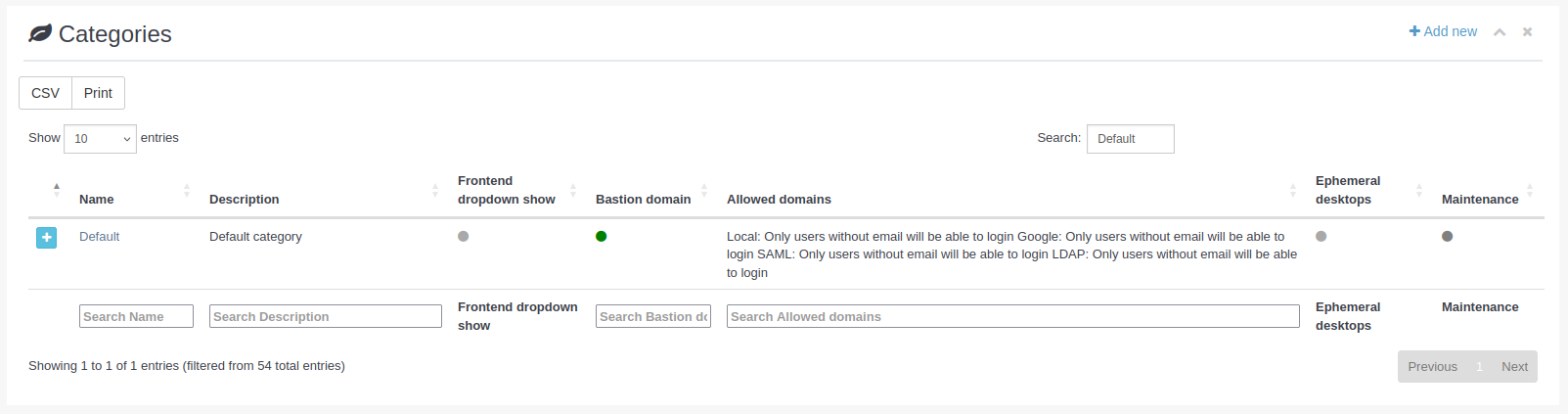
The categories table
Each row of the table is a category. The columns show:
- Name: Name of the category. It is a link to the Quotas and limits view filtered by this category.
- Description: Free description of the category.
- Frontend dropdown show: Whether the category appears in the selection dropdown of the login screen. The circle is green when enabled and gray when not.
- Bastion domain: Status of the category's bastion domain:
- Green circle with no text: the default domain is used.
- Gray circle: bastion access is disabled.
- Green circle with a domain: a custom domain has been configured.
- Authentication (Allowed domains): For each provider (local, Google, SAML, LDAP) with email domain restriction enabled, shows the list of allowed domains. If the list is empty, only users without an email address can log in.
- Ephemeral desktops: If the category has temporary desktops configured, shows the action and the interval (for example, Stopping desktops every 60 minutes). Otherwise, a gray circle is shown.
- Maintenance: Red circle if maintenance mode is enabled, or gray if it is disabled.
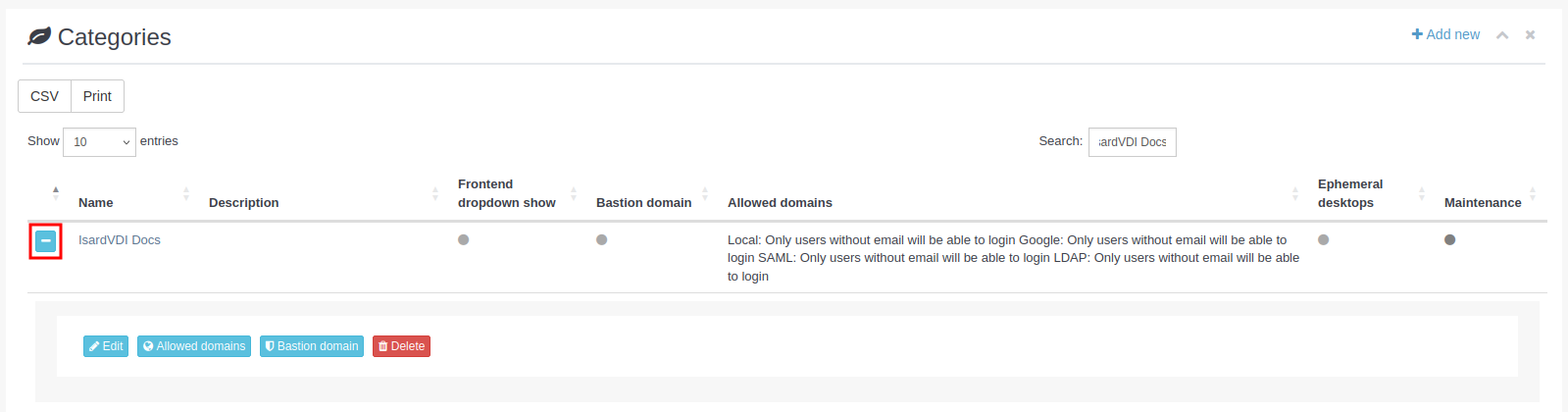
Click the  button at the start of the row to expand it and reach the category actions.
Create a category
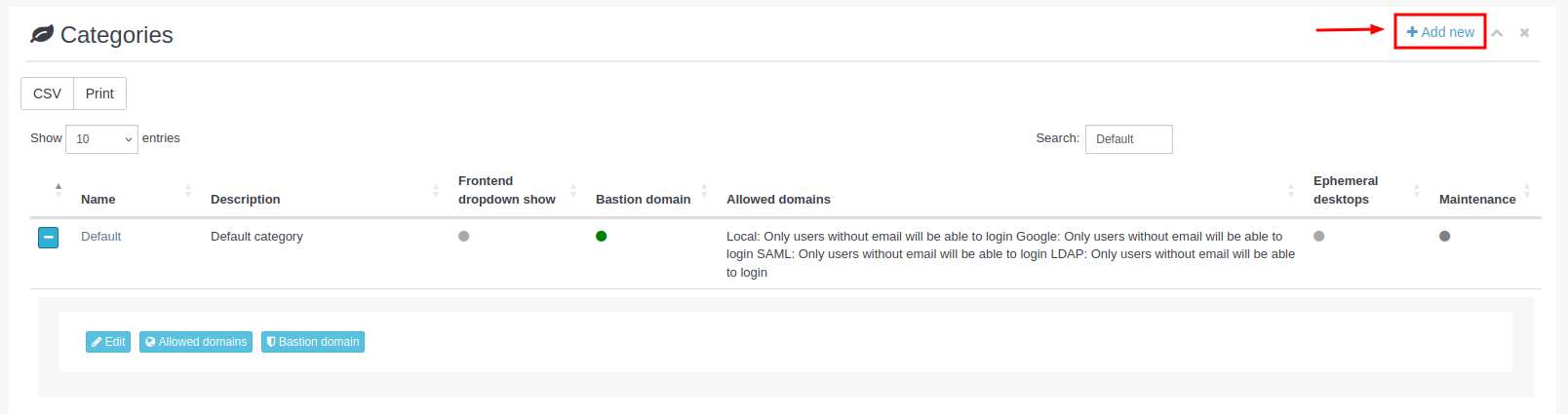
Click the  button in the top right corner to open the creation form:
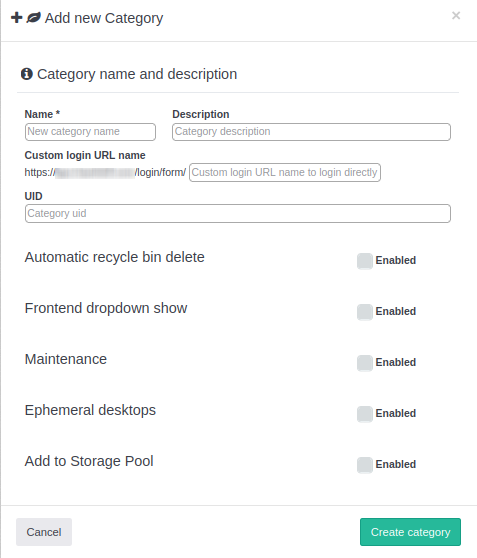
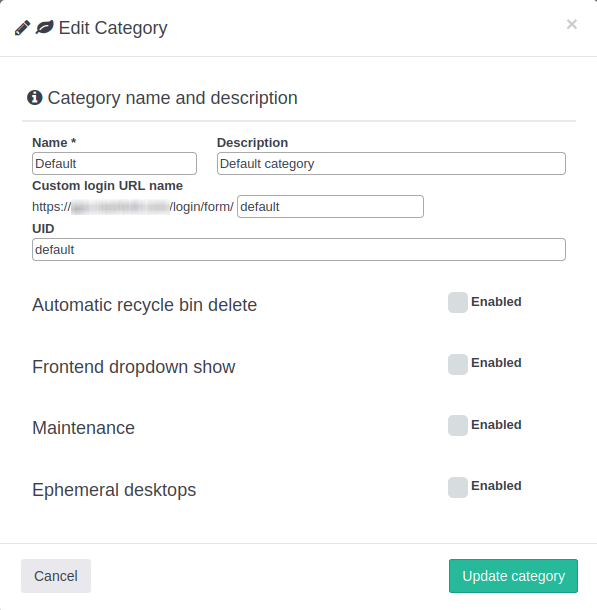
Fill in the following fields:
- Name (required): Name of the category (up to 50 characters).
- Description: Description of the category (up to 255 characters).
- Custom login URL name: Gives the category its own login address of the form
https://<server>/login/form/<name>, with no need for any additional domain or DNS. This way you can enter a category that is not shown in the login screen dropdown. - UID: Optional identifier of the category.
-
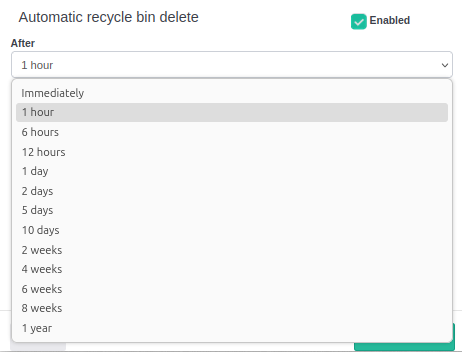
Automatic recycle bin delete: If enabled, the items in the category's recycle bin are deleted automatically after the selected time (Immediately, 1 hour, 6 hours, 12 hours, 1 day, 2 days, 5 days, 10 days, 2 weeks, 4 weeks, 6 weeks, 8 weeks or 1 year).
-
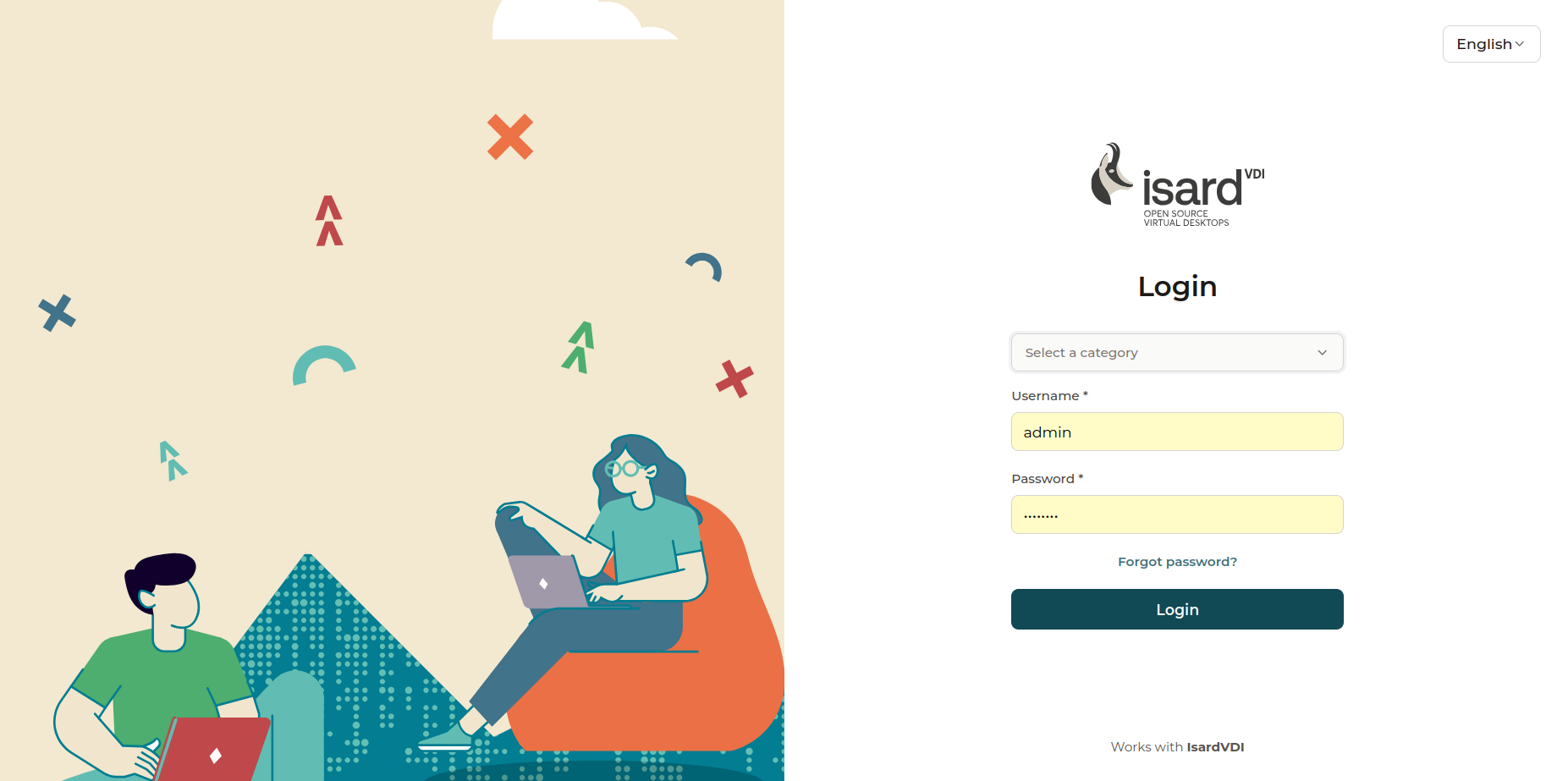
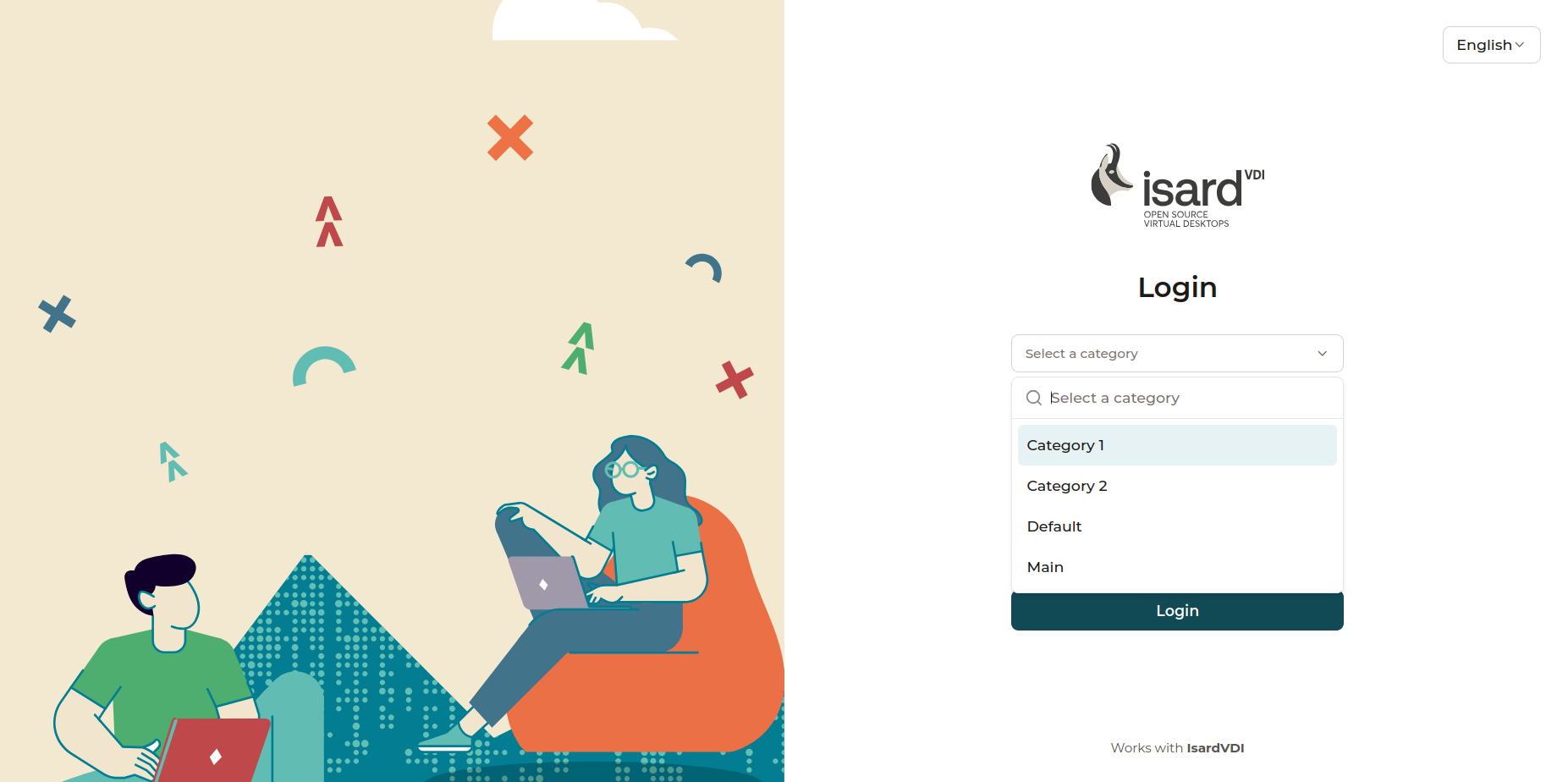
Frontend dropdown show: Makes the category appear in the dropdown of the login screen. The dropdown is only shown if more than one category has this option enabled.
-
Use global GPU pool: Enabled by default. Lets the category also book the non-delegated GPU cards (from the global pool), in addition to the cards delegated to the category.
-
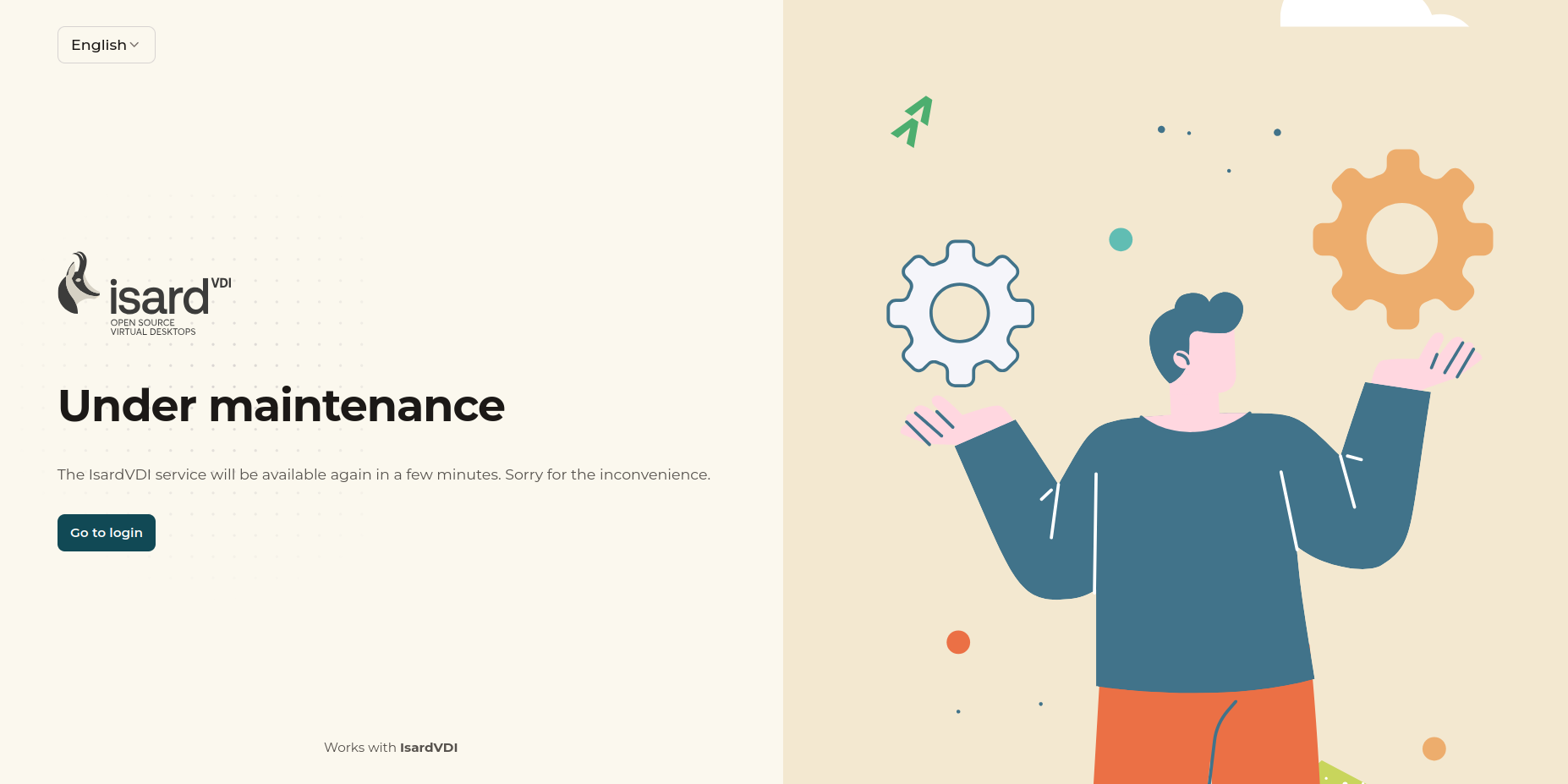
Maintenance: Puts the category in maintenance mode. While it is enabled, all non-administrator users of the category (managers included) see the maintenance screen, whether they try to log in or already have a session open: the API answers them that the category is under maintenance. Other categories are not affected. Maintenance mode for the whole installation is configured in System.
-
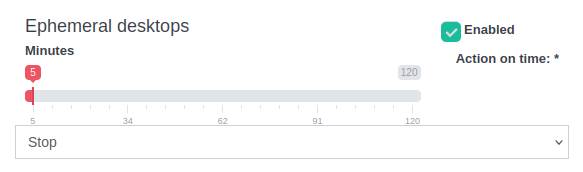
Ephemeral desktops: If enabled, set the Minutes (between 5 and 120, in steps of 5) and the Action on time applied when that time has passed since the desktop started: Stop (stops the desktop) or Delete (stops and deletes it). The user gets no warning before the action is applied.
-
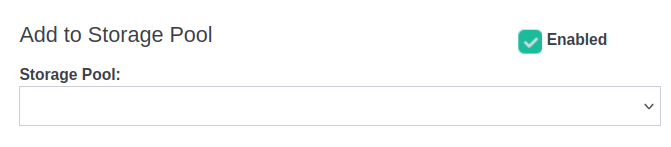
Add to Storage Pool: Associates the category with a specific storage pool instead of the default one.
-
Manager Permissions: Permissions delegated to the category managers (see the Manager Permissions section).
Access to categories not shown in the dropdown
You can enter a category directly by adding one of these paths to the installation address:
/login/form/<category>: only shows the username and password form./login/all/<category>: shows all the access methods configured for the category.
The Main group
When a category is created, its main group (Main) is created automatically, so users can be assigned to it right away.
Manager Permissions
The Manager Permissions panel of the form decides what a manager can manage within their category:
| Permission | What it enables |
|---|---|
| Authentication | Configure the access providers and the email domain restriction. |
| Branding | Configure the domain, the certificate and the logos. |
| Login Notification | Edit the notices of the login screen. |
| GPU Plannings | Manage the category's GPU plannings. With this permission, the manager sees the planning submenu in bookings. |
Nothing is delegated by default
A new category has no manager permission granted. The manager does not see any of these actions until an administrator explicitly enables the corresponding permission.
Edit a category
Expand the category row and click the  Edit button (only available to administrators). The form is the same as the creation form and lets you change all the fields above.
Category actions
Expanding a row of the table shows the category actions panel:

| Action | What it does | Roles |
|---|---|---|
| Edit | Edits the data and options of the category. | Administrators |
 Authentication |
Configures, for each access provider (Local, Google, SAML, LDAP), whether it is disabled, the email domain restriction, the configuration source and the maximum role. See the Authentication section and Multitenancy. | Administrators; managers if delegated |
| Branding | Configures the custom domain with certificate and the logos of the category. See Multitenancy. | Administrators; managers if delegated |
| Login Notification | Edits the notices shown on the category's login screen. See Multitenancy. | Administrators; managers if delegated |
 Bastion domain |
Defines the bastion domain: default, disabled, or a custom domain (which may require ownership verification). See Bastion. | Administrators and managers (of their own category) |
| Delete | Deletes the category. | Administrators |
Authentication
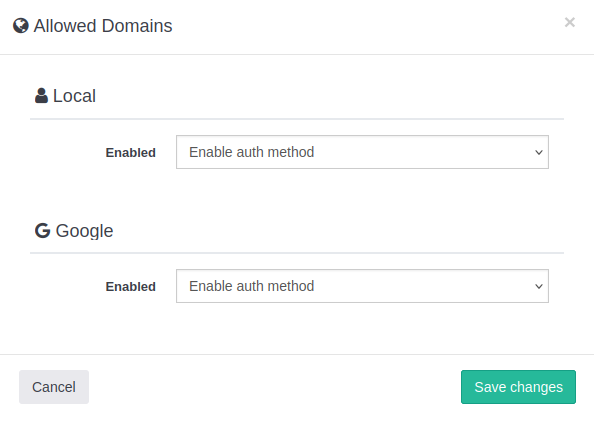
The Authentication window has a panel for each provider (Local, Google, SAML and LDAP) with these fields:
- Disabled: Disables the provider for this category. Users of the category cannot log in with it.
- Email Domains Restriction Enabled and Allowed Email Domains: Only accept users with an email from the given domains. If the list is empty, only users without an email can log in. A user from another domain sees the message «The email domain you are trying to use is not authorized for your category.» when registering.
- Config Source: Global uses the provider configuration of the whole installation (see Authentication); Custom lets you define a configuration of its own in Provider Configuration (not available for Local). If the provider is not available globally, choose Custom or disable it.
- Max role: Maximum role a user of this provider can have in the category (No limit, User, Advanced, Manager or Administrator). No user can be created or changed with a higher role, and the login of a user who exceeds it is refused as if the credentials were wrong. The default
adminuser is exempt. Only the administrator can change it; the manager sees it disabled. See Multitenancy.
Bastion domain
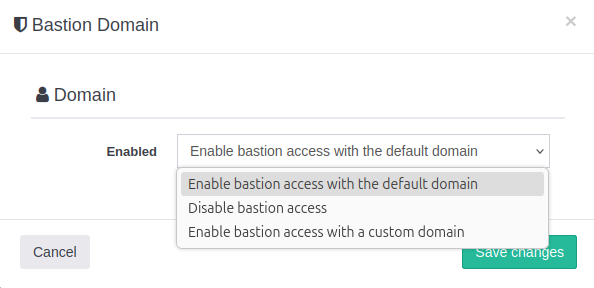
The Bastion domain window offers three options:
- Enable bastion access with the default domain: The category desktops use the installation's default bastion domain.
- Disable bastion access: Disables bastion access for the category.
- Enable bastion access with a custom domain: Uses a domain of its own. The corresponding records must be added to the DNS server.
The users of the category use this domain to access their desktops through the bastion.
Quotas and limits
The quotas and limits of the category are managed from the Quotas and limits view. Each category shows the Quotas and Limits buttons to edit them.
How quotas and limits work is described in Quotas and limits.
Delete a category
Expand the category row and click the  Delete button (administrators only).
Deletion is destructive
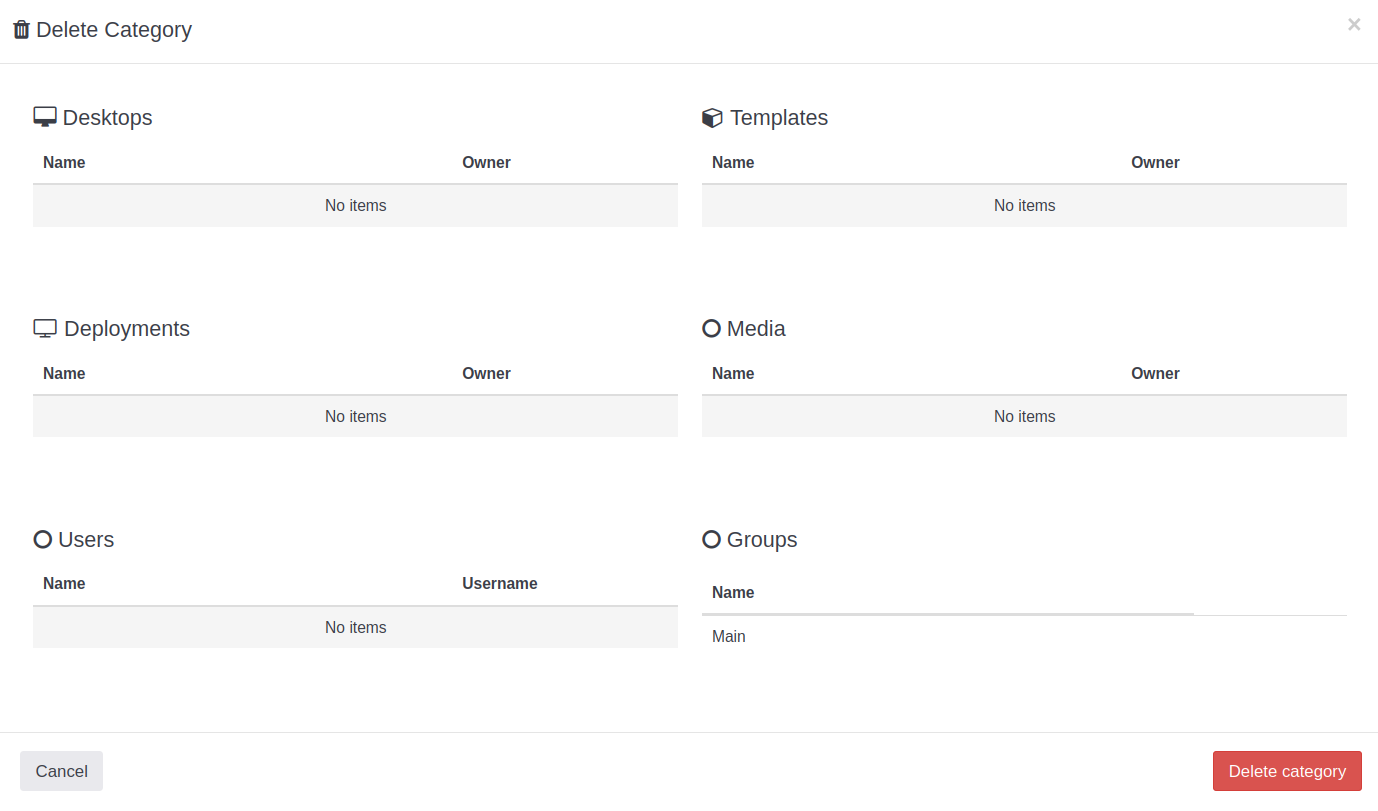
Deleting a category deletes all its desktops, templates, deployments, media, users and groups. Before confirming, the window shows the list of all these items that will be lost and, if the category has associated storage pools, an additional warning. You must select the confirmation checkbox to continue.
Note
The default category (default) cannot be deleted.
States and messages
| What is seen | What it means |
|---|---|
| «Category created successfully» | The category has been created successfully. |
| «Category updated successfully» | The category changes have been saved successfully. |
| «Category deleted successfully» | The category has been deleted successfully. |
| «This provider is not globally available. Config Source must be set to Custom or the provider must be disabled.» | An attempt is made to leave an authentication provider with the Global configuration source when that provider is not available for the whole installation. Set it to Custom or disable it. |
| «ERROR creating category» / «ERROR updating category» / «ERROR deleting category» | An error occurred in the corresponding operation; the specific details are shown in the same notice. |
Development details
For those who develop or integrate IsardVDI: where each element of this section is located in the code and which API operation it calls.
- Table and actions (webapp) · file
webapp/src/webapp/static/admin/js/categories_management.js:100- table data:
GET /api/v4/admin/items/users/management/categories - columns (Name, Description, Frontend dropdown show, Bastion domain, Authentication, Ephemeral desktops, Maintenance):
categories_management.js:119
- table data:
- Create · form
webapp/src/webapp/templates/admin/pages/users_modals_management.html:1484· submissioncategories_management.js:358- call:
POST /api/v4/admin/item/category— Create category, which creates the category with its associated Main group.
- call:
- Edit · form
users_modals_management.html:1764· submissioncategories_management.js:547- call:
PUT /api/v4/admin/item/category/{category_id}— Update category
- call:
- Manager Permissions · template
snippets/category_permissions_form.html, included inusers_modals_management.html:1739· delegated buttons are shown to the manager according tomanager_permissionsincategories_management.js:528 - Panel actions · template
webapp/src/webapp/templates/admin/pages/categories_detail_management.html- Authentication:
GET/PUT /api/v4/admin/item/category/{category_id}/authentication - Branding:
GET/PUT /api/v4/admin/item/category/{category_id}/branding - Login Notification:
PUT /api/v4/admin/item/category/{category_id}/login_notification - Bastion domain:
GET/PUT /api/v4/admin/item/category/{category_id}/bastion_domain
- Authentication:
- Quotas and limits ·
PUT /api/v4/admin/item/quota/category/{category_id}andPUT /api/v4/admin/item/limits/category/{category_id} - Delete · dependency check
POST /api/v4/admin/item/category/delete/check· deletionDELETE /api/v4/admin/item/category/{category_id}