Log in
This section describes how to log in to IsardVDI, how to log out and what happens when the session expires.
Roles with access
- Access to the section: anyone, even without an active session.
Video: walkthrough of the page
This feature is only available in the new interface (new interface).
This feature is within another screen; it does not have its own entry in the side menu.
The login screen is always the new interface
Login always takes place on the new interface screen, also in installations that work with the old interface. Once inside, the interface that applies to the user is shown.
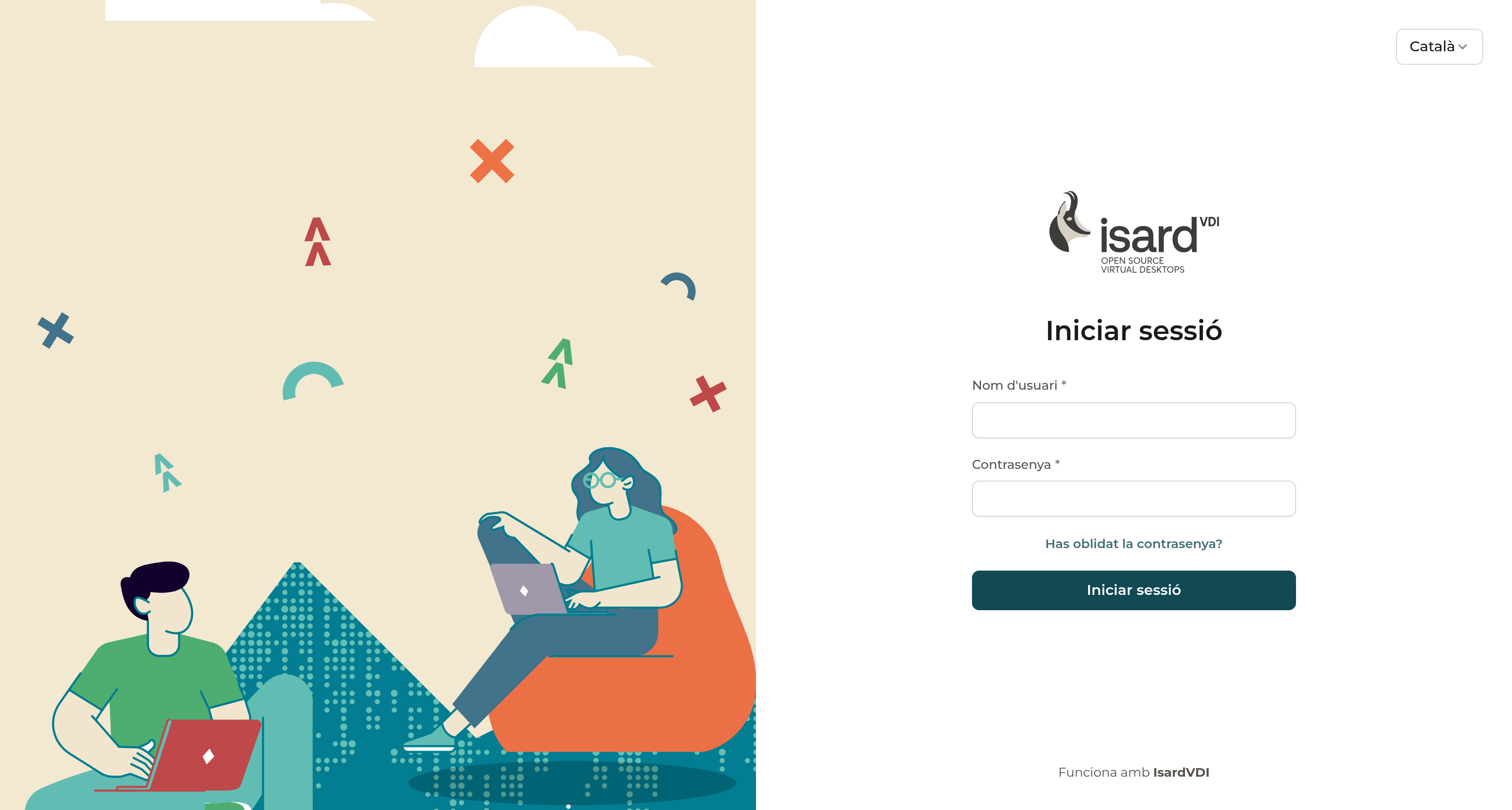
Log in
This feature is only available in the new interface (new interface).
- If the Select a category drop-down appears, choose the account's category in it.
- Fill in the Username field.
- Fill in the Password field.
- Click Login.
When the category selector appears
The Select a category drop-down is only shown if all these conditions are met:
- the screen address does not already include the category (for example, a login address specific to the category);
- more than one category is marked to appear on the login screen (the Frontend dropdown show option of each category, in Categories);
- the login settings do not hide it, either in general or for the access method being used (see Login).
If only one category is visible, it is used without asking.
Category's own domain
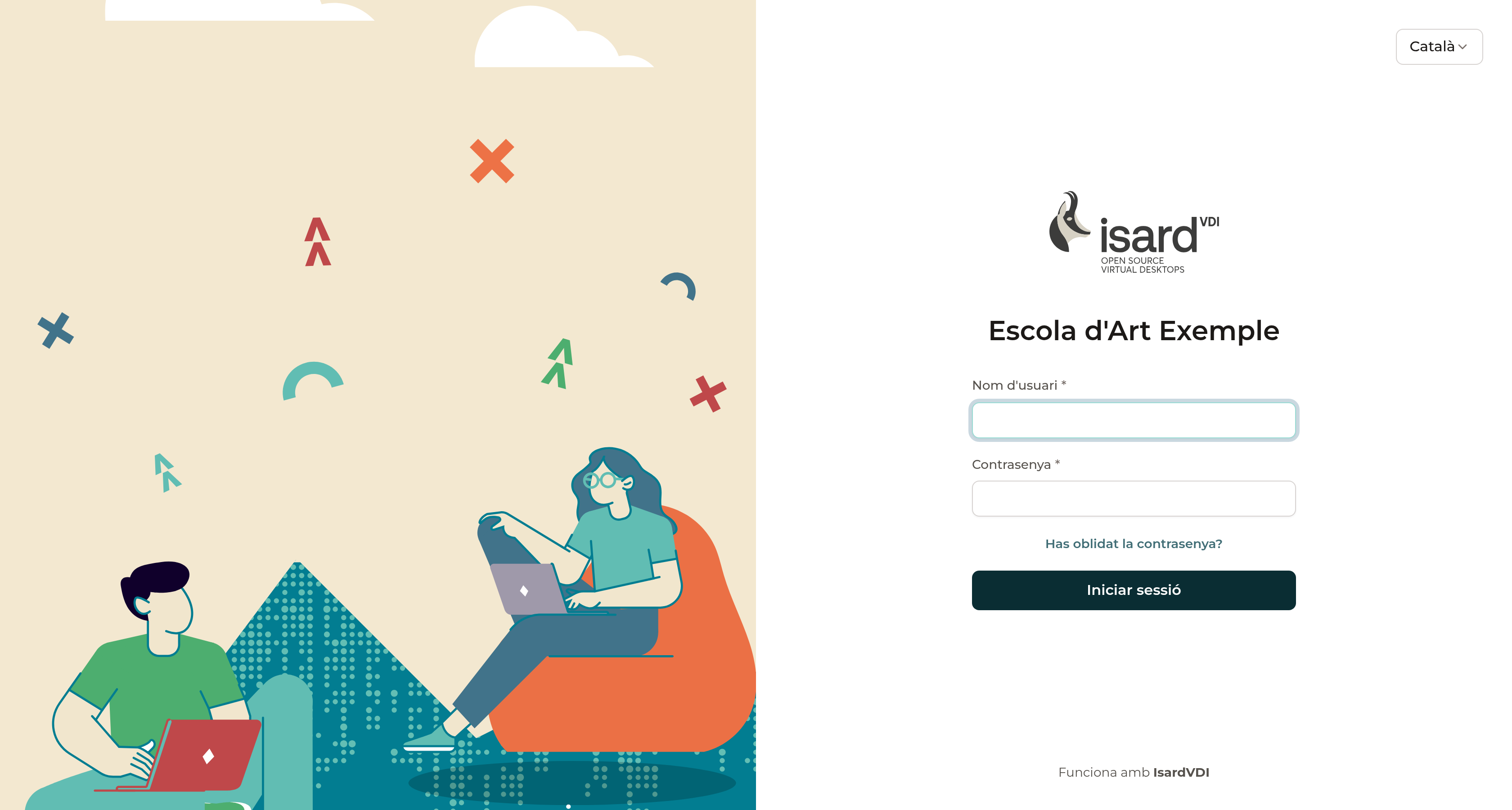
If a category has its own domain and you log in through that address, the screen shows the name, logo, notices and access methods of that category (see Multitenancy).
Conditions and messages
- The Username and Password fields are required; if either is empty, the form shows «This field is required» and is not submitted.
- While access is being verified, the button changes to «Logging in…» and is disabled to prevent repeated submissions.
- If the category selector is visible and no category is chosen, «A category needs to be selected» is shown.
- If the username or password is incorrect, «Incorrect user or password» is displayed.
- Other possible messages: «The user is disabled», «The user can't use IsardVDI», «Login with username and password is disabled» and, if there have been too many attempts, «Too many login attempts…».
- If there are other active access methods (for example, Google or SAML), they appear as buttons below the Other logins separator. Which methods appear depends on the administration (see Authentication).
- If the account belongs to several categories, after logging in the Select a category screen is shown to choose one.
- If the password has been forgotten, use the Forgot password? link (see Recover the password). The administration can hide this link.
- After logging in, and before entering, mandatory steps may appear that depend on the administration's policies: accepting the terms, verifying the email or changing an expired password (Recover the password).
Login error messages
| What is shown | What it means | What to do |
|---|---|---|
| «An error has ocurred» | Unexpected error during login. | Try again; if it persists, notify the administration. |
| «A category needs to be selected» | No category was chosen in the selector. | Choose a category and click Login again. |
| «Incorrect user or password» | The credentials are not correct. | Check the username and the password. |
| «The user is disabled» | The administration has disabled the account. | Ask the administration to reactivate it. |
| «The user can't use IsardVDI» | The account is not allowed to use the service. | Ask the administration for access. |
| «Login with username and password is disabled» | The administration has disabled access with username and password. | Use another access method, if there is one. |
| «Too many login attempts, please try again at …» or «… later» | The attempt limit has been exceeded. | Wait until the time shown before trying again. |
Development details
For those who develop or integrate IsardVDI: where each element of this section is located in the code, from which version it is available, which API operation it calls, and what messages it can return.
- New interface · file
components/login/LoginProviderForm.vue:127· interface text (translation key)components.login.login-provider-form.login- since v17.0.0 (2026-04-24,
f31b874d89) - on click:
submits the form (onSubmit)
- since v17.0.0 (2026-04-24,
Code from commit fe99ad98.
Password recovery
This feature is only available in the new interface (new interface).
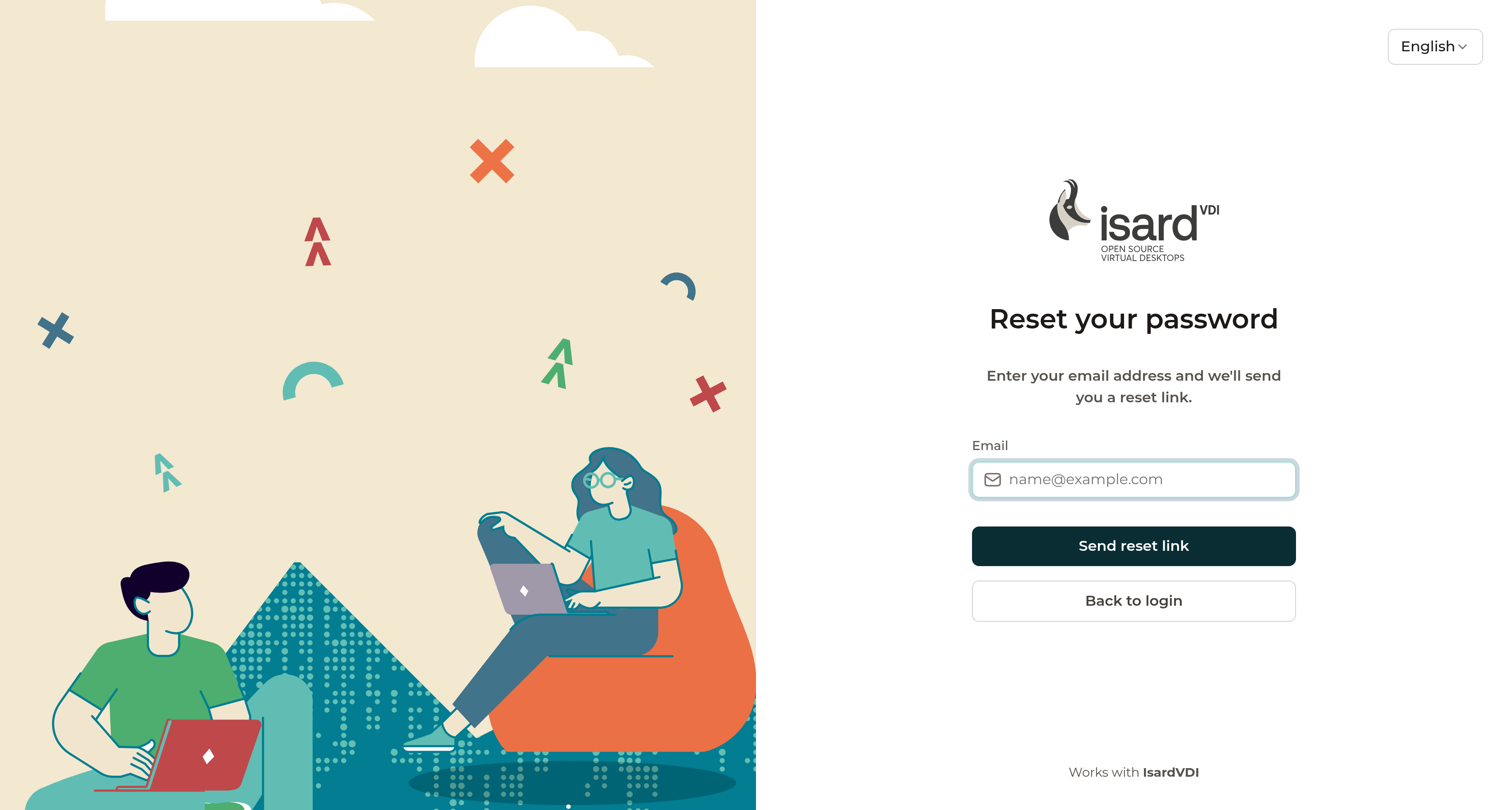
From here, request a link to reset the password. The full process is in Recover the password.
- Fill in the Email field with the account's email address.
- Click Send reset link.
Conditions and messages
- The Email field must contain a valid email address; otherwise, «Enter a valid email address» is displayed.
- For security reasons, the confirmation does not reveal whether the address exists: it always displays «If your email address exists in our database, you will receive a password recovery link shortly».
- After sending it, the screen automatically returns to the login page with a countdown of about 10 seconds.
- If there is a problem sending the request, «An error occurred. Please try again» is displayed.
- To return to the login screen, click Back to login.
- This screen is accessed from the Forgot Password link on the login page, which carries the selected category; if opened without a category, it redirects to the login page.
Development details
For those who develop or integrate IsardVDI: where each element of this section is located in the code, from which version it is available, which API operation it calls, and what messages it can return.
- New interface · file
components/login/LoginProviderForm.vue:113· interface text (translation key)components.login.login-provider-form.forgot-password- since v17.0.0 (2026-04-24,
f31b874d89) - on click:
onForgotPassword
- since v17.0.0 (2026-04-24,
Commit code fe99ad98.
Log out
This feature is only available in the new interface (new interface).
This link is on the category selection screen, which shows «Logged in as name». It is used to leave without choosing a category.
- Click the Logout link.
The session closes immediately, without any confirmation.
Conditions and messages
- When clicked, the interface immediately clears the session cookie and the browser token, and then asks the authentication service to revoke the session on the server.
- If a logout is already in progress, or there is no longer an active session, a new click does nothing.
- The authentication service is only called if the token is a login token and has not yet expired. With intermediate tokens (for example, pending acceptance of the legal notice or email verification), only the local session is cleared.
- If the server cannot revoke the session, the interface has already closed the session locally, and the error only remains in the browser console log.
- If the identity provider returns a redirect address, the browser is redirected there after the logout. There is none for the local and Google providers.
- With the manager or administrator role, the session of the old administration interface is also closed (maximum wait of 3 seconds).
- If the session cookie is cleared externally (for example, by logging out in another tab), the interface detects this and also closes the session.
Access is lost
Once the session is closed, desktops and data cannot be accessed until you log in again.
Development details
For those who develop or integrate IsardVDI: where each element of this section is in the code, from which version it is available, which API operation it calls, and what messages it can return.
- New interface · file
components/login/LoginCategorySelect.vue:64· interface text (translation key)components.login.login-category-select.logout- since v17.0.0 (2026-04-24,
f31b874d89) - on click:
logout
- since v17.0.0 (2026-04-24,
Commit code fe99ad98.
Session expired
The session has a limited duration. Every action in the interface renews it automatically, so it does not expire while you are working. If some time passes without activity, or the maximum session time is reached, the Session expired window appears. The window cannot be closed with the cross or by clicking outside: one of the options must be chosen.
The old interface has the same window with its own texts:
| Title | What it means | Button |
|---|---|---|
| «Session will expire soon» | The session will expire soon and can still be renewed. | Renew |
| «Session expired» | The session has expired, can no longer be renewed or has reached the maximum time. | Log in again |
| «Session renewal error» | The session could not be renewed. | Log in again |
| Message | What it means | Options |
|---|---|---|
| «The session is about to expire. It can be renewed to continue working without interruption.» | The session is expiring, but it can still be renewed. | Renew current session continues the work without losing anything. Logout leaves and goes to the login screen. |
| «The session has expired and cannot be renewed anymore. Please log in again.» | Too much time has passed without activity and the session can no longer be renewed. The session has been closed. | Go to login. |
| «The session has expired and has reached its maximum renewals. Please log in again.» | The maximum session time, counted from login, has been reached. The session has been closed. | Go to login. |
| «There was an error renewing the session. Please log in again.» | The session could not be renewed. | Go to login. |
Clicking Go to login returns to the login screen of the same access method and the same category used to log in.
Session durations
The durations are set by the system administrators in the installation configuration (isardvdi.cfg). By default, the window appears after 5 minutes without any action, the session can be renewed up to 30 minutes after the last renewal and it lasts at most 8 hours from login. When the maximum is reached, you must log in again even if you are working.
Development details
- New interface · file
components/modal/SessionModal.vue(window) andstores/session.ts(timers:renew,max-renew-time,max-time,error-renew), mounted inlayouts/main/MainLayout.vue. - Old interface · file
old-frontend/src/components/ExpiredSessionModal.vue, textscomponents.expired-modal.*. - Durations:
SESSIONS_SESSIONS_EXPIRATION_TIME(5m),SESSIONS_SESSIONS_MAX_RENEW_TIME(30m) andSESSIONS_SESSIONS_MAX_TIME(8h) inisardvdi.cfg.example.