Storage
Roles with access
Only administrators can create disks, search for them by UUID, run actions on them and use the global actions of this section. Managers can only view the information of the disks of their own category.
This section provides a detailed view of disk information. Administrators and managers can view relevant data, such as the used and total size of the disks, as well as their current status. This status includes indications of whether the disks have been deleted or have experienced any error.
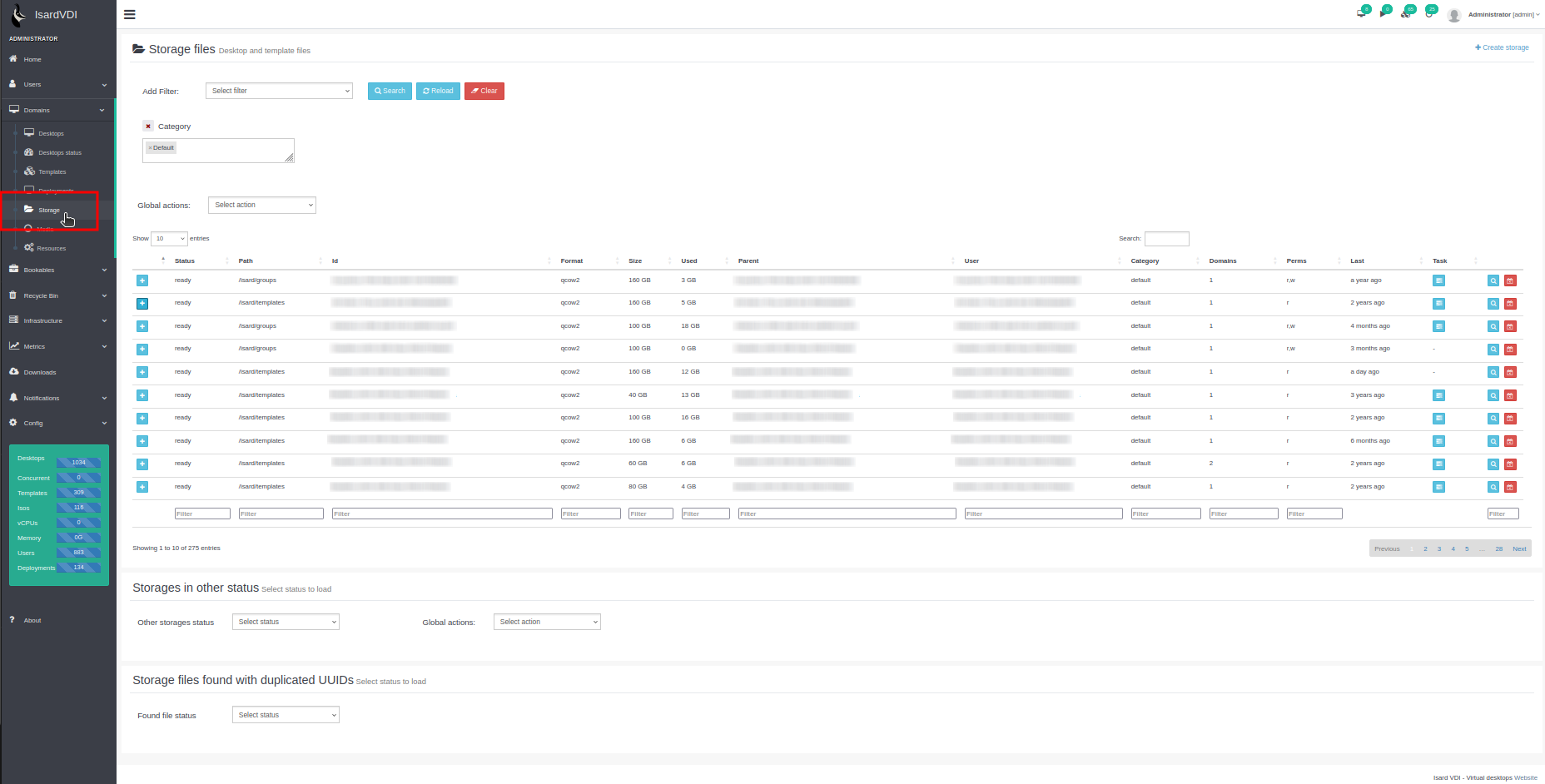
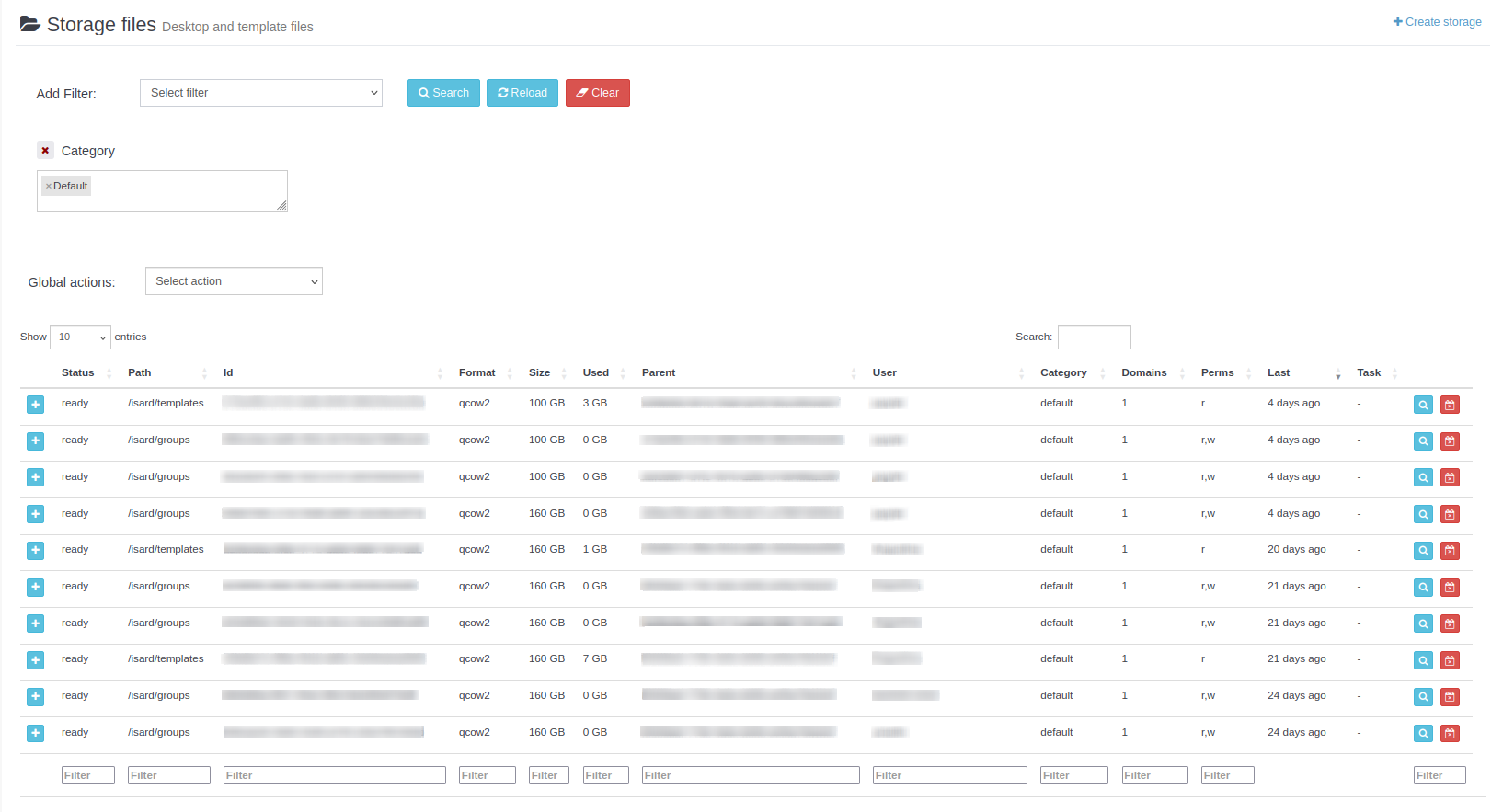
Storage files
Disk creation
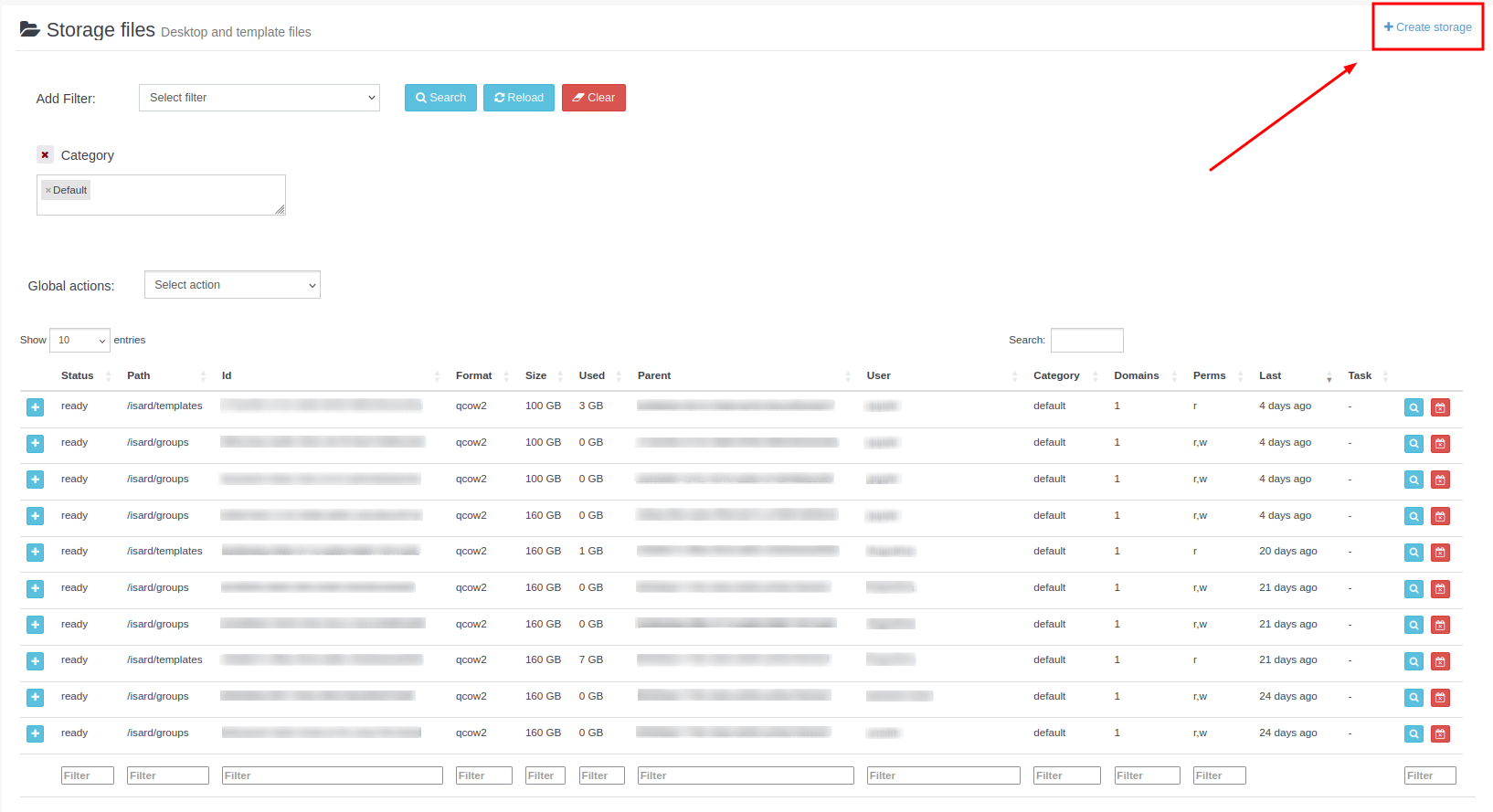
You can create storage disks that are not associated with any virtual machine. To do so, click the Create storage button  :
The following window appears, where you must fill in the following fields:
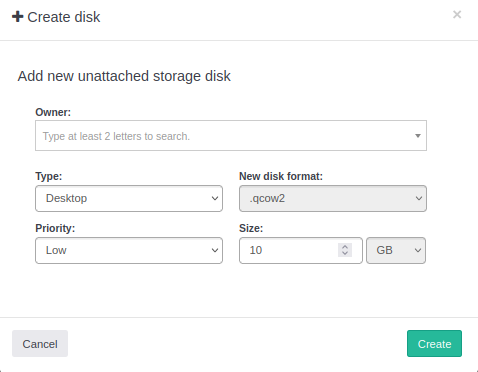
- Owner: The user who owns the disk.
- Type: The type of item for which the disk is created. It can be Desktop (virtual desktop), Media (media), Template (template) or Volatile (temporary/volatile desktop).
- Priority: The priority with which the disk creation task should run.
- New disk format: The disk format.
- Size: The disk size, in MB or GB (GB by default).
The same bar has the Storage UUID... field: type a disk's identifier and click the magnifying glass to open its information.
Disk information parameters

Meaning of the displayed columns:
Displays the disk status.
Depending on the disk origin, it has a different storage path:
- /isard/groups: desktop disks.
- /isard/templates: template disks.
- /isard/volatile: temporary desktop disks.
Unique identifier of the disk.
The disk format.
Disk size defined when creating the virtual machine. It can be increased with the disk editing options (below).
Amount of disk space already used.
Unique identifier of the disk it depends on, that is, the base disk.
User who created the desktop or template, and therefore the disk.
Category of the user who created or modified the disk.
Number of desktops or templates that use this disk.
Permissions the user has on the disk:
- r: read permission.
- w: write permission.
If there is write permission, there is also read permission.
Last modification of the disk.
It may display a dash '-', indicating that no action is available, or the following button:
-
Show last task info
 : Opens a modal with information about the last task executed on the disk.
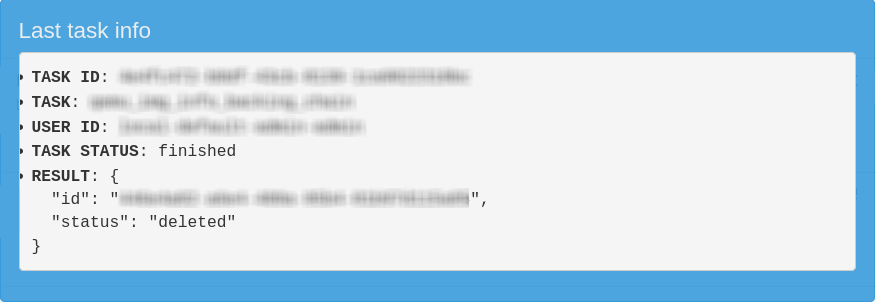
The following buttons in this section are:
- Find in storage
 : Queries the database to verify whether the disk UUID actually exists.
- Delete scheduler
 : Removes from the queue the pending tasks associated with the disk, if they are waiting for the virtual desktop to stop.
Disk editing options
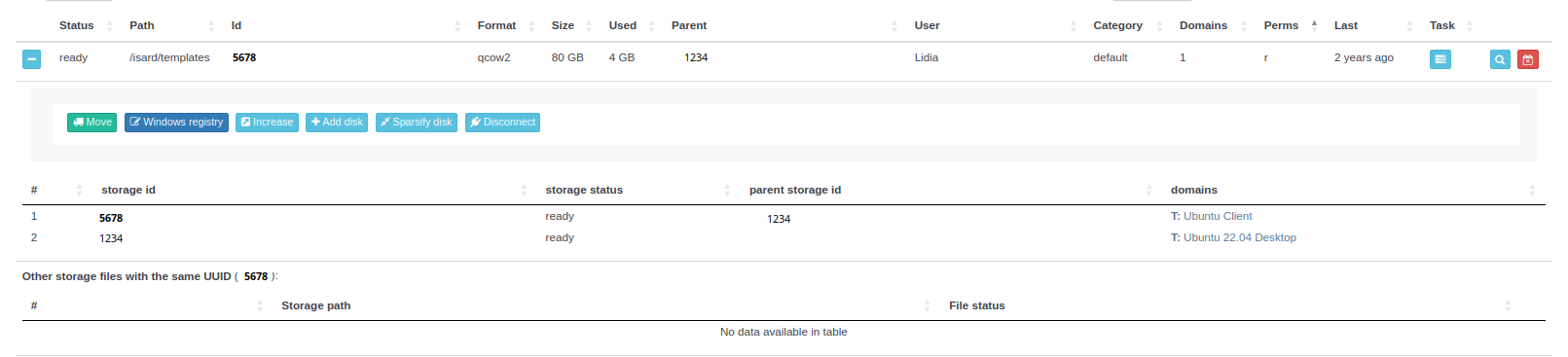
The options open with the Storage actions button in the disk details: Move to another path, Apply Windows registry, Increase disk size, Create derived disk, Sparsify disk and Disconnect from backing chain. Each operation is queued with a priority (Priority) and a number of retries (Retries).
-
Move to another path
 : Opens the Move storage window, which moves the disk to another path, within the same storage pool or to another one.
- Within same storage pool: choose the destination path in Move from … to: among the paths of the same pool for this disk type and this category.
- To a different storage pool: choose the pool in Destination storage pool. The disk goes to the path that corresponds to it in that pool.
- Method (Choose a moving tool): mv (recommended within the same pool) or rsync (recommended between pools). With rsync, After rsync (Remove original file or Move original file to deleted subfolder) and Bandwith limit (KB/s) appear; 0 means no limit.
- Priority and Retries.
To move many disks at once between pools (for example, all those of a category), it is better to create a migration in Storage pools.
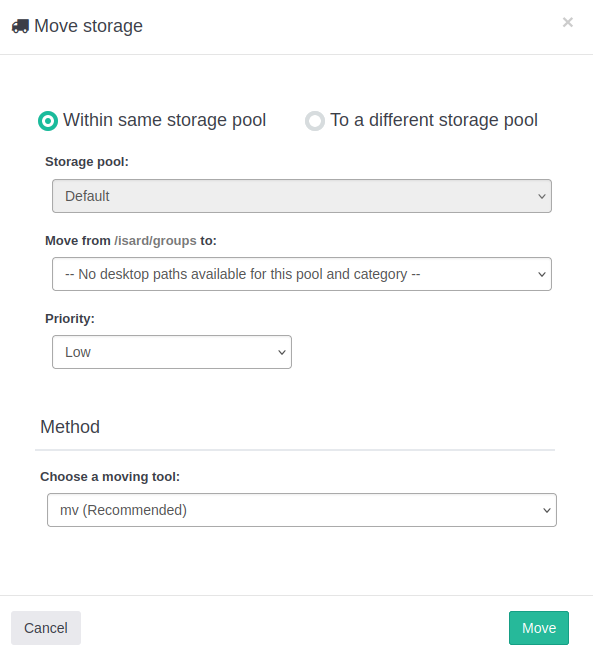
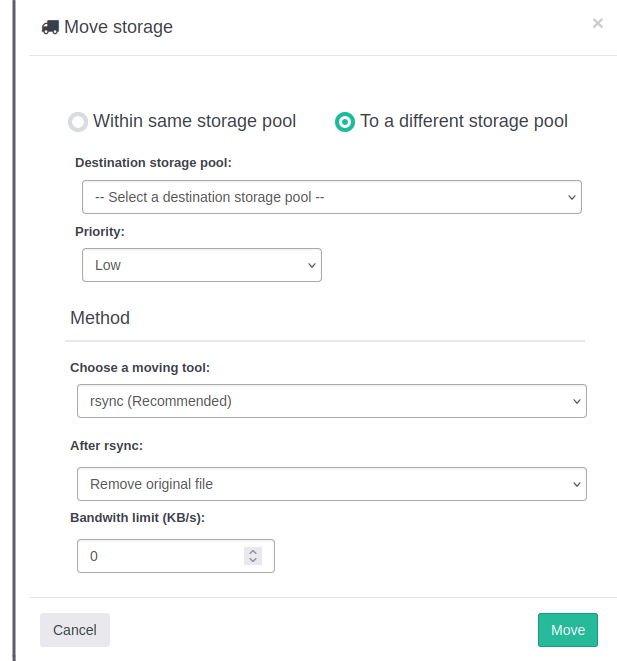
The priority determines the order and importance with which this maintenance task must be carried out.
-
Apply Windows registry
 : Opens the Apply Windows Registry Patch window, where you upload a registry file (Upload registry file) that is applied to the Windows disk without starting the desktop.
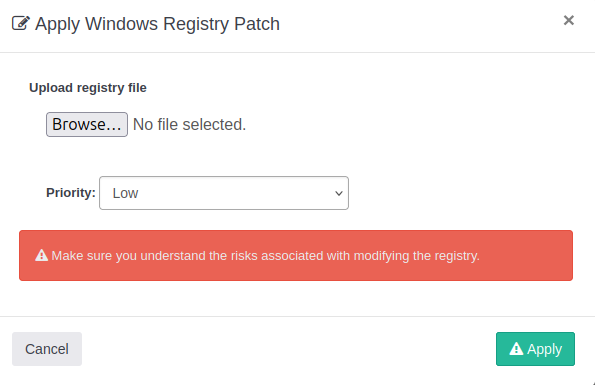
The priority determines the order and importance with which this maintenance task must be carried out.
-
Increase disk size
 : Increases the disk size.
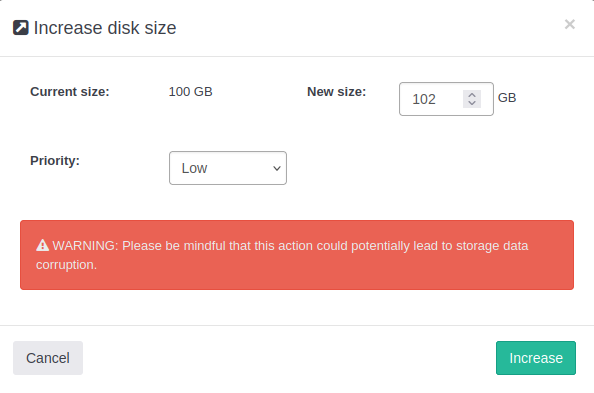
The priority determines the order and importance with which this maintenance task must be carried out.
-
Create derived disk
 : Creates a derived disk from the current disk.
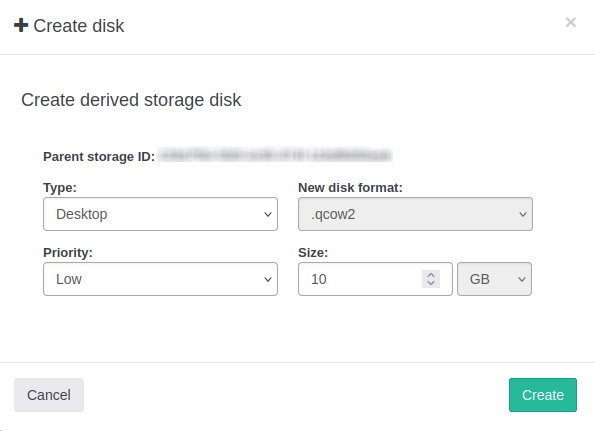
The priority determines the order and importance with which this maintenance task must be carried out.
-
Sparsify disk
 : Compacts the disk, freeing up space. Derived disks store information from base disks, including data that may no longer be present on the current disk. For example, if Firefox was installed in an initial template and later removed on the derived desktop, this information is still kept on the disk. This tool frees it.
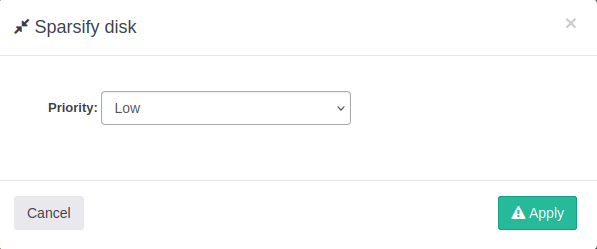
The priority determines the order and importance with which this maintenance task must be carried out.
- Disconnect from backing chain
 : Converts an incremental disk (derived from a template) into a disk that is completely independent of its base disk ("Parent storage").
Desktop disks created from a template only store the modifications made. This means that the incremental disk depends on the original disk to work correctly.
With this option, the content of the main disk is merged with that of the incremental disk, generating a complete disk that does not depend on any other.
How template and desktop disks work is explained in Templates.
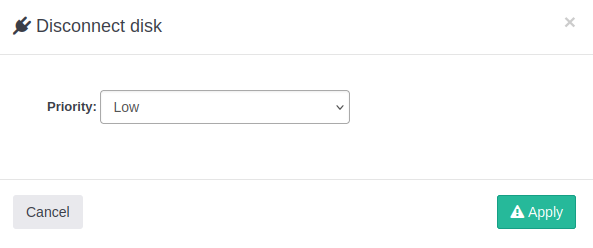
The priority determines the order and importance with which this maintenance task must be carried out.
Global actions on disks
The bar of the Storage files table (administrators only) has:
- Global actions: they apply to the disks filtered in the table. Find & update disks checks that the files exist and updates their information; Sparsify disks compacts them; Give back zero blocks frees only the blocks that contain nothing but zeros from the disks of stopped desktops and of templates without derivatives, without changing their content. This last one accepts at most 50 disks at a time and states why it rejects each one.
- Repair all pending leaks: queues a leak repair (
qemu-img check -r leaks) on all ready disks that carry therepair_leaksmark. These are healthy disks that waste space. - Check integrity of all: checks the integrity (
qemu-img check) of all disks in the state chosen in the dropdown (ready or damaged). Disks opened by a running desktop are skipped. - Run sweep now: runs a sweep pass right now, with the actions enabled in the sweep configuration and the limits Max disks (50 by default) and Max GiB (0 means no limit).
Storage files in maintenance
This table shows the disks that have an operation in progress (sparsify, find, convert, move, increase…). While they are there, the desktop or template that depends on them cannot be started. More information in the "Disk operations" section of Desktops.
Storages with a pending action
This table shows the disks that have a pending action. Choose the action in the dropdown to load its list:
- repair_leaks: space leaks pending repair.
- review_damage: damaged disk that needs to be reviewed.
- sparsify: pending sparsify.
- dig_holes: zero blocks pending to be given back.
- rebase_backing: dependency chain pending readjustment.
- remeasure: size pending to be measured again.
- delete_backup: backup pending deletion.
- check_inconclusive: integrity check that was inconclusive.
The nightly sweep works on these disks, if it is enabled.
Storages in other status
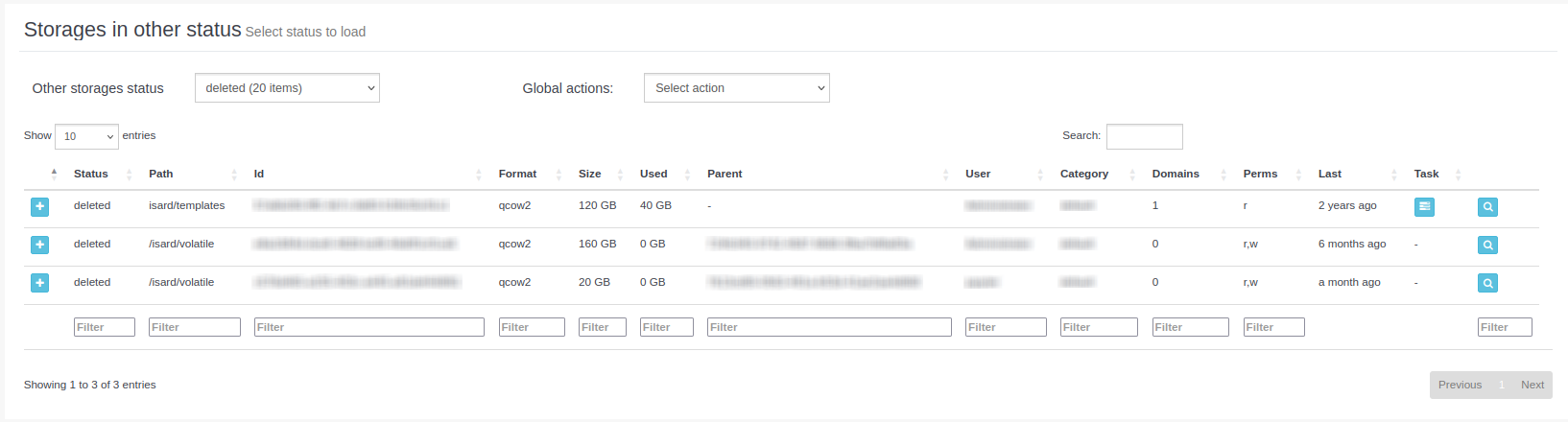
This section displays the disks that are not in the Ready state. Disks under maintenance do not appear in this filter, because they have their own table, Storage files in maintenance.
You can filter by status, for example:
- Deleted: Deleted disks.
- Orphan: Disks that have lost their association with the original desktop or template. They are still kept in the system, but they are no longer connected to any active entity. They may take up space unnecessarily.
Administrators have the Find & update disks global action here.
Reconcile
This block compares the files in the storage pools with the disks and media table:
- Report: goes through all pools and publishes the differences found without changing anything.
- Apply: additionally, measures again the ready disks whose size does not match.
Storage files found with duplicated UUIDs
This section shows the disks that have duplicated unique identifiers (UUIDs).
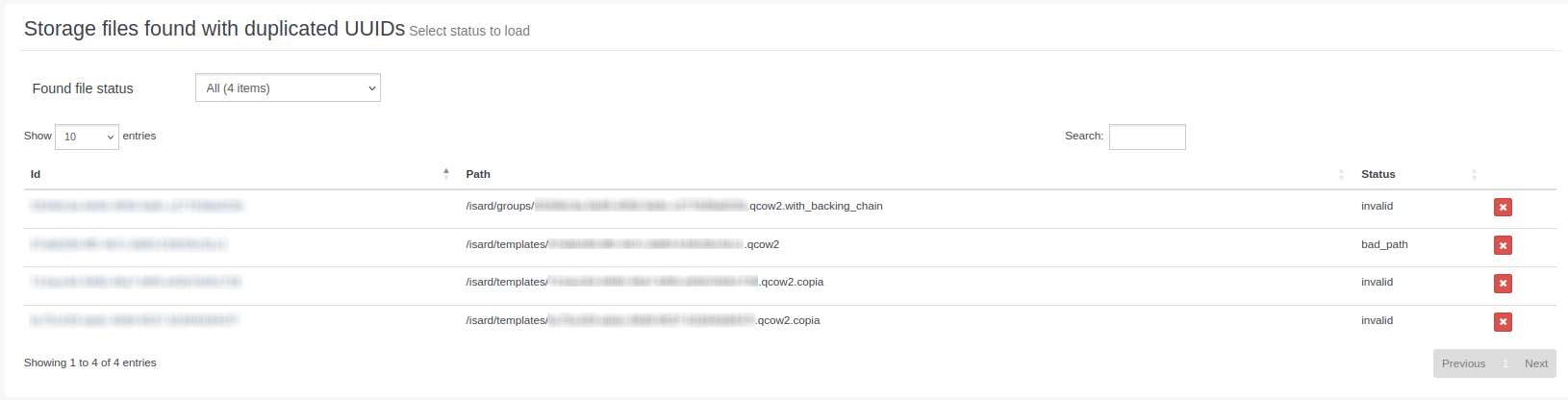
You can filter the list by the status of the found file (Found file status), or show them all with All.
What the user sees
Users see the status and size of their desktops' disks, and can increase the size if they have quota, in Storage. When a disk problem prevents a desktop from starting, they see the problems found and the fixes they can request, depending on the configuration of costly repairs in Recycle bin configuration.