Parsec
Parsec is not an IsardVDI viewer
Parsec is an external remote desktop application. IsardVDI does not offer it among its viewers: it does not appear in the viewer dropdown of the card, in the desktop edit screen or in the direct viewer. The product's viewers are SPICE, VNC Browser, and RDP, RDP VPN and RDP in browser.
This page is a use case: it explains how to install Parsec inside a virtual desktop and connect to it from another computer. The connection goes through the Parsec servers, not through the platform, and the desktop needs Internet access.
Access requirements for Parsec
Using Parsec does not require a paid plan. The application can be used for free to connect to a machine with a single screen, with good image quality, audio and control responsiveness.
For more advanced features, such as multi-screen support, better color quality, virtual monitors or compatibility with devices like graphics tablets, a subscription to the Warp plan is required.
Parsec also has plans for businesses and schools, such as Teams and Enterprise, which allow managing multiple users and computers centrally.
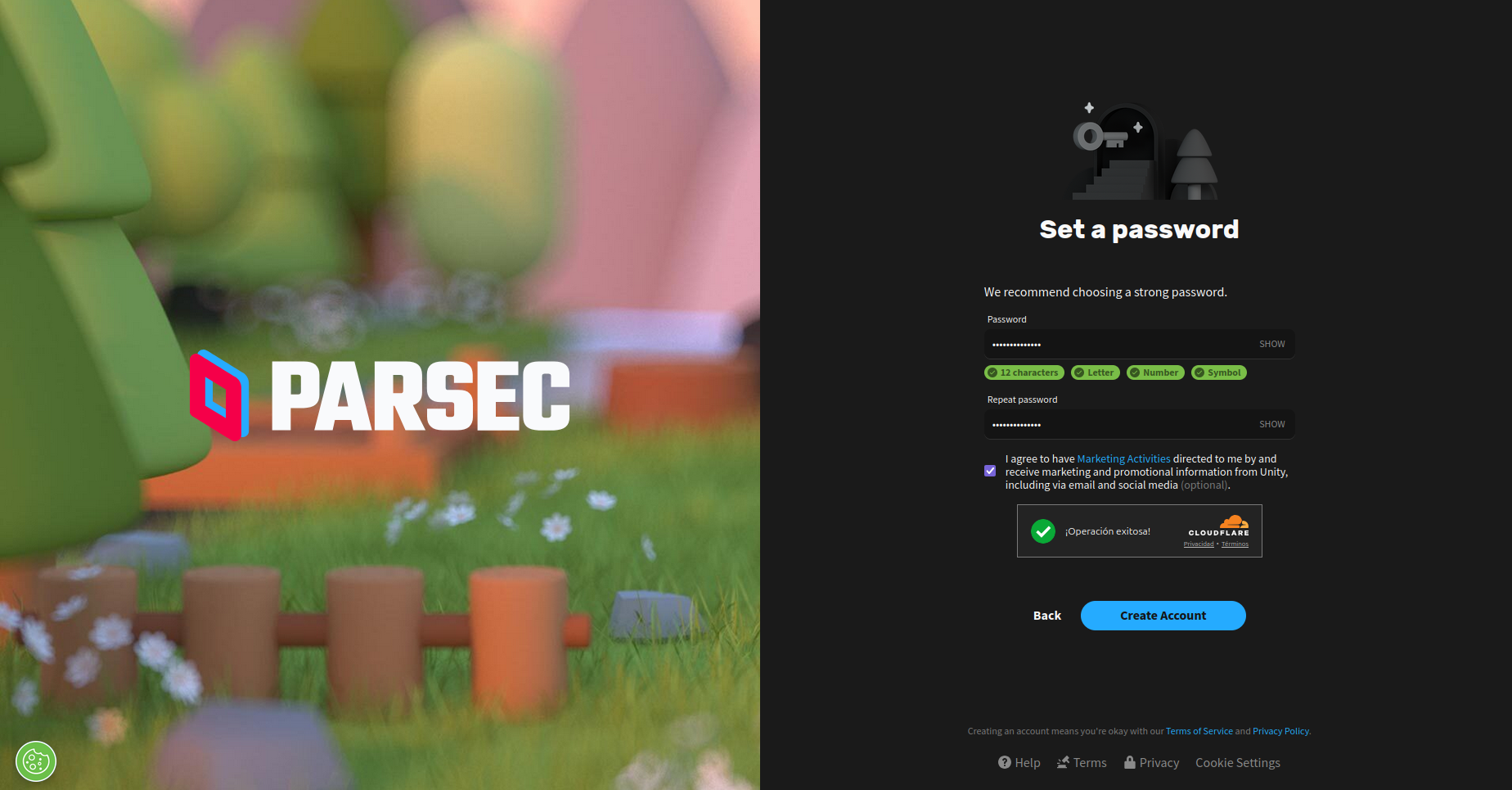
Create a Parsec account on the registration page: https://dash.parsec.app/signup/


-
Enter the virtual desktop (with any of the IsardVDI viewers) and install Parsec according to the operating system: Parsec download link.
-
Once Parsec is installed, sign in with the account created:
-
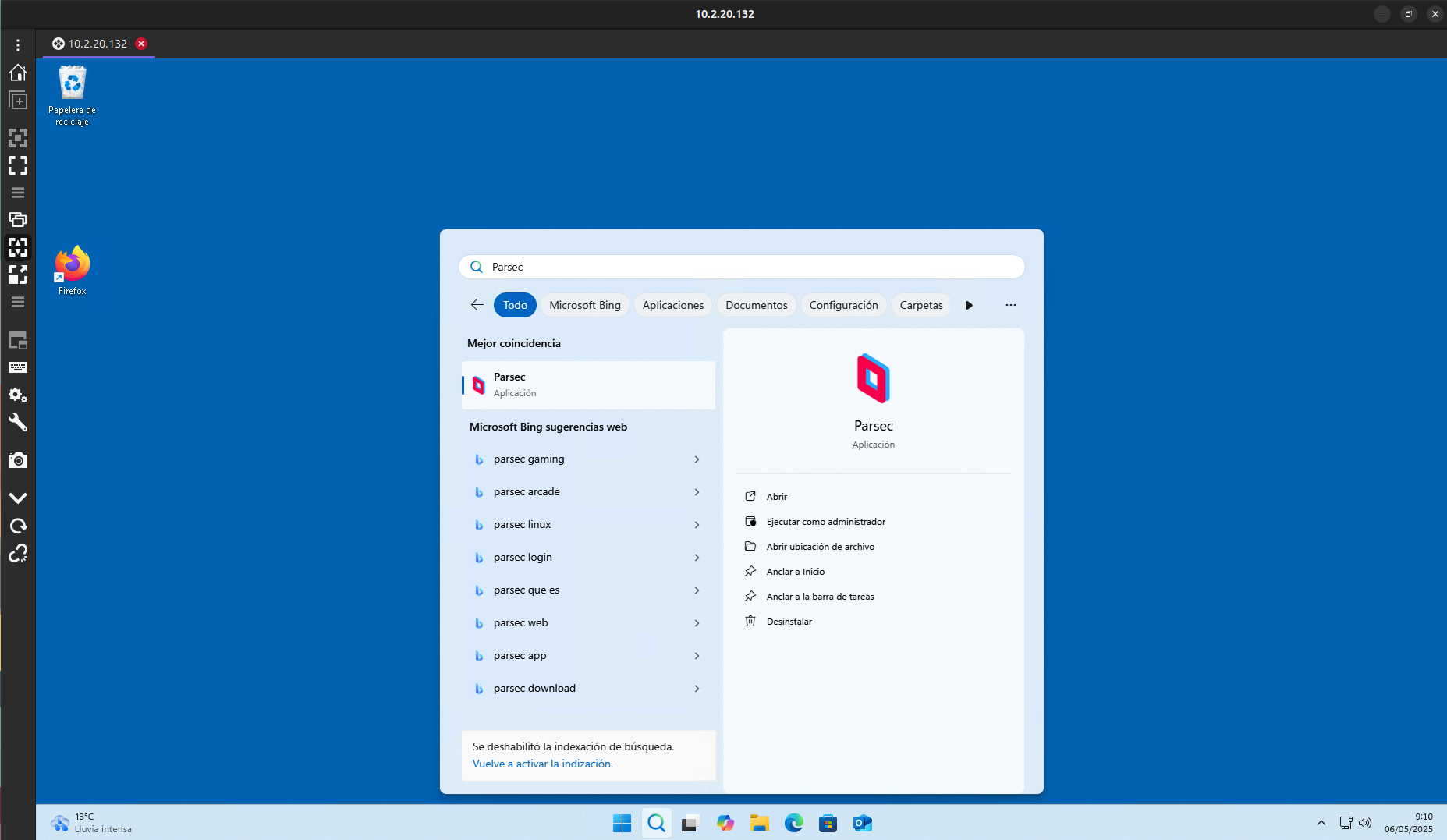
Open the program:
-
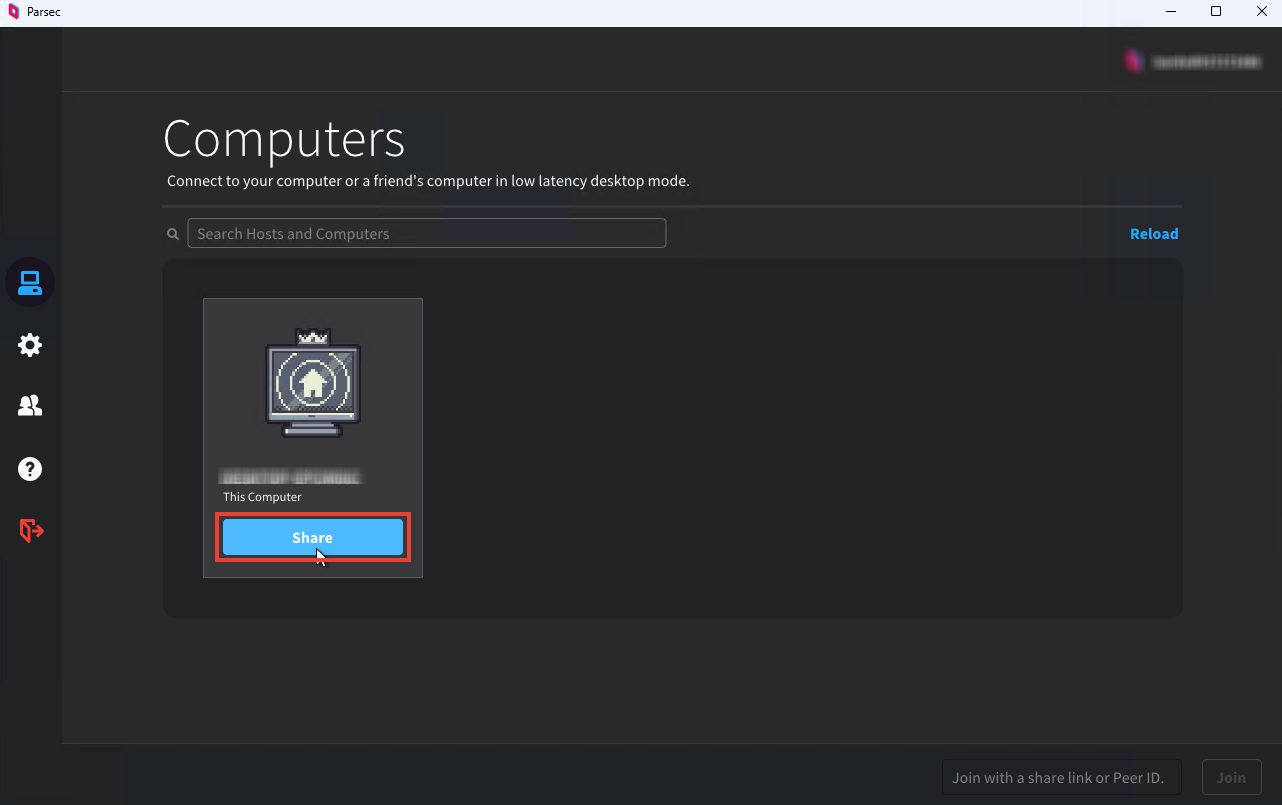
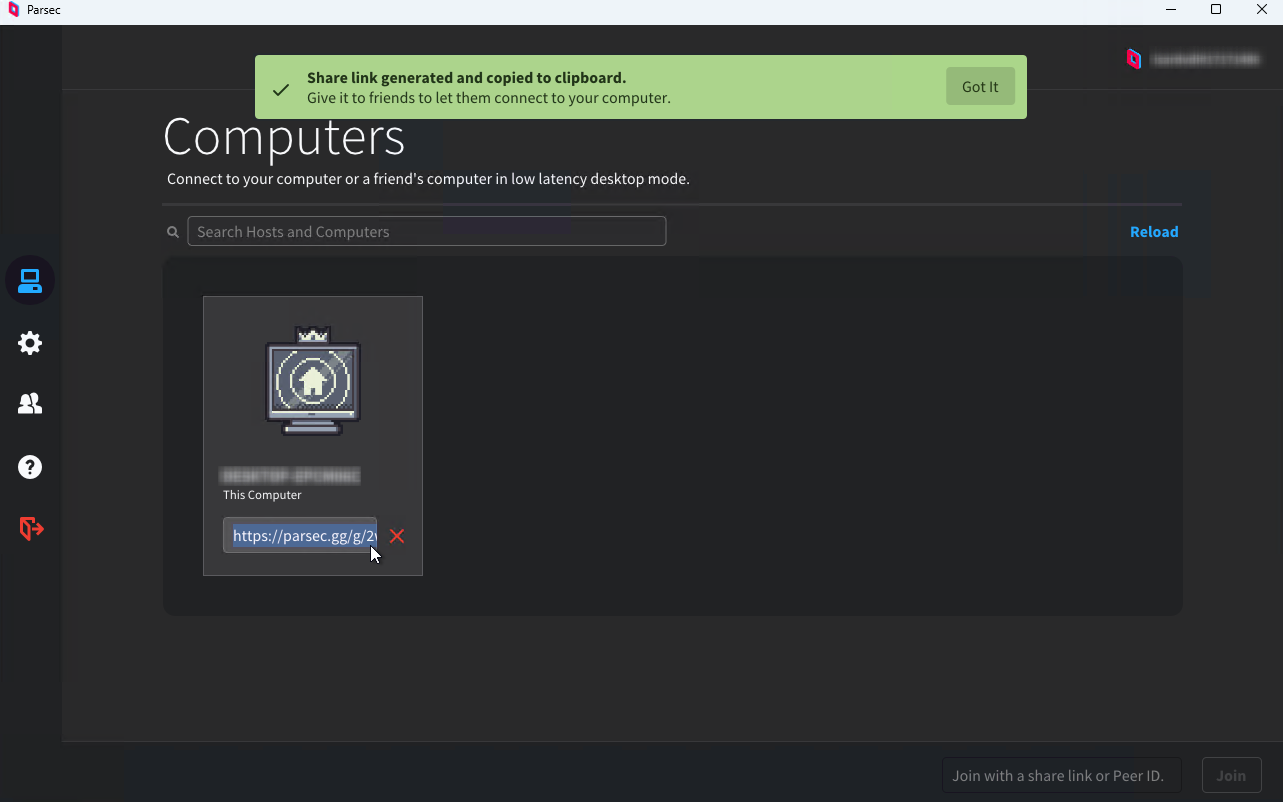
Click the Share button to share the remote view of the virtual machine with other devices.
-
A link is generated. Copy it to use it on the devices from which the virtual desktop is to be viewed.
-
-
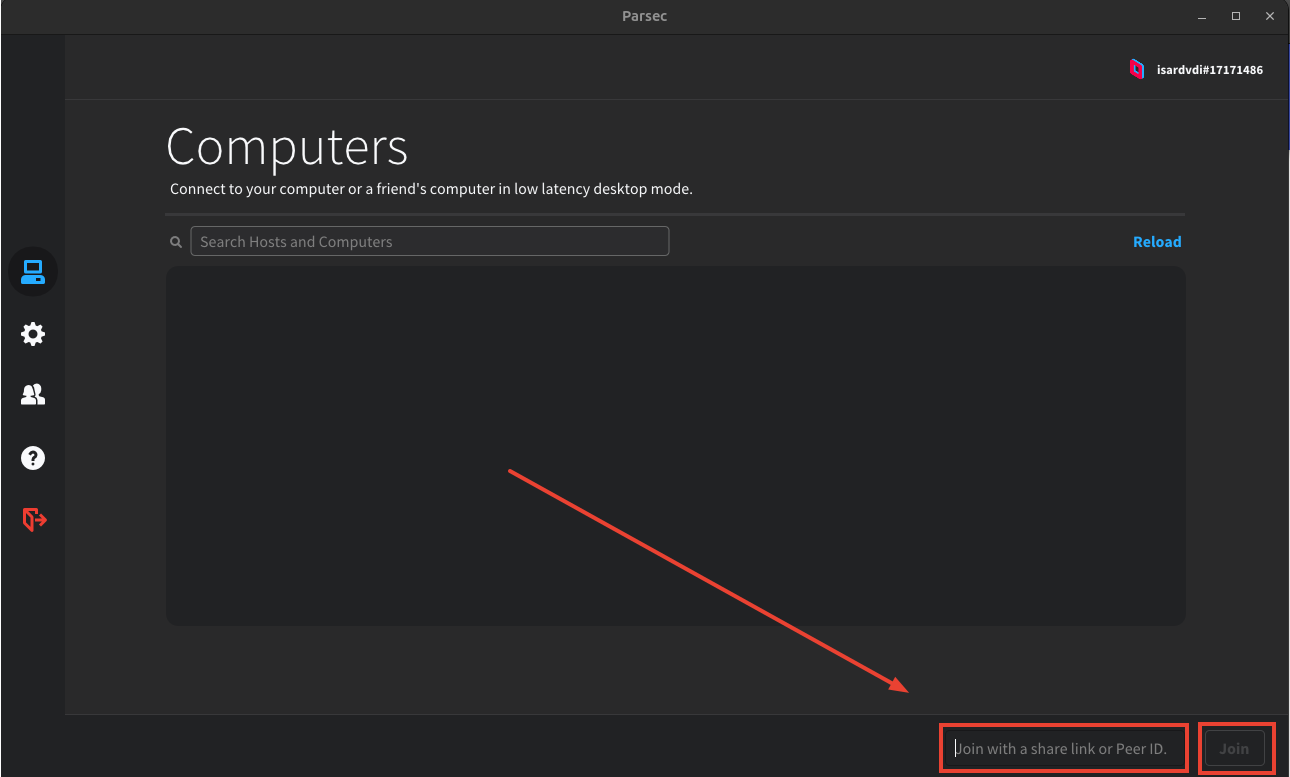
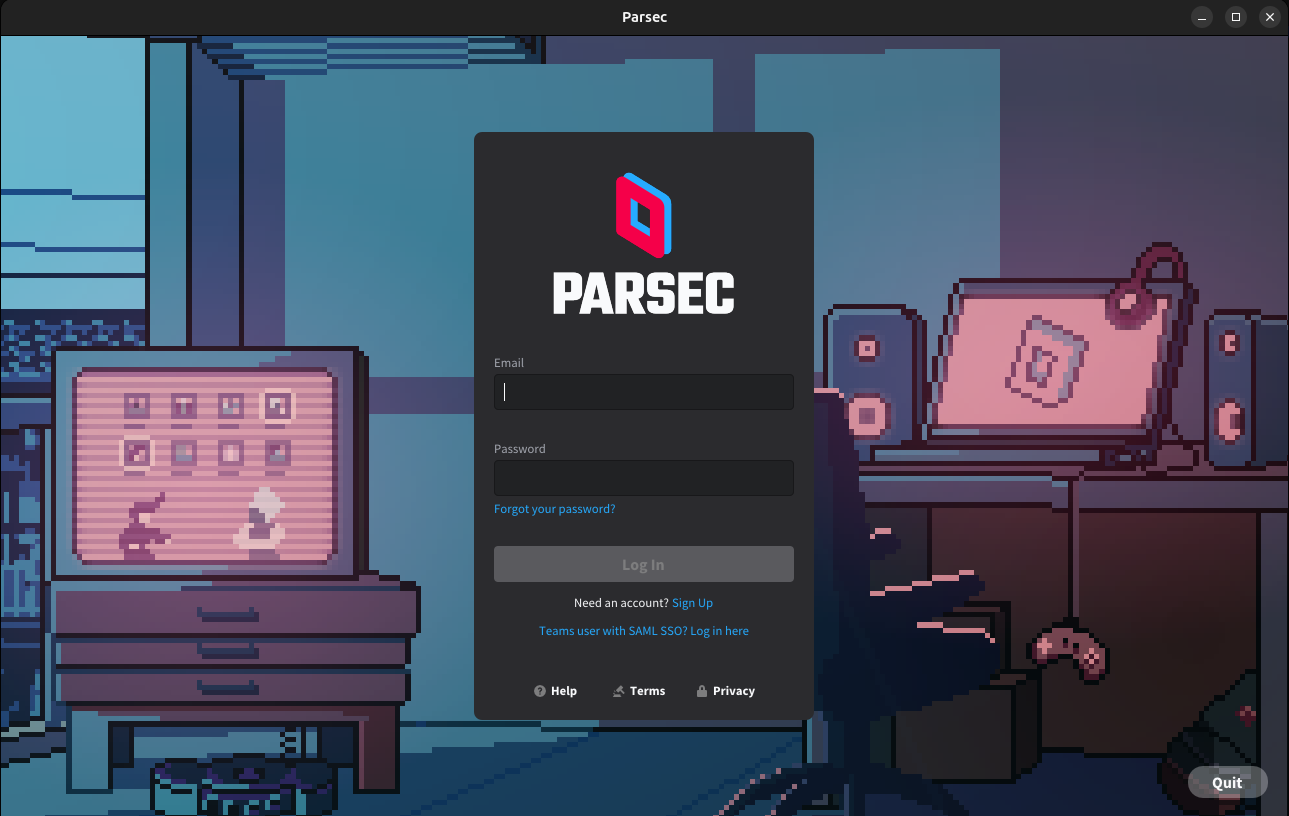
On the device from which the virtual desktop is to be used, install Parsec in the same way and sign in with the same account.
-
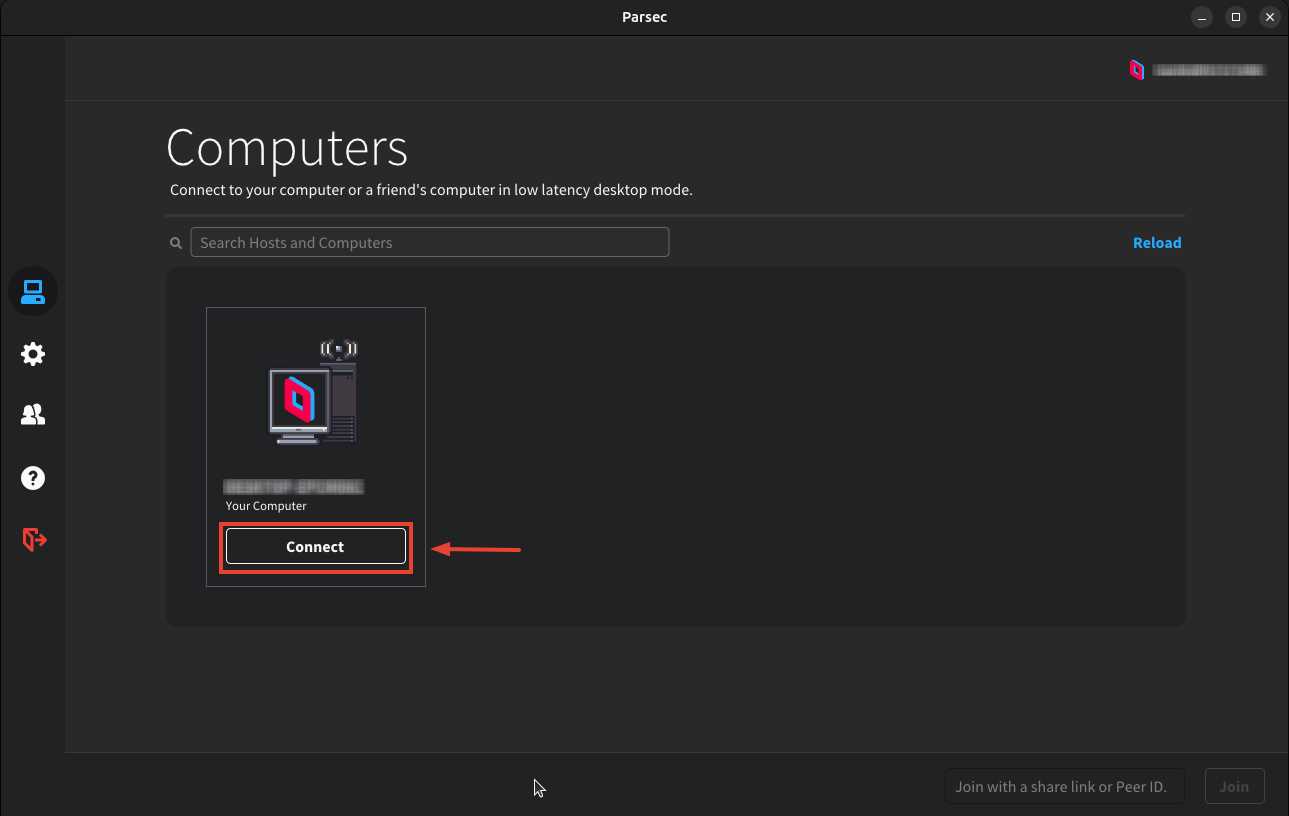
The desktops that share their remote connection appear.
-
If none appears, the link copied earlier can be used: