Recycle bin configuration
Roles with access
Only administrators have access to this page (Recycle Bin → Config). Managers do not see it, but they can set the recycle bin retention time for their category from the Recycle bin page, with the Automatic delete after dropdown. This value takes precedence over the global one for the users of the category.
To reach the configuration, click the configuration button of the Recycle Bin section: 
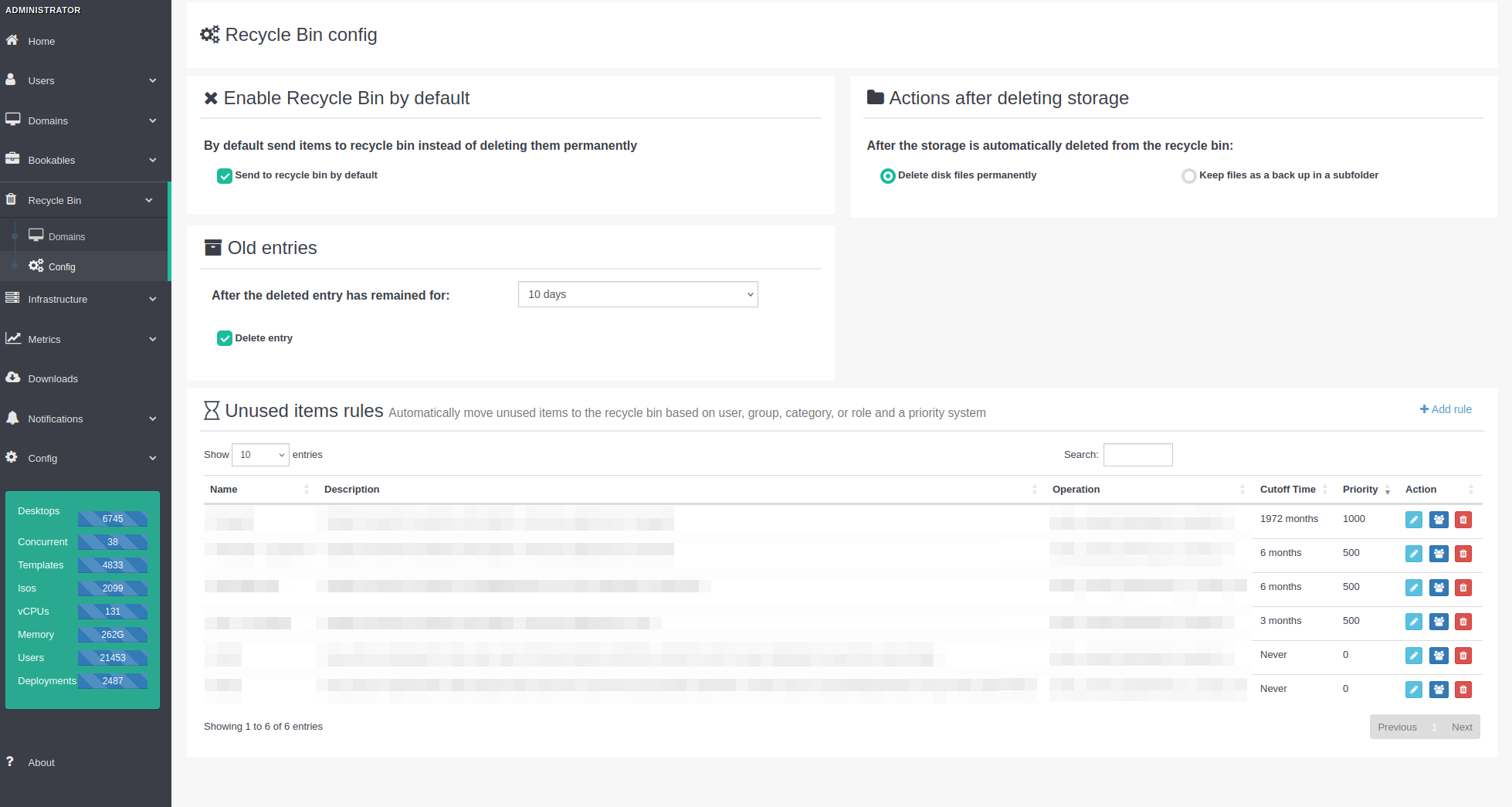
Send to the recycle bin by default
The Enable Recycle Bin by default block has the Send to recycle bin by default option. When it is enabled, deleting an item offers to send it to the recycle bin instead of deleting it permanently.

What the user sees:
- When deleting a desktop, the Send item to recycle bin checkbox is selected if the option is enabled, and cleared if it is not. The user can change it before confirming.
- If the retention time is 0 (Immediately), the checkbox does not appear and the deletion is permanent. Temporary desktops are also always deleted permanently.
- In their recycle bin, the user sees the notice «Items in the recycle bin are permanently deleted after remaining here for…» with the retention time that applies to them.
Retention time
The time an item stays in the recycle bin before being permanently deleted is not set on this page, but on the Recycle bin page, with Automatic delete after. The administrator sets the global value there, and each manager sets the value for their category.
Actions after deleting storage
The Actions after deleting storage block decides what is done with the disk files when the recycle bin deletes them automatically:
- Delete disk files permanently: they are deleted.
- Keep files as a back up in a subfolder: they are kept in a subfolder as a backup.
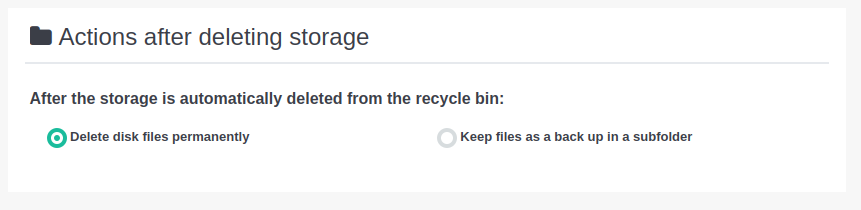
This option is also used by disk migrations with Source after copy: follow system setting.
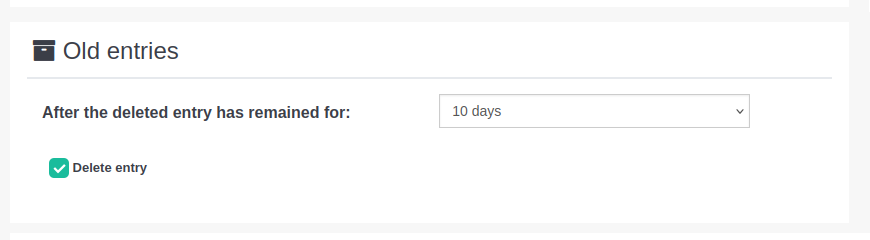
Old entries
The Old entries block sets how long the recycle bin entries that have already been permanently deleted or restored are kept (After the deleted entry has remained for dropdown) and whether they are deleted once that time has passed (Delete entry).
Rules for unused items
The Unused items rules block lets you create rules that automatically send unused items to the recycle bin, by user, group, category or role, with a priority system.
Each rule has an assigned operation that runs when the defined conditions are met.
To create a rule, click the Add rule  button. This form opens:
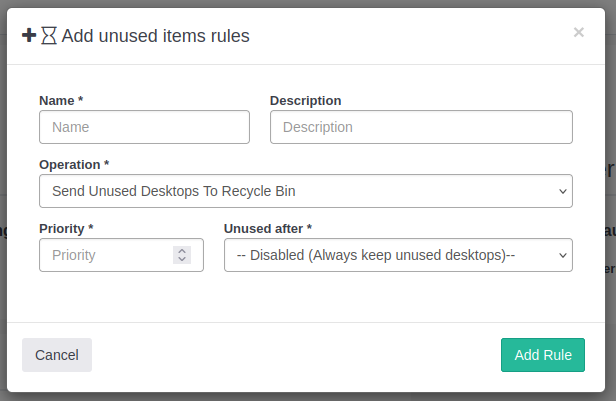
Enter a name, a description and the operation that runs when the condition is met.
The rule can be edited with the  icon, who it applies to can be changed with the
 button, and it can be deleted with the
 button.
Nightly disk sweep
The Storage sweep block enables an optional nightly pass over the disks that have a pending action (more information in the Storages with a pending action table in Storage). Each pass picks disks that are ready, within the configured limits, and queues the corresponding tasks.
| Field | Description |
|---|---|
| Run the sweep every night | Enables the sweep. While it is disabled, it is not scheduled. |
| Hour (0-23) and Minute (0-59) | Time of the sweep. 4:00 by default. |
| Max disks per pass (0 = no cap) | Maximum number of disks per pass. 50 by default. |
| Max GiB per pass (0 = no cap) | Maximum total size per pass. |
| Sparsify | Compacts the disks to free the space the guest operating system no longer uses. |
| Give back zeros | Frees only the blocks that contain nothing but zeros. The disk content does not change. |
| Repair leaks | Repairs space leaks (lost blocks) in the disk file. |
| Check integrity | Checks the integrity of the disks. |
| Count zeros | Reads the disks that have grown since the last read and counts the zeros that could be given back. |
| Repair the disks that stop a desktop | When a disk prevents a desktop from starting, runs the quick fixes right away and shows the user what is still pending. When disabled, the start fails as before. |
| Check disks unchecked for (days) | Checks again the disks that have not been checked for more than this number of days. 30 by default. |
Click Save sweep settings to save the changes. The sweep can also be launched by hand with Run sweep now, in Storage.
Costly repairs
The Costly disk repairs block decides who can run a full repair, give back the zeros or compact the disk of their own desktop. Administrators can always do it; nobody else can until they are allowed here, with the Allowed users button (roles, categories, groups or users).
The quick fixes, when a disk prevents a desktop from starting, only run if the Repair the disks that stop a desktop option of the sweep is enabled.
What the user sees: when a desktop does not start because of a disk problem, the user sees a window with the problems found and the fixes they can request. Costly repairs only appear if they are authorized in this block (more information in Storage).