Export user data
This section describes how to generate the migration code (token) that exports the user's data. Generating the code is the first step of the user migration; the complete process, what is transferred and what is not, and the import into the destination account are described in User migration.
Depends on the administration settings
Export is enabled per authentication provider in Authentication. The administration can also force the migration of some users and define exceptions in Migration exemption.
Roles with access
- Access to the section: any user.
Video: page walkthrough
The Export user button in the profile opens this same screen of the new interface.
This feature is within another screen; it does not have its own entry in the side menu.
Generate migration code
- In the profile, click Export user.
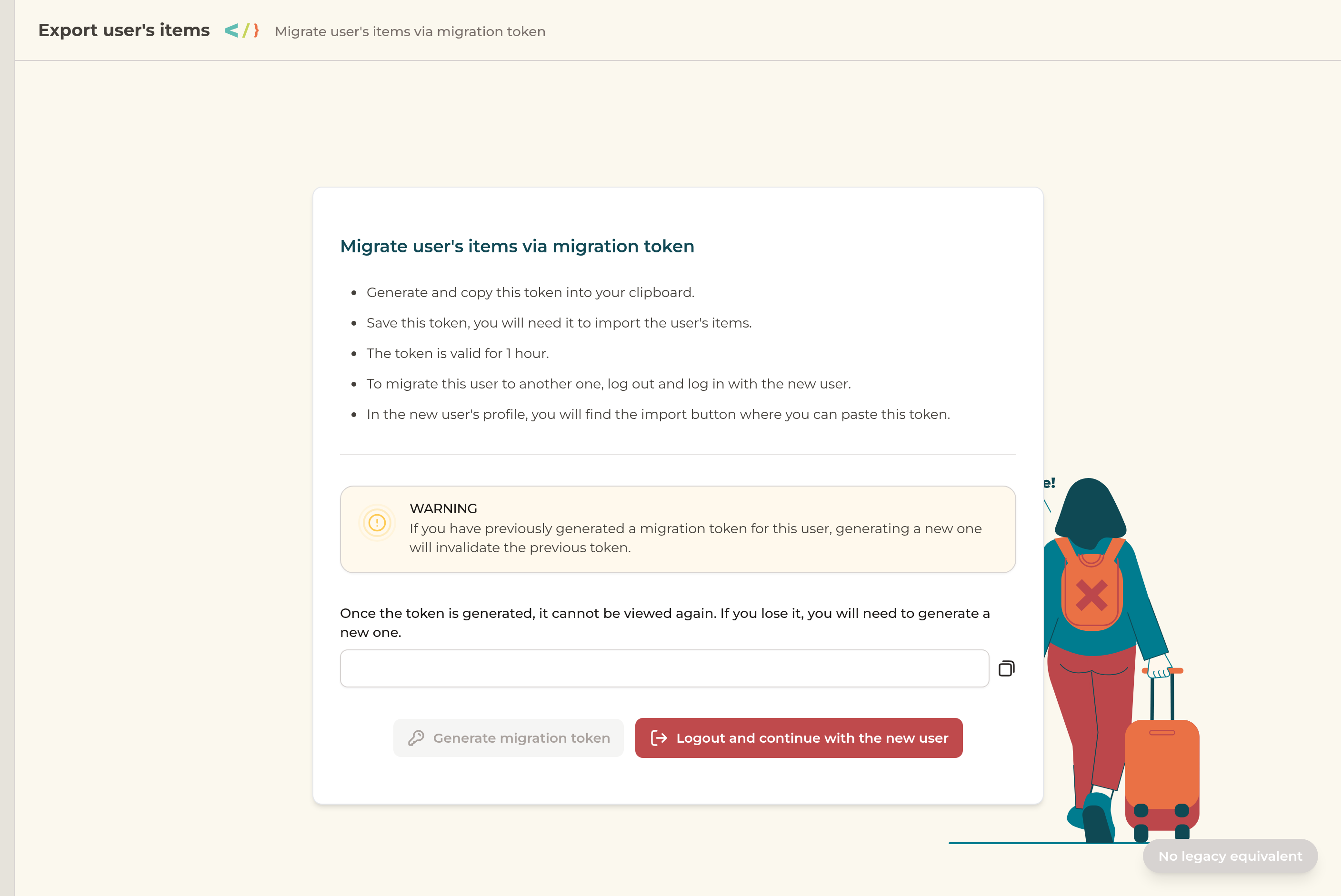
- The export screen of the new interface opens; follow the steps of the New interface tab.
The migration code (token) is always issued for the user's own account (the source account): no other user is chosen. The code identifies the user's data to transfer it to another IsardVDI account.
- In the profile, within Migrations, click Export User. This button only appears if the authentication provider has export enabled.
- Read the WARNING notice and click Generate migration token. While it is processed, the button is disabled and a loading indicator is shown.
- Copy the code with the copy icon (the field is read-only) and save it: it cannot be viewed again.
- Log out with Logout and continue with the new user and log in with the destination account to import it (see User migration).
One active code and single screen use
Once the code is generated, the generate button is disabled on the same screen. If a new one is generated later, the previous one becomes invalid. The code is valid for 1 hour.
Conditions and messages
- Export enabled per provider: if the user's provider does not have it enabled, the button does not appear in the profile and, if the screen is opened directly, the system responds with a 403 error when generating the code (
migration_export_disabledin the API). - The code can only be generated if the account has at least one desktop, template, media, or deployment; otherwise, the system responds that there are no available elements to migrate (
migration_no_items_available). - If the user no longer exists, the API responds
not_found; if the authentication service cannot be contacted, an internal error occurs (generic-error). - Any error when generating the code is displayed in a red notice with the title «Error». If the error code has no specific text, «The migration token could not be generated. Please try again.» is displayed.
- If the administration has forced the migration (the system goes straight to this screen at login), the export does not depend on the per-provider setting and the log out button is always visible.
- In a voluntary export, the log out button appears once the code is generated (or from the start if the screen was reached from the old interface profile).
Development details
For those who develop or integrate IsardVDI: where each element of this section is in the code, from which version it is available, which API operation it calls, and what messages it may return.
- New interface · file
components/export-user/ExportUserContent.vue:154· interface text (translation key)views.export-user.generate-token- since v17.0.0 (2026-07-07,
71a0f46c5d) - on click:
handleGenerate - call:
PUT /api/v4/item/user-migration/export-user — Generate a JWT token to export user data for migration purposes.
- since v17.0.0 (2026-07-07,
- New interface · file
components/export-user/ExportUserContent.vue:172· interface text (translation key)views.export-user.logout-tooltip- since v17.0.0 (2026-07-07,
71a0f46c5d) - on click:
handleLogout
- since v17.0.0 (2026-07-07,
Commit code fe99ad98.
States and messages
| State | What is shown | What to do |
|---|---|---|
| Generating the code | The generate button is disabled and a loading indicator is shown | Wait for it to finish |
| Code generated | The code in a read-only field with the copy icon and the warning «Once the token is generated, it cannot be viewed again. If you lose it, you will need to generate a new one.» | Copy and save it; then click Logout and continue with the new user and log in with the destination account |
| Log out button disabled | Hint «Generate and copy the token before logging out to continue with the migration» | Generate and copy the code first |
| Generation error | Red «Error» warning with «The migration token could not be generated. Please try again.» (or the specific error text) | Try again; if it persists, notify the administration |
When this option is not available
The administration can disable user export for each authentication provider (see Authentication). If it is disabled, the button does not appear in the profile and, if the page is opened directly, the system rejects the code generation.