Windows Server 2025 Core Installation Guide
Preinstallation
-
Download the Windows Server 2025 ISO image and upload it to Media (see Media).
-
In Media, click Create new desktop on the ISO and fill in the form with this configuration; then click Create desktop:
- Viewers: SPICE
- vCPUs: 4
- Memory (GB): 8
- Videos: Default
- Boot: CD/DVD
- Disk bus: Default
- Disk Size (GB): 100
- Networks: Intel PRO/1000 isolated
- Operating system template: Microsoft windows 10 with Virtio devices UEFI (if it is not available, Microsoft windows 10 with Virtio devices)
-
Edit the desktop and, in the Media section, add the following media:
- virtio-win-X (VirtIO drivers)
It is recommended to always download the latest stable version of the VirtIO drivers.
Installation
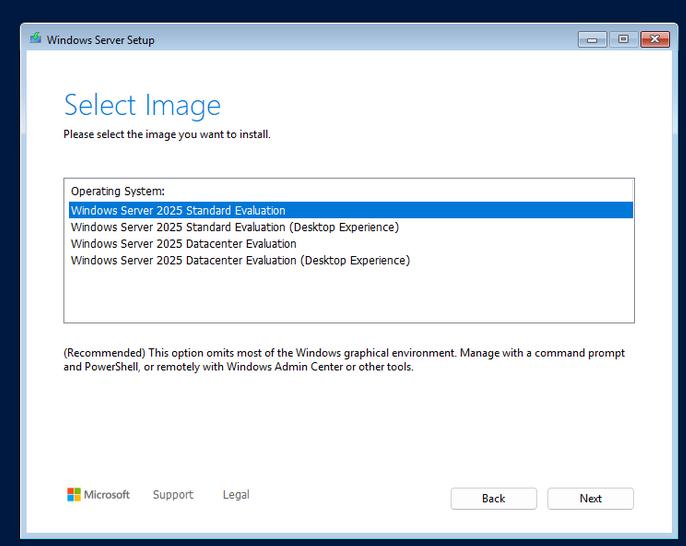
The installation process is equivalent to that of Windows Server with a graphical interface, except that the Core version is selected.
-
Start the installation and select the Windows Server 2025 Standard Evaluation version.
-
Continue with the installation by following the usual steps until the process is complete.
-
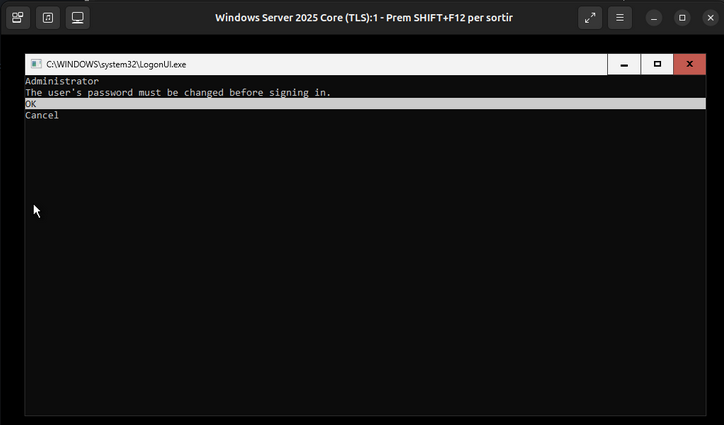
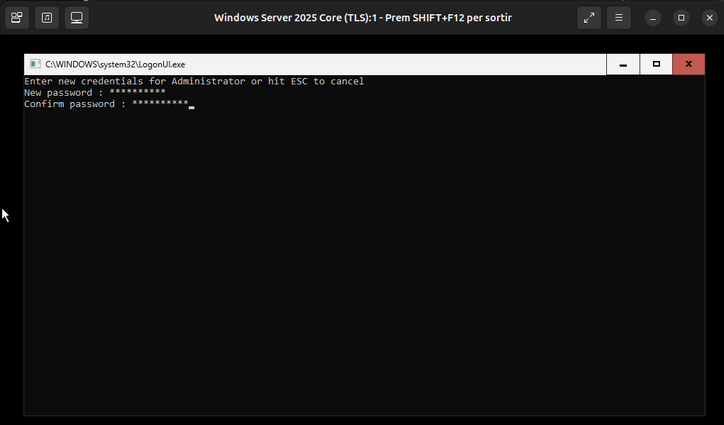
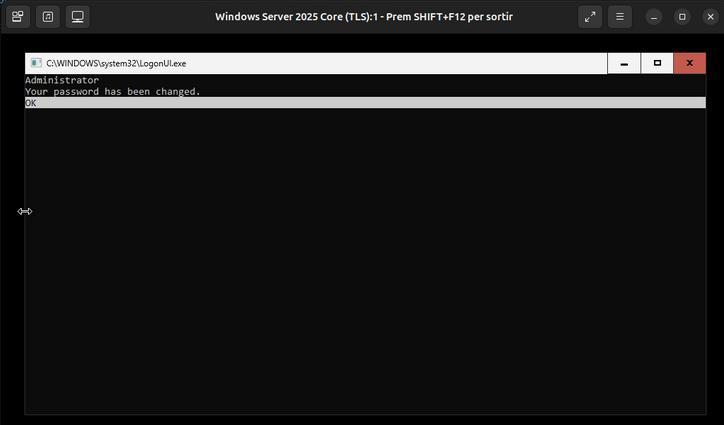
When prompted for the Administrator user's password, enter:
- Password:
<password>
- Password:
Initial configuration
Once the installation is complete:
-
Stop the desktop and edit it without changing the Disk bus:
- Change Boot to Hard Disk.
- Remove the installation ISO from Media.
- The RDP viewers are not needed. To access it via RDP (see the «Remote desktop (optional)» section), select them in Viewers; they require the Wireguard VPN network, and without this network the configuration cannot be saved.
-
Start the desktop and access it by pressing Ctrl+Alt+Del.
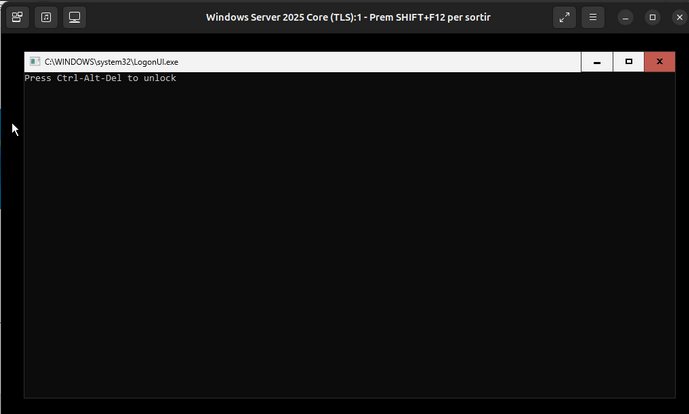
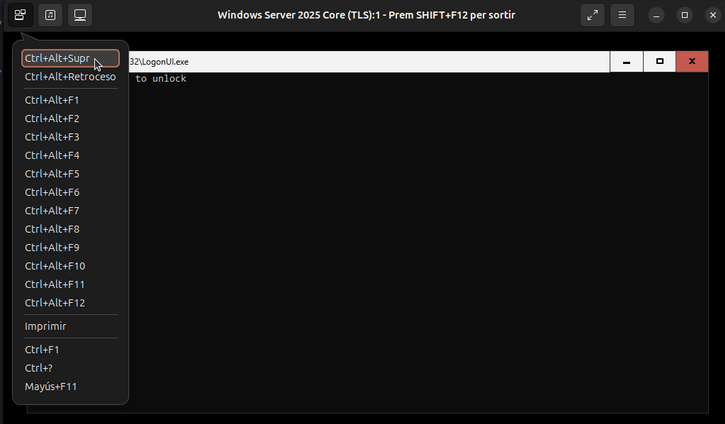
-
Enter the password configured previously.
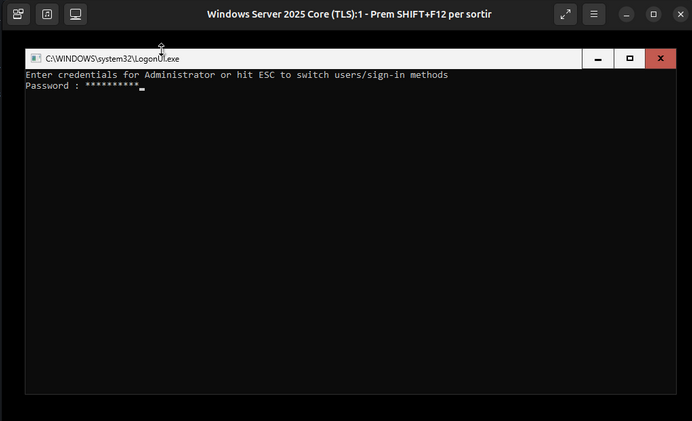
-
The initial wizard (OOBE) is shown in console mode. Select:
- Option 1: minimal configuration (only required options).
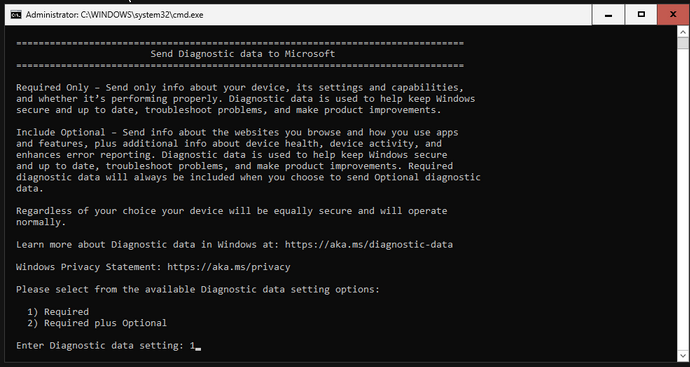
-
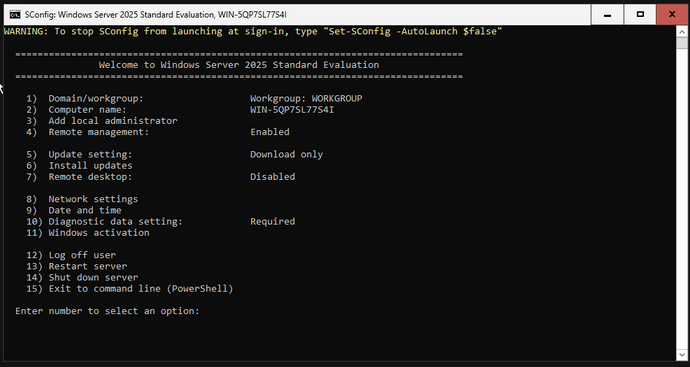
Once the wizard is finished, the Windows Server Core configuration menu appears.
Installing VirtIO Guest Tools
VirtIO Guest Tools provide the drivers and services required for Windows to fully utilize the virtual hardware provided by KVM/QEMU.
Installing them improves disk and network performance, enables communication with the hypervisor, and adds features such as dynamic memory management and SPICE integration.
Available components
| Component | Function | When to install | Manual installation |
|---|---|---|---|
VirtIO SCSI Driver (vioscsi) |
Driver for VirtIO SCSI disks. | Recommended when the disk uses VirtIO SCSI. | pnputil /add-driver D:\vioscsi\2k25\amd64\vioscsi.inf /install |
VirtIO Block Driver (viostor) |
Driver for VirtIO Block disks. | Only on machines that use this type of driver. | pnputil /add-driver D:\viostor\2k25\amd64\viostor.inf /install |
VirtIO Network Driver (NetKVM) |
Driver for the VirtIO network card. | Recommended whenever the network is of VirtIO type. | pnputil /add-driver D:\NetKVM\2k25\amd64\netkvm.inf /install |
| Balloon Driver | Allows dynamic management of the virtual machine's memory. | Recommended. | pnputil /add-driver D:\Balloon\2k25\amd64\balloon.inf /install |
VirtIO Serial Driver (vioserial) |
Communication channel between the hypervisor and the guest operating system. | Recommended. | pnputil /add-driver D:\vioserial\2k25\amd64\vioser.inf /install |
| QEMU Guest Agent | Allows the hypervisor to obtain information from the virtual machine, perform graceful shutdowns, and take consistent snapshots. | Highly recommended. | D:\guest-agent\qemu-ga-x86_64.msi /quiet (the path may vary depending on the ISO version) |
| Pvpanic Driver | Notifies the hypervisor when Windows experiences a BSOD or critical error. | Recommended. | pnputil /add-driver D:\pvpanic\2k25\amd64\pvpanic.inf /install |
VirtIO RNG Driver (viorng) |
Provides an entropy source for cryptographic operations. | Recommended. | pnputil /add-driver D:\viorng\2k25\amd64\viorng.inf /install |
VirtIO GPU Driver (viogpu) |
Driver for VirtIO-GPU graphics devices. | Only if the machine uses VirtIO-GPU. | pnputil /add-driver D:\viogpu\2k25\amd64\viogpu.inf /install |
| SPICE Guest Tools | Improves integration with the SPICE viewer (shared clipboard, dynamic resolution, cursor synchronization, etc.). | Only if the virtual machine will be used with SPICE. | D:\spice-guest-tools.exe |
Automatic installation
-
From the Windows Server Core main menu:
-
Select option 15) to open a PowerShell console.
-
Run the following command:
To perform an unattended installation:
Once the installation is complete, it is recommended to restart the system.
Manual installation
If only some drivers are to be installed, they can be added manually with pnputil.
For example, to install the network driver:
To install all available drivers from the ISO:
Recommended components
For a Windows Server 2025 virtual machine with the standard IsardVDI configuration, it is recommended to install:
- VirtIO SCSI Driver
- VirtIO Network Driver
Additionally:
- Install the VirtIO GPU Driver only when the graphics device is VirtIO-GPU.
- Do not install the VirtIO Block Driver when the disks use VirtIO SCSI.
Additional configurations
Remote Desktop (optional)
If you want to enable access via RDP:
-
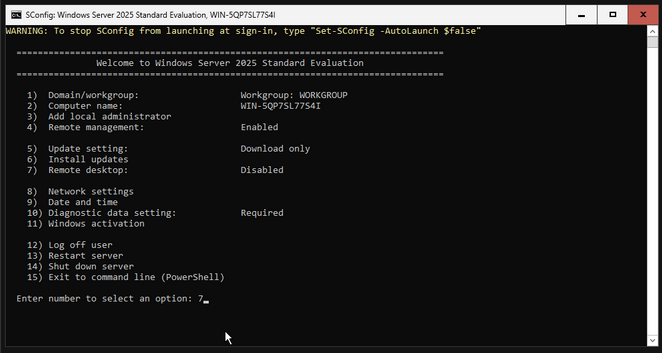
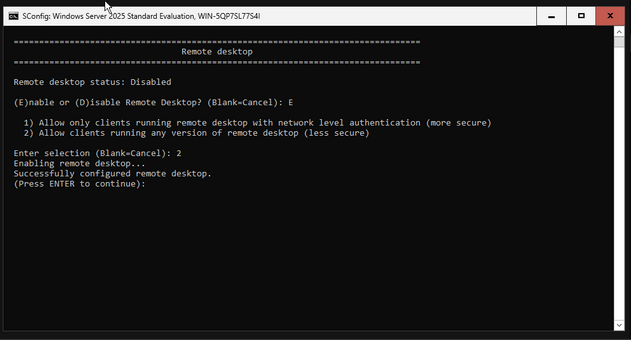
In the main menu, select option 7 (Remote Desktop).
-
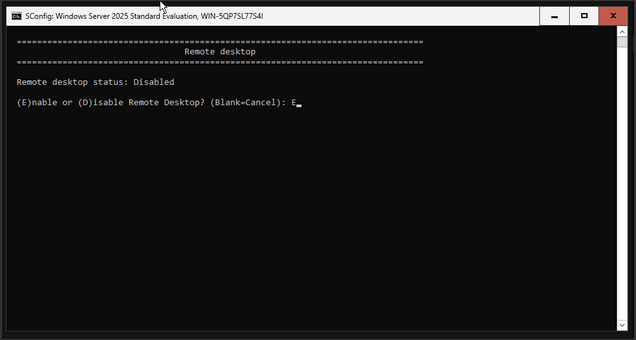
Press E to enable Remote Desktop.
-
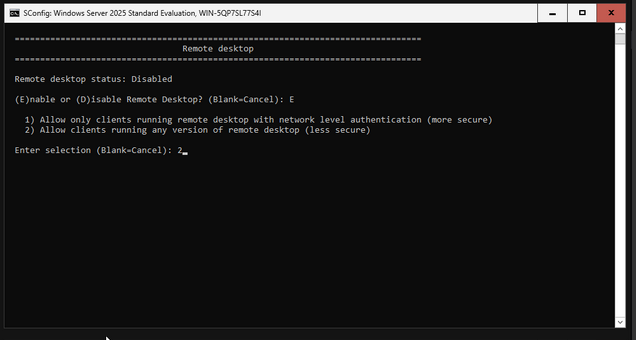
Select option 2 to disable Network Level Authentication (NLA).
Updates
In some cases, Windows Server Core may return errors while searching for updates.
Before starting the update process, it is recommended to verify that the virtual machine has network connectivity and DNS resolution.