Bookables
Roles with access
Only administrators see the Bookables menu (Priority, Resources and Events). Managers have no access to it; GPU planning for managers with permission is done from GPU planning.
Priority
In Bookables → Priority (Priority definitions) you define the priority rules that set the order of preference and the limits of GPU bookings.
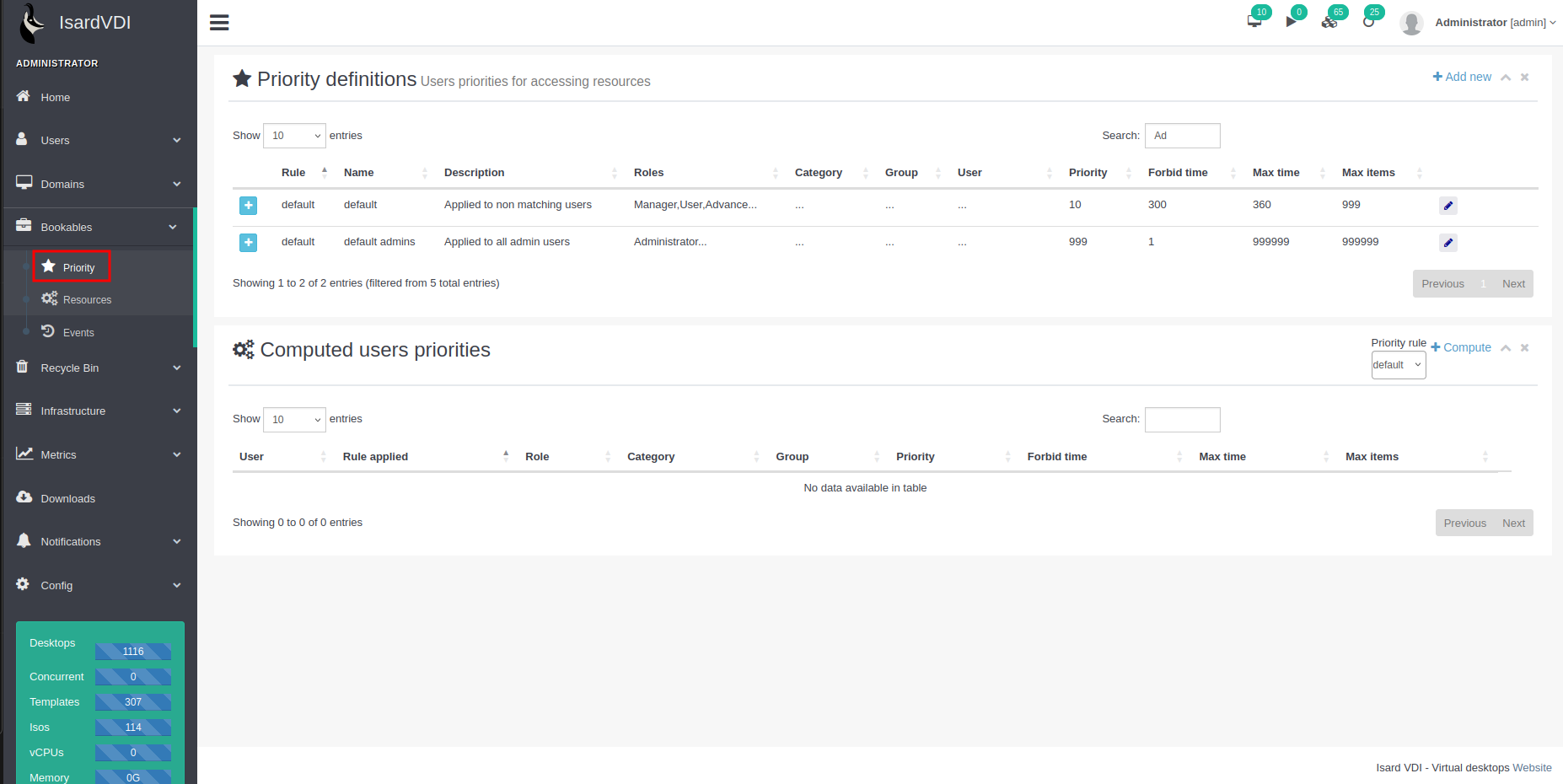
Defining priorities
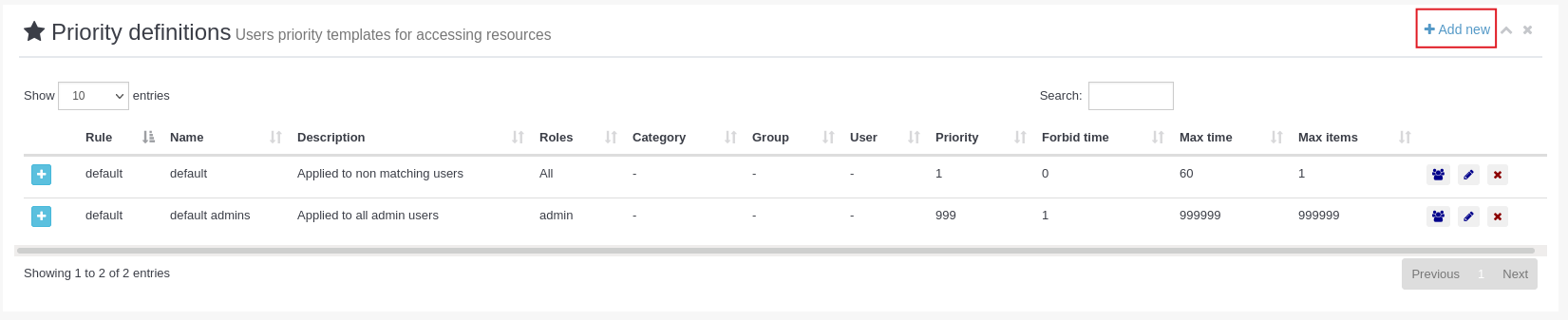
To add a new priority, click the  button, as shown in the following image:
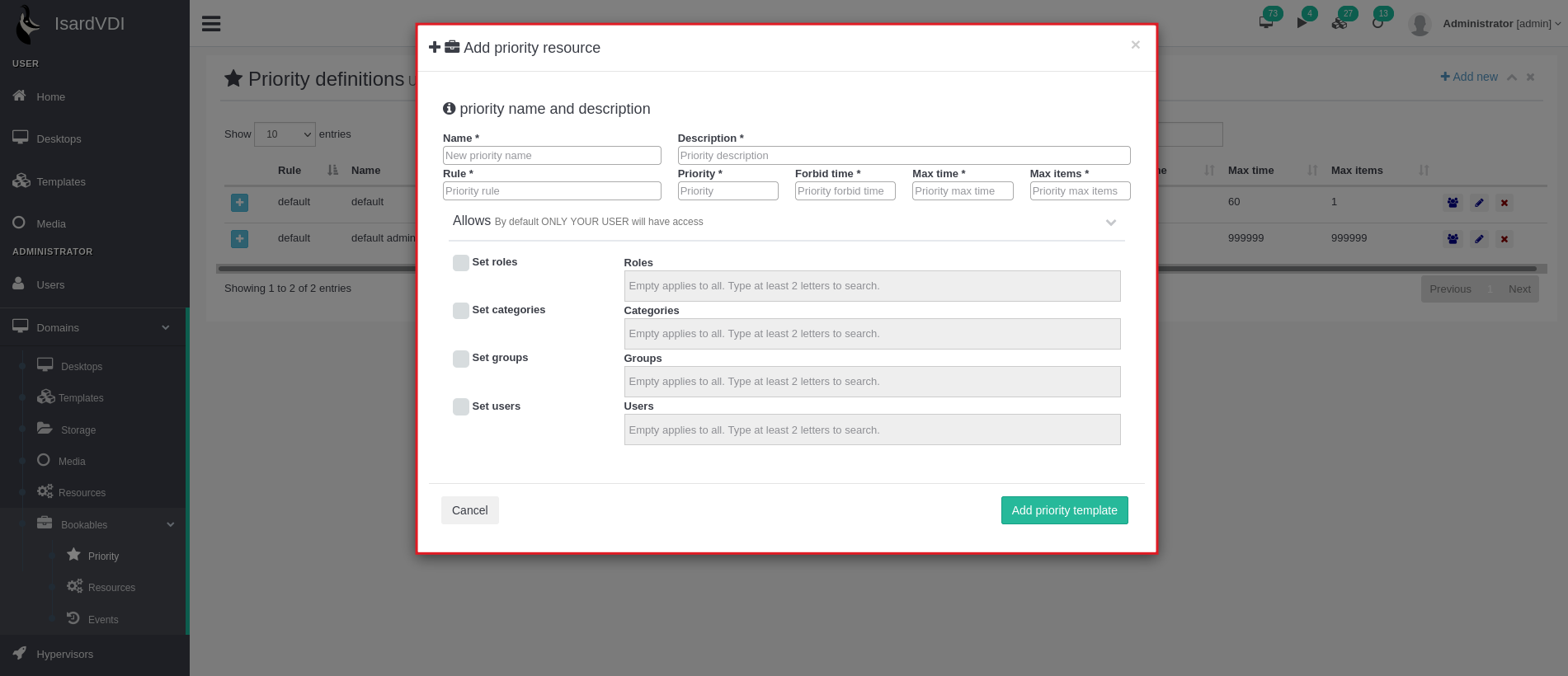
A dialog appears where you can create the rule, and share it with roles, categories, groups or users.
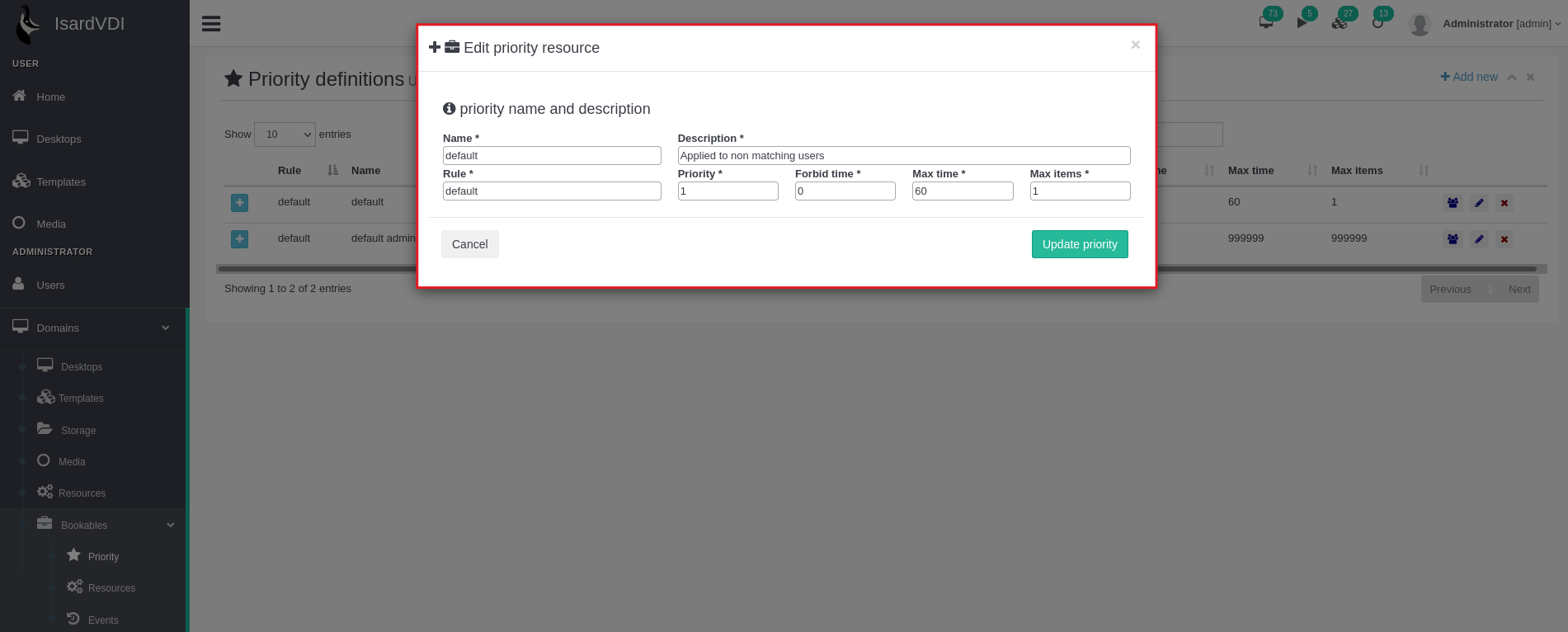
Rule configuration fields:
-
Name: Name of the priority rule.
-
Description: Description to identify the priority.
-
Rule: Additional parameter to identify the rule. Unlike the name, this field must stay consistent for equivalent rules. By default, the value is default, and all related new rules must contain this same name in the Rule field.
-
Priority: Numeric value that defines the priority. The higher the value, the higher the priority; the lower the value, the lower the priority.
-
Forbid time: Advance time, in minutes. In the calendar, a booking must start at least this many minutes after the current time; for example, with 30 minutes, at 17:00 the earliest possible booking starts at 17:30. The user sees it as «Advance time needed» and, if the booking does not meet it, gets the message «You need more advance time in order to create the booking».
-
Max time: Maximum duration of a GPU booking, in minutes. If a booking is longer, the user gets the message «You can't create a reservation for that long».
Important
These two parameters also decide whether a user can start a GPU desktop without a prior booking, when the GPU is planned at that moment:
- The desktop starts with an automatic booking that lasts the minimum of Forbid time, Max time and the time left in the plan, up to a maximum of 12 hours. If the result is less than 30 minutes, the desktop cannot be started without a booking.
- If Forbid time is less than 30 minutes, non-administrator users cannot start the desktop without a booking and see the «Not enough advanced time» warning, with the Book desktop button.
- Administrators do not have this limit: the automatic booking lasts the minimum of Max time and the plan time left (also with the 12-hour maximum) and with the same 30-minute minimum: if the result is lower, the desktop cannot be started without a booking either.
Each booking must last at least 5 minutes.
-
Max items: Maximum number of future bookings (not yet started) that each user the rule applies to can have. When the limit is reached, no more can be created until one starts or is deleted. The user sees it as «Maximum bookings».
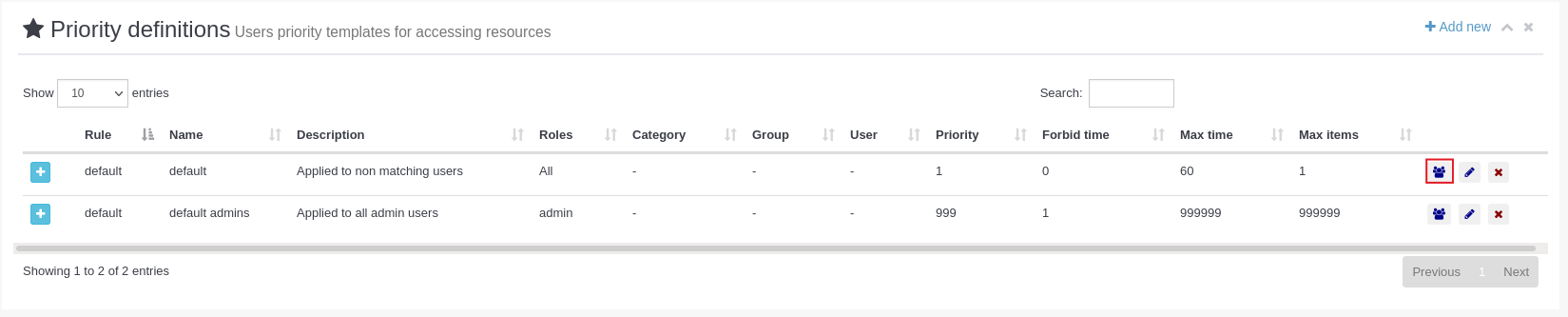
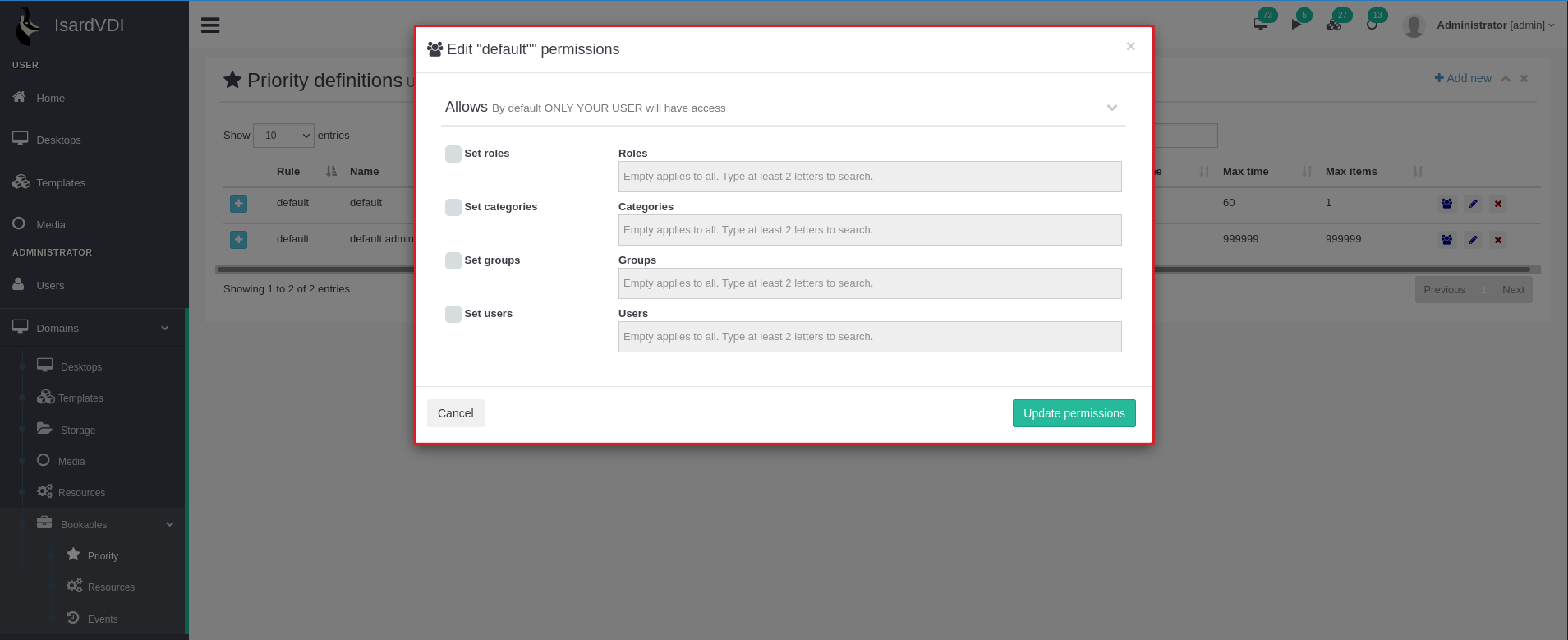
To share a priority with a role, category, group or user, click the  icon
And fill in the form:
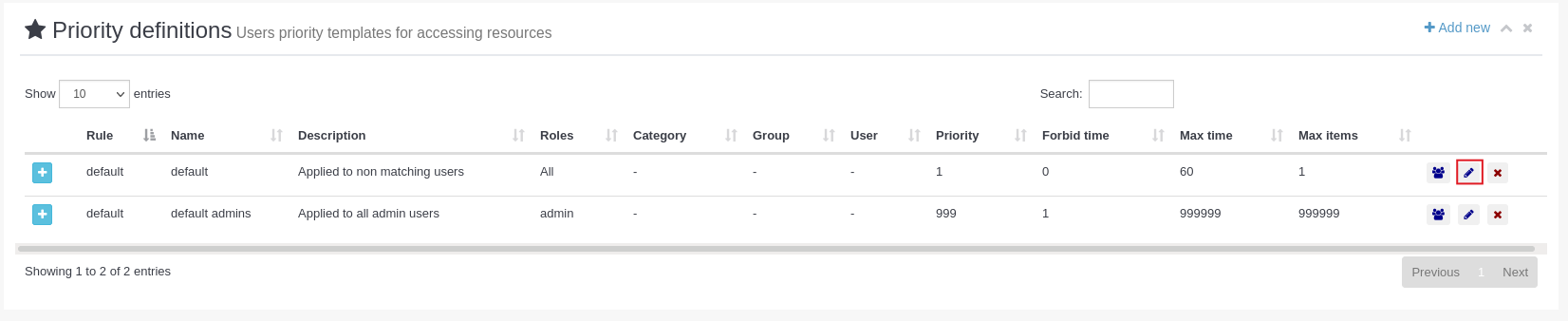
To edit a priority, click the  icon
A dialog appears where you can edit the fields:
Priorities assigned to users
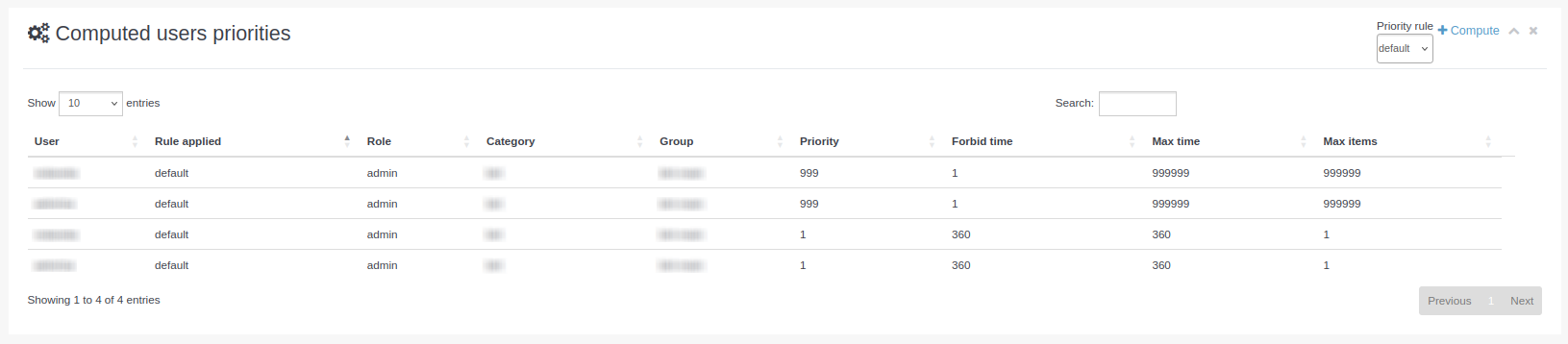
In Computed users priorities, choose a rule in the Priority rule drop-down and click Compute. The table shows the users it applies to, with the applied rule, the role, the category, the group and the resulting Priority, Forbid time, Max time and Max items values.
Resources
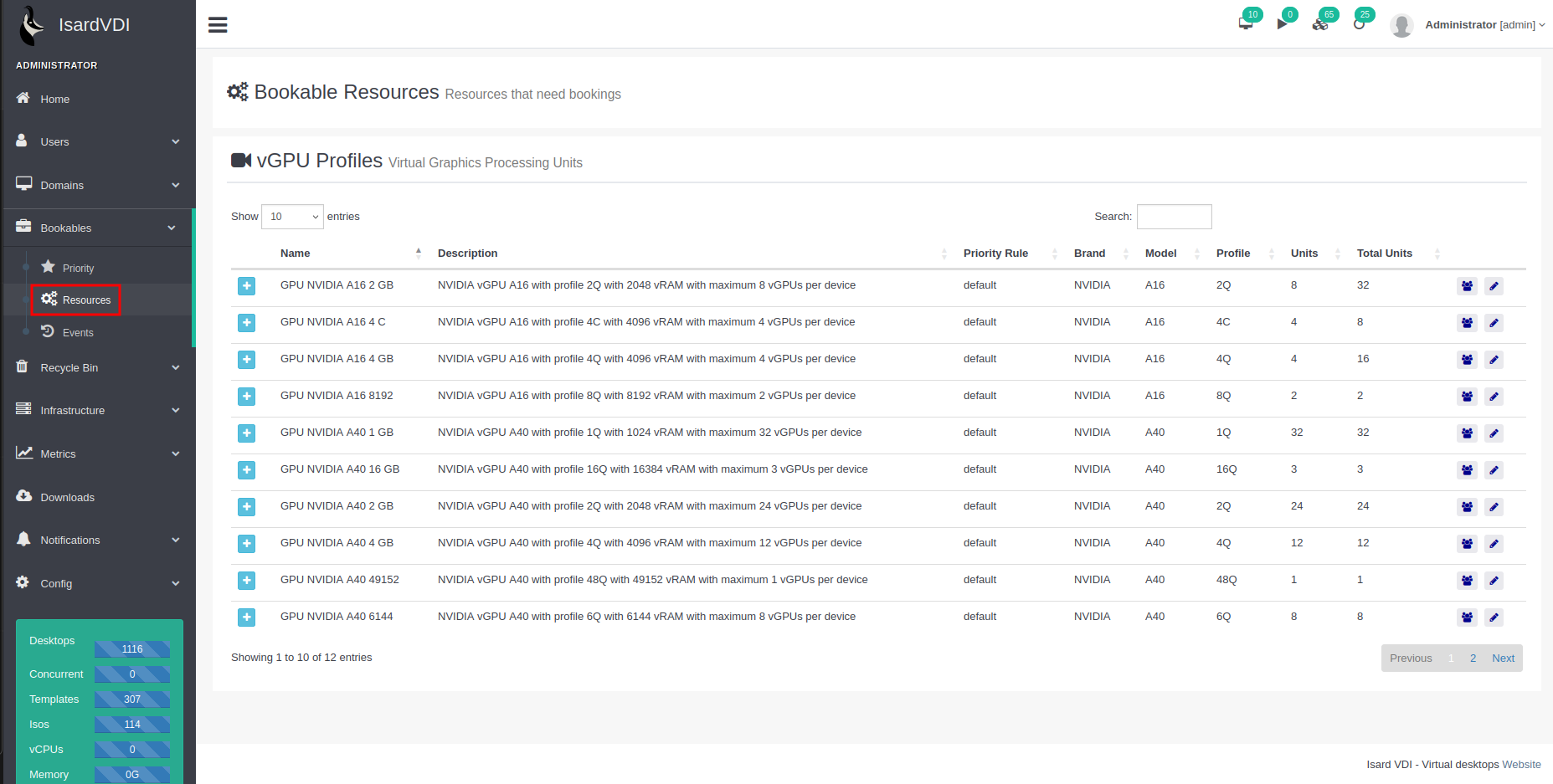
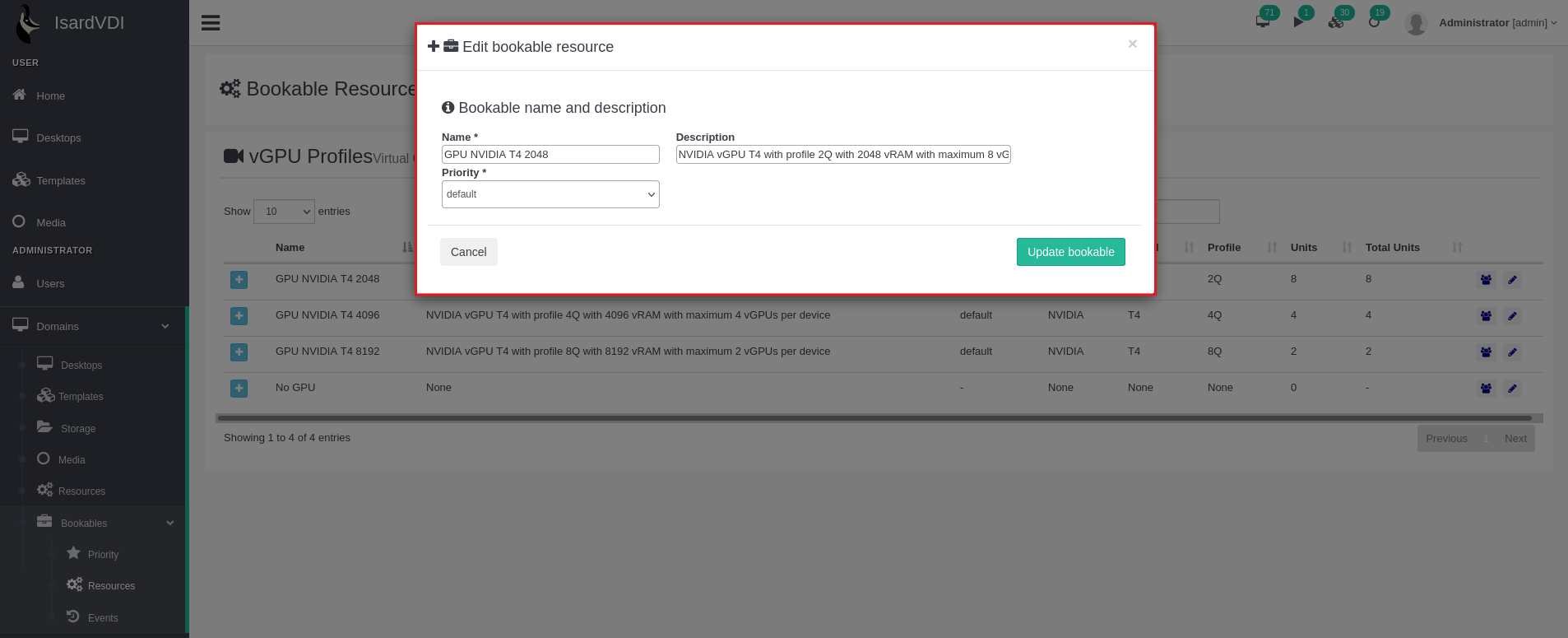
In Bookables → Resources (Bookable Resources), the vGPU Profiles table shows all the GPU profiles enabled in GPU.
When editing a resource, you can apply the priorities or rules created in the previous section to each GPU.
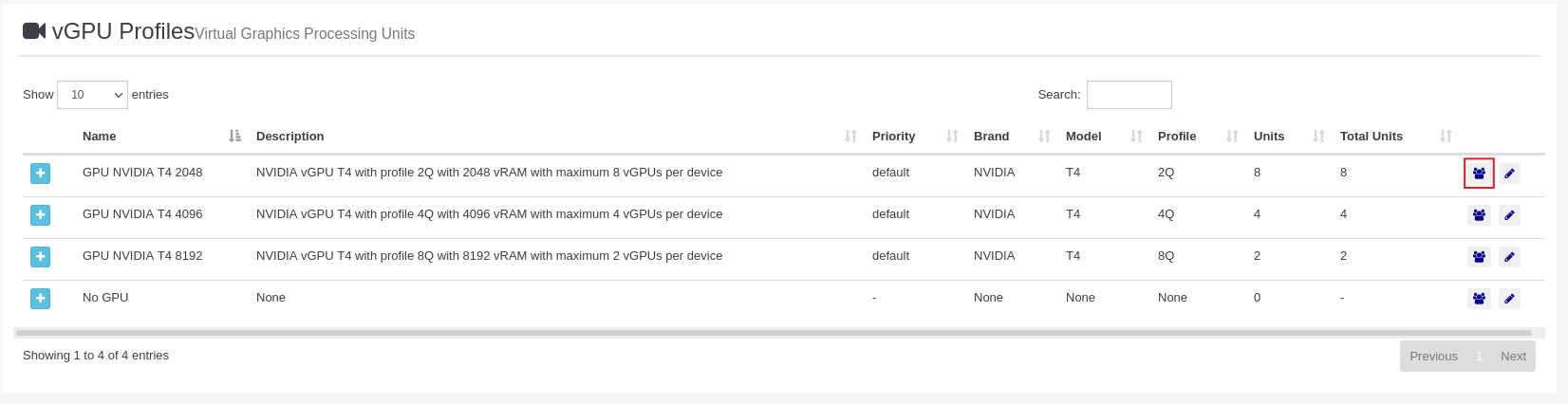
To share a resource, click the icon
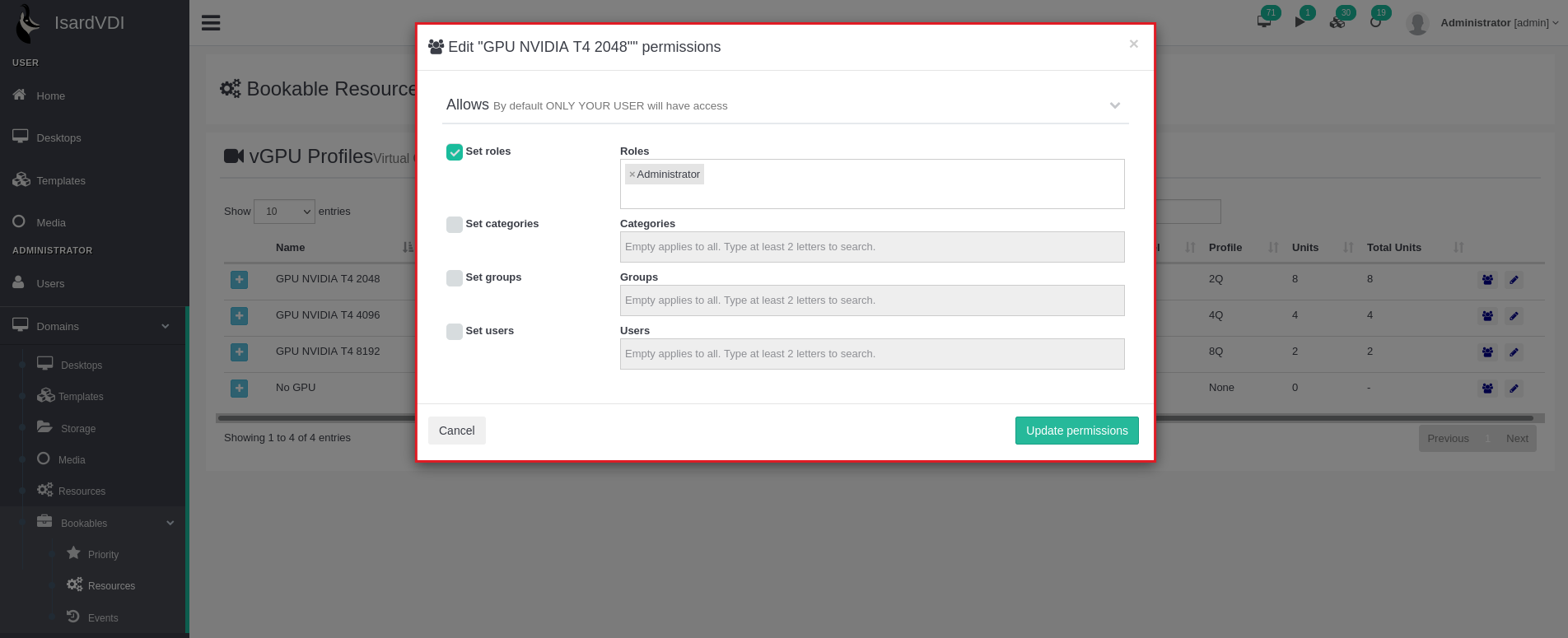
And fill in the form:
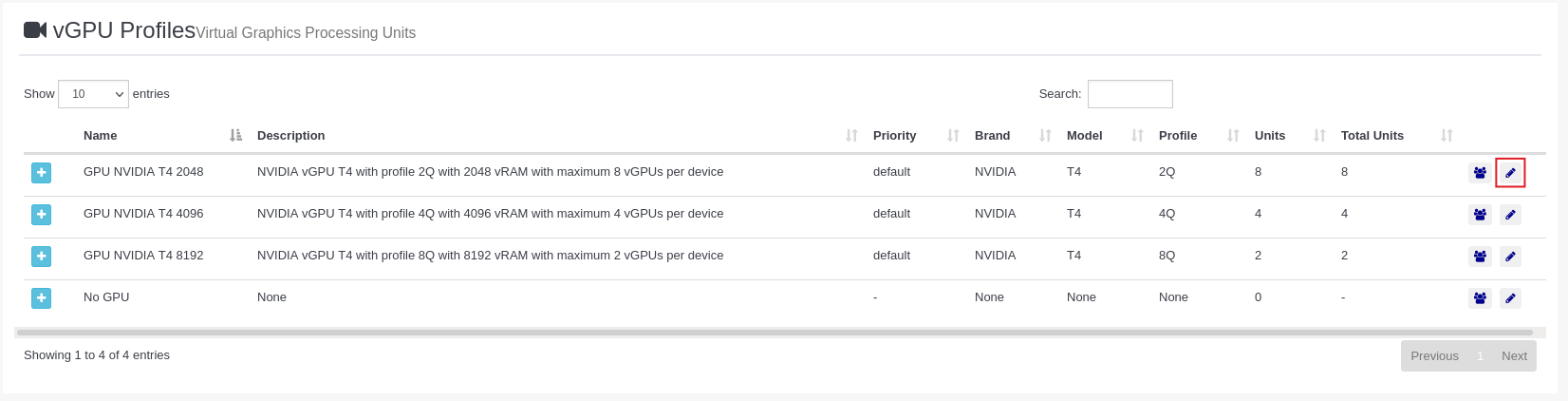
To edit a resource, click the icon
A dialog appears where you can edit the fields:
What the user sees
The user sees the limits of the rule that applies to them in the status bar of their bookings and in the calendar when booking a desktop. Bookings that exceed the limits are rejected with the messages described above.