Create a desktop
This section explains how to create the first desktop from a template.
Roles with access
- Access to the section: any user.
There are two types of desktops:
- Persistent: «A persistent desktop saves all changes and files permanently.» When it is stopped, data and installed programs are not lost.
- Temporary: «A temporary desktop discards all changes and files when stopped.» When it is stopped, everything done, saved or downloaded in it is lost.
Depends on the configuration
- The Temporary option only appears if the installation has the
FRONTEND_SHOW_TEMPORALkey enabled (enabled by default; see Enabling the new interface). - The limits of persistent and temporary desktops for each user are the quotas set by the administration.
- While the old interface remains available to the user, only one temporary desktop per template is allowed. With the
actualinterface mode, which the administration assigns with an interface mode rule, several are allowed.
In the top menu, the Desktops section.
In the side menu, the Desktops section; the New desktop button is on that screen.
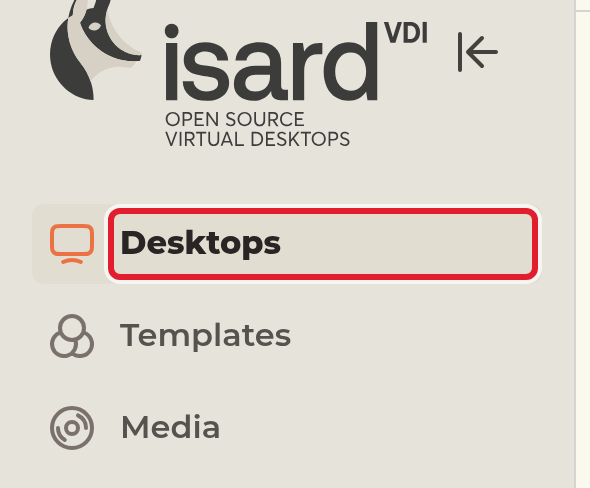
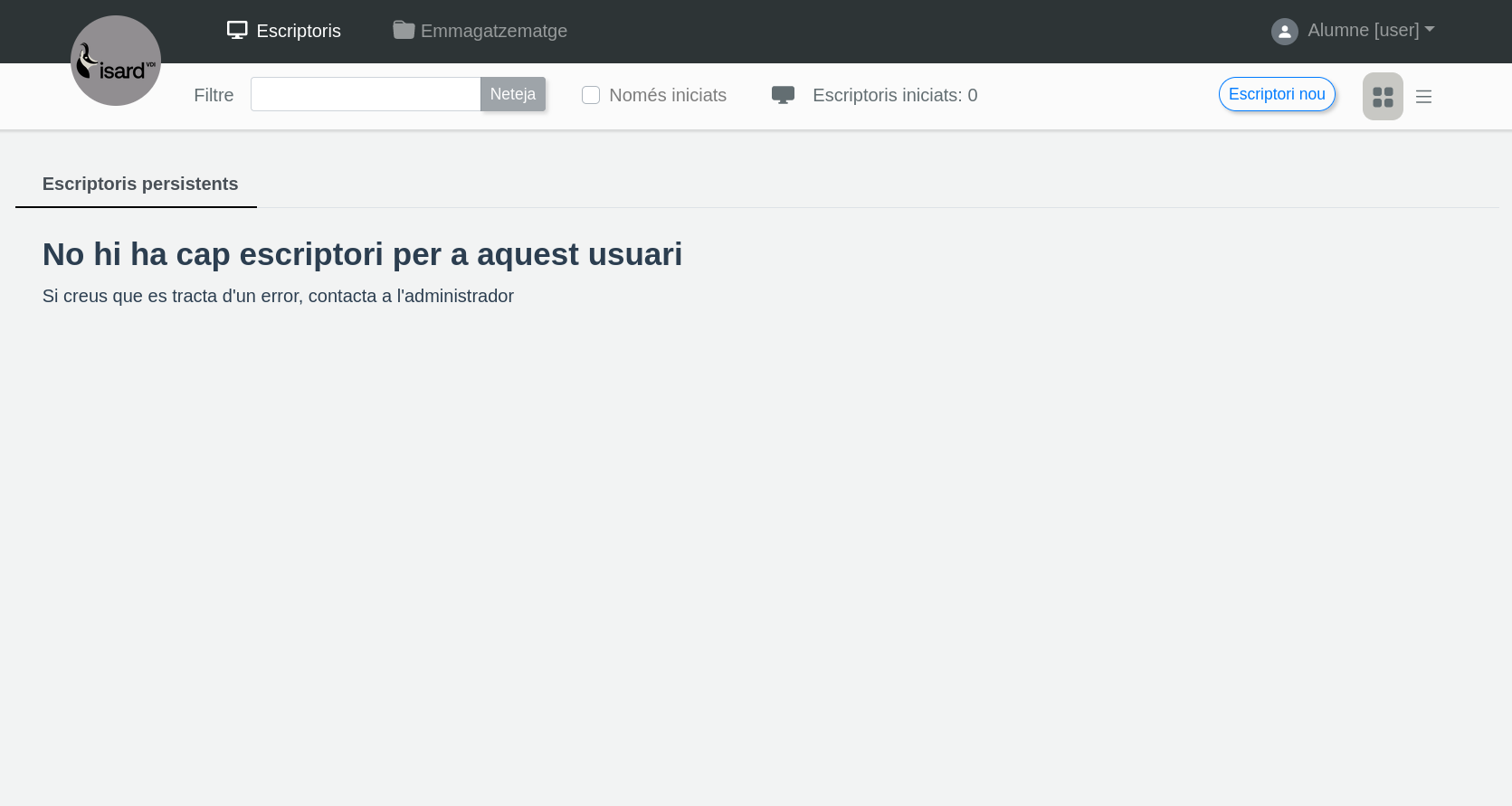
Main view
To create a desktop, click the  button in the Desktops view.
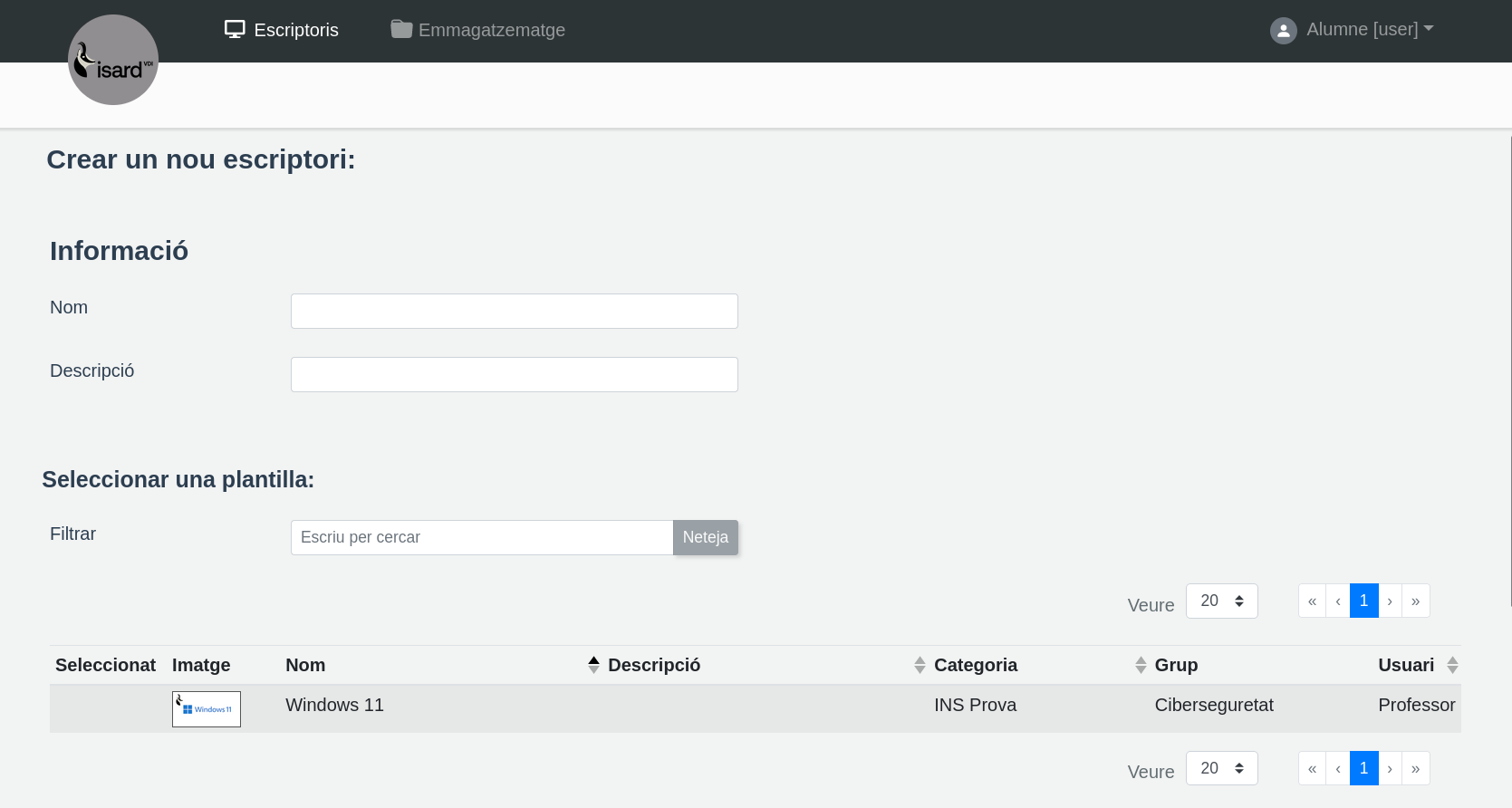
Fill in the fields, select a template, and click the  button.
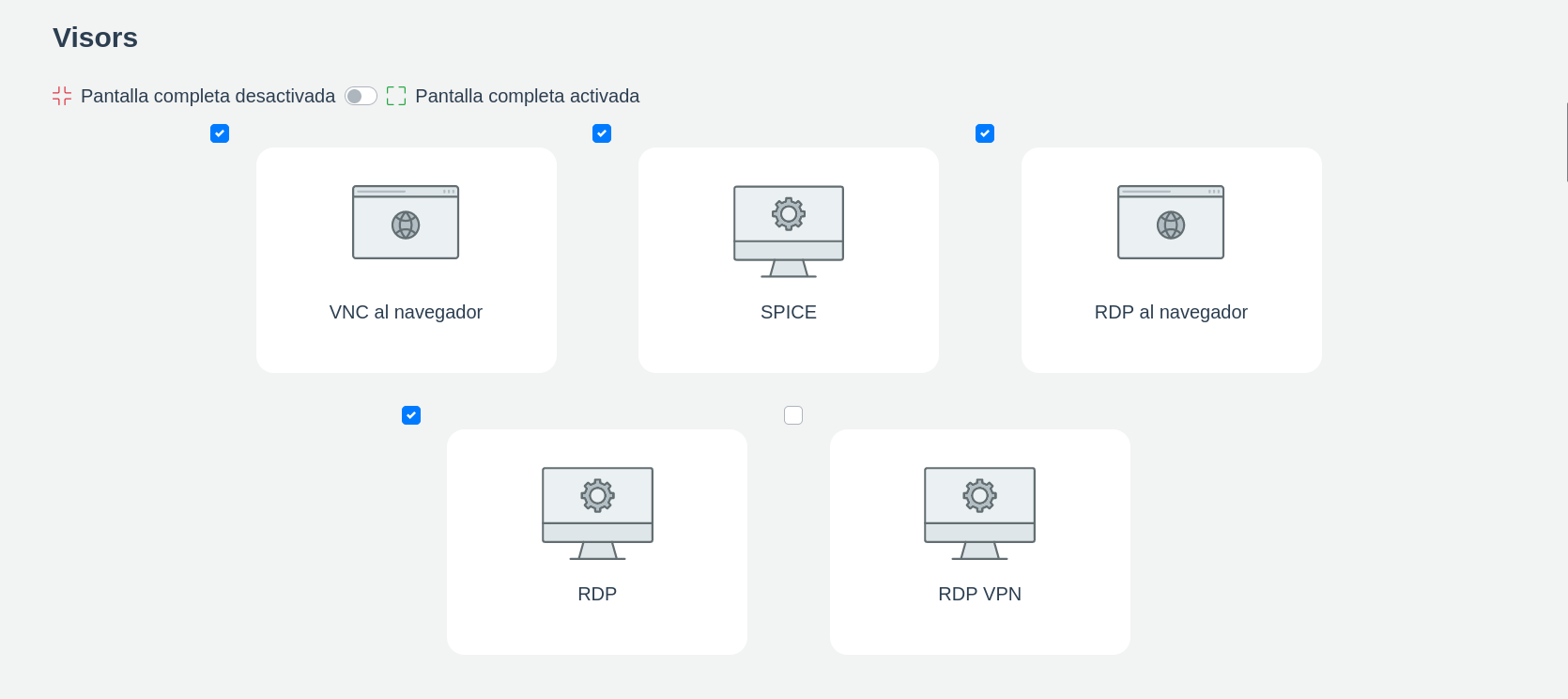
You can change the desktop configuration in the Advanced options section:



A new desktop is created with a three-step wizard. The first two appear in the step bar at the top; the third is the waiting screen.
- In Desktops, click New desktop. Before opening the wizard, the interface checks the creation quota and the storage availability.
- Select a template («You have different templates to use»): choose one in the Owned Templates or Shared Templates tab and click Next. The information icon on each row shows the template's hardware.
- Configure your desktop («You can edit the desktop name, image and hardware»):
- In Desktop Kind, choose Persistent or Temporary.
- In Desktop Information, enter the Name and, if needed, the Description.
- Preview shows how the card will look; the image icon allows changing it.
- Change configuration opens the All access configuration (viewers, RDP access, bastion) and All the hardware (vCPU, memory, networks, video, boot, ISO, GPU…) sections. Restore initial values goes back to the template's values.
- Click Create desktop. Previous step goes back to step 1 to choose another template; Cancel creation leaves the wizard.
- Creating desktop («Your desktop is being created, this might take a few moments»). When it finishes, the new desktop's page opens, from where it can be started, or you can go back to the list with Go to desktops.
Conditions and messages
- Next stays disabled until a template is selected.
- Create desktop stays disabled until the required fields are valid; the tooltip says «You must fill all the required fields to create the desktop».
- A template that is not ready yet appears in the list but cannot be chosen: «This template isn't ready yet and can't be used to create desktops or deployments».
- If the limit of one of the two types has been reached, the corresponding option is disabled with the «Quota exceeded» tooltip: «You have reached your persistent desktops limit. Delete one to create another.» or «You have reached your temporary desktops limit. Delete one to create another.»
- If no desktop of any type can be created, «Desktop creation quota exceeded» appears and the wizard does not open.
- If there is already a temporary desktop from the same template and the old interface is still available, the Temporary option is disabled: «You already have a temporary desktop from this template. Delete it to create another one.»
- Hardware values that exceed the user's permissions are adjusted automatically and the section says so («N values adjusted by your permissions»). The allowed resources are assigned by the administration in Resources.
Development details
For those who develop or integrate IsardVDI: where each element of this section is in the code, since which version it has been available, which API operation it calls, and what messages it can return.
- New interface · file
views/DesktopsView.vue:1589· interface text (translation key)views.desktops.new-desktop- since v17.0.0 (2026-04-24,
f31b874d89) - on click:
goToNewDesktop - call:
GET /api/v4/storage-pools/check-create-availability — Check storage pool creation availability - call:
navigation to the «new-desktop» route
- since v17.0.0 (2026-04-24,
- New interface · file
views/NewDesktopView.vue:231· interface text (translation key)components.desktops.storage-unavailable-modal.title- since v17.0.0 (2026-04-24,
f31b874d89)
- since v17.0.0 (2026-04-24,
- New interface · file
views/NewDesktopView.vue:232· interface text (translation key)components.desktops.storage-unavailable-modal.description- since v17.0.0 (2026-04-24,
f31b874d89)
- since v17.0.0 (2026-04-24,
- New interface · file
views/NewDesktopView.vue:238· interface text (translation key)components.desktops.storage-unavailable-modal.go-to-desktops- since v17.0.0 (2026-04-24,
f31b874d89) - on click:
router.push({ name: 'desktops' }) - call:
navigation to the «desktops» route
- since v17.0.0 (2026-04-24,
Commit code fe99ad98.
Available templates
The list in step 1 only shows the user's own templates and those that are enabled and shared with the user, their group, their category or their role. The administration can disable a template in Templates; from then on it no longer appears in New desktop for anyone it is shared with.
Template management (edit, share, duplicate, delete…) is described in Templates.
Desktop name and description validation
In the Configure your desktop step, the form validates the name and the description:
- If the name is left empty, «The field Name is required» is shown.
- If the name has fewer than 4 characters, «The field Name must be at least 4 characters long» is shown.
- If the name has more than 50 characters, «The field Name must be at most 50 characters long» is shown.
- If the description has more than 255 characters, «The field Description must be at most 255 characters long» is shown.
- If another desktop of the user already has the name, the server rejects the creation and the wizard goes back to the configuration step with the corresponding warning.
The creation errors and the other wizard messages are detailed in Create desktop.