Storage
This section describes how to check the desktops' disks, how to increase their size, how they count towards the quota and what happens when a disk prevents a desktop from starting.
Roles with access
- Storage list (old interface): any user.
- Storage option in the desktop's advanced options and disk size increase: advanced, manager and administrator roles.
- Disk problems window on start: any user, if the administration has enabled it (see below).
Video: walkthrough of the page
In the user's main view, the Storage section shows the disks of the created desktops and templates and how much space they use.
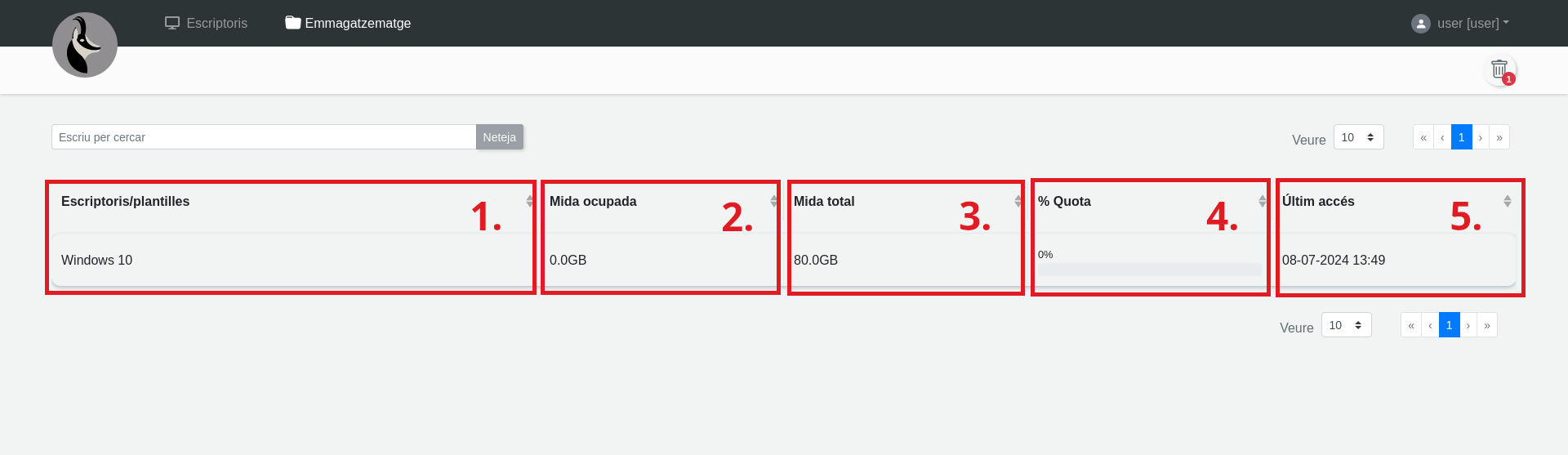
The table has these columns:
- Desktops/templates: the name of the desktop or template. Hovering over the name shows the storage ID.
- Used size: the space used by the disk of the desktop or template, in GB.
Info
The used size does not include the disk of the template the desktop derives from. It starts counting from creation.
- Total size: the maximum size the disk can use.
- % Quota: the percentage of the user's quota that the disk uses.
- Last access: the last time the desktop was used or the template was created.

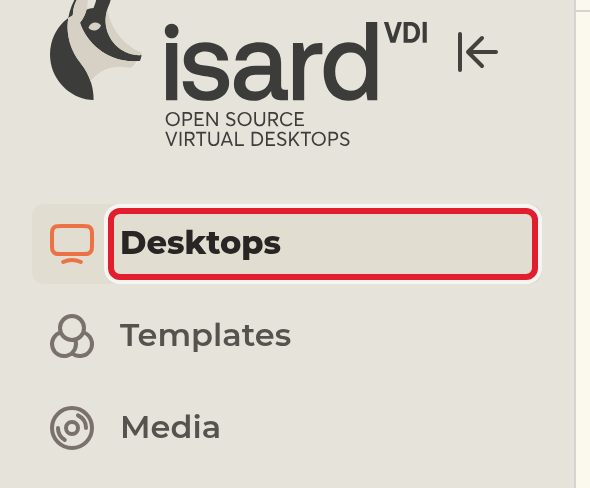
In the new interface there is no global storage list: disks are checked per desktop. In the Desktops section, open the desktop's Advanced options and choose Storage («Storage disks attached to this desktop. Actions are available while the desktop is stopped.»).
Who sees it
The Storage option is only visible to the advanced, manager and administrator roles. The user role does not see it.
For each disk of the desktop, the window shows:
- Desktop: the current state of the desktop.
- Disk: the state of the disk (see the state table).
- Disk ID: only shown if you press Ctrl + Alt + I with the window open; it can be copied with the copy icon.
- Format (for example, qcow2), Virtual size and Actual size, in B, KiB, MiB, GiB or TiB.
If the desktop has no disk, «This desktop has no storage attached.» is shown.
Disk states
| State | Badge color |
|---|---|
| Ready | green |
| In maintenance, Downloading | light yellow |
| Deleted, Orphan, Broken chain, Damaged | red |
| Not yet created, Unknown | grey |
Increase the disk size
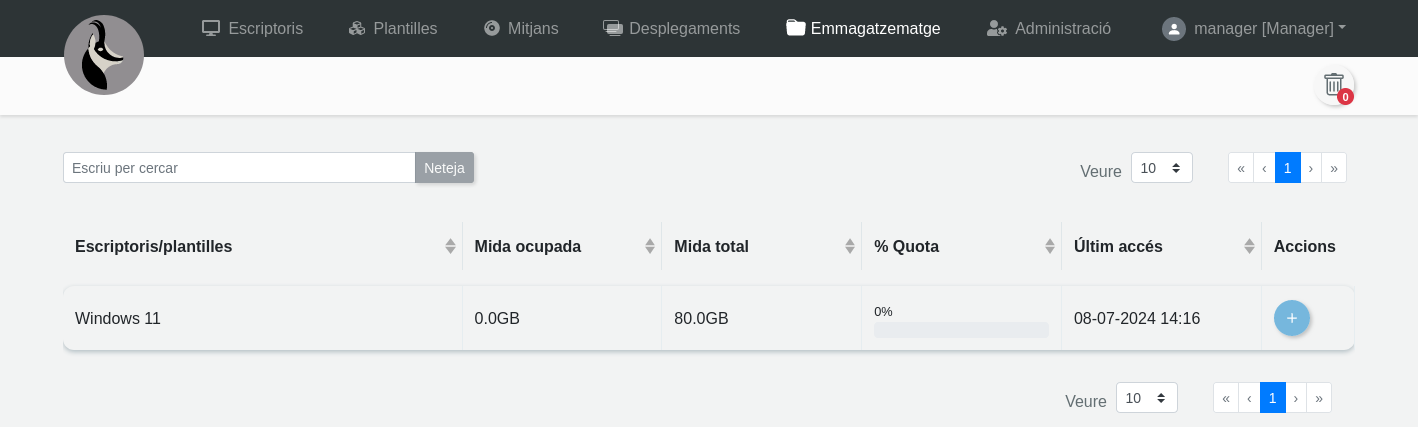
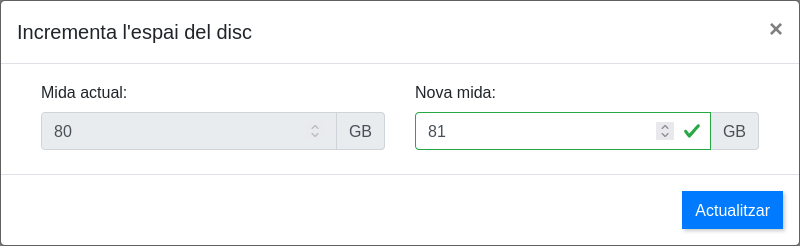
The advanced, manager and administrator roles can increase the total disk size of their desktops. Click the increase button and, in the window that opens, type the new size.
Quota check
When the disk size is increased, the system checks whether the new size exceeds the Total size quota. If it does, the operation is blocked.
Open the desktop's Advanced options and choose Storage.
- In the Increase the disk space in GB field, type the gigabytes you want to add (not the final size). The default value is 10.
- Check the forecast of the current and resulting virtual size (for example, from 20 GiB to 30 GiB), shown as you type.
- Click Increase size.
The button is only active if:
- the desktop is stopped; otherwise the help message is «The desktop must be stopped to increase the disk size.»;
- the disk is in the Ready state; otherwise, «The disk must be ready to be resized.»;
- the increment is valid (see the message table).
2048 GB limit
The disk cannot exceed 2048 GB of virtual size. If the increment is too large, «The disk cannot exceed 2048 GB. You can add N GB at most.» is shown, where N is the space left up to the limit.
Quota
The quota is validated on the server («Quotas are enforced server-side.»). If the increment does not fit, «The increment does not fit in your disk size quota.» is shown. That is why it is a good idea to empty the recycle bin before increasing a disk.
Cancel a storage operation
While a disk of the desktop has a task in progress (for example, a resize), the desktop stays In maintenance and, in the desktop list, the main action button lets you cancel the operation. «Cancel storage operation?» is shown with the text «Cancel the running storage task on name? Partial files may be cleaned up after the task is aborted.». Cancel operation shows «The storage operation is being cancelled.»; Keep running closes without changes.
If it fails, «Could not cancel the storage operation» is shown; try again later or tell the administration.
Note
Only the person who started the operation or an administrator can cancel it. If the disk has no active task, cancelling does nothing.
Storage quota
The limits are defined by the administration in Quotas and limits, per user, group or category.
How it is calculated
The Total size quota counts the actual space the disks use, not the virtual size. A desktop with a 100 GB virtual disk that only uses 30 counts as 30 GB, and this usage grows as files and applications are added.
The following count towards the quota:
- Desktops: the actual space of all the disks of your own desktops.
- Templates: the actual space of the templates created.
- Media: the size of the uploaded media files.
- Recycle bin items: they keep counting until they are permanently deleted.
Recycle bin items count
A desktop, template or media item sent to the recycle bin still counts towards the quota. Only permanent deletion frees quota space.
Soft size and Total size
- Soft size: the administration can define it, but it currently produces no warning or notification.
- Total size: this is the limit that blocks. When it is reached, you cannot:
- create desktops or templates;
- upload media;
- increase the size of disks.
Desktops that are already running keep working, and resources can always be deleted to free space.
Margin when starting a desktop
When a desktop is started, the quota check adds a 1 GB margin. So, if usage is very close to the limit, a desktop may not start even though there seems to be enough space.
How to free space
- Permanently delete recycle bin items: the quickest way to recover quota.
- Delete desktops that are no longer needed and then permanently delete them from the recycle bin.
- Delete old templates that are not used.
- Delete media that is no longer needed.
- Wait a few seconds: after permanent deletion, the system recalculates usage.
The recycle bin is not free storage
The recycle bin is a safety net, not an extension of your space: what is in it keeps using quota. Empty it often.
Deleting a desktop and the recycle bin
When a persistent desktop is deleted and the recycle bin has a retention time, the confirmation window shows the checkbox Send item to recycle bin (its storage will still be considered in the user quota until permanently removed)., with the text «The items in the recycle bin will be permanently deleted after: N hours.».
- With the checkbox ticked, the button is Send to Recycle Bin: the item can be recovered, but it keeps counting towards the quota.
- With the checkbox unticked, the button is Delete Permanently and frees the quota.
If the desktop is temporary or the retention is 0 hours, the checkbox does not appear: the window says «This action cannot be undone and all its associated data will be lost.» and the button is Delete Permanently.
Depends on the administration
Whether the checkbox is ticked or unticked depends on the «Send to recycle bin by default» option, and the number of hours on the retention time. Both are set in the recycle bin configuration.
To restore, empty or delete items, see Recycle bin.
Disk problems when starting a desktop
When a desktop does not start because of one of its disks, the new interface can open the window The disk of name needs attention. It explains which problems were found and what is done about each one: «Quick fixes run at once. These are the problems found in the desktop's disks and what is done about each one.».
Depends on the administration
The window only appears if the administration has enabled the «Repair the disks that stop a desktop» option in the recycle bin configuration («Storage sweep» section). It is disabled by default: then the desktop simply does not start and the start error message is shown.
The window opens when the start fails because the disk is not ready or cannot be found, or when a desktop started from the list goes into the Failed state. When it opens, the system has already launched the first quick fix of each disk.
Sections of the window
| Section | What it shows |
|---|---|
| What was done now | The quick fixes launched right now («Fix: started now») or left for the night («Fix: left for the nightly storage maintenance»). Only one is launched per disk at a time. |
| In progress | The disk already has a task running. A progress bar and «Position N in the queue · about time left», or «Running now» once it has started, are shown. |
| Pending quick fixes | Quick fixes not launched yet, with the name of the fix and the queue forecast. |
| Pending repairs that take a while | Costly repairs. Whoever has permission sees the Run fix button; once launched, the button changes to Queued. Whoever does not sees «Only an administrator can run this repair.». |
| Needs an administrator | Problems the user cannot solve. |
The queue forecast has the format «Queue: tier · N tasks ahead · expected in time». If no service serves that queue, «No worker serves this queue right now: the fix waits until one does.» is added.
The window is closed with Close.
Problems that can be found
| Message | How it is handled |
|---|---|
| «The disk is busy with another operation. The desktop can start when it ends.» | Wait for it to finish (In progress section). |
| «The disk is marked as damaged.» | Integrity check (quick) or Full repair (costly). |
| «The disk cannot find a disk it depends on.» | Chain check (quick). |
| «The disk has leaked space that a quick repair gives back.» | Leak repair (quick). |
| «The disk is due an integrity check.» | Integrity check (quick). |
| «The last check of the disk reached no verdict.» | Integrity check (quick). |
| «The disk holds zero blocks that can be given back.» | Give back zero blocks (costly). |
| «The disk has grown and can be compacted.» | Compact the disk (costly). |
| «The disk is not available. An administrator has to review it.» | Needs an administrator. |
| «The disk may be damaged. An administrator has to review it.» | Needs an administrator. |
| «The disk points to a disk that moved. An administrator has to fix it.» | Needs an administrator. |
| «The disk does not match its owner. An administrator has to review it.» | Needs an administrator. |
| «Other disks may still read this one. An administrator has to review it.» | Needs an administrator. |
| «The disk file is missing. An administrator has to review it.» | Needs an administrator. |
Leaked space, a pending check or one without a verdict, zero blocks, a disk that can be compacted, a mismatch with the owner and disks that still depend on it do not prevent starting. The other problems do.
Who can run the costly repairs
Full repair, Give back zero blocks and Compact the disk can only be run by an administrator or by the users the administration has allowed in the «Costly disk repairs» section of the recycle bin configuration.
When the fix finishes
The window checks the state every few seconds. When all the tasks have finished and nothing is left blocking the start, it closes, the notice «The disk of name is fixed. Starting it again.» appears and the desktop starts again automatically. If a task fails, «The disk of name could not be fixed.» appears.
Errors when launching a repair:
| Message | What it means |
|---|---|
| «Only an administrator, or a user an administrator allowed, can run this repair.» | The costly repairs permission is missing. |
| «The disk no longer needs this fix.» | The problem has already been solved. |
| «The disk is already being worked on. Wait until it finishes.» | The disk has another task running. |
| «The disk could not be fixed. Please try again.» | Generic error. |
Development details
For those who develop or integrate IsardVDI: where in the code each element of this section is located, from which version it has been available, when it is displayed, which API operation it calls, and what messages it may return.
- New interface · file
views/DesktopsView.vue:1153· interface text (translation key)components.delete-confirmation-modal.cancel- since v17.0.0 (2026-04-24,
f31b874d89) - on click:
closeDeleteModal()
- since v17.0.0 (2026-04-24,
- New interface · file
views/DesktopsView.vue:1175· interface text (translation key)components.delete-confirmation-modal.confirm.permanent- since v17.0.0 (2026-04-24,
f31b874d89) - displayed when deleteModalDesktopData (
v-if: deleteModalDesktopData ; v-if: deleteDesktopIsPending) - on click:
deleteDesktopMutate({ path: { desktop_id: deleteModalDesktopData.id }, query: { permanent: deleteIsPermanent } })
- since v17.0.0 (2026-04-24,
- New interface · file
views/DesktopsView.vue:1176· interface text (translation key)components.delete-confirmation-modal.confirm.recycle-bin- since v17.0.0 (2026-04-24,
f31b874d89) - displayed when deleteModalDesktopData (
v-if: deleteModalDesktopData ; v-if: deleteDesktopIsPending) - on click:
deleteDesktopMutate({ path: { desktop_id: deleteModalDesktopData.id }, query: { permanent: deleteIsPermanent } })
- since v17.0.0 (2026-04-24,
- New interface · disk problems window:
components/storage-problems/StorageProblemsModal.vue,composables/useStorageRepair.ts,lib/storage-problems.ts; APIGET/POST /item/desktop/{desktop_id}/storage-problemsand the repair call.
Commit code 7744c96b.
Messages of the Storage window
| What you see | What it means | What to do |
|---|---|---|
| «This desktop has no storage attached.» | The desktop has no disk attached. | Nothing; it is informative. |
| «Could not load storage details.» | The disk data could not be read. | Wait, or tell the administration if it persists. |
| «No actions available for this storage.» | The current role cannot run actions on the disk. | Nothing; an advanced role or higher is needed to increase the size. |
| «The desktop must be stopped to increase the disk size.» | The desktop is not stopped. | Stop the desktop and try again. |
| «The disk must be ready to be resized.» | The disk is not in the Ready state. | Wait until the disk is Ready. |
| «Only digits are allowed.» | A non-numeric value was typed. | Type digits only. |
| «Enter how many gigabytes you want to add.» | No increment was given. | Type a positive whole number. |
| «The increment must be a whole number of gigabytes.» | The increment is not a whole number. | Type a whole number. |
| «The increment must be greater than 0.» | The increment is less than or equal to 0. | Type a positive whole number. |
| «The disk cannot exceed 2048 GB. You can add N GB at most.» | The increment would exceed the virtual size limit (2048 GB). | Type a value of N at most. |
| «The requested increment is not a valid number of gigabytes.» | The server rejects the increment because the value is not valid. | Check the value and try again. |
| «The increment does not fit in your disk size quota.» | The server rejects the increment because it does not fit in the quota. | Free space (empty the recycle bin) or ask for more quota. |
| «You are not allowed to resize this disk.» | The role or the ownership of the disk does not allow it. | — |
| «The disk was not found.» | The disk no longer exists. | — |
| «Your session has expired. Sign in again to resize the disk.» | The session has expired. | Log in again. |
| «No storage worker is available right now. Please try again in a few minutes.» | No service is processing disk tasks at the moment. | Try again after a few minutes. |
| «Storage tasks are overloaded right now. Please try again in a few minutes.» | There are too many disk tasks in the queue. | Try again after a few minutes. |
| «The server could not schedule the resize. Please try again.» | Internal error while scheduling the task. | Try again. |
| «Could not increase the disk size. Please try again.» | Generic error. | Try again. |