Viewers
Roles with access
Only administrators have access to this feature.
To access this section, click the second button of the drop-down menu  .
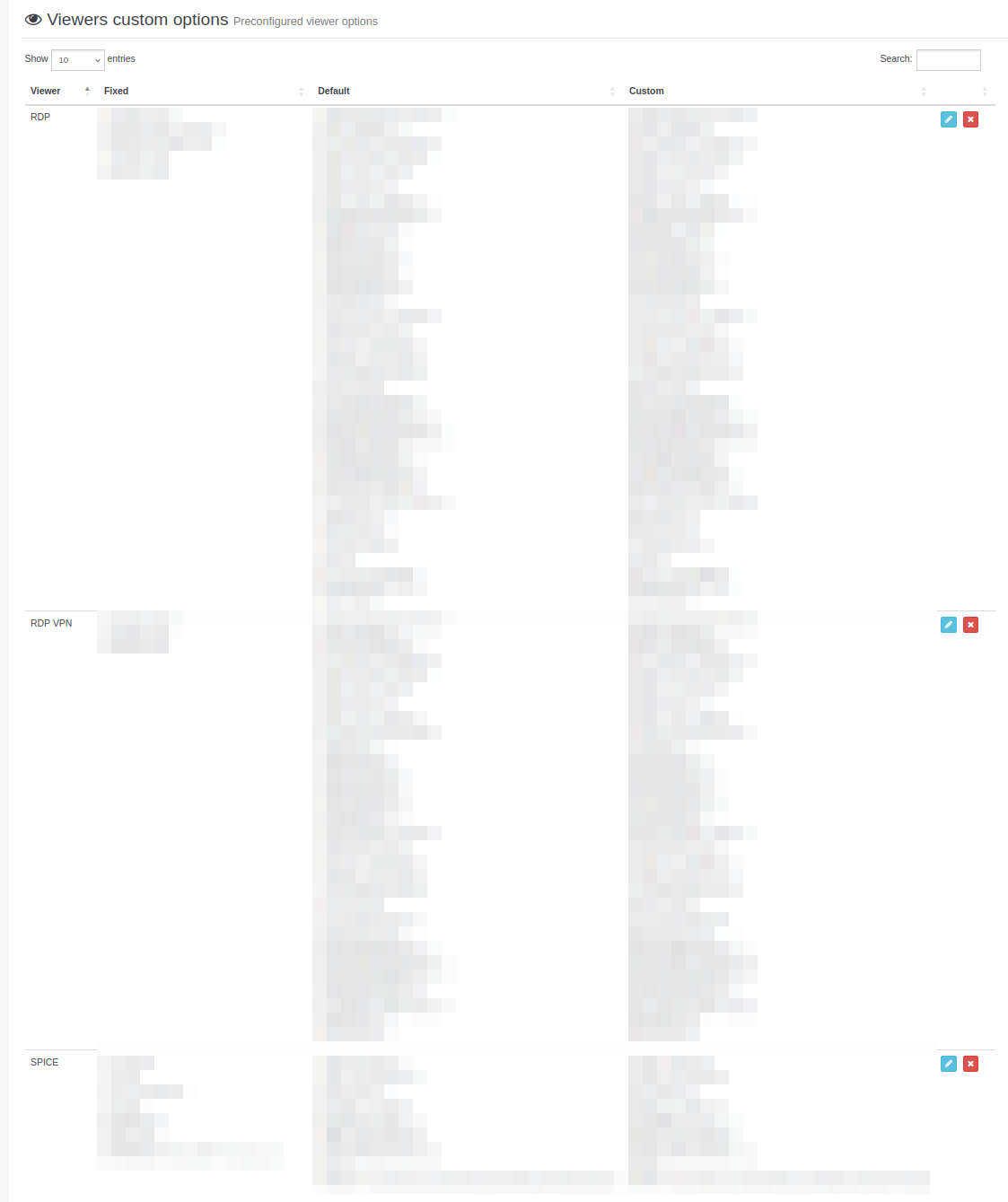
This section shows the options of the platform's viewers:
There are three configurations available. Some parameters are fixed (not editable), because if they were changed the viewer could stop working. These are shown in the “Fixed” column. On the other hand, some parameters can be configured manually or left at their default value. The default value is in the “Default” column and the manually configured value, in the “Custom” column.
- The
 button edits these parameters.
- The
 button resets the parameters to their defaults.
Updating the RDP security policy
What it is for This action defines the security conditions that the RDP services of the virtual desktops must meet to be connected to. You can specify the accepted security level (from standard RDP to NLA) and the system's behavior with unverified certificates or insufficient authentication levels.
Where it is on the screen The configuration is in the «RDP security» section, titled «What the desktops' RDP service must offer». The change is confirmed with the «Save RDP security» button.
Steps
1. In the «RDP security» section, check the accepted security levels. They are checkboxes that can be checked at the same time; by default all three are checked and at least one must stay checked (otherwise «Allow at least one RDP security level» is shown):
- «Standard RDP security (the guest refuses TLS, e.g. Windows with SecurityLayer=0)»
- «TLS without Network Level Authentication»
- «Network Level Authentication (NLA, CredSSP)»
2. In the «When the RDP client cannot verify the desktop certificate» drop-down, choose what the RDP client does when it cannot verify the desktop's certificate (self-signed or issued to the computer name instead of the address). This value is written to the authentication level line of the gateway (RD Gateway) and VPN RDP files:
- «Warn and let the user connect (authentication level 2)»
- «Connect without warning (authentication level 0)»
- «Do not connect (authentication level 1)»
- «Not set in the RDP files» (shown, but it cannot be chosen)
3. Click the «Save RDP security» button to apply the changes.
What it checks first The system checks that the user has at least the administrator role to perform this operation. No explicit prior validation of the selected values is shown at the interface level, but the system processes the request to update the security configuration of RDP connections, specifying the allowed protocols and whether the certificate must be verified.
What happens next If the operation succeeds, the new RDP security policy (protocols and certificate verification) is saved in the system. If the internal operation fails, an internal server error is raised.
What the user sees If a desktop's RDP service negotiates a security level that is not checked, no RDP viewer (browser, RD Gateway file or VPN file) can connect to it, and the user sees «The desktop RDP security is not allowed by the administrator». The value of the certificate drop-down decides whether the RDP client warns, connects without warning or does not connect. See RDP.