Media
Roles with access
Only administrators have access to all categories within the platform. Managers are limited to their own category.
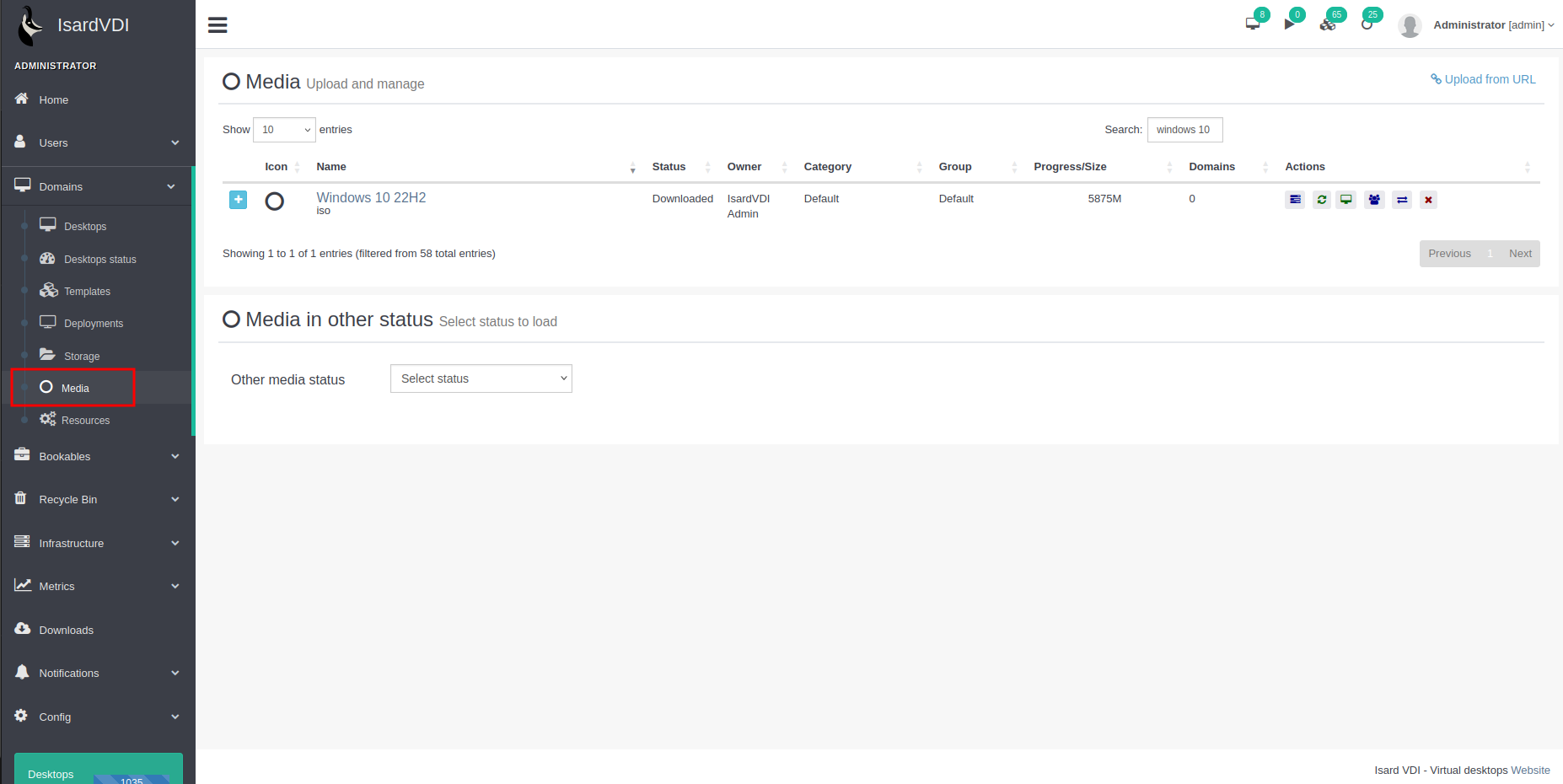
This section displays all media created by users within one or more categories.
How users work with media is explained in Media. The user role cannot upload media; the advanced, manager and administrator roles can.
Media
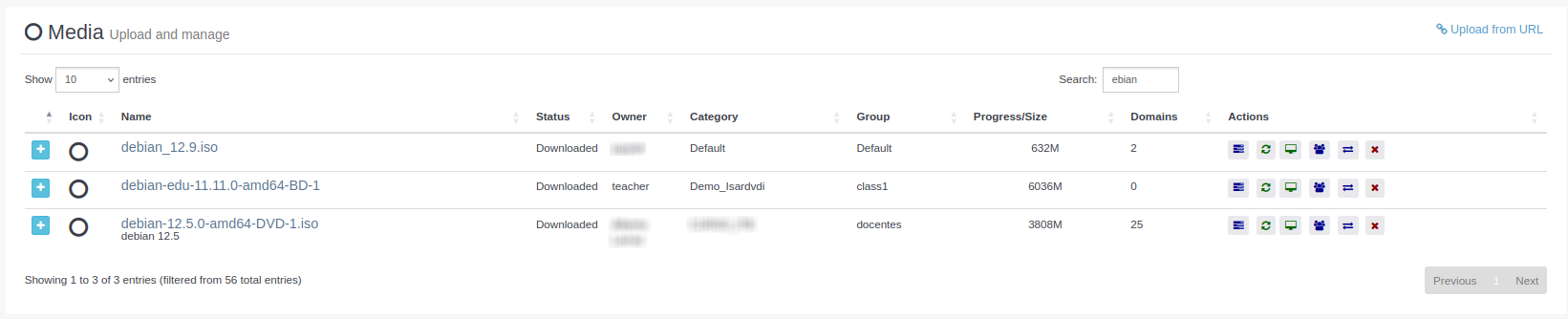
This section displays all the media that have been uploaded to the platform.
-
Upload from URL
 : Uploads media from an external link.
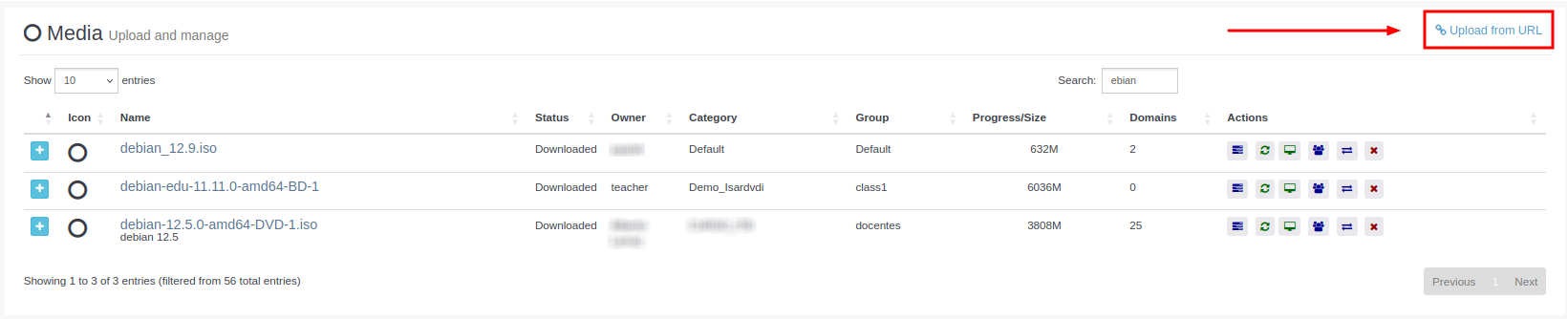
Clicking the button opens a window where you must fill in the following fields:
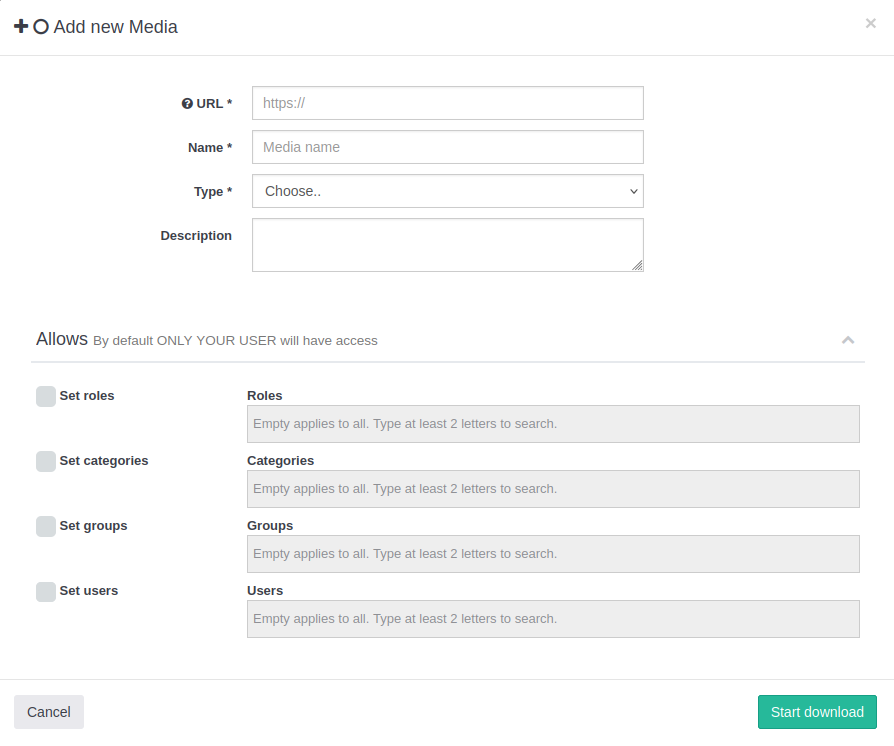
- URL: Download link for the media or ISO.
- Name: Name to identify the media.
- Type: Type of media being uploaded. It can be:
- ISO CD/DVD (operating system installation).
- Floppy (for lightweight systems or drivers).
- QCOW2 (virtual hard disk).
- Description: Brief description of the media.
Once the media has been uploaded, you can check which desktops or templates it is assigned to through their configuration. When a desktop stops using a media, this information disappears, even if the file remains downloaded on the system.
Downloads from the IsardVDI catalog are managed in Downloads.

The following actions are available for each media:
- Show last task info
 : Displays information about the last task related to the media (such as Check media).
- Check media status
 : Verifies whether the media file exists on the disk. If it is not found, it is deleted automatically.
- Create desktop from media
 : Creates a virtual desktop using this media.
- Change allowed users
 {width="5%"}: Modifies the media sharing permissions. Users with permission see the media in the shared media tab of Media and can use it to create desktops or attach it to their own.
- Change owners
 : Assigns a new owner to the media. If the new owner is from the same category, the media keeps who it was shared with. If the new owner is from another category, all sharing (categories, groups and users) is removed and must be defined again.
- Delete media
 : Deletes the media.
Media in other status
This section lists media that are not in an active state, such as deleted media, media with download errors or media under maintenance.
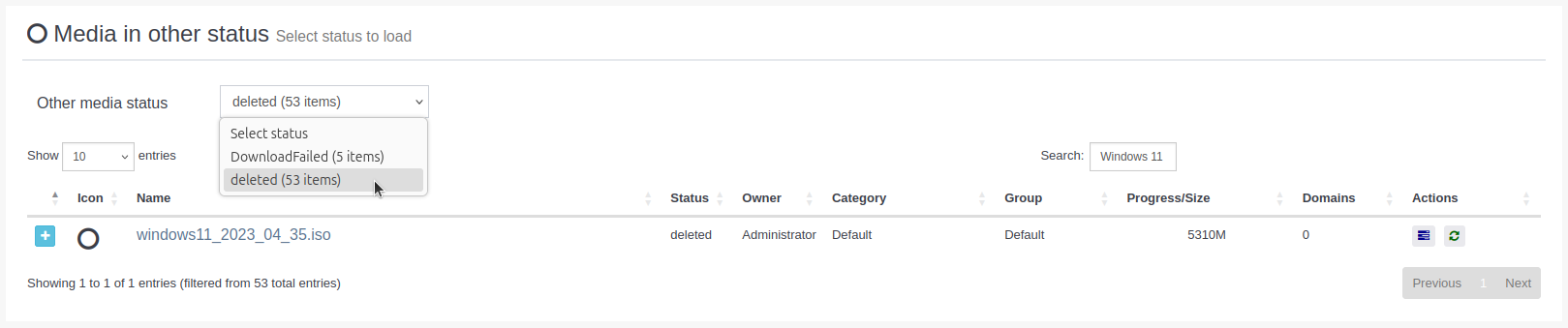
Meaning of the available states:
- deleted: Media that have been removed from the platform.
- DownloadAborting: Downloads cancelled manually or automatically.
- DownloadFailed: General error in the download process.
- DownloadFailedInvalidFormat: The download failed because the ISO file has an invalid format.
- ResetDownloading: The media download has been restarted.
- maintenance: Media under maintenance.
The dropdown only lists the states that have some media, with the count in parentheses.