Quotas and Limits
Roles with access
Administrators and managers have access.
To manage quotas and limits, go to Users › Quotas / Limits in the Administration panel  .
Users see the quota that applies to them and their current usage in their profile. When a quota or a limit prevents an action, the user sees a dialog or an error message (see the «What happens when quotas are exceeded» section).
Quotas / Limits Configuration
This section, Quotas / Limits Configuration, is only visible to administrators. It contains the Quota should be checked when migrating a user checkbox:
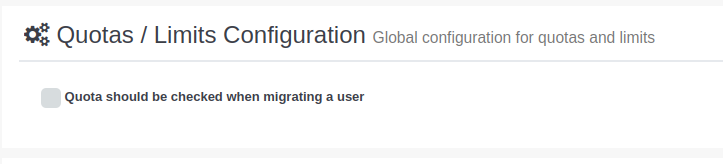
This option works as follows:
- When this option is enabled, when an account is migrated to another one, the system takes the target user's quotas into account. If the source user has more desktops, templates, media or deployments than the target's quota allows, the migration fails.
- When this option is disabled, the system does not take these quotas into account during the migration.
The user performing the migration sees these errors on the migration screen: «The user has more desktops than the new user quota», «The user has more templates than the new user quota», «The user has more media than the new user quota» or «The user has more deployments than the new user quota».
Quotas
Quotas define the amount of resources that can be used individually (per user), depending on the category and group the user belongs to.
Quota restrictions are divided as follows:
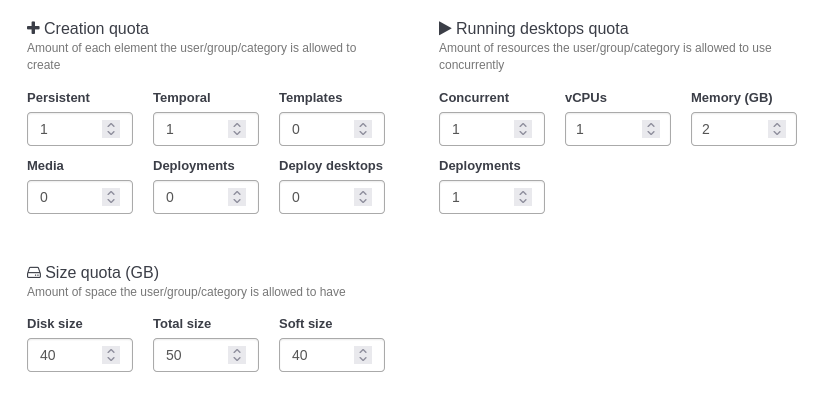
Creation quota
- Persistent: Number of persistent desktops the user can create.
- Temporal: Number of temporary desktops the user can create.
- Templates: Number of enabled templates the user can have. It is checked when a template is created and when it is enabled; disabled templates do not count.
- Media: Number of media (in Downloaded status) the user can have.
- Deployments: Number of deployments the user can create.
- Deploy users: Maximum number of users per deployment.
- Deploy desktops: Number of desktops that can be created in each deployment.
Warning
- Resources shared with the user are not counted in the user quota.
- Desktops created through deployments are not counted in the user quota.
Running desktops quota
- Concurrent: Total number of desktops that can be started at the same time.
- vCPUs: Total number of vCPUs of the started desktops that can be used at the same time.
- Memory (GB): Total amount of RAM of the started desktops that can be used at the same time. It is not related to the video memory (VRAM) of GPUs.
- Deployments: Total number of desktops of a deployment that the deployment owner can have started at the same time.
Warning
When a deployment desktop is started, the Deployments quota of the user who started it is considered. If the user starts their own deployment desktop, the user's Concurrent quota applies. If an administrator starts a deployment desktop, no quota applies. If a manager starts it (any deployment in their category), the manager's Deployments quota and the group and category limits apply.
Size quota
- Disk size: Maximum size (GB) of a desktop's disk: it applies when creating a disk (for example, when creating a desktop from a media) and when increasing a disk's size.
- Total size: Total size that can be used, counting desktops, templates and media.
- Soft size: Value saved with the quota. In this version it does not generate any warning or notification to the user. Of the two size limits, Soft size has no effect and only Total size blocks operations.
Quotas can be set per user, group or category. They are applied by levels, from the bottom up (the lowest-level quota applies). For example, given the following structure:
flowchart TD
    Category --> Group1[Group 1]
    Category --> Group2[Group 2]
    Category --> Group3[Group 3]
    Group1 --> User1[User 1]
    Group1 --> User2[User 2]
    Group1 --> User3[User 3]
    Group2 --> User4[User 4]
    Group2 --> User5[User 5]
    Group2 --> User6[User 6]
    Group3 --> User7[User 7]
    Group3 --> User8[User 8]
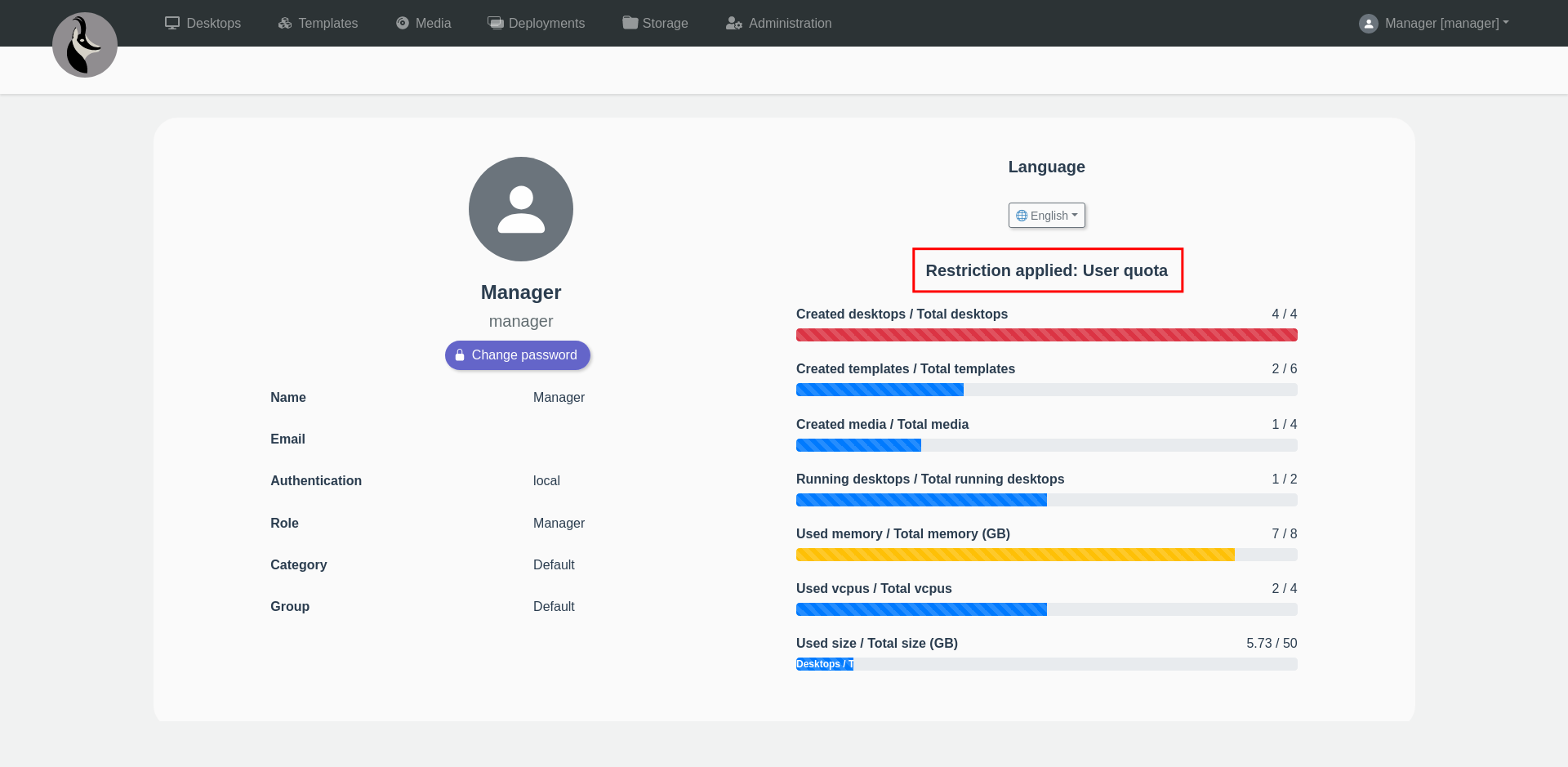
Group3 --> User9[User 9]- If the user has a user quota set, it applies. The group and category quotas are ignored.
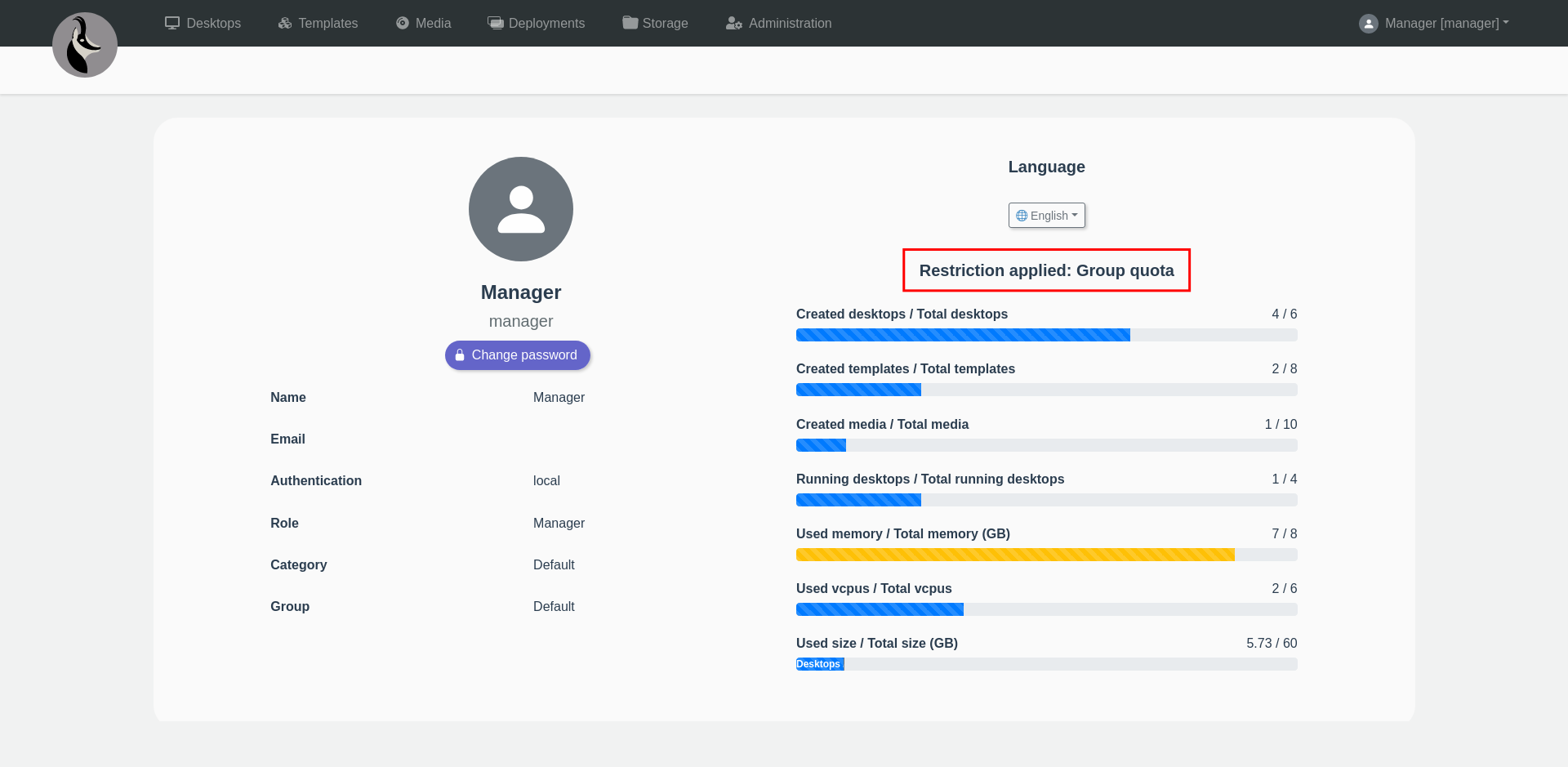
- If the user does not have a user quota set and a group quota has been set, the group quota applies. The category quota is ignored.
- If neither the user quota nor the group quota is set, the category quota applies. The category quota can only be set by an administrator.
- If no quota applies, the user can create unlimited desktops, templates and media, with unlimited vCPUs, RAM and disk size.
Tip
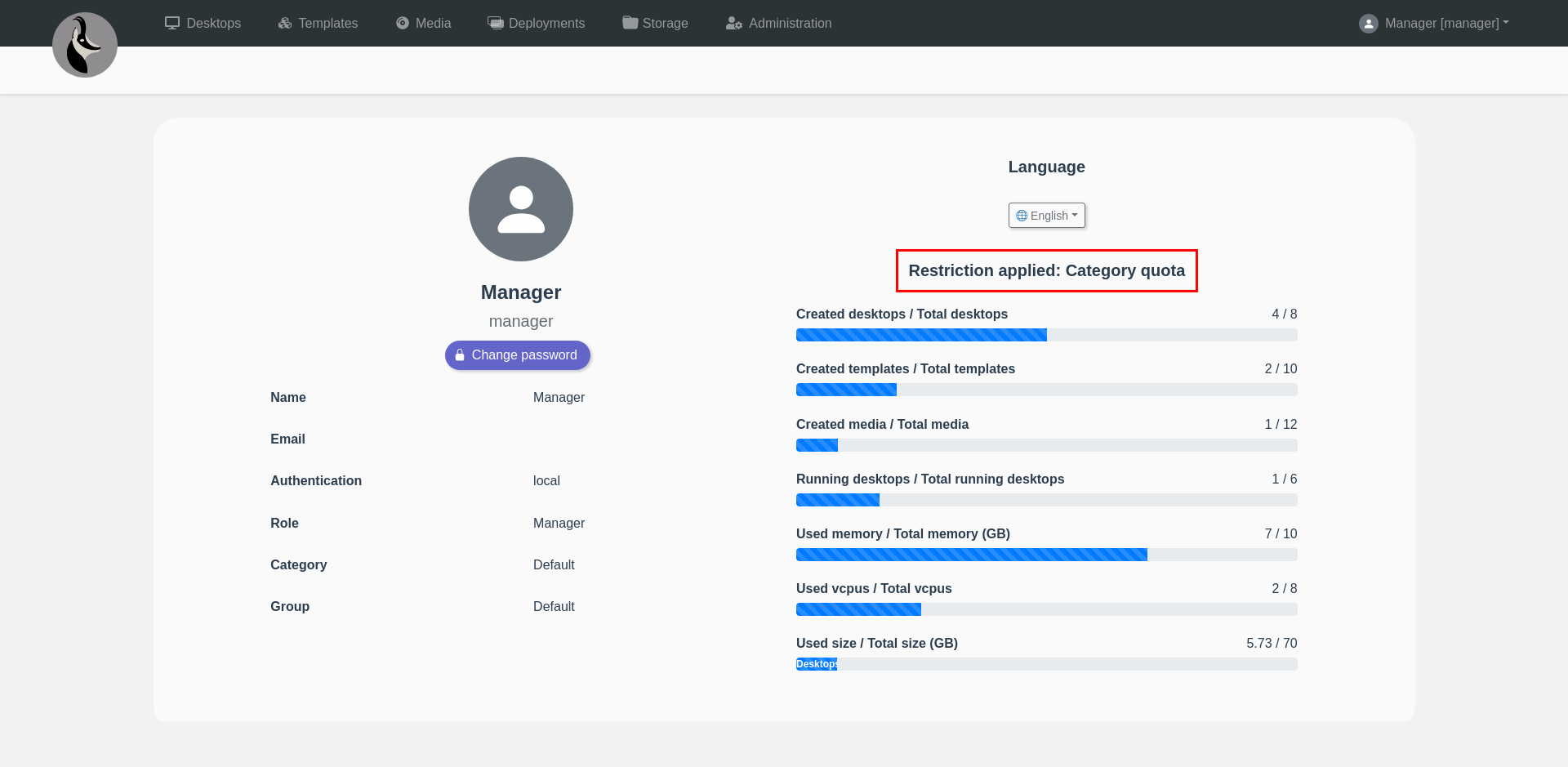
The applied restriction (user, group or category quota) and the resource usage can be checked on the profile page.
User Quota
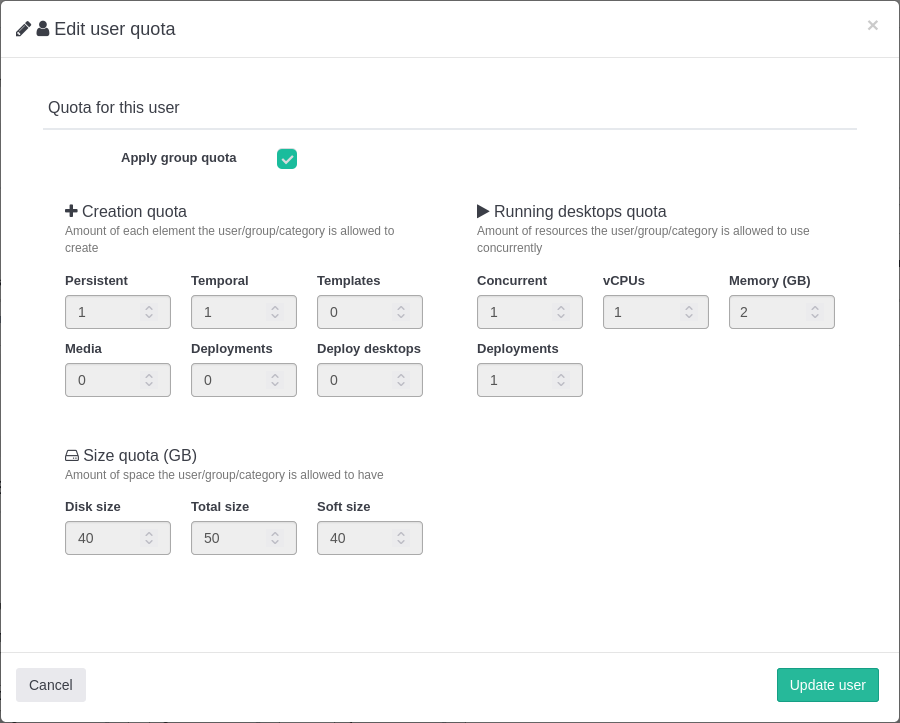
The user quota parameters can be edited by clicking the  icon next to the user to update, and then clicking
 .
A dialog box with the following form appears:
Important notes about the form fields
- If the «Apply group quota» checkbox is selected, the form values are ignored and the group quota applies.
- When the «Apply group quota» checkbox is cleared, the form input fields are enabled and the quota applies to the user individually. See the «Quotas» section for the purpose of each field.
Group Quota
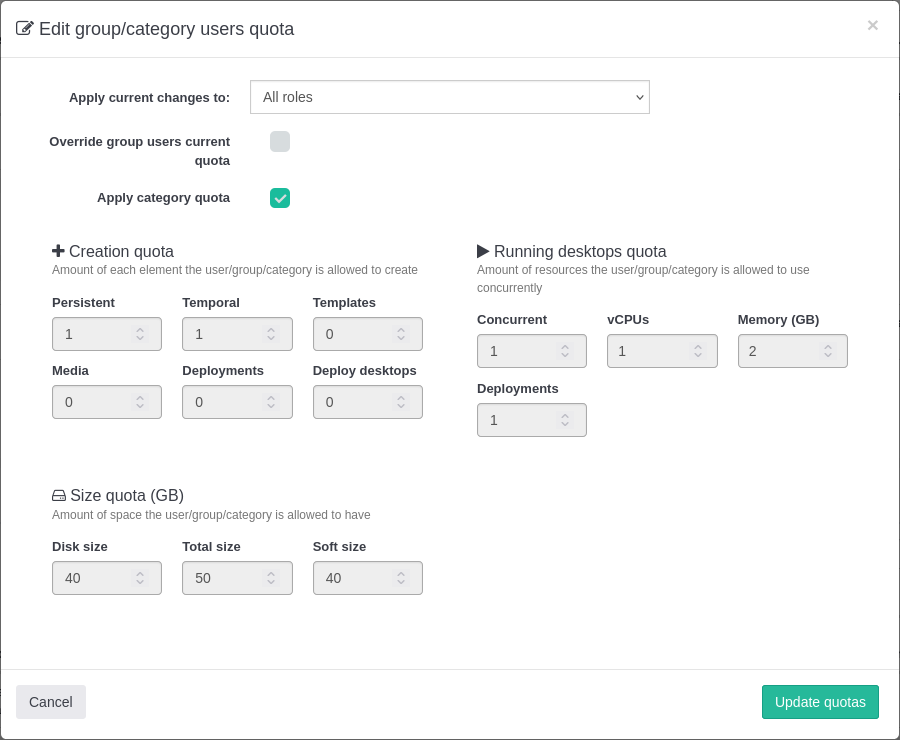
The group quota parameters can be edited by clicking the icon next to the group to update, and then clicking .
A dialog box with the following form appears:
Important notes about the form fields
- If the «Apply category quota» checkbox is selected, the form values are ignored and the category quota is applied to the group.
- When the «Apply category quota» checkbox is cleared, the form input fields are enabled. See the «Quotas» section for the purpose of each field.
- The «Override group users current quota» checkbox applies the form quota to each user individually. Therefore, each quota of the users belonging to the group is replaced. Note that administrators can set higher quotas for users than managers can; therefore, when the users' quota is replaced, these exceptions are overwritten too.
- The «Apply current changes» selector applies the form quota only to users with the selected role.
Limits
Limits define the amount of resources that can be used globally in a category or a group.
For example, given a Group 1 with a limit of 10 desktops and no quota applied:
flowchart TD
    Category --> Group1[Group 1]
    Group1 --> User1[User 1]
    Group1 --> User2[User 2]
    Group1 --> User3[User 3]
The total number of desktops that can be created is 10. Since no quota applies, when a user creates a desktop, the system checks whether the set limit would be exceeded. Therefore, there is no control over the number of desktops each user has (that would be controlled through user quotas), and greater flexibility is offered, as many combinations are possible:
- User 1 could have 6 desktops, user 2 could have 3 desktops and user 3 could have 1 desktop.
- User 1 could have 9 desktops, user 2 could have 1 desktop.
- User 1 could have 2 desktops, user 2 could have 7 desktops and user 3 could have 1 desktop.
- User 1 could have 10 desktops, so no more desktops could be created.
- Etc.
Group Limits
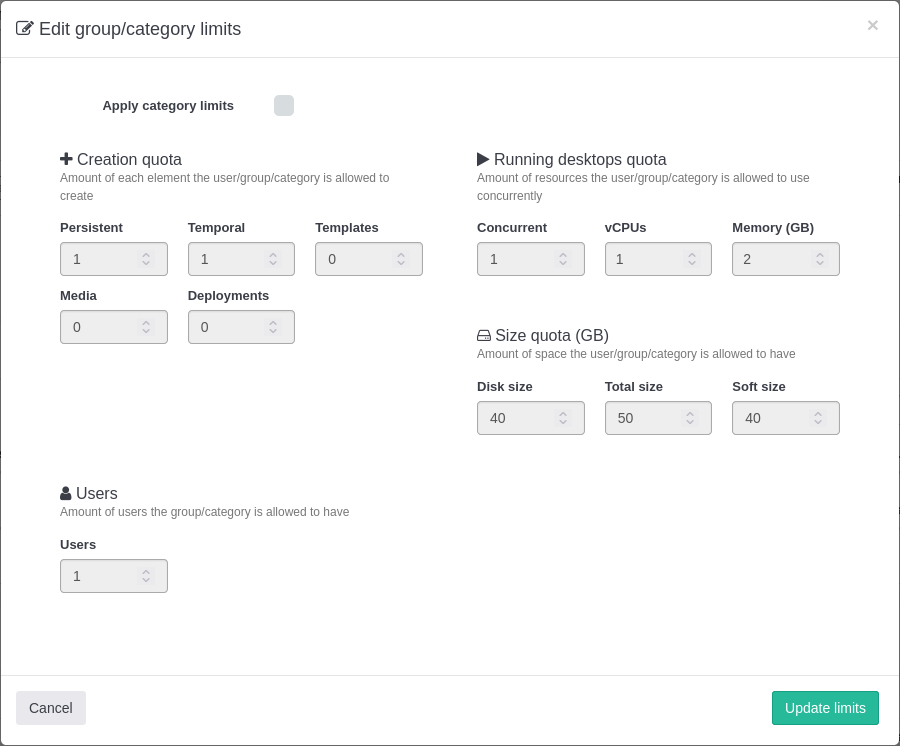
The group limit parameters can be edited by clicking the icon next to the group to update, and then clicking  .
A dialog box with the following form appears:
Important notes about the form fields
- If the «Apply category limits» checkbox is selected, the form values are ignored and the category limits are applied to the group.
- The Concurrent limit takes into account all started desktops, regardless of the user who started them.
- See the «Limits» section for how limits work.
When quotas and limits are applied
Understanding when the system checks quotas and limits helps to plan resource usage and to solve quota-related problems.
Quota checks during desktop creation
When a user tries to create a new desktop (persistent or temporary), the system checks:
- User desktop quota: Compares the current number of desktops with the user's allowed quota.
- Group desktop limit: Adds up all the desktops in the group and checks the group limit.
- Category desktop limit: Adds up all the desktops in the category and checks the category limit.
If any of these checks fails, the desktop creation is blocked before it starts.
Quota checks during desktop startup
When a user tries to start a desktop, the system performs the following additional checks:
- Concurrent quota: Checks whether the user has reached the maximum number of running desktops.
- vCPU quota: Adds up the vCPUs of all the user's running desktops and adds the vCPUs of the new desktop.
- Memory quota: Adds up the memory of all the user's running desktops and adds the memory of the new desktop.
- Storage quota: Checks the total storage usage plus a +1 GB safety margin for temporary disk growth.
- Group limits: Performs the same checks at the aggregated group level.
- Category limits: Performs the same checks at the aggregated category level.
Administrator exception
Users with the administrator role skip all quota checks when starting desktops. This lets administrators manage the system even when quotas are tight.
Quota checks for other resources
- Templates: Checked when a new template is created from a desktop and when a template is enabled.
- Media/ISO: Checked when new media files are uploaded.
- Deployments: Checked when a new deployment is created.
- Disk increases: Checked against Disk size when a desktop's disk size is increased.
What happens when quotas are exceeded
When a user exceeds a quota or a limit, the operation is blocked and an error message is shown. The specific error depends on which quota has been exceeded:
Common quota error messages
When creating items (they are shown before the form for a new desktop, template, media or deployment opens):
- «Desktop creation quota exceeded»: the user has reached the maximum number of desktops. The new desktop wizard shows «Quota exceeded», with the detail of the desktop type (persistent or temporary) that has reached the limit.
- «Template creation quota exceeded»: the user has reached the maximum number of templates.
- «Media creation quota exceeded»: the user has reached the maximum number of media.
- «Deployment creation quota exceeded»: the user has reached the maximum number of deployments.
When starting desktops:
- «Desktop start quota exceeded»: the maximum number of desktops started at the same time has been reached.
- «Memory quota exceeded»: the total RAM of the started desktops would exceed the quota.
- «vCPU quota exceeded»: the total vCPUs of the started desktops would exceed the quota.
- «Storage quota exceeded»: the user's total storage usage, plus the 1 GB margin, exceeds the quota.
When what is exceeded is a group or category limit, the desktop list shows the same dialog as for the user quota: the message does not tell where the limit comes from. On other screens, such as a deployment's videowall, «The group has reached its limit of running desktops.» may appear (or the memory or vCPU one).
The «The user has more … than the new user quota» messages are not creation messages: they only appear in a user migration, if the quota check of the «Quotas / Limits Configuration» section is enabled.
How to resolve quota issues
For users:
- Delete unused desktops, templates or media.
- Stop running desktops to free up started desktops, vCPU or memory quota.
- Empty the recycle bin: disks in the recycle bin count toward the storage quota until they are permanently deleted.
- Ask the administration for a quota increase.
For managers and administrators:
- Review the user's resource usage in the table on this page; the user sees it in their profile.
- Adjust the user's individual quotas if needed.
- Adjust the group or category quotas or limits if usage patterns have changed.
- Identify users with excessive resource consumption.
Storage Size Calculations
Understanding how storage is calculated is essential to manage size quotas correctly.
What Counts Toward the Storage Quota
The Total size quota includes:
- Desktops: The actual disk space used (not the assigned virtual size).
- Templates: The actual disk space used.
- Media/ISO: The actual size of the uploaded media files.
- Items in the recycle bin: Disks in the recycle bin still count toward the quota until they are permanently deleted.
Actual Size vs. Virtual Size
IsardVDI tracks the actual disk usage, not the assigned virtual size. For example, a desktop with a 100 GB virtual disk that only uses 25 GB of actual data counts as 25 GB toward the quota.
Soft Size vs Total Size
- Soft size: It is saved with the quota, but in this version it does not generate any warning or notification. The user sees no effect.
- Total size: A hard limit. When starting a desktop, usage plus a 1 GB margin is checked; when uploading media, usage plus the media size is checked. If the result exceeds the quota, the operation is rejected. It does not block the creation of desktops or templates.
Users check their storage usage in Storage and in their profile.
Desktop Startup Storage Margin
When a desktop starts, the system adds a +1 GB safety margin to the storage check. This accounts for temporary disk growth while the desktop is running (logs, temporary files, etc.).
Real-world configuration examples
Example 1: Small team (5-10 users)
Typical use case: development team with moderate resource needs.
User quota: - Persistent desktops: 3 - Temporary desktops: 2 - Concurrent: 2 - vCPUs: 8 - Memory: 16 GB. - Templates: 2 - Media: 2 - Total size: 100 GB.
Group limit: - Desktops: 30 - Concurrent: 15 - vCPUs: 80 - Memory: 160 GB. - Total size: 1000 GB.
Example 2: Medium organization (50-100 users)
Typical use case: office workers with basic desktop needs.
User quota: - Persistent desktops: 2 - Temporary desktops: 1 - Concurrent: 1 - vCPUs: 4 - Memory: 8 GB. - Templates: 1 - Media: 1 - Total size: 50 GB.
Group limit: - Desktops: 150 - Concurrent: 100 - vCPUs: 400 - Memory: 800 GB. - Total size: 5000 GB.
Example 3: Large deployment (200+ users, lab environment)
Typical use case: educational institution with shared resources.
User quota: - Persistent desktops: 1 - Temporary desktops: 0 - Concurrent: 1 - vCPUs: 2 - Memory: 4 GB. - Templates: 0 - Media: 0 - Total size: 30 GB.
Category limit: - Desktops: 250 - Concurrent: 200 - vCPUs: 400 - Memory: 800 GB. - Users: 250 - Total size: 7500 GB.
Deployment-specific quotas
In environments that use deployments heavily, the Deploy desktops and Deployments quotas must be configured separately. Deployment desktops do not count toward the regular desktop quotas.
Troubleshooting Common Issues
Problem: The user reports that they cannot create a desktop, but they have quota available
Possible causes:
- Group or category limit reached - Check the aggregated limits, not only the user quota.
- Items in the recycle bin - Deleted items are moved to the recycle bin and are not removed automatically; they still count toward quotas.
- Shared resources confusion - Shared desktops do not count, but the user might be counting them.
Solution: Check the group and category limits, as well as the user quotas. The user must empty their recycle bin.
Problem: The user can create desktops, but cannot start them
Possible causes:
- Concurrent quota reached - The user already has too many running desktops.
- vCPU or memory quota exceeded - The sum of the running desktops' resources exceeds the quota.
- Storage quota close to the limit - The +1 GB margin check fails even though the total size seems below the quota.
Solution: The user must stop other running desktops; otherwise, increase their Concurrent, vCPUs or Memory quotas.
Problem: The storage quota is shown as exceeded, but the user has deleted resources
Possible causes:
- Items in the recycle bin - Deleted disks still count until they are permanently deleted.
- Template dependencies - Templates created from desktops consume additional storage.
Solution: Permanently delete the items in the recycle bin and wait a few seconds for the storage to be recalculated.
Problem: The deployment owner cannot start deployment desktops
Possible causes:
- Deployments quota of the running desktops quota reached - Not the regular Concurrent quota.
- Deploy desktops quota exceeded - Too many desktops in the deployment.
Solution: Check the deployment-specific quotas: Deployments (running quota) and Deploy desktops (creation quota). These are separate from the regular desktop quotas.
Problem: Quotas do not seem to apply to certain users
Possible causes:
- The user has the administrator role - Administrators skip quota checks when starting desktops.
- No quota set (unlimited) - No quota applies at any level.
Solution: Verify the user's role and check whether quotas are configured at the user, group or category level.
Quick reference: Quota types
| Quota field | What it controls | When it is checked | Units |
|---|---|---|---|
| Persistent desktops | Maximum number of persistent desktops | Creation | Number |
| Temporary desktops | Maximum number of temporary (non-persistent) desktops | Creation | Number |
| Templates | Maximum number of templates | Template creation | Number |
| Media | Maximum number of ISO/media files | Media upload | Number |
| Deployments | Maximum number of owned deployments | Deployment creation | Number |
| Deployment desktops | Maximum number of desktops per deployment | Desktop creation in a deployment | Number |
| Concurrent | Maximum number of desktops running at the same time | Desktop start | Number |
| vCPUs | Total vCPUs of running desktops | Desktop start | Number |
| Memory | Total RAM of running desktops | Desktop start | GB |
| Disk size | Maximum disk size when creating from media | Desktop creation from media | GB |
| Total size | Total storage used (desktops + templates + media) | Creation, disk increase | GB |
| Users per deployment (Deploy users) | Maximum number of users in a deployment | Deployment creation or editing | Number |
| Running deployment desktops (Deployments) | Deployment desktops started at the same time by the owner | Deployment desktop start | Number |
| Soft size | Saved value; does not generate any warning | Never | GB |
Quick Reference: Hierarchy
The quota hierarchy determines which quota applies to a user:
flowchart TD
    A[The user attempts an operation] --> B{User quota set?}
    B -->|Yes| C[Apply User Quota]
    B -->|No| D{Group quota set?}
    D -->|Yes| E[Apply Group Quota]
    D -->|No| F{Category quota set?}
    F -->|Yes| G[Apply Category Quota]
    F -->|No| H[No Quota - Unlimited]
    C --> I{Check Group Limits}
    E --> I
    G --> I
    H --> I
    I --> J{Check Category Limits}
    J -->|Pass all checks| K[Operation Allowed]
    J -->|Fail any check| L[Operation Blocked]
    I -->|Fail| L
Role-based actions
| Role | Quota visibility | User quota editing | Group quota editing | Category quota editing | Limit editing. |
|---|---|---|---|---|---|
| User | Own only | No | No | No | No |
| Advanced | Own only | No | No | No | No |
| Manager | Users in the same category | Yes (same category) | Yes (same category) | No | Group only (same category) |
| Administrator | All users | Yes (all) | Yes (all) | Yes (all) | Yes (all) |