Access methods
IsardVDI can have several access methods active at once. The login screen only shows the ones the administration has enabled for the installation or for the category, and the organization tells users which one to use.
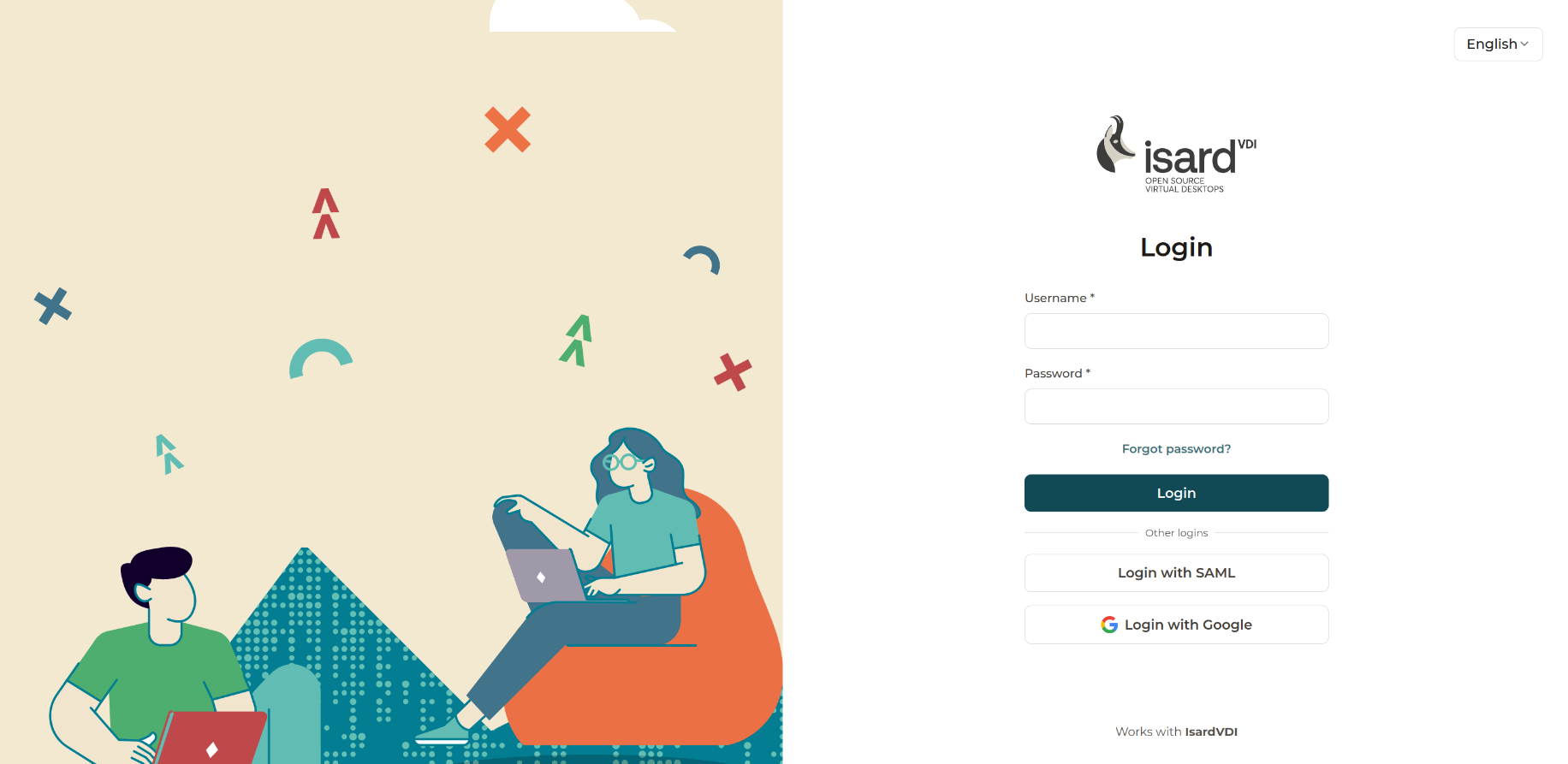
| Method | Where to sign in | Which credentials | How the account is created |
|---|---|---|---|
| Local | Username and Password form | IsardVDI's own | The administration creates it |
| LDAP | The same form | The organization's directory credentials | Automatically or with a registration code, on first access |
| Google (OAuth2) | Login with Google button, under Other logins | The Google account | With a registration code, on first access |
| SAML | Login with SAML button, under Other logins | The organization's identity provider credentials | Automatically or with a registration code, on first access |
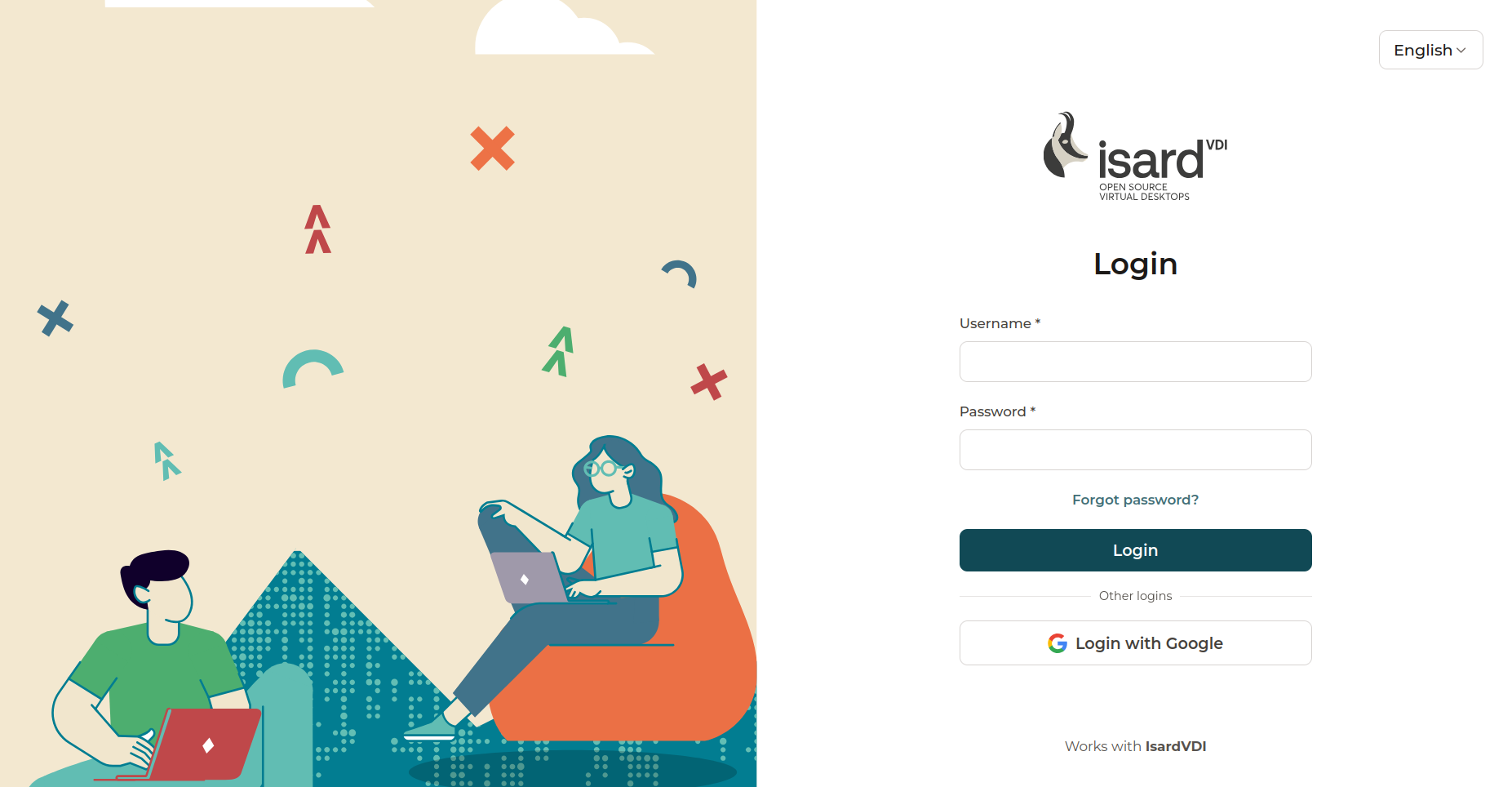
The Other logins separator only appears when the form is shown together with at least one button. The button texts may differ between installations.
How to sign in with each method
- If the Select a category drop-down appears, choose the account's category.
- Fill in Username and Password with the details provided by the administration.
- Press Login.
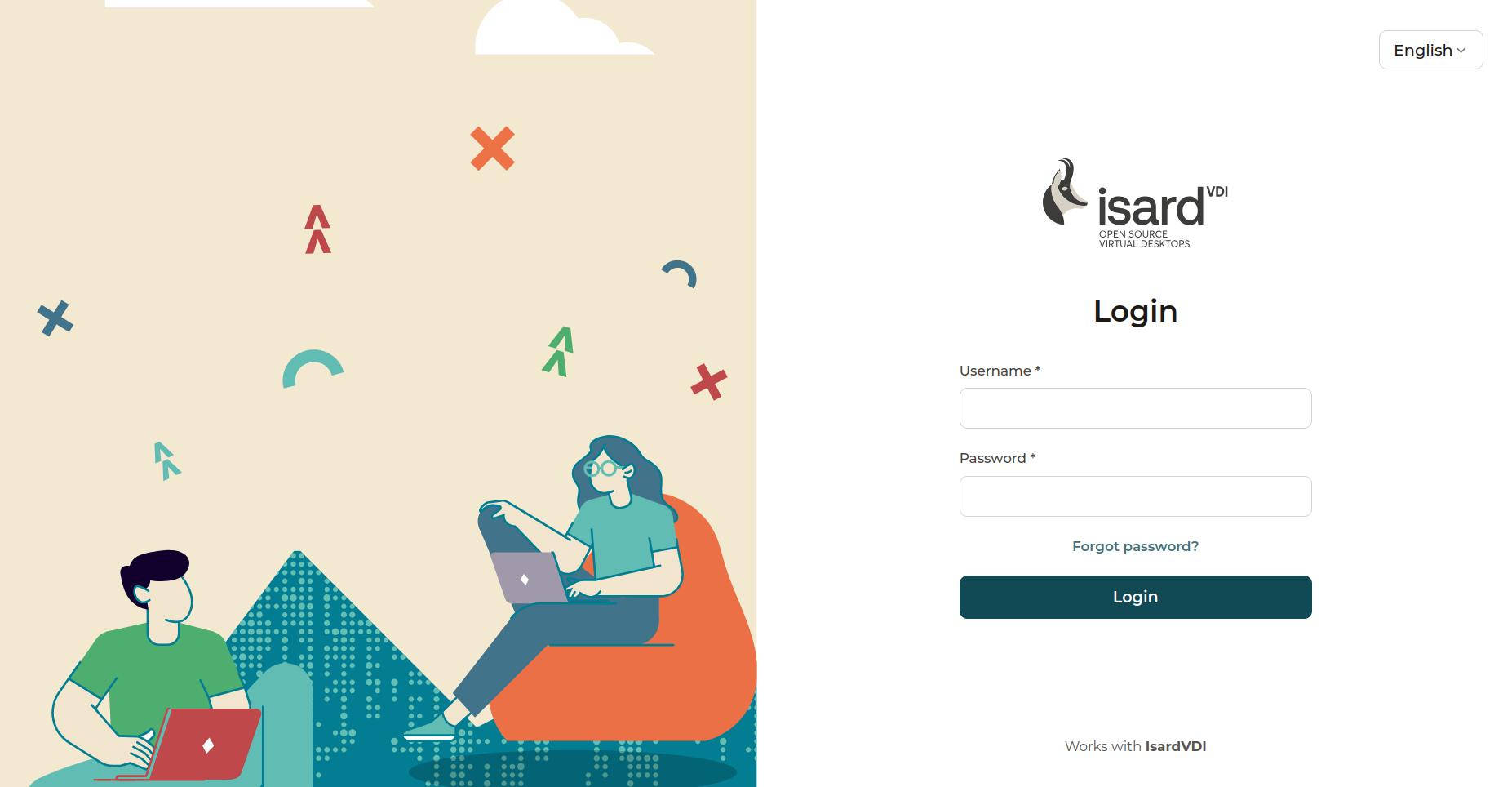
The administration creates local accounts: there is no registration code for this method. If the password has been forgotten, use the Forgot password? link (see Password recovery); it only works if the account has a verified email and the installation has not hidden the link.
-
Press Login with Google.
-
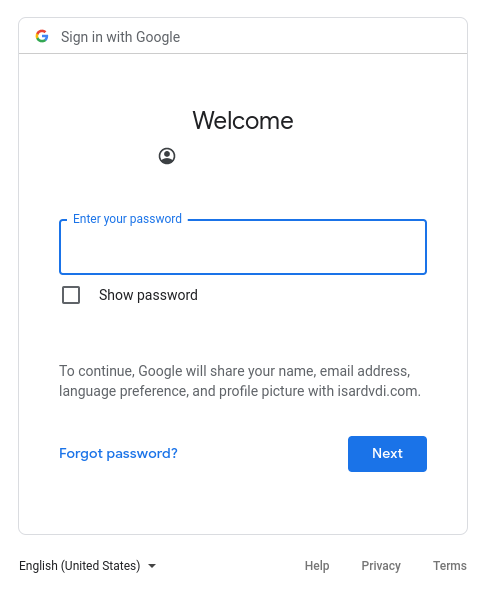
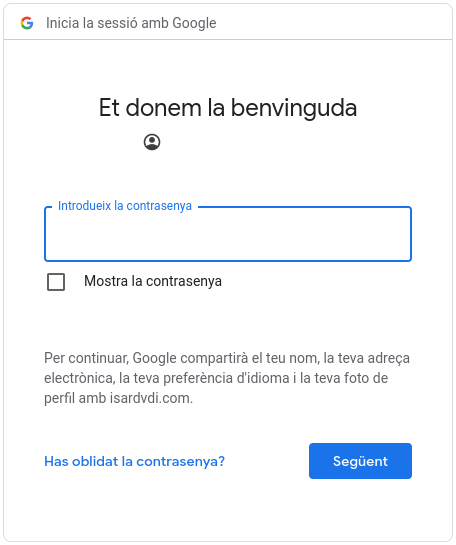
On the Google page, choose the account or type its address and password.
-
The browser returns to IsardVDI. On first access the registration code is requested.
With Google there is no IsardVDI password: Google checks the identity. Once the account is registered, later sign-ins only need the button and the Google account. The code is not requested again.
- If the Select a category drop-down appears, choose the category.
- Fill in Username and Password with the organization's directory credentials (the same ones used for other services of the organization).
- Press Login.
The form is the same as for local access: if local access is also enabled, IsardVDI first checks the credentials as a local account and, if they do not match, validates them against the directory.
On first access, the account is created automatically if the administration has configured it that way. Otherwise, the registration code is requested.
The password is held by the organization's directory. The Forgot password? link does not work for LDAP accounts: the password is changed through whatever means the organization provides.
-
Press Login with SAML.

-
Continue on the organization's identity provider page, which may differ between installations.
- The browser returns to IsardVDI. On first access, the account is created automatically if the administration has configured it that way; otherwise, the registration code is requested.
On later sign-ins, pressing the button is enough. If the session with the identity provider is still open, it may not ask for the credentials again.
When the IsardVDI session is closed, the identity provider session is closed too if the provider supports it; otherwise the browser goes to the logout address set by the administration, if there is one.
First access: registration code
When a Google, LDAP or SAML account signs in for the first time and the installation does not create it automatically, IsardVDI shows the Sign Up screen:
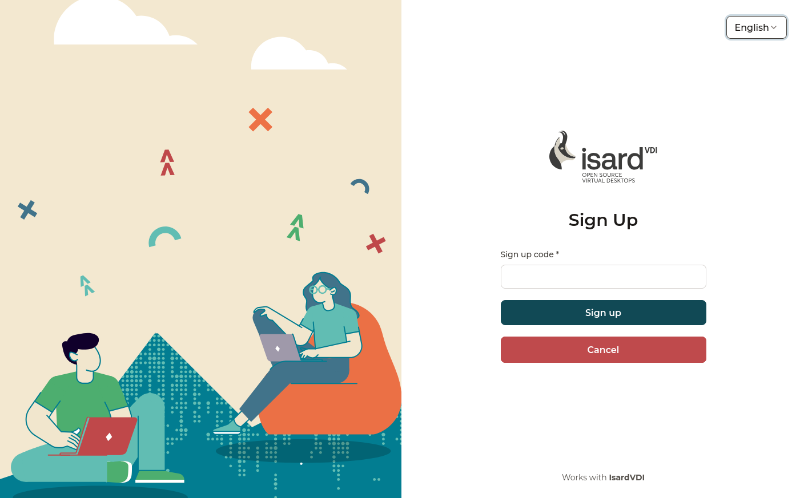
- Type the Sign up code provided by the administration or by whoever manages the category.
- Press Sign up.
The code sets the group and role of the new account; the category is the one chosen when signing in, and the code must belong to a group of that category. The name, username and email are taken from the identity provider. Once registered, IsardVDI signs the user in straight away and does not ask for the code again.
With LDAP and SAML, if automatic registration is limited to a list of roles and the directory or the identity provider starts reporting a role that is not in it, the same screen appears with the title Update your registration: the user cannot sign in until a code that grants the new role is entered.
The code format, the possible messages and what happens in each case are in Registration. How codes are generated is in Self-registration key.
If something does not work
The login error messages (wrong credentials, disabled account, too many attempts in a row, no category chosen…) and what to do in each case are in Log in. Those of registration with a code are in Registration.
A category may accept only email addresses from specific domains, for any of the methods. If the account's email is from another domain, or the account has no email, IsardVDI returns to the login screen with the message «The user can't use IsardVDI».
None of these methods is needed to open a desktop through a link someone has shared: see Direct viewer page.