Authentication with Google
Roles with access
Only administrators can configure this provider (Config → Authentication). All users see the Login with Google button if it is enabled.
Authentication with Google lets users log in with a Google account through OAuth 2.0. It is the only OAuth2 provider that IsardVDI currently implements.
Unlike LDAP and SAML, the Google provider does not create users automatically: it only validates who the person is. The first time, the user must enter a registration key to associate their Google account with an IsardVDI category, group and role.
Requirements
- A project in the Google Cloud Console with OAuth 2.0 Client ID credentials of type Web application.
- The Client ID and Client Secret of these credentials.
-
The authorized redirect URI of the Google project must contain exactly:
IsardVDI requests the userinfo.email and userinfo.profile scopes. These scopes allow reading the account's identifier, name, email address and photo.
Configuration
In the Google panel, the Update config link opens the configuration window. When Enabled is checked, the credential fields appear:
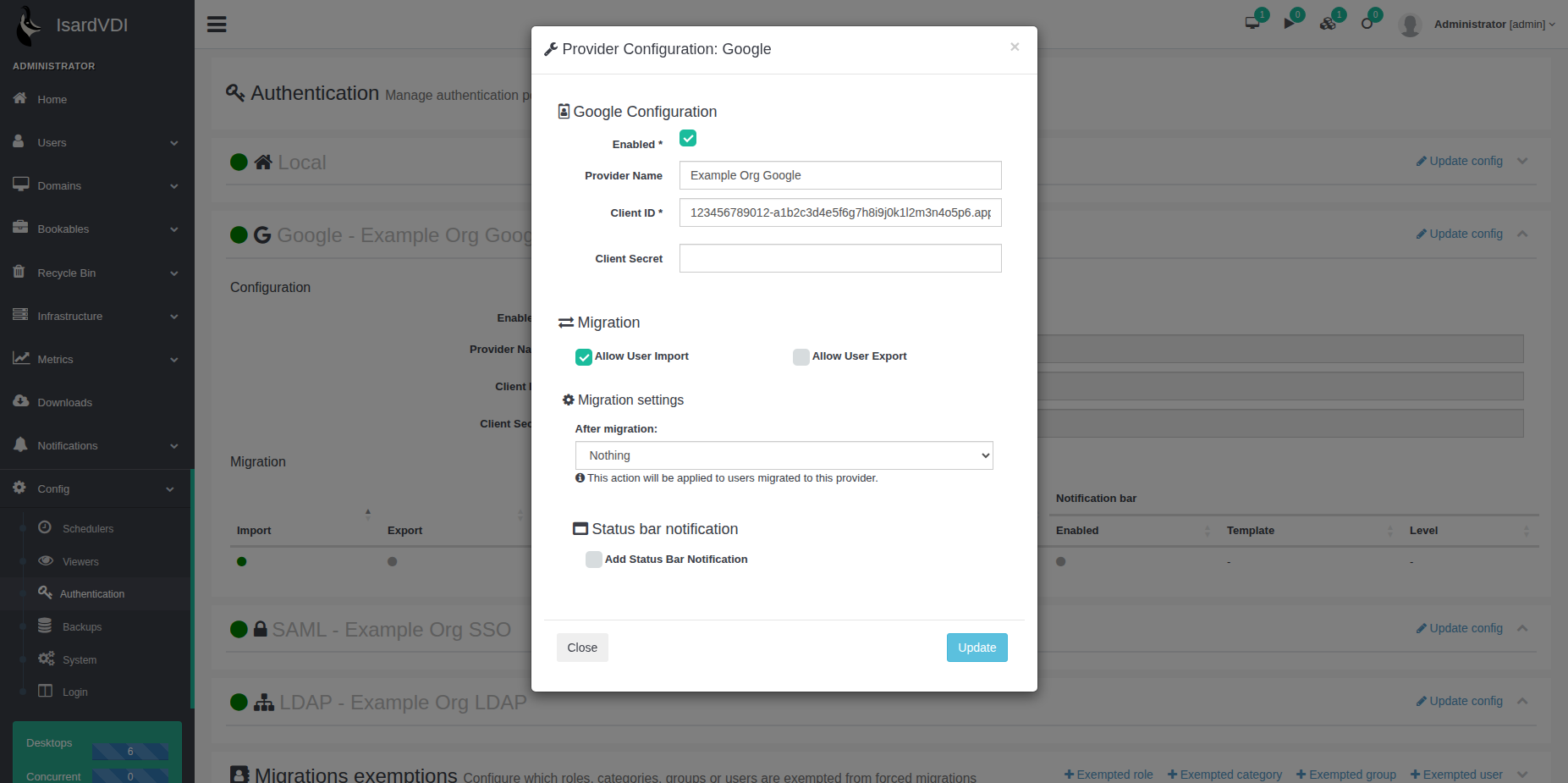
| Option | Default | Description |
|---|---|---|
| Enabled | Unchecked | Enables the provider and adds the Login with Google button to the login screen. |
| Provider Name | Empty | Descriptive name of the provider. It is shown in the title of the administration panel. |
| Client ID | — | The Client ID of the Google OAuth credentials. This field is required |
| Client Secret | — | The Client Secret of the Google OAuth credentials. |
The rest of the window is the migration block, common to all providers and described in Introduction to authentication.
The Client Secret is not shown again
The field is always empty when the window is reopened: the API never returns stored secrets. If you save the form with the field empty, the previous secret is kept; it is only written when a new value is entered.
The Provider Name is not the button text
The text and icon of the Login with Google button are part of the login page configuration and cannot be changed from the administration interface (see Config → Login, which only manages the notifications). The Provider Name on this page is only used in the administration panel.
Once saved with Update, the authentication service applies the change within one minute at most.
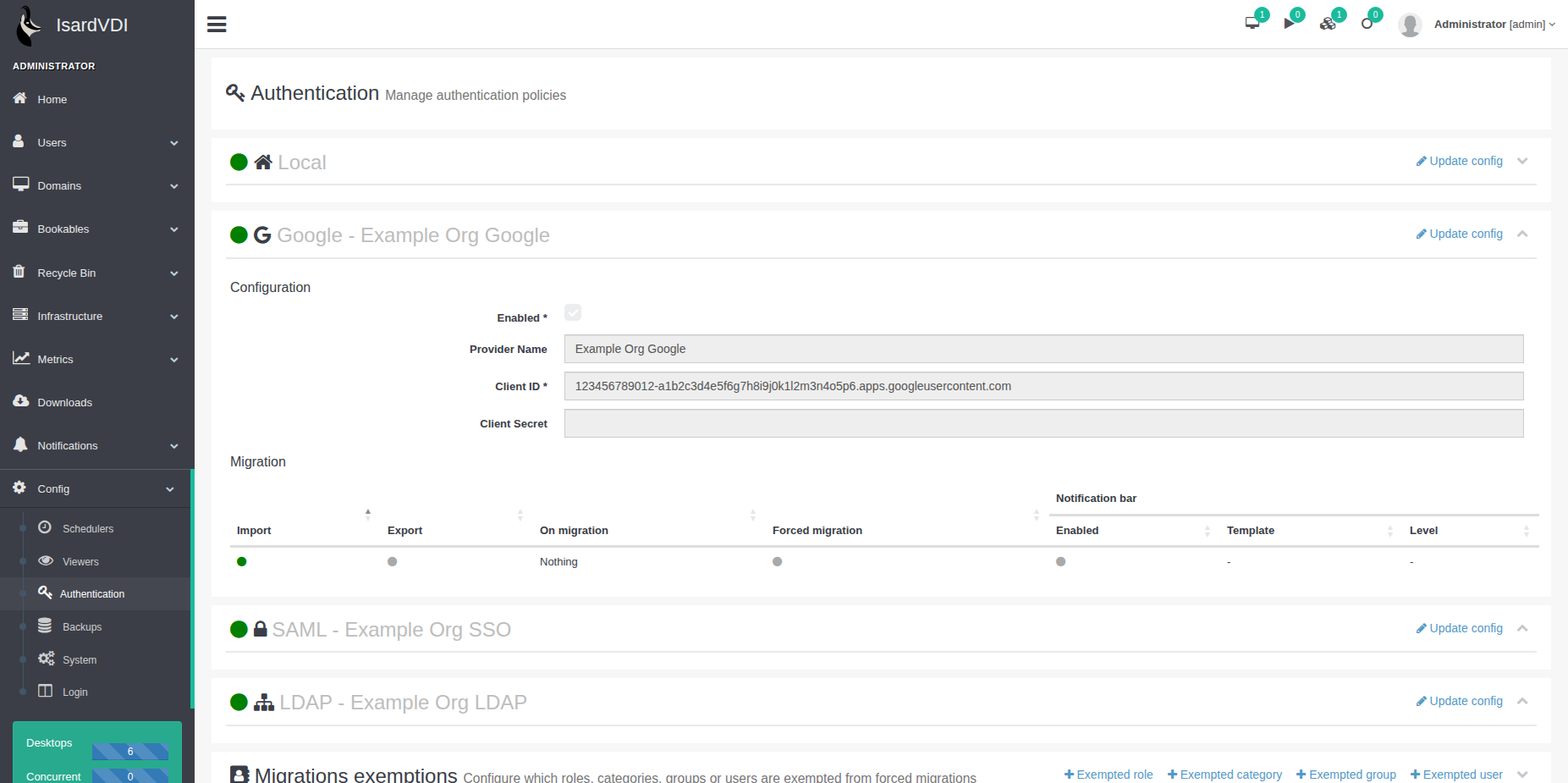
How the panel looks
Complete configuration flow
- Create OAuth 2.0 Client ID credentials of type Web application in the Google Cloud Console.
- Add the authorized redirect URI
https://<domain>/authentication/callback. - Copy the Client ID and the Client Secret to
Config→Authentication→ Google. - Check Enabled and click Update.
- In
Users→Management, create the groups with the registration keys that users will log in with. - Distribute the registration key to the users.
Steps 5 and 6 are needed because the Google provider does not do self-registration: without a registration key, a user who authenticates correctly with Google will not be able to log in. Creating keys is described in Self-registration key.
Alternative to the registration key
An administrator can also create the user's record in advance in Users → Management with the google provider. In this case, the user's uid must be the numeric identifier of the Google account, not their email address. That is why, in practice, the registration key route is usually simpler.
Behavior for users
With the provider enabled, the login screen shows the Login with Google button in the Other logins section:
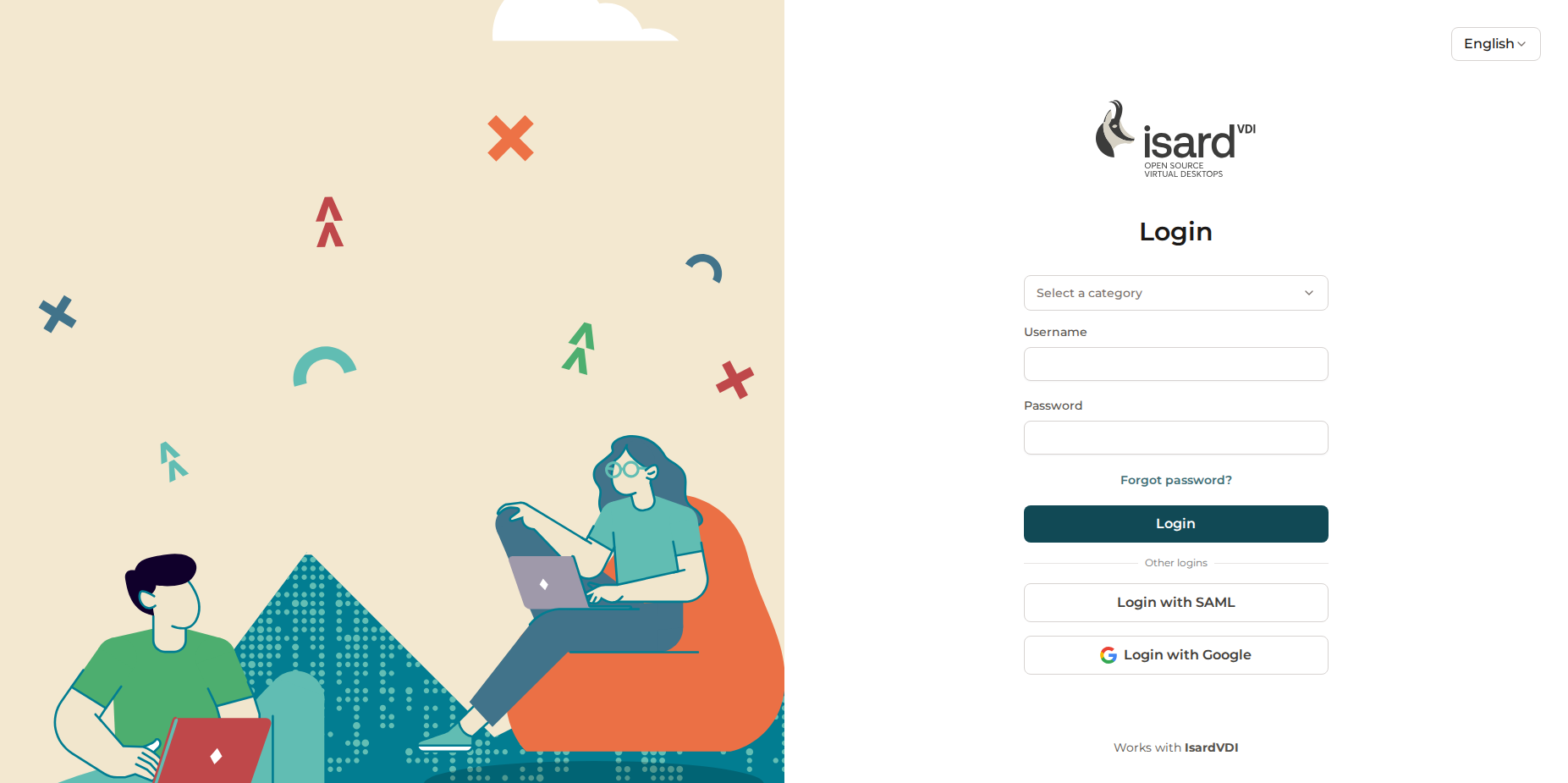
The user's journey is:
- The user clicks Login with Google and Google asks which account to log in with.
- If it is the first time, IsardVDI takes them to a registration page where they must enter the registration key given to them by an administrator or manager. The key determines the category, group and role the account will be created with.
- On later logins, clicking the button is enough: the key is not requested again.
The data IsardVDI stores from the Google account is:
| IsardVDI field | Source in Google |
|---|---|
uid |
Numeric account identifier |
username |
Part of the email address before the @ |
name |
Account name |
email |
Email address |
photo |
Profile photo |
The detailed journey, with screenshots, is in Access methods (Google tab).
Restricting the accepted email domains
To accept only accounts from a specific domain (for example, @example.com), the restriction is configured in the category, not on this page: Users → Management → category record → Authentication button → Email Domains Restriction Enabled and Allowed Email Domains. See Categories.
Migration
The Migration block determines whether Google users can export their account and whether they can receive one. Allow User Import is commonly enabled when migrating local users to Google accounts.
See Migrations exemptions and User migration (export / import).
Troubleshooting
| Symptom | Checks |
|---|---|
| The Login with Google button does not appear | That the Enabled option is checked, that at least one minute has passed since saving the changes and that the category does not have the provider disabled. |
redirect_uri_mismatch on the Google screen |
That the authorized redirect URI of the Google project is exactly https://<domain>/authentication/callback, using the same domain IsardVDI is accessed through. |
| The user authenticates but cannot log in | This is the expected behavior if there is no registration key. Give them a key or create their user record beforehand. |
| invalid_client | That the Client ID and the Client Secret belong to the same project and have no leading or trailing spaces. |
The provider messages can be checked in the authentication service logs:
The mapping to the AUTHENTICATION_AUTHENTICATION_GOOGLE_* keys of isardvdi.cfg is documented in Authentication (installation).