Recycle bin
Roles with access
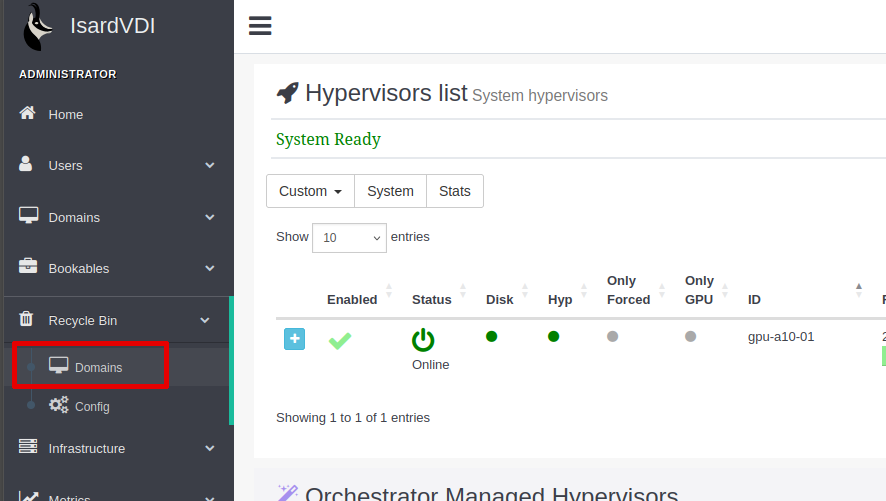
Administrators and managers have access (Recycle Bin → Domains). Managers only see the entries of their own category. The configuration (Recycle Bin → Config) is for administrators only (more information in Recycle bin configuration).
To view the items in the recycle bin:
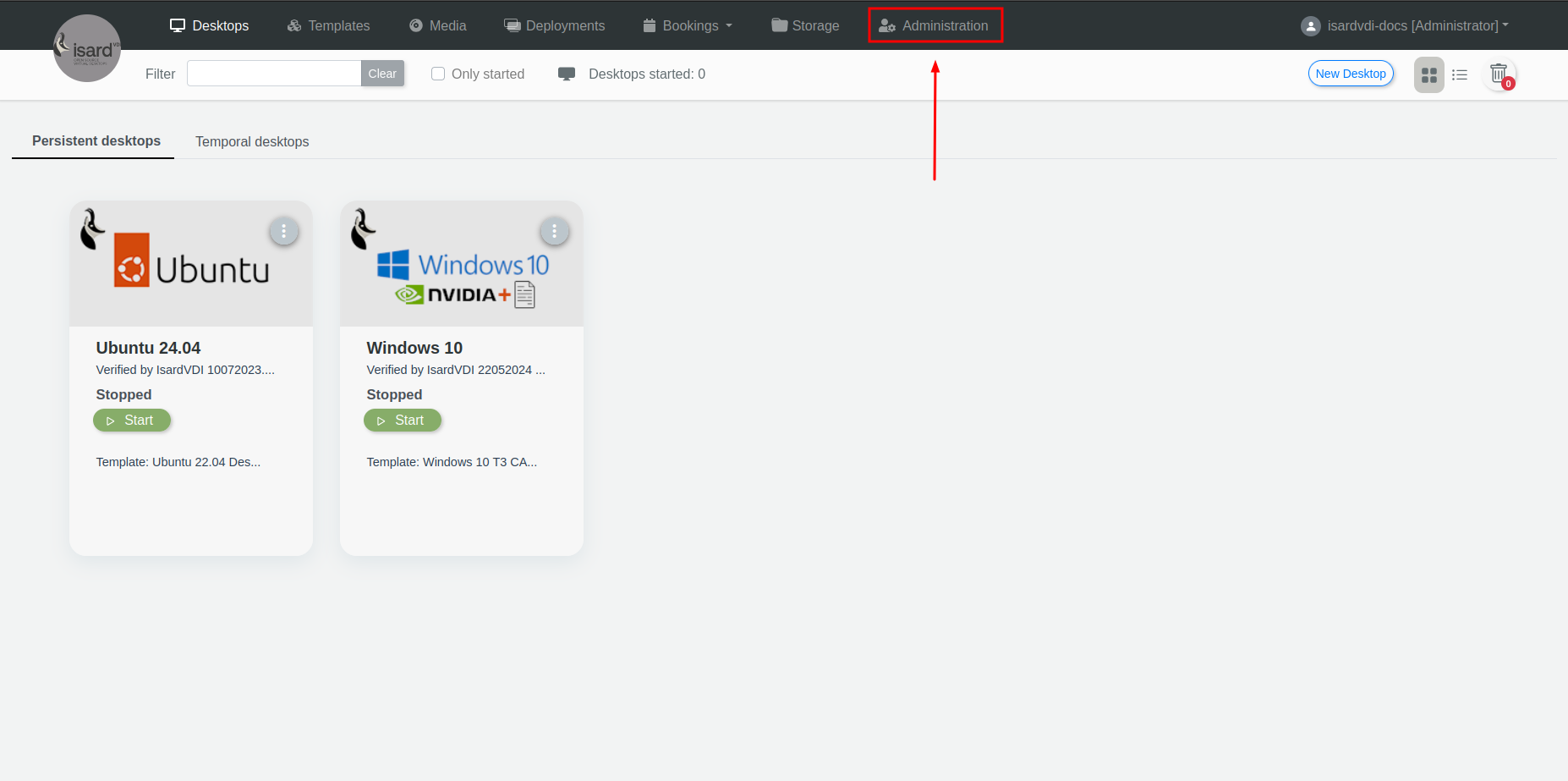
- Open the Administration panel.
- Click the button:

In the recycle bin section, you can view the different items that have been temporarily deleted. To manage them, click the button:
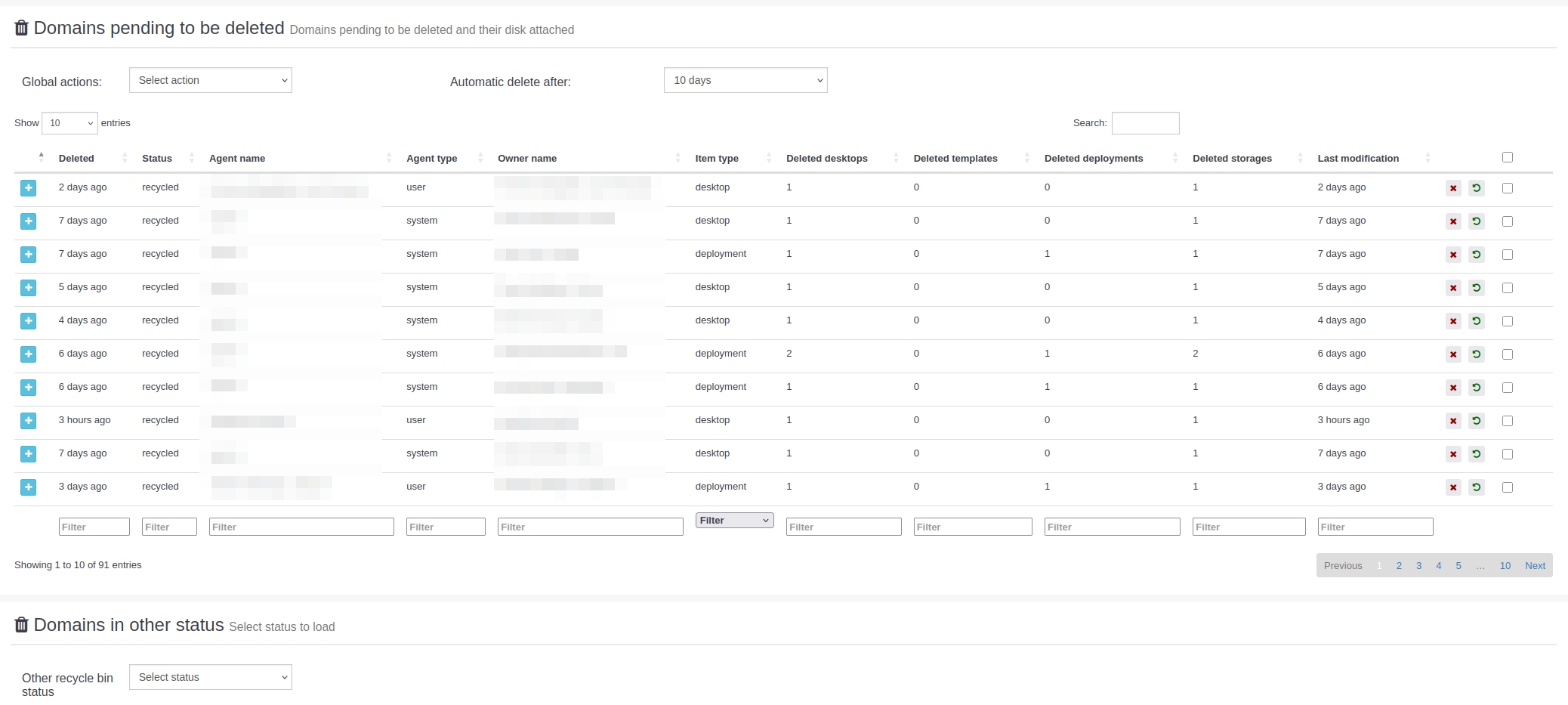
Domains pending deletion
This section displays the items in the recycle bin that have not yet been permanently deleted. They are classified by recycle bin entries for each user.
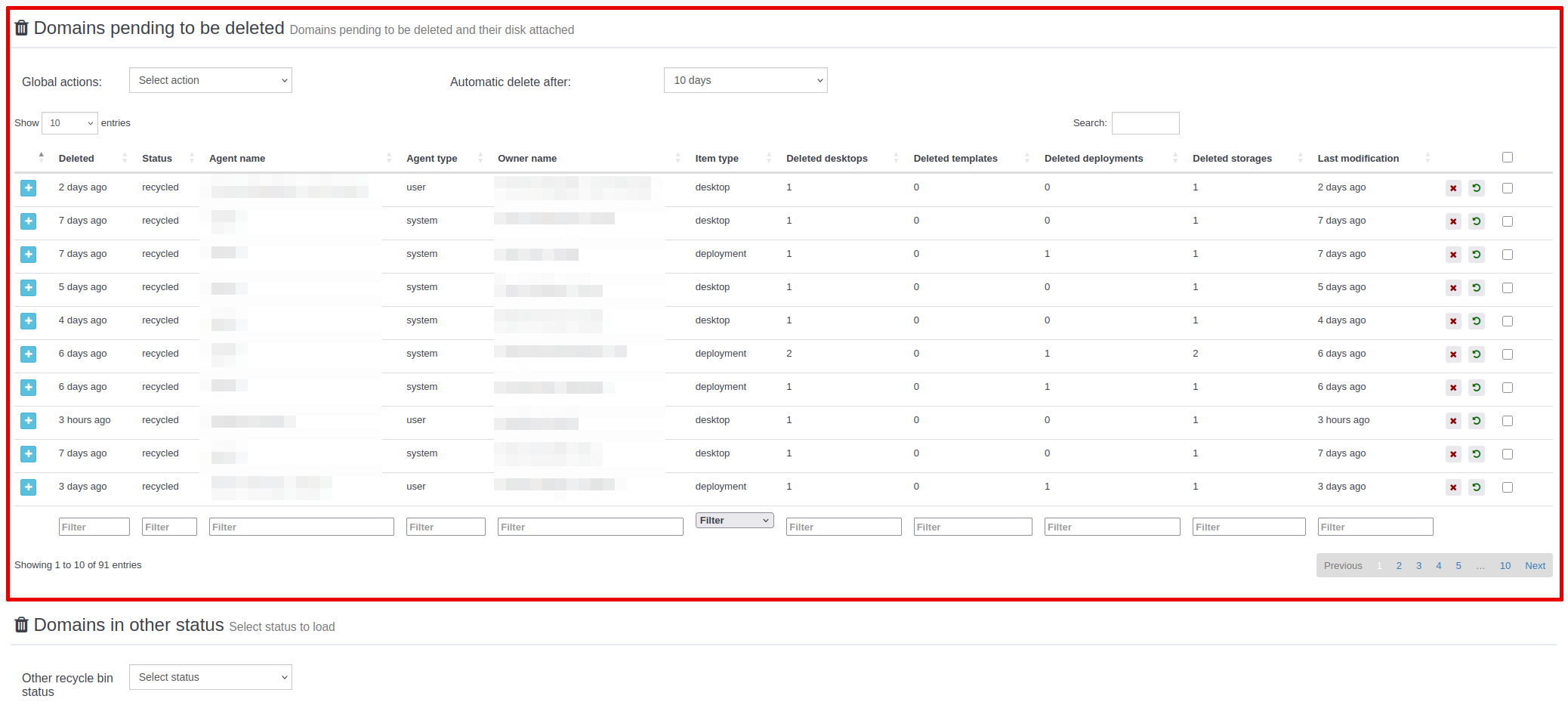
The table shows the following columns:
- Deleted: Indicates when the item was sent to the recycle bin.
- Status: This section displays items in the 'recycled' status, meaning they have not been permanently deleted.
- Agent name: Identifies who sent the item to the recycle bin.
- Agent type: Indicates the type of agent that performed the action:
- user: The user sent the item to the recycle bin.
- system: The item was sent to the recycle bin via a scheduled task.
- Owner name: Name of the user who owns the item.
- Item type: Indicates the type of item.
- Deleted desktops: Number of deleted desktops.
- Deleted templates: Number of deleted templates.
- Deleted deployments: Number of deleted deployments.
- Deleted storages: Number of deleted disks.
- Last modification: Date of the last modification.
- Actions: Available actions for these entries.
- Restore:
 Restore the items, that is, take them out of the recycle bin and return them to the user, who sees them again in their list.
- Delete:
 Permanently delete the items from that entry.
- Restore:
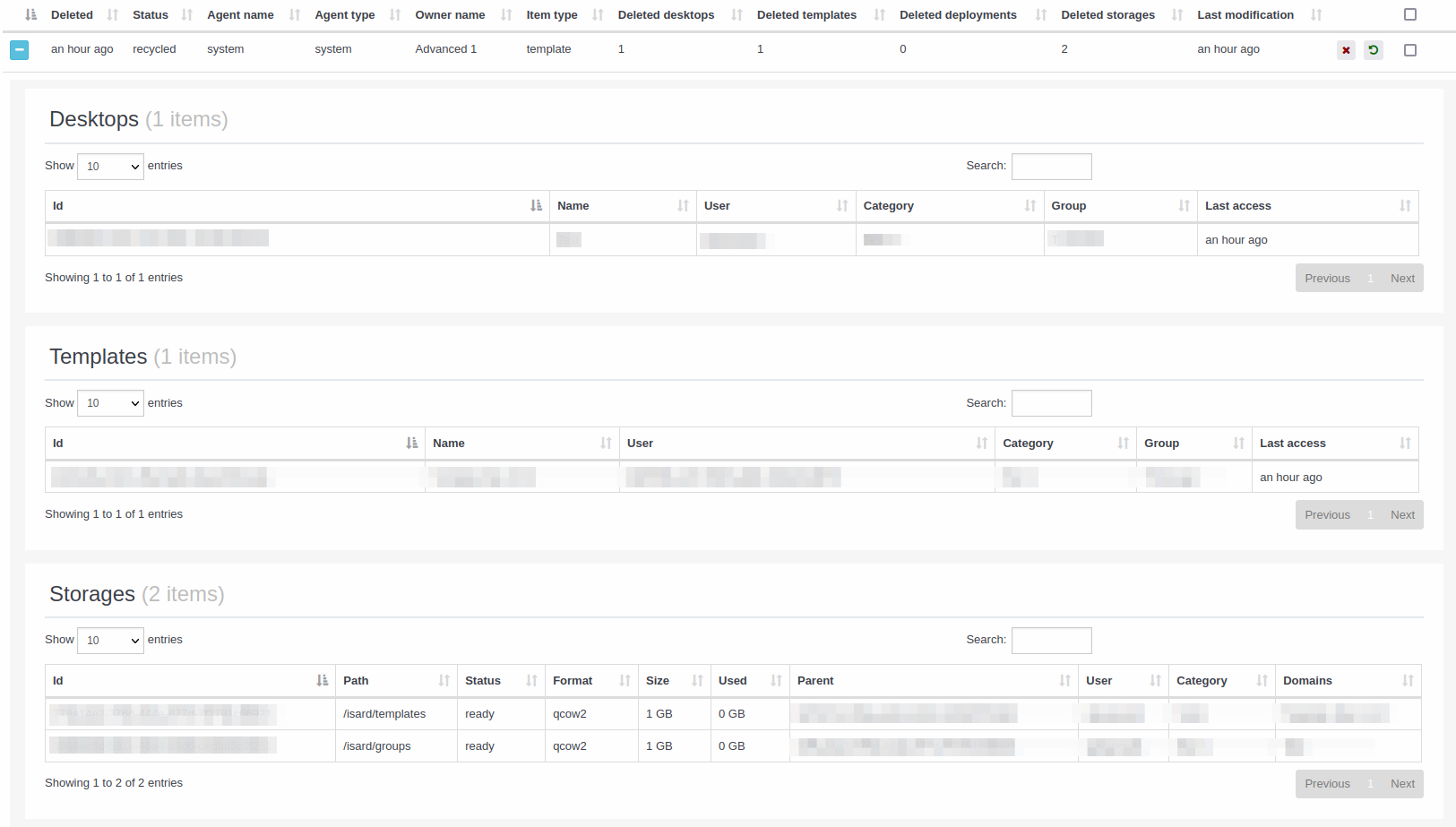
Information on deleted items
You can access detailed information about deleted items and their dependencies by clicking the icon  in the corresponding row.
Restoring deleted items
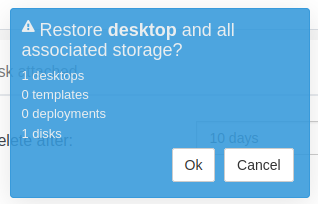
You can recover deleted items by clicking the icon .
A modal appears with a short summary of what will be restored; accept it to continue.
Permanent deletion
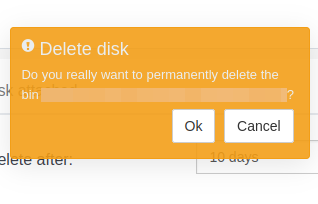
You can permanently delete the items by clicking the icon: {width="3%"}
A confirmation window asks whether you want to permanently delete that entry.
Modifying the automatic deletion time
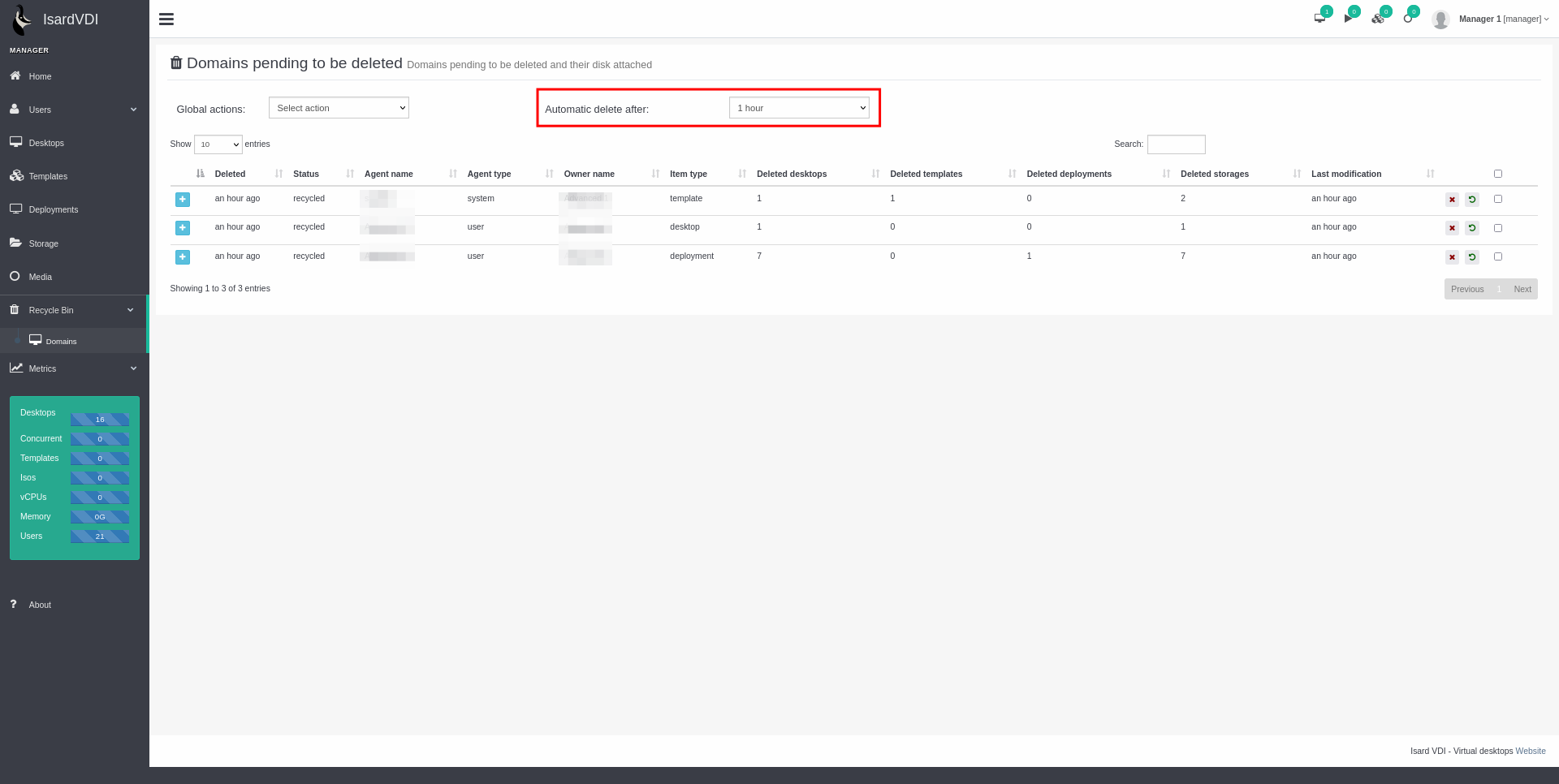
The Automatic delete after dropdown at the top sets the maximum time an item can stay in the recycle bin before being permanently deleted (from Immediately to 1 year). The administrator sets the global value; the manager sets the value for their category, which takes precedence over the global one for their users.
With Immediately, users do not see the option to send to the recycle bin when deleting, and the deletion is permanent. With any other value, in their recycle bin they see the notice «Items in the recycle bin are permanently deleted after remaining here for…».
Global actions
You can perform a series of global actions on recycle bin entries. These can be applied to all entries or only to the selected ones: Delete permanently and Restore disk and domain.
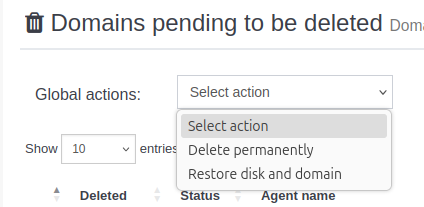
These actions are the same as those that can be performed individually, but with the difference that they can be applied to more entries at once.
Domains in other states
This section displays entries that have a status other than recycled.
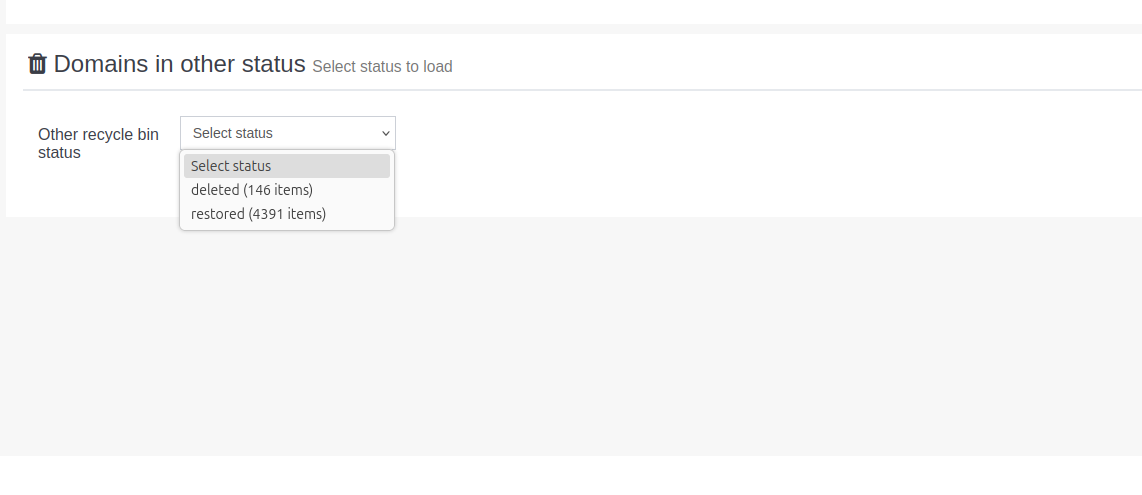
You can view entries that have been permanently deleted and those that have been restored.
The table is the same as in the previous section, with the difference that these items are not in the recycle bin, but are either deleted or restored.
Relationship with the user's recycle bin
Each user sees and manages their own entries in the recycle bin of their interface, where they can restore or delete them. Whether the send-to-recycle-bin checkbox is selected or not when deleting a desktop depends on the Send to recycle bin by default option of the configuration.