Desktops status
Roles with access
Only administrators have access to this section.
This section displays the status of all desktops created for users within one or more categories.
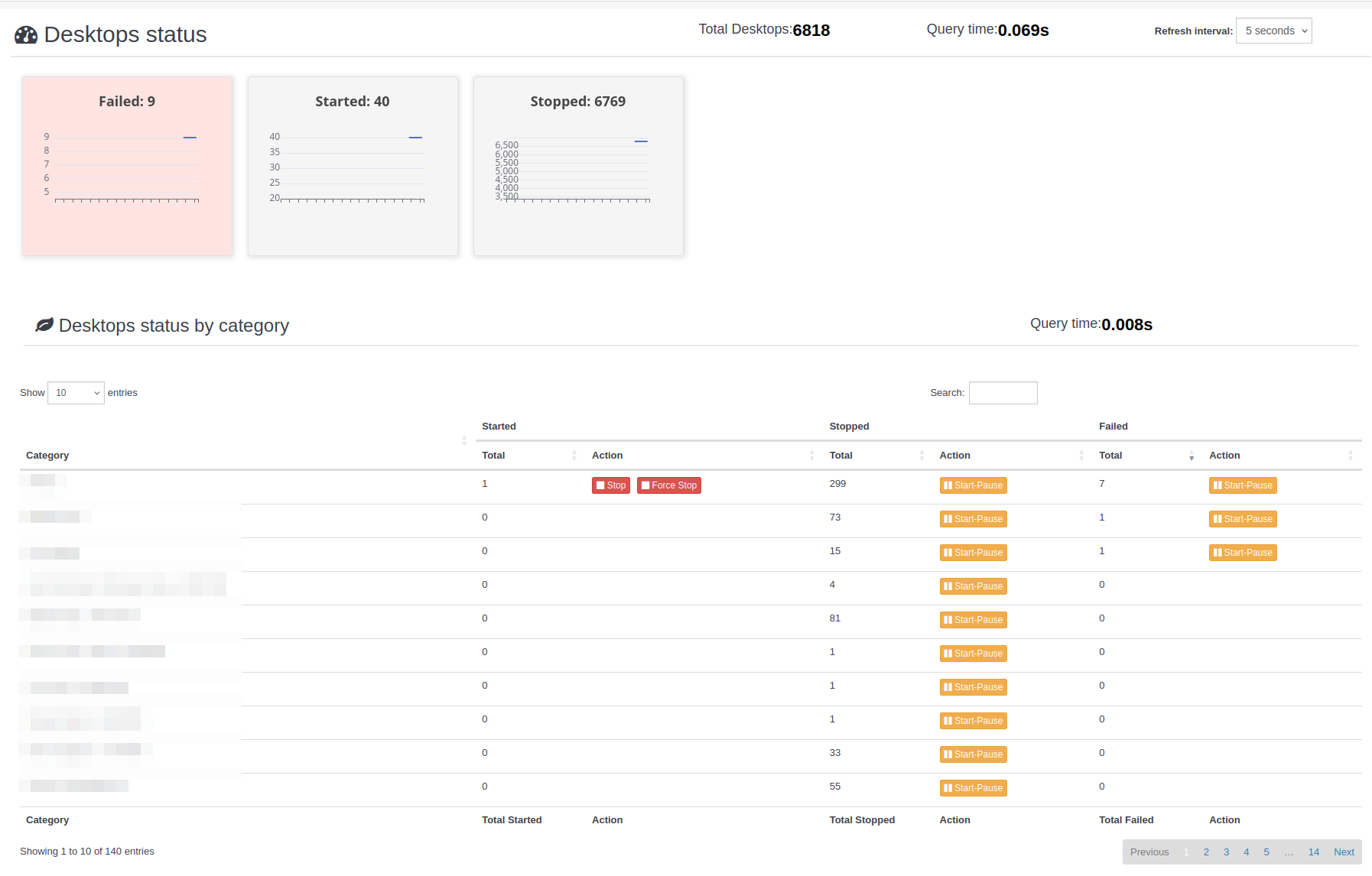
Two sections can be distinguished:
-
Desktops status: This section shows all desktops from all categories on the platform.
-
Desktops status by category: This section shows the desktops created per category, distributed according to their status: Started (running), Stopped (stopped) and Failed (with failures). Various actions can be performed from here.
Desktops status
This section displays the overall status of all desktops on the platform. Each status is represented by a panel that includes the status name, the total number of desktops in that condition, and a graph reflecting its temporal evolution.
This graph can be modified using the Refresh interval dropdown:
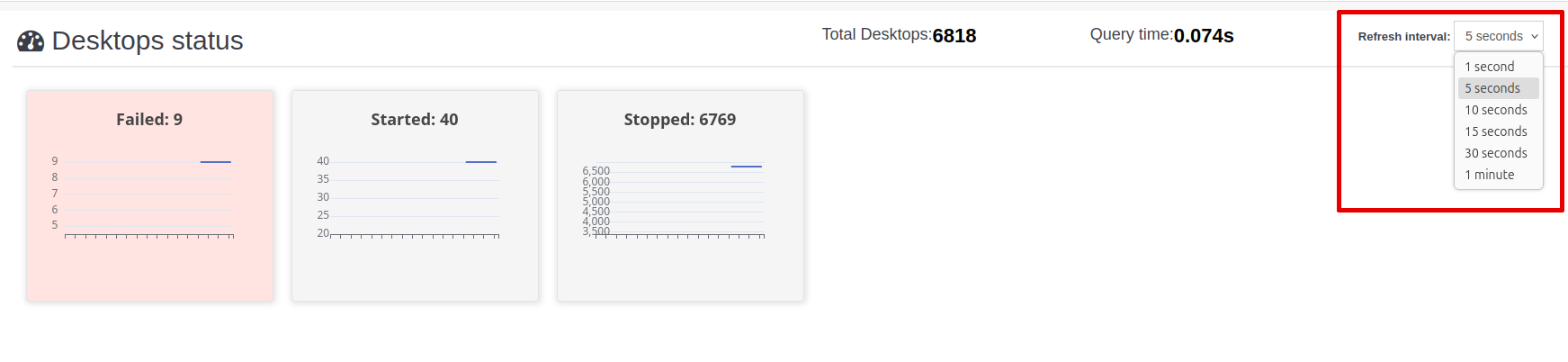
Using this dropdown, you can select the frequency at which the graph is updated.
Next to this dropdown, important data is displayed, such as the total number of desktops on the platform and the query time.
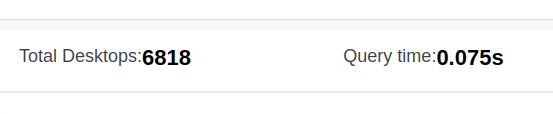
The query time is the time, in seconds, that the query retrieving the desktops' status takes to respond each time the panel is refreshed. It is measured in the browser.
When monitoring the platform status
As a guideline, if the platform is not overloaded, this value is usually below 0.5 seconds.
If this value is exceeded for a prolonged period, measures should be taken to reduce consumption on the platform or increase its capacity.
Actions
Clicking on the panels for each status allows you to view the available actions for the desktops in that specific status.
Simultaneously, it opens the possibility to view in more detail which desktops are in this status. Clicking on the option located below  expands a list like the following:
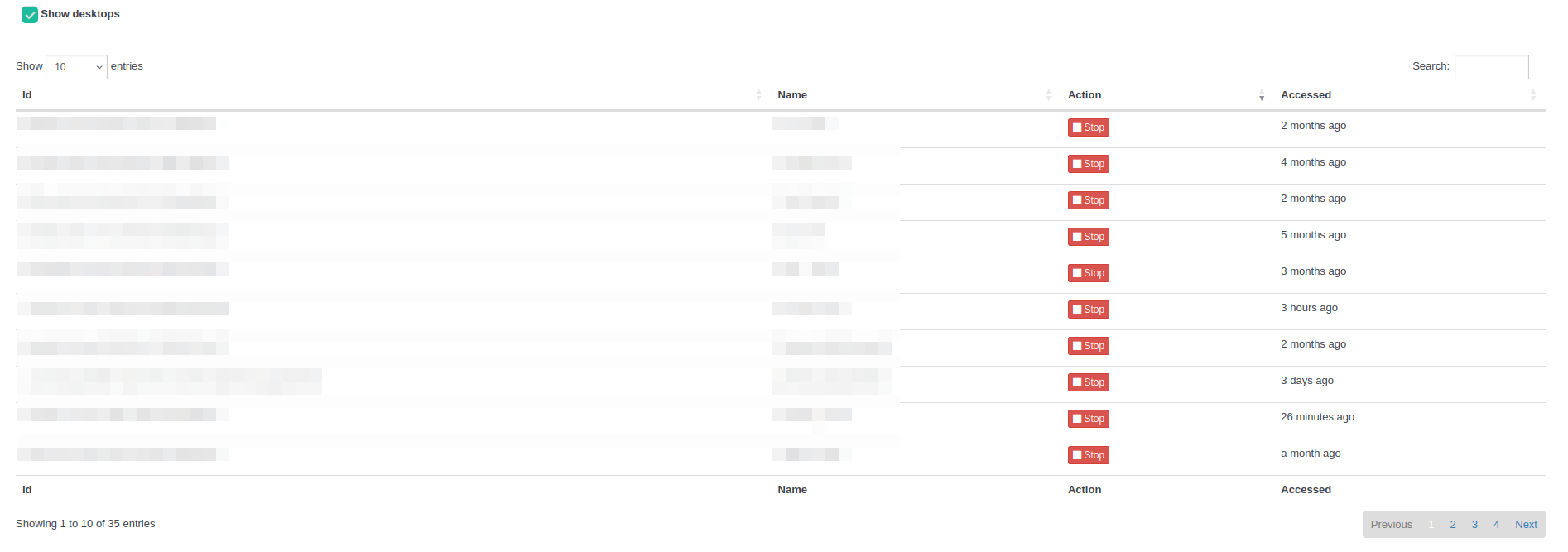
In this list, you can see the desktop ID (each desktop has a unique ID that identifies it from the rest), the desktop name, the individual actions that can be performed on this desktop, and the date of the last access or startup.
The different statuses that can be found in this section are as follows:
| Status | Panel | Description | Actions |
|---|---|---|---|
| starting | 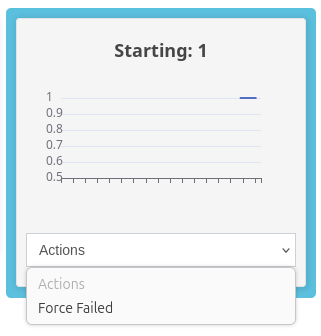 |
Desktops that are starting | Force failed: Force the desktops to the failed status |
| started | 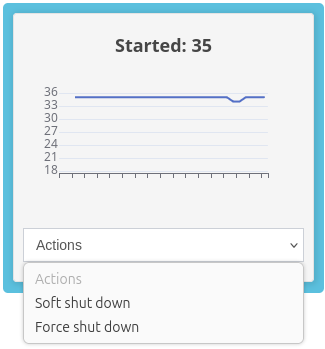 |
Desktops already started | Soft shut down: Stop the desktops without forcing them. Force shut down: Force the desktops to shut down. |
| stopping | 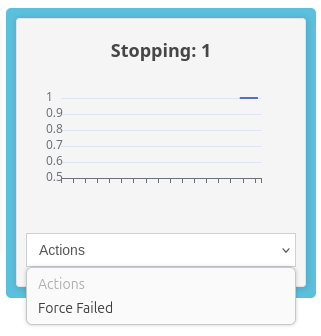 |
Desktops that are stopping | Force failed: Force the desktops to the failed status |
| stopped | 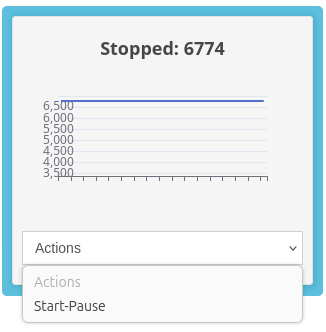 |
Desktops already stopped | Start pause: Performs an initialization of the desktop status and leaves them in stopped |
| shutting down | 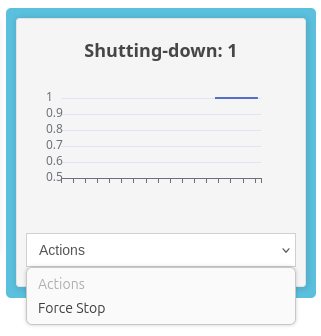 |
Desktops that have been forced to shut down | Force stop: Force the desktops to stop. |
| creating | 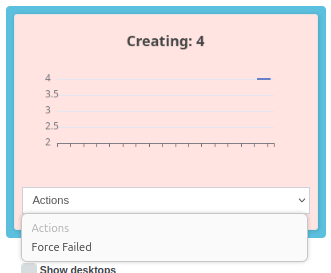 |
Desktops that are being created | Force failed: Force the desktops to the failed status |
| creating template | 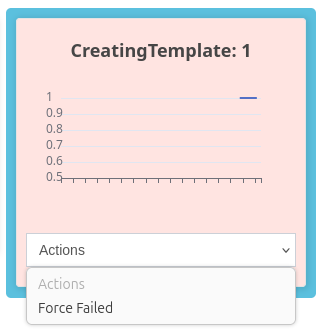 |
Templates that are being created | Force failed: Force the desktops to the failed status |
| creating domain | 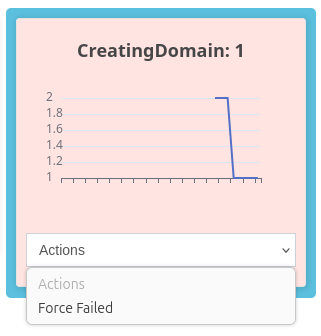 |
Domains that are being created | Force failed: Force the desktops to the failed status |
| creating disk | 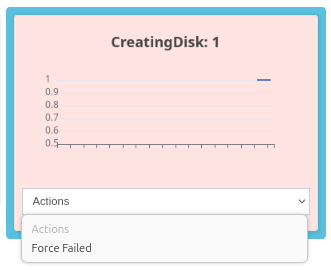 |
Disks that are being created | Force failed: Force the desktops to the failed status |
| updating | 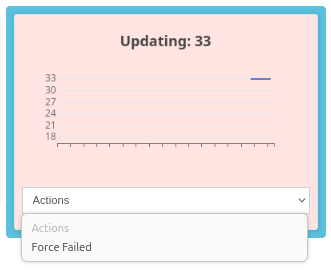 |
Desktops/deployments that are being updated | Force failed: Force the desktops to the failed status |
| maintenance | 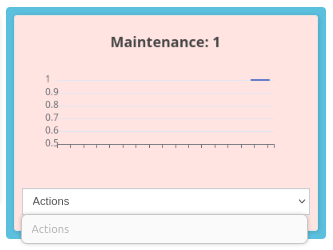 |
Desktops in maintenance | - |
| failed | 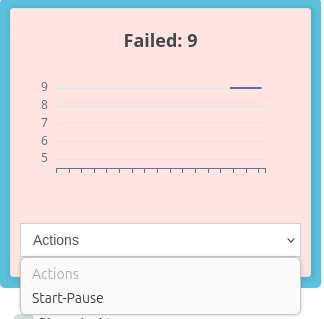 |
Desktops that have failed | Start pause: Performs an initialization of the desktop status and leaves them in stopped |
| starting-paused | 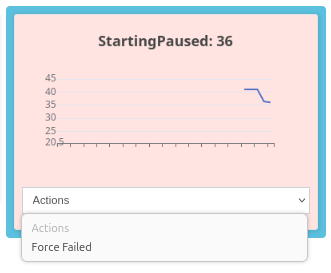 |
Desktops changing status to stopped from another status different from Started | Force failed: Force the desktops to the failed status |
| Status | Panel | Description | Actions |
Desktops status by category
In this second section, located directly below the previous one, information about desktops is displayed, automatically grouped by category.
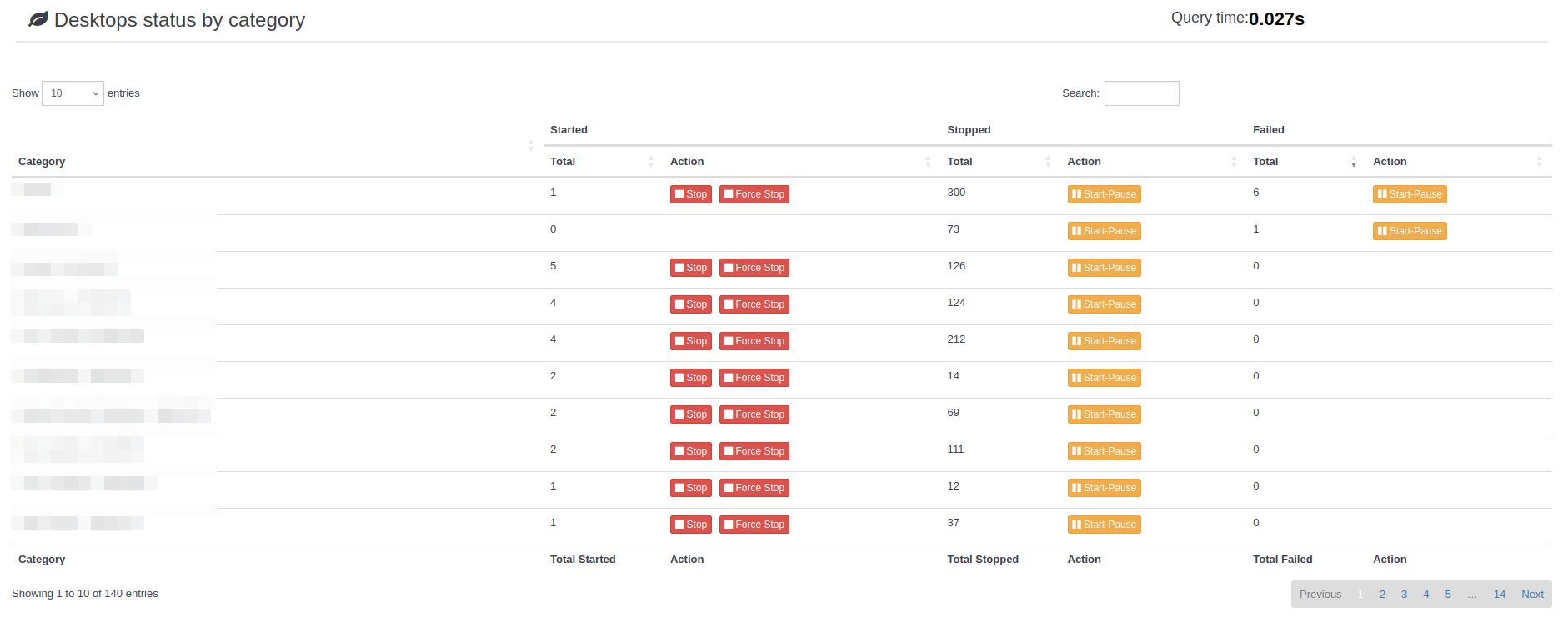
In this section, you can view three possible desktop states:
- Started: Desktops currently started or running.
- Stopped: Stopped or powered-off desktops.
- Failed: Desktops that have encountered an error during execution or startup.
Each state offers the same actions as the previous section. The difference is that these actions apply only to desktops of a specific state and category.