Deployment details
This is the deployment screen: in one place, it gathers users with access, the video wall, desktop shutdown, visibility, the bastion, recreation, and deletion, among other actions. The available operations depend on the user account's access level.
Roles with access
- Management actions are for the advanced, manager, and administrator roles (not the user role), on deployments for which they are owners or co-owners. The administrator has access to all; the manager, to those in their category.
This feature is only available in the new interface (new interface).
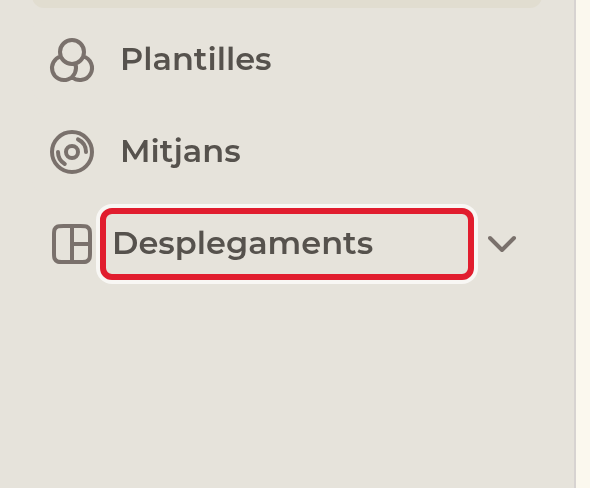
In the side menu, the Deployments section; this feature is within that screen.
Navigation
This feature is only available in the new interface (new interface).
The detail screen shows a single deployment. It is reached from the Deployments list, and the Go back button, at the top left, returns to it.
If the deployment cannot be loaded
If loading the deployment fails (for example, because it no longer exists or because there is no permission for it), the interface automatically redirects to the deployment list.
The screen has four areas:
- Header: the deployment name, a visibility badge (Visible, Hidden or Partially visible) and three counters: Users (only counts users who have at least one desktop), Started and Visible. The badge says Partially visible when only a part of the existing desktops is visible.
- Toolbar: the Search user search field (only appears if there are users with desktops), the Users and groups, Videowall and Stop all buttons, and the three-dot menu with the remaining actions.
- User table, with one row per user who has desktops in the deployment and these columns:
- Visible desktops: in
visibles/totalformat. - Last accessed: date and time; hovering over it shows the relative time. If there is no data, «—» is displayed.
- User: the name and, if the account is disabled, the Disabled badge (with the name faded).
- Started desktops: in
arrencats/totalformat; desktops that are shutting down also count as started. - Actions: Enter, Stop, and the bastion (if the account can use the bastion), visibility (eye) and deletion (bin) icons.
- Visible desktops: in
- Empty state: if there are no users with desktops yet, or if the search finds no users, the table is replaced by an informative message.
The three-dot menu in the toolbar collects the actions on the entire deployment:
| Menu option | What it does | Where it is detailed |
|---|---|---|
| Edit deployment | Opens the deployment edit form. | Resource management |
| Download direct links | Generates a CSV with direct viewer links. | Data download |
| Bastion and Download bastion CSV | Only present if the account can use the bastion. | Deployment bastion |
| Manage Co-Owners | Selects which users share the management of the deployment. | Below |
| Recreate deployment | Creates the missing desktops. Disabled while a recreation is in progress. | Deployment recreation |
| Desktop visibility | Opens the visibility matrix per user and desktop. | Desktop visibility |
| Reserve | Not yet implemented: only shows the warning «not implemented yet». | |
| Delete deployment | Deletes the deployment. Does not appear for co-owners. | Permanent deletion |
Co-owners
The Manage Co-Owners option opens a dialog with the deployment owner and only allows selecting users with an advanced, manager or administrator role. According to the dialog message, co-owners have the same permissions as the owner, except deleting the deployment and managing co-owners. A co-owner sees the dialog in read-only mode, with the «As a co-owner you cannot change the co-owners. Contact the deployment owner.» warning. When saving, the interface shows «Co-owners updated» or, if it fails, «Could not update the co-owners».
Development details
For those who develop or integrate IsardVDI: where in the code each element of this section is, from which version it is available, which API operation it calls and which messages it can return.
- New interface · file
components/deployments/actions/started-desktops-modal/DeploymentStartedDesktopsModal.vue:52· interface text (translation key)components.deployments.started-desktops-modal.manage- from v17.77.0 (2026-10-29,
239d1d59ac) - on click:
router.push({ name: 'deployment', params: { deploymentId: props.deploymentId } }) - call:
navigation to the «deployment» route
- from v17.77.0 (2026-10-29,
- New interface · file
components/deployments/actions/started-desktops-modal/DeploymentStartedDesktopsModal.vue:44· interface text (translation key)components.deployments.started-desktops-modal.close- from v17.77.0 (2026-10-29,
239d1d59ac) - on click:
emit('close')
- from v17.77.0 (2026-10-29,
- New interface · file
views/DeploymentView.vue:890· interface text (translation key)views.deployment.tooltips.visibility- from v17.60.0 (2026-10-08,
6f9b45a842) - on click:
visibilityUserModalData = { userId: row.id, username: row.name }
- from v17.60.0 (2026-10-08,
- New interface · file
views/DeploymentView.vue:712· interface text (translation key)views.deployment.stop-all.stopping-tooltip- from v17.35.0 (2026-09-07,
8939ec8441) - on click:
openStopAllModal
- from v17.35.0 (2026-09-07,
- New interface · file
views/DeploymentView.vue:713· interface text (translation key)views.deployment.stop-all.no-started-tooltip- from v17.35.0 (2026-09-07,
8939ec8441) - on click:
openStopAllModal
- from v17.35.0 (2026-09-07,
- New interface · file
views/DeploymentView.vue:807· interface text (translation key)views.deployment.data-table.disabled-user.badge- from v17.27.0 (2026-09-01,
01cedc161d)
- from v17.27.0 (2026-09-01,
- New interface · file
views/DeploymentView.vue:810· interface text (translation key)views.deployment.data-table.disabled-user.tooltip- from v17.27.0 (2026-09-01,
01cedc161d)
- from v17.27.0 (2026-09-01,
- New interface · file
views/DeploymentView.vue:499· interface text (translation key)components.deployments.co-owners-modal.title- from v17.27.0 (2026-08-27,
599271e48c)
- from v17.27.0 (2026-08-27,
- New interface · file
views/DeploymentView.vue:501· interface text (translation key)components.deployments.co-owners-modal.description- from v17.27.0 (2026-08-27,
599271e48c)
- from v17.27.0 (2026-08-27,
- New interface · file
views/DeploymentView.vue:529· interface text (translation key)views.deployments.alloweds.warning- from v17.27.0 (2026-08-25,
1dae7c4b53)
- from v17.27.0 (2026-08-25,
- New interface · file
views/DeploymentView.vue:878· interface text (translation key)views.deployment.tooltips.bastion- from v17.0.0 (2026-06-11,
67a56649e9) - on click:
bastionUserModalData = { userId: row.id, username: row.name }
- from v17.0.0 (2026-06-11,
- New interface · file
components/deployments/DeploymentBastionModal.vue:111· interface text (translation key)components.deployment-bastion-modal.title- from v17.0.0 (2026-06-11,
67a56649e9)
- from v17.0.0 (2026-06-11,
- New interface · file
components/deployments/DeploymentBastionModal.vue:112· interface text (translation key)components.deployment-bastion-modal.description- from v17.0.0 (2026-06-11,
67a56649e9)
- from v17.0.0 (2026-06-11,
- New interface · file
components/deployments/DeploymentBastionModal.vue:129· interface text (translation key)components.deployment-bastion-modal.error-loading- from v17.0.0 (2026-06-11,
67a56649e9)
- from v17.0.0 (2026-06-11,
- New interface · file
components/deployments/DeploymentBastionModal.vue:267· interface text (translation key)components.deployment-bastion-modal.buttons.save- from v17.0.0 (2026-06-11,
67a56649e9) - on click:
form.handleSubmit
- from v17.0.0 (2026-06-11,
- New interface · file
views/DeploymentView.vue:608· interface text (translation key)layouts.single-page.go-back- from v17.0.0 (2026-04-24,
f31b874d89) - on click:
router.push({ name: 'deployments' }) - call:
navigation to the «deployments» route
- from v17.0.0 (2026-04-24,
- New interface · file
views/DeploymentsView.vue:438· interface text (translation key)components.deployments.quota-exceeded-modal.title- from v17.0.0 (2026-04-24,
f31b874d89)
- from v17.0.0 (2026-04-24,
- New interface · file
views/DeploymentsView.vue:439· interface text (translation key)components.deployments.quota-exceeded-modal.description- from v17.0.0 (2026-04-24,
f31b874d89)
- from v17.0.0 (2026-04-24,
- New interface · file
views/DeploymentsView.vue:440· interface text (translation key)components.deployments.quota-exceeded-modal.cancel- from v17.0.0 (2026-04-24,
f31b874d89)
- from v17.0.0 (2026-04-24,
- New interface · file
views/DeploymentsView.vue:534· interface text (translation key)router.deployments.new.title- from v17.0.0 (2026-04-24,
f31b874d89) - on click:
goToNewDeployment - call:
GET /api/v4/quota/deployment/new — Check deployments quota - call:
navigation to the «new-deployment» route
- from v17.0.0 (2026-04-24,
- New interface · file
views/DeploymentView.vue:608· interface text (translation key)layouts.single-page.go-back- from v17.0.0 (2026-04-24,
f31b874d89) - on click:
router.push({ name: 'deployments' }) - call:
navigation to the «deployments» route
- from v17.0.0 (2026-04-24,
- New interface · file
views/DeploymentView.vue:616· interface text (translation key)views.deployment.banner.alt- from v17.0.0 (2026-04-24,
f31b874d89)
- from v17.0.0 (2026-04-24,
- New interface · file
views/DeploymentView.vue:633· interface text (translation key)views.deployment.banner.users- from v17.0.0 (2026-04-24,
f31b874d89)
- from v17.0.0 (2026-04-24,
- New interface · file
views/DeploymentView.vue:649· interface text (translation key)views.deployment.banner.started- from v17.0.0 (2026-04-24,
f31b874d89)
- from v17.0.0 (2026-04-24,
- New interface · file
views/DeploymentView.vue:665· interface text (translation key)views.deployment.banner.visible- from v17.0.0 (2026-04-24,
f31b874d89)
- from v17.0.0 (2026-04-24,
- New interface · file
views/DeploymentView.vue:685· interface text (translation key)views.deployment.buttons.users-and-groups- from v17.0.0 (2026-04-24,
f31b874d89) - on click:
openAllowedModal
- from v17.0.0 (2026-04-24,
- New interface · file
views/DeploymentView.vue:688· interface text (translation key)views.deployment.buttons.videowall- from v17.0.0 (2026-04-24,
f31b874d89) - on click:
enterVideowall - call:
navigation to the «deployment-videowall» route
- from v17.0.0 (2026-04-24,
- New interface · file
views/DeploymentView.vue:703· interface text (translation key)views.deployment.buttons.stop-all- from v17.0.0 (2026-04-24,
f31b874d89) - on click:
openStopAllModal
- from v17.0.0 (2026-04-24,
- New interface · file
views/DeploymentView.vue:836· interface text (translation key)views.deployment.buttons.enter- from v17.0.0 (2026-04-24,
f31b874d89) - on click:
router.push({ name: 'view-deployment', params: { deploymentId: row.deployment_id, userId: row.id } }) - call:
navigation to the «view-deployment» route
- from v17.0.0 (2026-04-24,
- New interface · file
views/DeploymentView.vue:844· interface text (translation key)views.deployment.buttons.stop- from v17.0.0 (2026-04-24,
f31b874d89) - on click:
handleNotImplemented
- from v17.0.0 (2026-04-24,
- New interface · file
views/DeploymentView.vue:858· interface text (translation key)views.deployment.tooltips.videowall- from v17.0.0 (2026-04-24,
f31b874d89) - on click:
enterVideowall - call:
navigation to the «deployment-videowall» route
- from v17.0.0 (2026-04-24,
- New interface · file
views/DeploymentView.vue:870· interface text (translation key)views.deployment.tooltips.resources- from v17.0.0 (2026-04-24,
f31b874d89) - on click:
handleNotImplemented
- from v17.0.0 (2026-04-24,
- New interface · file
views/DeploymentView.vue:903· interface text (translation key)views.deployment.tooltips.delete- from v17.0.0 (2026-04-24,
f31b874d89) - on click:
deleteDesktopsModalData = { userId: row.id, username: row.name }
- from v17.0.0 (2026-04-24,
- New interface · file
components/deployments/DeploymentBastionModal.vue:147· interface text (translation key)components.domain.access.bastion.ssh.label- from v17.0.0 (2026-04-24,
f31b874d89)
- from v17.0.0 (2026-04-24,
- New interface · file
components/deployments/DeploymentBastionModal.vue:163· interface text (translation key)components.domain.access.bastion.ssh.port.label- from v17.0.0 (2026-04-24,
f31b874d89)
- from v17.0.0 (2026-04-24,
- New interface · file
components/deployments/DeploymentBastionModal.vue:191· interface text (translation key)components.domain.access.bastion.http-https.label- from v17.0.0 (2026-04-24,
f31b874d89)
- from v17.0.0 (2026-04-24,
- New interface · file
components/deployments/DeploymentBastionModal.vue:207· interface text (translation key)components.domain.access.bastion.http-https.http-port.label- from v17.0.0 (2026-04-24,
f31b874d89)
- from v17.0.0 (2026-04-24,
- New interface · file
components/deployments/DeploymentBastionModal.vue:227· interface text (translation key)components.domain.access.bastion.http-https.https-port.label- from v17.0.0 (2026-04-24,
f31b874d89)
- from v17.0.0 (2026-04-24,
- New interface · file
components/deployments/DeploymentBastionModal.vue:253· interface text (translation key)components.deployment-bastion-modal.buttons.cancel- on click:
emit('close')
- on click:
Commit code fe99ad98.
User and group management
This feature is only available in the new interface (new interface).
The Users and groups button in the toolbar opens the Manage users dialog, displaying the deployment name and the text «Edit the groups and users allowed to access this deployment». The dialog features a Groups column (with the Select all groups option and the count «x of y selected») and a Users column, with a search bar.
For a deployment, you can only select groups and users: there is no option to share with Everyone. The buttons are Cancel and Accept changes; the latter remains disabled until there are changes («Make a change to save») and when the selection is empty («Select at least one group or user»).
Removing a user deletes their desktops
The dialog warns you: «Removing a user from the deployment also deletes their desktops.». On the server, when saving:
- the list of allowed groups and users for the deployment is updated;
- the desktops of users who are no longer included are permanently deleted (without going to the recycle bin);
- the desktops of the new users are created. Desktops are only created for active accounts and, if the person saving is not an administrator, only the users of their category are taken into account.
This change does not require the desktops to be stopped.
Scheduled booking
If the deployment has a scheduled booking, you cannot change who has access to it. The interface displays «You can't change who can access this deployment while it has a scheduled booking» (the server responds with code cant_edit_booked_deployment). You must wait for the booking to end.
If everything goes well, «Allowed users and groups updated» is displayed and the dialog closes. Any other error displays «Could not update the allowed users and groups».
Development details
For those who develop or integrate IsardVDI: where each element of this section is located in the code, from which version it is available, which API operation it calls, and what messages it can return.
- New interface · file
components/modal/allowed/AllowedModal.vue:682· interface text (translation key)components.allowed-modal.share-everyone.audience- since v17.52.0 (2026-10-05,
10d3e957a0)
- since v17.52.0 (2026-10-05,
- New interface · file
components/modal/allowed/AllowedModal.vue:703· interface text (translation key)components.allowed-modal.share-everyone.alert.title- since v17.52.0 (2026-10-01,
91918618c0)
- since v17.52.0 (2026-10-01,
- New interface · file
components/modal/allowed/AllowedModal.vue:706· interface text (translation key)components.allowed-modal.share-everyone.alert.description- since v17.52.0 (2026-10-01,
91918618c0)
- since v17.52.0 (2026-10-01,
- New interface · file
components/modal/allowed/AllowedModal.vue:671· interface text (translation key)components.allowed-modal.warning- since v17.27.0 (2026-08-25,
1dae7c4b53)
- since v17.27.0 (2026-08-25,
- New interface · file
components/modal/allowed/AllowedModal.vue:802· interface text (translation key)components.allowed-modal.cancel- since v17.21.0 (2026-08-04,
3d4c2712dd) - on click:
handleClose
- since v17.21.0 (2026-08-04,
- New interface · file
components/modal/allowed/AllowedModal.vue:814· interface text (translation key)components.allowed-modal.save- since v17.21.0 (2026-08-04,
3d4c2712dd) - on click:
handleSave
- since v17.21.0 (2026-08-04,
- New interface · file
components/modal/allowed/AllowedModal.vue:633· interface text (translation key)components.allowed-modal.title- since v17.21.0 (2026-08-04,
3d4c2712dd)
- since v17.21.0 (2026-08-04,
- New interface · file
components/modal/allowed/AllowedModal.vue:638· interface text (translation key)components.allowed-modal.description.generic- since v17.21.0 (2026-08-04,
3d4c2712dd)
- since v17.21.0 (2026-08-04,
- New interface · file
components/modal/allowed/AllowedModal.vue:717· interface text (translation key)components.allowed-modal.columns.groups- since v17.21.0 (2026-08-04,
3d4c2712dd)
- since v17.21.0 (2026-08-04,
- New interface · file
components/modal/allowed/AllowedModal.vue:728· interface text (translation key)components.allowed-modal.select-all.groups- since v17.21.0 (2026-08-04,
3d4c2712dd)
- since v17.21.0 (2026-08-04,
- New interface · file
components/modal/allowed/AllowedModal.vue:730· interface text (translation key)components.allowed-modal.select-all.count- since v17.21.0 (2026-08-04,
3d4c2712dd)
- since v17.21.0 (2026-08-04,
- New interface · file
components/modal/allowed/AllowedModal.vue:741· interface text (translation key)components.allowed-modal.columns.users- since v17.21.0 (2026-08-04,
3d4c2712dd)
- since v17.21.0 (2026-08-04,
- New interface · file
components/modal/allowed/AllowedModal.vue:802· interface text (translation key)components.allowed-modal.cancel- since v17.21.0 (2026-08-04,
3d4c2712dd) - on click:
handleClose
- since v17.21.0 (2026-08-04,
- New interface · file
components/modal/allowed/AllowedModal.vue:814· interface text (translation key)components.allowed-modal.save- since v17.21.0 (2026-08-04,
3d4c2712dd) - on click:
handleSave
- since v17.21.0 (2026-08-04,
- New interface · file
views/DeploymentView.vue:685· interface text (translation key)views.deployment.buttons.users-and-groups- since v17.0.0 (2026-04-24,
f31b874d89) - on click:
openAllowedModal
- since v17.0.0 (2026-04-24,
Commit code fe99ad98.
Videowall
This feature is only available in the new interface (new interface).
The Videowall button in the toolbar opens a view of the entire deployment designed to monitor all desktops simultaneously (for example, in a classroom), in view-only mode or, if necessary, by taking control. Only advanced, manager, and administrator roles who are owners or co-owners of the deployment can access it (administrators can access all; managers can access those in their category).
The full details of the videowall (filters, grouping, card and table views, live screen review, and viewer with view or control mode) are in Deployment videowall.
Conditions and messages
- The content only shows data for the selected deployment.
Development details
For those who develop or integrate IsardVDI: where in the code each element of this section is located, from which version it is available, which API operation it calls, and what messages it can return.
- New interface · file
views/deployments/DeploymentVideowallView.vue:509· interface text (translation key)views.deployment-videowall.review.filtered- since v17.71.0 (2026-10-09,
ea1ac95ea2) - on click:
showAll
- since v17.71.0 (2026-10-09,
- New interface · file
views/deployments/DeploymentVideowallView.vue:510· interface text (translation key)views.deployment-videowall.review.all- since v17.71.0 (2026-10-09,
ea1ac95ea2) - on click:
showAll
- since v17.71.0 (2026-10-09,
- New interface · file
views/deployments/DeploymentVideowallView.vue:518· interface text (translation key)views.deployment-videowall.review.filtered-hint- since v17.71.0 (2026-10-09,
ea1ac95ea2) - on click:
showAll
- since v17.71.0 (2026-10-09,
- New interface · file
views/deployments/DeploymentVideowallView.vue:519· interface text (translation key)views.deployment-videowall.review.all-hint- since v17.71.0 (2026-10-09,
ea1ac95ea2) - on click:
showAll
- since v17.71.0 (2026-10-09,
- New interface · file
views/deployments/DeploymentVideowallView.vue:664· interface text (translation key)components.desktops.desktop-card.actions.expand- since v17.71.0 (2026-10-09,
9ea1664bdb) - on click:
viewerDesktopId = dktp.id
- since v17.71.0 (2026-10-09,
- New interface · file
views/deployments/DeploymentVideowallView.vue:418· interface text (translation key)views.deployment-videowall.view.table- since v17.71.0 (2026-10-02,
882bb78f0c) - on click:
viewMode = viewMode === 'cards' ? 'table' : 'cards'
- since v17.71.0 (2026-10-02,
- New interface · file
views/deployments/DeploymentVideowallView.vue:419· interface text (translation key)views.deployment-videowall.view.cards- since v17.71.0 (2026-10-02,
882bb78f0c) - on click:
viewMode = viewMode === 'cards' ? 'table' : 'cards'
- since v17.71.0 (2026-10-02,
- New interface · file
views/deployments/DeploymentVideowallView.vue:436· interface text (translation key)views.deployment-videowall.group-by.label- since v17.71.0 (2026-10-02,
882bb78f0c)
- since v17.71.0 (2026-10-02,
- New interface · file
views/deployments/DeploymentVideowallView.vue:597· interface text (translation key)views.deployment-videowall.group-count- since v17.71.0 (2026-10-02,
882bb78f0c)
- since v17.71.0 (2026-10-02,
- New interface · file
views/DeploymentView.vue:712· interface text (translation key)views.deployment.stop-all.stopping-tooltip- since v17.35.0 (2026-09-07,
8939ec8441) - on click:
openStopAllModal
- since v17.35.0 (2026-09-07,
- New interface · file
views/DeploymentView.vue:713· interface text (translation key)views.deployment.stop-all.no-started-tooltip- since v17.35.0 (2026-09-07,
8939ec8441) - on click:
openStopAllModal
- since v17.35.0 (2026-09-07,
- New interface · file
views/deployments/DeploymentVideowallView.vue:361· interface text (translation key)views.deployment-videowall.gpu-warning- since v17.0.0 (2026-04-26,
6c461a20e5)
- since v17.0.0 (2026-04-26,
- New interface · file
views/deployments/DeploymentVideowallView.vue:463· interface text (translation key)views.deployment-videowall.filter-placeholder- since v17.0.0 (2026-04-26,
6c461a20e5)
- since v17.0.0 (2026-04-26,
- New interface · file
views/DeploymentView.vue:688· interface text (translation key)views.deployment.buttons.videowall- since v17.0.0 (2026-04-24,
f31b874d89) - on click:
enterVideowall - call:
navigation to the «deployment-videowall» route
- since v17.0.0 (2026-04-24,
- New interface · file
views/DeploymentView.vue:608· interface text (translation key)layouts.single-page.go-back- since v17.0.0 (2026-04-24,
f31b874d89) - on click:
router.push({ name: 'deployments' }) - call:
navigation to the «deployments» route
- since v17.0.0 (2026-04-24,
- New interface · file
views/DeploymentView.vue:703· interface text (translation key)views.deployment.buttons.stop-all- since v17.0.0 (2026-04-24,
f31b874d89) - on click:
openStopAllModal
- since v17.0.0 (2026-04-24,
Commit code fe99ad98.
Desktop Access
This feature is only available in the new interface (new interface).
The Enter button in each row opens the user's view inside the deployment, from where their desktops can be viewed and worked with without leaving the page.
- On the right there is the Desktops panel, with a card per desktop. Each card shows the image and the name, a View button (or Viewing, if it is the one open) and, depending on the status, the start or stop button. The card menu offers Viewers (to open the desktop with another viewer), Info and, if allowed, Recreate.
- On the left there is the integrated web viewer. While no desktop is selected, «No desktop selected» is shown. Once opened, there are the Close viewer, Maximize viewer and Restore viewer size buttons; the desktops panel can be collapsed with Collapse desktops panel.
- At the top left, there is the Information button (see Information).
- The Stop all button in the panel stops this user's desktops (see Desktop Shutdown).
When a desktop can be viewed
The web viewer only opens if the desktop is started (or waiting for IP, or shutting down) and has the web viewer (browser-vnc) enabled. If not, the View button remains disabled with the help text «The desktop must be started in order to view it» or, if the desktop does not have a web viewer, «This desktop has no web viewer; open it from the viewers menu». For example, stopped, paused, suspended, or maintenance desktops cannot be viewed.
Who can access it
A user can view their own deployment view if they have any visible desktop. To view another user's desktops, you must have an advanced, manager, or administrator role and be the owner or co-owner of the deployment (or an administrator, or a manager of the same category).
Development details
For those who develop or integrate IsardVDI: where in the code each element of this section is located, from which version it is available, which API operation it calls, and what messages it can return.
- New interface · file
views/ViewDeploymentView.vue:389· interface text (translation key)common.actions.info- since v17.46.1 (2026-09-29,
80bfbcca4f) - on click:
openDeploymentInfoModal()
- since v17.46.1 (2026-09-29,
- New interface · file
views/ViewDeploymentView.vue:524· interface text (translation key)components.stop-all-desktops-modal.nothing-to-stop- since v17.35.2 (2026-09-09,
c71bfb93b6) - on click:
openStopAllDesktopsModal
- since v17.35.2 (2026-09-09,
- New interface · file
components/deployments/actions/delete-desktops-modal/DeleteDesktopsModal.vue:185· interface text (translation key)components.deployments.delete-desktops-modal.title- since v17.35.0 (2026-09-02,
809250d896)
- since v17.35.0 (2026-09-02,
- New interface · file
components/deployments/actions/delete-desktops-modal/DeleteDesktopsModal.vue:186· interface text (translation key)components.deployments.delete-desktops-modal.description- since v17.35.0 (2026-09-02,
809250d896)
- since v17.35.0 (2026-09-02,
- New interface · file
components/deployments/actions/delete-desktops-modal/DeleteDesktopsModal.vue:200· interface text (translation key)components.deployments.delete-desktops-modal.error-loading- since v17.35.0 (2026-09-02,
809250d896)
- since v17.35.0 (2026-09-02,
- New interface · file
components/deployments/actions/delete-desktops-modal/DeleteDesktopsModal.vue:218· interface text (translation key)components.deployments.delete-desktops-modal.select-all- since v17.35.0 (2026-09-02,
809250d896)
- since v17.35.0 (2026-09-02,
- New interface · file
components/deployments/actions/delete-desktops-modal/DeleteDesktopsModal.vue:296· interface text (translation key)components.deployments.delete-desktops-modal.empty- since v17.35.0 (2026-09-02,
809250d896)
- since v17.35.0 (2026-09-02,
- New interface · file
components/deployments/actions/delete-desktops-modal/DeleteDesktopsModal.vue:303· interface text (translation key)components.deployments.delete-desktops-modal.cancel- since v17.35.0 (2026-09-02,
809250d896) - on click:
handleClose
- since v17.35.0 (2026-09-02,
- New interface · file
components/deployments/actions/delete-desktops-modal/DeleteDesktopsModal.vue:316· interface text (translation key)components.deployments.delete-desktops-modal.confirm- since v17.35.0 (2026-09-02,
809250d896) - on click:
deleteSelected()
- since v17.35.0 (2026-09-02,
- New interface · file
views/ViewDeploymentView.vue:424· interface text (translation key)views.view-deployment.sections.viewer.actions.minimize- since v17.17.0 (2026-08-11,
f12373f0c5) - on click:
fullScreen = !fullScreen
- since v17.17.0 (2026-08-11,
- New interface · file
views/ViewDeploymentView.vue:424· interface text (translation key)views.view-deployment.sections.viewer.actions.minimize- since v17.17.0 (2026-08-11,
f12373f0c5) - on click:
fullScreen = !fullScreen
- since v17.17.0 (2026-08-11,
- New interface · file
views/DeploymentView.vue:836· interface text (translation key)views.deployment.buttons.enter- since v17.0.0 (2026-04-24,
f31b874d89) - on click:
router.push({ name: 'view-deployment', params: { deploymentId: row.deployment_id, userId: row.id } }) - calls:
navigation to the «view-deployment» route
- since v17.0.0 (2026-04-24,
- New interface · file
views/ViewDeploymentView.vue:411· interface text (translation key)views.view-deployment.sections.viewer.actions.close- since v17.17.0 (2026-04-23,
f2160e6e11) - on click:
resetViewer()
- since v17.17.0 (2026-04-23,
- New interface · file
views/ViewDeploymentView.vue:624· interface text (translation key)views.view-deployment.sections.desktops.actions.expand- since v17.17.0 (2026-04-23,
f2160e6e11) - on click:
desktopsPanelCollapsed = !desktopsPanelCollapsed
- since v17.17.0 (2026-04-23,
- New interface · file
components/deployment-desktop-card/DeploymentDesktopCard.vue:142· interface text (translation key)components.deployments.desktop-card.viewing- since v17.17.0 (2026-04-23,
f2160e6e11) - on click:
emit('select')
- since v17.17.0 (2026-04-23,
- New interface · file
components/deployment-desktop-card/DeploymentDesktopCard.vue:143· interface text (translation key)components.deployments.desktop-card.view- since v17.17.0 (2026-04-23,
f2160e6e11) - on click:
emit('select')
- since v17.17.0 (2026-04-23,
- New interface · file
components/deployment-desktop-card/DeploymentDesktopCard.vue:149· interface text (translation key)components.deployments.desktop-card.not-available- since v17.17.0 (2026-04-23,
f2160e6e11) - on click:
emit('select')
- since v17.17.0 (2026-04-23,
- New interface · file
components/deployment-desktop-card/DeploymentDesktopCard.vue:229· interface text (translation key)components.deployments.desktop-card.viewers- since v17.17.0 (2026-04-23,
f2160e6e11) - on click:
openViewer
- since v17.17.0 (2026-04-23,
- New interface · file
views/ViewDeploymentView.vue:424· interface text (translation key)views.view-deployment.sections.viewer.actions.maximize- since v17.17.0 (2026-04-23,
f2160e6e11) - on click:
fullScreen = !fullScreen
- since v17.17.0 (2026-04-23,
- New interface · file
views/ViewDeploymentView.vue:624· interface text (translation key)views.view-deployment.sections.desktops.actions.collapse- since v17.17.0 (2026-04-23,
f2160e6e11) - on click:
desktopsPanelCollapsed = !desktopsPanelCollapsed
- since v17.17.0 (2026-04-23,
- New interface · file
views/ViewDeploymentView.vue:411· interface text (translation key)views.view-deployment.sections.viewer.actions.close- since v17.17.0 (2026-04-23,
f2160e6e11) - on click:
resetViewer()
- since v17.17.0 (2026-04-23,
- New interface · file
views/ViewDeploymentView.vue:501· interface text (translation key)views.view-deployment.sections.desktops.title- since v17.17.0 (2026-04-23,
f2160e6e11)
- since v17.17.0 (2026-04-23,
- New interface · file
views/ViewDeploymentView.vue:516· interface text (translation key)views.view-deployment.sections.desktops.actions.stop-all.label- since v17.17.0 (2026-04-23,
f2160e6e11) - on click:
openStopAllDesktopsModal
- since v17.17.0 (2026-04-23,
- New interface · file
views/ViewDeploymentView.vue:523· interface text (translation key)views.view-deployment.sections.desktops.actions.stop-all.tooltip- since v17.17.0 (2026-04-23,
f2160e6e11) - on click:
openStopAllDesktopsModal
- since v17.17.0 (2026-04-23,
- New interface · file
views/ViewDeploymentView.vue:548· interface text (translation key)views.view-deployment.sections.desktops.actions.book.tooltip- since v17.17.0 (2026-04-23,
f2160e6e11)
- since v17.17.0 (2026-04-23,
- New interface · file
views/ViewDeploymentView.vue:424· interface text (translation key)views.view-deployment.sections.viewer.actions.maximize- since v17.17.0 (2026-04-23,
f2160e6e11) - on click:
fullScreen = !fullScreen
- since v17.17.0 (2026-04-23,
- New interface · file
views/ViewDeploymentView.vue:624· interface text (translation key)views.view-deployment.sections.desktops.actions.expand- since v17.17.0 (2026-04-23,
f2160e6e11) - on click:
desktopsPanelCollapsed = !desktopsPanelCollapsed
- since v17.17.0 (2026-04-23,
- New interface · file
views/ViewDeploymentView.vue:624· interface text (translation key)views.view-deployment.sections.desktops.actions.collapse- since v17.17.0 (2026-04-23,
f2160e6e11) - on click:
desktopsPanelCollapsed = !desktopsPanelCollapsed
- since v17.17.0 (2026-04-23,
Commit code fe99ad98.
Desktop Shutdown
This feature is only available in the new interface (new interface).
The Stop all button in the toolbar shuts down the desktops in the deployment. It is only enabled if there is at least one running or shutting-down desktop; otherwise, it remains disabled with the tooltip «There are no started desktops now» or, if there are already desktops shutting down, «The desktops are stopping» (and the icon spins while the shutdown is in progress).
Clicking it opens the dialog Stop all desktops, which indicates how many desktops will be shut down and asks for the mode:
| Mode | What it does |
|---|---|
| Shut down (graceful) | Requests a shutdown from the running desktops. Those already shutting down are left as they are. |
| Force stop | Cuts the power immediately, also for those already shutting down; this may corrupt the desktop. |
The confirmation button is named Shut down desktops or Force stop depending on the selected mode. If only shutting-down desktops remain, the Shut down mode is disabled (the dialog says «No desktop is started») and only a forced shutdown is possible.
What exactly is shut down
The server operation only affects desktops in the Running state: a graceful shutdown moves them to Shutting Down, and a forced shutdown moves both Running and already shutting-down desktops to Stopping. Desktops in other states (for example, paused) are not touched. If the deployment has no desktops, the server responds that none were found.
If the shutdown fails, the dialog displays «Could not stop the deployment desktops».
Shutting down a single user's desktops
The Stop button in each row of the table (visible when the user has any started desktop) is not implemented yet: it only shows the notice «not implemented yet». To stop a user's desktops, enter their view with Enter and click Stop all; this button calls the stop operation for that user within the deployment, with the same two modes.
Development details
For those who develop or integrate IsardVDI: where in the code each element of this section is located, since which version it has been available, which API operation it calls, and what messages it may return.
- New interface · file
views/ViewDeploymentView.vue:524· interface text (translation key)components.stop-all-desktops-modal.nothing-to-stop- since v17.35.2 (2026-09-09,
c71bfb93b6) - on click:
openStopAllDesktopsModal
- since v17.35.2 (2026-09-09,
- New interface · file
components/modal/StopAllDesktopsModal.vue:158· interface text (translation key)components.stop-all-desktops-modal.confirm.force- since v17.35.2 (2026-09-09,
c71bfb93b6) - on click:
emit('confirm', mode === 'force')
- since v17.35.2 (2026-09-09,
- New interface · file
components/modal/StopAllDesktopsModal.vue:159· interface text (translation key)components.stop-all-desktops-modal.confirm.graceful- since v17.35.2 (2026-09-09,
c71bfb93b6) - on click:
emit('confirm', mode === 'force')
- since v17.35.2 (2026-09-09,
- New interface · file
views/DeploymentView.vue:712· interface text (translation key)views.deployment.stop-all.stopping-tooltip- since v17.35.0 (2026-09-07,
8939ec8441) - on click:
openStopAllModal
- since v17.35.0 (2026-09-07,
- New interface · file
views/DeploymentView.vue:713· interface text (translation key)views.deployment.stop-all.no-started-tooltip- since v17.35.0 (2026-09-07,
8939ec8441) - on click:
openStopAllModal
- since v17.35.0 (2026-09-07,
- New interface · file
components/modal/StopAllDesktopsModal.vue:147· interface text (translation key)components.stop-all-desktops-modal.cancel- since v17.35.0 (2026-09-07,
8939ec8441) - on click:
emit('close')
- since v17.35.0 (2026-09-07,
- New interface · file
components/modal/StopAllDesktopsModal.vue:126· interface text (translation key)components.stop-all-desktops-modal.title- since v17.35.0 (2026-09-07,
8939ec8441)
- since v17.35.0 (2026-09-07,
- New interface · file
components/modal/StopAllDesktopsModal.vue:147· interface text (translation key)components.stop-all-desktops-modal.cancel- since v17.35.0 (2026-09-07,
8939ec8441) - on click:
emit('close')
- since v17.35.0 (2026-09-07,
- New interface · file
views/DeploymentView.vue:703· interface text (translation key)views.deployment.buttons.stop-all- since v17.0.0 (2026-04-24,
f31b874d89) - on click:
openStopAllModal
- since v17.0.0 (2026-04-24,
- New interface · file
views/DeploymentView.vue:844· interface text (translation key)views.deployment.buttons.stop- since v17.0.0 (2026-04-24,
f31b874d89) - on click:
handleNotImplemented
- since v17.0.0 (2026-04-24,
- New interface · file
components/deployments/actions/recreate-modal/RecreateModal.vue:105· interface text (translation key)components.stop-all-desktops-confirmation-modal.cancel- since v17.0.0 (2026-04-24,
f31b874d89) - on click:
handleClose
- since v17.0.0 (2026-04-24,
- New interface · file
views/ViewDeploymentView.vue:516· interface text (translation key)views.view-deployment.sections.desktops.actions.stop-all.label- since v17.17.0 (2026-04-23,
f2160e6e11) - on click:
openStopAllDesktopsModal
- since v17.17.0 (2026-04-23,
- New interface · file
views/ViewDeploymentView.vue:523· interface text (translation key)views.view-deployment.sections.desktops.actions.stop-all.tooltip- since v17.17.0 (2026-04-23,
f2160e6e11) - on click:
openStopAllDesktopsModal
- since v17.17.0 (2026-04-23,
Commit code fe99ad98.
Resource management
This feature is only available in the new interface (new interface).
Currently, the detail screen does not offer any resource management action: the Resources button planned for each row of the table is hidden and not implemented (if it were shown, it would only give the notice «not implemented yet»).
The hardware and access configuration of the desktops in the deployment are changed from Edit deployment, in the three-dot menu, under the Edit hardware and access configuration option for each desktop.
Editing requires stopped desktops
When Edit is clicked with any desktop that is not stopped, a warning first opens with the number of affected desktops («A deployment cannot be edited until all of its desktops are stopped.»). In addition, the server does not allow editing a deployment while any of its desktops is running, and the interface explains it like this: «The deployment cannot be edited while any of its desktops is running. Stop them and try again.». If the deployment has a scheduled booking, the reservable resources cannot be changed either (cant_edit_booked_deployment).
Development details
For those who develop or integrate IsardVDI: where each element of this section is located in the code, from which version it is available, when it is displayed, which API operation it calls, and what messages it may return.
- New interface · file
views/DeploymentView.vue:853· interface text (translation key)views.deployment.tooltips.resources- since v17.0.0 (2026-04-24,
f31b874d89) - displayed when !deploymentEntryIsError is false (
v-if: !deploymentEntryIsError ; NO (deploymentEntryIsPending) ; v-else-if: filteredDeploymentUsers.length > 0 ; v-if: false) - on click:
handleNotImplemented
- since v17.0.0 (2026-04-24,
Code from commit 5f15ed22.
Bastion access
This feature is only available in the new interface (new interface).
From the deployment detail, the bastion access of the deployment's desktops can be checked and configured. The full procedure is in Bastion in deployments.
Development details
For those who develop or integrate IsardVDI: where in the code each element of this section is located, from which version it is available, which API operation it calls, and what messages it may return.
- New interface · file
views/DeploymentView.vue:878· interface text (translation key)views.deployment.tooltips.bastion- from v17.0.0 (2026-06-11,
67a56649e9) - on click:
bastionUserModalData = { userId: row.id, username: row.name }
- from v17.0.0 (2026-06-11,
- New interface · file
components/deployments/DeploymentBastionModal.vue:267· interface text (translation key)components.deployment-bastion-modal.buttons.save- from v17.0.0 (2026-06-11,
67a56649e9) - on click:
form.handleSubmit
- from v17.0.0 (2026-06-11,
- New interface · file
components/deployments/DeploymentUserBastionModal.vue:175· interface text (translation key)components.deployment-user-bastion-modal.view-bastion- from v17.0.0 (2026-06-11,
67a56649e9) - on click:
selectedDesktop = { id: desktop.id, name: desktop.name }
- from v17.0.0 (2026-06-11,
- New interface · file
components/deployments/DeploymentUserBastionModal.vue:190· interface text (translation key)components.deployment-user-bastion-modal.back- from v17.0.0 (2026-06-11,
67a56649e9) - on click:
selectedDesktop = null
- from v17.0.0 (2026-06-11,
- New interface · file
components/deployments/DeploymentBastionModal.vue:253· interface text (translation key)components.deployment-bastion-modal.buttons.cancel- on click:
emit('close')
- on click:
Commit code fe99ad98.
Desktop visibility
This feature is only available in the new interface (new interface).
Hiding a desktop removes it from the user's list; nothing is deleted and it can be shown again at any time. There are two ways to change this from the deployment details.
Per user. The eye icon (Desktop visibility) in each row opens the «Desktop visibility for name» dialog, with a checkbox for each desktop (columns Desktop and Status) and Select all. The icon is disabled if the user has no desktops. The Save button becomes active when there are changes.
For the whole deployment. The Desktop visibility option in the three-dot menu opens the users-by-desktops matrix, where the visibility of a cell, a row, a column or the whole deployment can be changed at once. The full matrix, with its controls and messages, is described in Desktop visibility.
Hiding a running desktop does not stop it
If any of the hidden desktops are running, the dialog warns «One is running. Hiding it will not stop it.» and offers two buttons: Only hide (the user no longer sees it, but the session continues) and Hide and stop (additionally, the server forces the shutdown of desktops in the running, starting, or stopping state). A hide operation that has stopped desktops cannot be undone, because a stopped desktop cannot be restored. Showing desktops does not interrupt anyone; the change for the entire deployment always requires confirmation.
The header badge (Visible, Hidden, Partially visible) and the Visible desktops column reflect the resulting state. In case of an error, «Could not change the visibility» is displayed.
Development details
For those who develop or integrate IsardVDI: where in the code each element of this section is located, from which version it is available, which API operation it calls, and what messages it can return.
- New interface · file
views/DeploymentView.vue:890· interface text (translation key)views.deployment.tooltips.visibility- since v17.60.0 (2026-10-08,
6f9b45a842) - on click:
visibilityUserModalData = { userId: row.id, username: row.name }
- since v17.60.0 (2026-10-08,
- New interface · file
components/deployments/actions/user-visibility-modal/DeploymentUserVisibilityModal.vue:229· interface text (translation key)views.deployment.visibility.confirm.cancel- since v17.60.0 (2026-10-08,
6f9b45a842) - on click:
handleClose
- since v17.60.0 (2026-10-08,
- New interface · file
components/deployments/actions/user-visibility-modal/DeploymentUserVisibilityModal.vue:246· interface text (translation key)components.deployments.user-visibility-modal.save- since v17.60.0 (2026-10-08,
6f9b45a842) - on click:
save(false)
- since v17.60.0 (2026-10-08,
- New interface · file
components/deployments/actions/user-visibility-modal/DeploymentUserVisibilityModal.vue:148· interface text (translation key)components.deployments.user-visibility-modal.title- since v17.60.0 (2026-10-08,
6f9b45a842)
- since v17.60.0 (2026-10-08,
- New interface · file
components/deployments/actions/user-visibility-modal/DeploymentUserVisibilityModal.vue:149· interface text (translation key)components.deployments.user-visibility-modal.description- since v17.60.0 (2026-10-08,
6f9b45a842)
- since v17.60.0 (2026-10-08,
- New interface · file
components/deployments/actions/user-visibility-modal/DeploymentUserVisibilityModal.vue:181· interface text (translation key)components.deployments.user-visibility-modal.select-all- since v17.60.0 (2026-10-08,
6f9b45a842)
- since v17.60.0 (2026-10-08,
- New interface · file
components/deployments/actions/user-visibility-modal/DeploymentUserVisibilityModal.vue:222· interface text (translation key)components.deployments.user-visibility-modal.empty- since v17.60.0 (2026-10-08,
6f9b45a842)
- since v17.60.0 (2026-10-08,
- New interface · file
components/deployments/actions/user-visibility-modal/DeploymentUserVisibilityModal.vue:229· interface text (translation key)views.deployment.visibility.confirm.cancel- since v17.60.0 (2026-10-08,
6f9b45a842) - on click:
handleClose
- since v17.60.0 (2026-10-08,
- New interface · file
components/deployments/actions/user-visibility-modal/DeploymentUserVisibilityModal.vue:246· interface text (translation key)components.deployments.user-visibility-modal.save- since v17.60.0 (2026-10-08,
6f9b45a842) - on click:
save(false)
- since v17.60.0 (2026-10-08,
- New interface · file
components/deployments/actions/user-visibility-modal/DeploymentUserVisibilityModal.vue:233· interface text (translation key)views.deployment.visibility.confirm.only-hide- since v17.60.0 (2026-08-25,
1f673f9f8f) - on click:
save(false)
- since v17.60.0 (2026-08-25,
- New interface · file
components/deployments/actions/user-visibility-modal/DeploymentUserVisibilityModal.vue:236· interface text (translation key)views.deployment.visibility.confirm.hide-and-stop- since v17.60.0 (2026-08-25,
1f673f9f8f) - on click:
save(true)
- since v17.60.0 (2026-08-25,
- New interface · file
components/deployments/actions/user-visibility-modal/DeploymentUserVisibilityModal.vue:159· interface text (translation key)views.deployment.visibility.confirm.running- since v17.60.0 (2026-08-25,
1f673f9f8f)
- since v17.60.0 (2026-08-25,
- New interface · file
components/deployments/actions/user-visibility-modal/DeploymentUserVisibilityModal.vue:233· interface text (translation key)views.deployment.visibility.confirm.only-hide- since v17.60.0 (2026-08-25,
1f673f9f8f) - on click:
save(false)
- since v17.60.0 (2026-08-25,
- New interface · file
components/deployments/actions/user-visibility-modal/DeploymentUserVisibilityModal.vue:236· interface text (translation key)views.deployment.visibility.confirm.hide-and-stop- since v17.60.0 (2026-08-25,
1f673f9f8f) - on click:
save(true)
- since v17.60.0 (2026-08-25,
Commit code fe99ad98.
Desktop Deletion
This feature is only available in the new interface (new interface).
The bin icon (Delete desktops) in each row opens the «Delete desktops of name» dialog. It is used to choose which desktops of that user will be deleted, with a checkbox per desktop (columns Desktop, Status, Last access and Visible) and Select all. The confirmation button shows how many will be deleted («Delete desktop», «Delete N desktops»).
Cannot be recovered
Desktops in a deployment are deleted permanently and do not go to the recycle bin: «they cannot be recovered from the recycle bin». If the user has no desktops in the deployment, the dialog displays «This user has no desktops in this deployment».
Conditions and messages
- If all of the user's desktops are selected, the interface makes a single request to delete them all; if only a subset is selected, it deletes each desktop individually.
- When deleting specific desktops, one that is being created, starting, or updating cannot be deleted: the server responds that it «cannot be deleted at this time» and you must try again in a few moments.
- When all of the user's desktops are selected, the server deletes them in bulk on a best effort basis: if any cannot be deleted, it skips it without warning. Check the list afterwards.
- If several desktops could not be deleted, the dialog displays «N desktops could not be deleted. Try again.»
- If loading the list fails, «Could not load this user's desktops» is displayed.
- On successful completion, «Desktops deleted» is displayed.
- The user remains in the deployment: once their desktops are deleted, they can be recreated using Recreate deployment.
Development details
For those developing or integrating IsardVDI: where in the code each element of this section is located, since which version it has been available, which API operation it calls, and what messages it can return.
- New interface · file
components/deployments/actions/delete-desktops-modal/DeleteDesktopsModal.vue:303· interface text (translation key)components.deployments.delete-desktops-modal.cancel- since v17.35.0 (2026-09-02,
809250d896) - on click:
handleClose
- since v17.35.0 (2026-09-02,
- New interface · file
components/deployments/actions/delete-desktops-modal/DeleteDesktopsModal.vue:316· interface text (translation key)components.deployments.delete-desktops-modal.confirm- since v17.35.0 (2026-09-02,
809250d896) - on click:
deleteSelected()
- since v17.35.0 (2026-09-02,
- New interface · file
views/DeploymentView.vue:903· interface text (translation key)views.deployment.tooltips.delete- since v17.0.0 (2026-04-24,
f31b874d89) - on click:
deleteDesktopsModalData = { userId: row.id, username: row.name }
- since v17.0.0 (2026-04-24,
- New interface · file
components/deployments/actions/delete-modal/DeleteModal.vue:120· interface text (translation key)components.recycle-bin.permanent-delete-modal.cancel- since v17.0.0 (2026-04-24,
f31b874d89) - on click:
handleClose
- since v17.0.0 (2026-04-24,
- New interface · file
components/deployments/actions/delete-modal/DeleteModal.vue:129· interface text (translation key)components.recycle-bin.permanent-delete-modal.confirm- since v17.0.0 (2026-04-24,
f31b874d89) - on click:
confirmDelete - calls:
DELETE /api/v4/item/deployment/{deployment_id} — Delete a deployment
- since v17.0.0 (2026-04-24,
- New interface · file
components/deployments/actions/delete-modal/DeleteModal.vue:89· interface text (translation key)components.delete-confirmation-modal.title- since v17.0.0 (2026-04-24,
f31b874d89)
- since v17.0.0 (2026-04-24,
- New interface · file
components/deployments/actions/delete-modal/DeleteModal.vue:90· interface text (translation key)domains.with-article.deployments- since v17.0.0 (2026-04-24,
f31b874d89)
- since v17.0.0 (2026-04-24,
- New interface · file
components/deployments/actions/delete-modal/DeleteModal.vue:106· interface text (translation key)components.delete-confirmation-modal.description.recycle-bin.title- since v17.0.0 (2026-04-24,
f31b874d89)
- since v17.0.0 (2026-04-24,
- New interface · file
components/deployments/actions/delete-modal/DeleteModal.vue:108· interface text (translation key)components.delete-confirmation-modal.description.recycle-bin.subtitle- since v17.0.0 (2026-04-24,
f31b874d89)
- since v17.0.0 (2026-04-24,
- New interface · file
components/deployments/actions/delete-modal/DeleteModal.vue:115· interface text (translation key)components.delete-confirmation-modal.description.permanent.title- since v17.0.0 (2026-04-24,
f31b874d89)
- since v17.0.0 (2026-04-24,
- New interface · file
components/deployments/actions/delete-modal/DeleteModal.vue:120· interface text (translation key)components.recycle-bin.permanent-delete-modal.cancel- since v17.0.0 (2026-04-24,
f31b874d89) - on click:
handleClose
- since v17.0.0 (2026-04-24,
- New interface · file
components/deployments/actions/delete-modal/DeleteModal.vue:129· interface text (translation key)components.recycle-bin.permanent-delete-modal.confirm- since v17.0.0 (2026-04-24,
f31b874d89) - on click:
confirmDelete - calls:
DELETE /api/v4/item/deployment/{deployment_id} — Delete a deployment
- since v17.0.0 (2026-04-24,
Commit code fe99ad98.
Deployment Recreation
This feature is only available in the new interface (new interface).
The Recreate deployment option in the three-dot menu creates the missing desktops for the allowed users of the deployment. It does not touch existing desktops: it does not reset them or lose their data. To reset a specific desktop, see Desktop Recreation.
When selected, the «Recreate deployment 'name'» dialog opens. It first counts how many desktops would be created («Checking how many desktops will be created…») and then displays the text «Restores desktops to the initial state in which they were created. Only deleted desktops will be restored» followed by «1 desktop will be created» or «N desktops will be created». The Recreate deployment button confirms the action and Cancel cancels it.
Who does not receive a desktop
The count is what is actually applied: it does not count users who already have the desktop or disabled accounts (in the table, they appear with the badge Disabled and the tooltip «A recreation will not create any desktop for them»). If there is nothing to create, the dialog displays «There are no desktops to create: every allowed and active user already has theirs.» and only offers Close.
Conditions and messages
- If the deployment has a future booking and does not have enough units for the desktops to be created, the dialog displays «The deployment's future booking does not have enough units for the desktops the recreate would create.» and cannot be confirmed.
- If any of the deployment's desktop definitions is incorrect (for example, the template no longer exists or memory or interfaces are missing), the server detects this before creating anything and the recreation fails without creating partial desktops.
- If the person recreating is not an administrator, desktops are only created for the users of their category.
While desktops are being created (after a recreation or a user change), the «Creating desktops for 'name'» dialog appears, showing progress in two stages: Stage 1 — Adding desktops to the deployment and Stage 2 — Provisioning storage. «They will not be usable until both are finished». The dialog closes about 2 seconds after the last stage finishes.
Development details
For those who develop or integrate IsardVDI: where in the code each element of this section is located, since which version it has been available, which API operation it calls, and what messages it may return.
- New interface · file
components/deployments/actions/recreate-modal/RecreateModal.vue:120· interface text (translation key)views.deployment.recreate-modal.button- since v17.0.0 (2026-04-24,
f31b874d89) - on click:
handleRecreateDeployment() - calls:
PUT /api/v4/item/deployment/{deployment_id}/recreate — Recreate a deployment
- since v17.0.0 (2026-04-24,
- New interface · file
components/deployments/actions/recreate-modal/RecreateModal.vue:97· interface text (translation key)views.deployment.recreate-modal.title- since v17.0.0 (2026-04-24,
f31b874d89)
- since v17.0.0 (2026-04-24,
- New interface · file
components/deployments/actions/recreate-modal/RecreateModal.vue:105· interface text (translation key)components.stop-all-desktops-confirmation-modal.cancel- since v17.0.0 (2026-04-24,
f31b874d89) - on click:
handleClose
- since v17.0.0 (2026-04-24,
- New interface · file
components/deployments/actions/recreate-modal/RecreateModal.vue:120· interface text (translation key)views.deployment.recreate-modal.button- since v17.0.0 (2026-04-24,
f31b874d89) - on click:
handleRecreateDeployment() - calls:
PUT /api/v4/item/deployment/{deployment_id}/recreate — Recreate a deployment
- since v17.0.0 (2026-04-24,
- New interface · file
components/deployments/actions/recreate-modal/RecreateModal.vue:106· interface text (translation key)views.deployment.recreate-modal.close- on click:
handleClose
- on click:
- New interface · file
components/deployments/actions/recreate-modal/RecreateModal.vue:106· interface text (translation key)views.deployment.recreate-modal.close- on click:
handleClose
- on click:
Code from commit fe99ad98.
Permanent deletion
This feature is only available in the new interface (new interface).
The Delete deployment option in the three-dot menu opens a confirmation dialog titled «Delete deployment 'name'». It does not appear for co-owners.
The content of the dialog depends on the recycle bin retention set by the administration (see Recycle bin configuration):
- With a retention greater than 0: the checkbox «Send item to recycle bin (its storage will still be considered in the user quota until permanently removed).» appears, with the text «The items in the recycle bin will be permanently deleted after: N hours.». Whether the checkbox is ticked by default is also decided by the administration. With the checkbox ticked, the deployment can be recovered from the recycle bin; unticked, it is permanently deleted.
- With a retention of 0: there is no checkbox and «This action cannot be undone and all its associated data will be lost.» is shown. Deletion is always permanent.
The confirmation button is Delete, and Cancel closes the dialog.
Stop desktops first
A deployment cannot be deleted while any of its desktops is running: the server responds «The deployment's desktops must be stopped before it can be deleted.». Stop them all and try again.
Conditions and messages
- Only profiles with sufficient permissions will see this option.
Development details
For those who develop or integrate IsardVDI: where in the code each element of this section is located, since which version it has been available, when it is displayed, which API operation it calls, and what messages it may return.
- New interface · file
components/deployments/actions/delete-modal/DeleteModal.vue:120· interface text (translation key)components.recycle-bin.permanent-delete-modal.cancel- since v17.0.0 (2026-04-24,
f31b874d89) - on click:
handleClose
- since v17.0.0 (2026-04-24,
- New interface · file
components/deployments/actions/delete-modal/DeleteModal.vue:129· interface text (translation key)components.recycle-bin.permanent-delete-modal.confirm- since v17.0.0 (2026-04-24,
f31b874d89) - on click:
confirmDelete - calls:
DELETE /api/v4/item/deployment/{deployment_id} — Delete a deployment
- since v17.0.0 (2026-04-24,
- New interface · file
components/deployments/actions/delete-modal/DeleteModal.vue:89· interface text (translation key)components.delete-confirmation-modal.title- since v17.0.0 (2026-04-24,
f31b874d89)
- since v17.0.0 (2026-04-24,
- New interface · file
components/deployments/actions/delete-modal/DeleteModal.vue:90· interface text (translation key)domains.with-article.deployments- since v17.0.0 (2026-04-24,
f31b874d89)
- since v17.0.0 (2026-04-24,
- New interface · file
components/deployments/actions/delete-modal/DeleteModal.vue:106· interface text (translation key)components.delete-confirmation-modal.description.recycle-bin.title- since v17.0.0 (2026-04-24,
f31b874d89) - displays recycleBinCutoffTime?.recycle_bin_cutoff_time (
v-if: recycleBinCutoffTime?.recycle_bin_cutoff_time)
- since v17.0.0 (2026-04-24,
- New interface · file
components/deployments/actions/delete-modal/DeleteModal.vue:108· interface text (translation key)components.delete-confirmation-modal.description.recycle-bin.subtitle- since v17.0.0 (2026-04-24,
f31b874d89) - displays recycleBinCutoffTime?.recycle_bin_cutoff_time (
v-if: recycleBinCutoffTime?.recycle_bin_cutoff_time)
- since v17.0.0 (2026-04-24,
- New interface · file
components/deployments/actions/delete-modal/DeleteModal.vue:115· interface text (translation key)components.delete-confirmation-modal.description.permanent.title- since v17.0.0 (2026-04-24,
f31b874d89) - displays not recycleBinCutoffTime?.recycle_bin_cutoff_time (
NO (recycleBinCutoffTime?.recycle_bin_cutoff_time))
- since v17.0.0 (2026-04-24,
- New interface · file
components/deployments/actions/delete-modal/DeleteModal.vue:120· interface text (translation key)components.recycle-bin.permanent-delete-modal.cancel- since v17.0.0 (2026-04-24,
f31b874d89) - on click:
handleClose
- since v17.0.0 (2026-04-24,
- New interface · file
components/deployments/actions/delete-modal/DeleteModal.vue:129· interface text (translation key)components.recycle-bin.permanent-delete-modal.confirm- since v17.0.0 (2026-04-24,
f31b874d89) - on click:
confirmDelete - calls:
DELETE /api/v4/item/deployment/{deployment_id} — Delete a deployment
- since v17.0.0 (2026-04-24,
Commit code 5f15ed22.
Desktop Recreation
This feature is only available in the new interface (new interface).
The Recreate option in the menu of each desktop card (view Enter) resets that desktop to the original state of its template. This is different from Recreate deployment, which only creates missing desktops.
The option is only shown if the deployment has the Allow users to recreate desktops in the deployment permission enabled (configured when editing the deployment).
Selecting it opens the «Recreate desktop "name"» dialog: «Recreating the desktop will delete all changes you have made and restore it to the original state of its template. This action cannot be undone.». The Recreate Desktop button confirms and Cancel discards it.
Everything on the disk is lost
The server deletes the desktop's disk and creates a new one from the template. User changes and data on the disk are lost.
Conditions and messages
- The desktop must be stopped and its disk in Ready state; otherwise, the server refuses the operation.
- The disk must have an available and operational source template; otherwise, the recreation fails (
storage_has_no_parent,storage_parent_not_ready). - Desktops with more than one disk are not supported (
multi_disk_recreate_unsupported). - A user with the user role can only recreate their desktop if the deployment allows it; advanced, manager, and administrator roles do not have this restriction on the server.
Details for development
For those who develop or integrate IsardVDI: where each element of this section is in the code, since which version it has been available, which API operation it calls, and what messages it can return.
- New interface · file
components/deployment-desktop-card/DeploymentDesktopCard.vue:291· interface text (translation key)components.desktops.desktop-card.actions.recreate- since v17.0.0 (2026-04-24,
f31b874d89) - on click:
emit('showRecreateModal')
- since v17.0.0 (2026-04-24,
- New interface · file
components/recreate-desktop-confirmation-modal/RecreateDesktopConfirmationModal.vue:61· interface text (translation key)components.recreate-desktop-confirmation-modal.cancel- since v17.0.0 (2026-04-24,
f31b874d89) - on click:
emit('close')
- since v17.0.0 (2026-04-24,
- New interface · file
components/recreate-desktop-confirmation-modal/RecreateDesktopConfirmationModal.vue:75· interface text (translation key)components.recreate-desktop-confirmation-modal.confirm- since v17.0.0 (2026-04-24,
f31b874d89) - on click:
recreateDesktop({ path: { desktop_id: props.desktop?.id } }) - call:
PUT /api/v4/item/desktop/{desktop_id}/recreate — Recreate desktop disk
- since v17.0.0 (2026-04-24,
- New interface · file
components/deployments/actions/recreate-modal/RecreateModal.vue:97· interface text (translation key)views.deployment.recreate-modal.title- since v17.0.0 (2026-04-24,
f31b874d89)
- since v17.0.0 (2026-04-24,
- New interface · file
components/deployments/actions/recreate-modal/RecreateModal.vue:105· interface text (translation key)components.stop-all-desktops-confirmation-modal.cancel- since v17.0.0 (2026-04-24,
f31b874d89) - on click:
handleClose
- since v17.0.0 (2026-04-24,
- New interface · file
components/deployments/actions/recreate-modal/RecreateModal.vue:120· interface text (translation key)views.deployment.recreate-modal.button- since v17.0.0 (2026-04-24,
f31b874d89) - on click:
handleRecreateDeployment() - call:
PUT /api/v4/item/deployment/{deployment_id}/recreate — Recreate a deployment
- since v17.0.0 (2026-04-24,
- New interface · file
components/deployments/actions/recreate-modal/RecreateModal.vue:106· interface text (translation key)views.deployment.recreate-modal.close- on click:
handleClose
- on click:
Commit code fe99ad98.
States and messages
| What is shown | What it means | What to do |
|---|---|---|
| «You can't change who can access this deployment while it has a scheduled booking» | The user attempts to change the allowed users or groups of a deployment that has a scheduled booking. | Wait for the scheduled booking to finish to make the changes. |
| «Removing a user from the deployment also deletes their desktops.» | The user removes a user from a deployment. | Confirm the action, knowing that the user's desktops will be lost. |
| «Allowed users and groups updated» | The allowed users and groups are updated successfully. | No additional action required. |
| «Could not update the allowed users and groups» | The allowed users and groups could not be updated. | Check the connection or permissions and try again. |
| «Visible» | Header badge: all desktops in the deployment are visible to their users. | No action. |
| «Hidden» | Header badge: no desktops in the deployment are visible to the users. | No action. |
| «Partially visible» | Header badge: only part of the desktops in the deployment is visible. | No action. |
| «Co-owners updated» | The deployment co-owners have been saved. | No additional action required. |
| «Could not stop the deployment desktops» | Stopping all desktops failed. | Try again; if it persists, check the desktop status. |
| «N desktop will be created / N desktops will be created» | Count performed by the recreation dialog before confirming. | Confirm with Recreate deployment or cancel. |
| «There are no desktops to create: every allowed and active user already has theirs.» | The recreation has nothing to do. | Close the dialog. |
| «The deployment's future booking does not have enough units for the desktops the recreate would create.» | The recreation cannot be performed with the current booking. | Adjust the booking or recreate fewer desktops. |
| «The deployment's desktops must be stopped before it can be deleted.» | Attempting to delete a deployment with running desktops. | Stop all desktops and try again. |
| «N desktops could not be deleted. Try again.» | Some desktops failed to delete. | Try again; if they are in a transitional state, wait a moment. |
| «Could not change the visibility» | The visibility change failed. | Try again. |
| «One is running. Hiding it will not stop it.» | Hiding desktops that are started. | Choose Only hide or Hide and stop. |
Information
This feature is only available in the new interface (new interface).
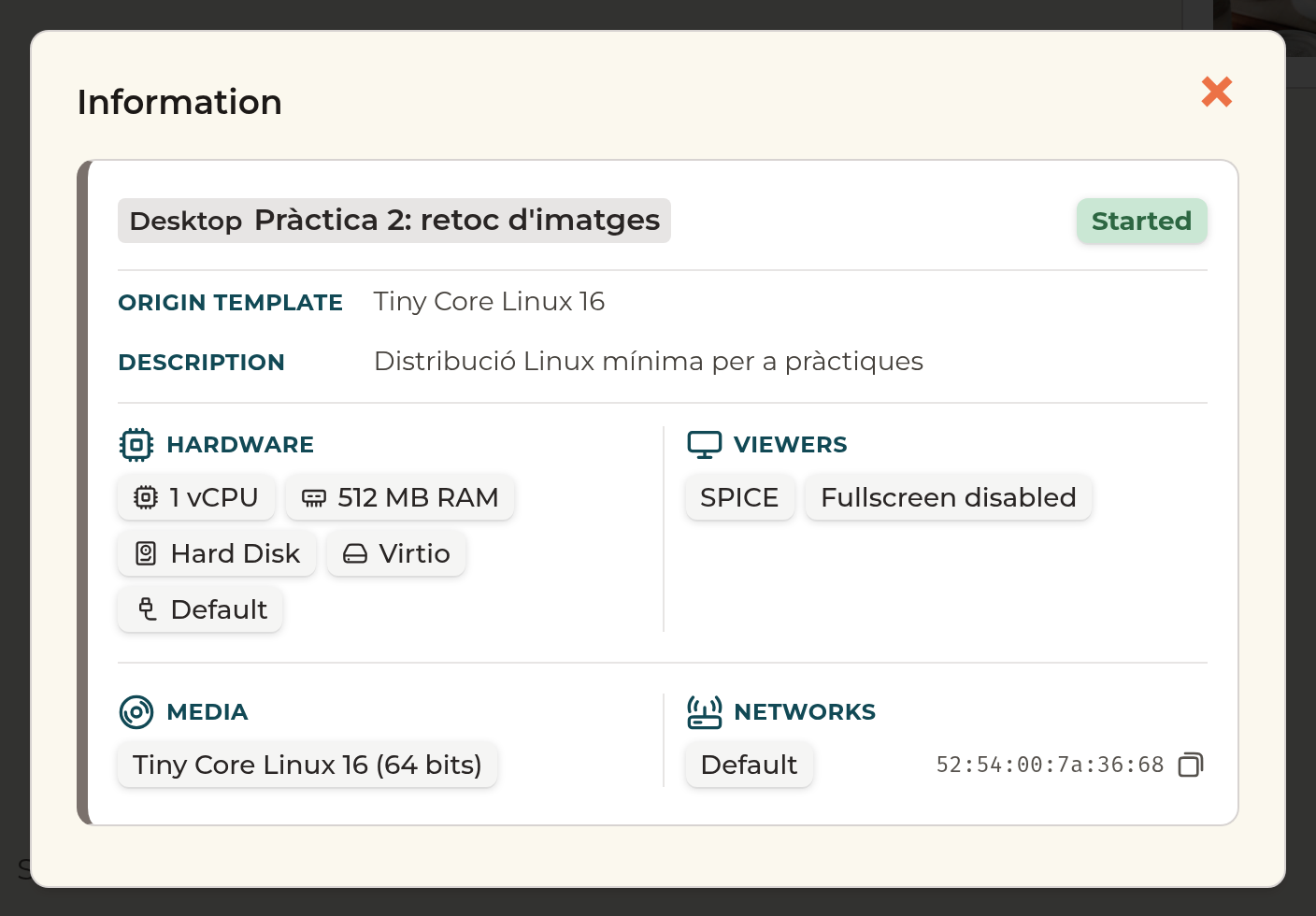
The Information button of the Enter view shows the technical data of all the user's desktops in this deployment: status, template, description, IP, hardware (vCPU, memory, disk bus, video, boot order), media, reservables, viewers and networks.
Conditions and messages
- There is no need to start or select any desktop: the information also includes the stopped desktops.
- The text «Start and select a desktop from the sidebar to view it here» does not belong to this window: it is what the integrated viewer shows when no desktop is open.
Development details
For those who develop or integrate IsardVDI: where in the code each element of this section is located, from which version it is available, which API operation it calls, and what messages it can return.
- New interface · file
views/ViewDeploymentView.vue:389· interface text (translation key)common.actions.info- since v17.46.1 (2026-09-29,
80bfbcca4f) - on click:
openDeploymentInfoModal()
- since v17.46.1 (2026-09-29,
- New interface · file
components/deployment-desktop-card/DeploymentDesktopCard.vue:275· interface text (translation key)components.desktops.desktop-card.actions.info- since v17.0.0 (2026-04-24,
f31b874d89) - on click:
emit('showInfoModal')
- since v17.0.0 (2026-04-24,
- New interface · file
components/desktops/DomainInfoModal.vue:157· interface text (translation key)components.domain-info-modal.title- since v17.0.0 (2026-04-24,
f31b874d89)
- since v17.0.0 (2026-04-24,
Commit code fe99ad98.
Data Download
This feature is only available in the new interface (new interface).
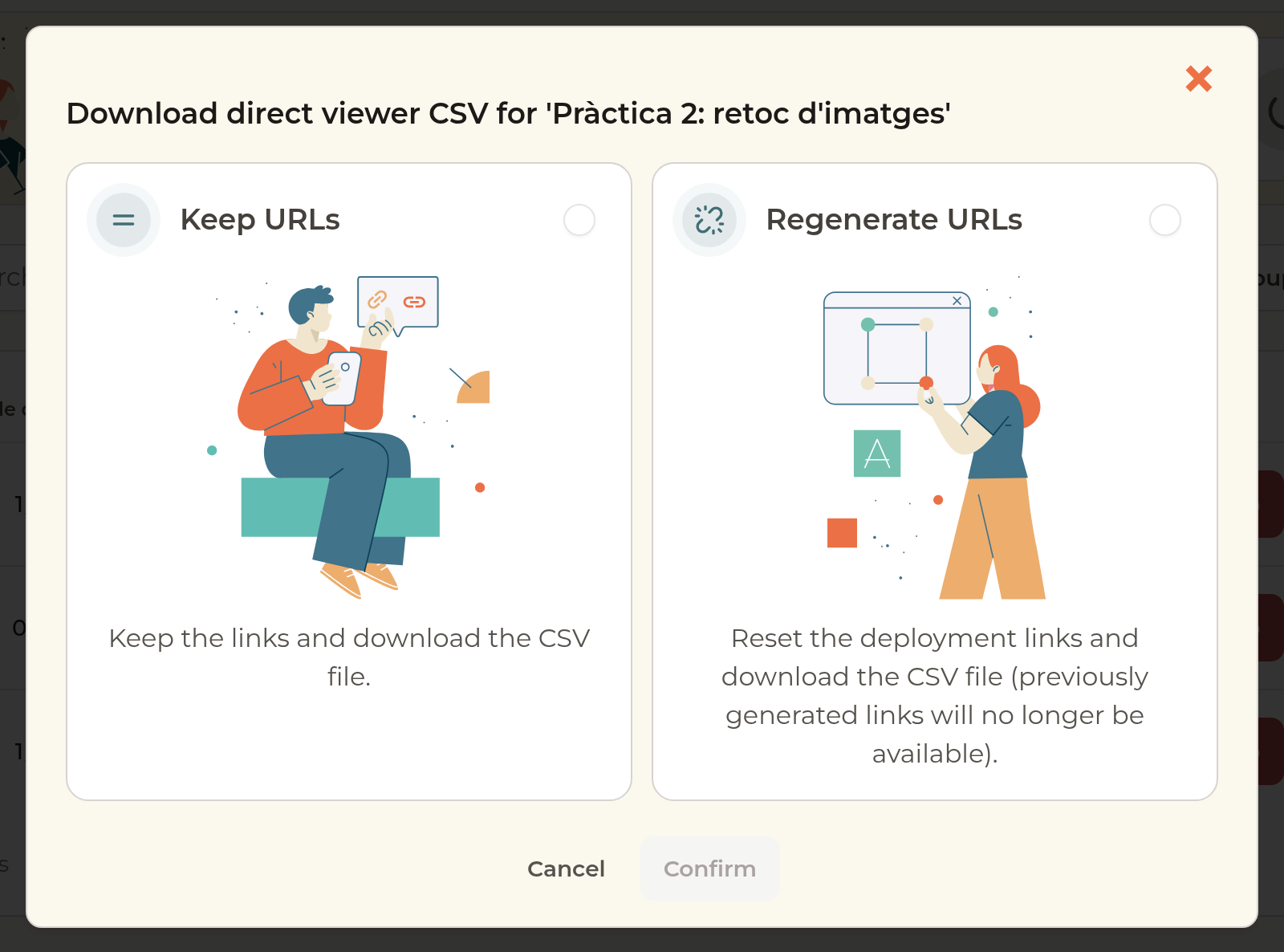
The Download direct links option in the three-dot menu downloads a CSV file with the direct viewer links for all desktops in the deployment. The «Download CSV of direct viewers for 'name'» dialog opens, where you must select an option before you can click Confirm:
| Option | What it does |
|---|---|
| Keep URLs | Keeps the links and downloads the CSV. Desktops that did not yet have a link receive a new one. |
| Regenerate URLs | Resets the links for all desktops in the deployment and downloads the CSV. Previously generated links are no longer available. |
The file is downloaded as <deployment-id>_direct_viewer.csv and has the columns username, name, email, desktop_name, and url, sorted by username and desktop name. The link has the format https://<domain>/vw/<code>.
Links provide access to the desktop
A direct viewer link allows access to the desktop without the user being registered on the platform. The CSV must be treated as sensitive information; if it has been shared by mistake, use Regenerate URLs.
If the deployment has no desktops with links, the CSV contains only the header.
Conditions and messages
- The Keep URLs option keeps existing links and downloads the CSV file.
- The Regenerate URLs option resets the deployment links and downloads the CSV file.
- If URLs are regenerated, previously generated links will no longer be available.
- Cancel closes the dialog without doing anything.
Development details
For those who develop or integrate IsardVDI: where each element of this section is in the code, since which version it has been available, which API operation it calls, and what messages it can return.
- New interface · file
components/deployments/actions/download-csv-modal/DownloadCsvModal.vue:114· interface text (translation key)components.deployments.download-csv-modal.cancel- since v17.0.0 (2026-04-24,
f31b874d89) - on click:
handleClose
- since v17.0.0 (2026-04-24,
- New interface · file
components/deployments/actions/download-csv-modal/DownloadCsvModal.vue:121· interface text (translation key)components.deployments.download-csv-modal.confirm- since v17.0.0 (2026-04-24,
f31b874d89) - on click:
handleDownloadCsv
- since v17.0.0 (2026-04-24,
- New interface · file
components/deployments/actions/download-csv-modal/DownloadCsvModal.vue:81· interface text (translation key)components.deployments.download-csv-modal.title- since v17.0.0 (2026-04-24,
f31b874d89)
- since v17.0.0 (2026-04-24,
- New interface · file
components/deployments/actions/download-csv-modal/DownloadCsvModal.vue:94· interface text (translation key)components.deployments.download-csv-modal.options.keep-urls.title- since v17.0.0 (2026-04-24,
f31b874d89)
- since v17.0.0 (2026-04-24,
- New interface · file
components/deployments/actions/download-csv-modal/DownloadCsvModal.vue:95· interface text (translation key)components.deployments.download-csv-modal.options.keep-urls.description- since v17.0.0 (2026-04-24,
f31b874d89)
- since v17.0.0 (2026-04-24,
- New interface · file
components/deployments/actions/download-csv-modal/DownloadCsvModal.vue:102· interface text (translation key)components.deployments.download-csv-modal.options.regenerate-urls.title- since v17.0.0 (2026-04-24,
f31b874d89)
- since v17.0.0 (2026-04-24,
- New interface · file
components/deployments/actions/download-csv-modal/DownloadCsvModal.vue:114· interface text (translation key)components.deployments.download-csv-modal.cancel- since v17.0.0 (2026-04-24,
f31b874d89) - on click:
handleClose
- since v17.0.0 (2026-04-24,
- New interface · file
components/deployments/actions/download-csv-modal/DownloadCsvModal.vue:121· interface text (translation key)components.deployments.download-csv-modal.confirm- since v17.0.0 (2026-04-24,
f31b874d89) - on click:
handleDownloadCsv
- since v17.0.0 (2026-04-24,
- New interface · file
components/deployments/actions/download-csv-modal/DownloadCsvModal.vue:86· interface text (translation key)components.deployments.download-csv-modal.options.regenerate-urls.description- since v17.0.0 (2026-04-24,
f31b874d89)
- since v17.0.0 (2026-04-24,
Commit code fe99ad98.