Bastion SSH key
Roles with access
- Access to the section: any user with bastion permission. Without permission, the button does not appear in the profile.
- The permission depends on the administration: the bastion must be enabled in the installation and the user must be included in the bastion permissions (by role, category, group or user). See Bastion.
Video: page walkthrough
The Bastion SSH key button saves one SSH public key to the profile.

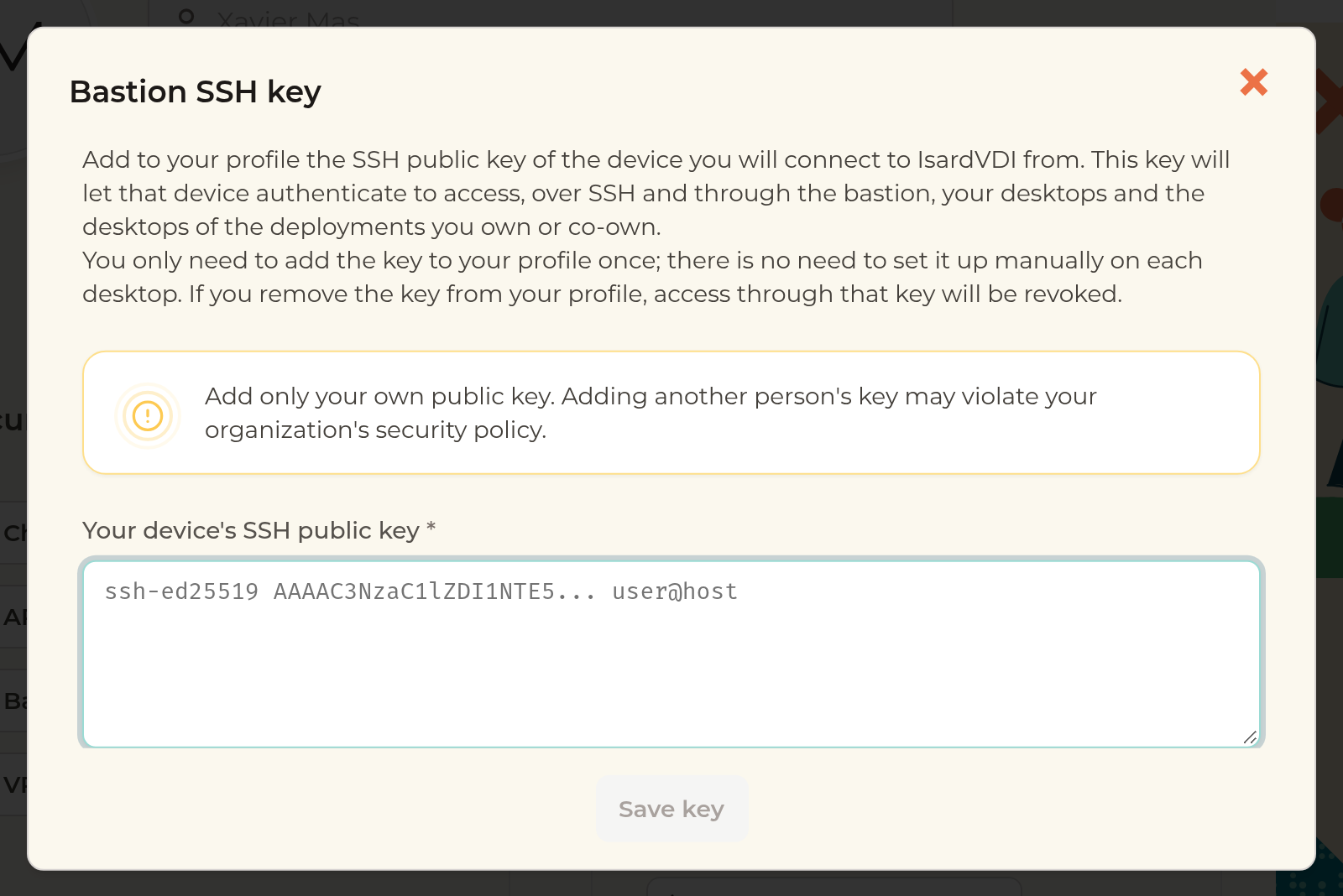
In the following screenshot:
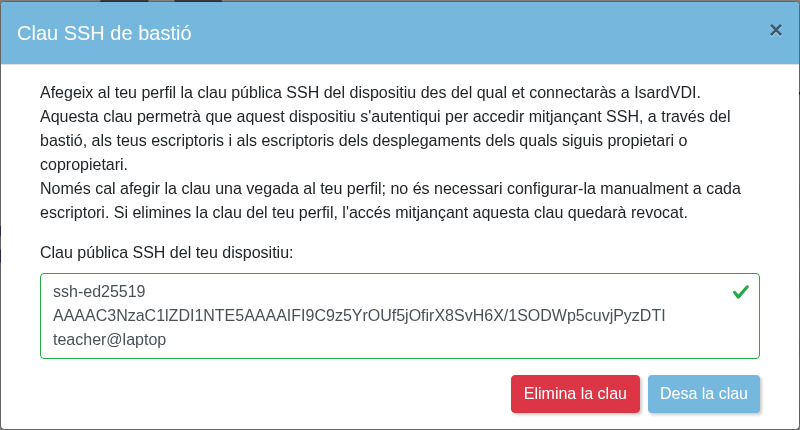
Paste the public key (id_ed25519.pub or id_rsa.pub), on a single line, into the Your device's SSH public key: field and click Save key. If one is already saved, Remove key deletes it.
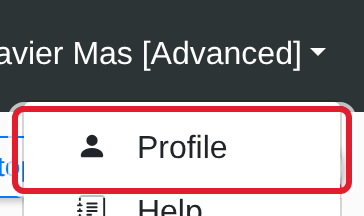
In the side menu, click the user's name («Go to profile»); this feature is within that screen, in the Security block.
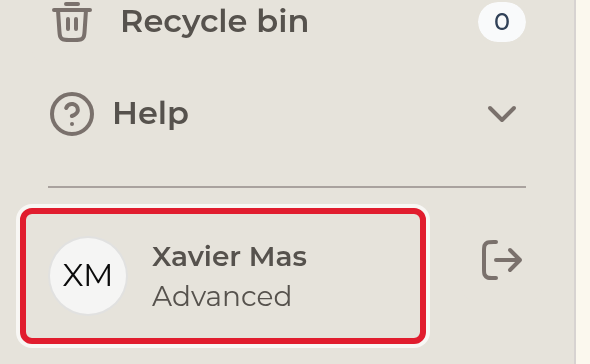
Bastion SSH Key
How it grants access
The bastion reads the key from the profile every time someone connects. Nothing is copied to the desktops. The key opens:
- all the user's own desktops that have bastion SSH enabled, and
- all desktops in deployments where the user is the owner or co-owner.
Because it is read at connection time:
- Changing or deleting the key takes effect in less than 10 seconds on all desktops simultaneously. If your private key has been leaked, simply clearing the profile field is enough.
- Losing a role also takes effect. When the user stops being a co-owner or the deployment changes owner, the key stops opening its desktops in less than 30 seconds; when the user is deactivated, in less than 10.
When starting a desktop with bastion SSH enabled, IsardVDI copied the profile key to it, and also to all desktops in deployments where the user was the owner or co-owner. These copies were never removed:
- clearing or changing the profile key did not remove the copies already made;
- losing the co-owner role or the bastion permission did not either.
In these versions, to remove a leaked key, you first had to manually delete the line from the authorized keys box of each affected desktop, and only then clear the profile field. Upgrading to 17.30.0 or later automatically deletes these copies.
Do not paste your key into the desktop field
The Authorized keys for other users field on each desktop is only for keys of other people. The user's own key already works through the profile.
A key pasted into this field is a separate access: it is not removed when the key is changed or deleted profile key, and you must delete it from the field manually.
Things to know
Bastion permissions are required to manage keys
Without bastion permission, the user can neither view nor edit the keys field of their own desktop, even if someone has added a key. The permission is granted by the administration in Bastion.
Here the SSH public key of the device is added to authenticate to desktops through the bastion. It only needs to be added once to the profile: it does not need to be configured on each desktop.
The profile key opens:
- the user's own desktops that have bastion SSH enabled, and
- desktops in deployments where the user is the owner or co-owner.
For bastion configuration on desktops and deployments, see Bastion and Bastion in deployments.
Bastion permission is required
The Bastion SSH Key button on the profile screen is only shown if the user can use the bastion. The permission is granted by the administration in Bastion.
Add or change the key
- Open the profile and click Bastion SSH Key.
- Copy the SSH public key of the device (for example, the contents of
id_ed25519.pub). - Paste it into the Your device's SSH public key field.
- Click Save key. If it is saved, the dialog closes.
There is only one key per user: saving a new one replaces the previous one. If one is already saved, the field is shown filled in when the dialog opens.
Delete the key
If a key is saved, the dialog also shows the Remove key button. Clicking it deletes the key from the profile and revokes access via this key.
Only your own key
Add only your own public key. Adding someone else's may violate the organization's security policy.
Copies from previous versions
Deleting the profile key does not touch copies that versions prior to 17.30.0 may have written to the authorized keys of a desktop; in this case, you must delete them there. See the old interface tab (old interface), section "17.0.0 to 17.26".
Conditions and messages
- The Your device's SSH public key field is required: while it is empty, the Save key button is disabled.
- Only one key is accepted, on a single line. The accepted key types are
ssh-ed25519,ssh-rsa,ssh-dss,ecdsa-sha2-nistp256,ecdsa-sha2-nistp384,ecdsa-sha2-nistp521,sk-ssh-ed25519@openssh.comandsk-ecdsa-sha2-nistp256@openssh.com. It can end with an optional comment. - If the text is not a valid key, «This doesn't look like a valid SSH public key.» is shown below the field (it appears when leaving the field, if it contains text).
- While loading, saving, or deleting, the buttons remain disabled.
- If the server rejects the save, the warning «Request failed» with «Could not save the SSH key. Please check the key and try again.» appears.
- If deletion fails, «Request failed» with «Could not remove the SSH key. Please try again.» appears.
Development details
For those who develop or integrate IsardVDI: where each element of this section is in the code, from which version it exists, which API operation it calls, and what messages it can return.
- New interface · file
views/ProfileView.vue:347· interface text (translation key)views.profile.security.actions.ssh-key- since v17.0.0 (2026-07-09,
48700c853f) - on click:
showSshKeyModal = true
- since v17.0.0 (2026-07-09,
Code from commit d90222c5.
States and messages
| What is shown | What it means | What to do |
|---|---|---|
| «This doesn't look like a valid SSH public key.» | The text is not a single SSH public key of one of the accepted types. | Paste only the public key (.pub), on a single line. |
| «Request failed» + «Could not save the SSH key. Please check the key and try again.» | The save operation failed. | Check the key and try again. |
| «Request failed» + «Could not remove the SSH key. Please try again.» | The deletion failed. | Try again. |
| Save key button disabled | The field is empty, the key is invalid, or an operation is in progress. | Correct the field or wait. |
What you will see if the key is incorrect
If the text entered does not have the format of a single valid SSH public key (for example, the private key, two keys together or an unsupported type), the message «This doesn't look like a valid SSH public key.» is shown and it cannot be saved. Correct the text so that it is a single public key. In the old interface, the message is the same: «This doesn't look like a valid SSH public key.».
Security notice regarding other users' keys
Only the user can manage their own SSH key from their profile. Managers and administrators do not have direct access to this interface to manage other users' keys.
The interface displays the following notice to ensure the organization's security:
«Add only your own public key. Adding another person's key may violate your organization's security policy.»
What happens when you delete the key
When the SSH key is deleted from the profile, access with this key is revoked in less than 10 seconds. This means that the device associated with this key can no longer authenticate to access the user's own desktops or those of the deployments where the user is the owner or co-owner.
The interface help text explicitly states: «If you delete the key from your profile, access via this key will be revoked.»