10. Install CodiMD
In this exercise, CodiMD is installed: an open-source, real-time collaborative Markdown editor. The application runs in a Docker container.
Bastion
- Create an Ubuntu 24.04 desktop and configure its bastion: edit the desktop and, in the Bastion section, turn on Enable bastion and Enable HTTP / HTTPS access. If SSH access is also needed, turn on Enable SSH access (off by default) and add the public key. Bastion access needs the Wireguard VPN network, which is added to the desktop automatically.
- Once enabled, the icon
 appears on the desktop; it shows the bastion information, such as the desktop's web domain.
Install Docker
Inside the desktop, update the system packages:
```bash= sudo apt update sudo apt upgrade -y
Next, install **Docker** and **Docker Compose**:

```bash
# Add Docker's official GPG key:
sudo apt install ca-certificates curl
sudo install -m 0755 -d /etc/apt/keyrings
sudo curl -fsSL https://download.docker.com/linux/ubuntu/gpg -o /etc/apt/keyrings/docker.asc
sudo chmod a+r /etc/apt/keyrings/docker.asc

# Add the repository to Apt sources:
sudo tee /etc/apt/sources.list.d/docker.sources <<EOF
Types: deb
URIs: https://download.docker.com/linux/ubuntu
Suites: $(. /etc/os-release && echo "${UBUNTU_CODENAME:-$VERSION_CODENAME}")
Components: stable
Signed-By: /etc/apt/keyrings/docker.asc
EOF

sudo apt update
sudo apt install docker-ce docker-ce-cli containerd.io docker-buildx-plugin docker-compose-plugin
Create the containers
Once Docker is installed, create the /opt/codimd/docker-compose.yml file with the following content, replacing the domain with the desktop's web bastion domain:
volumes:
  caddy_data:
  caddy_config:
  database-data:
  upload-data:
services:
  caddy:
    image: caddy
    container_name: caddy
    volumes:
      - caddy_data:/data
      - caddy_config:/config
    ports:
      - 80:80
      - 443:443
    command: caddy reverse-proxy --from 07e431b0-f8c2-49b1-8964.695313210d74.bastion.example.com --to codimd:3000
  database:
    image: postgres:14-alpine
    container_name: database
    environment:
      - POSTGRES_USER=codimd
      - POSTGRES_PASSWORD=<password>
      - POSTGRES_DB=codimd
    volumes:
      - "database-data:/var/lib/postgresql/data"
  codimd:
    image: hackmdio/hackmd:2.5.4
    container_name: codimd
    environment:
      - CMD_DB_URL=postgres://codimd:<password>@database/codimd
      - CMD_USECDN=false
      - CMD_DOMAIN=07e431b0-f8c2-49b1-8964.695313210d74.bastion.example.com
      - CMD_PROTOCOL_USESSL=true
      - CMD_URL_ADDPORT=false
      - CMD_ALLOW_ANONYMOUS=true
      - CMD_ALLOW_ANONYMOUS_EDITS=true
      - CMD_DEFAULT_PERMISSION=private
      - CMD_IMAGE_UPLOAD_TYPE=filesystem
      - CMD_ALLOW_PDF_EXPORT=true
      - QT_QPA_PLATFORM=
      - OPENSSL_CONF=/etc/ssl
    depends_on:
      - database
    volumes:
      - upload-data:/home/hackmd/app/public/uploads
Once the file has been created and modified, start the containers with the following command:
The status of the containers can be checked as shown in the following image:

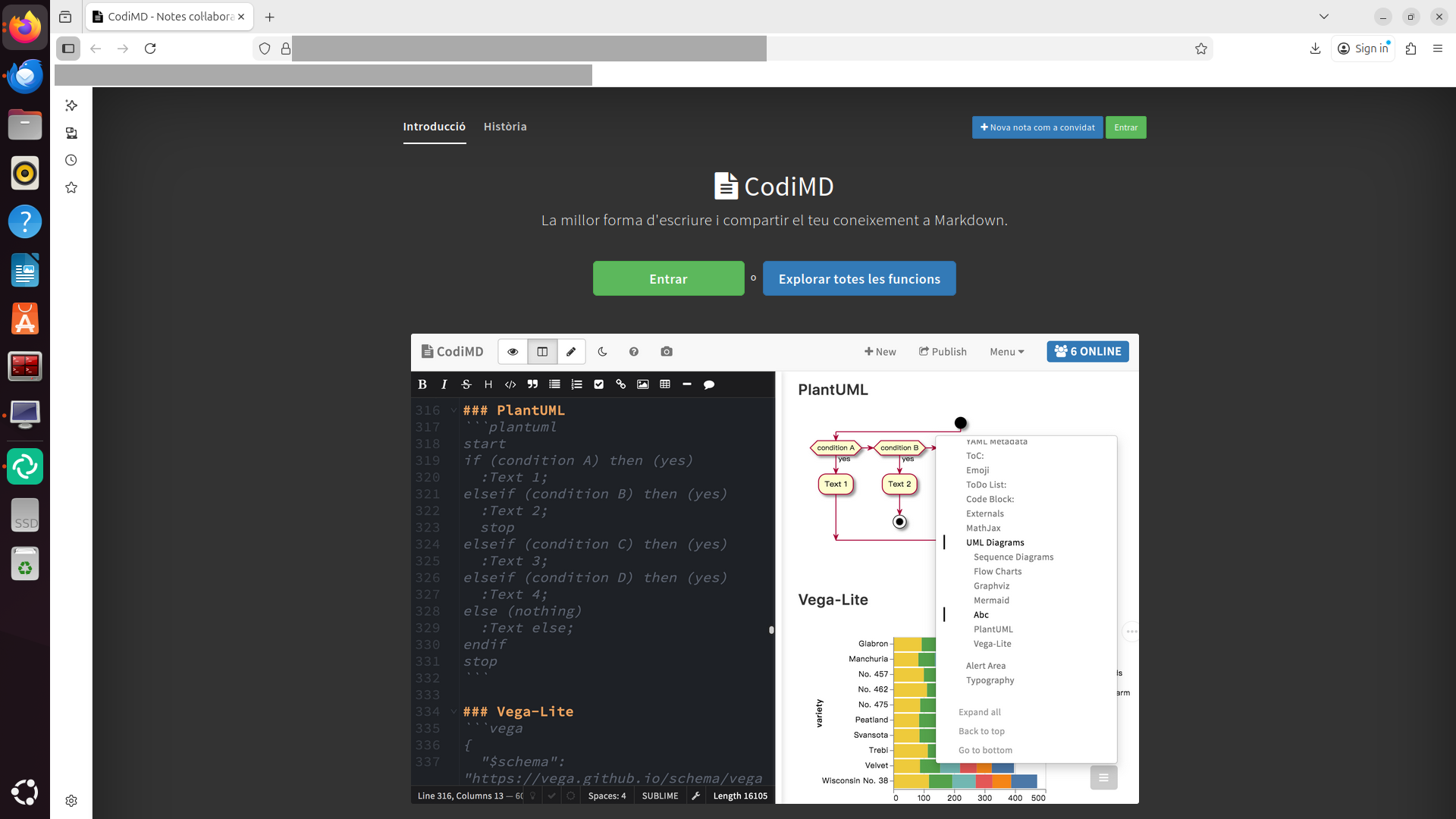
When the containers have started without errors, CodiMD is available in the browser at the desktop's web bastion domain: