Delete desktop
This section is used to delete a desktop.
Roles with access
- Access to the section: any user.
Video: walkthrough of the page
To delete a desktop, click the  button on its card.
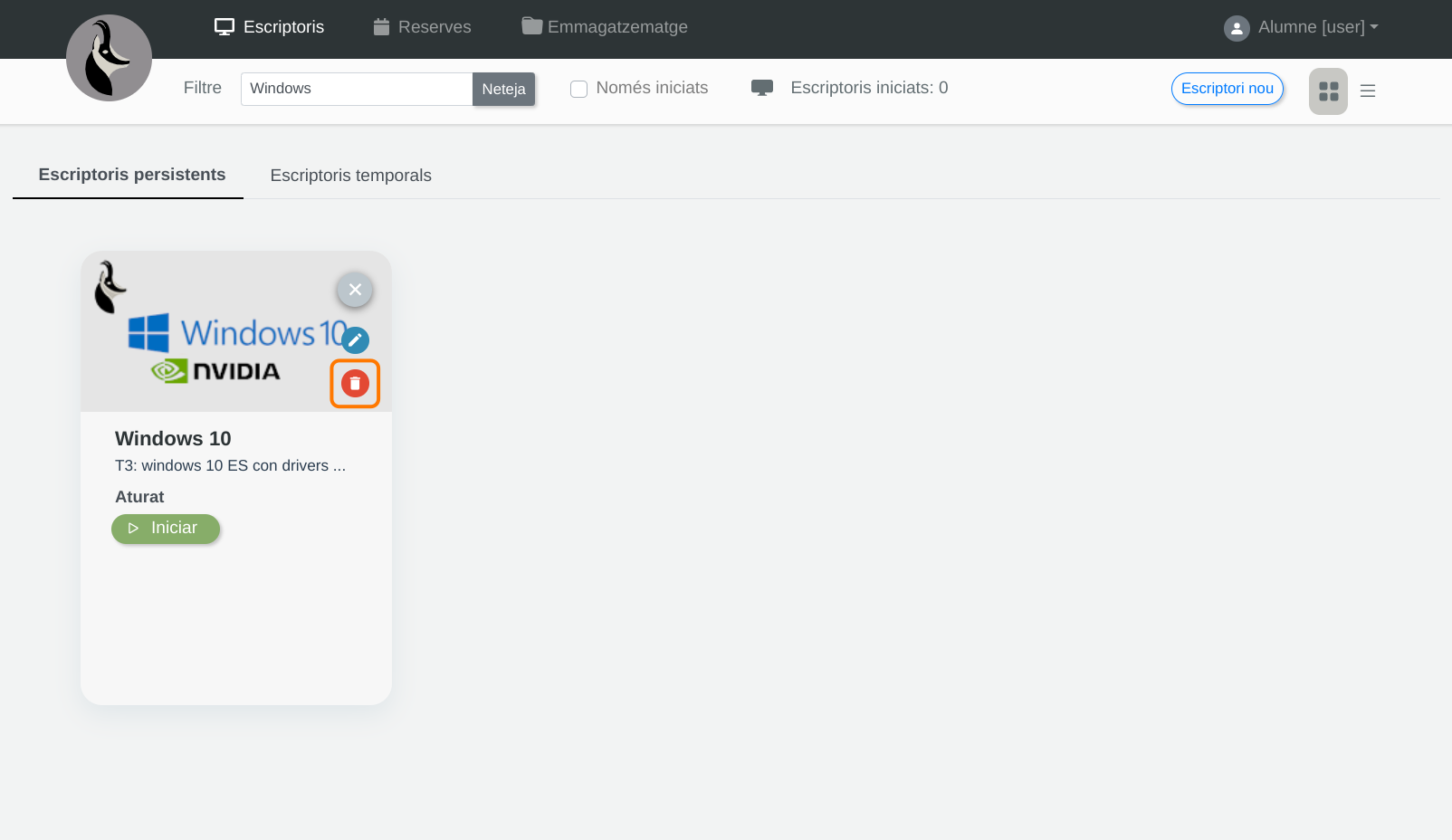
On confirmation, the desktop is deleted. If the recycle bin is enabled, the confirmation dialog offers to send it to the recycle bin so it can be recovered for a limited time (while it is there, it uses quota). Whether the checkbox is ticked by default depends on the «Send to recycle bin by default» option in the recycle bin configuration. The details of the dialog and the recycle bin management are in Recycle bin.

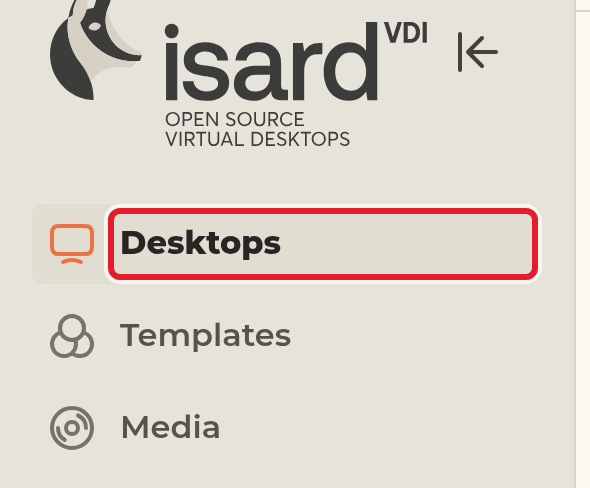
In the side menu, the Desktops section; this function is inside that screen.
Confirm deletion
Once the operation is confirmed, the desktop goes to the recycle bin, if the checkbox was ticked, or is deleted permanently. Permanent deletion is irreversible and removes all the desktop's data.
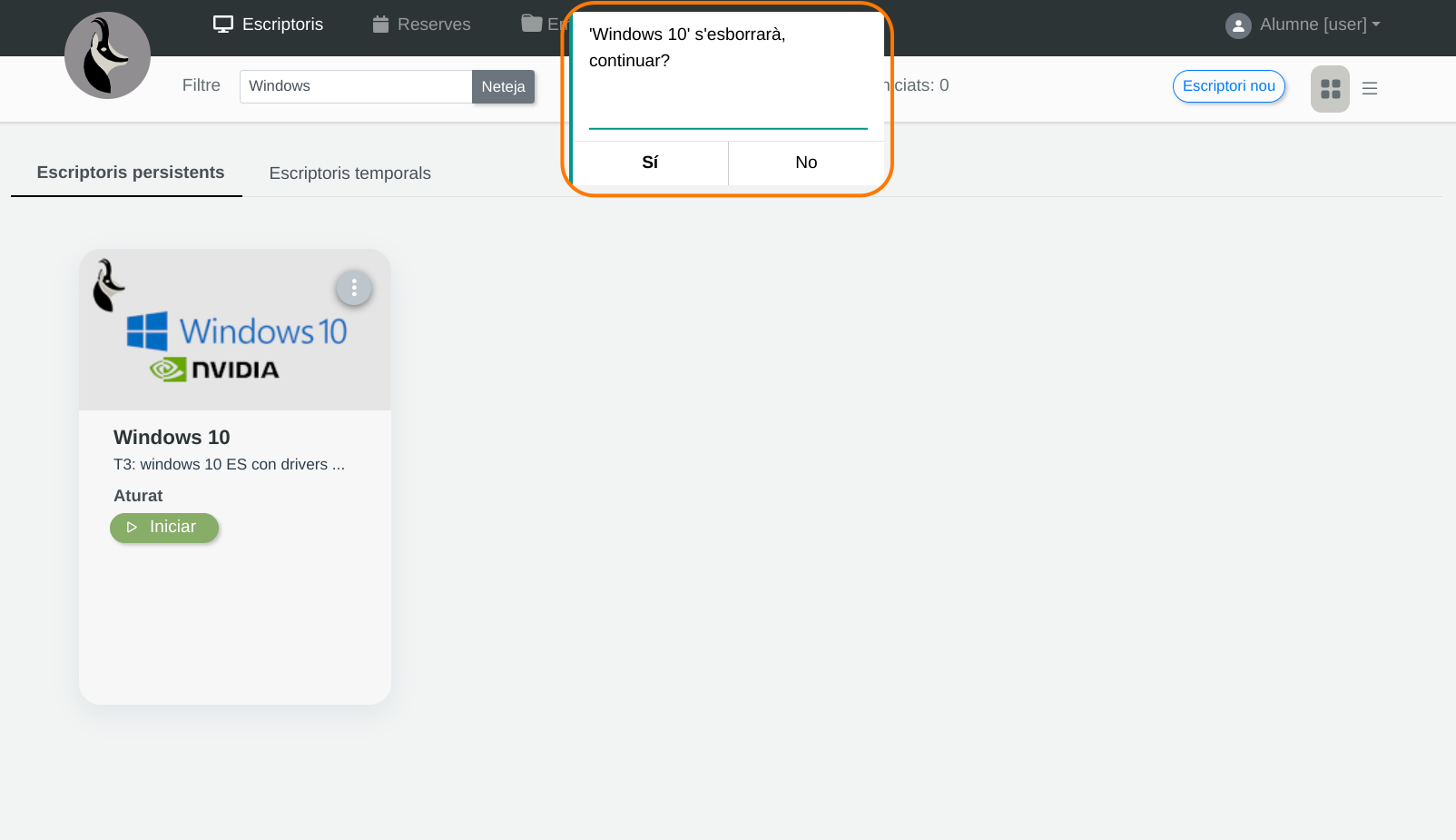
Clicking the delete action opens a confirmation dialog titled Delete desktop '
- Read the message in the dialog. Its content depends on the recycle bin configuration and on the desktop type:
- If the desktop is persistent and the recycle bin is enabled, a checkbox Send item to recycle bin (its storage will still be considered in the user quota until permanently removed). appears, with the retention time notice: «The items in the recycle bin will be permanently deleted after: N hours.»
- Otherwise, «This action cannot be undone and all its associated data will be lost.» is shown.
- Click the confirmation button, which changes depending on the case: Send to Recycle Bin or Delete Permanently. Cancel closes the dialog without doing anything.
Depends on the administration
- Whether the checkbox is ticked or unticked at first depends on the «Send to recycle bin by default» option in the recycle bin configuration. It is not true that deletion is always permanent by default.
- The retention time (N hours) is set by the administration for the whole installation, and the manager can set it for their category, in the same recycle bin configuration. With 0 hours the checkbox does not appear and deletion is permanent.
While the request is in progress the button is disabled and shows a loading indicator; when it finishes successfully, the dialog closes and the desktop disappears from the list.
Recycle bin or permanent deletion
Deletion is permanent (the button shows «Delete Permanently») when any of these conditions is met:
- The desktop is temporary (non-persistent): it is always deleted permanently and the recycle bin does not apply.
- The recycle bin retention time is 0 hours (immediate deletion).
- The checkbox to send it to the recycle bin has been unticked.
If the desktop belongs to a tag (deployment desktop), the server also deletes it permanently even if the recycle bin was requested.
Once sent to the recycle bin, the desktop can be recovered until the retention time has passed; see Recycle bin. If the retention time is infinite, the recycle bin does not remove items automatically.
Conditions and messages
- Permanent deletion is irreversible: the desktop and all its associated data are lost.
- If the desktop is in a transitional state (being created, creating the disk, starting or updating), it cannot be deleted until the process finishes. The server responds with the error «precondition_required / desktop_busy» and the dialog shows: «The desktop can't be deleted right now. Please try again in a moment.»
- If the desktop no longer exists: «The desktop was not found.»
- Any other error: «Could not delete the desktop. Please try again.»
- The error is shown inside the same dialog, which stays open so you can retry or cancel.
- The server responds with «Item sent to recycle bin» (200) when it goes to the recycle bin, or with a queued task to delete the disks (202) on a permanent deletion. Deleting temporary desktops does not generate tasks (204).
Development details
For those who develop or integrate IsardVDI: where in the code each element of this section is located, from which version it has been available, which API operation it calls, and what messages it may return.
- New interface · file
views/DesktopsView.vue:1222· interface text (translation key)components.delete-confirmation-modal.cancel- since v17.0.0 (2026-04-24,
f31b874d89) - on click:
closeDeleteModal()
- since v17.0.0 (2026-04-24,
- New interface · file
views/DesktopsView.vue:1244· interface text (translation key)components.delete-confirmation-modal.confirm.permanent- since v17.0.0 (2026-04-24,
f31b874d89) - on click:
deleteDesktopMutate({ path: { desktop_id: deleteModalDesktopData.id }, query: { permanent: deleteIsPermanent } })
- since v17.0.0 (2026-04-24,
- New interface · file
views/DesktopsView.vue:1245· interface text (translation key)components.delete-confirmation-modal.confirm.recycle-bin- since v17.0.0 (2026-04-24,
f31b874d89) - on click:
deleteDesktopMutate({ path: { desktop_id: deleteModalDesktopData.id }, query: { permanent: deleteIsPermanent } })
- since v17.0.0 (2026-04-24,
Commit code fe99ad98.