Direct viewer page
The direct viewer is a page that gives access to one single virtual desktop through a link. Whoever holds the link can use that desktop from a web browser without an IsardVDI account: no user, no password and no registration.
It is the page you land on when someone sends you a link like this one:
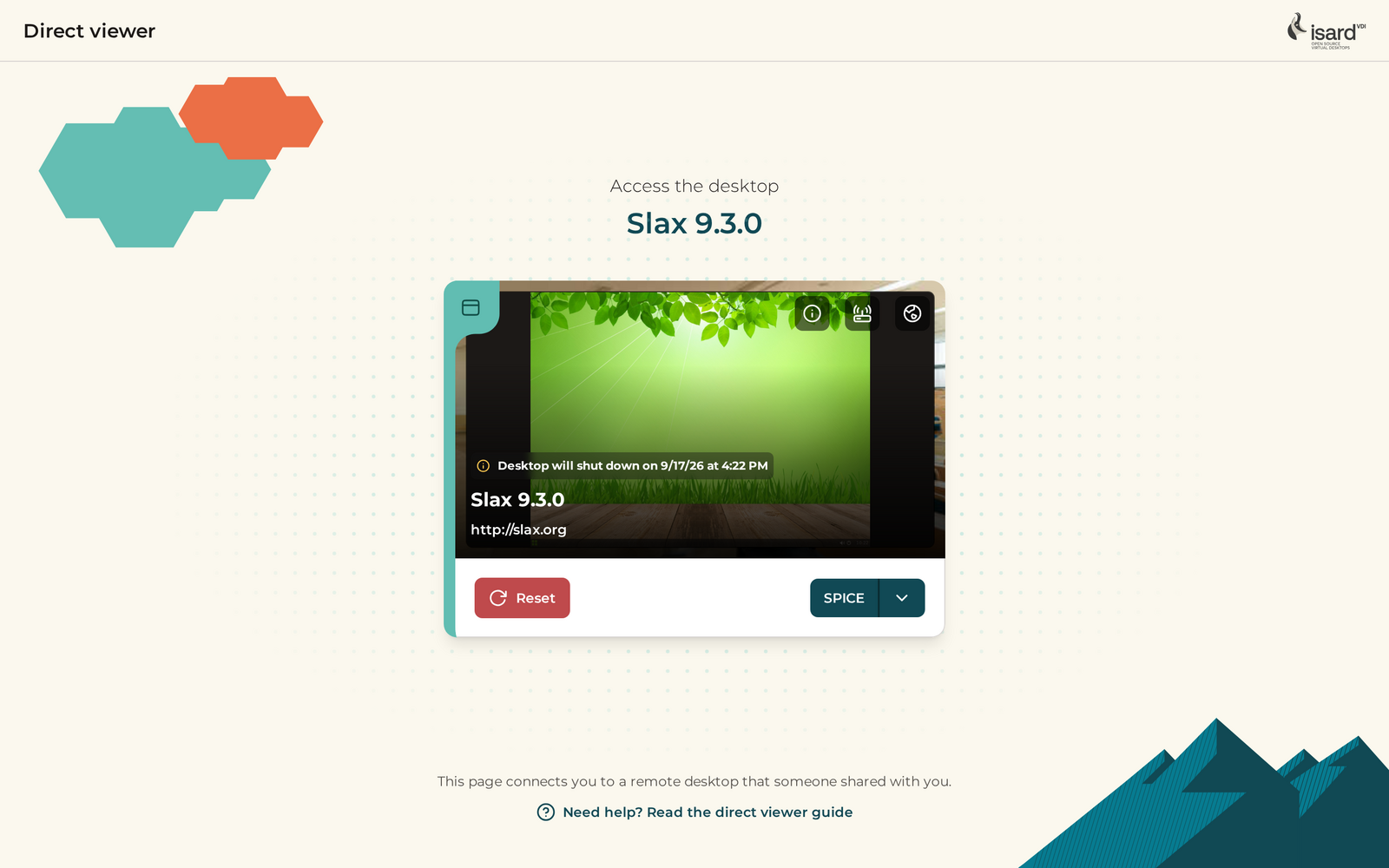
The link is the password
Anyone who opens the link gets into the desktop, with no further check, so treat the link like a password: do not pass it on and do not publish it anywhere. If someone else needs access, ask the person who shared the desktop with you for a link of their own.
What you need
- The link. It is given by the owner of the desktop (see Direct viewer); none can be obtained from this page.
- A modern web browser (Firefox, Chrome, Edge, Safari…).
- Only if you pick a viewer that is not a browser one: the corresponding program installed on your computer. See Introduction to viewers for the download links.
Opening the link
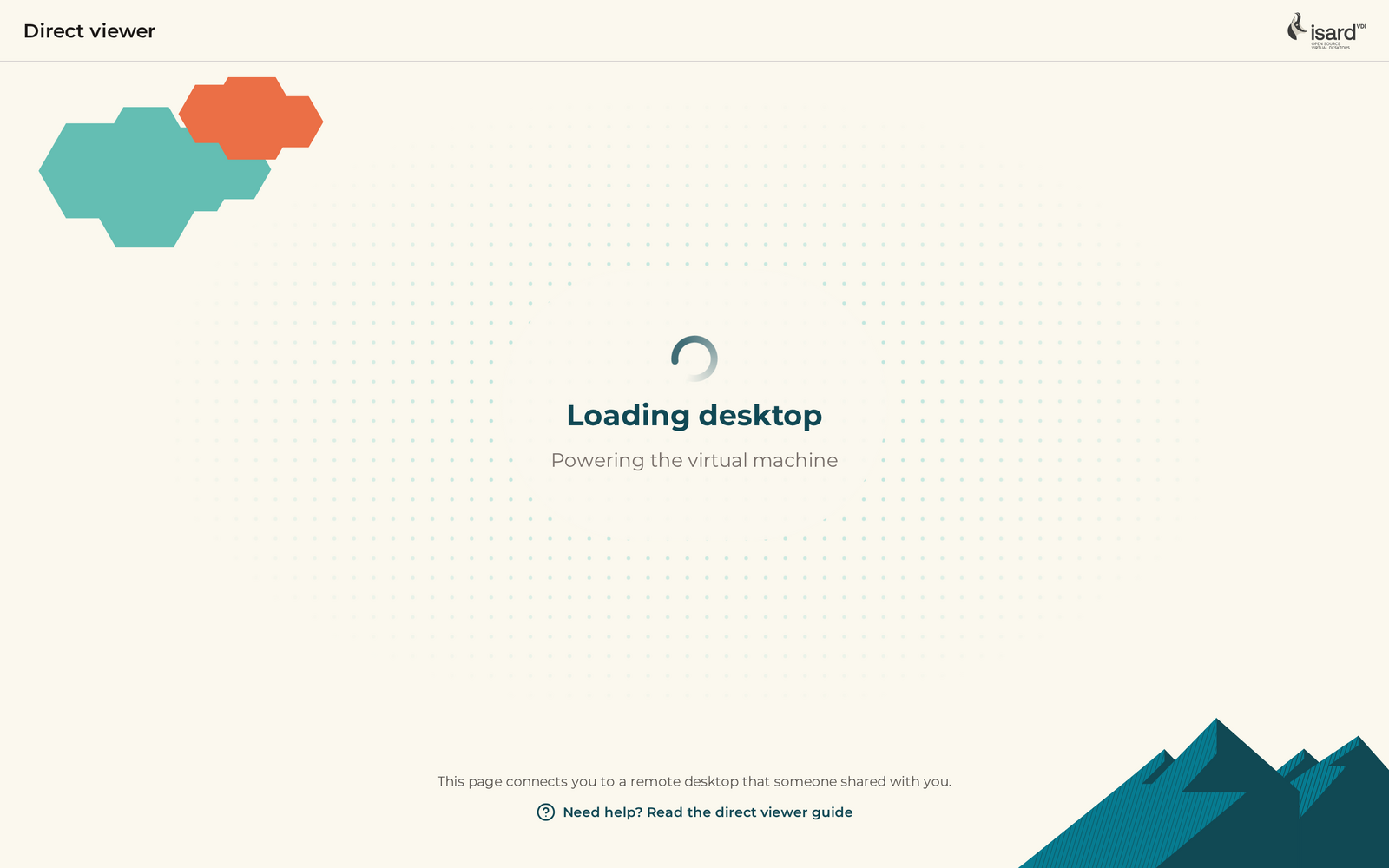
While the page is getting ready it shows a loading screen. If the desktop was switched off, opening the link starts it automatically, which is why this step can take from a few seconds to a couple of minutes:
When it is ready, the page shows the name of the desktop, a card with a live preview of its screen, and the buttons to work with it.
Connecting: the viewer button
The dark button at the bottom right of the card is the viewer: the way you see and use the desktop. Click it and the connection starts.
There is more than one viewer, and the one that suits you depends on what you need to do (sound, USB devices, speed, whether you want to install anything). The arrow next to the button opens the list of the viewers this desktop offers:
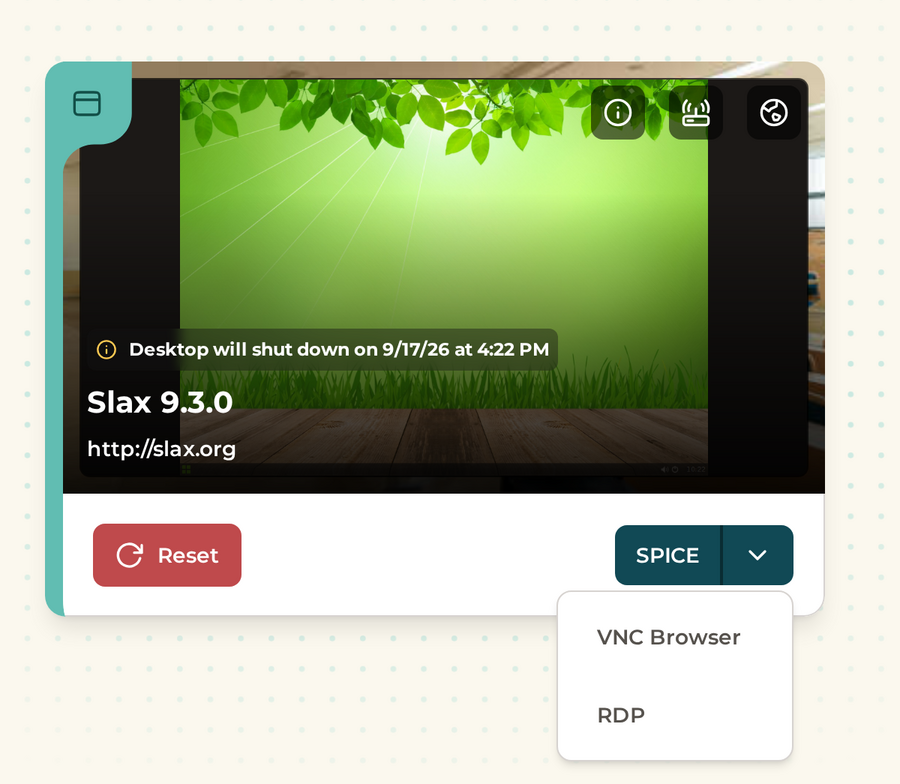
Viewers come in two families:
- Browser viewers (VNC Browser, RDP Browser): they open the desktop in a new browser tab, with nothing to install. If your browser blocks pop-ups you may have to allow them for this site.
- File viewers (SPICE, RDP): clicking them downloads a connection file that you open with a program already installed on your computer, such as virt-viewer or Remote Desktop.
Only the viewers that the owner has enabled on the desktop are listed. The RDP VPN viewer is never offered in the direct viewer, because it needs the VPN of a platform user.
A full comparison and the guide for each one is in Introduction to viewers, with a page per viewer: SPICE, VNC in the browser and RDP.
The viewer button is spinning
RDP viewers need the desktop to have obtained its network address. If the desktop has just started, the button stays disabled with a turning icon for a few seconds until the address arrives.
Information about the desktop
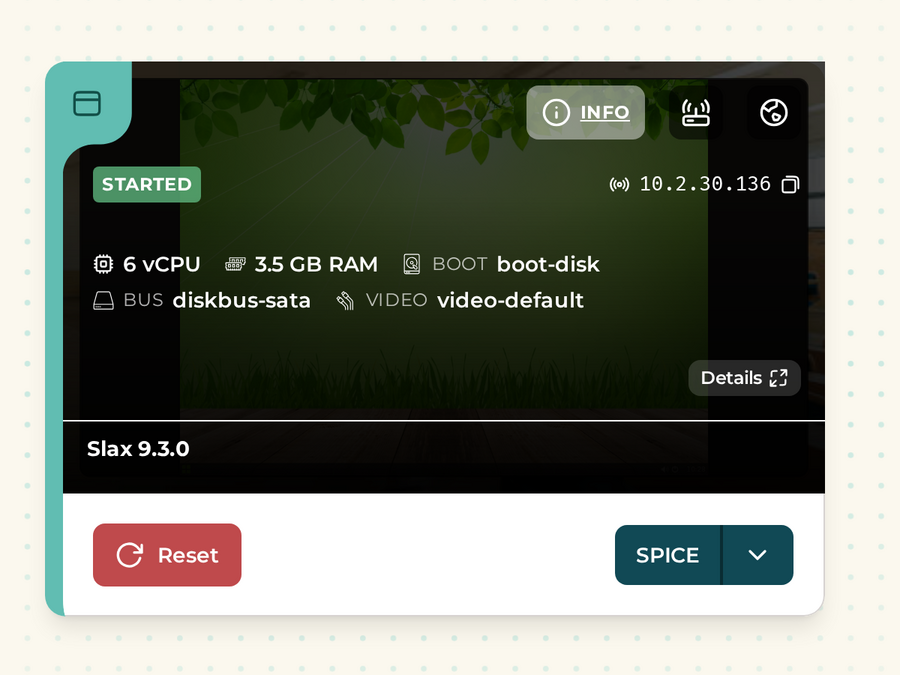
The three round buttons on top of the card open panels over the preview. Clicking the same button again closes the panel, and the Details button inside each one opens the full window.
Info
Status, network address and the hardware of the desktop: processors, memory, boot device, disk bus and graphics card.
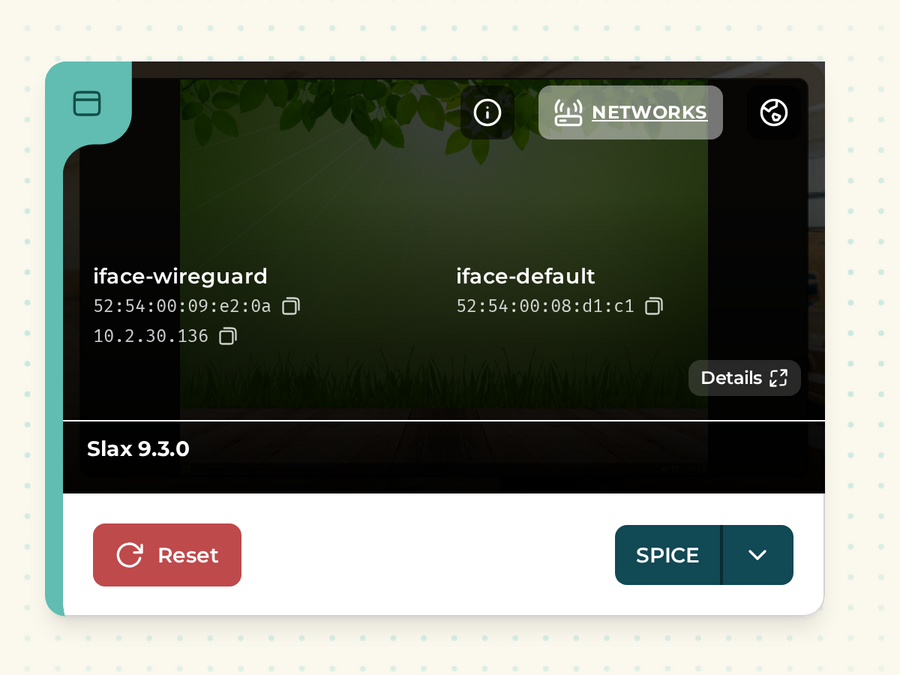
Networks
The network interfaces of the desktop, with their MAC address and their IP address. Every value has a button to copy it.
Bastion
Only appears when the owner has enabled the bastion on this desktop. It holds the public addresses that reach the desktop from outside: HTTPS, HTTP and SSH.
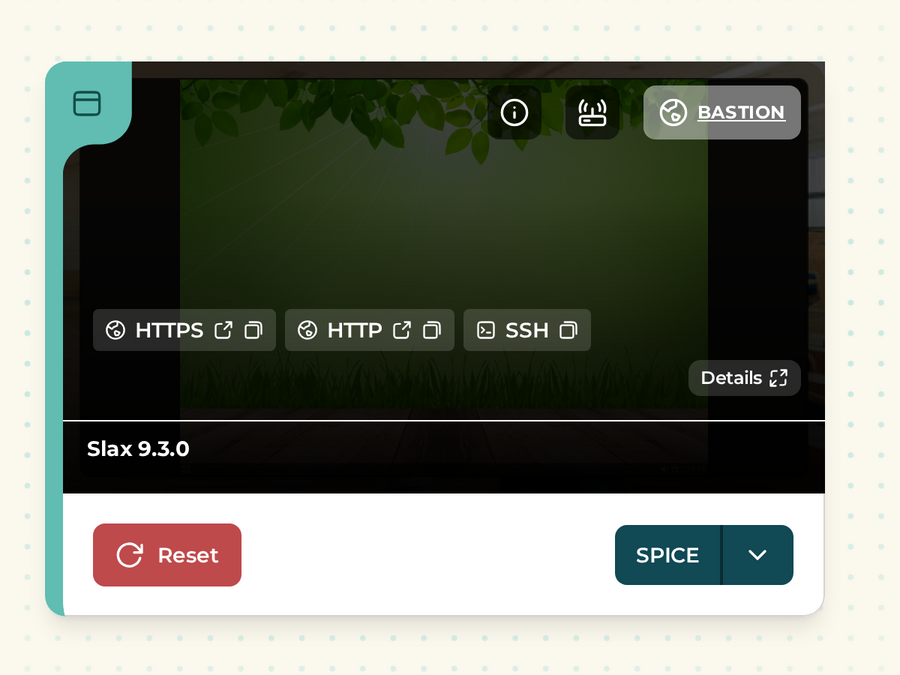
See Bastion for what these addresses are and how to use them.
The action button
The button at the bottom left of the card changes with the state of the desktop:
| State of the desktop | Button | What it does |
|---|---|---|
| Started | Reset | Forces a reset of the desktop |
| Stopped | Start | Starts the desktop again |
| Starting, stopping… | A turning icon | Nothing: the desktop is busy |
Anyone who has the link sees this button and can use it: no role or permission is needed beyond the link.
Reset is the equivalent of pulling the power cable out of a running computer, so IsardVDI asks for confirmation before doing it («Force reset the desktop?»). Confirm with Force reset the desktop or go back with Cancel. Any work that was not saved is lost, and the file system of the desktop may be damaged. Whenever you can, shut the desktop down from inside the viewer instead.
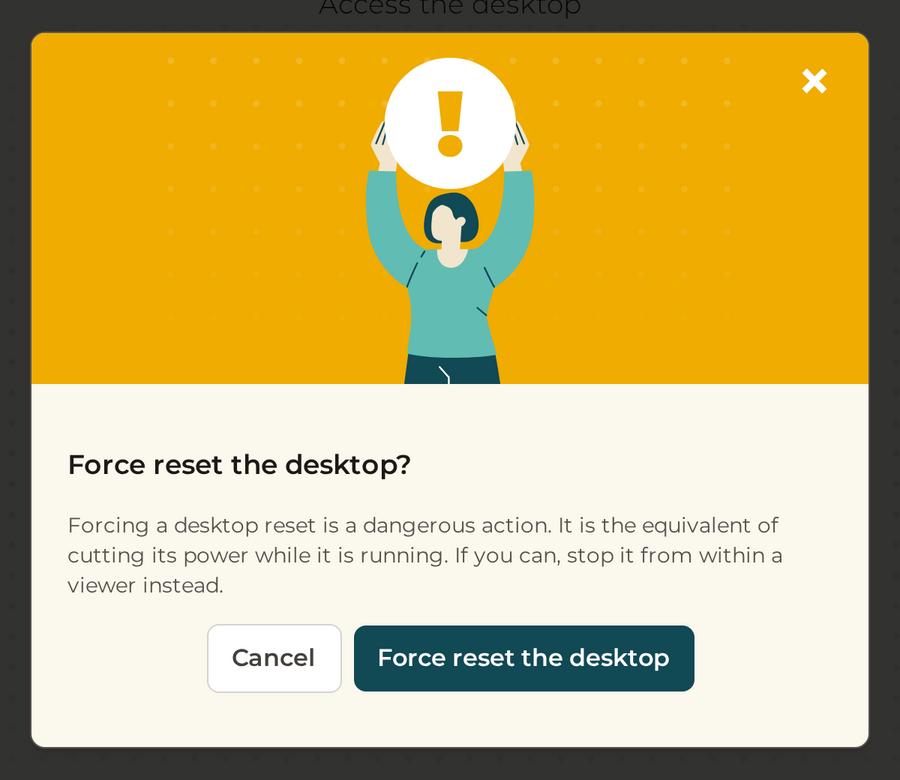
The direct viewer never deletes the desktop and cannot modify it: it only starts it and resets it.
Notices on the card
A line above the name of the desktop warns about things that are going to happen, mainly:
- The desktop will shut down on a given date and time («Desktop will shut down on … at …»), because the platform limits how long it may stay on. This limit is set by the administration with the automatic shutdown rules (see Scheduler). The time cannot be extended from the direct viewer: only the owner can do it from their own session.
- The booking that allows the desktop to run is about to end. See Book desktop.
If the administration has enabled the notice in the left area of the login page, this notice also appears in the direct viewer, next to the card (see Login).
Leaving the page open
The page keeps itself up to date on its own: if the owner stops the desktop somewhere else, the card notices and offers the Start button. Its access permit is also renewed in the background, so a page left open for hours keeps working.
Closing the tab does not stop the desktop. To come back, open the same link again.
When something goes wrong
Could not connect
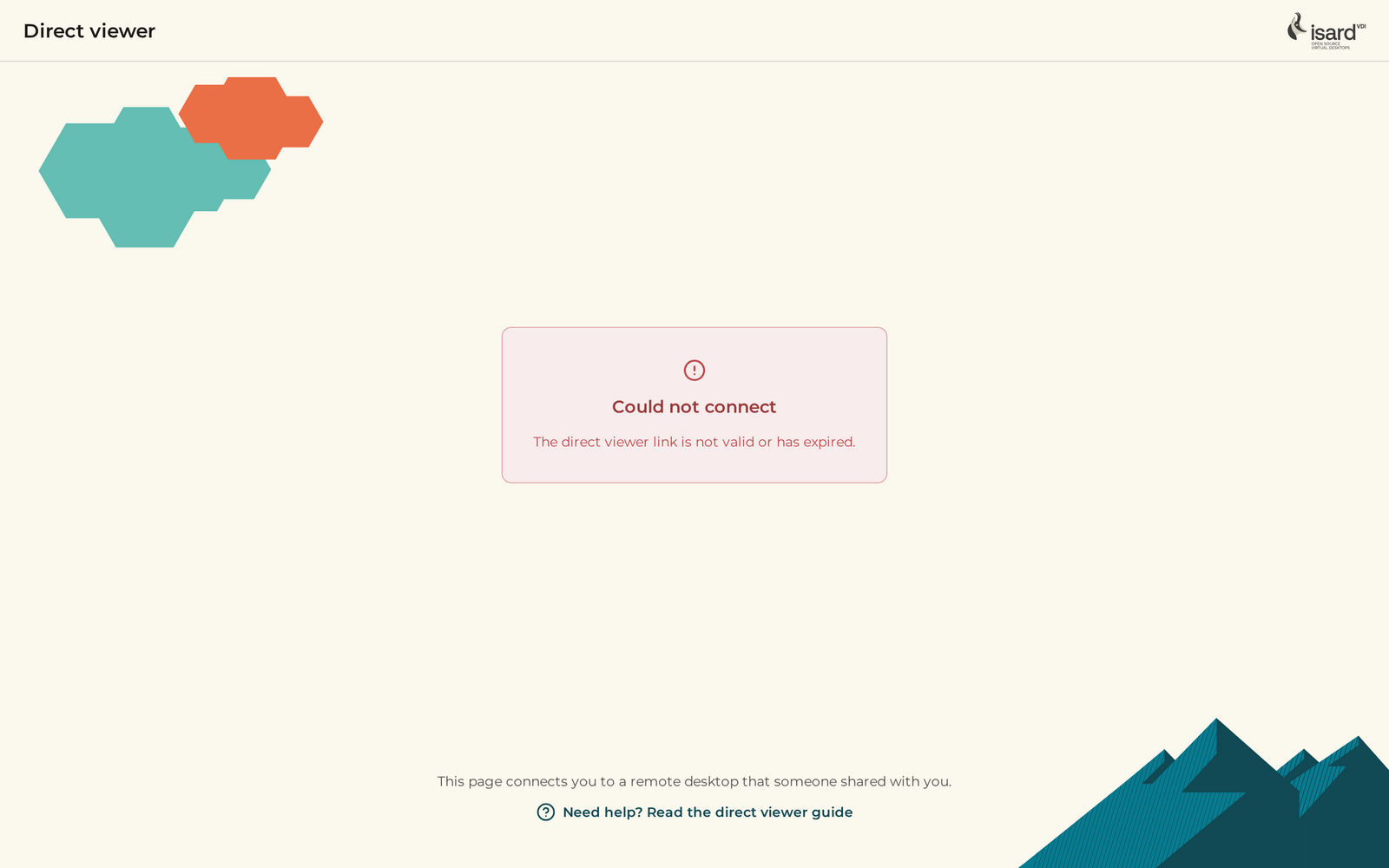
The page retries a few times before showing this message, which is why it takes a few seconds to appear. It means the link is not usable:
- it was typed or copied incompletely;
- the owner disabled direct access, or enabled it again and the link changed;
- the desktop no longer exists.
The only fix is to ask the owner of the desktop for a new link.
Desktop not booked
The desktop uses a resource that has to be booked in advance, such as a graphics card, and there is no booking covering this moment, so it cannot be started. Ask the owner to book it. See Book desktop.
Good to know
- The link gives access to that desktop only. There is no desktop list, no templates and no settings: you cannot reach the rest of the platform with it.
- The desktop is not yours. Its owner may stop it, modify it or disable the link at any moment.
- Every access through the link is recorded by the platform.