Book desktop
A booking secures a limited resource, usually a GPU, for a desktop during a time slot. Before making the first one, it is a good idea to read the bookings section, which explains what bookings are and why desktops with GPUs need them.
Roles with access
- Booking a desktop: any user, on their own desktops. Deployment bookings are made by the owner of the deployment (see Bookings).
- The limits of each booking (minimum advance time, maximum duration and maximum number of bookings) come from the priority rule that the administration assigns in Bookables. The GPU profiles and their planning are defined by the administration in vGPU.
Video: walkthrough of the page
In the desktop list, the Schedule action of the desktop card. Availability can be viewed in daily, weekly or monthly view.
In the side menu, the Desktops section; on the desktop card, the Book action. The bookings page opens in the old interface.
Create a booking
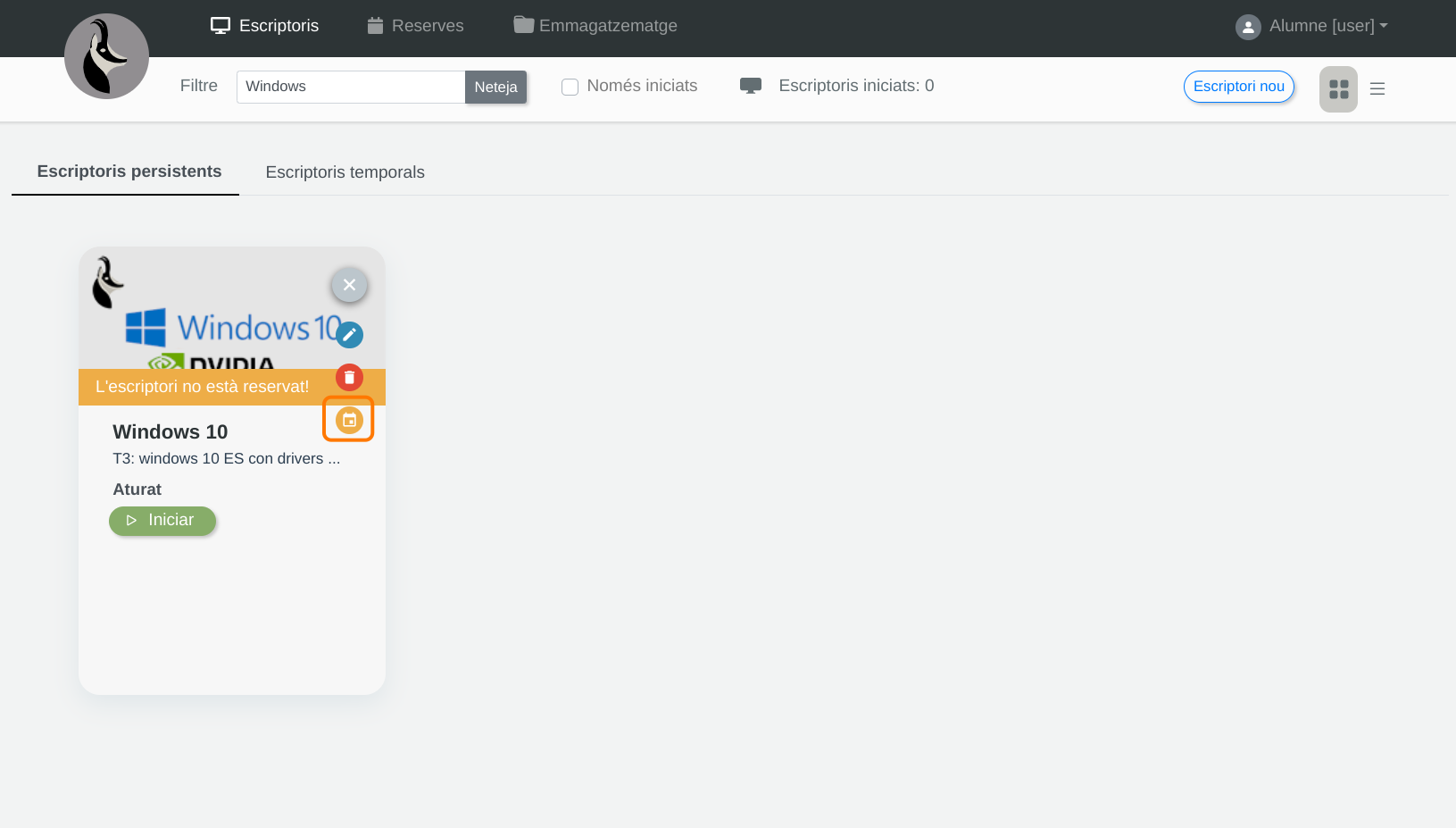
The desktop's GPU booking is reached with the Schedule action of the card.
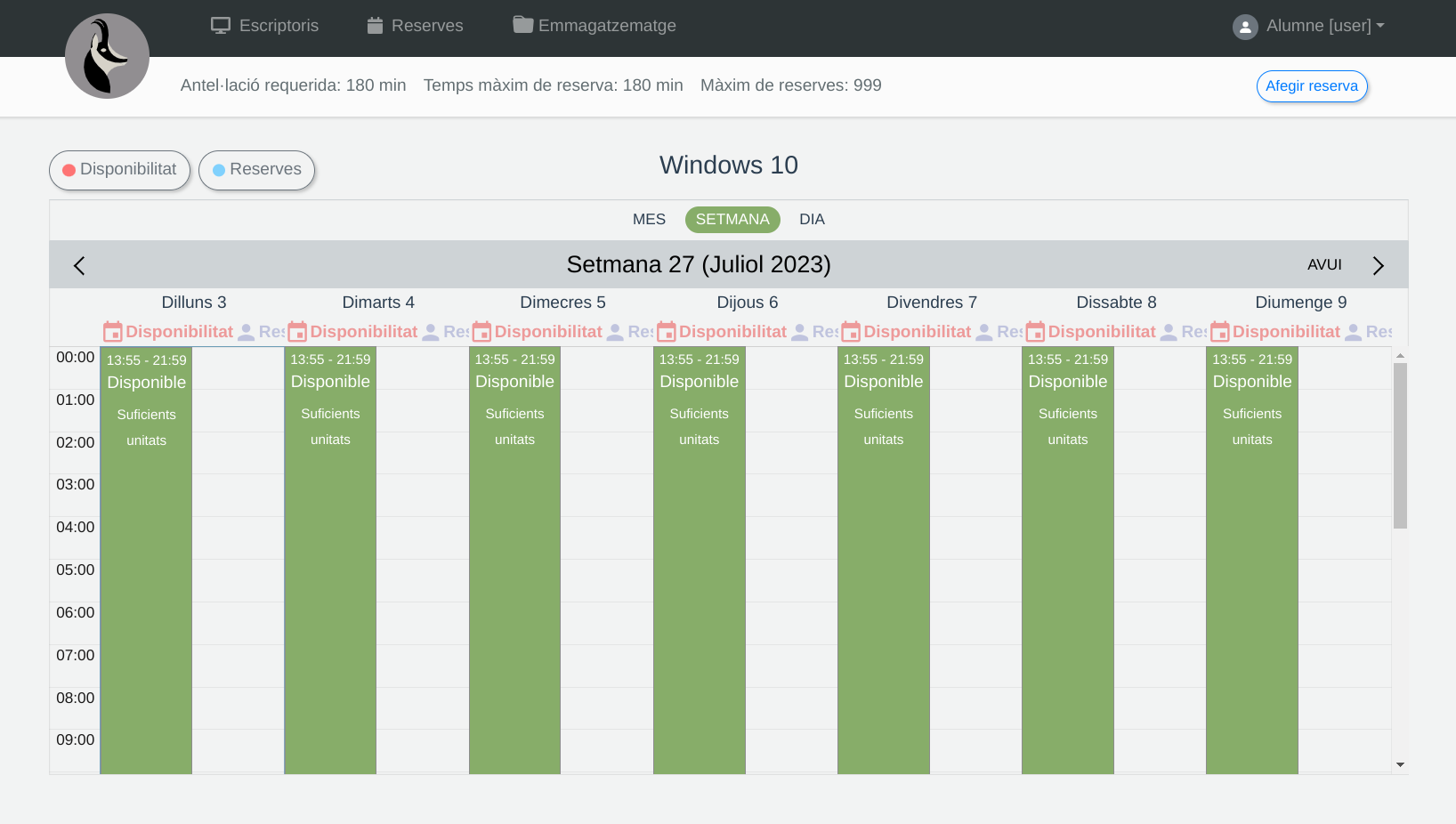
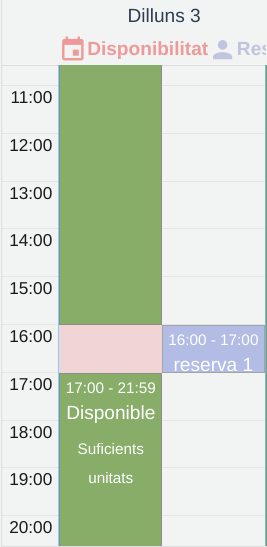
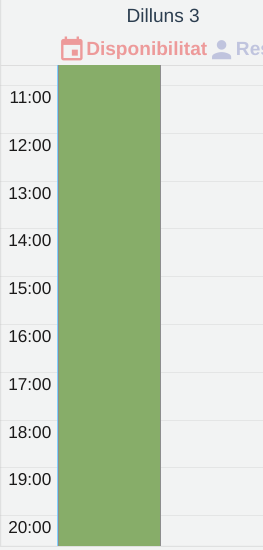
The weekly view of availability opens (it can be switched to monthly or daily view). Each day has two columns: on the left, Availability, with the availability of the card profile; on the right, Bookings, with the bookings of this desktop. The top bar shows the user's limits: Advance time needed, Maximum booking time and Maximum bookings.
In the figure there is availability during the week and there are no bookings yet.
To create the booking:
- Click Add booking, at the top right
 , or click the Bookings column and drag to select the slot.
- In the Add booking window, adjust the title and the start and end dates and times.
- Click Add booking.
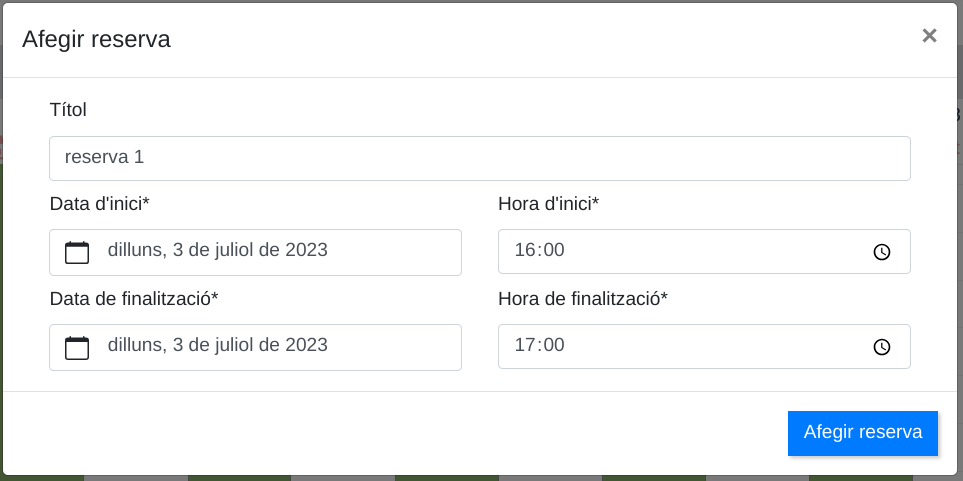
The booking appears in the right-hand column of the corresponding day.
A booking cannot be modified or extended once made: to change it, delete it and create a new one.
A desktop with a GPU cannot be started without a booking in progress, except for administrator and manager users (see «Start a desktop that needs a booking»).
In the new interface there is no calendar inside the desktop list: the booking is made on the desktop's bookings page, which opens in the old interface (the same screen as in the «Old interface» tab). It can be reached in two ways:
- With the Book action of the desktop card.
- From a dialog that appears when starting a GPU desktop that cannot start right now:
- Book desktop, in the «Not enough advanced time» dialog.
- Book desktop, in the «GPU '…' is not available for desktop '…' at the moment.» dialog. It books the current GPU model and opens in a new tab.
The GPU unavailable dialog also offers Change and start: it switches the desktop to a graphics card model available now and starts it straight away. Choose the GPU profiles and the End time; the server saves the GPU change, creates a booking that starts now and starts the desktop.
Changing the GPU can affect performance
The dialog warns about it: «It can be changed to an available graphic card model now and start it (It could affect the desktop performance)». The desktop is modified permanently, not just for this session.
Limits of a booking
- A booking that starts now lasts at most 12 hours; in addition, the user's priority rule limits its duration.
- For a user who is not an administrator, the rule must offer at least 30 minutes of advance time; otherwise the desktop cannot be started without booking it beforehand.
- The number of bookings a user can have also has a maximum.
- The end times offered when starting a desktop go in steps of 30 minutes, starting 30 minutes from now.
These values (advance time, maximum time and maximum bookings) are set by the administration in the priority rule of Bookables.
Conditions and messages
The server validates the booking before saving it. If a check fails, the interface shows the following message:
| Message | API code | When it happens |
|---|---|---|
| You've exceeded the user maximum bookings | booking_max_items_exceeded (HTTP 428) |
The user already has as many bookings as their rule allows. |
| The booking does not fit in requested date | booking_does_not_fit_date (HTTP 409) |
There is no capacity left for the GPU profile in this slot, or two requested profiles collide on the same card. |
| You can't book the GPU for that long. Pick an earlier end time. | booking_exceeds_max_time (HTTP 400) |
A booking that starts now ends later than the maximum allowed by the user's rule. |
- Only your own desktop (or your own deployment) can be booked.
- A booking that starts now is only possible for desktops, not for deployments.
Development details
For those who develop or integrate IsardVDI: where in the code each element of this section is located, from which version it has been available, which API operation it calls, and what messages it may return.
- New interface · file
views/DesktopsView.vue:1459· interface text (translation key)components.desktop-gpu-unavailable-modal.change-and-start.action-button- since v17.0.0 (2026-04-24,
c0053af014) - on click:
() => { getAvailableReservables() changeAndStartModalData = { ...unavailableStartNowModalDesktopData! } unavailableStartNowModalDesktopData = null }
- since v17.0.0 (2026-04-24,
- New interface · file
component/frontend/src/router/index.ts· routebooking(/bookings/:type/:id)- on entry:
window.location.assign('/booking/<tipus>/<id>'), which opens the old interface page
- on entry:
Commit code fe99ad98.
Delete a booking
Both interfaces use the same bookings page (the one of the old interface).
- On the desktop's bookings page, click the booking in the Bookings column. The View booking window opens.
- If the booking has not ended yet, click Delete and confirm.
If the booking has already started, it can only be deleted with the desktop stopped.
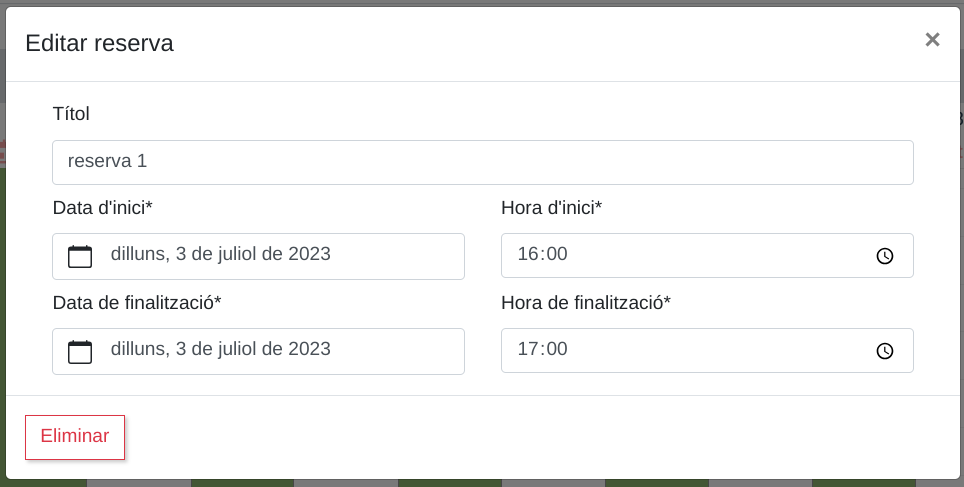
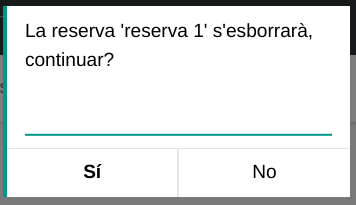
In the following screenshot:
Start a desktop that needs a booking
When starting a GPU desktop without a booking in progress, the interface offers to book it now (until the chosen time) or to go to the bookings page.
Confirmation button of the Start dialog, which appears when clicking Start on a stopped desktop that needs a booking (for example, with a GPU) and has none in progress right now.
- Click Start on the desktop. The interface asks the server until when it can be booked.
- In the dialog, choose the End time («Select until when it will be used»). The times go in steps of 30 minutes, starting 30 minutes from now, up to the maximum allowed.
- Click Start desktop.
On confirmation, two things happen in a row:
- A booking that starts now and ends at the chosen time is created.
- The desktop start is ordered.
If the start fails, the booking is already made
The booking and the start are two separate calls. If the booking is saved and the start then fails (quota, resources, etc.), the interface does not undo the booking. Check it on the bookings page.
Conditions and messages
- If the desktop does not need a booking, or already has one in progress, Start starts it directly without this dialog.
- To decide whether it can be booked, the server checks that there is a GPU availability plan covering the current moment, that the user's rule has a maximum time and that at least 30 minutes of booking are possible (with a maximum of 12 hours).
- If the booking fails, a notice with the corresponding message appears (see the table in «Create a booking»).
- An administrator is not limited by the advance time, and an administrator or manager can start without a booking.
- For a deployment desktop without a sufficient booking, the server responds
needs_deployment_booking: the whole deployment must be booked.
Development details
For those who develop or integrate IsardVDI: where in the code each element of this section is located, from which version it has been available, when it is displayed, which API operation it calls, and what messages it may return.
- New interface · file
views/DesktopsView.vue:1349· interface text (translation key)components.desktop-start-now-modal.confirm- since v17.0.0 (2026-04-24,
c0053af014) - on click:
submits the form (onSubmit)
- since v17.0.0 (2026-04-24,
- New interface · file
views/DesktopsView.vue:803· formconst startNowForm- on submit:
POST /api/v4/item/booking/eventwithnow: trueanditem_type: 'desktop', followed byPUT /api/v4/item/desktop/{desktop_id}/start - if the booking fails: notice with
describeApiError(…, 'booking')
- on submit:
- New interface · file
lib/booking/end-time-intervals.ts:21· functiongetEndTimeIntervals- offers times every 30 minutes starting from now + 30 minutes
- Backend ·
get_max_booking_date (GET /api/v4/item/booking/max-booking-date/{desktop_id})CommonDesktop.check_max_booking_date:check_current_plan(current_plan_doesnt_match/needs_deployment_booking),bookings_max_time_reached,not_enough_advanced_time,not_enough_time_to_start; global limit of 12 h
- Backend ·
DesktopService.start_desktop- if the desktop needs a booking and the user is neither an administrator nor a manager and has no booking in progress:
desktop_not_booked(428)
- if the desktop needs a booking and the user is neither an administrator nor a manager and has no booking in progress:
Commit code 5f15ed22.
Other actions of the desktop list
Creating desktops, stopping all desktops, changing the view (table or cards) and the start error and storage unavailable dialogs are described in Desktops.
Video tutorials
The video tutorials showing the prior setup of a desktop or deployment and how to make bookings are in the Bookings section.