Migration exemption
Roles with access
Only administrators have access to this feature.
The Migrations exemptions panel, at the end of the Config → Authentication page, defines who is excluded from a forced migration.
This configuration only has an effect when a provider has the Force Migration option enabled. If there is no active forced migration, the exemptions list has no effect.
What a forced migration is
The Migration block of each provider has the Force Migration option:
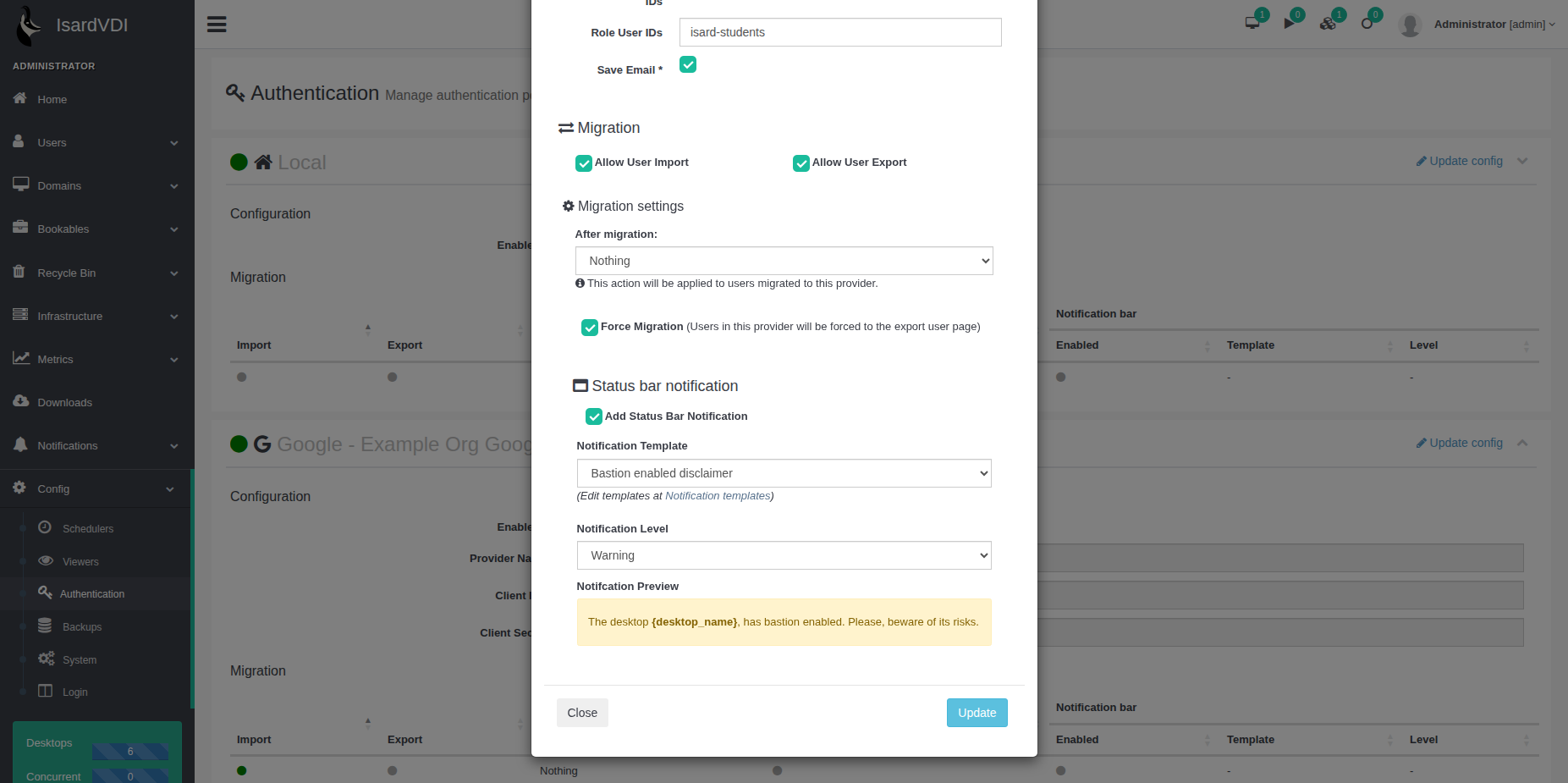
With this option checked, all users of this provider are redirected to the export page as soon as they log in. They cannot use IsardVDI (neither start desktops nor enter the administration panel) until they have exported their account to another one.
It is the mechanism used when an organization changes authentication provider and wants to make sure everyone moves their desktops to the new account.
The affected user sees the export page directly when logging in and cannot close it until they export the account (see Export the user). The migration code they generate is valid for one hour.
Force Migration only appears with Allow User Export enabled
It makes sense: nobody can be forced to export if the provider does not allow exporting.
Since forcing everyone without exceptions would lock out the very administrators who have to supervise the process, there is the exemptions list.
The exemptions panel
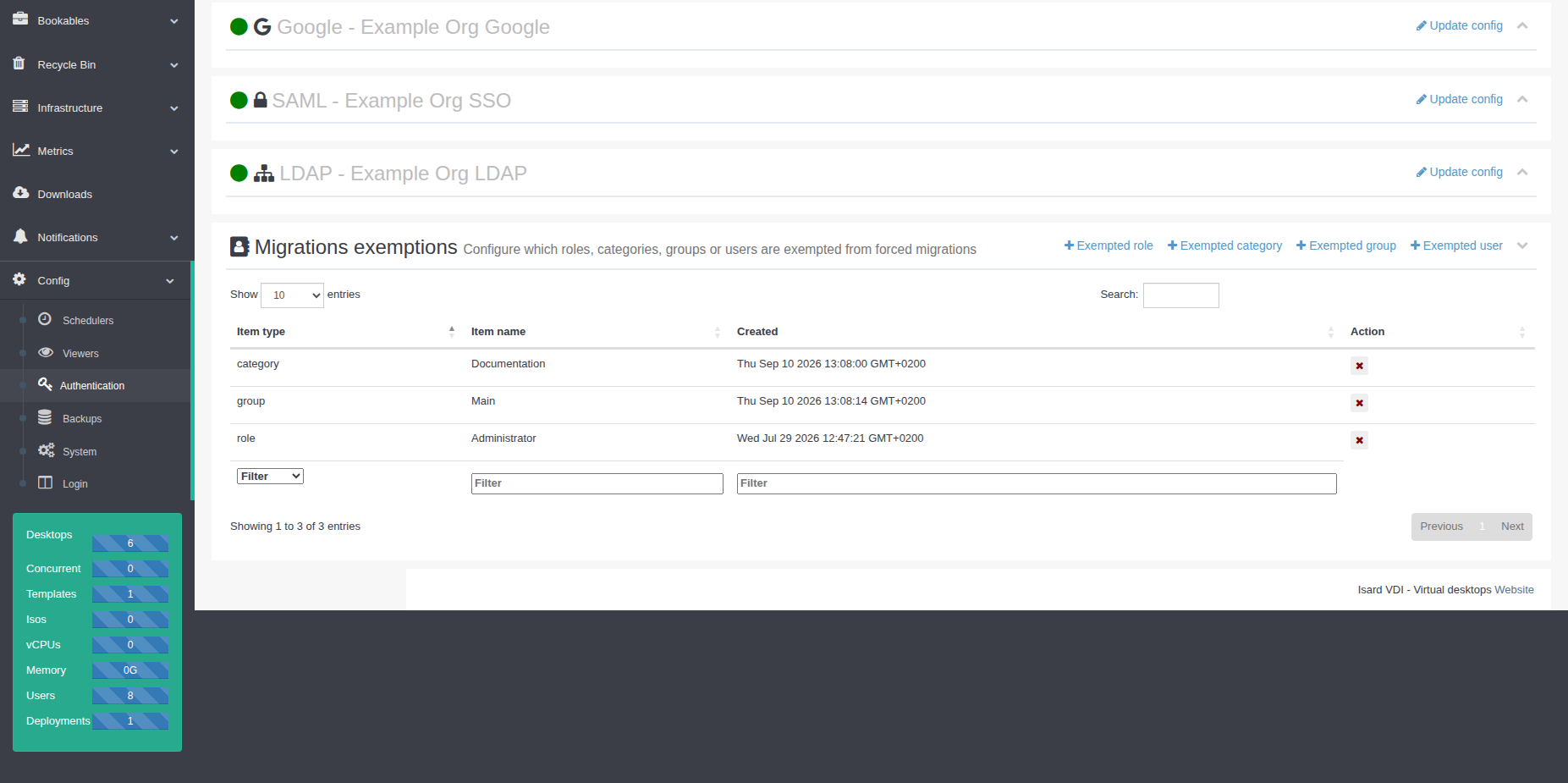
The table lists all the defined exemptions:
| Column | Content |
|---|---|
| Item type | Type of excluded item: role, category, group or user. |
| Item name | Name of the item. |
| Created | When the exemption was added. |
| Action |  Deletes the exemption. |
The four header buttons, Exempted role, Exempted category, Exempted group and Exempted user, add exemptions of each type.
Adding an exemption
Clicking Exempted role opens a window where you choose the role to exclude:
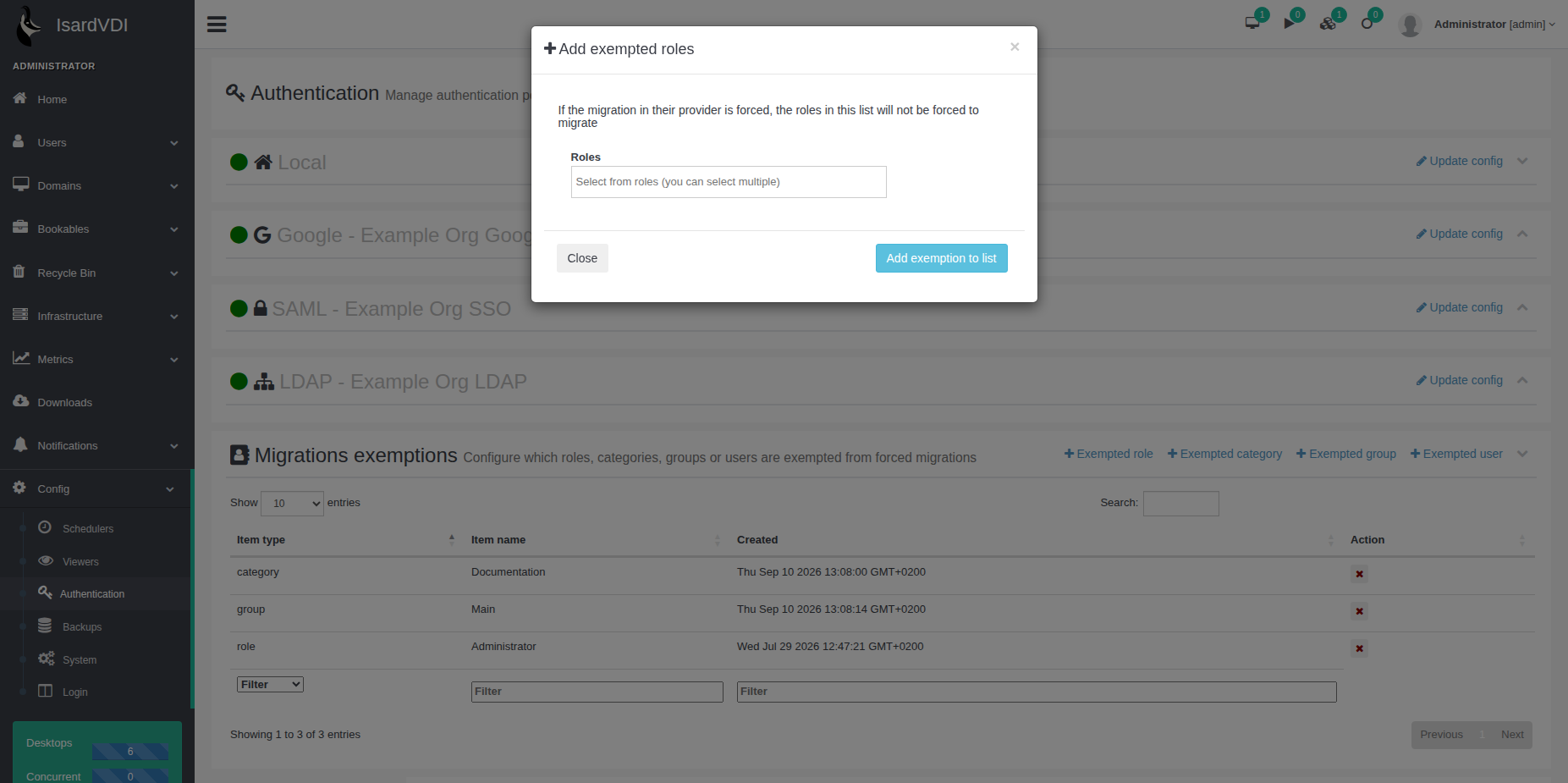
Exempted category works the same way with categories. Exempted group and Exempted user, instead, add a preliminary Category drop-down, since groups and users must be filtered by the category they belong to:
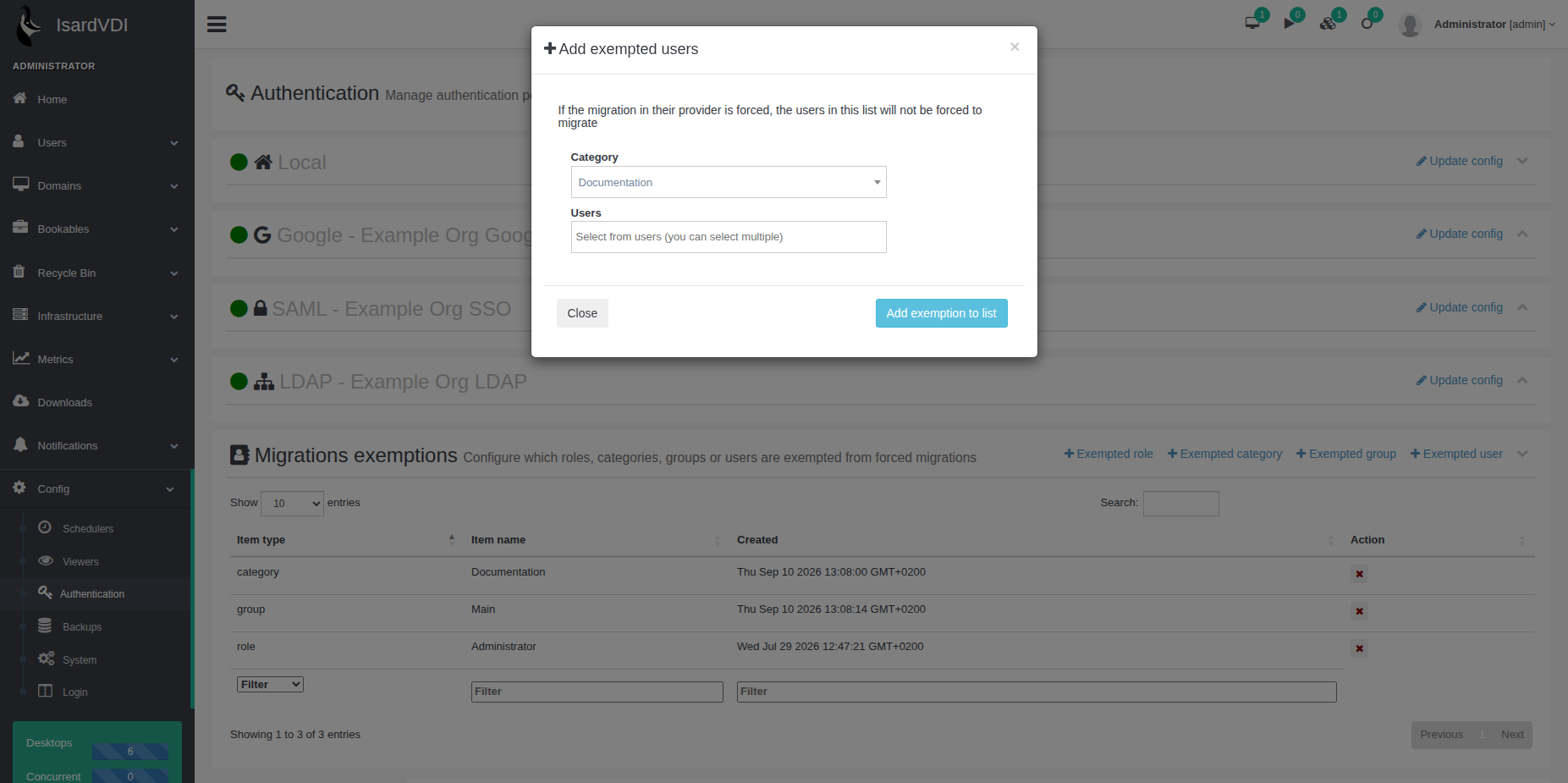
The items drop-down allows multiple selection: several exemptions of the same type can be added at once. The Add exemption to list button saves all the selections.
No duplicates
If any of the selected items already had an exemption, it is ignored and no repeated one is created.
How they are evaluated
When a user logs in with a provider that has Force Migration enabled, IsardVDI checks, in this order, whether the user is excluded by:
- Their category.
- Their role.
- Their main group.
- Their user.
One match is enough: the user is excluded and enters IsardVDI normally.
| User's situation when logging in | Result |
|---|---|
| Their provider does not have Force Migration | Normal access |
| Their provider has Force Migration and they are in the exemptions list | Normal access |
| Their provider has Force Migration and they are not in the list | Redirected to the account export page. |
Exemptions are global, not per provider
An exemption applies to all the forced migrations of the installation, whatever provider forces them. Exemptions cannot be defined for a specific provider.
Always exclude the Administrator role
If you force the migration of a provider the administrators depend on, exclude the Administrator role before enabling it; otherwise, the administrators would also be stuck on the export page and could not disable the option again from the panel.
Exemption ≠ prohibition
An exemption does not prevent migrating. An excluded user can still export their account voluntarily from their profile, as long as the provider has Allow User Export enabled. The only thing that changes is that they are not forced to.
Deleting an exemption
The button in the Action column asks for confirmation and deletes the exemption. From then on, the users it covered are again subject to the forced migration at their next login.
Deleting an item removes its exemptions
If a user, a group or a category is deleted from IsardVDI, its exemptions are also deleted. For a category, the exemptions of the groups and users it contains are also deleted; for a group, those of the users who belong to it.
If the item is created again later, the exemption must be added again.
Notifying users before forcing the migration
Forcing a migration without prior notice leaves users facing an unexpected page. The provider's Migration block has the Add Status Bar Notification option, which shows a permanent notice at the top of the interface:
| Option | Description |
|---|---|
| Notification Template | Message to show. Templates are managed in Notifications → Templates. |
| Notification Level | Info (blue), Warning (yellow) or Danger (red). It determines the color of the bar. |
| Notifcation Preview | Preview of the bar with the chosen template and level. |
The template in the screenshot is an example
The drop-down lists the notification templates available in the installation. For a migration notice, it is best to create your own in Notifications → Templates with the text you want to communicate.
The recommended sequence is:
- Enable the status bar notification well in advance, at the
InfoorWarninglevel. - Add to the exemptions list the roles, categories, groups or users that must not be affected.
- Once the notice period is over, enable Force Migration.
See also
- Introduction to authentication: the migration block of each provider.
- User migration (export / import): the full flow from the administration's point of view.
- Export the user and Migration: the user's journey, with the messages they may see.
- Migrations: tracking of all the installation's migrations.