Introduction
Roles with access
Only administrators and managers have access to the administration panel. Managers see a reduced menu and only manage their own category there. The user and advanced roles do not see the access button. If someone without permission opens a panel address, their panel session is closed and they are redirected to the login page. The same happens to a manager who opens a page reserved for administrators.
The administration panel lets you control, supervise and organize the platform's users, resources and configuration. The roles and their capabilities are described in Roles and Introduction to users.
To access the panel, click the Administration button in the sidebar of the user interface 
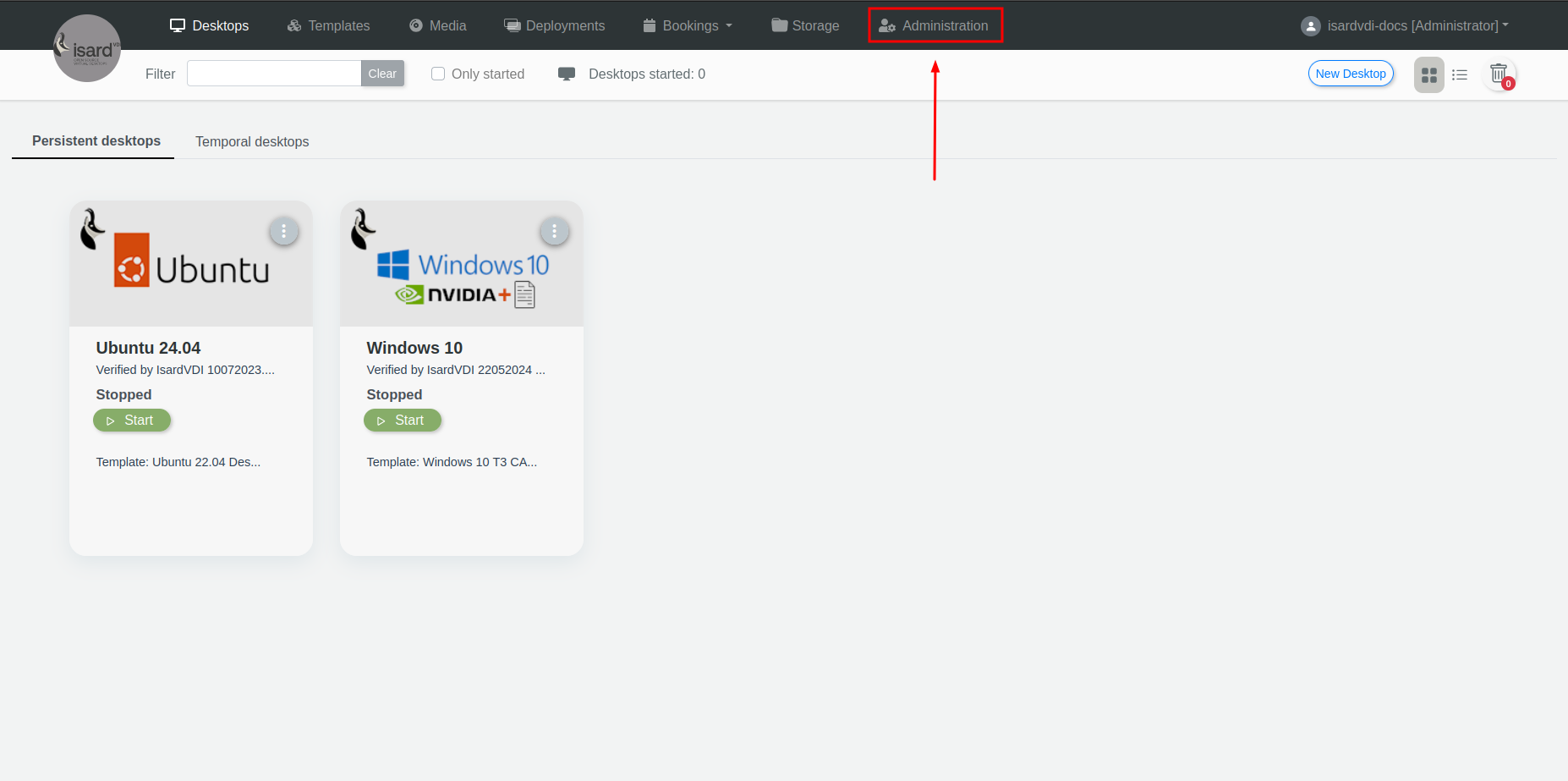
When it opens, the main window is shown.
Menu sections
| Section | Function | Manager |
|---|---|---|
| Home | Returns to the user interface and the desktops. | Yes |
| Users | Management of users, groups, categories and roles (Management), quotas and limits (Quotas / Limits), user storage (User Storage), policies (Policies) and migrations (Migration). | Only Management and Quotas / Limits |
| Domains | Desktops, desktop status, templates, deployments, storage, media and resources. | Desktops, Templates, Deployments, Storage and Media, directly in the menu |
| Bookables | Priorities, bookable resources and GPU booking events. | No |
| Recycle Bin | Deleted items and recycle bin configuration. | Only Domains |
| Infrastructure | Hypervisors, operations, tasks and storage pools (Storage Pools). | No |
| Metrics | Monitoring, usage, analytics and logs. | Only Usage and Analytics |
| Downloads | Download of predefined IsardVDI resources: desktops, ISOs, templates and viewers. | No |
| Notifications | Notification logs, management and templates. | No |
| Config | Schedulers, viewers, authentication, backups, system, interface (Frontend) and login. See Configuration. | No |
| About | Information about the installation, the version and links of interest. | Yes |
Summary of template and deployment visibility
When creating or editing a template or a deployment, the form has the «Allowed Groups and Users» section, with the «Manage users and groups» button. The section text summarizes who the item is shared with. This summary is seen by whoever creates or edits the item; the users it is shared with only see the result.
Templates
| What is shown | What it means |
|---|---|
| «This template will be shared with everyone in its category.» | The template will be visible to all users of its category. |
| «This template will not be shared with anyone.» | The template is not shared with anyone. |
If specific groups or users have been chosen, the list is shown. Users an enabled template is shared with see it when creating a new desktop. Sharing from the user interface is described in Templates.
Deployments
| What is shown | What it means |
|---|---|
| «This deployment is not shared with anyone yet.» | At least one group or user must be added. |
| «A deployment must be shared with at least one group or user.» | An attempt was made to save the deployment without any group or user. |
The users included in these groups or users get a desktop from the deployment, but they only see it in their list when it is visible (see Deployment visibility and Deployments).
Access management window
The «Manage users and groups» button, and the options for sharing templates, deployments and media, open the same window. The title names the item: «Edit the groups and users allowed to access this template», «… this deployment» or «… this media».
- In «Who can access», choose between Everyone and Specific groups and users. With Everyone, «Shared with everyone: Every user in your category will have access» is shown.
- With specific groups and users, check the groups and users in the Groups and Users columns. If there are none, «No groups available» or «No users available» is shown.
- If nothing has been chosen, saving shows «Select at least one group or user»; if nothing has changed, «Make a change to save».
- In a deployment, if it has a scheduled booking, access cannot be changed («You can't change who can access this deployment while it has a scheduled booking»), and removing a user deletes their desktops («Removing a user from the deployment also deletes their desktops.»).
- When saving, «Allowed users and groups updated» or «Could not update the allowed users and groups» is shown.