Recycle bin
The Recycle bin section allows you to manage deleted items: you can view, restore, or permanently delete them. Each user manages their own entries.
Roles with access
- Section access: any user.
Depends on the administration
The retention time, and whether the Send item to recycle bin checkbox is checked by default, are set in the recycle bin configuration. Managers can set the retention time of their category, which takes precedence over the global one. With a retention of 0 hours, the checkbox is not shown and the deletion is permanent.
Video: page walkthrough
When a desktop, template or deployment is deleted, the item can be sent to the recycle bin instead of being permanently deleted. From the recycle bin it can be restored or permanently deleted, manually or automatically when the retention time ends. This helps prevent the accidental deletion of important items.
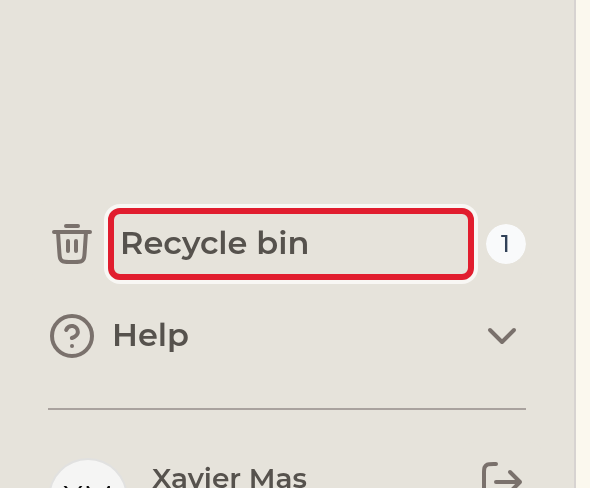
In the side menu, the section Recycle bin; this feature is within that screen.
Deleting items
Very important
- Once the maximum time in the recycle bin is reached, the item will be permanently and automatically deleted and cannot be recovered.
- The storage of items in the recycle bin will count towards the user's quota until they are permanently deleted.
Deleting a desktop
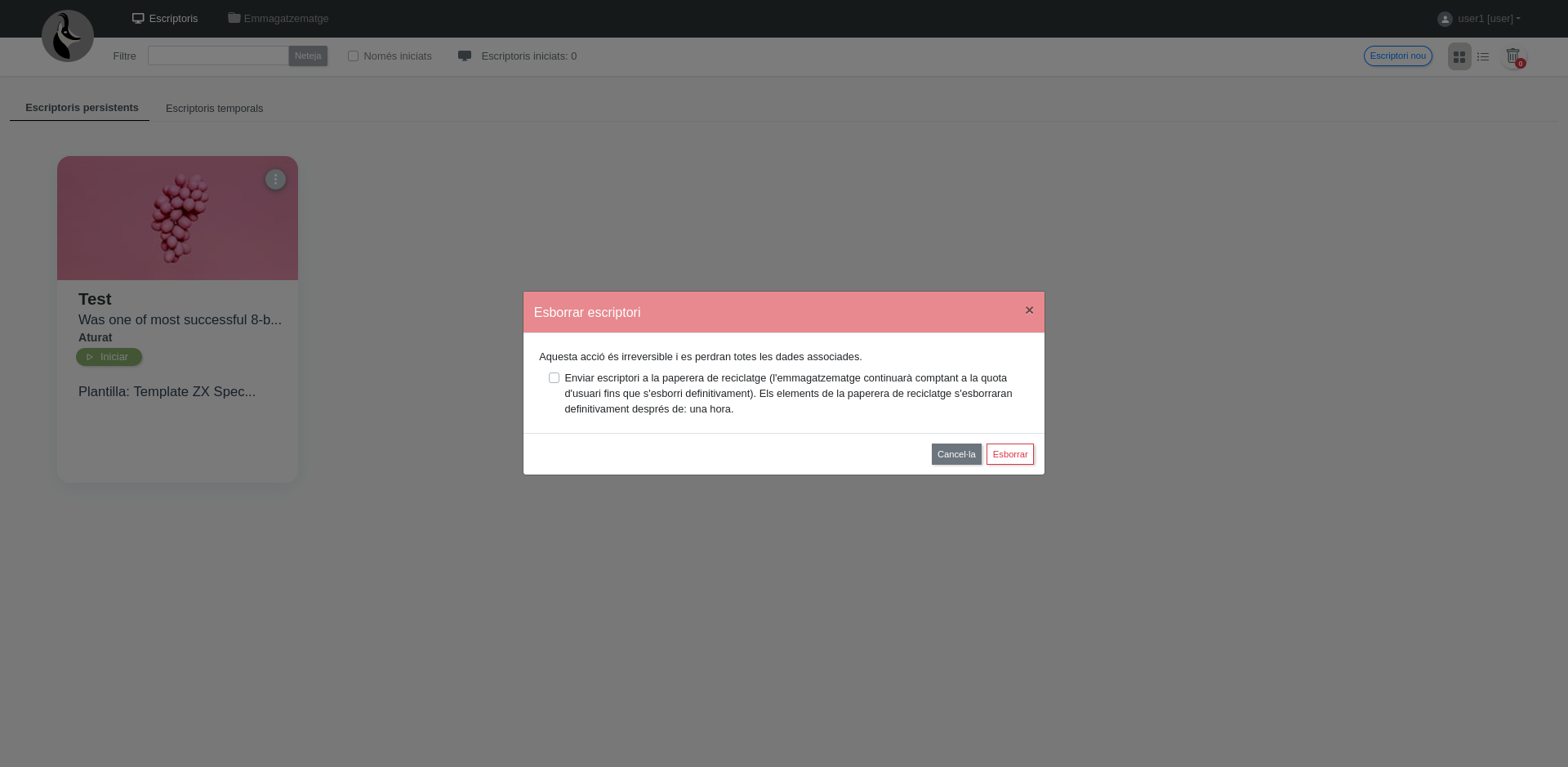
When a persistent desktop is deleted, the confirmation window shows a checkbox to send it to the recycle bin and states the maximum time it can stay there. Whether the checkbox is checked or unchecked depends on the «Send to recycle bin by default» option of the recycle bin configuration. Temporary desktops are always permanently deleted.
Deleting a template
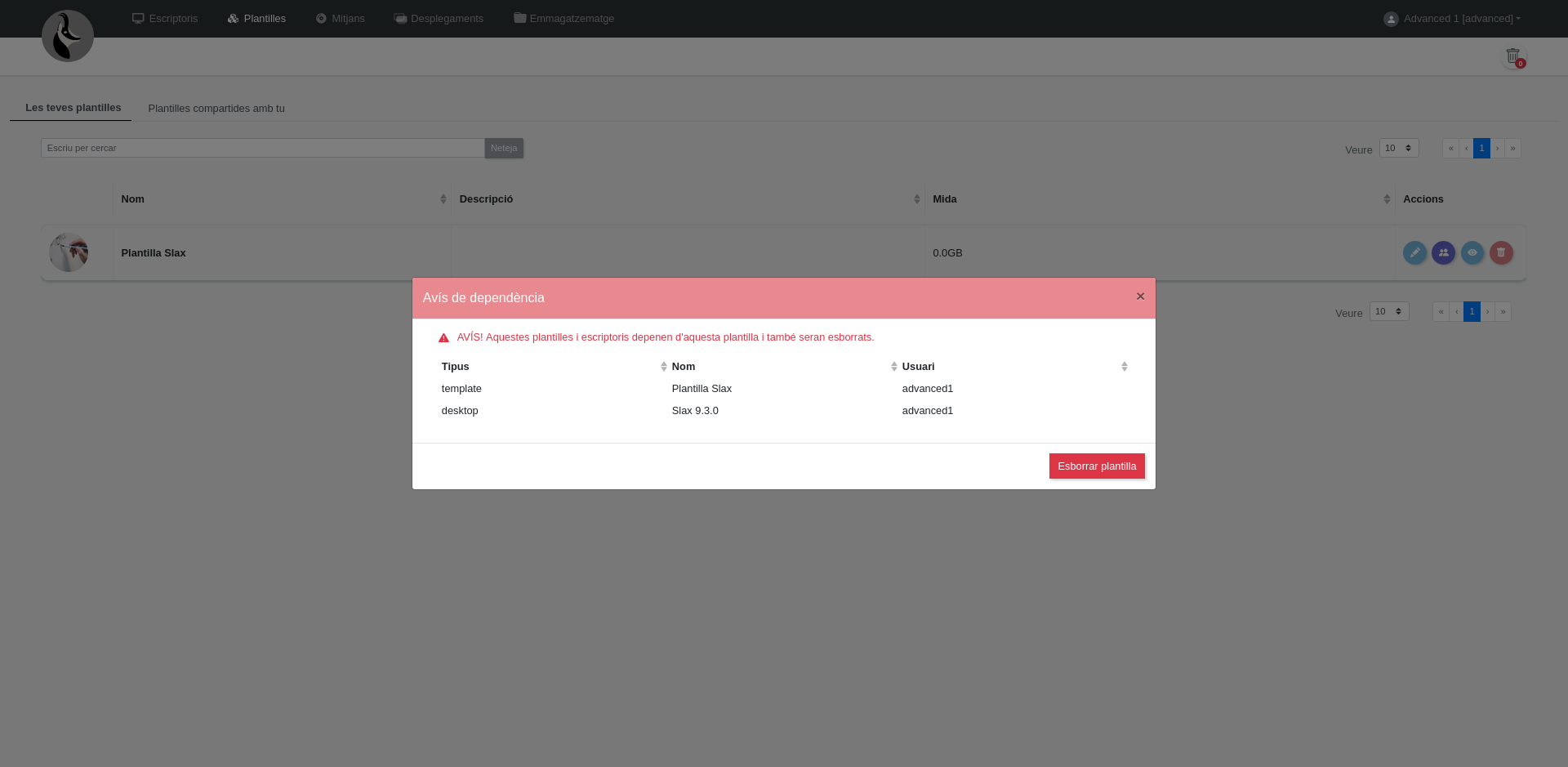
When a template is deleted, it goes directly to the recycle bin (if the retention is not 0 hours) and all its dependencies are sent there too:
Irreversible action
When permanently deleting a template, all dependent entries from other users will also be deleted. In other words, if a user sends a desktop derived from a template to the recycle bin and the template is subsequently permanently deleted, the user's derived desktop will be automatically and permanently deleted.
Deleting a deployment
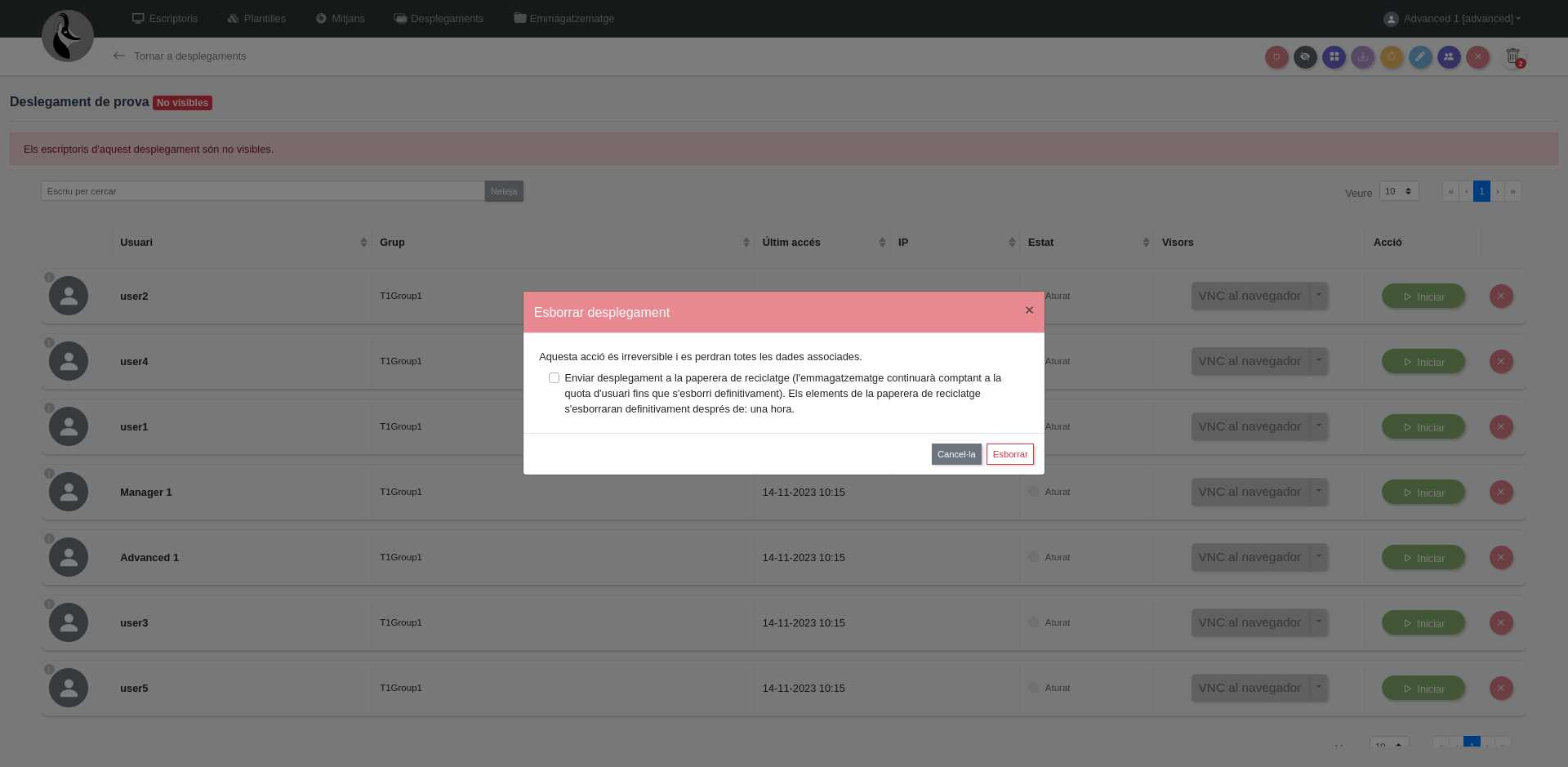
When a deployment is deleted, the confirmation window offers to send it to the recycle bin and states the maximum time it can stay there. As with desktops, the initial state of the checkbox depends on the «Send to recycle bin by default» option of the recycle bin configuration.
Irreversible actions
- When a specific desktop of a deployment is deleted, it is permanently and immediately deleted.
- When modifying the users of a deployment, all desktops of users who are no longer part of the deployment will be permanently and immediately deleted.
Managing Deleted Items
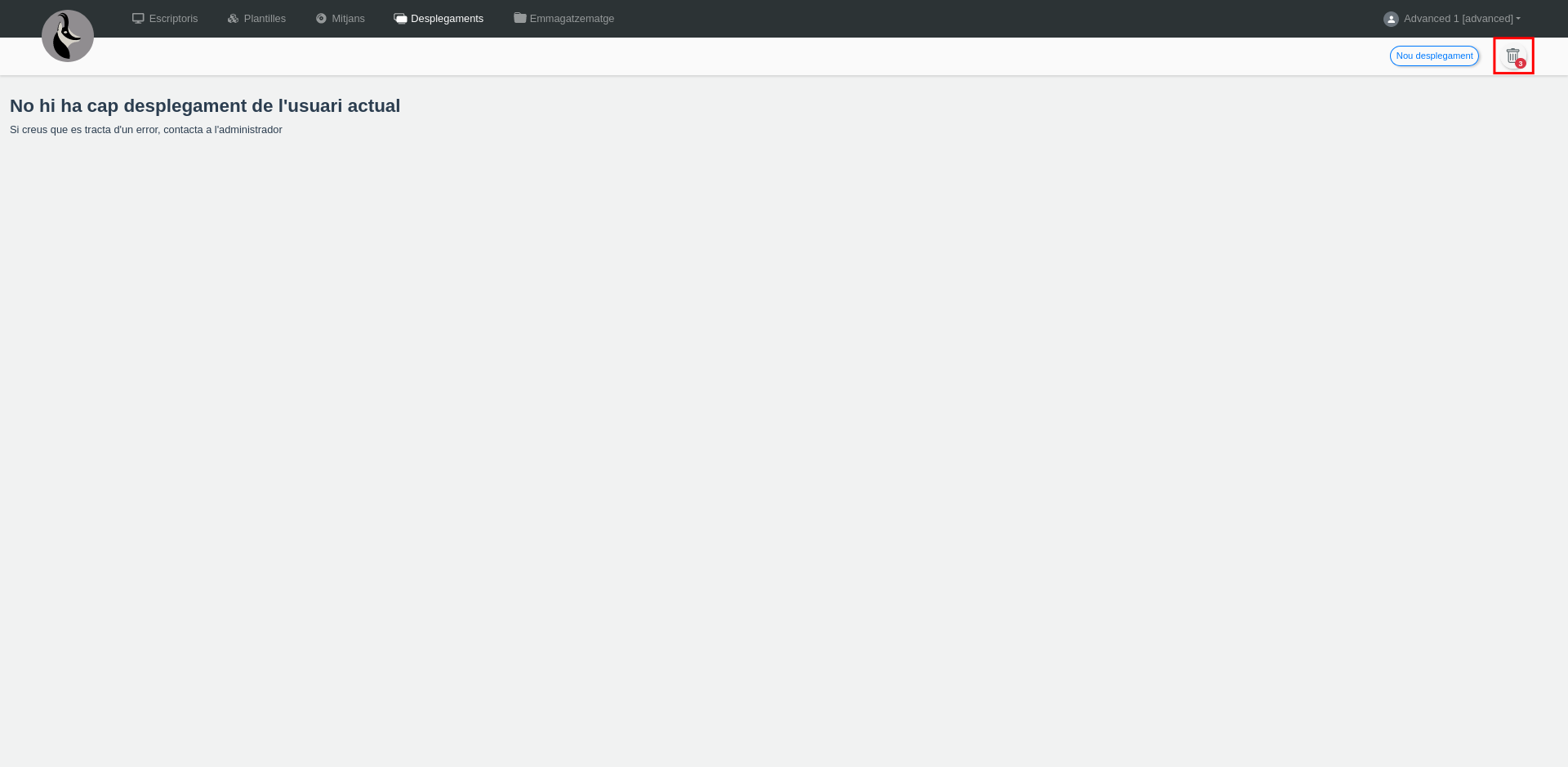
To manage the items in the recycle bin, click the  icon in the navigation bar:
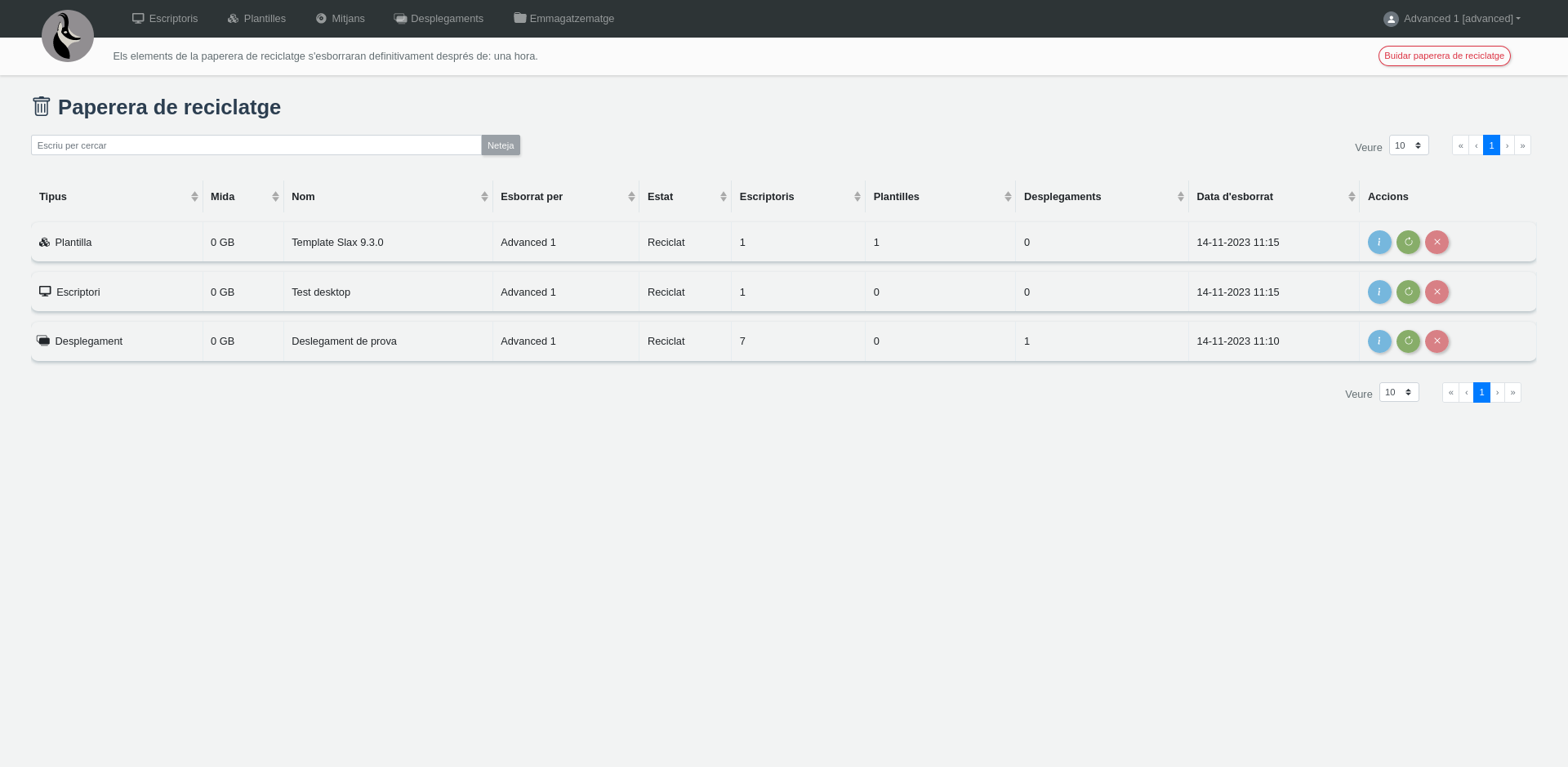
In the recycle bin section, you can view the various items that have been temporarily deleted.
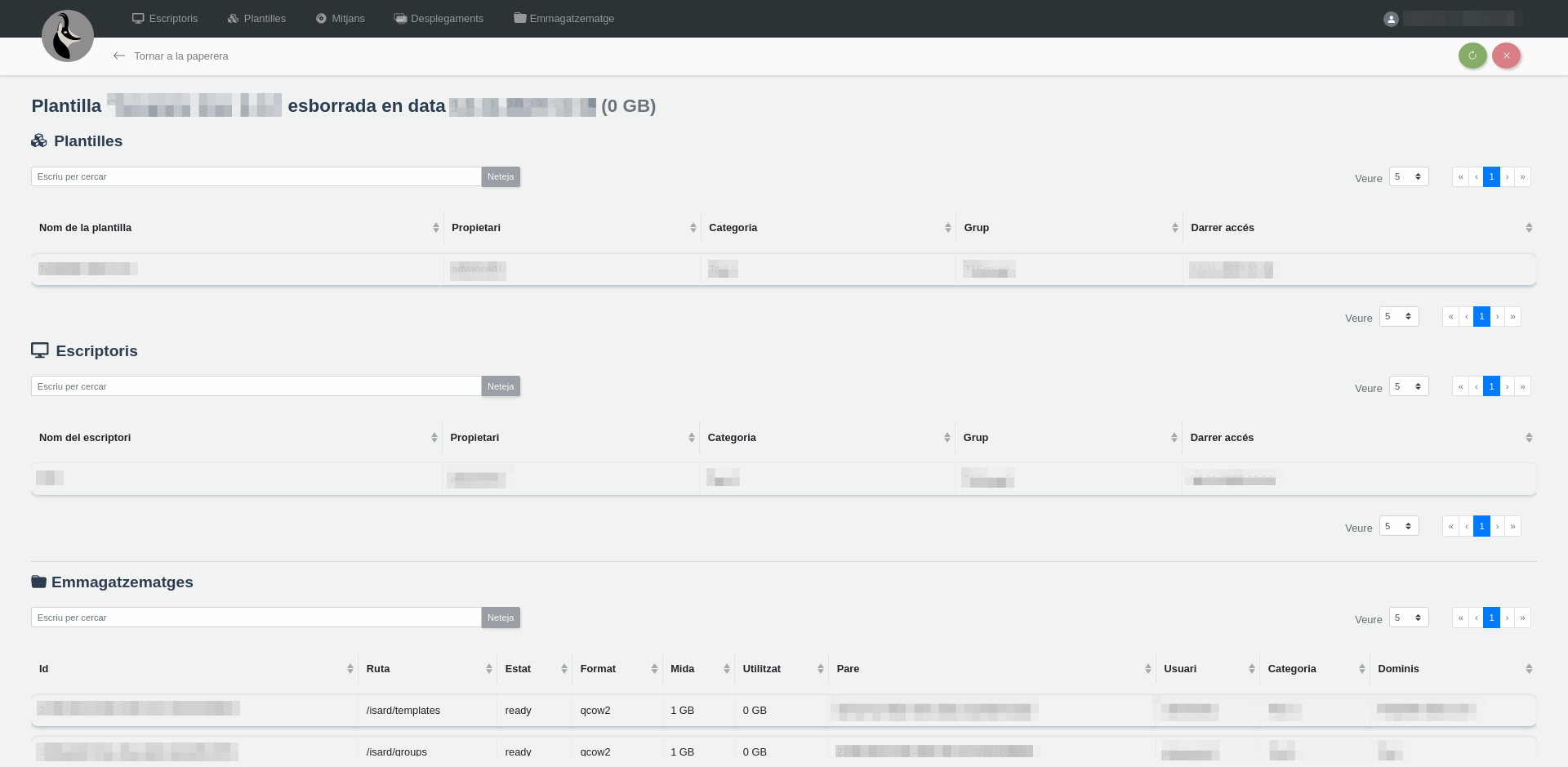
View Deleted Item Information
You can access this by clicking the corresponding row or the  icon. You will be able to access detailed information about the deleted items and their dependencies:
Items stay in the recycle bin until they are restored, permanently deleted, or the retention time ends.
The list displays, for each entry, the name, size, content, deletion date (Deleted at), the user who deleted it (Deleted by), and the available actions (Restore and Permanently Delete). There is a search bar («Search recycle bin entries...»). Clicking an entry opens the details («Deleted item details»), showing the deletion date and total size, with the content distributed across tabs: Desktops, Deployments, Templates, and Storage (ID, path, status, format, size, parent disk, owner, and domains).
Attention
At the top of the screen there is a notice with the retention time, which depends on the configuration of the user's category or, if there is none, on the global one (recycle bin configuration):
- «Items in the recycle bin will be permanently deleted after being inside for …», with the configured retention period.
- «Items in the recycle bin will be permanently deleted immediately.» (time 0).
- «Items in the recycle bin are not automatically deleted.» (no limit).
If there are items, the Empty recycle bin button appears: it asks for confirmation («This will permanently delete all the entries in the recycle bin. This action is irreversible») and deletes the user's own entries that are still in the recycle bin. The deletion is queued and runs in the background. It does not affect entries that only an administrator can manage (e.g., those generated when deleting a group or a category), which are kept.
Conditions and messages
- Deleted items are kept in the recycle bin for a limited period (see the screen notice).
- Once permanently deleted, they cannot be recovered.
- Each user manages their own entries. A manager can also manage those of their category, and an administrator can manage those of any user. Otherwise, the API responds with "forbidden".
- If the data cannot be loaded, the screen displays «Error retrieving recycle bin data».
- If the emptying fails: «Error emptying recycle bin» / «An error occurred while emptying the recycle bin. Please try again.»
Development details
For those developing or integrating IsardVDI: where each element of this section is located in the code, from which version it exists, when it is displayed, which API operation it calls, and what messages it may return.
- New interface · file
views/RecycleBinView.vue:251· interface text (translation key)views.recycle-bin.empty-recycle-bin- since v17.0.0 (2026-04-24,
f31b874d89) - displayed if not cutoffTimeIsError and hasItems (
NO (cutoffTimeIsPending) ; NO (cutoffTimeIsError) ; v-if: hasItems) - on click:
handleOpenEmptyBinModal
- since v17.0.0 (2026-04-24,
Commit code 7744c96b.
Restore deleted items
You can recover deleted items by clicking the  icon.
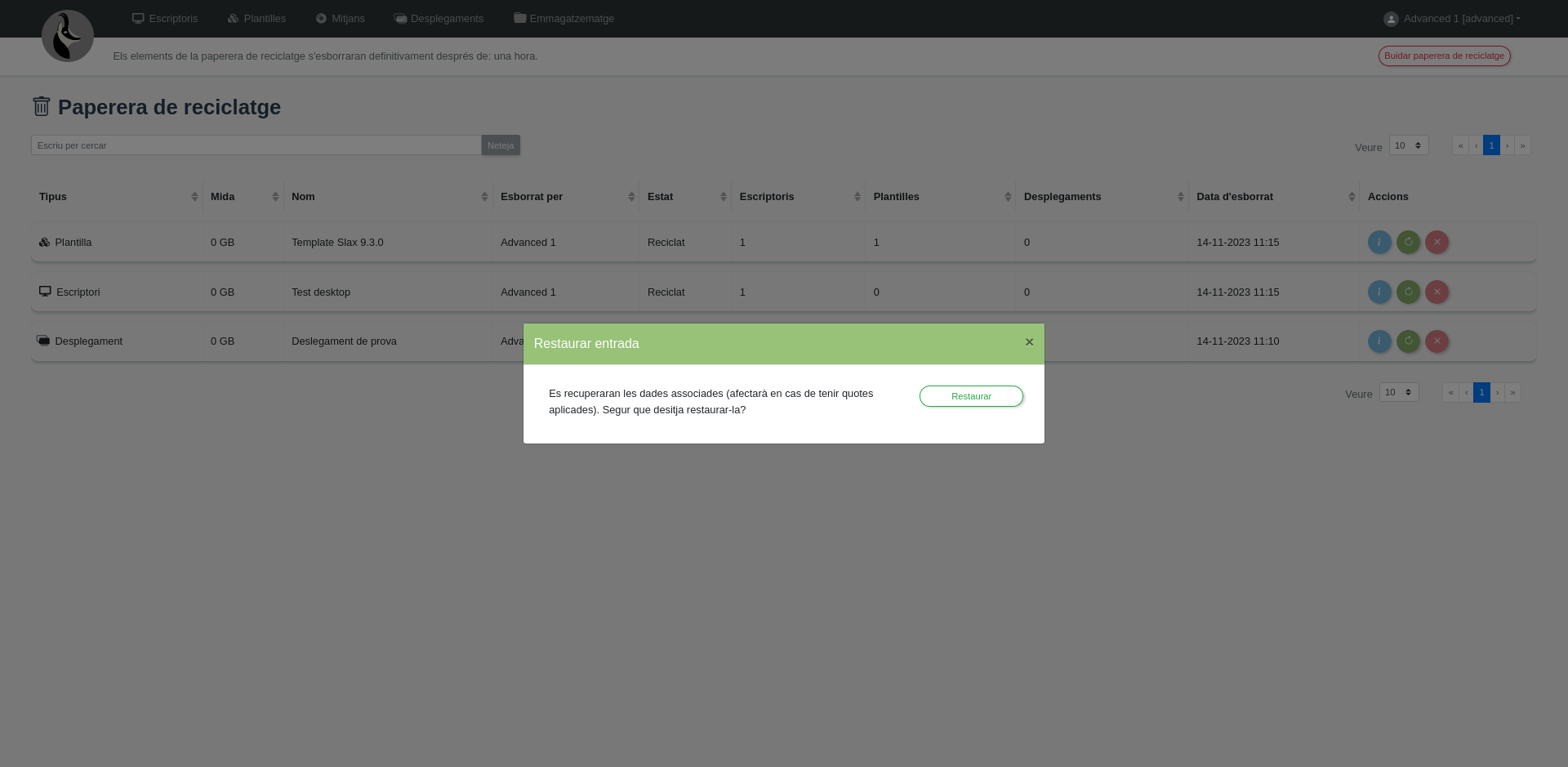
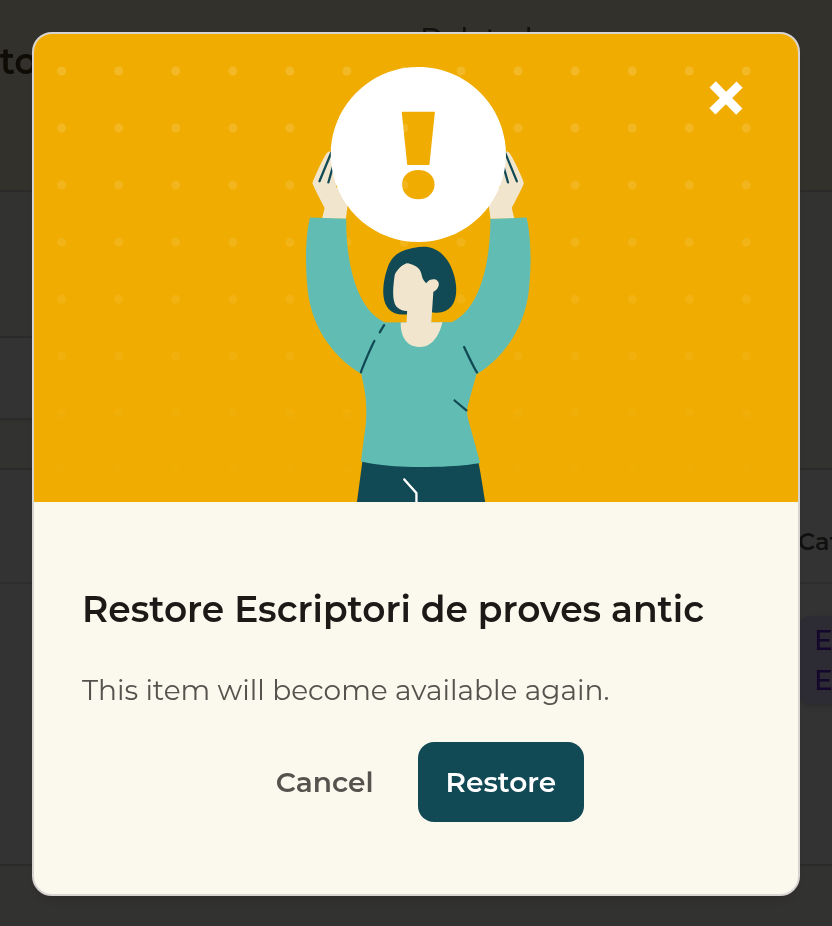
To restore an item, click Restore in the entry row (or in the entry details). The «Restore» dialog appears, followed by the item name, with the text «This item will become available again.». Confirm with Restore or cancel with Cancel.
Conditions and messages
- An item can only be restored if the items it depends on still exist. Otherwise, the dialog displays the reason:
- «Cannot restore. User "…" has been deleted.» (with the user's name)
- «Cannot restore. The associated category has been deleted.»
- «Cannot restore. The associated group has been deleted.»
- «Cannot restore. The parent template no longer exists.»
- Any other error: «An error occurred while restoring the item. Please try again.»
Development details
For those who develop or integrate IsardVDI: where each element of this section is located in the code, since which version it has been available, which API operation it calls, and what messages it can return.
- New interface · file
views/RecycleBinView.vue:352· interface text (translation key)views.recycle-bin.actions.restore- since v17.0.0 (2026-04-24,
f31b874d89)
- since v17.0.0 (2026-04-24,
- New interface · file
components/recycle-bin/RestoreModal.vue:78· interface text (translation key)components.recycle-bin.restore-modal.title- since v17.0.0 (2026-04-24,
f31b874d89)
- since v17.0.0 (2026-04-24,
- New interface · file
components/recycle-bin/RestoreModal.vue:79· interface text (translation key)components.recycle-bin.restore-modal.description- since v17.0.0 (2026-04-24,
f31b874d89)
- since v17.0.0 (2026-04-24,
- New interface · file
components/recycle-bin/RestoreModal.vue:90· interface text (translation key)components.recycle-bin.restore-modal.cancel- since v17.0.0 (2026-04-24,
f31b874d89) - on click:
handleClose
- since v17.0.0 (2026-04-24,
- New interface · file
components/recycle-bin/RestoreModal.vue:99· interface text (translation key)components.recycle-bin.restore-modal.confirm- since v17.0.0 (2026-04-24,
f31b874d89) - on click:
confirmRestore - call:
PUT /api/v4/item/recycle-bin/{recycle_bin_id}/restore — Restore recycle bin item
- since v17.0.0 (2026-04-24,
Commit code fe99ad98.
Permanently delete
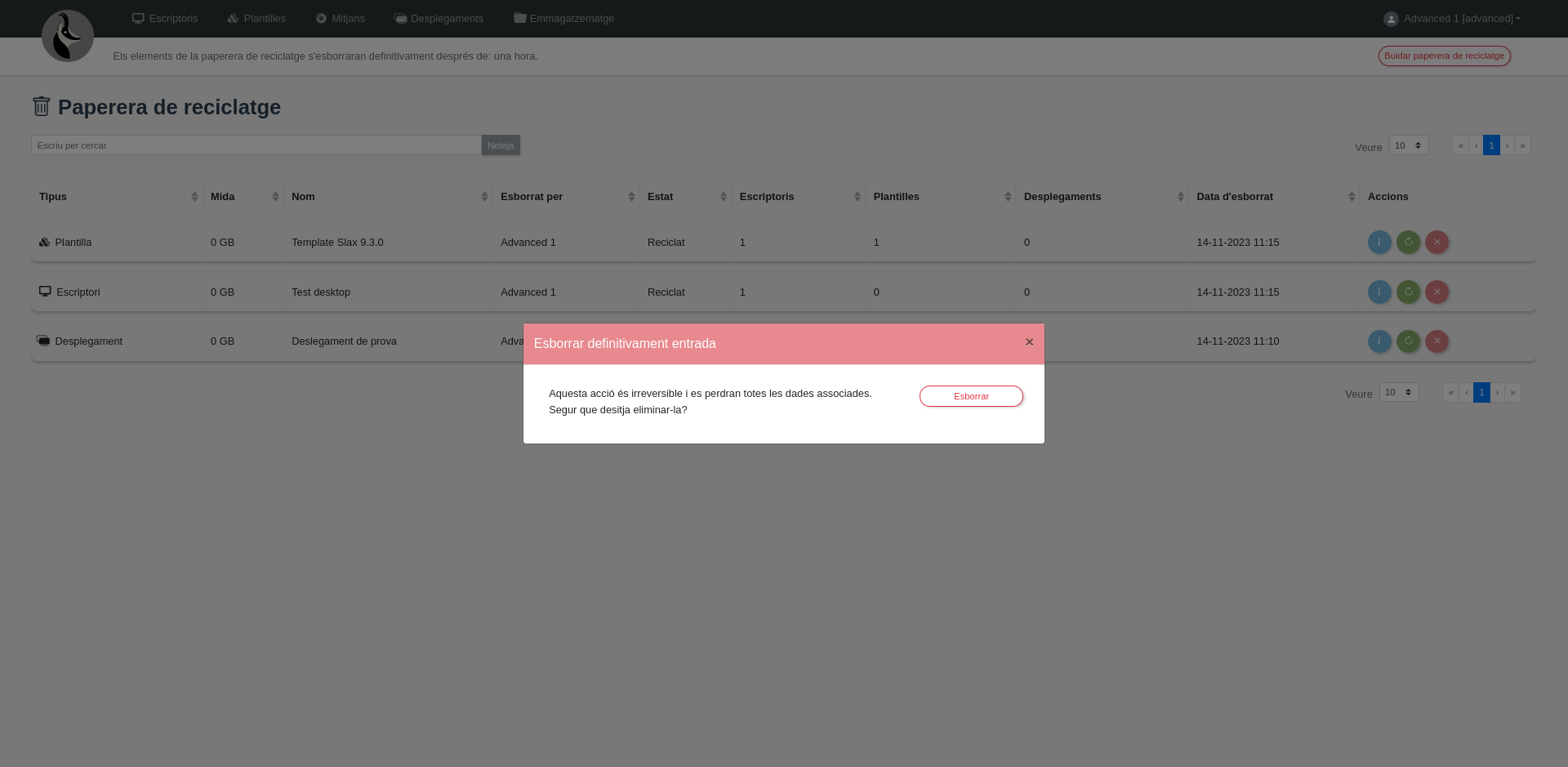
You can permanently delete deleted items by clicking the  icon.
Space recovery
Once this action is done, the corresponding space in the user's quota is freed.
To permanently delete an item from the recycle bin:
- In the entry row (or in its details), click Delete permanently.
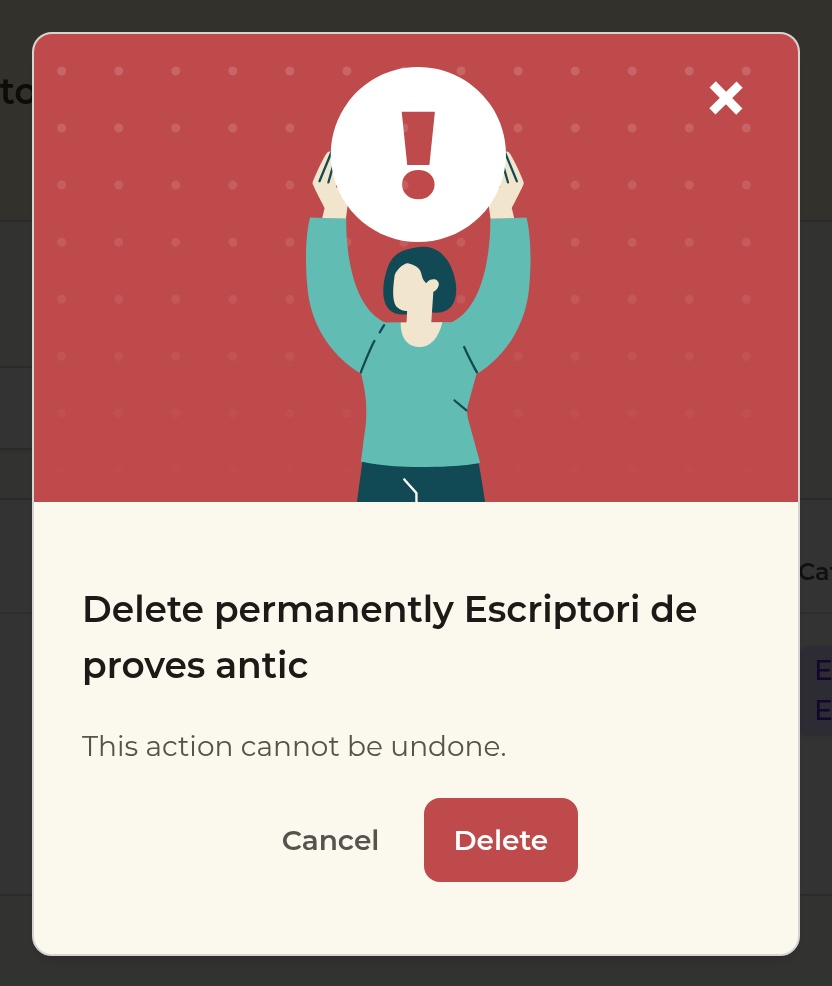
- Read the warning of the «Delete permanently» dialog, followed by the item name: «This action cannot be undone.».
- Confirm with Delete or cancel with Cancel.
To delete everything at once, use Empty recycle bin (see «Managing deleted items»).
Background deletion
The deletion is queued and executed in the background (the API responds with "item.queued"), so the entry may take a moment to disappear.
Conditions and messages
- This action is irreversible and cannot be undone.
- Only entries that are still in the recycle bin can be deleted: if they have already been restored or deleted, the API responds with "precondition_required" (
recycle_bin_entry_not_deletable). - Each user can only delete their own entries; a manager, those of their category; an administrator, everyone's.
Development details
For those who develop or integrate IsardVDI: where each element of this section is in the code, from which version it has been available, which API operation it calls, and what messages it can return.
- New interface · file
views/RecycleBinEntryView.vue:393· interface text (translation key)common.actions.delete- since v17.46.1 (2026-09-29,
80bfbcca4f) - on click:
handleDelete
- since v17.46.1 (2026-09-29,
- New interface · file
components/recycle-bin/DeleteModal.vue:66· interface text (translation key)components.recycle-bin.permanent-delete-modal.title- since v17.0.0 (2026-04-24,
f31b874d89)
- since v17.0.0 (2026-04-24,
- New interface · file
components/recycle-bin/DeleteModal.vue:67· interface text (translation key)components.recycle-bin.permanent-delete-modal.description- since v17.0.0 (2026-04-24,
f31b874d89)
- since v17.0.0 (2026-04-24,
- New interface · file
components/recycle-bin/DeleteModal.vue:72· interface text (translation key)components.recycle-bin.permanent-delete-modal.cancel- since v17.0.0 (2026-04-24,
f31b874d89) - on click:
handleClose
- since v17.0.0 (2026-04-24,
- New interface · file
components/recycle-bin/DeleteModal.vue:81· interface text (translation key)components.recycle-bin.permanent-delete-modal.confirm- since v17.0.0 (2026-04-24,
f31b874d89) - on click:
confirmDelete - calls:
DELETE /api/v4/item/recycle-bin/{recycle_bin_id} — Delete recycle bin item
- since v17.0.0 (2026-04-24,
Commit code fe99ad98.
Empty the recycle bin
Very important
- Once the maximum time in the recycle bin is reached, the item will be permanently and automatically deleted and cannot be recovered.
- The storage of items in the recycle bin will count towards the user quota until they are permanently deleted.
To permanently delete all the user's own entries in the recycle bin:
- Click Empty recycle bin.
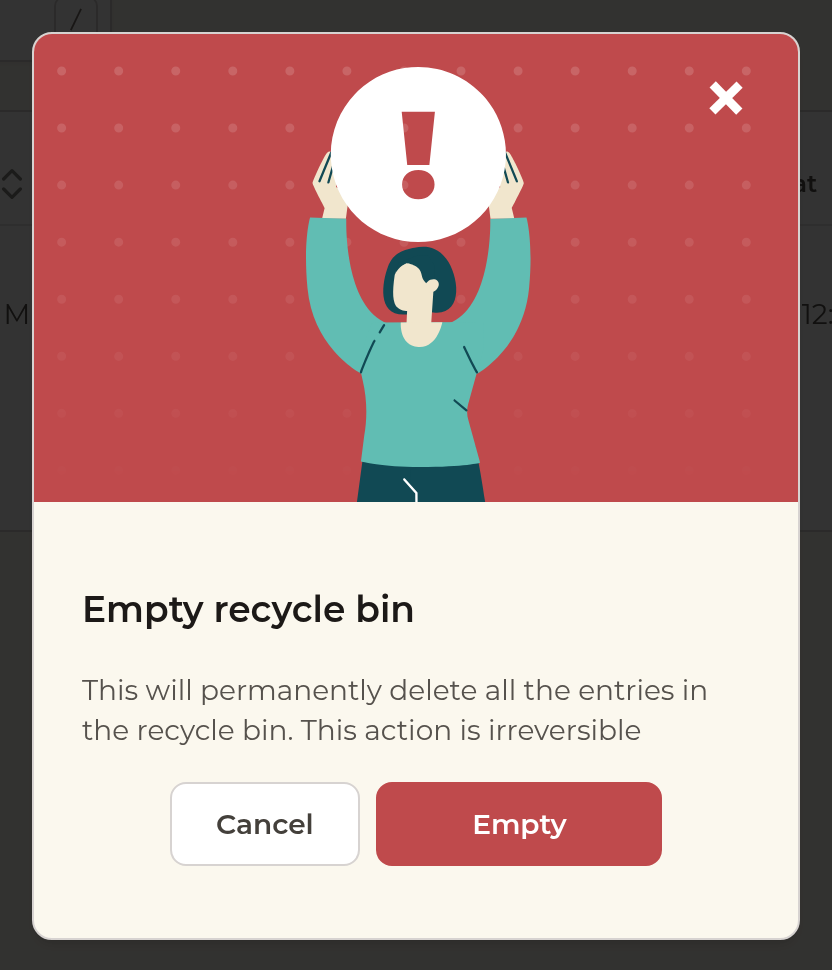
- Click Empty to confirm the action.
Conditions and messages
- The confirmation indicates that «This will permanently delete all the entries in the recycle bin. This action is irreversible».
Development details
For those who develop or integrate IsardVDI: where each element of this section is in the code, from which version it has been available, which API operation it calls, and what messages it may return.
- New interface · file
views/RecycleBinView.vue:251· interface text (translation key)views.recycle-bin.empty-recycle-bin- since v17.0.0 (2026-04-24,
f31b874d89) - on click:
handleOpenEmptyBinModal
- since v17.0.0 (2026-04-24,
- New interface · file
views/RecycleBinView.vue:407· interface text (translation key)components.recycle-bin.empty-modal.cancel- since v17.0.0 (2026-04-24,
f31b874d89) - on click:
handleCloseEmptyBinModal
- since v17.0.0 (2026-04-24,
- New interface · file
views/RecycleBinView.vue:418· interface text (translation key)components.recycle-bin.empty-modal.confirm- since v17.0.0 (2026-04-24,
f31b874d89) - on click:
handleConfirmEmptyBin - calls:
DELETE /api/v4/item/recycle-bin/empty — Empty recycle bin
- since v17.0.0 (2026-04-24,
Commit code fe99ad98.