Resources
Roles with access
Only administrators have access. Managers do not have the Resources entry in the menu.
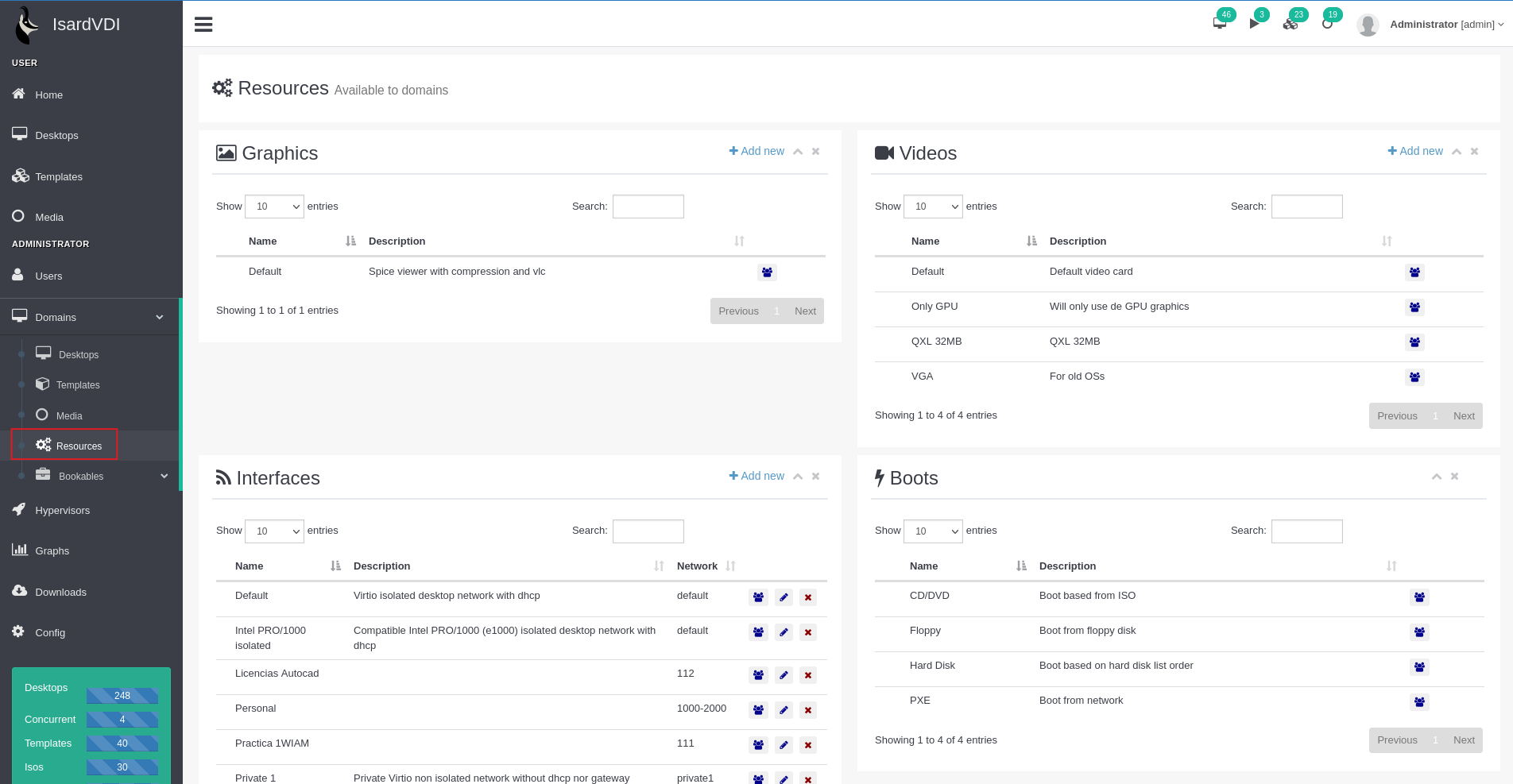
The page is at Domains → Resources and gathers the resources that desktops and templates can use: network interfaces, videos, remote VPNs, boot methods, network and disk QoS profiles, XML install templates and the bastion.
Who can use each resource
Each resource has the share icon  , which decides which roles, categories, groups or users can use it. This has the following effects for the user:
- The network, video and boot method selectors of the desktop form only show the resources the user is allowed (more information in Edit desktop and Networks).
- If the user creates a desktop from a template that carries a resource they are not allowed, the resource is removed, and the form shows the Restrictions applied mark with the message «… is not within your permissions, so it was removed.». If all videos are removed, the desktop keeps the default video.
- The maximum vCPU and memory values are not set here, but in the quotas.
Interfaces
Interfaces are the networks that can be connected to desktops.
To add one:
-
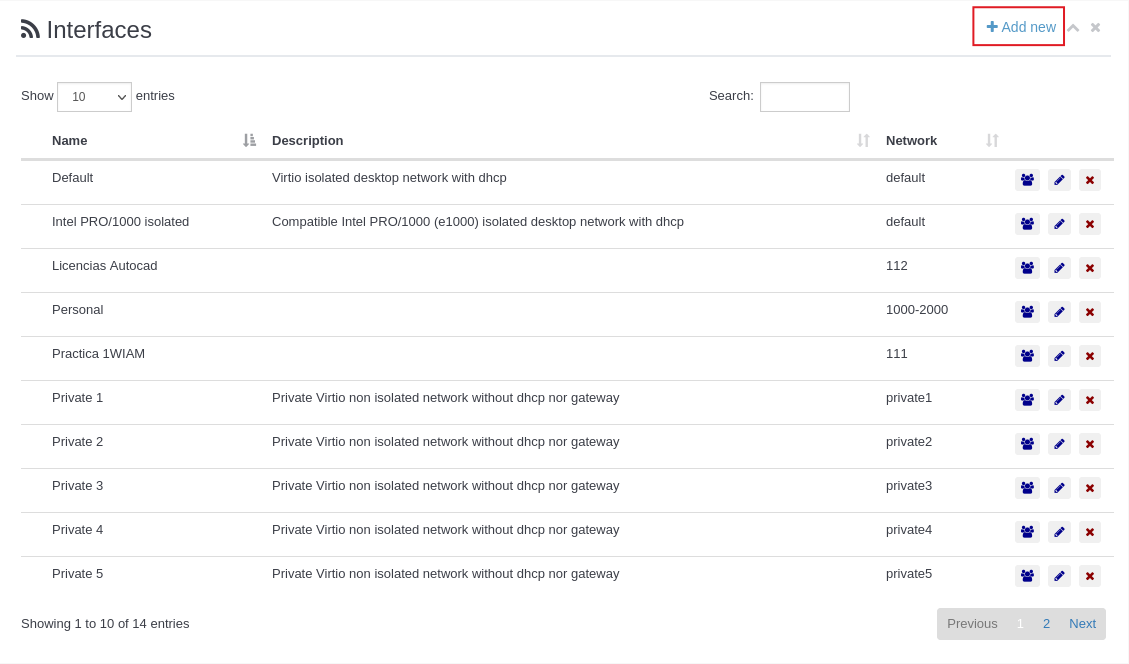
Click the Add new button of the Interfaces block
 .
-
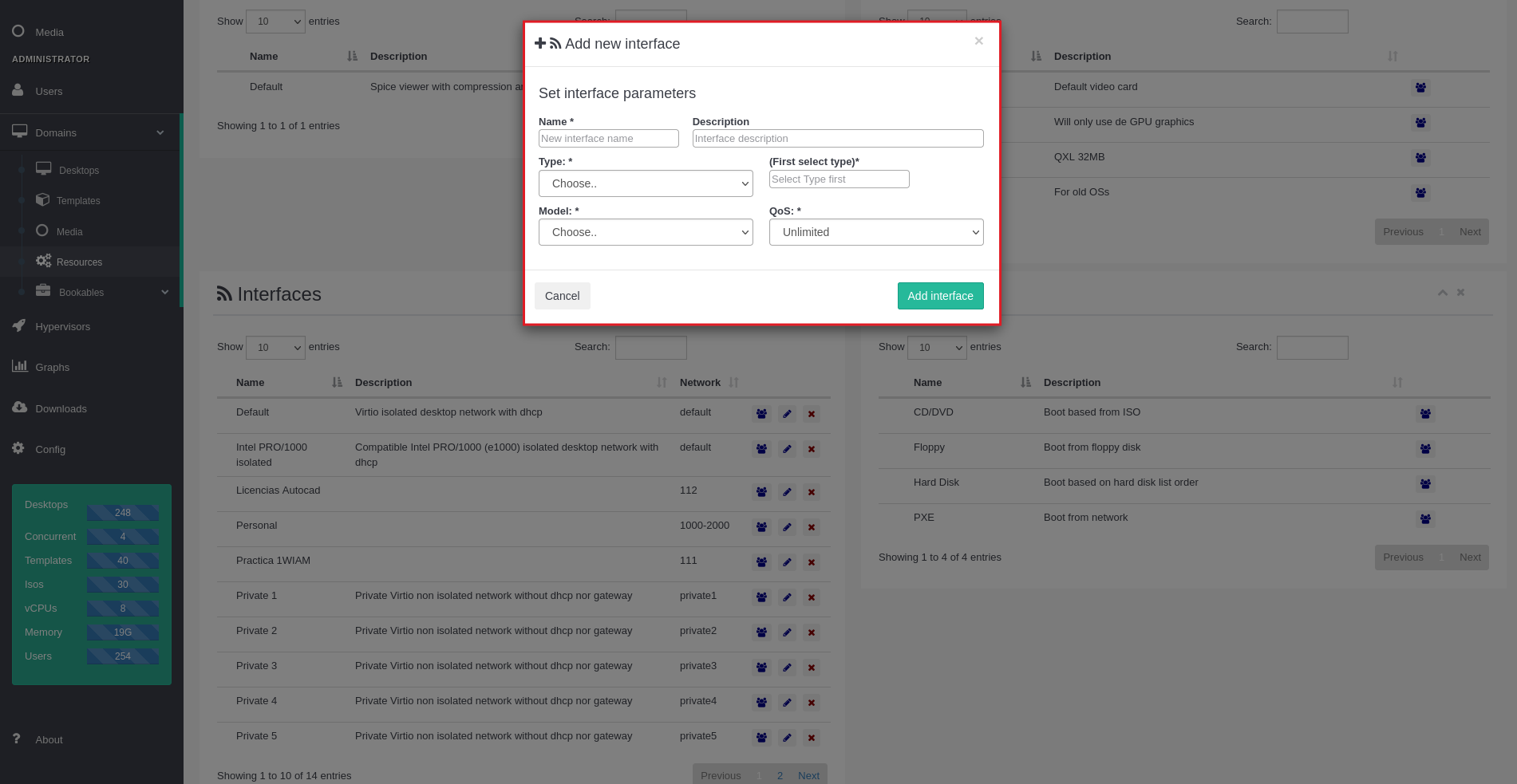
Fill in the Add new interface form:
- Name and Description.
- Type: interface type.
- Bridge: links through a bridge to a server network, for example a VLAN of a trunk. For the hypervisor to see the trunk interface, set
HYPERVISOR_HOST_TRUNK_INTERFACEandHYPERVISOR_STATIC_VLANSin the hypervisor'sisardvdi.cfg(more information in the VLAN section of Hypervisors). The detected VLANs are created automatically as «Vlan XXX» interfaces, which initially only administrators can use. - Network: libvirt network.
- OpenVSwitch: network on the hypervisor's Open vSwitch bridge.
- Personal: the user's personal network, isolated from those of other users (more information in Private and personal networks).
- Bridge: links through a bridge to a server network, for example a VLAN of a trunk. For the hypervisor to see the trunk interface, set
- The next field changes depending on the chosen type (bridge, network or VLAN name).
- Model: network card model. virtio is the most efficient, because it is paravirtualized. rtl8931 (the QEMU model is rtl8139) and e1000 emulate real cards: they are slower, but they work on old operating systems without specific drivers. With a modern operating system, virtio is recommended.
- QoS: network QoS profile (more information in the "Network QoS" section) applied to the interface.
-
Click Add interface.
Users only see in the desktop's Networks field the interfaces they are allowed. The wireguard interface is essential for the RDP viewers and for the user's VPN.
Network laboratory options
The form of the OpenVSwitch and Personal interfaces (except VLAN 4095, which is the infrastructure one) has the Network laboratory options block. These are options for network labs that run inside a desktop, such as GNS3, EVE-NG, Packet Tracer in real mode or nested virtual machines with a bridge (more information in GNS3). Each option applies from the desktop's next start; desktops that are already running keep the rules they had when they started.
| Option | What it does |
|---|---|
| Allow MAC spoofing | Accepts frames with arbitrary source MAC addresses, for example those of the nodes of a nested lab. It still blocks IsardVDI desktop MACs (52:54:00:…) other than the desktop's own, so nested nodes must use another prefix, such as 02:…. |
| Tunnel STP / BPDU (cross-desktop spanning tree) | Passes STP BPDU packets between desktops on the same VLAN, also across hypervisors, so that virtual switches on several desktops can elect a root bridge. It does not affect the STP of the hypervisor or of the physical network. It is recommended that the VLAN belong to a single lab. |
| Raise broadcast rate limit | Raises the per-port broadcast limit from 10 to 1,000 packets per second (burst from 50 to 2,000). |
| Raise multicast rate limit | Raises the per-port multicast limit from 500 to 5,000 packets per second (burst from 750 to 10,000). |
| Limit unicast rate | Limits the packets per second of each desktop's unicast traffic, to prevent a single desktop from saturating the overlay network with small packets. It is disabled by default. Set Rate (pps) (from 1,000 to 1,000,000, 10,000 by default) and Burst (20,000 by default; it must be equal to or greater than the rate). |
Reduced security
With Allow MAC spoofing, within the same VLAN a user can spoof non-IsardVDI MAC addresses and listen to traffic. Use it only on networks dedicated to labs. The interfaces table shows a tag on those that have lab options enabled.
Videos
This block defines the desktops' video formats.
To add one, click the Add new button of the Videos block.
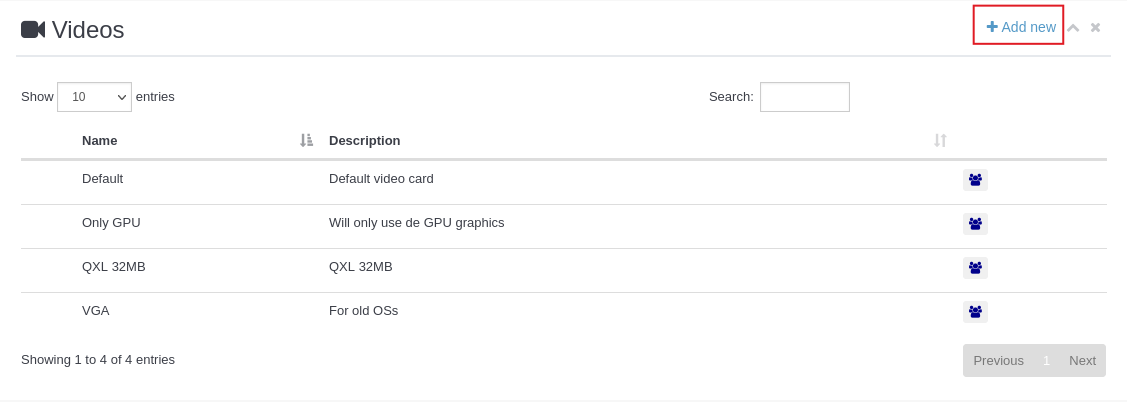
Next, fill in the form:
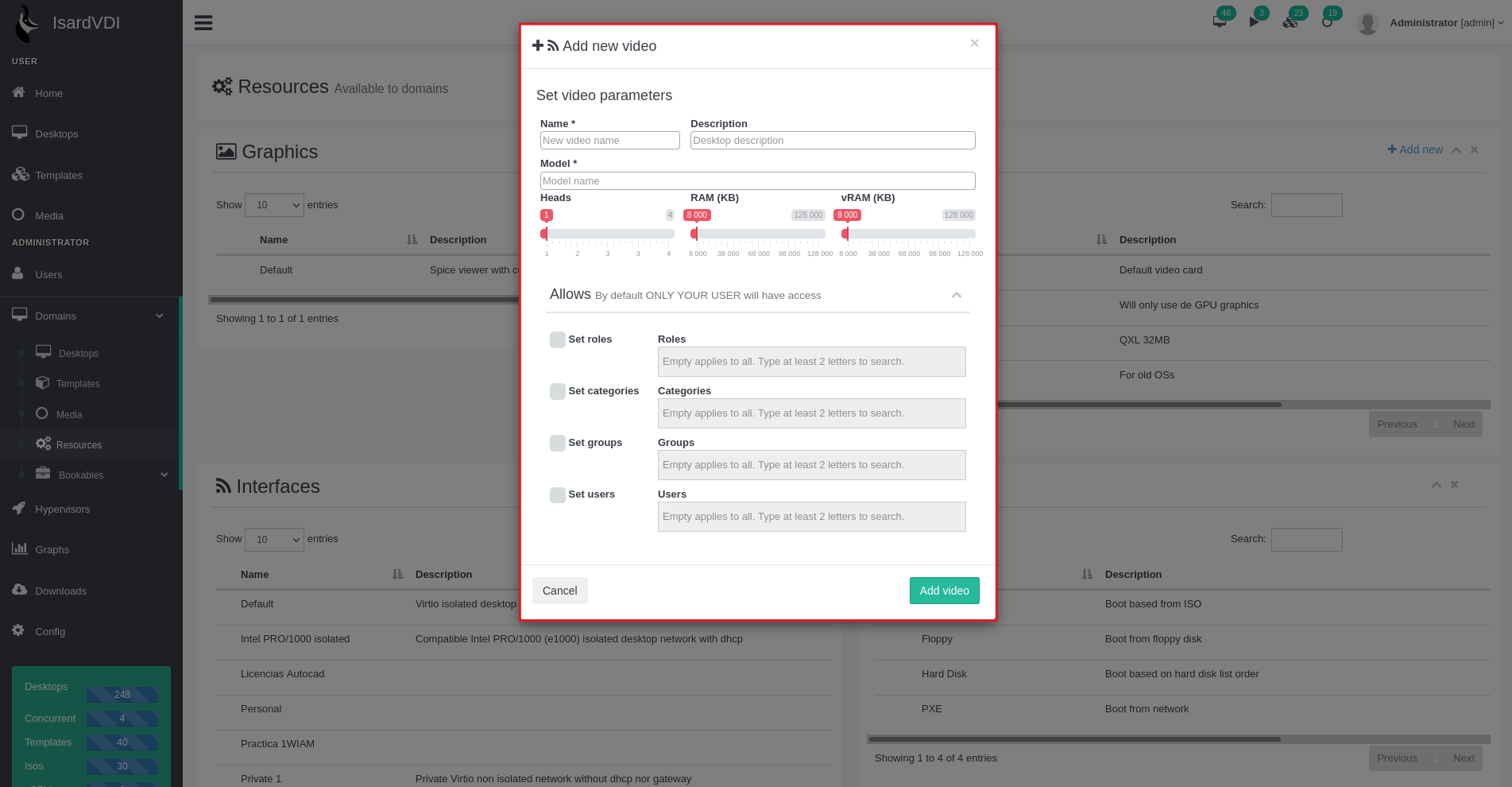
Users can only choose the videos they are allowed. Users who need a vGPU must be allowed the video it uses (more information in Setting up a GPU).
Boot methods
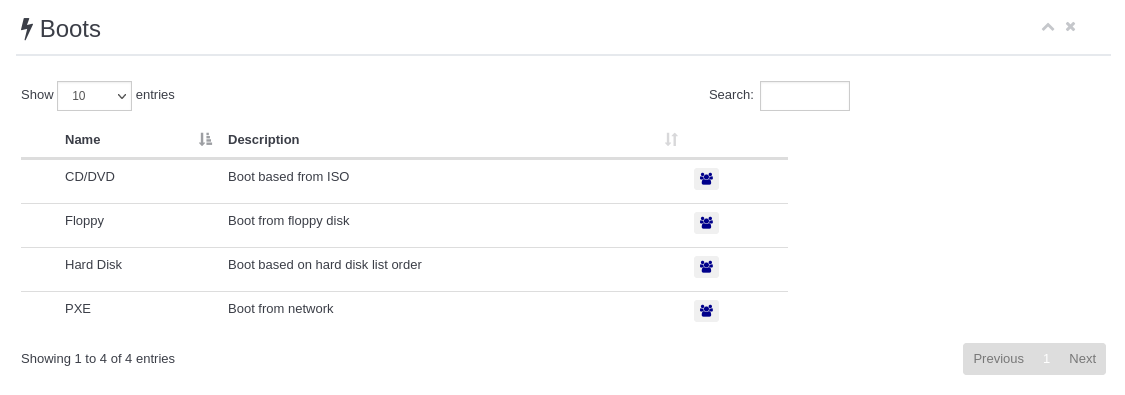
This block holds the ways to boot a desktop (hard disk, CD/DVD, network…). New ones cannot be added.
Note
If a user is not allowed the CD/DVD boot method, they cannot boot from an ISO image nor, by default, mount one on their desktop. ISOs must also be shared with them in Media.
To grant these permissions, click the icon.
Network QoS
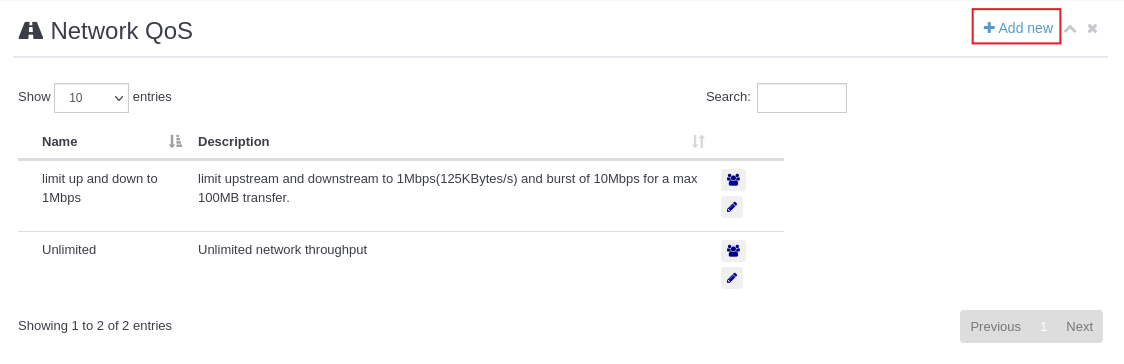
This block configures the traffic limits that can be assigned to network interfaces.
To add one:
- Click the Add new button of the Network QoS block .
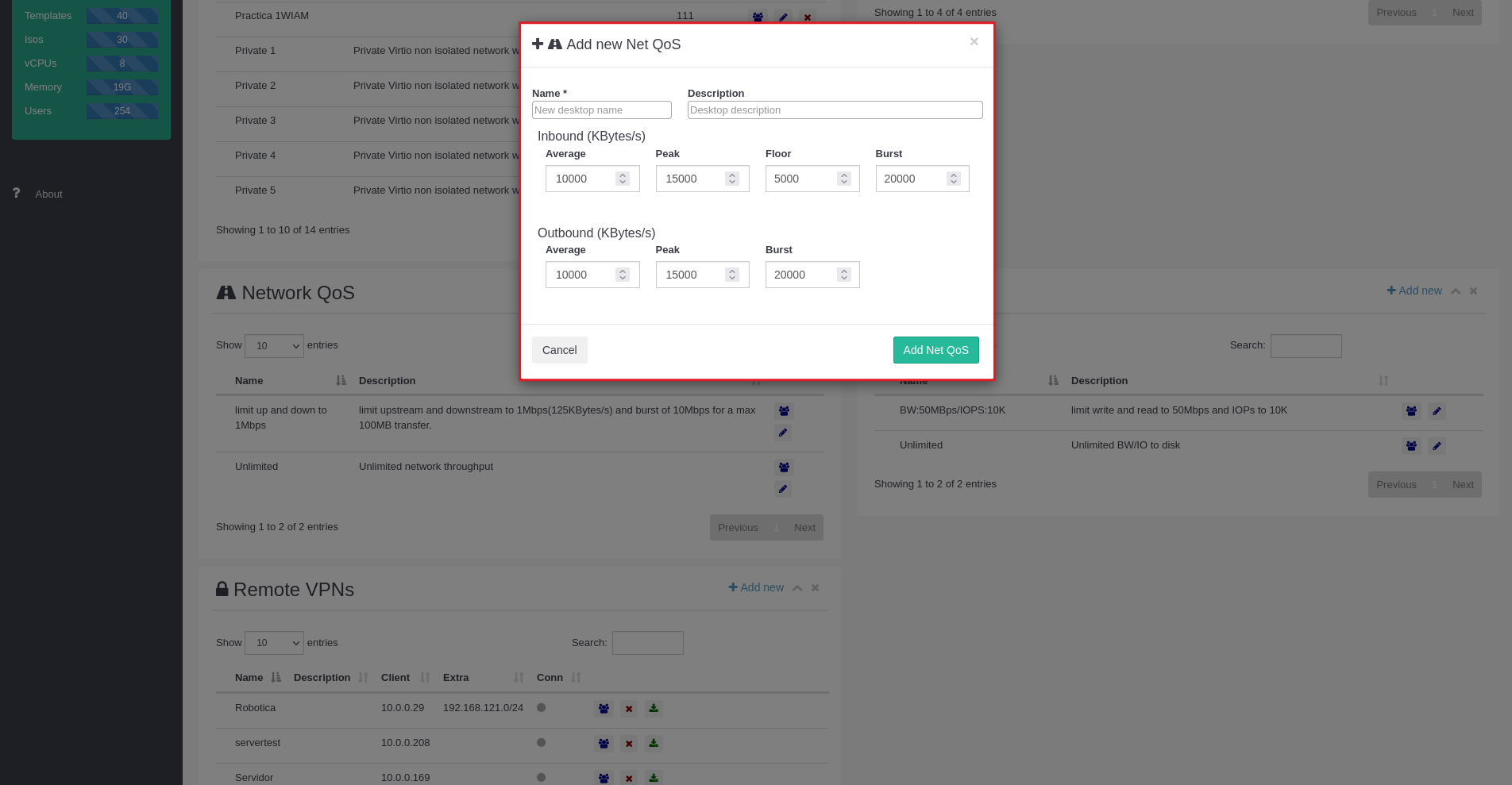
- Fill in the Add new Net QoS form, with values in KB/s:
- Inbound: Average, Peak (maximum), Floor (guaranteed minimum) and Burst. Floor only works on Network interfaces, not on Bridge or OpenVSwitch.
- Outbound: Average, Peak and Burst. The Linux kernel currently ignores the outbound Peak value.
Disk QoS
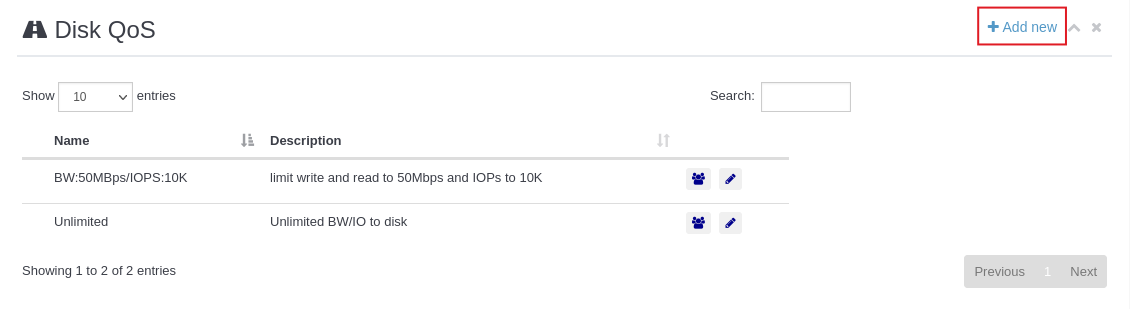
This block configures the disks' performance limits. The profiles can be assigned to storage pools.
To add a profile:
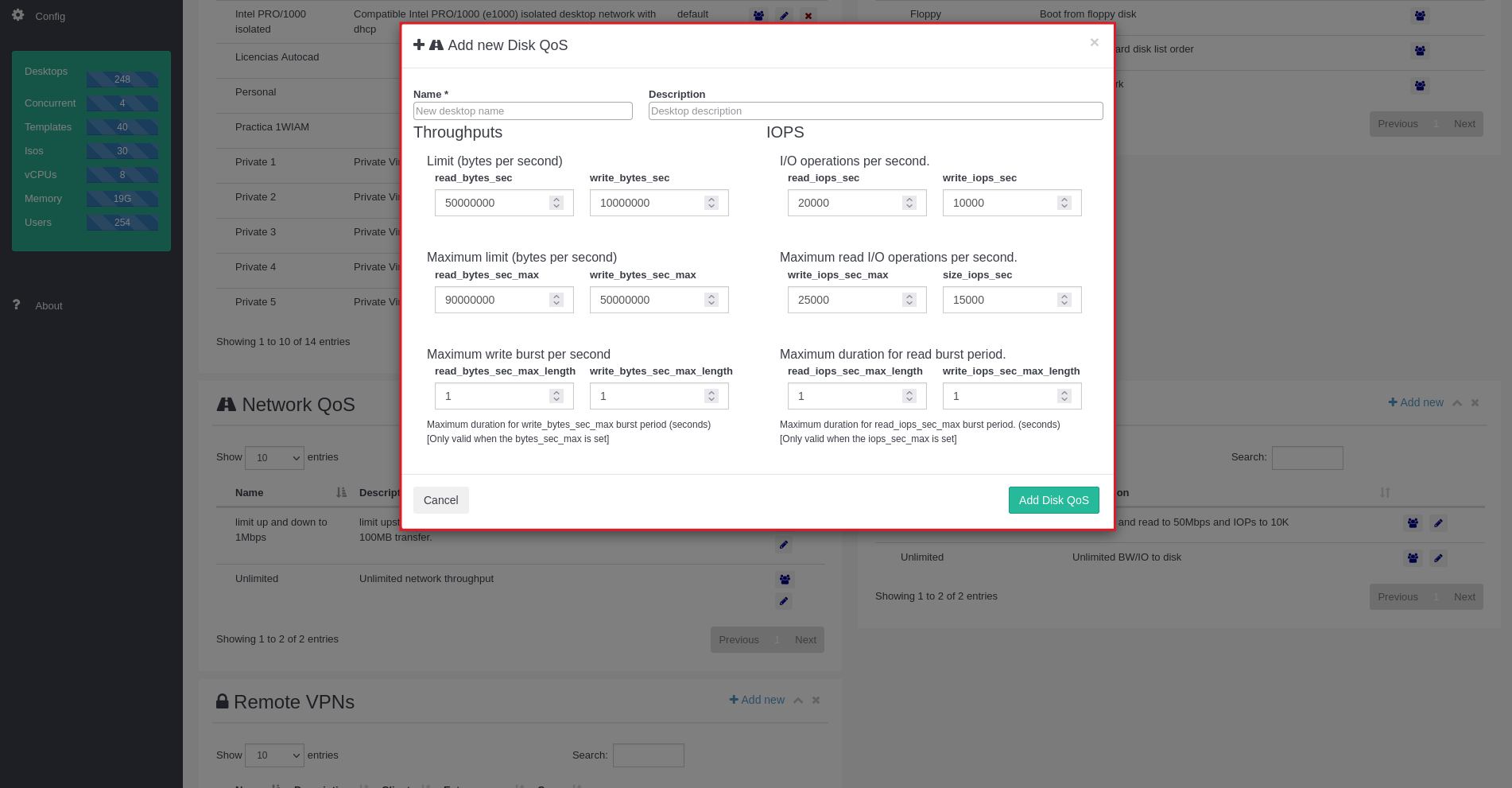
- Click the Add new button of the Disk QoS block .
- Fill in the form with the desired parameters.
Remote VPNs
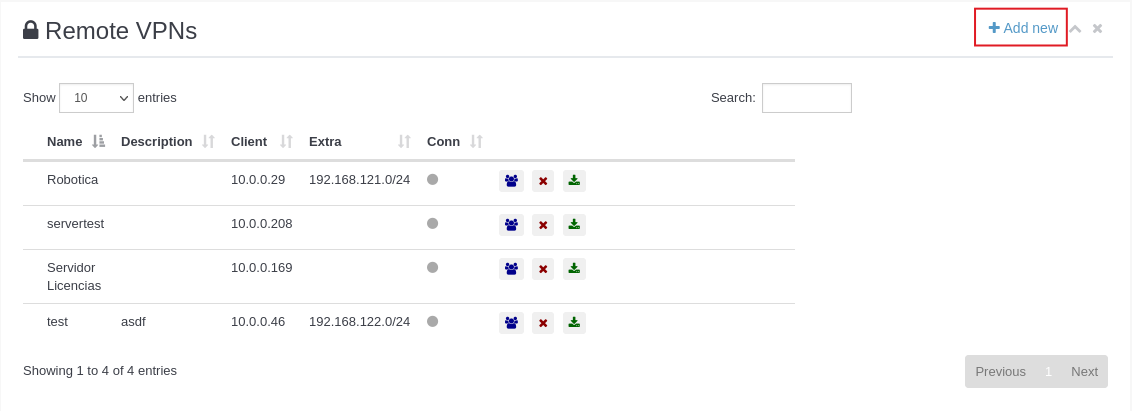
This block lets you add remote networks to desktops.
To add one:
-
Click the Add new button of the Remote VPNs block
.
-
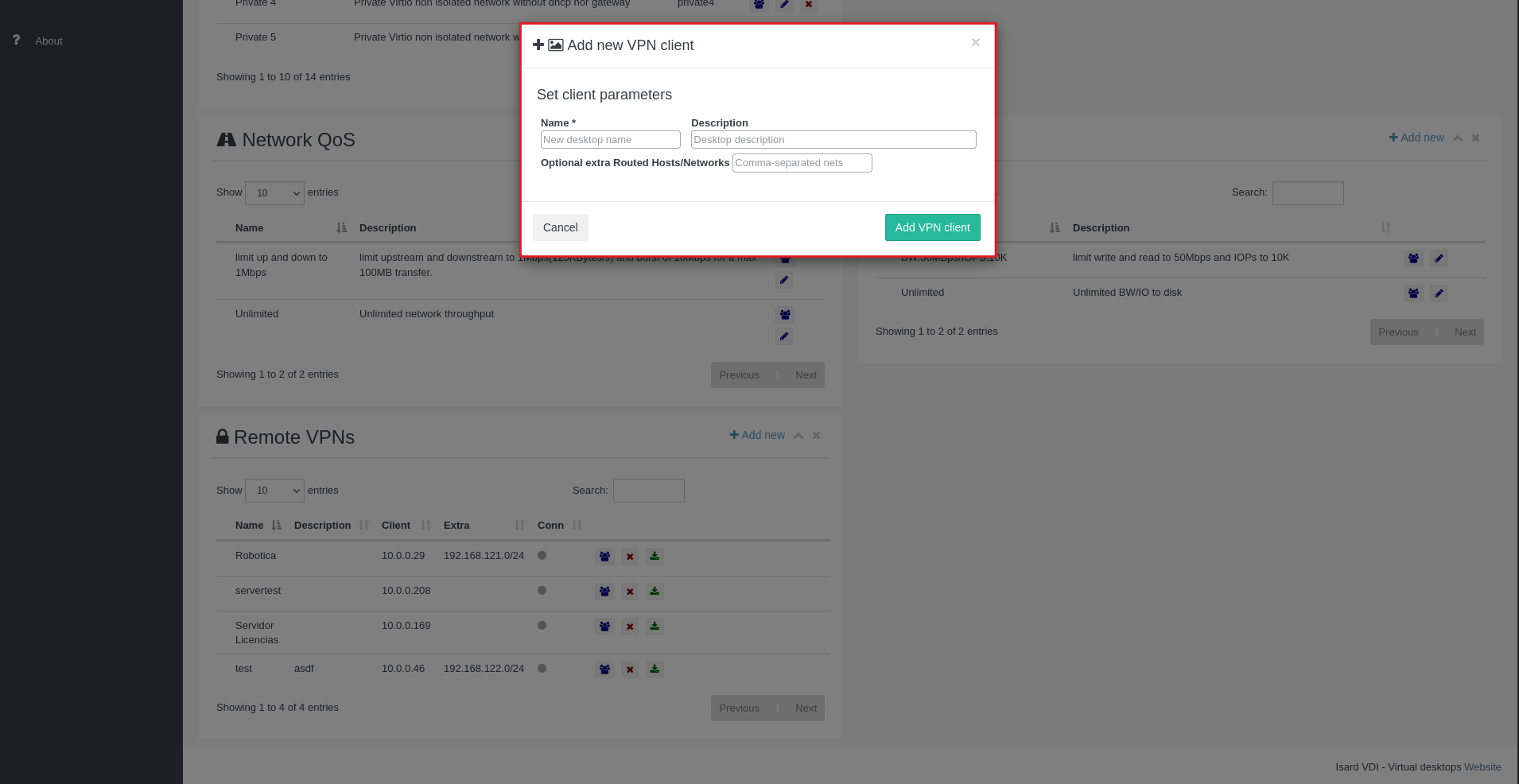
Fill in the form with the remote network's data.
XML install templates
The XML Install Templates (virt_install) block contains the hardware definitions used when creating a desktop from a media (more information in Media).
Bastion
The bastion has its own section: Bastion.